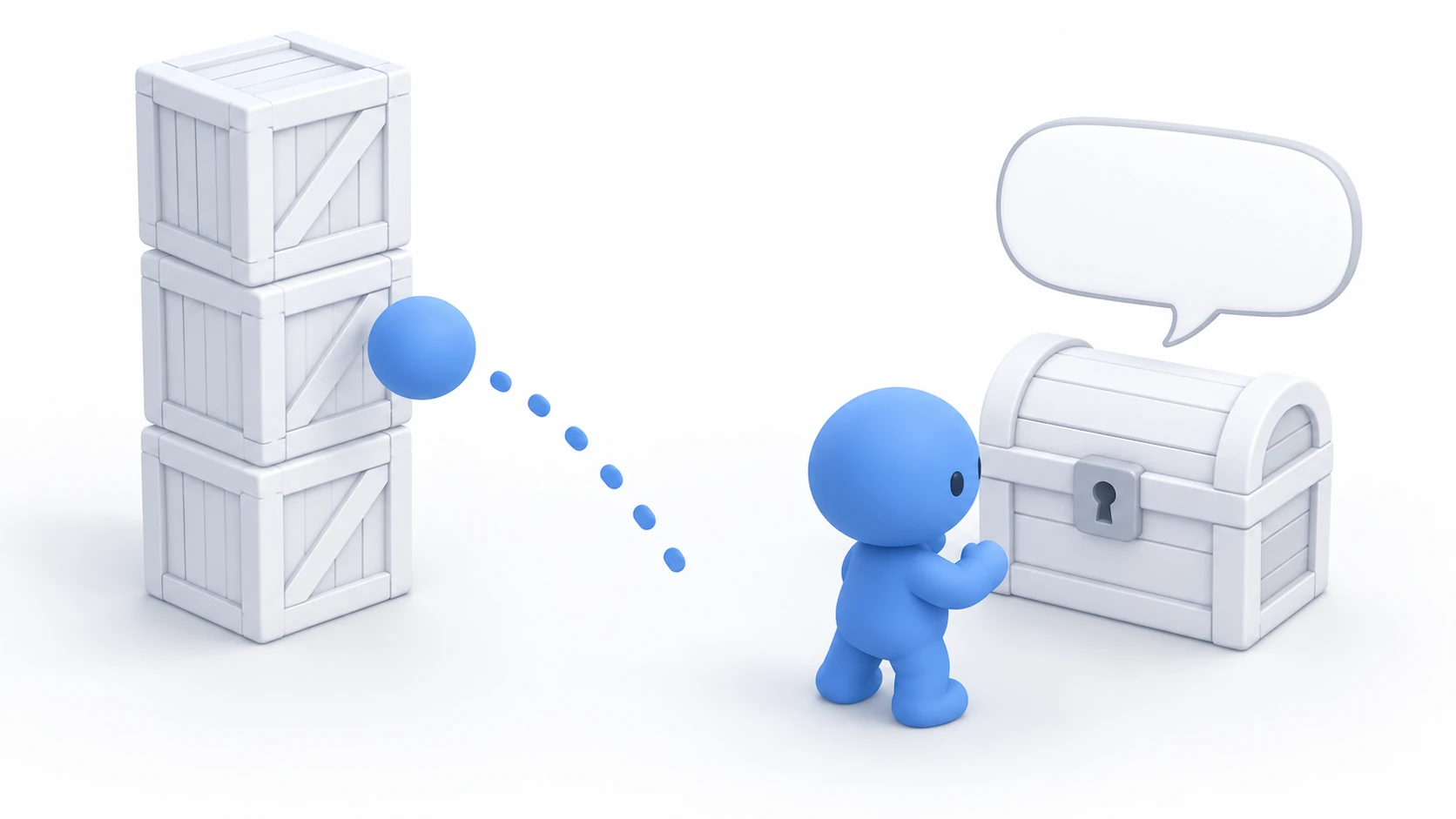
In a third-person game, you attach the camera behind the character, look around with the mouse, and keep it from going into walls when you're near them. To aim, you move it over the shoulder with right-click. In Godot, you build this by putting a Camera3D at the end of a SpringArm3D, which shrinks when it hits a wall.
Change the camera's h_offset (a value that shifts only the rendered image sideways) to put it over the shoulder, and near walls the screen goes inside the wall. Widen the look-up angle as far as the look-down angle, and the camera moves in toward the feet until the character's body fills the screen.
This article explains how to decide look-around sensitivity and the up-down limits, and build a third-person camera that moves in over the shoulder on right-click.
What You'll Learn
- Splitting the camera into a mount, an arm, and an eye, and the role each takes on
- How to decide mouse sensitivity as "how many degrees one pixel turns"
- Why the look-up limit should be narrower than the look-down limit
- How to move in over the shoulder without getting buried in walls
Tested with: Godot 4.7
Assembling the camera (mount, arm, eye)
A third-person camera is made by chaining three nodes vertically.
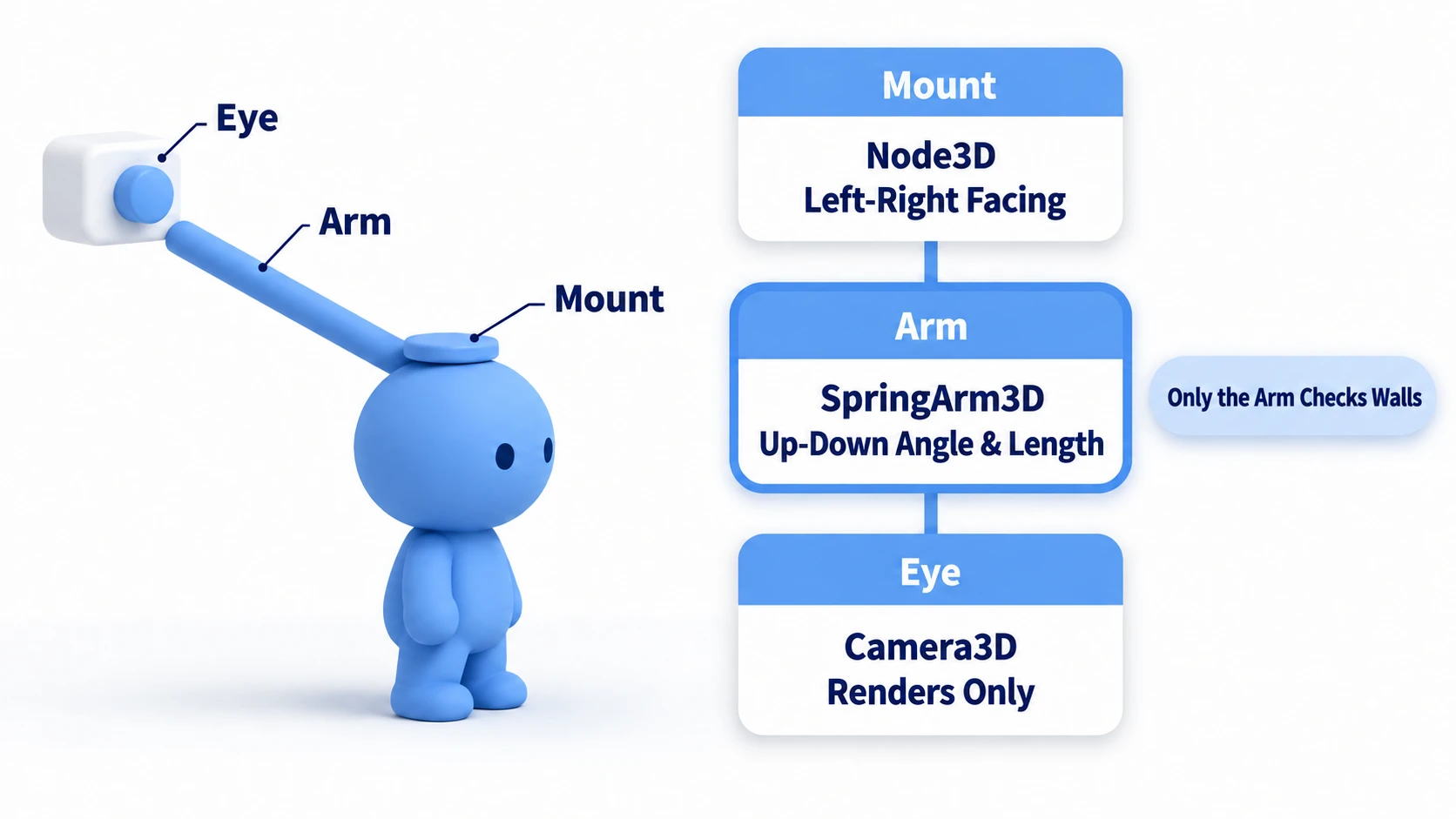
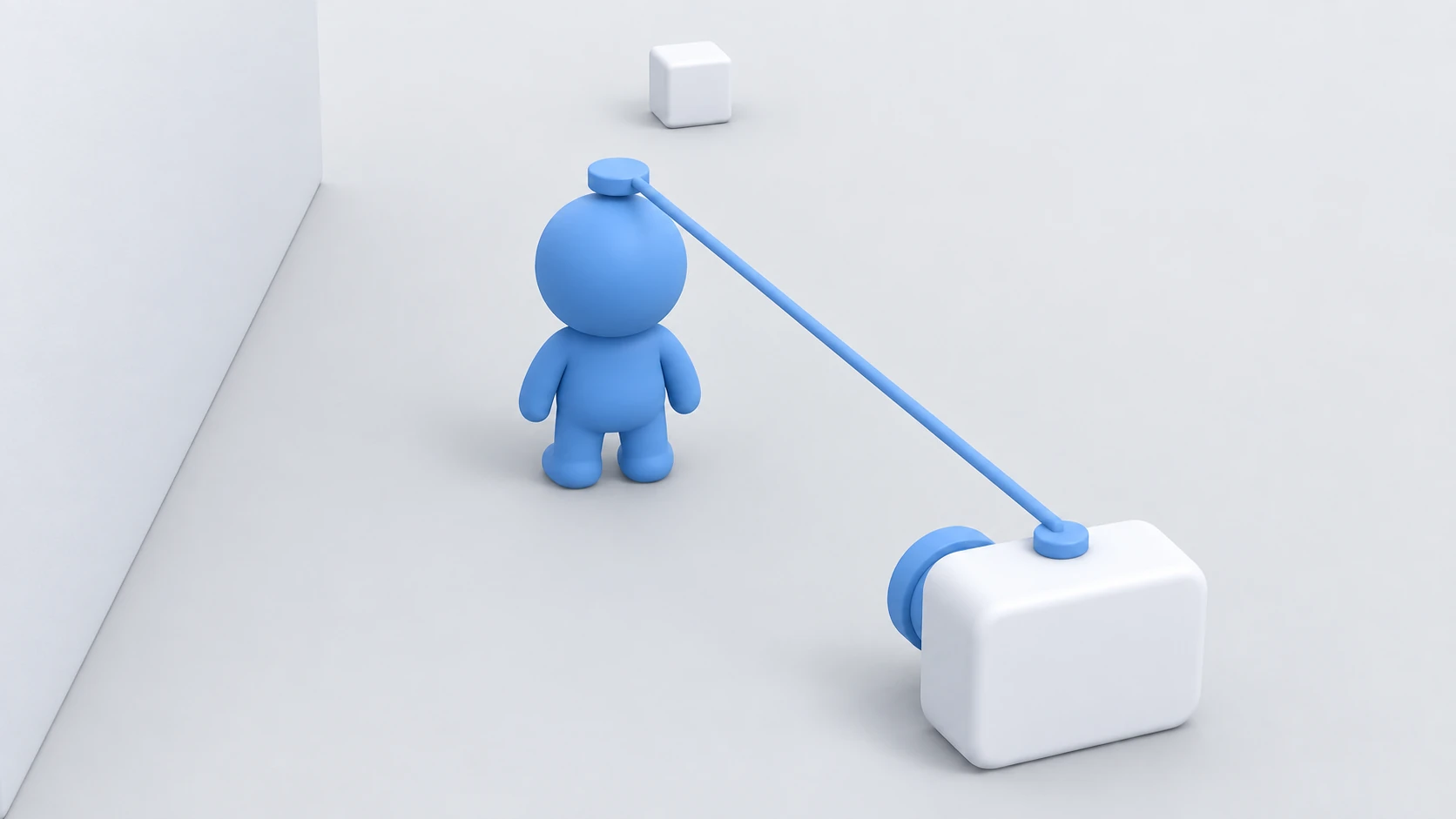
- Mount (Node3D): The center of rotation, placed around the character's head. It holds only left-right facing
- Arm (SpringArm3D): Extends backward from the mount. It holds the up-down angle and length, and shrinks when there's a wall in the way
- Eye (Camera3D): Renders the screen at the arm's end. It doesn't move on its own
You could make the orientation by rotating a single SpringArm3D both left-right and up-down. Splitting them lets you handle up-down limits and the over-the-shoulder shift separately from left-right facing. When making the character walk, if you build it so the body doesn't rotate, you can take the forward direction from the mount's left-right angle.
What matters in this setup is that only the arm checks for walls. The arm extends along its own +Z, stops just short of any wall it hits, and repositions its child camera at the tip. This repositioning happens on every physics update (60 times per second by default), so even if you change the camera's position yourself, it goes back to the arm's end on the next physics update. When you want to move the camera, move the arm.
In other engines: It's assembled much like Unity's Cinemachine 3rd Person Follow (Camera Distance and Shoulder Offset) or Unreal Engine's Spring Arm (Target Arm Length and Socket Offset). Where UE's Socket Offset shifts the arm's end, in Godot you shift the arm's base.
Mouse sensitivity (screen_relative)
To look around with the mouse, receive mouse movement in _unhandled_input() (a function that only receives input the UI didn't use), multiply the amount moved by a sensitivity, and rotate.
if event is InputEventMouseMotion:
	rotation.y -= event.screen_relative.x * SENSITIVITY       # left-right on the mount
	arm.rotation.x -= event.screen_relative.y * SENSITIVITY   # up-down on the arm (limits in the next section)
screen_relative is how many pixels the mouse moved on the screen. The similarly named relative changes with the screen's scale factor (decided by Stretch in Project Settings). If the scale changes, such as going fullscreen, even the speed of turning changes. screen_relative is available from Godot 4.3.
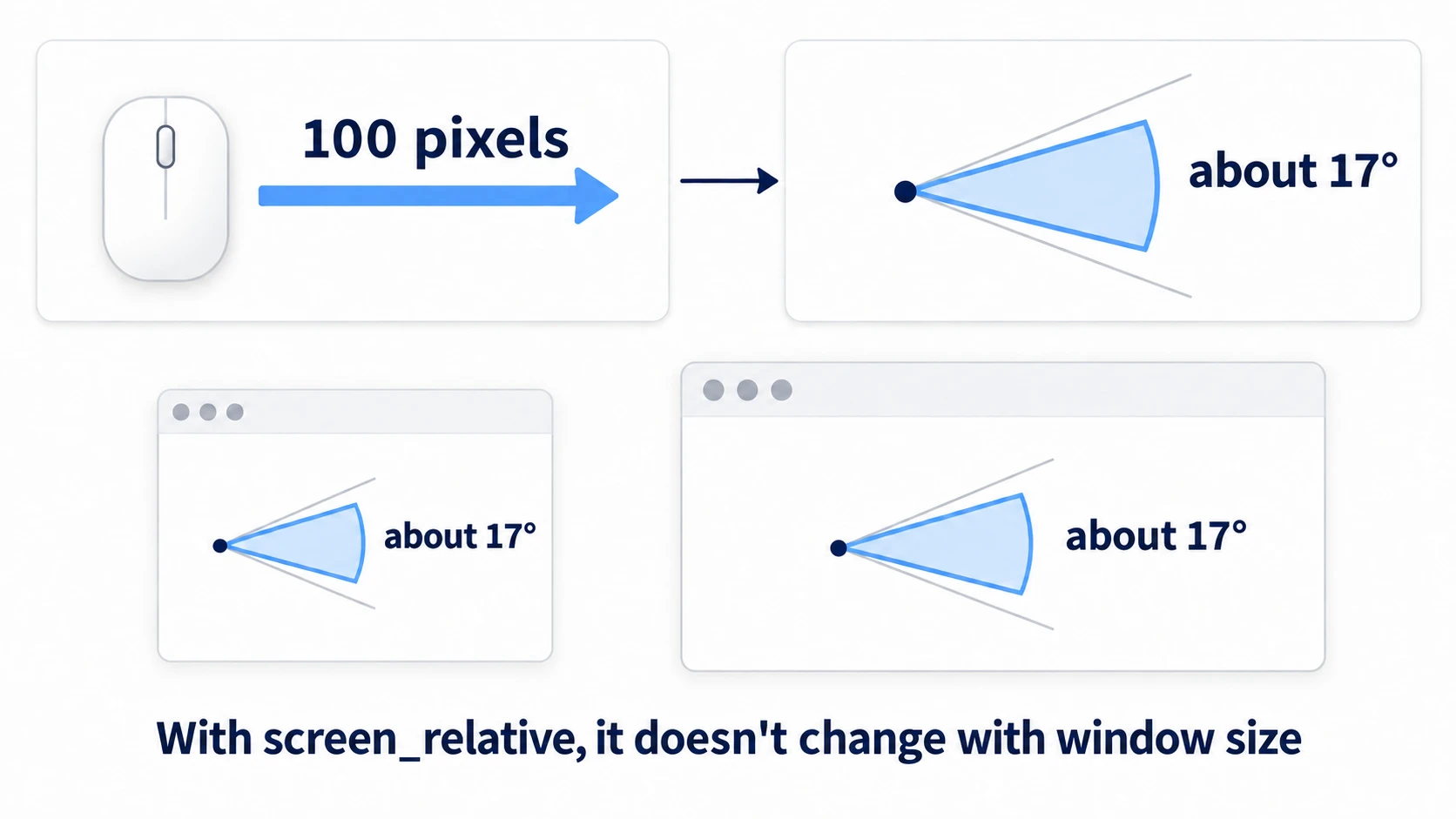
The sensitivity's unit is radians per pixel. At 0.003, one pixel is about 0.17 degrees, and moving the mouse 100 pixels turns about 17 degrees. If it feels too fast, lower the number.
Don't multiply this number by delta (the seconds since the previous frame). The mouse value is the amount moved since the previous event itself. Multiplying by delta makes the turning speed change with the frame rate.
Up-down angle limits
The up-down angle is decided by the arm's rotation.x. Increase the value, and the camera drops and looks up; decrease it, and the camera rises and looks down.
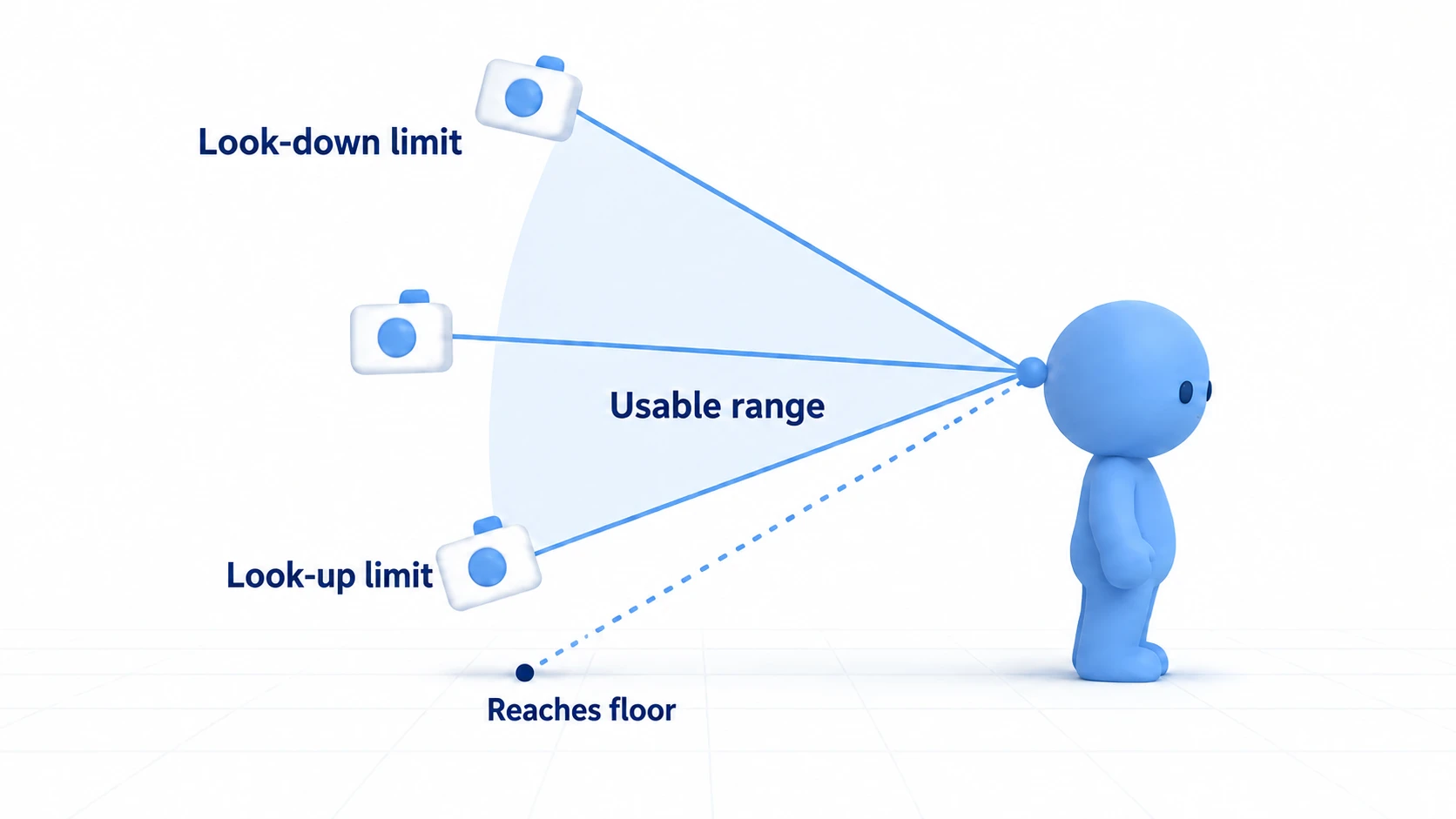
The trouble is looking up. With the mount 1.6 meters above the floor and a 4-meter arm, the arm's end reaches the floor at about 23 degrees of looking up. When the arm hits the floor, it shrinks, and the camera slides along the floor toward the character's feet. In the end, the character's body fills the screen.
Looking down only lifts the camera into the sky, so it can be wide. With this article's numbers, looking down stops at 60 degrees, and looking up stops at 20 degrees, just before reaching the floor.
arm.rotation.x = clampf(arm.rotation.x, -PITCH_DOWN, PITCH_UP)
clampf() is a function that keeps a value between a lower and upper limit. rotation.x is in radians, so PITCH_DOWN and PITCH_UP should be values converted from degrees, like deg_to_rad(60.0). The Inspector's Rotation is shown in degrees, but the value in code is in radians. If you change the mount's height or the arm's length, revisit the look-up limit along with them.
How SpringArm3D checks for walls
Leave SpringArm3D's Shape (the shape it uses to check for walls) empty and put a Camera3D as its direct child, and the arm checks for walls not as a point but in the shape of a small pyramid. It's the shape enclosing the camera's position and the four corners of the plane where drawing starts (just in front of the camera). Compared to checking with a point, the screen's edges are less likely to poke into walls.
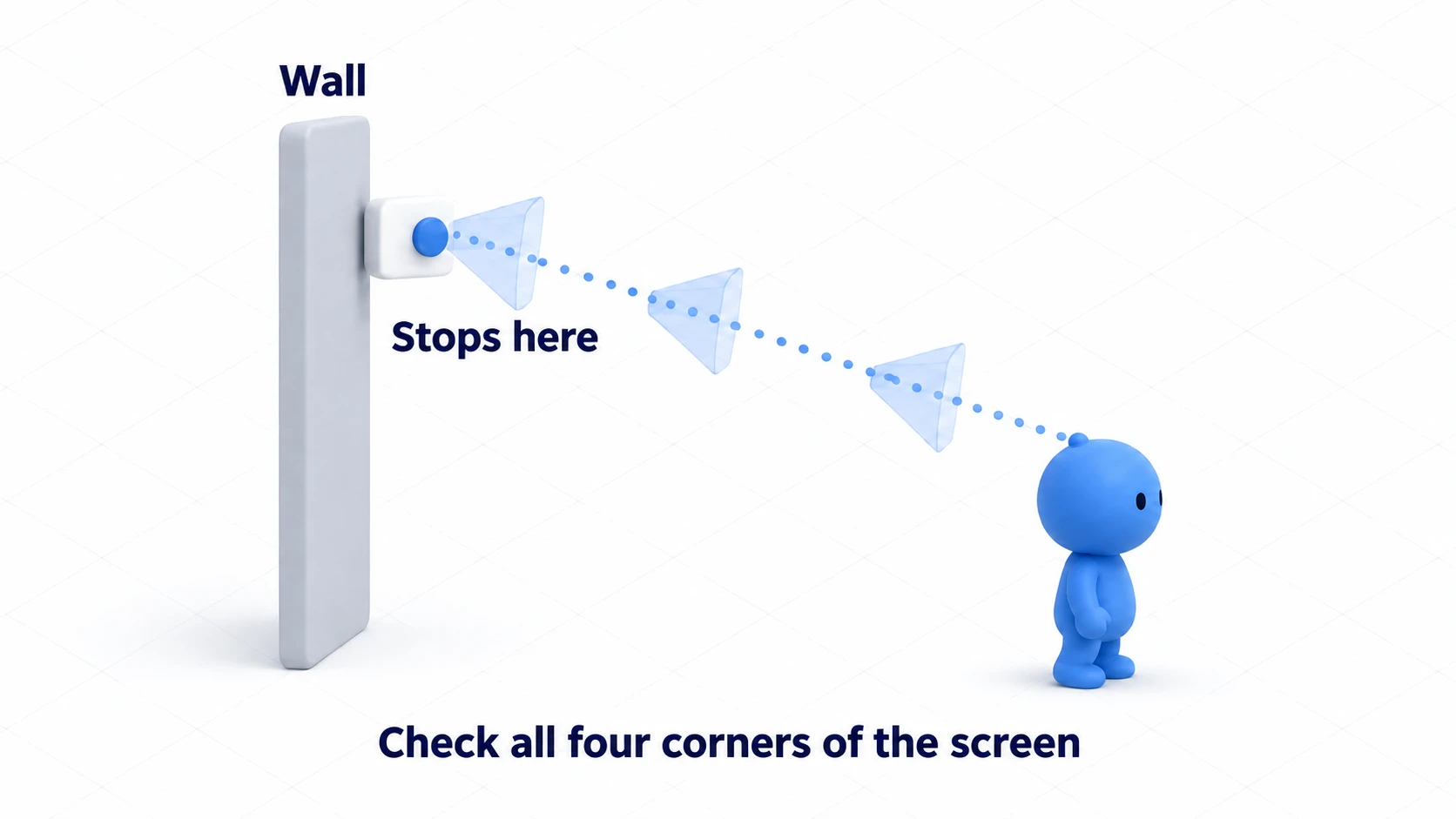
There are two settings to look at.
- Spring Length: The arm's length when there's no wall. For third person, start around
4 - Collision Mask: The layers the arm checks against. The default is layer 1, so if you put walls' Collision Layer (the layer they're on) on something other than 1, check the same number here too
The Inspector also has Margin (the distance to pull back from the hit point), but it isn't used in this setup, with a Camera3D as the child. Changing the value doesn't change where it stops.
The arm also treats your own body as a wall. Depending on the base's position and angle, the arm can hit your own body and shrink. So pass the character's RID (a number that points to that body inside the physics engine, obtained with CharacterBody3D's get_rid()) to add_excluded_object() to exclude your own body.
The most common reason the screen goes into walls is putting the camera somewhere the arm doesn't check. That becomes a problem in the over-the-shoulder section next.
How to shift over the shoulder
To move in over the shoulder, shift the camera to the right so the character sits on the left of the screen. There are two ways to shift it, and they give different results near walls.
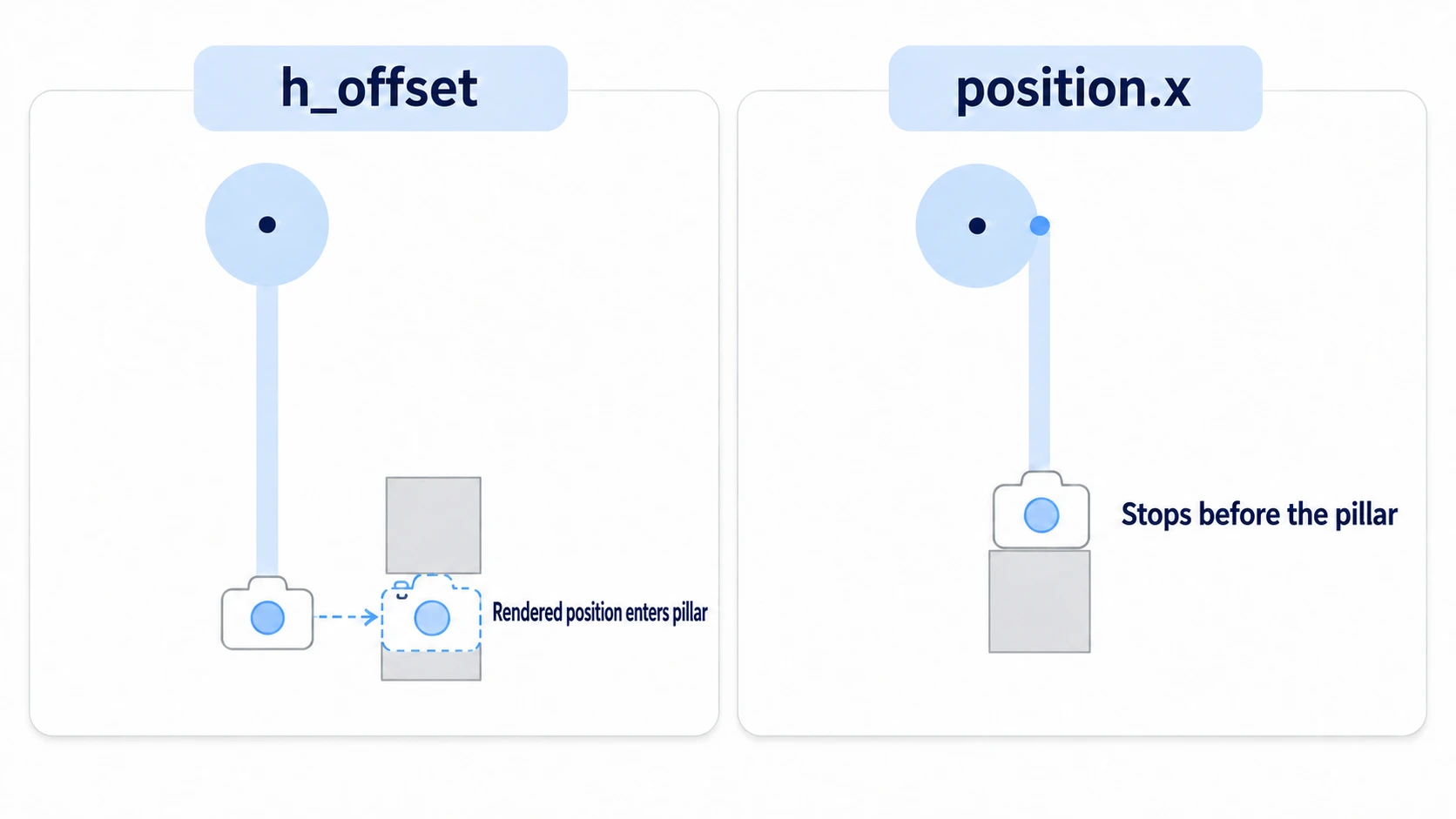
- Change the camera's
h_offset: Only the rendered position shifts sideways. The arm is checking the path extending from the original base, so if there's a pillar behind on the right, the screen goes into the pillar by the amount shifted - Change the arm's
position.x: The arm's whole base shifts sideways. The path that checks for walls moves along with it, so it stops before the pillar
Shift the arm's base. Shift it just enough that the center of the screen clears the character's body. For a character with a radius of 0.4, make it 0.5. Too small, and what you're aiming at is hidden behind the character's body.
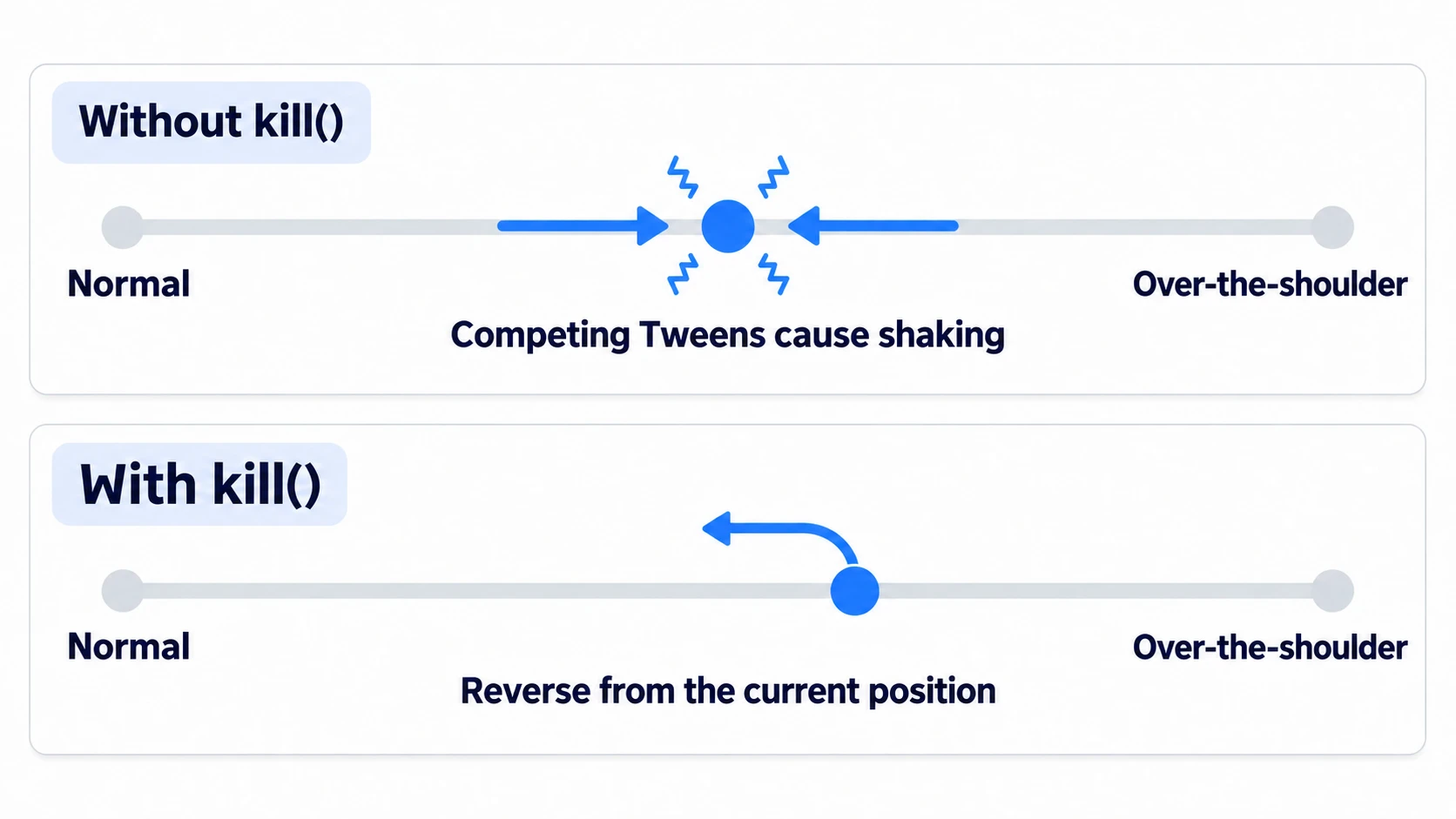
When moving in, shorten the arm too. Drive the length and the shift together with a Tween (a feature that changes a value over time), and it glides in smoothly in 0.2 seconds.
if aim_tween != null and aim_tween.is_valid():
	aim_tween.kill()          # stop the Tween that's partway through
aim_tween = create_tween().set_parallel()   # run the steps below at the same time
aim_tween.tween_property(arm, "spring_length", ARM_AIM if aiming else ARM_NORMAL, AIM_TIME)
aim_tween.tween_property(arm, "position:x", SHOULDER if aiming else 0.0, AIM_TIME)   # only x, to SHOULDER if aiming, otherwise 0
Press right-click again quickly, and the Tween going back and the Tween moving in fight over the same values, making the camera shake. Before creating a new Tween, stop the previous one with kill(). The next Tween starts from where it stopped, so turning back partway doesn't make the position jump.
Hands-On: A Third-Person Camera That Moves In Over the Shoulder on Right-Click
Shooting in a third-person shooter, aiming a bow in an action-adventure, an exploration game where you go around taking photos: a camera that moves in over the shoulder only while aiming is built the same way in all of them. You'll build only the camera, without moving the character. Making it walk is covered in CharacterBody3D Basics.
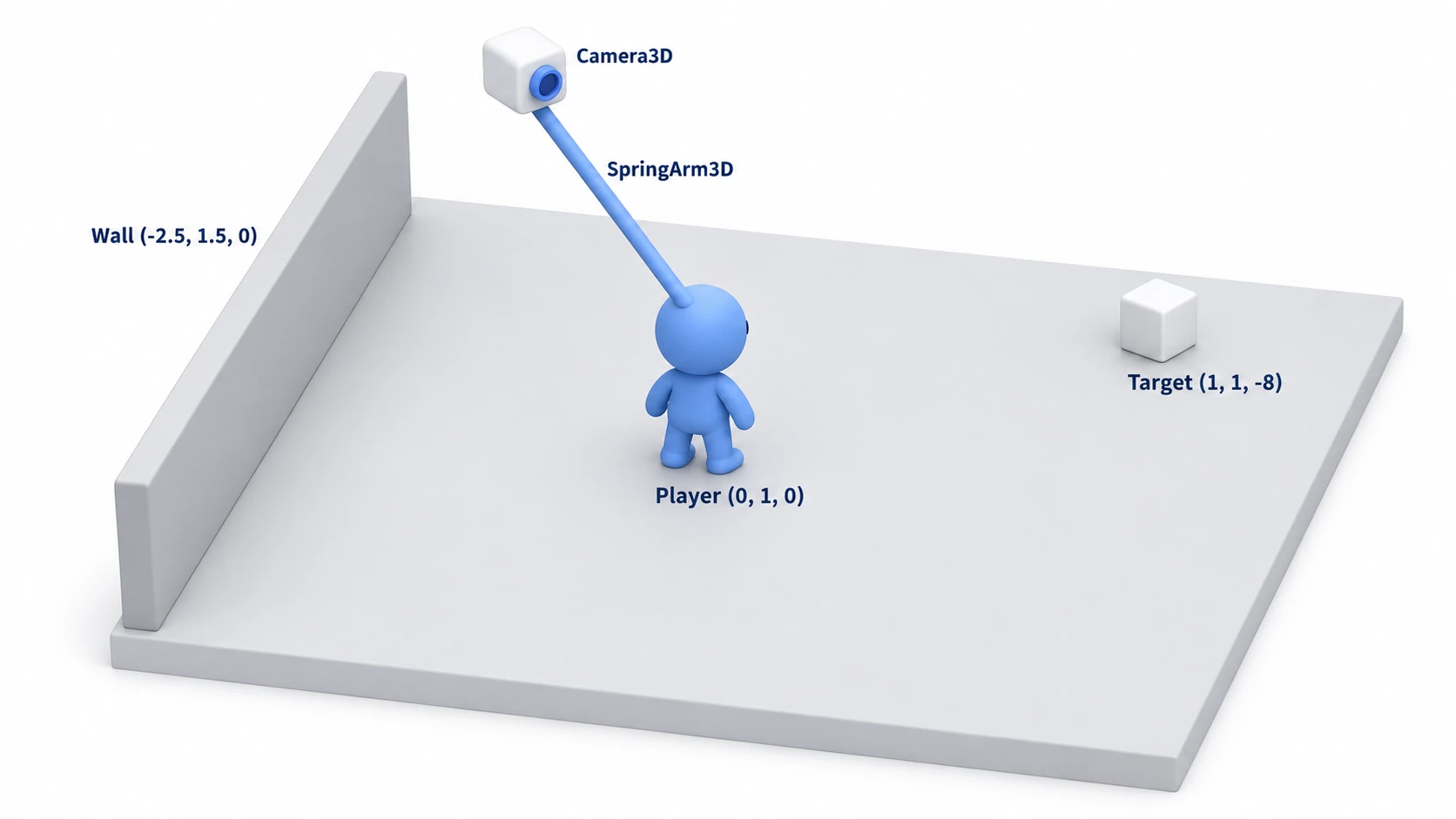
① What to place
Create a new 3D scene, make the root a Node3D, and name it Main. Place the sky and sun from the "⋮" to the right of the sun and environment preview buttons in the toolbar above the 3D view. Open it and press "Add Sun to Scene," then open it again and press "Add Environment to Scene." The same sun and sky as the editor preview go into the scene as a DirectionalLight3D and a WorldEnvironment. For the rest, place the following nodes.
| Node | Type | Position | Settings |
|---|---|---|---|
| Ground | StaticBody3D | (0, -0.5, 0) | Children: a CollisionShape3D with BoxShape3D (20, 1, 20), and a MeshInstance3D with a BoxMesh of the same size |
| Wall | StaticBody3D | (-2.5, 1.5, 0) | Children: a CollisionShape3D with BoxShape3D (0.5, 3, 6), and a MeshInstance3D with a BoxMesh of the same size |
| Target | MeshInstance3D | (1, 1, -8) | BoxMesh (1, 1, 1). The target to aim at |
| Player | CharacterBody3D | (0, 1, 0) | Children: a CollisionShape3D with CapsuleShape3D (height 2, radius 0.4), and a MeshInstance3D with a CapsuleMesh of the same size |
Player/CameraPivot | Node3D | (0, 0.6, 0) | The mount. Attach the script below |
Player/CameraPivot/SpringArm3D | SpringArm3D | (0, 0, 0) | Spring Length 4, Rotation X at -15 |
Player/CameraPivot/SpringArm3D/Camera3D | Camera3D | (0, 0, 0) | As is |
Add aim to Project Settings' "Input Map," and assign the right mouse button.
② Put it together
Attach the following script to CameraPivot.
# camera_rig.gd (attach to CameraPivot)
extends Node3D

const SENSITIVITY := 0.003             # rotation per pixel (radians). About 17 degrees for 100 pixels
const PITCH_DOWN := deg_to_rad(60.0)   # look-down limit
const PITCH_UP := deg_to_rad(20.0)     # look-up limit. Just short of about 23 degrees, where the arm's end reaches the floor
const ARM_NORMAL := 4.0
const ARM_AIM := 2.0
const SHOULDER := 0.5                  # shift toward the right shoulder. Enough for the screen's center to clear the body (radius 0.4)
const AIM_TIME := 0.2

@onready var player := get_parent() as CharacterBody3D
@onready var arm: SpringArm3D = $SpringArm3D
var aim_tween: Tween

func _ready() -> void:
	arm.add_excluded_object(player.get_rid())    # keep the arm from shrinking against your own body
	Input.mouse_mode = Input.MOUSE_MODE_CAPTURED   # hide the cursor and lock it inside the screen

func _unhandled_input(event: InputEvent) -> void:
	if Input.mouse_mode != Input.MOUSE_MODE_CAPTURED:
		if event.is_action_released("aim"):
			_set_aiming(false)                             # restore even if released while not captured
		if event is InputEventMouseButton and event.pressed:
			Input.mouse_mode = Input.MOUSE_MODE_CAPTURED   # recapture when the screen is clicked
		return

	if event is InputEventMouseMotion:
		rotation.y -= event.screen_relative.x * SENSITIVITY                   # left-right on the mount
		arm.rotation.x = clampf(arm.rotation.x - event.screen_relative.y * SENSITIVITY,
			-PITCH_DOWN, PITCH_UP)                                             # up-down on the arm
	elif event.is_action_pressed("aim"):
		_set_aiming(true)
	elif event.is_action_released("aim"):
		_set_aiming(false)
	elif event.is_action_pressed("ui_cancel"):
		_set_aiming(false)                                  # restore even if Esc is pressed while aiming
		Input.mouse_mode = Input.MOUSE_MODE_VISIBLE         # show the cursor with Esc

func _set_aiming(aiming: bool) -> void:
	if aim_tween != null and aim_tween.is_valid():
		aim_tween.kill()                                    # stop the Tween that's partway through
	aim_tween = create_tween().set_parallel()   # run the steps below at the same time
	aim_tween.tween_property(arm, "spring_length", ARM_AIM if aiming else ARM_NORMAL, AIM_TIME)
	aim_tween.tween_property(arm, "position:x", SHOULDER if aiming else 0.0, AIM_TIME)   # only x, to SHOULDER if aiming, otherwise 0
While the cursor is shown with Esc, looking around and aiming stop. Click the screen, and that click recaptures the cursor and brings back control. In the Web build, the browser can use Esc first so it never reaches the game. So that it can still be restored if capture is lost while aiming, as long as the right-button release event arrives, _set_aiming(false) is also called on the not-captured side when aim is released.
③ Run it and check
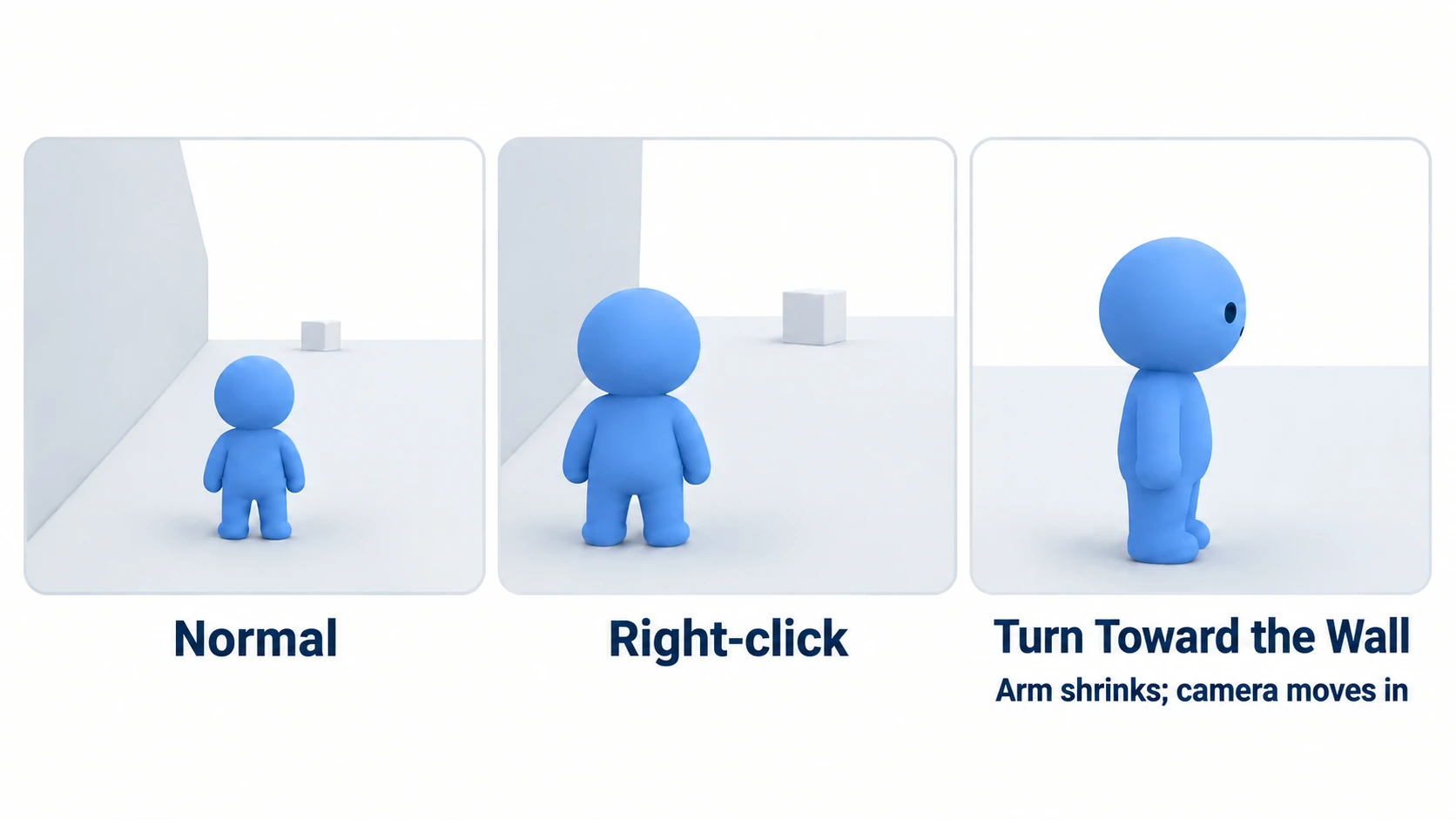
Run it with F6 (run the scene currently open). There are three things to look at.
First, looking around. Move the mouse right, and the view turns right, about 17 degrees per 100 pixels. Up-down stops at 60 degrees when looking down. Look up, and the camera drops to about 0.2 meters above the floor and stops at 20 degrees without reaching the floor. If it moves in toward the feet when looking up, check the PITCH_UP value and the order of clampf()'s lower and upper limits.
Next, the wall. Bring the up-down angle back to the slightly downward starting angle, and turn the view right by about 90 degrees, and the camera swings around to the character's left, the wall side. The arm shrinks from 4 to about 2.3, and the camera stops in front of the wall without going into it. If it goes into the wall, check that the wall's Collision Layer includes 1 (the arm's Collision Mask is 1 by default). If the arm shrinks where there's nothing, check that the line excluding your own body isn't missing.
To finish, turn the view back toward the target, set the up-down angle to looking slightly down, and hold right-click. In 0.2 seconds, the camera moves in and shifts right, the character moves to the left half of the screen, and the far target appears just up and to the right of the screen's center. Let go, and it goes back; press again, and it turns back from partway.
There are two key points.
- When moving the camera, move the whole arm: Only the arm checks for walls. Build the over-the-shoulder shift at the arm's base too, and the wall check follows to where it's shifted
- Decide the look-up limit from the angle that reaches the floor: The mount's height and the arm's length decide the angle at which the arm's end reaches the floor. Put the limit a little before that
If you want players to choose sensitivity or inverted up-down, the saving approach from the settings screen article works as-is.
Troubleshooting
| Symptom | Cause | Fix |
|---|---|---|
| In a Web export, the mouse isn't captured right after startup | Browsers don't allow capturing the mouse until after an action like a click | Keep the setup where clicking the screen captures it |
| After giving the character a weapon or shield as a separate physics body, the camera sticks to the face where there's nothing | The arm is hitting that item's collision. Only the body was excluded | Pass that item's RID to add_excluded_object() too, or remove its layer from the arm's Collision Mask |
| With an uphill slope or step behind, the camera moves in toward the character even within the look-up limit | When the ground on the camera's side is higher, the angle at which the arm's end reaches the floor gets smaller | On stages with lots of slopes, lower the look-up limit further. If a step behind comes close to the mount's height, the limit can't prevent it |
| Aiming with your shoulder against a wall on the right shows the inside of the wall or what's beyond it | The arm's base, shifted right, is buried in the wall, and the arm can't check for walls correctly | Step away from the wall a little to aim. If the left side is clear, switch to the left shoulder |
Bonus: Good to Know First
- Switching to the left shoulder: Just flip the sign of
SHOULDER. Even when aiming with your shoulder against a wall on the right, if the left side is clear, the base doesn't get buried in the wall - Narrow the field of view when aiming too: Driving Camera3D's
fovfrom 75 to around 60 with the same Tween strengthens the sense of moving in - A camera that follows with a slight delay: SpringArm3D has no setting for delaying the follow. Turn on the mount's
top_level(a setting that doesn't inherit the parent's movement) to detach it, and write your own code that eases it a little toward a point at the character's head height on every physics update (_physics_process()). The arm also moves on every physics update, so match the easing to that
Summary
- Split the camera into a mount, an arm, and an eye: The mount does left-right, the arm does up-down and length, and the eye only renders
- Only the arm checks for walls: It checks with a small pyramid in front of the camera. Exclude your own body with
add_excluded_object() - Decide sensitivity as degrees per pixel: Multiply it by
screen_relative. At0.003, 100 pixels is about 17 degrees - Stop looking up before the angle that reaches the floor: With a 1.6-meter mount and a 4-meter arm, it reaches the floor at about 23 degrees, so 20 degrees up and 60 degrees down
- For over the shoulder, shift the arm's base: Just enough for the screen's center to clear the body.
kill()a Tween before recreating it
Start by setting PITCH_UP to the same 60 degrees as looking down in the hands-on scene and looking up. Watching the camera move in toward the feet until the body fills the screen makes it click why the limits are separate. In your game, what situations do you want to aim over the shoulder in?