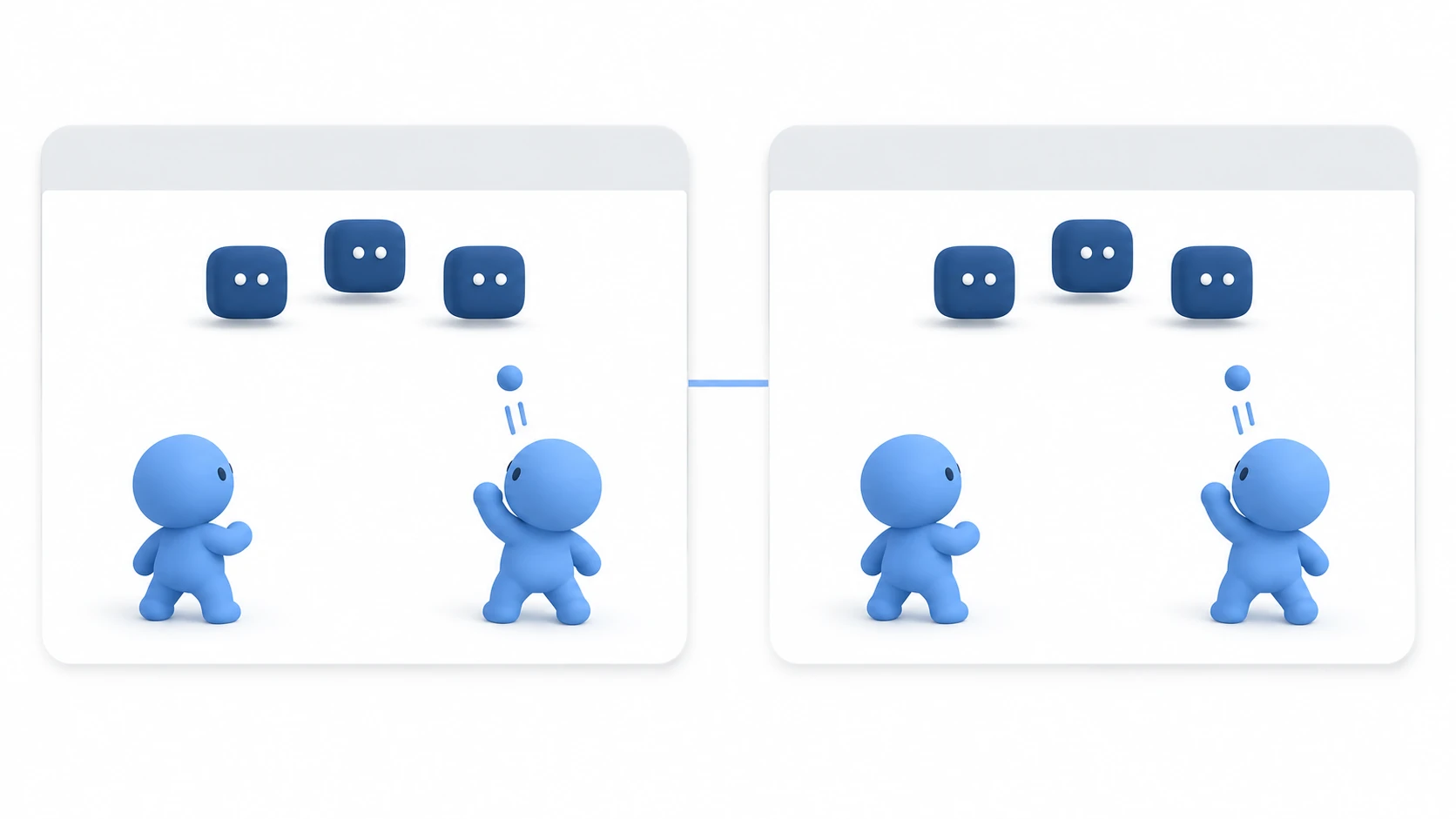
LAN multiplayer, where players join the same game from separate PCs and each moves their own character, can be built with ENet, the networking system that comes with Godot. To try it out, it's enough to open two windows on the same PC and make one the host and the other the client.
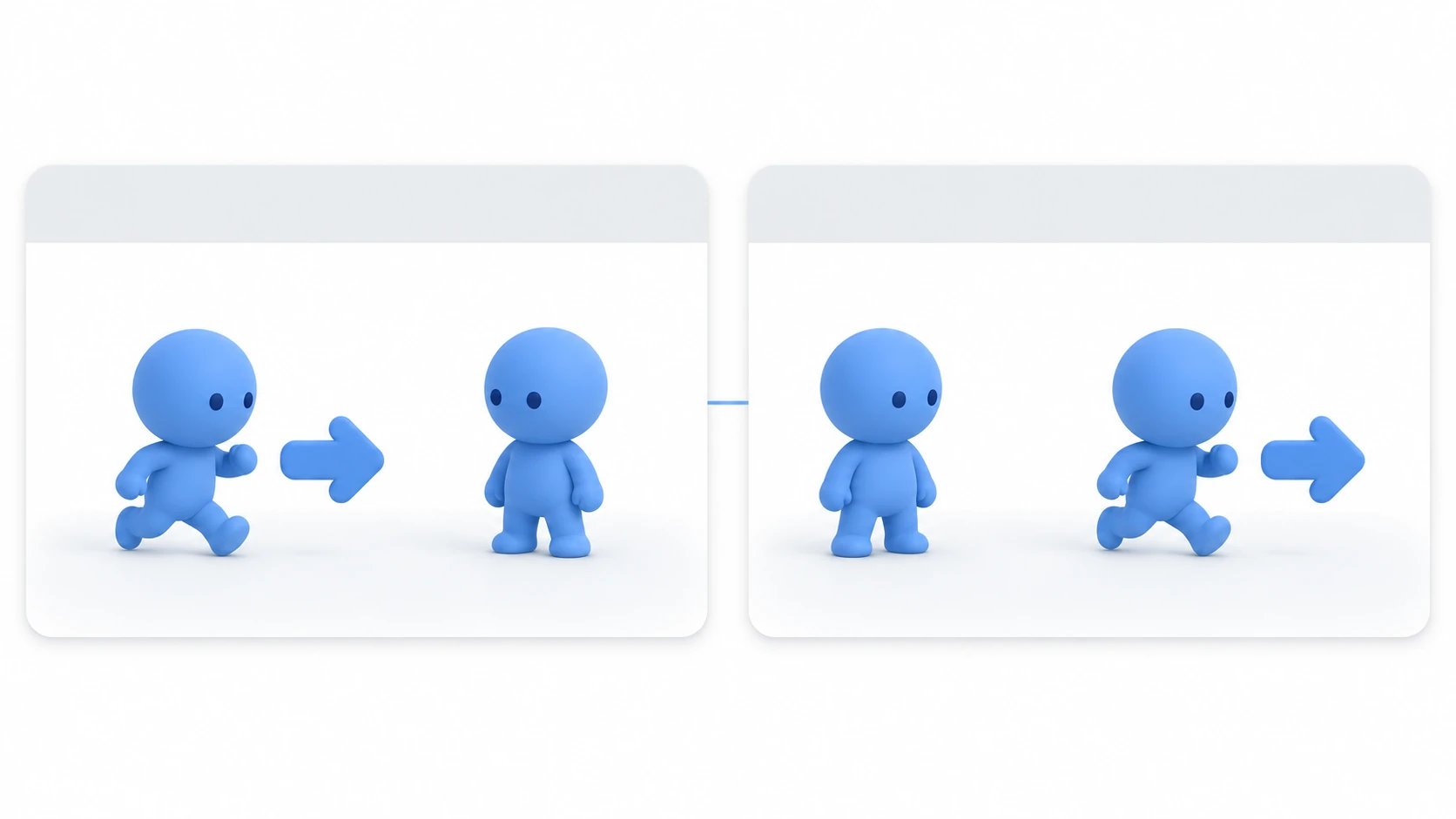
But spawn characters on both the host and the client and you get duplicates; move your own character and the other player's character moves along with it. That's because there's a copy of the same scene for every window, and the work has to be divided among the copies.
This article explains how to connect a host and a client with ENet, spawn a character for each player, and move only your own character.
What You'll Learn
- The view that there's a copy of the same scene per window, and the only difference is "which character you own"
- The steps for the host to open a room with ENet and the client to join
- Why only the host spawns characters, and how to use MultiplayerSpawner
set_multiplayer_authority(), which moves only the owner's character
Tested with: Godot 4.7
- The scene copy in each window
- Connecting the host and the client (ENet)
- Spawning characters with MultiplayerSpawner
- The character's owner (multiplayer authority)
- Copying the position with MultiplayerSynchronizer
- Hands-On: Move the host's and client's characters in two windows
- Troubleshooting
- Bonus: Good to Know First
- Summary
The scene copy in each window
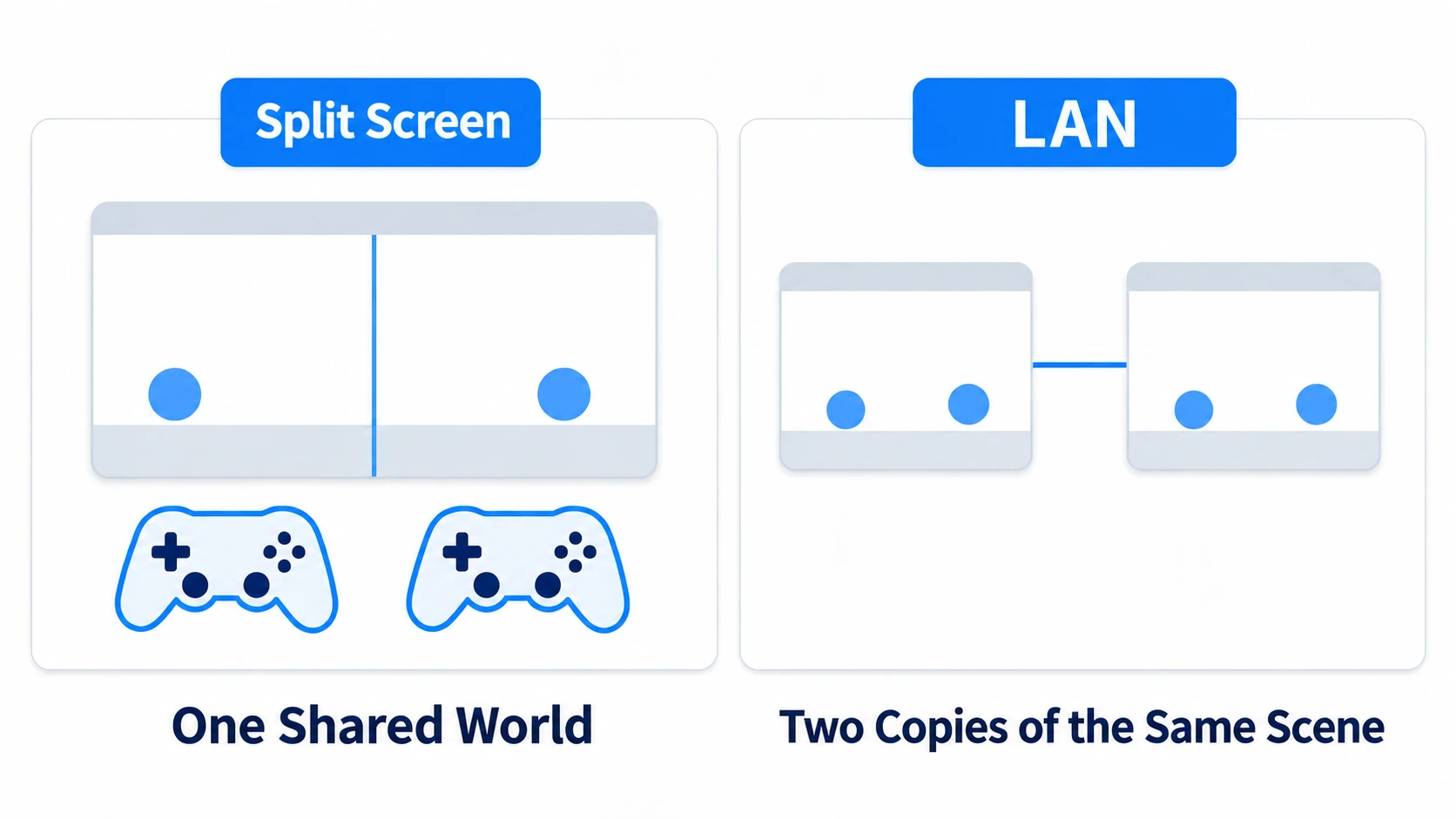
With two-player split-screen, two players are inside one game. There's one world, and the controllers tell the two apart.
LAN multiplayer is different. The host's window and the client's window are each separately running games. There are two copies of the same scene, and in both copies, the two players' characters are lined up under the same names.
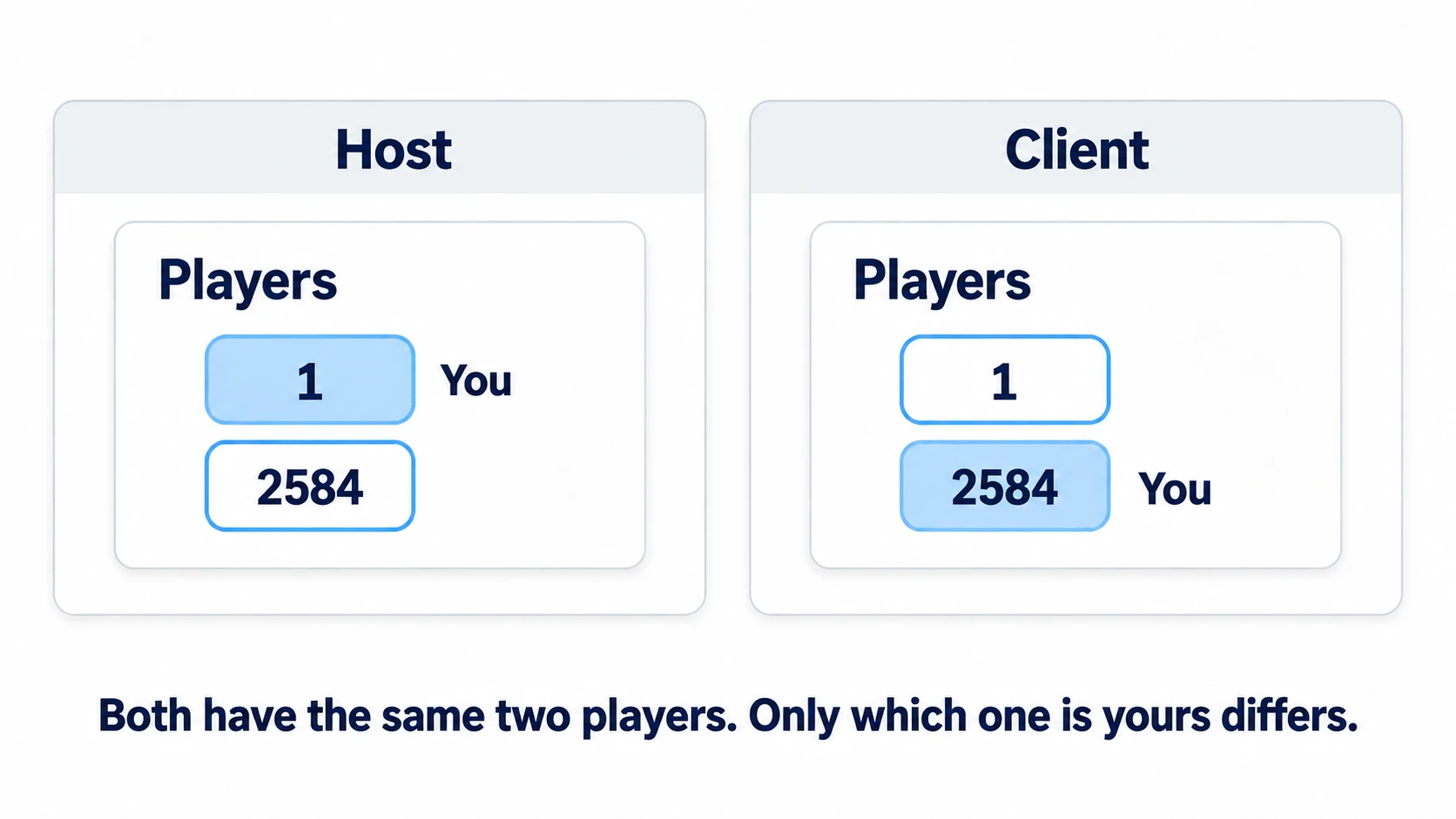
Name each character after its owner's number. The host's number is 1, and the client's number is decided per connection. In any copy, you can tell the owner from the name. The "2584" in the figure is an example; the actual number changes with every connection.
There are three things to keep in sync between copies.
- Who's there: Only the host spawns characters. When the host spawns one, it appears in the client's copy with the same name too
- Who moves it: Each character has an owner (authority). In your own window, you may only move characters you own
- Where it is: Copy the position from the owner's copy to the other copies
In other engines: MultiplayerSynchronizer, which copies values to other screens, plays a role similar to NetworkVariable and NetworkTransform in Unity Netcode or Replicated variables in UE. How each engine decides whose changes get distributed differs.
Connecting the host and the client (ENet)
The connecting role is played by ENetMultiplayerPeer, which uses ENet, the networking mechanism built into Godot. It's your side's connection point, called a peer. The host opens a room on a chosen number (port), and the client joins by specifying the host's IP address (a number that identifies a PC on the network) and the port.
# Host
var peer := ENetMultiplayerPeer.new()
peer.create_server(7000)              # Wait on port 7000
multiplayer.multiplayer_peer = peer   # Use this peer for the game's networking

# Client
var peer := ENetMultiplayerPeer.new()
peer.create_client("127.0.0.1", 7000) # Host's IP and port
multiplayer.multiplayer_peer = peer
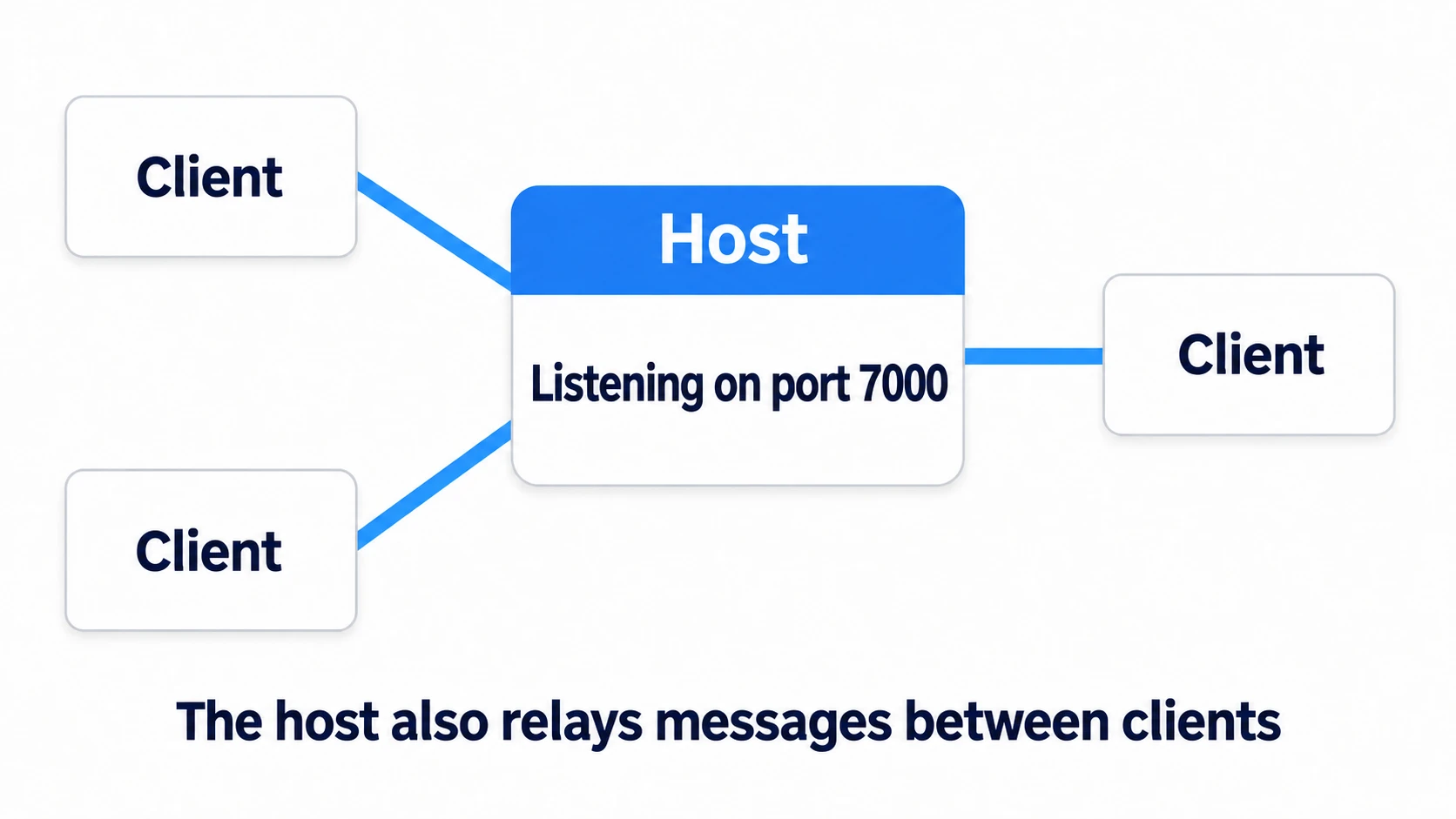
create_server() and create_client() prepare the connection. Put the resulting peer into multiplayer.multiplayer_peer. multiplayer is this game's networking interface, available from any node. Once the peer is set there, the scene can handle connection notifications and character syncing. When the client finishes connecting, connected_to_server arrives; on failure, connection_failed arrives. Both signals arrive only on the client side.
With this way of connecting, every client connects to the host. Communication between clients is also relayed by the host.
The IP address the client enters is 127.0.0.1 when testing on the same PC. When joining from another PC, use the host PC's IPv4 address. On Windows, ipconfig shows it under the Wi-Fi or wired section you're using. Don't use the number under a virtual section like vEthernet. It often starts with 192.168..
Spawning characters with MultiplayerSpawner
Spawning characters is the host's job. With a MultiplayerSpawner in place, characters the host spawns also appear in the client's copy with the same name.
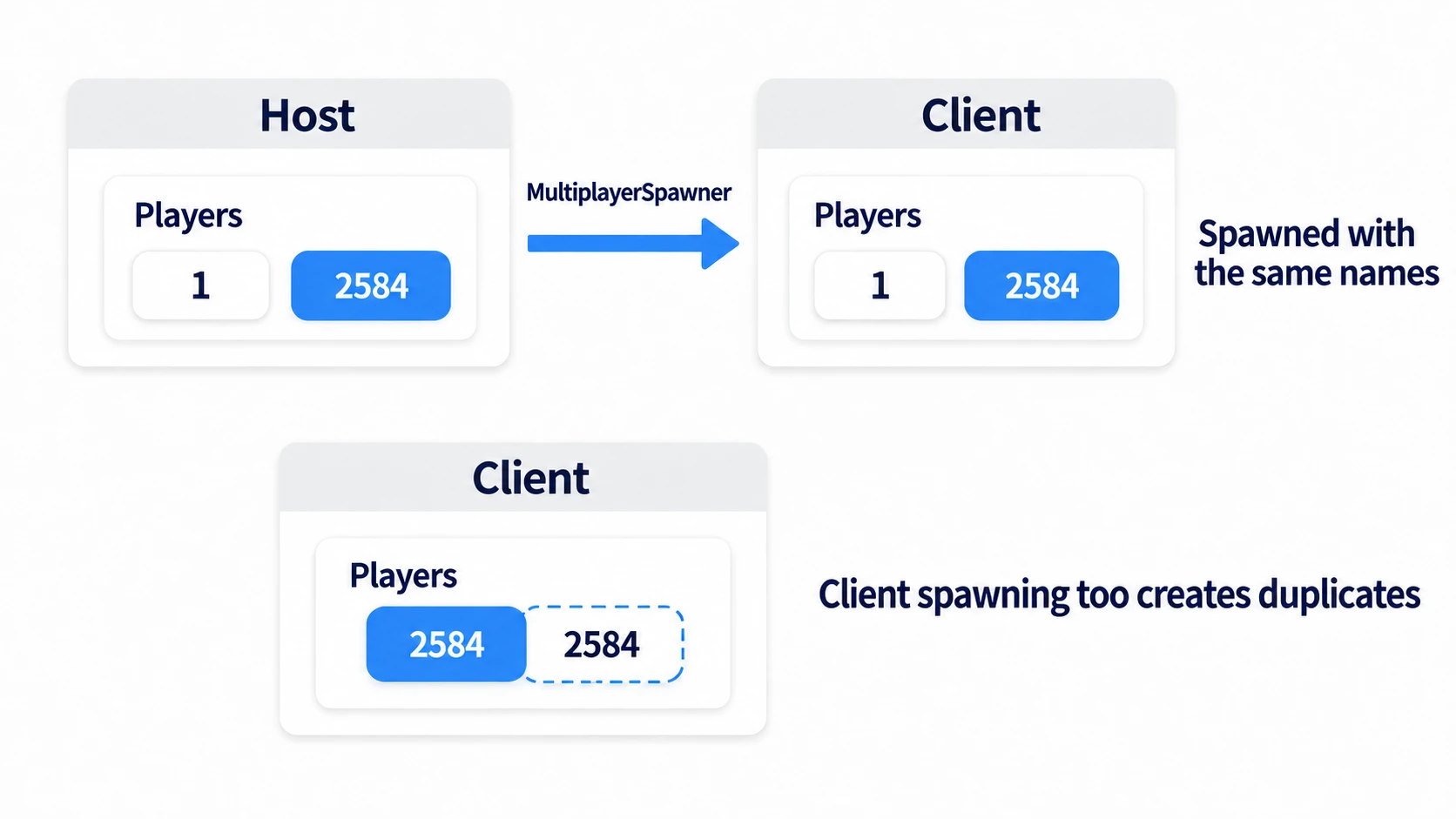
There are two settings.
- Spawn Path: The parent node where characters are placed. Only things added directly under it are copied
- Auto Spawn List: The list of scenes allowed to be copied. Put the character scene in it
The host spawns a character for that number using the peer_connected signal when a client connects. The host doesn't receive a peer_connected saying it connected itself. It spawns its own character when opening the room. Either way, it's just creating the character scene, naming it with the number, and adding it directly under the Spawn Path (_add_player() in the hands-on).
The client side doesn't spawn characters. Clients also receive peer_connected. If they call the same function as is, extra characters appear only in their own copy. Guard the spawning code with multiplayer.is_server() (whether you're the host). Clients who join later also get all the characters spawned up to that point.
The character's owner (multiplayer authority)
In every window, key input reaches the scripts of every character in that window. Left as is, moving your own character moves the other player's character too.
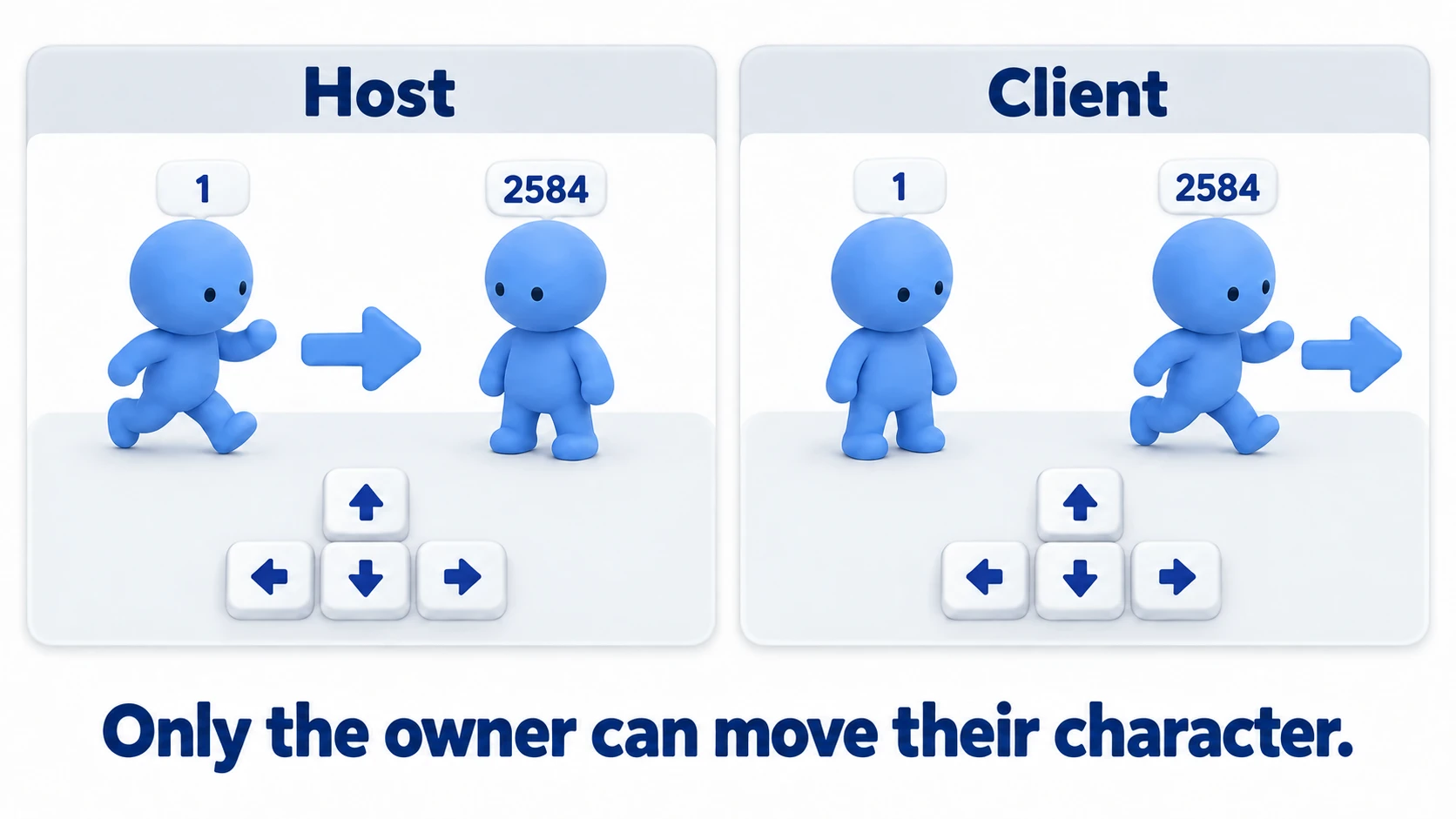
Decide an owner for each character, and move it only in the owner's window.
func _enter_tree() -> void:
	set_multiplayer_authority(str(name).to_int())   # The person whose number is the name is the owner
At the top of the movement code, write if not is_multiplayer_authority(): return so that it does nothing if it isn't your character.
If you do nothing, the owner is the host (1). Every copy sets the same number from the same name. That keeps everyone's idea of the owner in agreement.
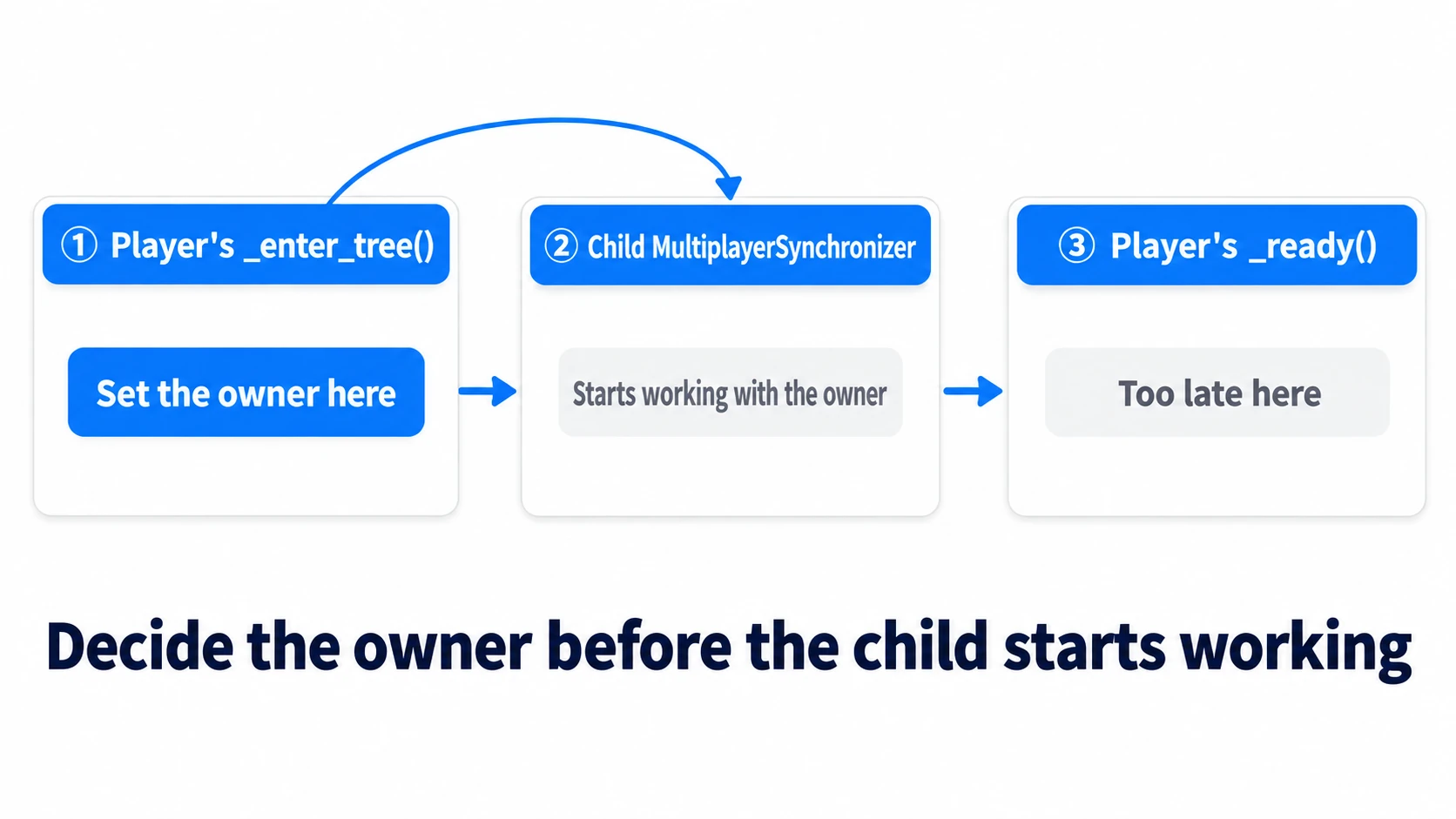
_enter_tree() is called the instant a node enters the tree, before _ready() (Lifecycle Basics). You set it here to decide the owner before the child MultiplayerSynchronizer. A parent's _ready() is called after its children are ready. Wait that long, and the child MultiplayerSynchronizer starts working first.
Copying the position with MultiplayerSynchronizer
If only the owner moves the character, it moves in your window, but the copy in the other window stays put. You need to copy the owner's position to the other copies.
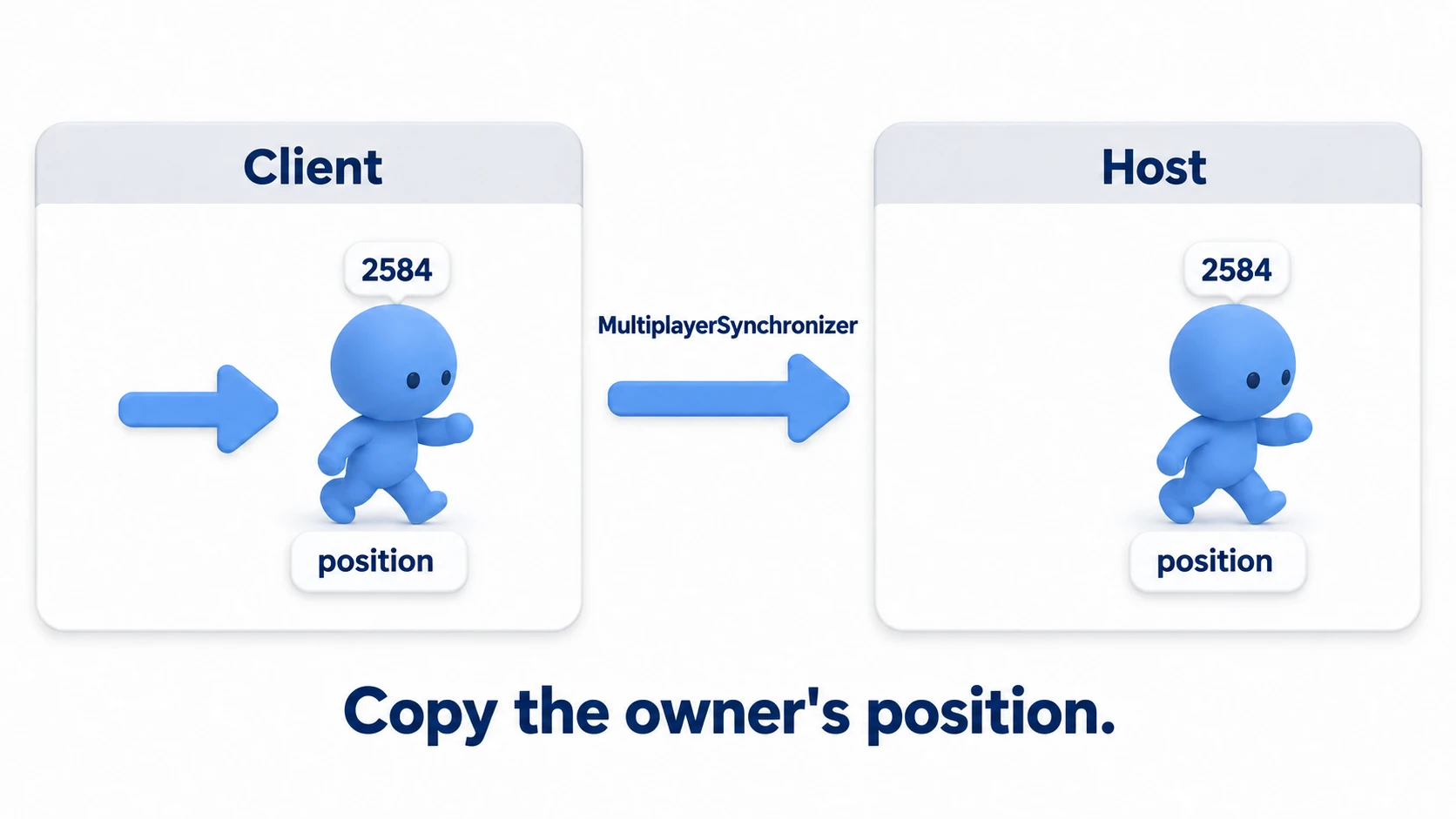
MultiplayerSynchronizer does the copying. Add it as a child in the character scene, and choose the properties to copy in the Replication panel at the bottom. This time, it's just the character's position.
- Set Replicate to Always, and the owner's value keeps being sent even when it hasn't changed
- Even if a non-owner copy rewrites
position, it's overwritten by the owner's value the next time it arrives
The MultiplayerSynchronizer's owner is also the same number as its parent. set_multiplayer_authority() sets the same number on children by default.
Hands-On: Move the host's and client's characters in two windows
A co-op action game with friends, a versus game at a LAN party, an exploration game for two — the first step is the same for all of them. Open two windows on the same PC, and build it up to where the host's and client's characters appear in both windows and each moves only its own.
① What to place
Start with a new 2D project. First, create the character scene player.tscn.
- Root: A CharacterBody2D named Player. Set Motion Mode to Floating (it's top-down, moving up, down, left, and right, so it doesn't distinguish floors from walls)
- Child Sprite2D:
icon.svgin Texture - Child Label: Shows the number
- Child CollisionShape2D: CircleShape2D in Shape (Radius 32)
- Child MultiplayerSynchronizer: In the Replication panel at the bottom, add Player's
position. Set Replicate to Always
Next, create the main scene main.tscn.
- Root: A Node2D named Main. Set it with Set as Main Scene from the FileSystem dock's right-click menu
- Child Lobby (a VBoxContainer, which stacks its children vertically automatically): Under it, Address (LineEdit), Host and Join (Button), and Status (Label). Set Address's Text to
127.0.0.1. Buttons show no text from their name alone, so also enter "Host" and "Join" in their Text - Child Players (Node2D): Where characters are placed
- Child MultiplayerSpawner: Players in Spawn Path.
player.tscnin Auto Spawn List
Finally, set it up to open two windows. Open Customize Run Instances... from the Debug menu at the top of the editor, turn on Enable Multiple Instances, and set the count to 2. If you turn off Embed Game on Next Play in the menu at the top right of the editor's Game view, both open as normal windows. The button signals are connected in code, so you don't need to connect them in the editor.
② Put it together
Attach this to the root of player.tscn.
# player.gd (attach to Player)
extends CharacterBody2D

const SPEED := 300.0

func _enter_tree() -> void:
	set_multiplayer_authority(str(name).to_int())   # The person whose number is the name is the owner

func _ready() -> void:
	$Label.text = str(name)
	if is_multiplayer_authority():
		position = Vector2(randf_range(150, 650), randf_range(150, 450))   # The owner decides where it appears

func _physics_process(_delta: float) -> void:
	if not is_multiplayer_authority():
		return                                      # Only move your own character
	velocity = Input.get_vector("ui_left", "ui_right", "ui_up", "ui_down") * SPEED
	move_and_slide()
Attach this to the root of main.tscn.
# main.gd (attach to Main)
extends Node2D

const PORT := 7000
const PLAYER_SCENE := preload("res://player.tscn")

@onready var lobby: VBoxContainer = $Lobby
@onready var address: LineEdit = $Lobby/Address
@onready var status: Label = $Lobby/Status
@onready var players: Node2D = $Players

func _ready() -> void:
	$Lobby/Host.pressed.connect(_on_host_pressed)
	$Lobby/Join.pressed.connect(_on_join_pressed)
	multiplayer.peer_connected.connect(_on_peer_connected)
	multiplayer.peer_disconnected.connect(_on_peer_disconnected)
	multiplayer.connected_to_server.connect(_on_connected_to_server)
	multiplayer.connection_failed.connect(_on_connection_failed)

func _on_host_pressed() -> void:
	var peer := ENetMultiplayerPeer.new()
	var err := peer.create_server(PORT)
	if err != OK:
		status.text = "Couldn't open the room: %s" % error_string(err)
		return
	multiplayer.multiplayer_peer = peer
	_add_player(1)                            # The host spawns its own character itself
	lobby.hide()
	get_window().title = "Host"

func _on_join_pressed() -> void:
	var peer := ENetMultiplayerPeer.new()
	var err := peer.create_client(address.text, PORT)
	if err != OK:
		status.text = "Couldn't start connecting: %s" % error_string(err)
		return
	multiplayer.multiplayer_peer = peer
	status.text = "Connecting..."

func _on_connected_to_server() -> void:
	lobby.hide()
	get_window().title = "Client %d" % multiplayer.get_unique_id()

func _on_connection_failed() -> void:
	status.text = "Couldn't connect"
	multiplayer.multiplayer_peer = null

func _on_peer_connected(id: int) -> void:
	if multiplayer.is_server():               # Only the host spawns characters
		_add_player(id)

func _on_peer_disconnected(id: int) -> void:
	if multiplayer.is_server():
		var player := players.get_node_or_null(str(id))
		if player:
			player.queue_free()               # Disappears from everyone's screen

func _add_player(id: int) -> void:
	var player := PLAYER_SCENE.instantiate()
	player.name = str(id)                     # Name = owner's number
	players.add_child(player, true)            # Pass true when copying with MultiplayerSpawner
③ Run it and check
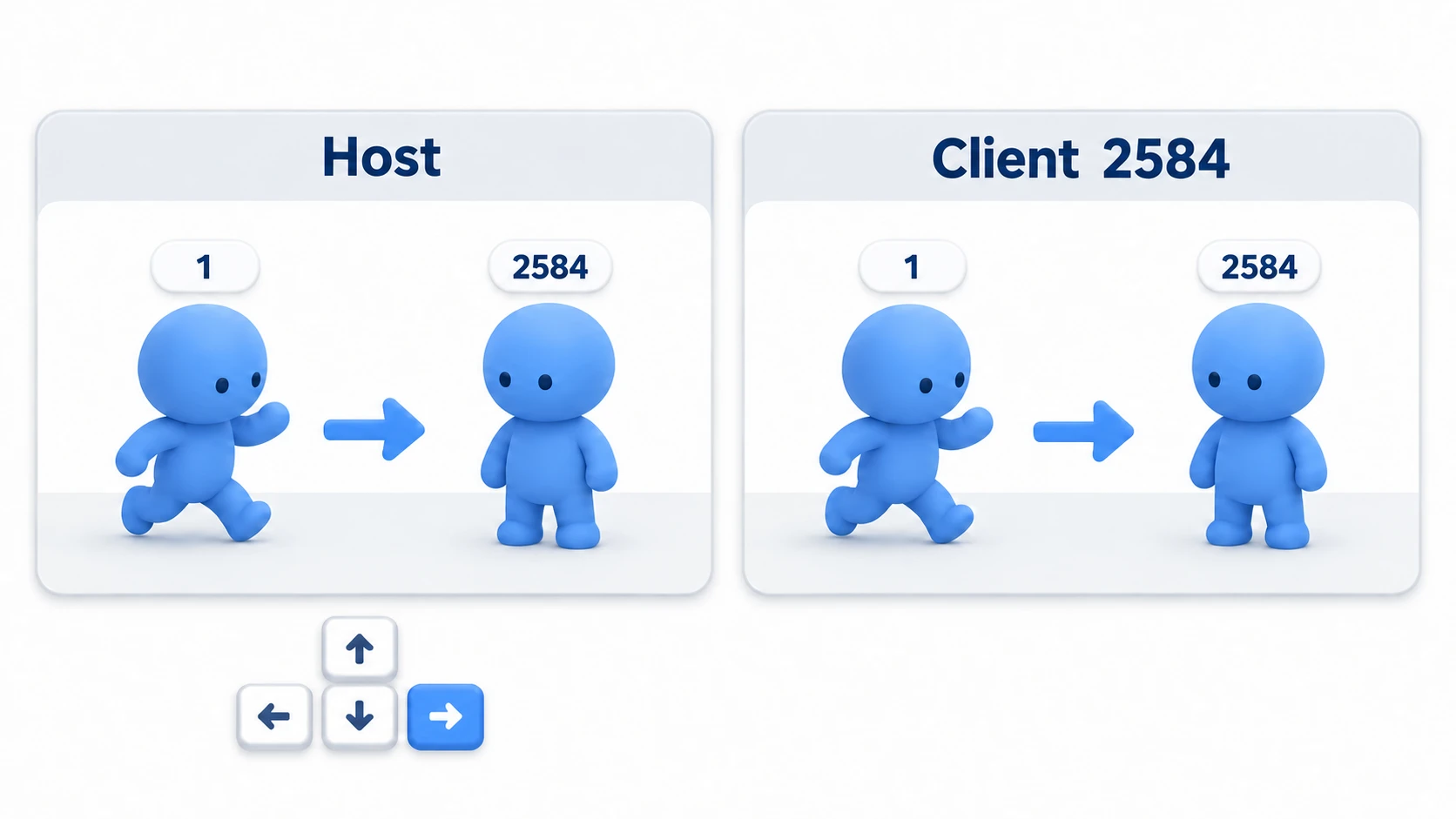
Run it, and two windows open. Check three things.
First, press Host in one window. The window title shows "Host," and a character "1" appears. Try pressing Host in the other window too, and it shows Couldn't open the room. Only one room can be opened on the same port on the same PC.
Next, press Join in that window. The title shows "Client" and a number, and both windows show two characters: "1" and the client's number. Where they appear is random, so if they overlap, move one a little to separate them. In the other player's window, a character may briefly appear in the upper left until its first position arrives. If only one window has two characters, check whether the spawning code is guarded by is_server().
To finish, click the host's window and press the arrow keys. Only "1" moves, in both windows. Click the client's window and press them, and this time only the client's numbered character moves. If both move together, the is_multiplayer_authority() line is missing.
There are two key points.
- The host spawns, the owner moves: Guard spawning with
is_server()and movement withis_multiplayer_authority(). Each window runs only its own share of the work - The name is the owner's number: Name characters with the number each connection gets, and every copy can set the same owner. Copying the owner's values is MultiplayerSynchronizer's job
To test on another PC, enter the host's IPv4 address in the client's Address. Bullets and enemies are owned by the host, and the host spawns and moves them. That setup is covered in Multiplayer Sync Basics.
Troubleshooting
| Symptom | Cause | Fix |
|---|---|---|
| Pressing Join from another PC shows "Couldn't connect" | The IP address entered isn't the host PC's | Run ipconfig on the host PC and enter the IPv4 under the Wi-Fi or wired section you're using |
| The IP address is right, but you can't join from another PC | The host PC's firewall is blocking it. Or on guest Wi-Fi, communication between devices is blocked | If asked to allow network access on the first run, allow it on a trusted network. If you add an inbound rule yourself, ENet uses UDP, so open UDP port 7000. On guest Wi-Fi, reconnect to your regular Wi-Fi |
| After closing the client's window, its character stays in the host's window | The disconnect hasn't been detected yet. Or the character for the number that left isn't being removed | Wait a moment. Check that the host queue_free()s that number's character in peer_disconnected |
| After closing the host's window, the client can't return to the lobby | It hasn't received that the host is gone | Receive server_disconnected on the client side. Remove Players's children, set multiplayer.multiplayer_peer to null, then show the lobby |
Bonus: Good to Know First
- See inside the running copies: Open the Scene dock's Remote tab while running, and you can see the nodes of the running game. Switch the debugger's run instance tabs, and you can compare how many characters are under Players for the host and the client
- ENet isn't available in browsers: In a game exported for the Web, this article's way of connecting doesn't work. Export for desktop to test. How to export is in Export Settings
- Stutter in the other player's character: Using received positions as is makes the arrival interval visible. It's fine to leave it for now; to smooth it, separate the received position from the displayed position and move the display toward it gradually
- Over the internet is a different story: This article covers only the same network. Joining from outside requires router settings or a relay server. Finish building it on the LAN first
Summary
- There's a copy of the same scene per window: Every copy has the same characters with the same names and the same owners; the only difference is which character you own
- The host opens a room, the client joins:
create_server()andcreate_client(). Put the peer you made intomultiplayer_peerto use it - Only the host spawns characters: MultiplayerSpawner also spawns them in the client's copy. Guard spawning with
is_server() - Only the owner moves it: Decide the owner in
_enter_tree(), and checkis_multiplayer_authority()before moving - Copy the position: Add
positionin MultiplayerSynchronizer's Replication and set it to Always
Once two players move in two windows on the same PC, the skeleton of a networked game is in place. When your game spawns a character, who will its owner be?