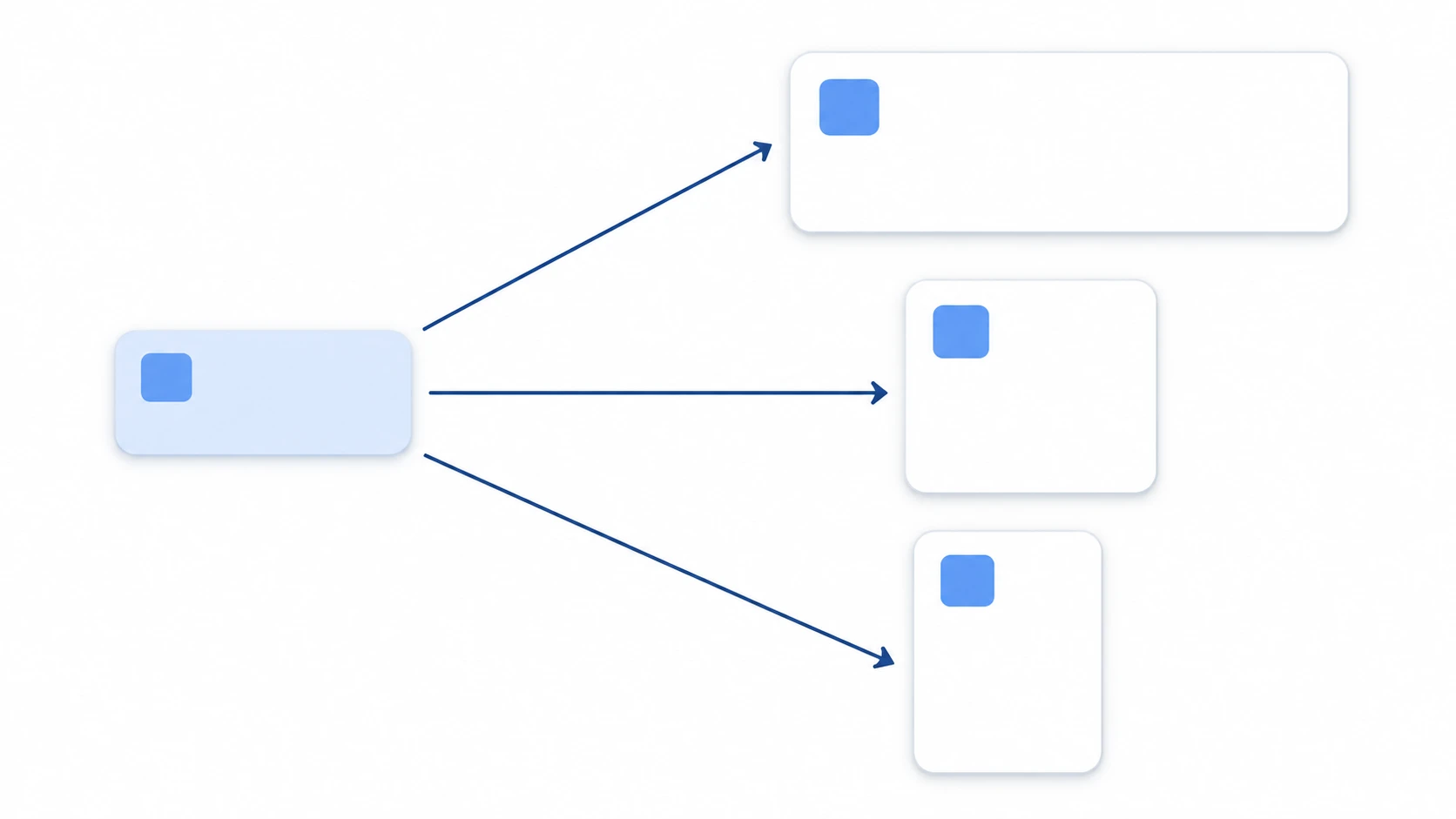
Once you've installed Godot, the first thing to learn is the editor's four docks. Once you see the flow (open a file at the bottom left, pick a part at the top left, change its settings on the right, and run to check), you can get as far as placing one image and running it without getting lost.
Until you see that flow, the screen is split into a bunch of little panels with no obvious place to start. You might add a part, then look for it in the list at the bottom left and wonder where it went.
This article covers what the four docks and the center viewport do, and how to place one image and run it.
What You'll Learn
- How the four docks connect: file list → what's open → the one you picked
- The center viewport, and switching between 2D and 3D
- The difference between what F5 and F6 run
- Placing one image and showing it in the center of the screen
Tested with: Godot 4.7
How the Four Docks Connect
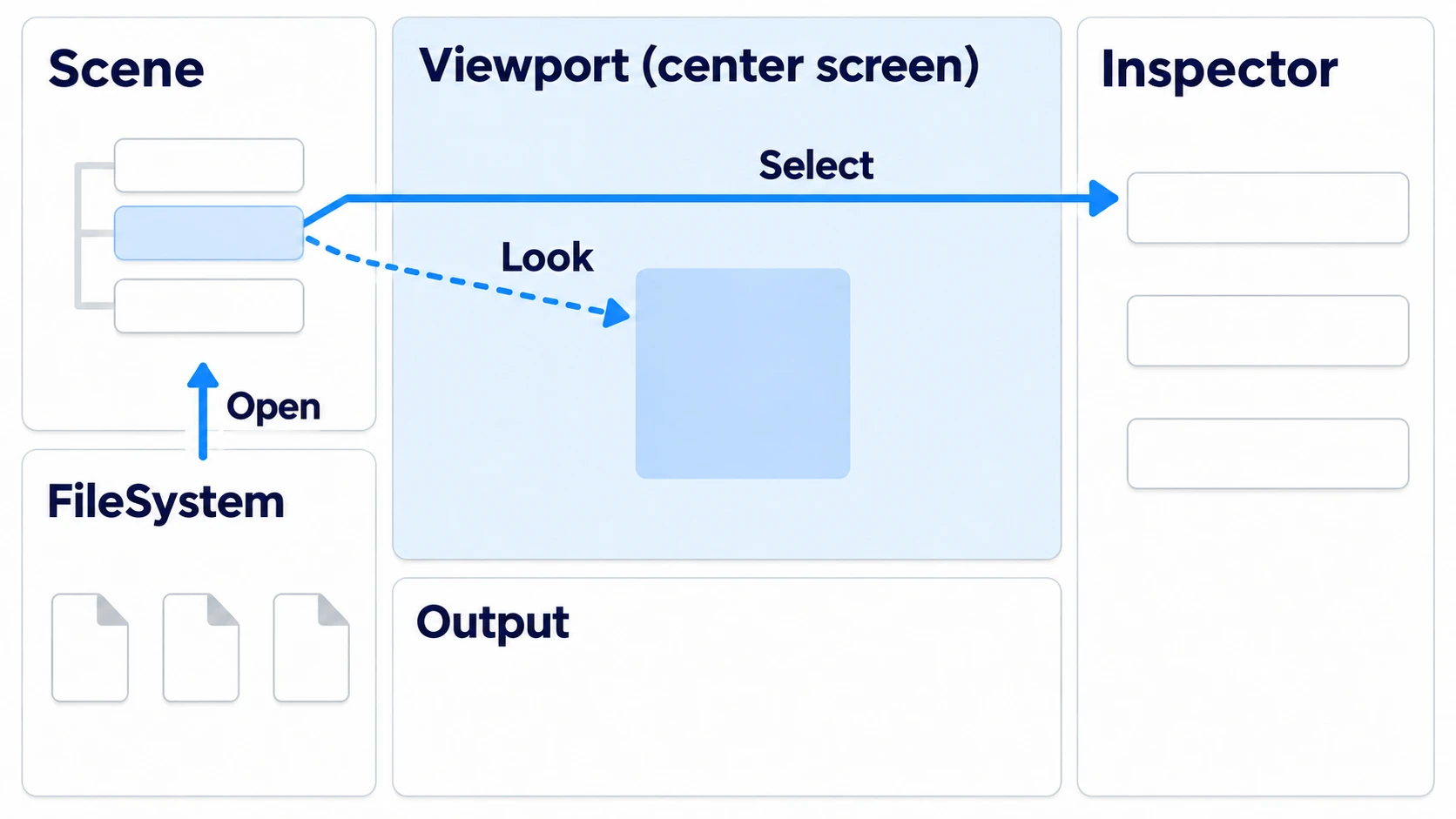
The Godot editor is made of panels around the edges and a large screen in the center (the viewport, which shows how the scene looks). The panels are called docks. There are a lot of them, but you only need to learn four at first.
| Location | Dock | What it holds |
|---|---|---|
| Top left | Scene | The contents of the scene that's open right now |
| Bottom left | FileSystem | The list of files saved in the project |
| Right | Inspector | The settings of the one item selected at the top left |
| Bottom | Output | A log of what happened when you ran the game |
The four connect in one flow from the bottom left to the right. Open a scene file (.tscn) in FileSystem at the bottom left, and its contents are listed at the top left. Select one line at the top left, and its settings appear on the right. The center viewport shows what's open at the top left, and the log from running goes to Output at the bottom. You start a new scene at the top left, and when you save it, it shows up in FileSystem as a file.
Almost everything that confuses you on day one is mistaking which part of this flow you're looking at. Searching for a part you added at the bottom left, looking at the right while the selected line has shifted, launching a different file with F5 than the one you have open. All of these come down to this flow.
In other engines: by role, Scene, FileSystem, Inspector, and Output are close to Unity's Hierarchy, Project, Inspector, and Console. In Unreal Engine they roughly match the Outliner, Content Browser, Details, and Output Log.
The editor shows up in your OS language by default. This article uses the English names for docks, buttons, and menus. Other tabs sit on the right side and along the bottom too, but you can leave them alone for a while.
The Center Viewport (2D and 3D)
Along the top of the center viewport are the tabs 2D, 3D, Script, Game, and Asset Store. 2D and 3D switch between two views of what's open at the top left, and switching doesn't delete anything you've made. The other three do different jobs: Script is where you write code, Game shows the running game, and Asset Store is where you find and import assets.
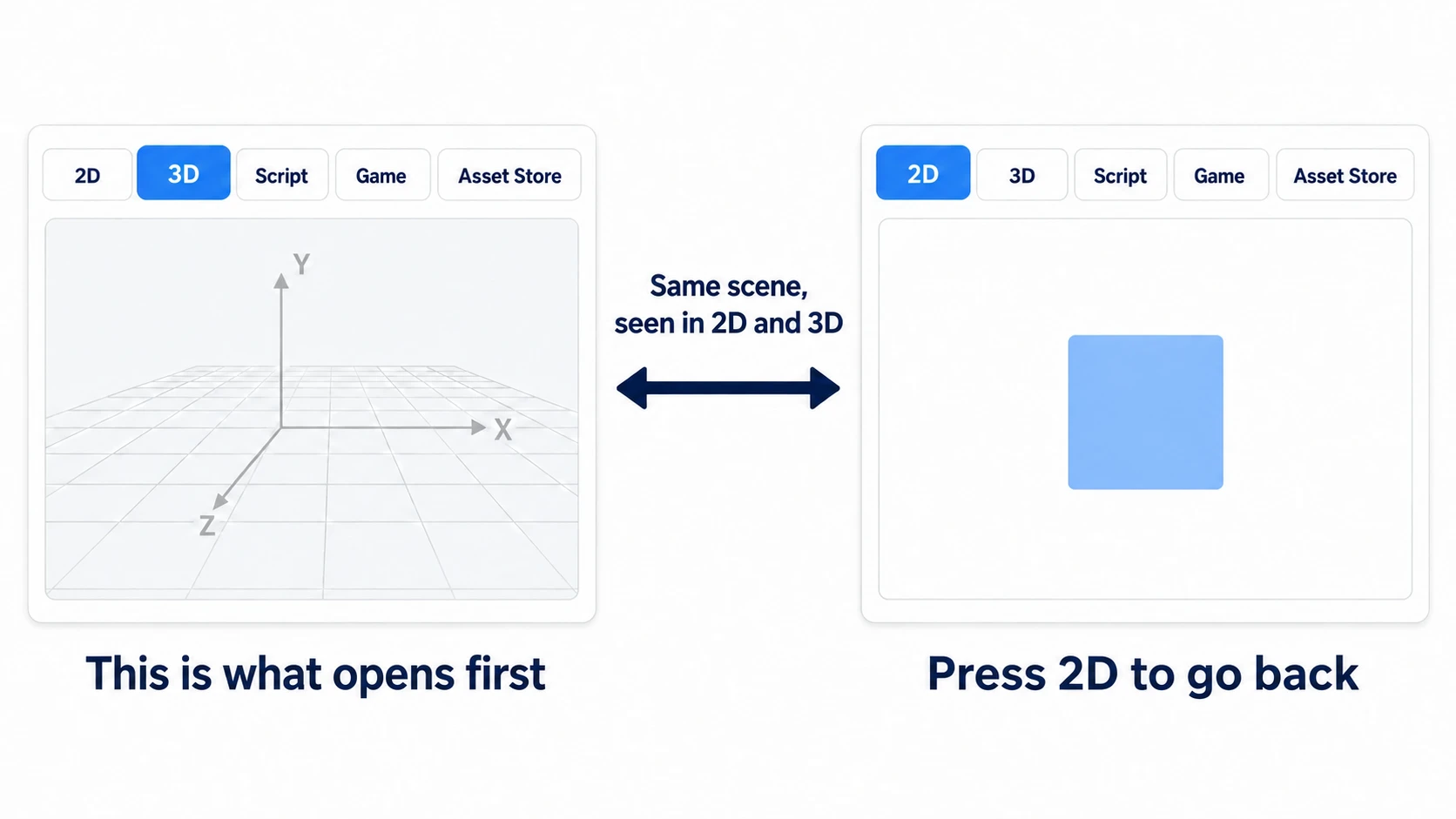
Right after you open a new project, 3D is selected and a grid stretches across the center. The 3D view doesn't draw 2D parts, but you haven't placed anything yet, so it doesn't matter. Create a 2D Scene at the top left and the viewport switches to 2D automatically. If you press 3D yourself and your 2D parts disappear from view, use the 2D tab to go back.
The Scene Dock vs. FileSystem
The top left and the bottom left both have to do with scenes, but they show different things.
FileSystem at the bottom left lists saved files. Images, sounds, and the .tscn files that hold saved scenes all live here. The top left lists the contents of the one scene you have open right now. Things you haven't saved yet show up here too.
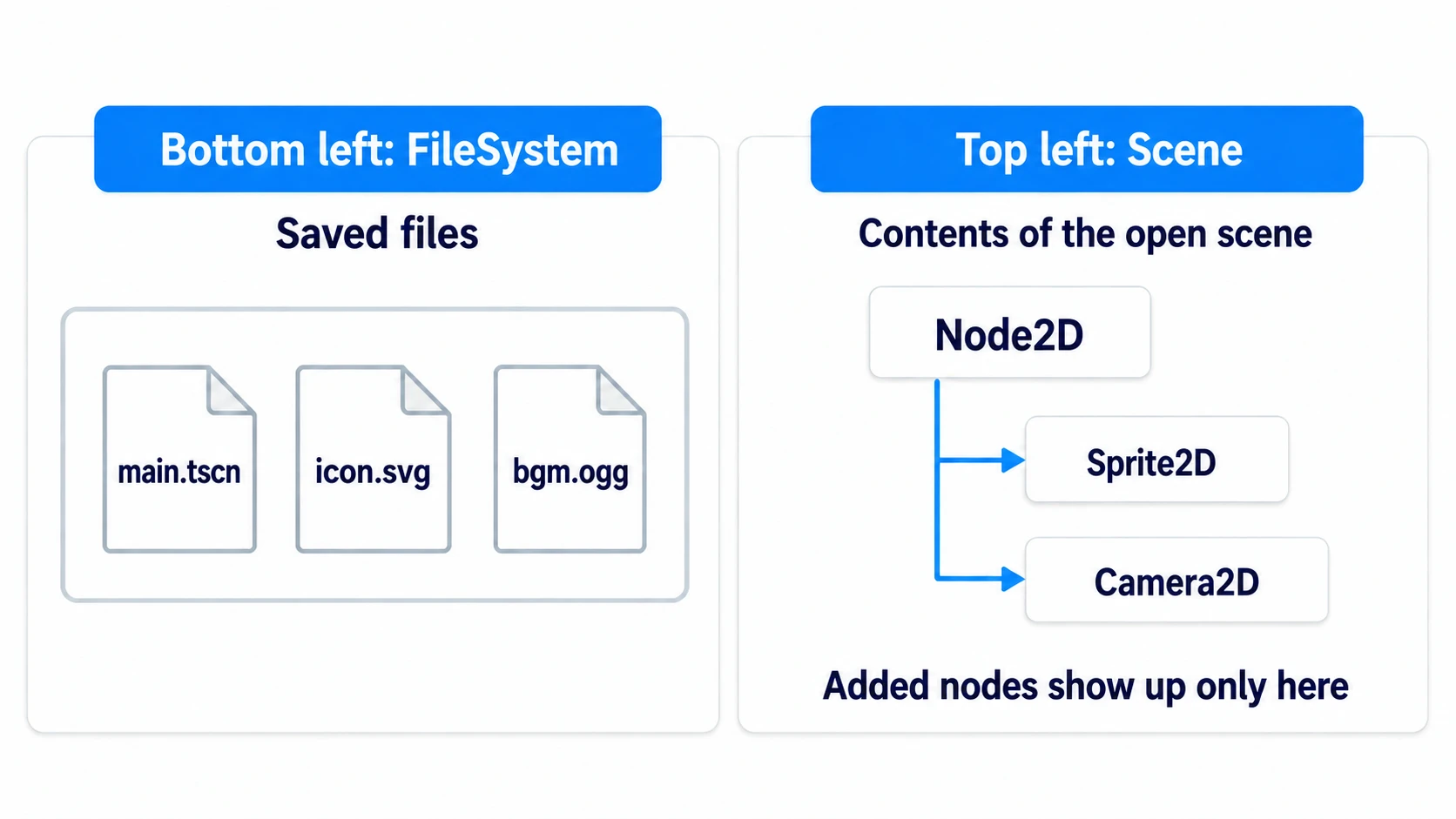
This is where the mistake happens: you add a part, search for it at the bottom left, and think it vanished. The parts listed at the top left (Godot calls them nodes) aren't files, so they don't show up in FileSystem. To find the name of a part you added, look only at the top left.
Double-click a file in FileSystem to open it.
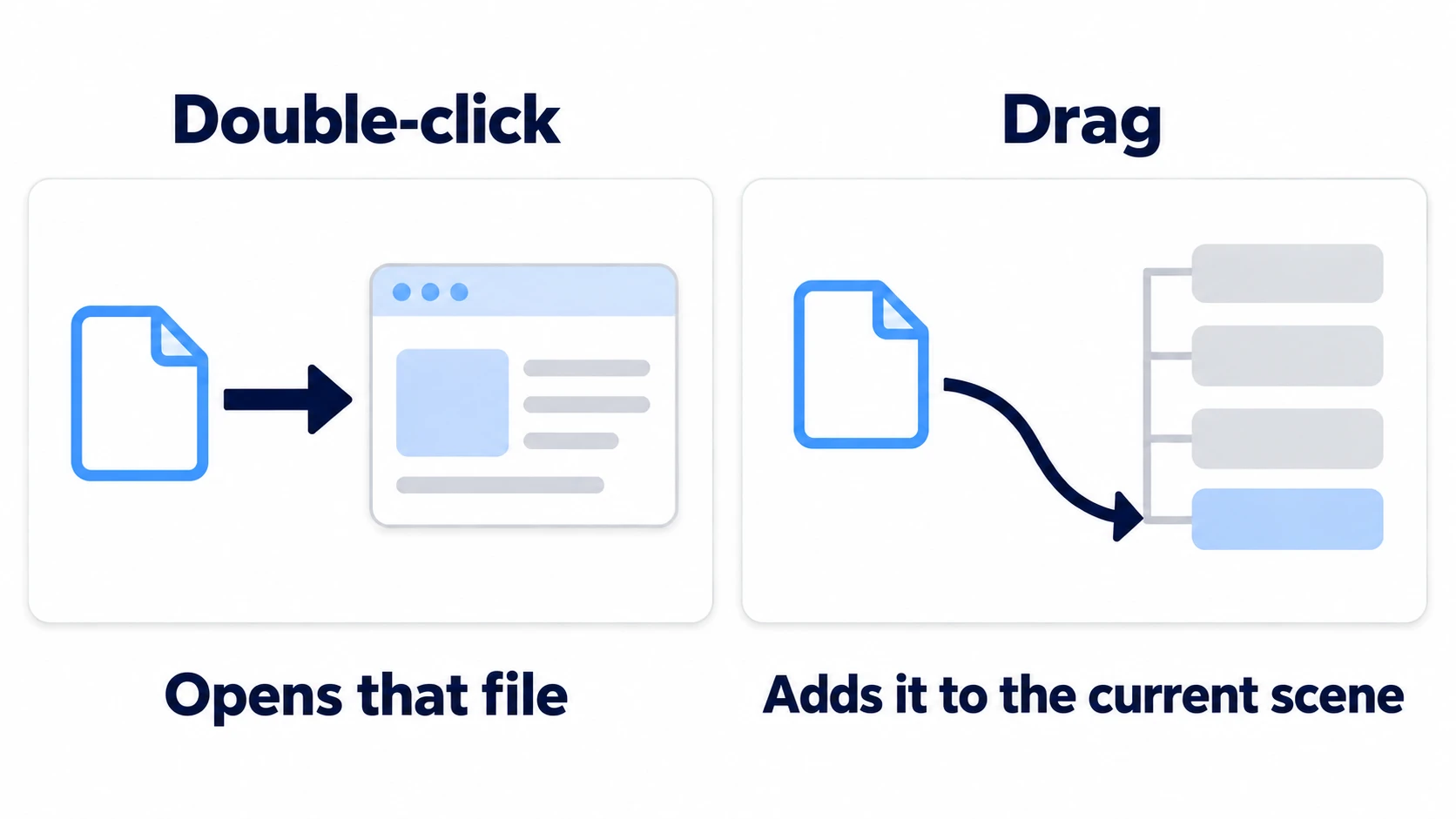
Drag a .tscn onto the center or the top left and it doesn't open. It goes into the scene you have open as a part. It's a handy operation, but many people drag intending to open a file and are surprised when "something I don't recognize got added."
The Inspector (Settings for the One You Picked)
The Inspector on the right shows the settings of the one thing you have selected, not settings for the whole project. Every time you change which line is highlighted blue at the top left, the entire contents on the right swap out too.
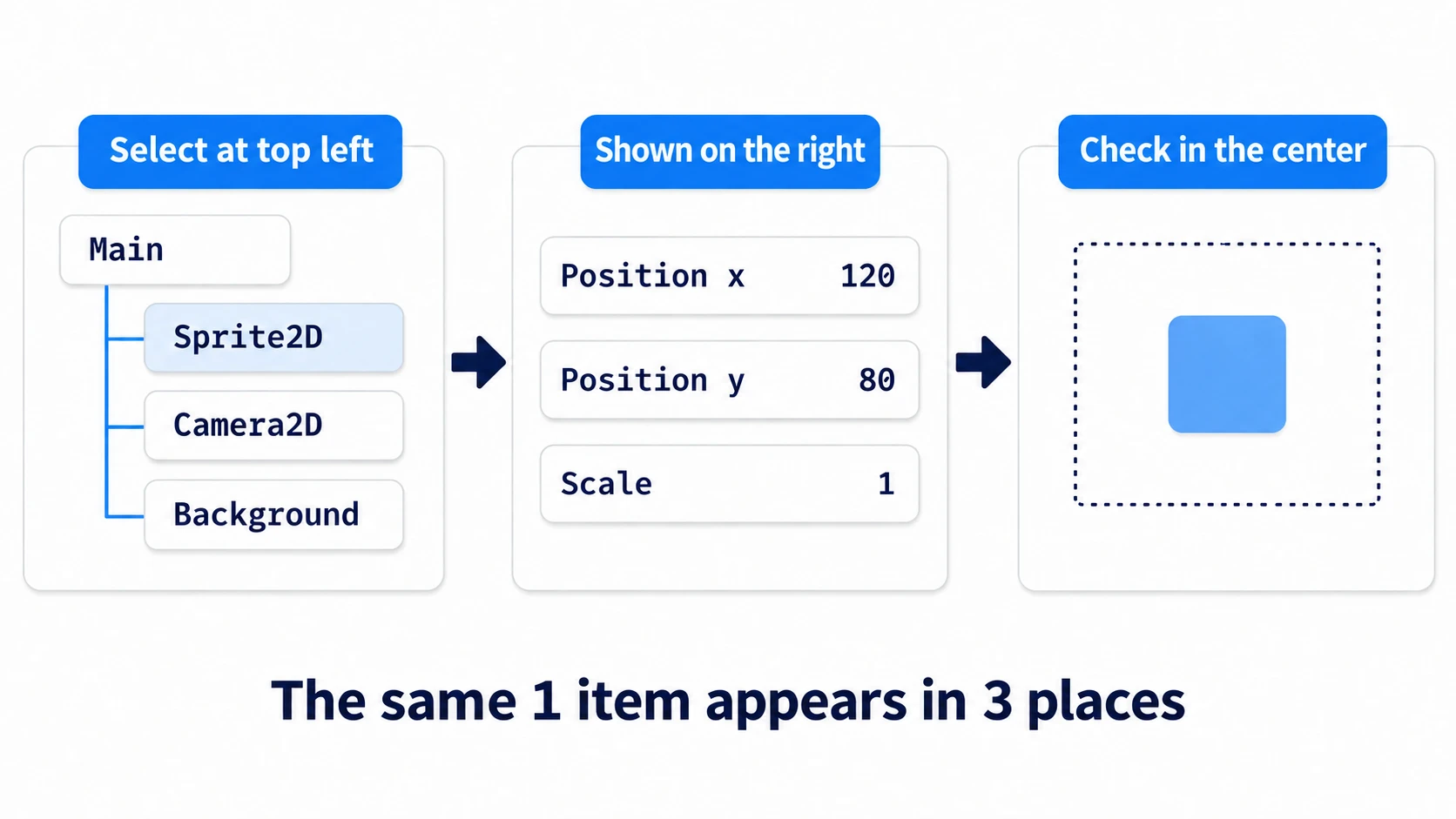
As you get used to it, you stop working from the center. Your eyes follow the lines at the top left, you check their settings on the right, and you use the center to confirm the result. Clicking in the center can grab something else that's overlapping. Clicking a line at the top left always selects exactly what you meant.
When you think "my art vanished" or "the fields on the right turned into something else," look at the blue line at the top left before staring at the center. Usually the selection has just shifted.
The Run Keys (F5 and F6)
Godot has two run keys. If you don't know this, something other than what you're editing launches and you get confused.
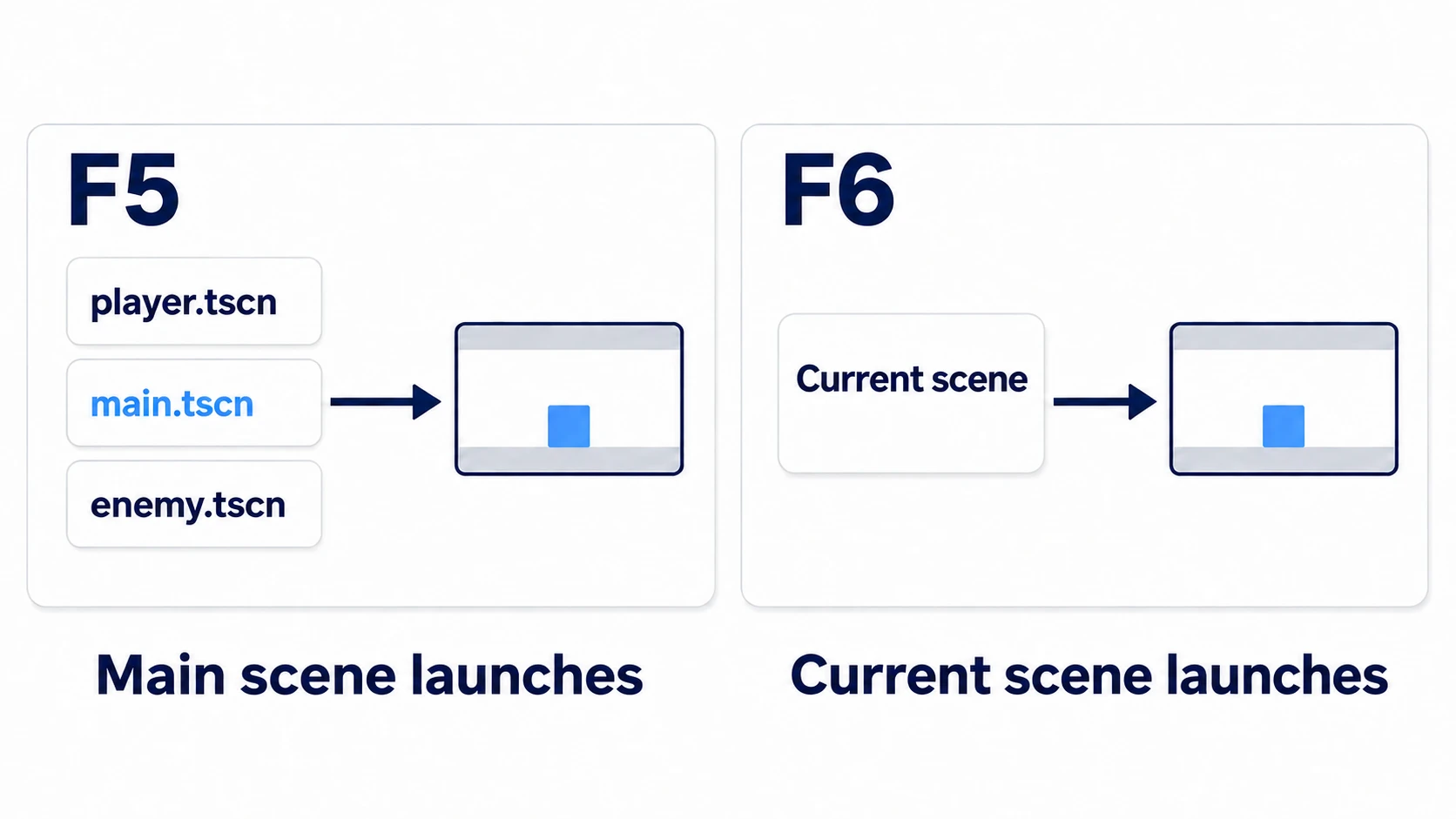
- F5: runs the project's "main scene" (the scene that launches first)
- F6: runs the scene you have open right now
- F8: stops the running game
On a laptop where the function keys don't respond, the buttons in the top right do the same things. The play button on the far left is F5, the square stop button is F8, and the "run current scene" button a little to the right is F6. Hover the mouse over them to see a description.
The first time you press F5, a dialog appears because no main scene has been set yet. It has three buttons: Select to choose from saved scenes, Select Current to make the scene you're editing the main scene, and Cancel to back out. On day one, Select Current is all you need.
The file you set as the main scene gets a different name color in FileSystem at the bottom left. There's no star or other mark, so you tell it apart by color.
The difference between F5 and F6 starts to matter once you have two or more scenes. After setting a main scene, open a different scene and press F5, and the main scene launches, not what you see on screen. When you want to try what you're working on right now, use F6.
Hands-On: Place One Image and Show It in the Center of the Screen
The hero of a side-scroller, the blocks in a puzzle game, the logo on a title screen: they all start by placing one image. You add a part at the top left, bring an image over from FileSystem, set its position on the right, and run it to check. That round trip takes you once around the flow of the four docks.
① What to Place
When you launch Godot, a project list screen (the Project Manager) opens first. Create a new project here. Choose an empty folder for its location. The renderer (how the screen is drawn) can stay at Forward+ even for 2D.
Once it opens, press the 2D Scene button in the Scene dock at the top left. A single part called Node2D appears, and the center viewport switches to 2D.
Node2D            ← the root (the topmost part)
└── Sprite2D      ← you'll add this next
Node2D is a container that groups parts, and it has no field for drawing an image. What shows the image is the Sprite2D you add under it. With Node2D selected, press the "+" button at the top left (Add Child Node). A window for finding parts opens. Type Sprite2D into the search box and double-click the Sprite2D that comes up. It's added as a child (a part hanging beneath) of the Node2D you had selected.
② Add the Image and Set Its Position
Select Sprite2D at the top left. The Inspector on the right swaps its contents, and a field called Texture (the image this part draws) appears.
Find icon.svg in FileSystem at the bottom left (the Godot icon image that comes with every new project) and drag it into the Texture box on the right. That's one round trip happening: carrying something from FileSystem to the right.
In the viewport you can see a pale blue frame. That's the extent of the game screen, and its default size is 1152 × 648. Sprite2D lines up the center of the image with its position, so with the position at (0, 0) right now, the image's center sits on the frame's top-left corner. Only the bottom-right quarter of the image is inside the frame.
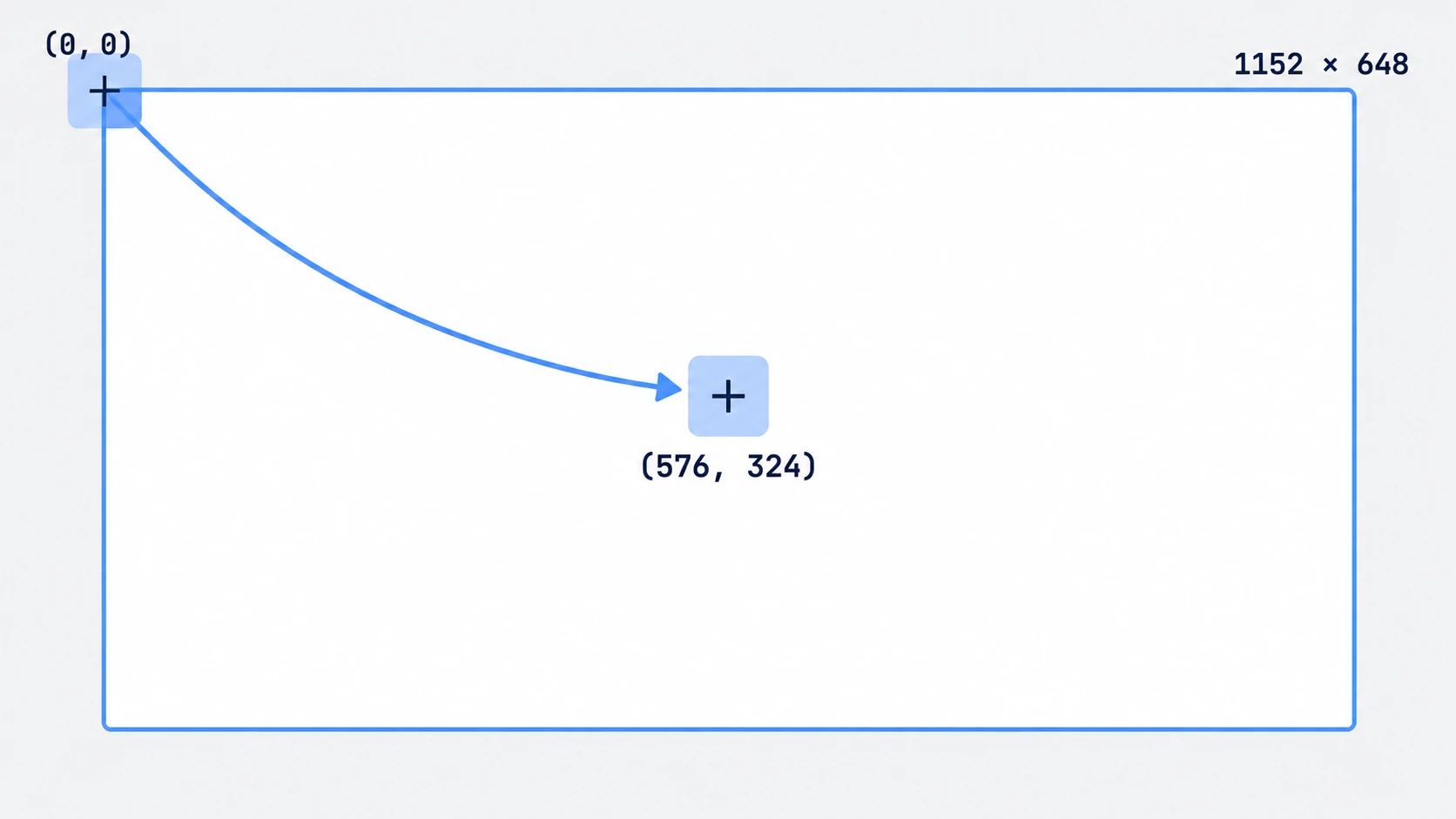
In the Inspector on the right, open Transform (the heading that groups position, rotation, and so on), and enter 576 for x and 324 for y under Position. That's exactly half the frame's size, so the image lands in the middle of the frame. In Godot's 2D, y gets bigger the further down you go. As you type, the image in the center moves on the spot. Take a moment here to see that the numbers on the right and the look in the center are linked.
Finally, save with Ctrl + S. It asks where to save, so save it directly in the project as main.tscn. The res:// shown in the dialog is how Godot refers to the project folder. The moment you save, main.tscn appears in FileSystem at the bottom left.
③ Run It and Check
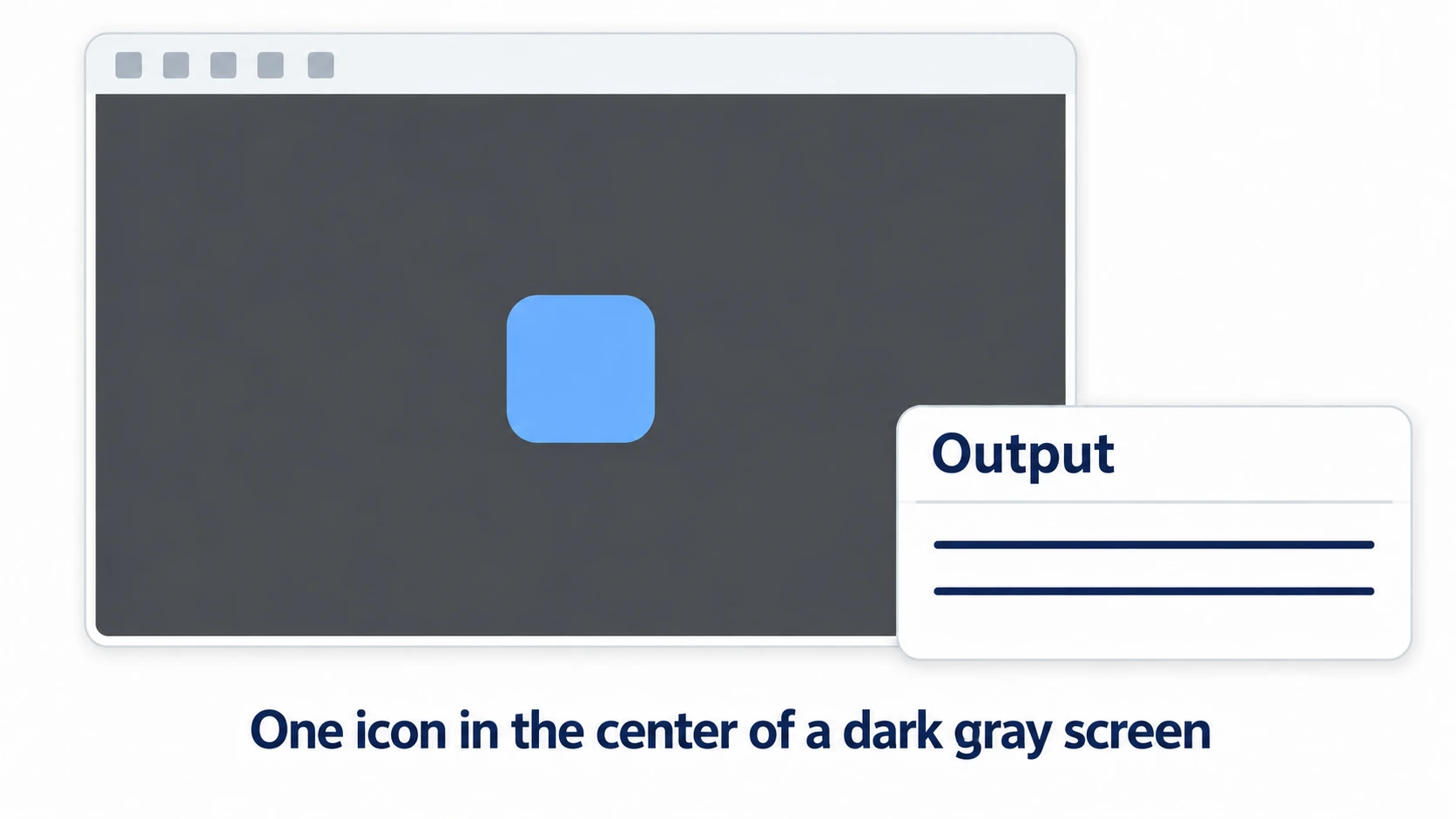
Press F6 to run it. Check three things.
First, a separate window with a toolbar along the top opens, and a single Godot icon appears in the middle of a dark gray background. The gray background is the default color. If the icon sits off to one side, check the Position numbers. If nothing appears, check that there's an image in Texture. Output at the bottom of the screen shows a few lines with the Godot version and the rendering method. There's no script, so there's no text you printed yourself.
Next, with the game still running, change Position x to 300 in the Inspector on the right. The icon in the game moves left too. Synchronize Scene Changes in the Debug menu (the setting that sends values you change in the editor to the running game) is on by default, so changes made while running reach the game. Once you've seen it, set x back to 576 and stop with F8.
Finally, press F5. It asks for a main scene, so choose Select Current, and the same screen as F6 appears. After stopping, look at FileSystem at the bottom left: only main.tscn has its name in a different color. The image you brought over from FileSystem shows up in the running game at the position you set on the right.
Two points.
- Learn the docks as a flow: open from FileSystem, select at the top left, set values on the right, run to check. When you meet a new feature, decide first which part of this flow it belongs to and you won't get lost
- When something's missing, start from the blue line at the top left: check whether the selected line has shifted, and whether F5 is launching a different main scene. Once you've saved, the things you made are almost never truly gone
Troubleshooting
| Symptom | Cause | Fix |
|---|---|---|
| A dock at the top left or right disappeared | You pressed the dock's close button | Restore the original layout with Editor → Editor Layout → Default in the menu |
| The panel on the right changed to fields you've never seen | Double-clicking a file such as an image at the bottom left shows that file's own settings on the right | Select the part's line at the top left again |
| You can see it in the editor, but it doesn't show when you run | It's outside the blue frame in the viewport (the extent of the game screen) | Move it to where the whole image fits in the frame. Position is the position of the image's center |
| The parts you placed were gone after closing | You closed a scene you'd never saved, without saving. Parts don't become a file until you save | Recreate them and save with Ctrl + S before closing |
Bonus: Good to Know First
- An unnamed scene asks you to save before running: press F6 on a scene you've never saved and it asks you to save first. Once it's been saved, running with unsaved changes saves automatically by default
- Images show up in FileSystem just by dropping them in: put a PNG into the project folder and Godot imports it automatically and lists it in FileSystem at the bottom left. You won't need to touch import settings for a while
- What to read next: what the things listed at the top left actually are is in Scenes and Nodes, how to split folders is in Project Organization, and settings to decide before you start building, such as which renderer to pick, are in First Project Setup. What to learn in what order is laid out in the Learning Roadmap
Summary
- Four docks to learn: Scene at the top left, FileSystem at the bottom left, Inspector on the right, Output at the bottom
- The four connect as a flow: open in FileSystem at the bottom left, select at the top left, set values on the right. The center shows how it looks
- It opens on 3D: creating a 2D Scene switches it to 2D
- Open it, or put it in: double-clicking a file in FileSystem opens it, and dragging it puts it inside the current scene
- F5 and F6: F5 is the main scene, F6 is the scene open right now. The main scene's name changes color in FileSystem
Start by placing one Sprite2D and pressing F6. If a single icon appears on the gray screen, you've already been once around the editor's flow. What art will you swap that icon for next?