Add hitstop, which slows the whole game's flow of time for just an instant at the moment an attack lands, and hits get a solid feel. In Godot, you build it by lowering Engine.time_scale.
Just lowering it can leave the whole game stuck in slow motion, or leave a white flash on screen for several seconds. Lowering time_scale also slows down the timer meant to restore it and the code that clears the flash.
This article covers separating what to slow down from what mustn't be slowed, and building hitstop that returns to normal after 0.08 seconds.
What You'll Learn
Engine.time_scalemakes thedeltahanded to everyone smaller- Count the restoring timer in real time, unaffected by
time_scale- Give the job of restoring
time_scaleto a node that doesn't disappear when defeated- Make only the flash and shake recover in real time
Tested with: Godot 4.7
- Engine.time_scale and delta
- Three things that cause trouble when slowed
- The restoring timer (ignore_time_scale)
- The node that restores time_scale (Autoload)
- Recovering the flash and shake in real time
- Hands-On: Walk Up and Freeze on the Frame the Hit Lands
- Troubleshooting
- Bonus: Good to Know First
- Summary
Engine.time_scale and delta
The moment of impact is on screen for just one frame, about 16 milliseconds at 60 fps. The eye can't read "what got hit, right now" in that instant. Hitstop is the effect that stretches that instant over several frames so it can be read.
Godot has two things that change the flow of time.
get_tree().paused = true stops the processing itself from being called. Game nodes stop getting both _process() and _physics_process(), and freeze completely. It's the tool for opening menus.
Engine.time_scale = 0.05 is different. Functions keep being called every frame; only the delta passed in (how many seconds since the previous frame) becomes 1/20. Movement, animation progress, and anything else advancing by delta all slows down.
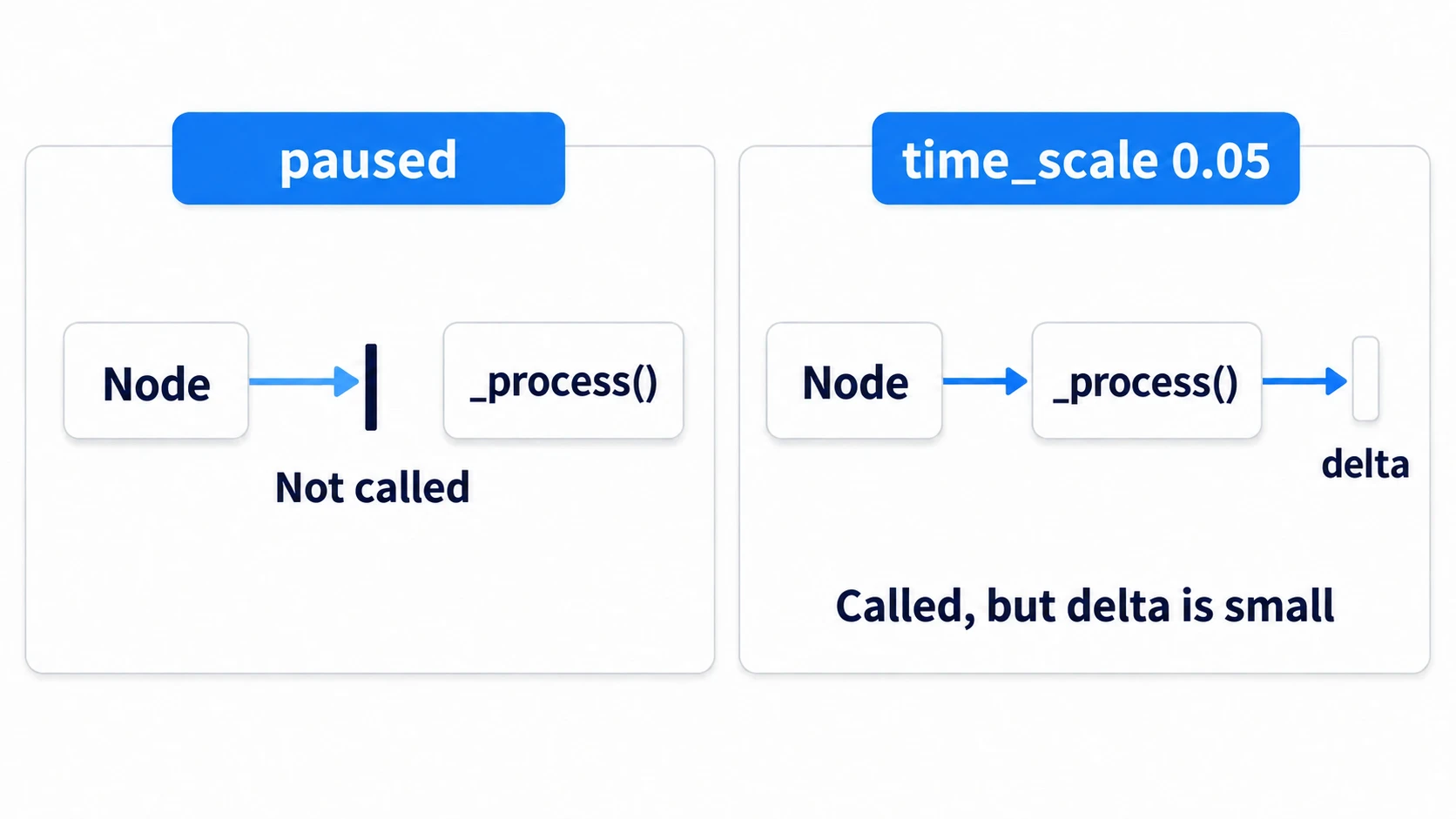
Hitstop uses the latter. At 0.05 it looks almost stopped, and since functions keep being called, the code that restores things and the effects can keep running. Don't use 0. It drags in code that never expected delta to be 0, and the official docs also recommend a value greater than 0.
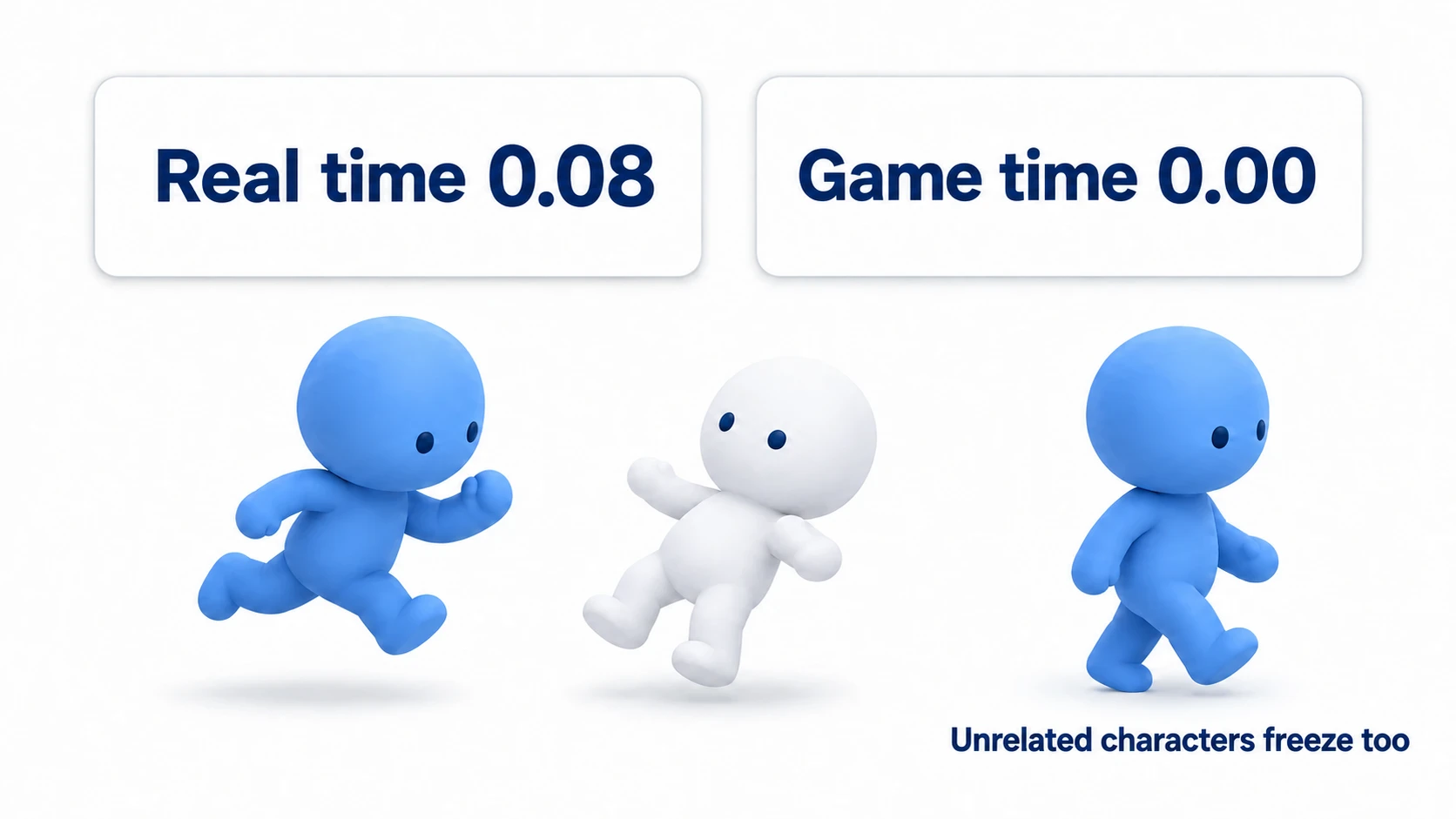
Engine.time_scale applies to the whole game. There's no way to pick someone and slow only them. Everything advancing by delta or by in-game time gets caught up.
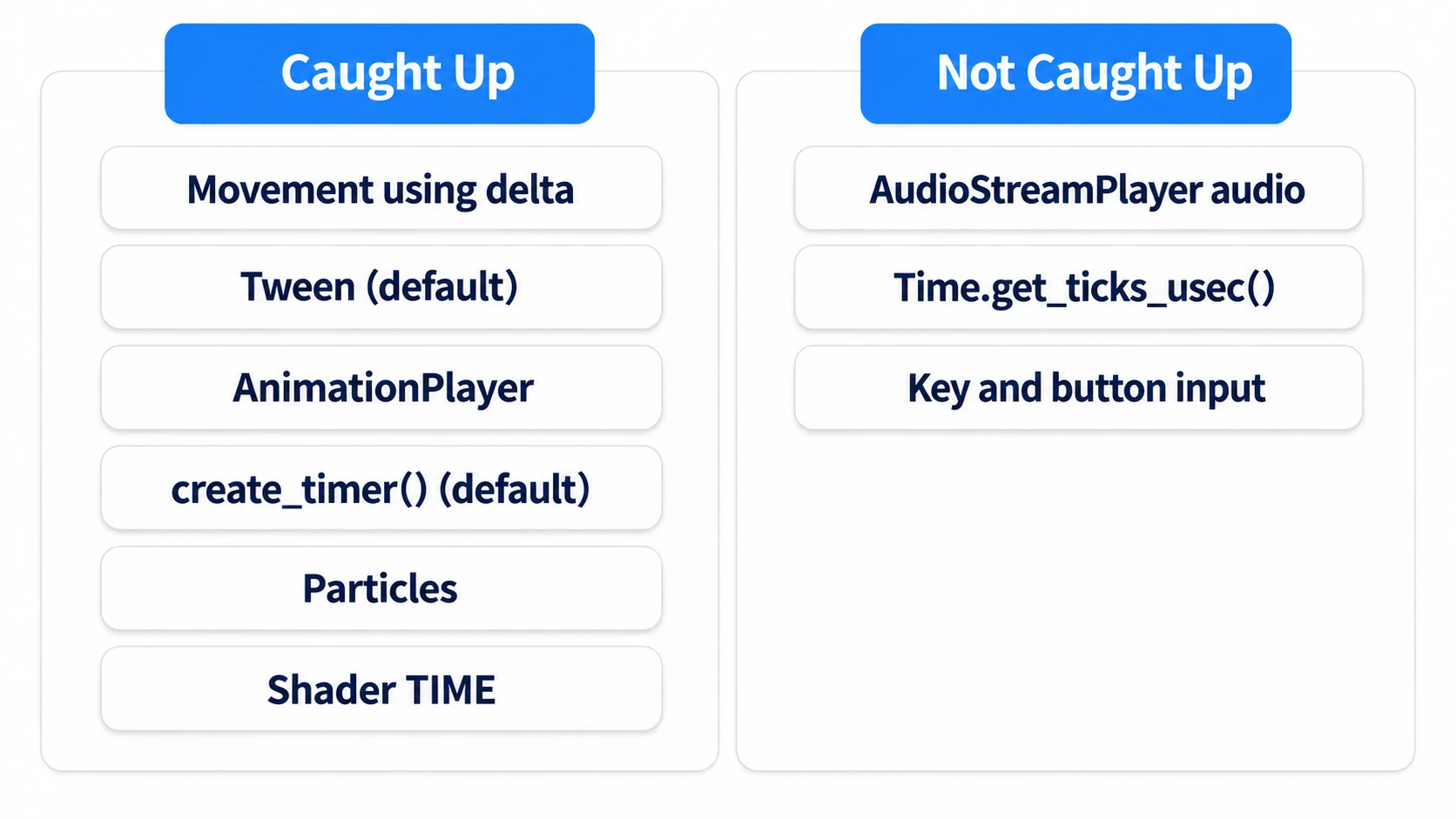
Most of the stumbles in this article come from things on the "caught up" side. The fix is the same each time: count only the things that cause trouble when slowed again in real time, unaffected by time_scale.
In other engines: it corresponds to Unity's
Time.timeScaleand Unreal Engine's Set Global Time Dilation.
Three things that cause trouble when slowed
Of the things that get caught up, three cause trouble with hitstop.
- The timer that ends the stop. If it slows down, 0.08 seconds becomes 1.6 seconds
- The flash recovering. Tweens, which move a value over time, get caught up by default, so a color meant to recover in 0.15 seconds lingers for as long as the stop lasts
- The screen shake decaying. If you reduce it by
delta, the shake doesn't settle during the stop
Hit sounds, on the other hand, play at normal speed without doing anything. AudioStreamPlayer doesn't look at Engine.time_scale. Only if you want audio slowed too do you change AudioServer.playback_speed_scale for everything, or AudioStreamPlayer's pitch_scale for individual sounds, yourself.
Putting something on a CanvasLayer doesn't take it out of time_scale. A layer only decides drawing order. Setting Process Mode to Always doesn't take it out either. That's a setting for ignoring pause, and has nothing to do with time_scale.
The restoring timer (ignore_time_scale)
Write "set Engine.time_scale = 0.05, then wait 0.08 seconds" in the obvious way, and you get this.
Engine.time_scale = 0.05
await get_tree().create_timer(0.08).timeout
Engine.time_scale = 1.0
create_timer(0.08) makes a timer that fires after 0.08 seconds, and await is the syntax that pauses the rest of the function until it fires. This doesn't work as intended. The timer also advances under the effect of time_scale, so in real time it takes 0.08 / 0.05, or 1.6 seconds. The screen turns into obvious slow motion, while only the audio plays at normal speed.
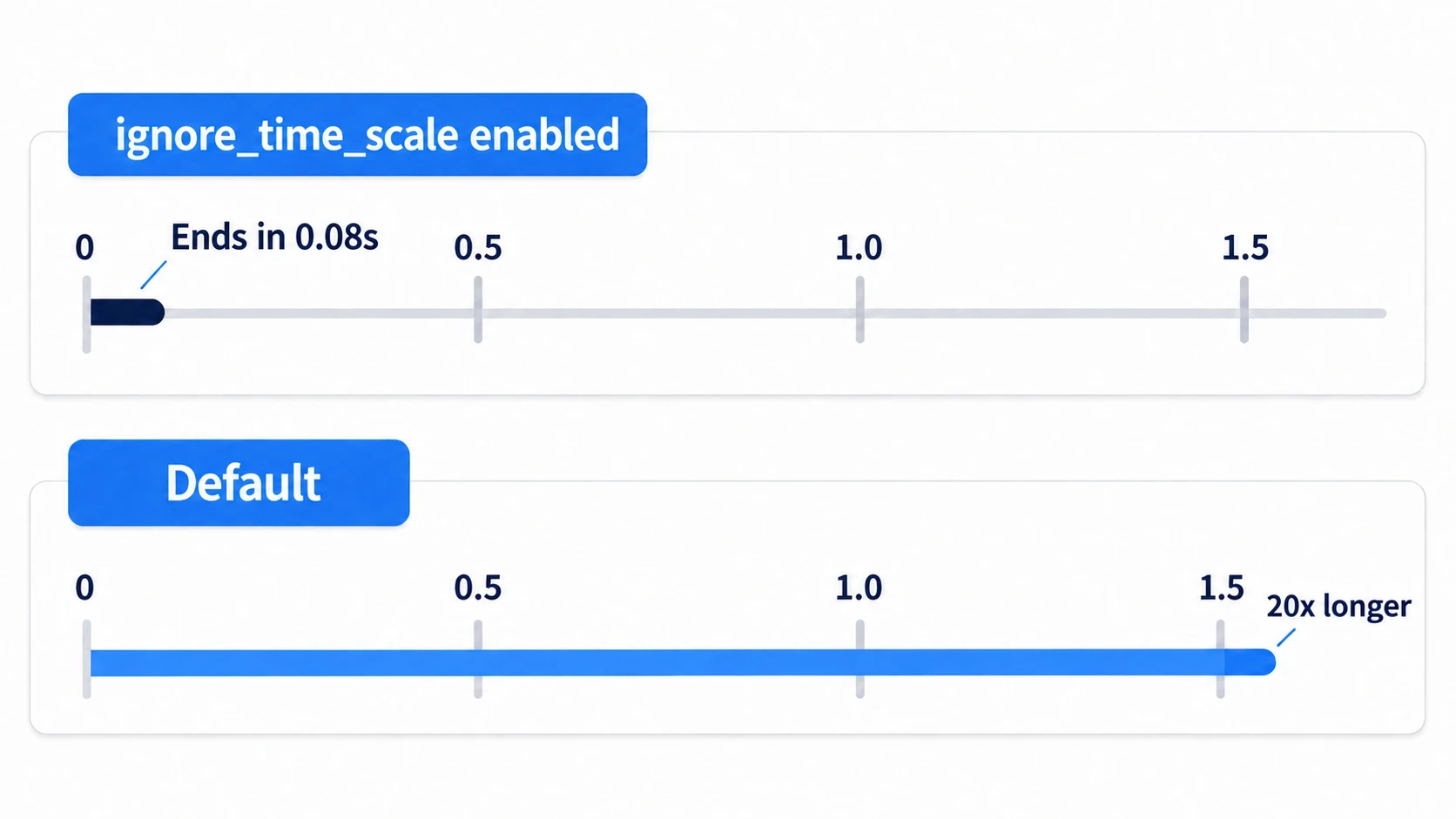
You could make the constant 0.08 × 0.05 instead, but then you'd recalculate it every time you change the scale. What to fix is the way you wait. create_timer() takes four arguments.
await get_tree().create_timer(0.08, true, false, true).timeout
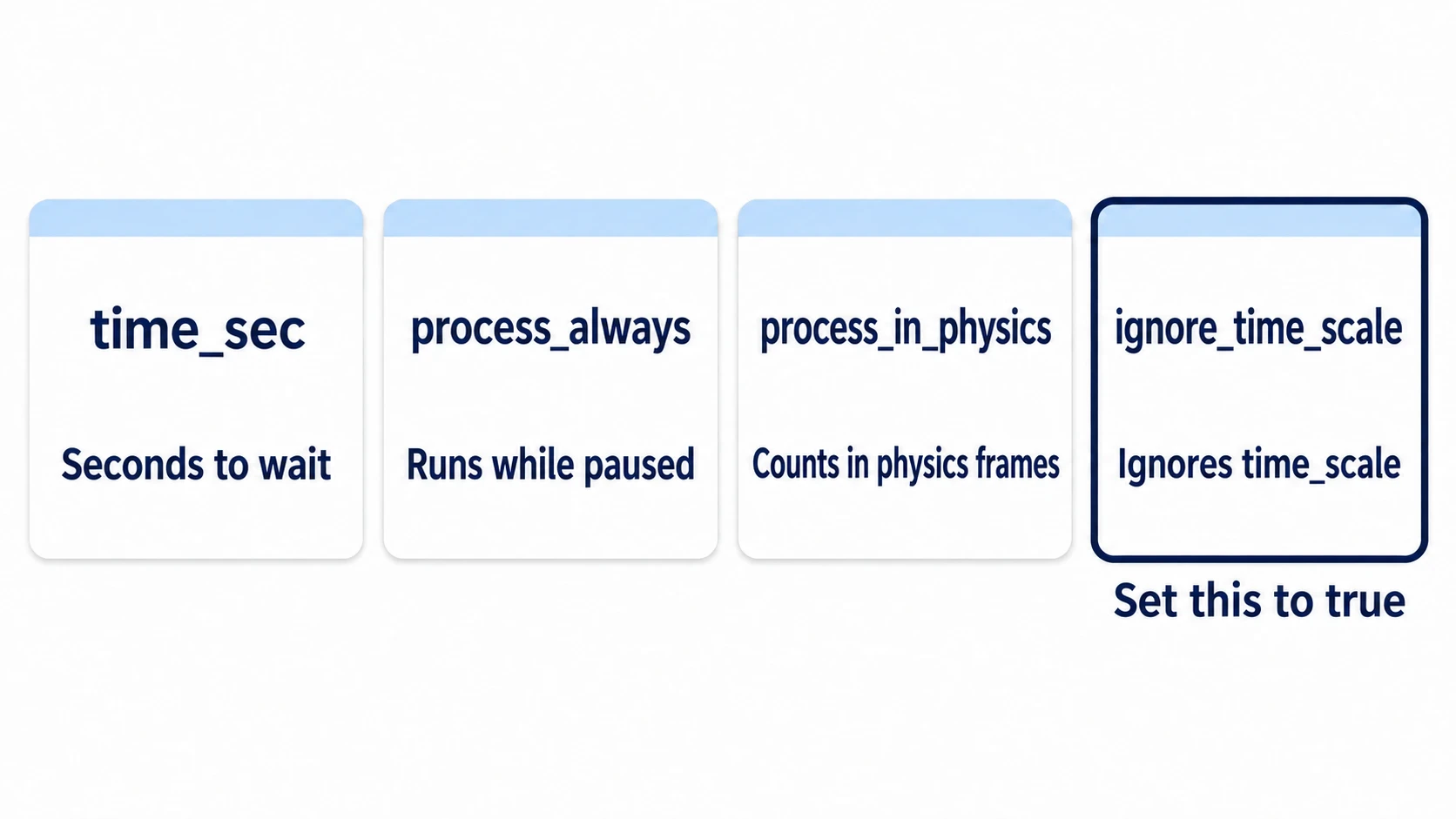
The fourth is ignore_time_scale. Set it to true and it ignores Engine.time_scale, counting 0.08 seconds in real time. The second, process_always, is a setting for ignoring pause; setting only that one to true leaves it still affected by time_scale. The third, process_in_physics, counts in physics frames; leave it false here.
The node that restores time_scale (Autoload)
Even with the timer fixed, there are times it still doesn't come back. Only when you hit an enemy that you've defeated.
Say the function with the await is in the enemy's script. When that enemy is freed with queue_free() (which deletes a node at the end of the frame), the rest of the waiting function is cleaned up too. The timer itself is held by the SceneTree (the tree for the whole game, which survives scene changes), so it keeps advancing. Even so, the Engine.time_scale = 1.0 line never runs. Engine.time_scale doesn't belong to any scene, so it stays slow all the way back to the title screen.
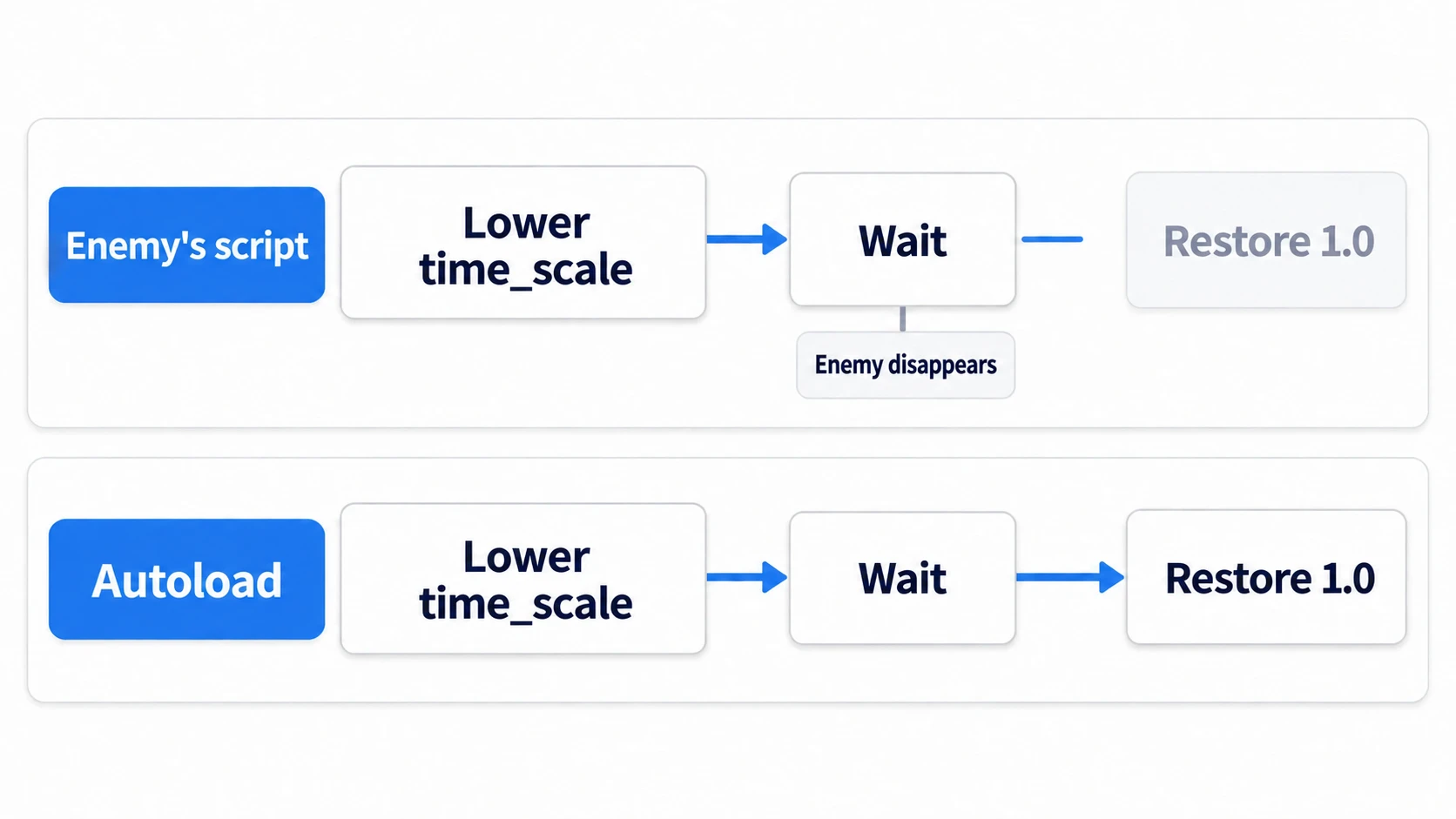
Give the job of restoring time_scale to a node that doesn't disappear when the scene changes. Putting one in an Autoload is the straightforward way.
# hit_stop.gd (register as an Autoload)
extends Node

var _token := 0

func freeze(duration := 0.08, scale := 0.05) -> void:
	_token += 1
	var mine := _token                     # remember this call's number
	Engine.time_scale = scale
	await get_tree().create_timer(duration, true, false, true).timeout
	if mine == _token:
		Engine.time_scale = 1.0            # only the last call restores it
The number is there for consecutive hits. The first hit's await wakes up partway through the second hit's stop. Assign 1.0 there as-is, and the second hit's impact disappears partway through.
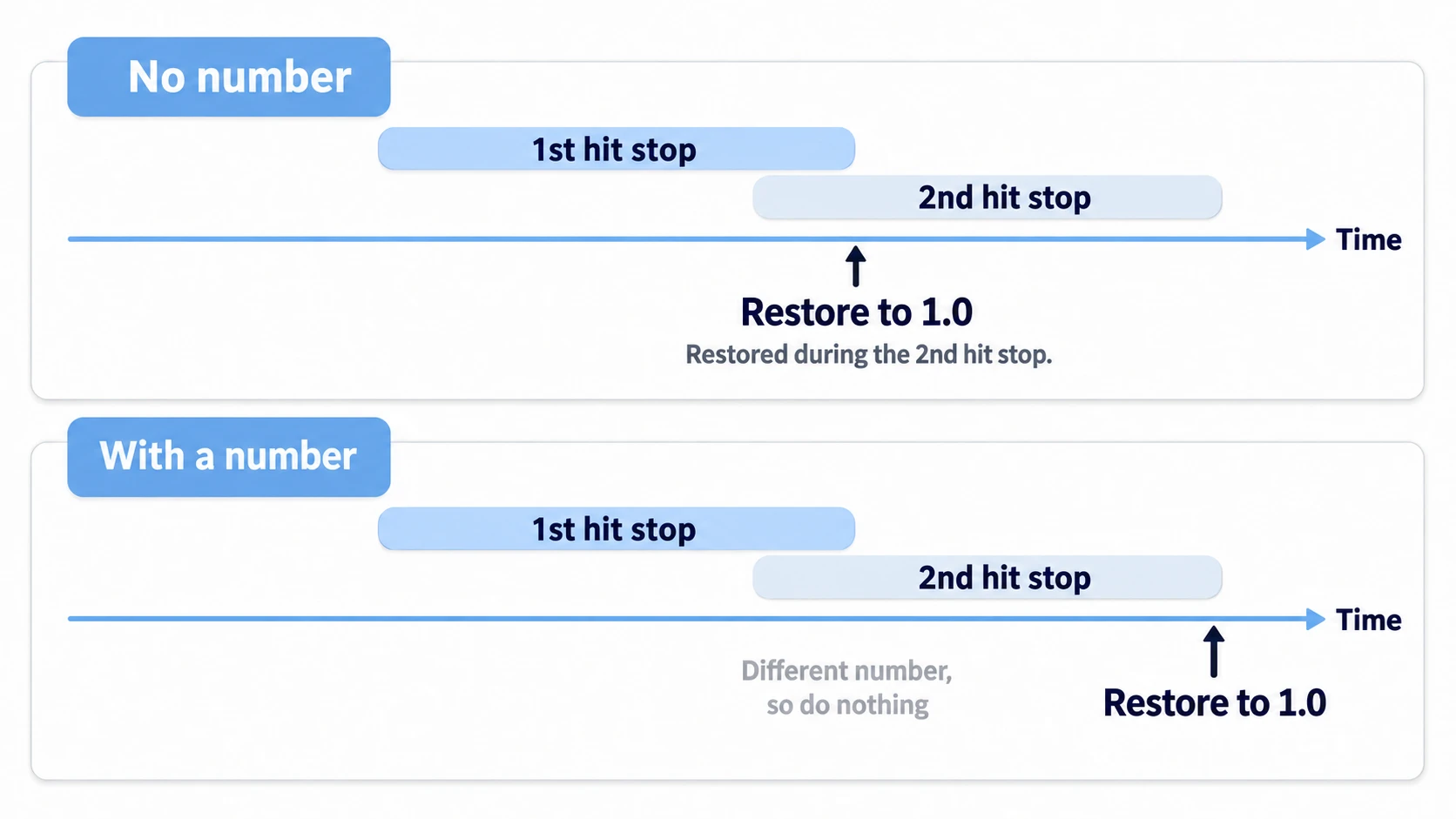
Assigning Engine.time_scale = scale is for the same reason. With *= 0.05, a second hit during the stop drops it to 0.0025. The last timer restores it to 1.0, so it does come back, but just before that it becomes extremely slow for an instant.
Recovering the flash and shake in real time
At this point, time_scale comes back after 0.08 seconds. Even so, the flash and the shake are still caught up.
Since 4.4, Tweens can ignore time_scale with set_ignore_time_scale(true). Without this setting, the color takes longer to recover by however much its progress is slowed during the stop.
sprite.modulate = Color(4.0, 4.0, 4.0)     # brighten it once
var tw := create_tween()
tw.set_ignore_time_scale(true)             # unaffected by time_scale
tw.tween_property(sprite, "modulate", Color.WHITE, 0.15)
Put values greater than 1.0 into modulate and you can amplify the original colors toward white. In default 2D, anything above 1 caps at white. Black areas stay black however much you multiply them, so how to flash pure white is in the modulate article.
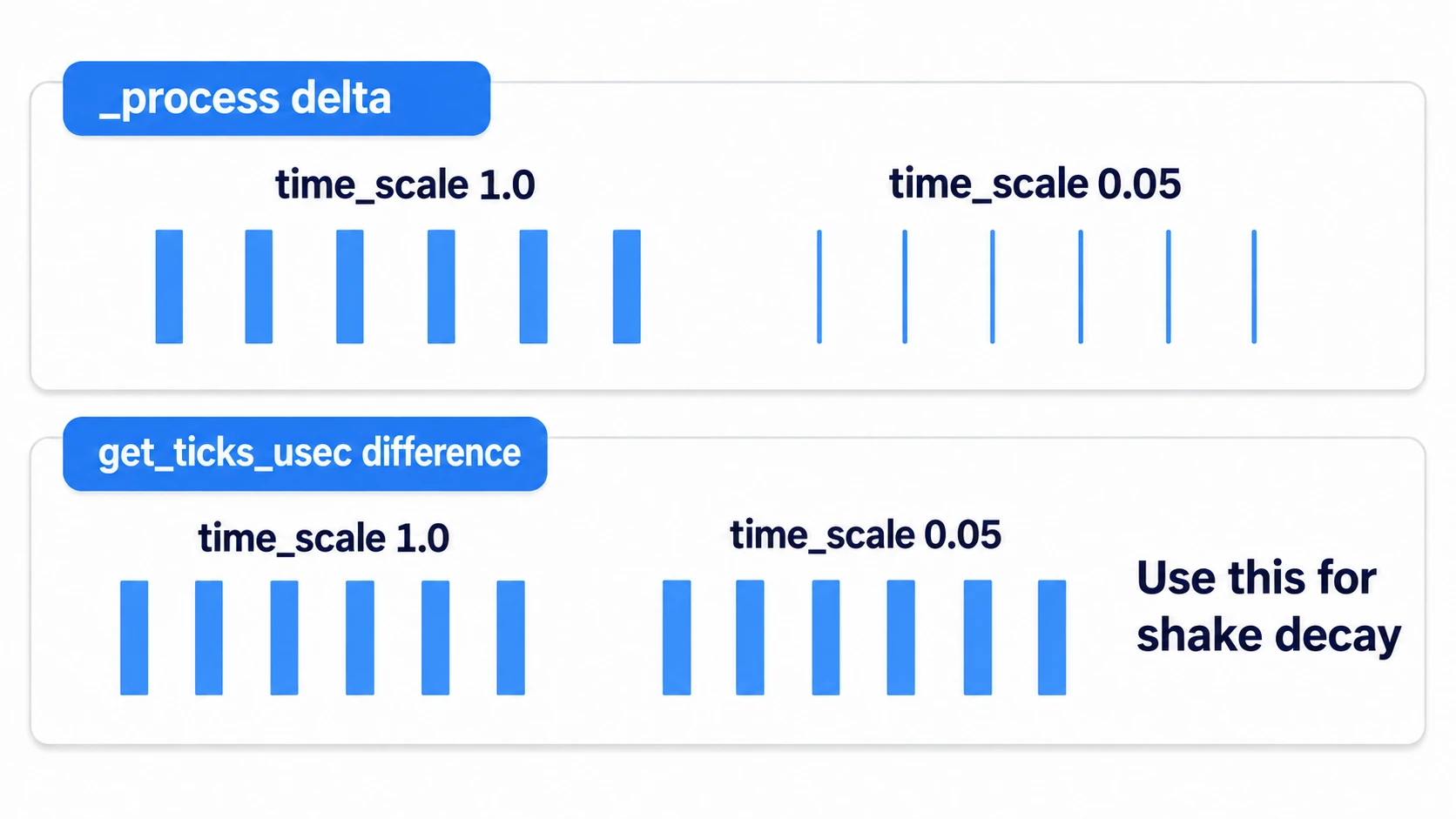
Code that you reduce yourself by delta isn't freed by the Tween setting. The screen shake's decay is one of these. Here, get a number unaffected by time_scale yourself.
Time.get_ticks_usec() returns the time since startup in microseconds and isn't affected by Engine.time_scale. Take the difference from the previous frame, and you have a real-time delta. The hands-on's shake_camera.gd reduces the shake with this difference. You could also undo it with delta / Engine.time_scale, but that goes wrong if the scale changes mid-frame.
Start the three effects together from the same hit handling. There's no need to stagger their starts. What differs is when they end. With the hands-on's values, the stop ends at 0.08 seconds and the flash at 0.15 seconds. The shake adds 0.7 and reduces it by 3.0 per second, so it takes about 0.23 seconds. They drop out in order, shortest first.
Hands-On: Walk Up and Freeze on the Frame the Hit Lands
Punches in a beat 'em up, slashes in a Metroidvania, strikes in a top-down ARPG—hit feel is built the same way in all of them. Freezing something that's already still shows nothing, so you'll build a screen where things that are moving come to a stop.
① What to place
Create one new scene.
- Put a Node2D at the root as Main. Attach
main.gd - Add a CharacterBody2D under Main as Player. Position
(200, 300). Attachplayer.gd - Add a Camera2D under Main as ShakeCamera. Position
(576, 324). Attachshake_camera.gd. Place it below Player (the tree is processed from the top, so the shake starts on the same frame as the hit) - Under Player, place a Sprite2D (
icon.svgas its Texture) and a CollisionShape2D (CircleShape2D, radius32) - Add a Node2D under Main as Target. Position
(600, 300). Attachtarget.gd, and give it a Sprite2D child (same as above) - Add a Node2D under Main as Walker. Position
(800, 300). Attachwalker.gd, and give it a Sprite2D child (same as above) - Add a CanvasLayer (a layer that stays at the same place on screen even when the camera moves) under Main as HUD. Give it two Label children: RealLabel at
(16, 16)and GameLabel at(16, 48) - For ShakeCamera, Target, Walker, RealLabel, and GameLabel, right-click and turn on "Access as Unique Name." A
%appears next to the name, and scripts can call them like%Target
Walker is a node that only walks back and forth on the right side of the screen. It's neither the one being hit nor the one hitting. Its movement is how you see that the whole game's time has slowed.
Register the hit_stop.gd from "The node that restores time_scale (Autoload)" as an Autoload. In Project Settings › Globals › Autoload, name it HitStop.
② Put it together
player.gd walks up and hits with the space key. On a hit, it calls flash, shake, and freeze together from the same spot.
# player.gd
extends CharacterBody2D

const SPEED := 400.0
const REACH := 140.0

@onready var target: Node2D = %Target
@onready var camera: Camera2D = %ShakeCamera

func _physics_process(_delta: float) -> void:
	velocity.x = Input.get_axis("ui_left", "ui_right") * SPEED
	move_and_slide()

func _process(_delta: float) -> void:
	if Input.is_action_just_pressed("ui_accept"):
		_swing()

func _swing() -> void:
	if not is_instance_valid(target):      # don't hit a target that was defeated and removed
		return
	if global_position.distance_to(target.global_position) > REACH:
		return
	target.flash()                         # flash
	camera.add_trauma(0.7)                 # shake
	HitStop.freeze(0.08, 0.05)             # freeze
# target.gd
extends Node2D

@onready var sprite: Sprite2D = $Sprite2D

var _flash_tween: Tween

func flash() -> void:
	if _flash_tween and _flash_tween.is_valid():
		_flash_tween.kill()                # a leftover recovery would steal the starting color
	sprite.modulate = Color(4.0, 4.0, 4.0)
	_flash_tween = create_tween()
	_flash_tween.set_ignore_time_scale(true)
	_flash_tween.tween_property(sprite, "modulate", Color.WHITE, 0.15)
# walker.gd
extends Node2D

const SPEED := 150.0

var _dir := 1.0

func _process(delta: float) -> void:
	position.x += _dir * SPEED * delta     # uses delta, so it's affected by time_scale
	if position.x > 950.0 or position.x < 750.0:
		_dir = -_dir
shake_camera.gd is a version where only the shake's decay is in real time. The full approach is in the Camera2D article.
# shake_camera.gd
extends Camera2D

const MAX_SHAKE := 14.0
const DECAY := 3.0

var _trauma := 0.0
var _last_usec := 0

func _ready() -> void:
	_last_usec = Time.get_ticks_usec()

func add_trauma(amount: float) -> void:
	_trauma = clampf(_trauma + amount, 0.0, 1.0)

func _process(_delta: float) -> void:
	var now := Time.get_ticks_usec()
	var real_delta := (now - _last_usec) / 1_000_000.0
	_last_usec = now
	_trauma = maxf(_trauma - DECAY * real_delta, 0.0)
	offset = Vector2(randf_range(-1.0, 1.0), randf_range(-1.0, 1.0)) * MAX_SHAKE * _trauma
_trauma is a variable holding the shake's strength from 0 to 1. add_trauma() adds to it, and it's reduced by DECAY per second of real time.
main.gd only shows two values on screen: real time and in-game time.
# main.gd
extends Node2D

var _game_time := 0.0
var _start_usec := 0

@onready var real_label: Label = %RealLabel
@onready var game_label: Label = %GameLabel

func _ready() -> void:
	_start_usec = Time.get_ticks_usec()

func _process(delta: float) -> void:
	_game_time += delta                                        # affected by time_scale
	var real := (Time.get_ticks_usec() - _start_usec) / 1_000_000.0
	real_label.text = "Real time: %.2f" % real
	game_label.text = "In-game: %.2f" % _game_time
③ Run it and check
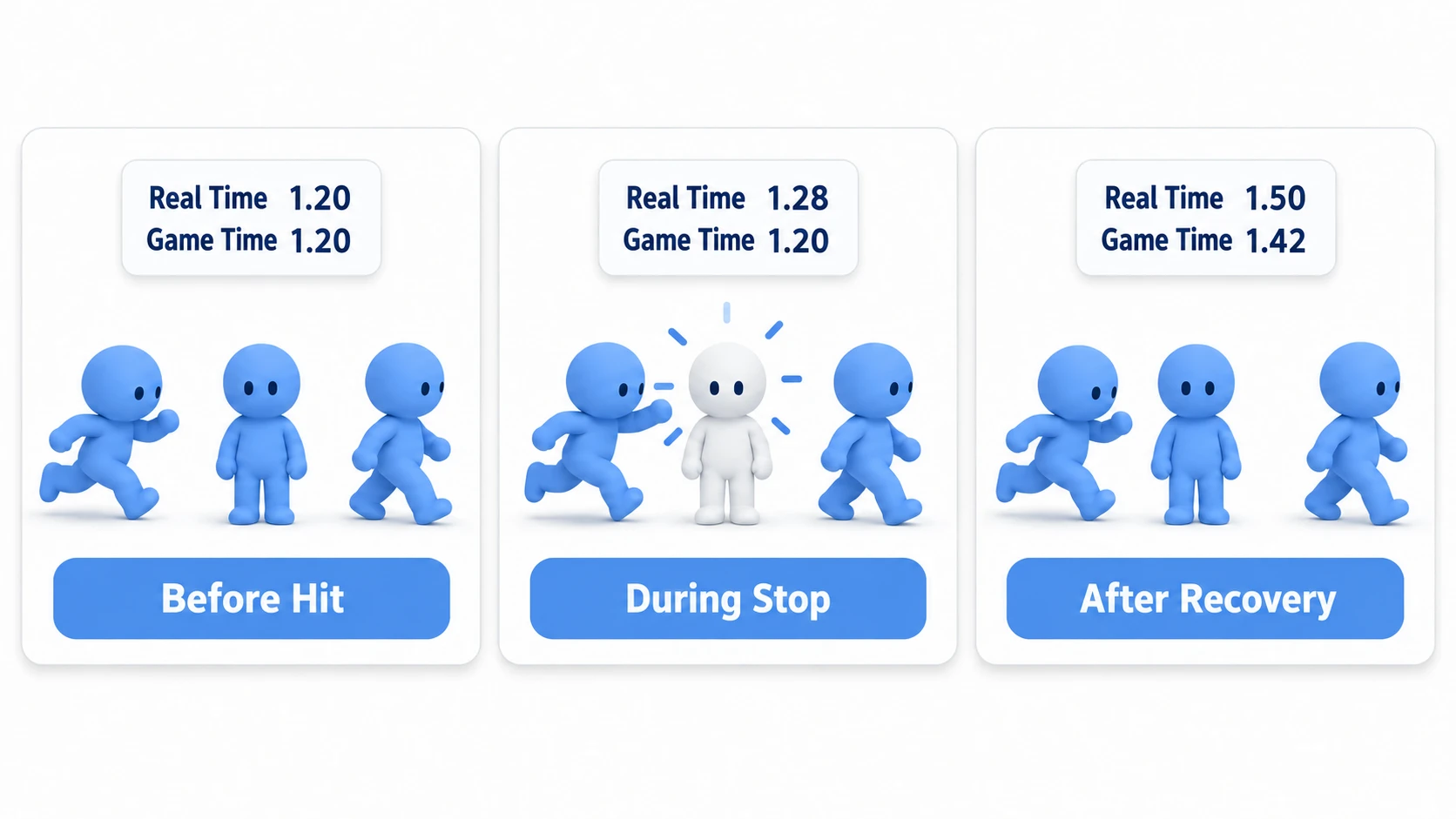
Approach Target with the right arrow key and press the space key within reach. At the moment of impact Target flashes bright, and at the same moment Walker's back-and-forth slows down too. Even Walker, which wasn't hit, nearly stops because the whole game's time_scale dropped. If Walker keeps walking normally, HitStop.freeze() isn't being called.
Also look at the two numbers on the HUD. During the stop only real time advances, and in-game time barely increases. After recovery, both keep increasing with the gap between them (a little under 0.1 seconds) left open. The bright white recovers in about 0.15 seconds. If the white lingers even after time_scale is back, set_ignore_time_scale(true) is missing.
To see the number at work, temporarily change HitStop.freeze(0.08, 0.05) in player.gd to HitStop.freeze(0.4, 0.05). Press again less than 0.4 seconds after the first, and the second stop lasts all the way. Rewrite if mine == _token: as if true: and do the same thing, and time_scale comes back when the first wait ends, cutting the second stop short.
Two points.
- Decide first what to stop and what not to stop:
Engine.time_scalecan't pick and choose. It applies to everything, and you bring back the things you want excluded to real time one at a time. The restoring timer, effect recovery, and shake decay are the usual three - The node that restores
time_scalemust not disappear: give the job to the target that was hit, and it fails to come back only when you defeat it. The rest of anawaitstops running once that node is freed
Even if you add code that defeats Target and calls queue_free(), HitStop is in an Autoload, so time_scale comes back. Once you've confirmed this, try swapping in the full shake from the Camera2D article and the white flash from the modulate article.
Troubleshooting
| Symptom | Cause | Fix |
|---|---|---|
| HUD gauges and number animations also stop during the stop | The Tweens moving them also follow time_scale by default | Add set_ignore_time_scale(true) to those Tweens too |
| Hitting during a slow-motion effect ends the slow motion when the stop finishes | freeze() assigns 1.0 at the end and doesn't remember the scale from before | Leave slow motion to HitStop too, and have HitStop remember the scale to restore |
| A light attack landing partway through a heavy hit's long stop cuts the stop short | It returns to 1.0 after the length of the last freeze() called. The number only looks at "the last call" | Remember the time it should end, and don't change the scale or number for calls that would end sooner |
| Only the shake starts one frame late | ShakeCamera is above Player, so the camera's _process() finishes before add_trauma() is called | Move ShakeCamera below Player in the scene tree |
Bonus: Good to Know First
Shaders' TIME is affected by Engine.time_scale. Lower time_scale and shimmering or flowing effects slow down along with it. If there's a part you want moving in real time, pass a value built from Time.get_ticks_usec() every frame as a uniform (a variable passed from a script to a shader).
There's only one Engine.time_scale, so writing slow motion and hitstop separately makes them fight over it. Decide that only HitStop touches time_scale.
Summary
- Lowering
time_scalemakes delta smaller: functions keep being called, so unlike pausing, effects and restoring code keep running. Don't use0 - Count the restoring timer in real time: set
create_timer()'s fourth argument,ignore_time_scale, totrue - Give the job of restoring to an Autoload:
awaitin the enemy's script, andtime_scalefails to come back only when you defeat it - Protect against rapid hits with a number: only the last call returns it to
1.0 - Only effect recovery in real time: the flash with
set_ignore_time_scale(true), the shake's decay with the difference ofTime.get_ticks_usec()
How many frames do you want to freeze at the moment the attack you're building lands?