Buttons on a title screen or menu that can be pressed with either the mouse or the keyboard, and two-choice questions like a quit confirmation that can be answered with Enter and Esc, keep players from getting lost. In Godot, you build these with Button and ConfirmationDialog.
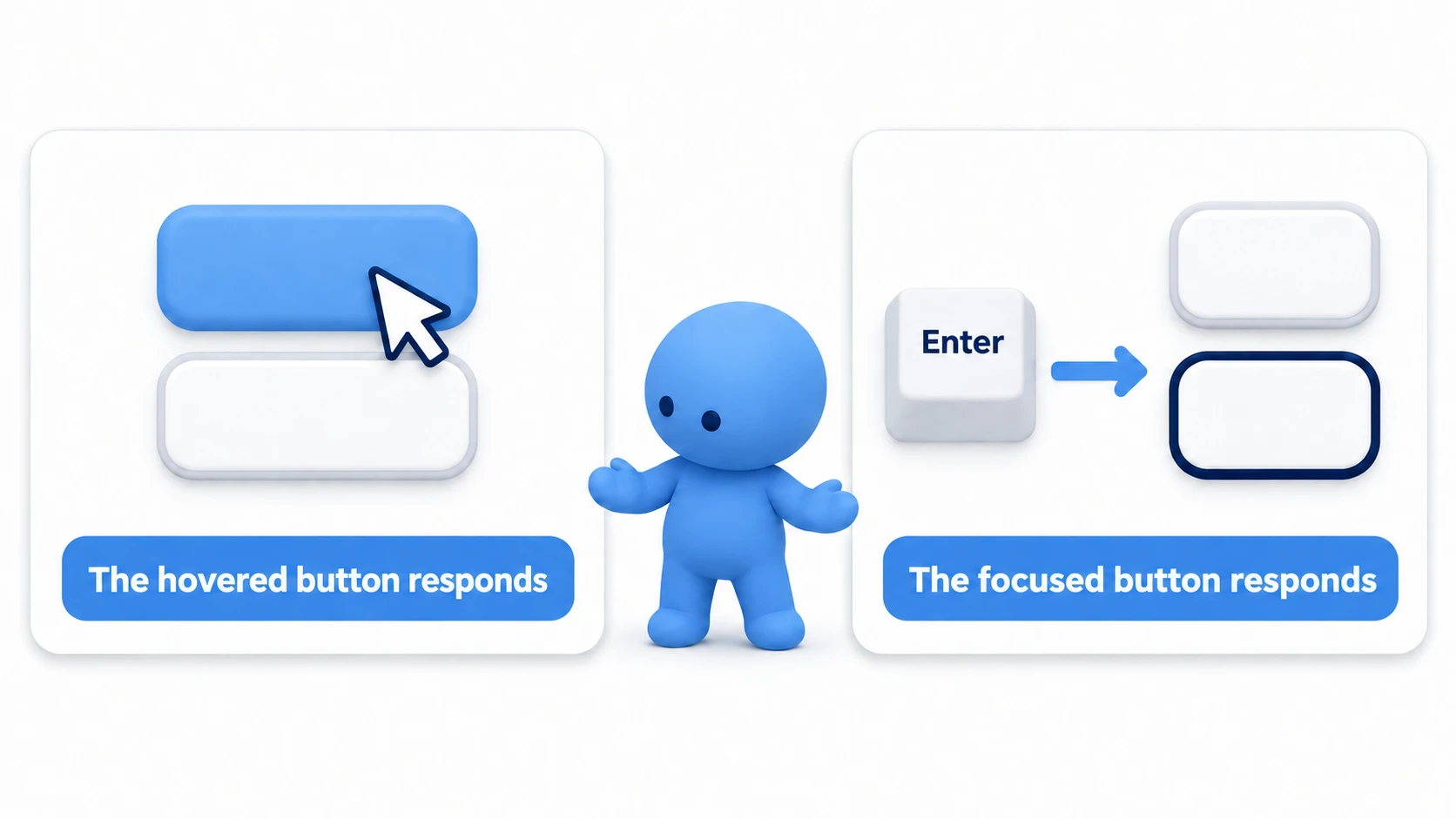
But sometimes clicking a button whose pressed you connected does nothing, or a button that presses fine with the mouse has Enter trigger a different one. That's because the mouse and the keyboard decide which button gets pressed in different ways.
This article covers the steps for narrowing down why a button won't press, and how to build a confirmation dialog where Enter and Esc work from the start.
What You'll Learn
- The mouse and the keyboard decide which button answers in different ways
- Steps for narrowing down "nothing happens when I press it" from the top
- The difference between
pressedandbutton_pressed, and when to use each way of connecting- Hands-on: answer "Quit the game?" with only Enter and Esc
Tested with: Godot 4.7
- Which button the mouse and keyboard press
- Narrowing down why a button won't press
- Showing the hovered and focused buttons on screen
- The difference between pressed and button_pressed
- ConfirmationDialog (yes/no confirmation)
- Hands-On: Confirm Before "Quit"
- Troubleshooting
- Bonus: Good to Know First
- Summary
Which button the mouse and keyboard press
A click goes to the Control right under the cursor, and Enter goes to the Control that has focus. The mechanisms that decide where they go are separate to begin with.
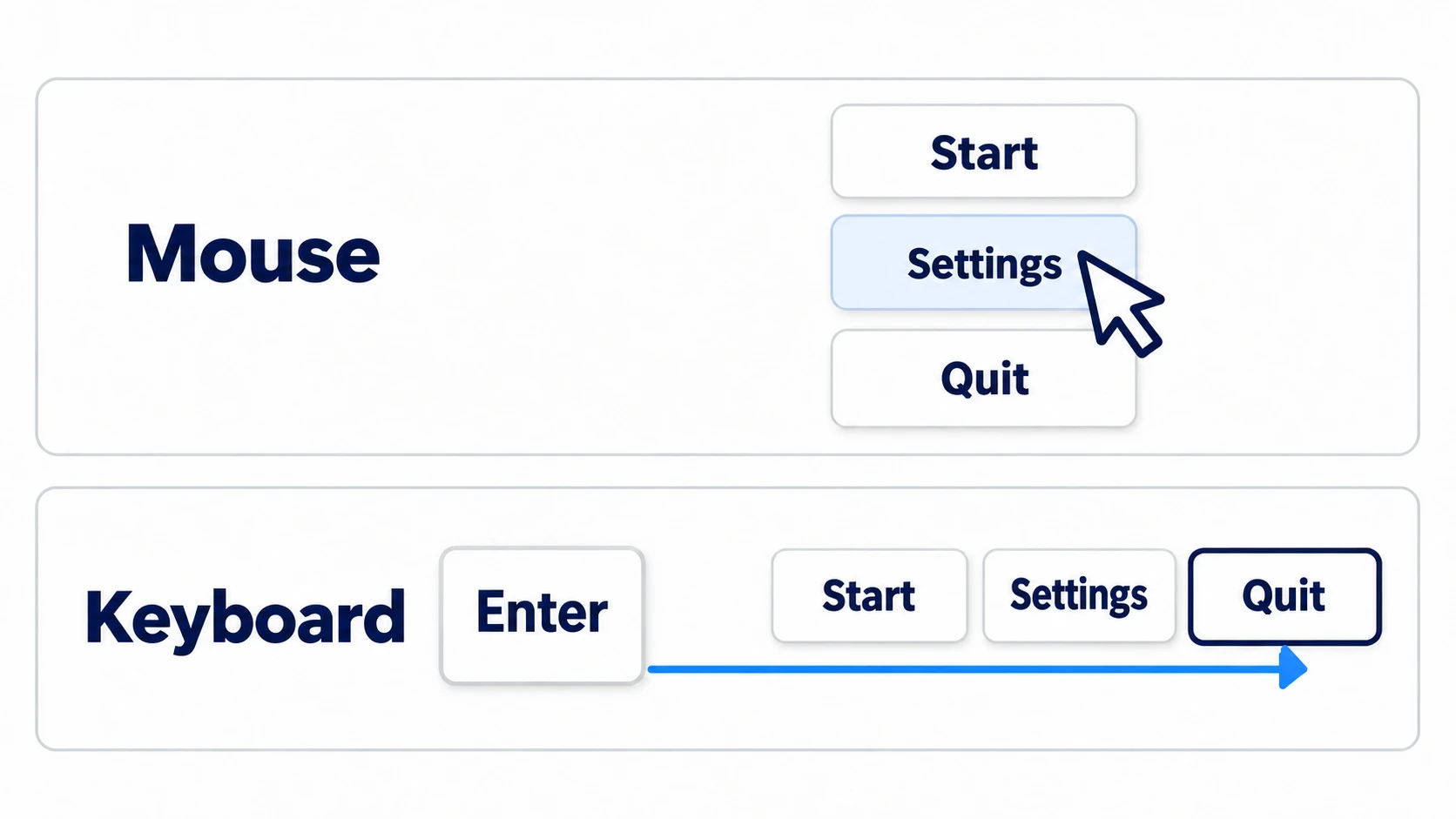
Focus is whoever receives keyboard and gamepad operations. Each viewport (one unit of drawing and input, like the game screen or a dialog) can have at most one Control with focus at a time. When you select with the keyboard, an outline appears, so you can see where it is.
These two routes work separately. A click doesn't need focus. On the other hand, if focus is on a different button, however much you hover the cursor, Enter presses that other one.
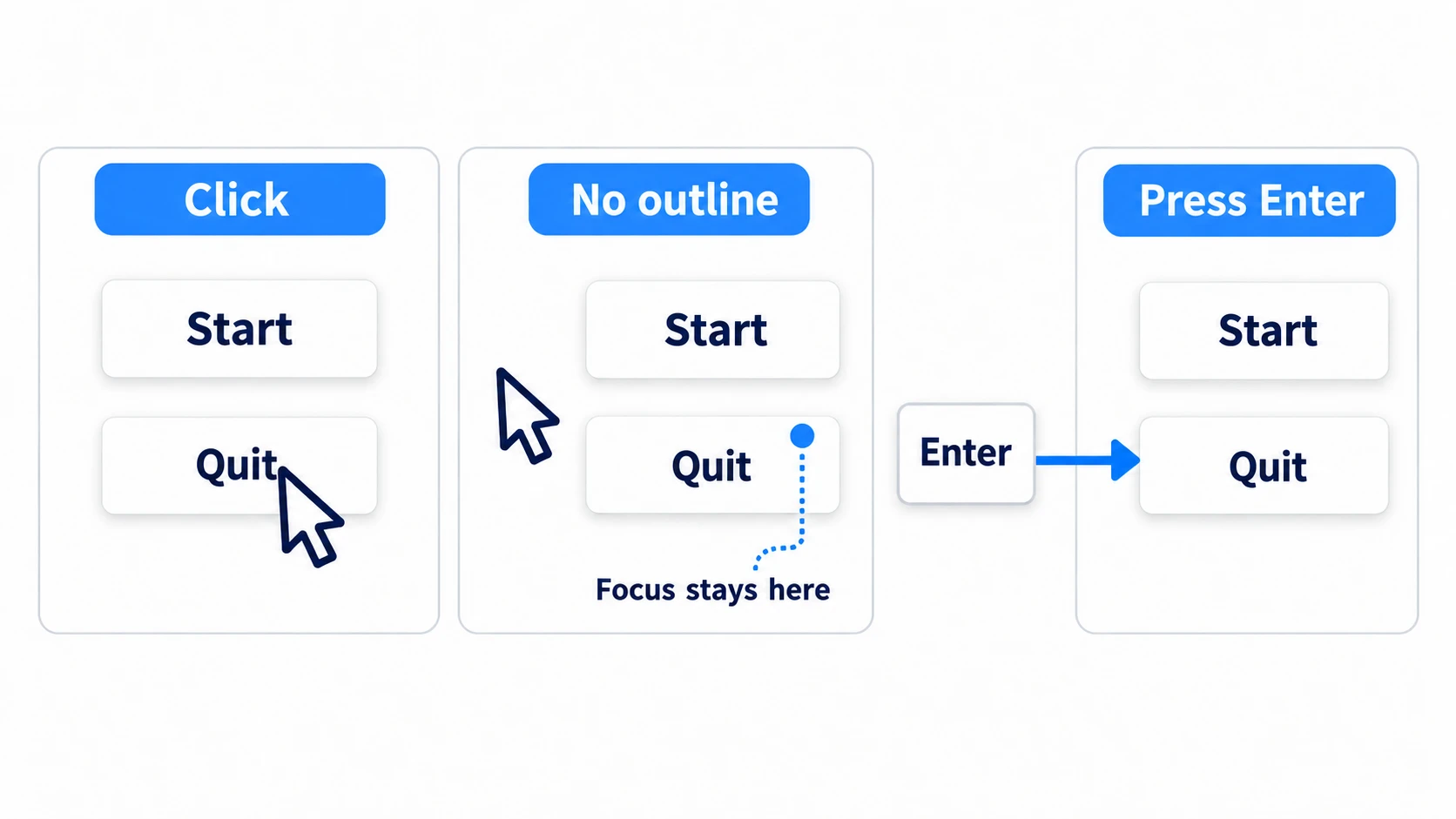
What's easy to miss is that a click also moves focus. By default in 4.7, no outline appears for focus that moved to a button by mouse. Click "Quit," close the dialog, then press Enter, and "Quit" is pressed again even though no outline is visible anywhere.
In other engines: focus corresponds to the EventSystem's "selected object" in Unity's uGUI (
EventSystem.current.currentSelectedGameObject), and keyboard focus (Set Keyboard Focus) in Unreal Engine's UMG.
Narrowing down why a button won't press
Don't guess at the cause; narrow it down from the top. The higher a check is on the list, the cheaper and more certain it is.
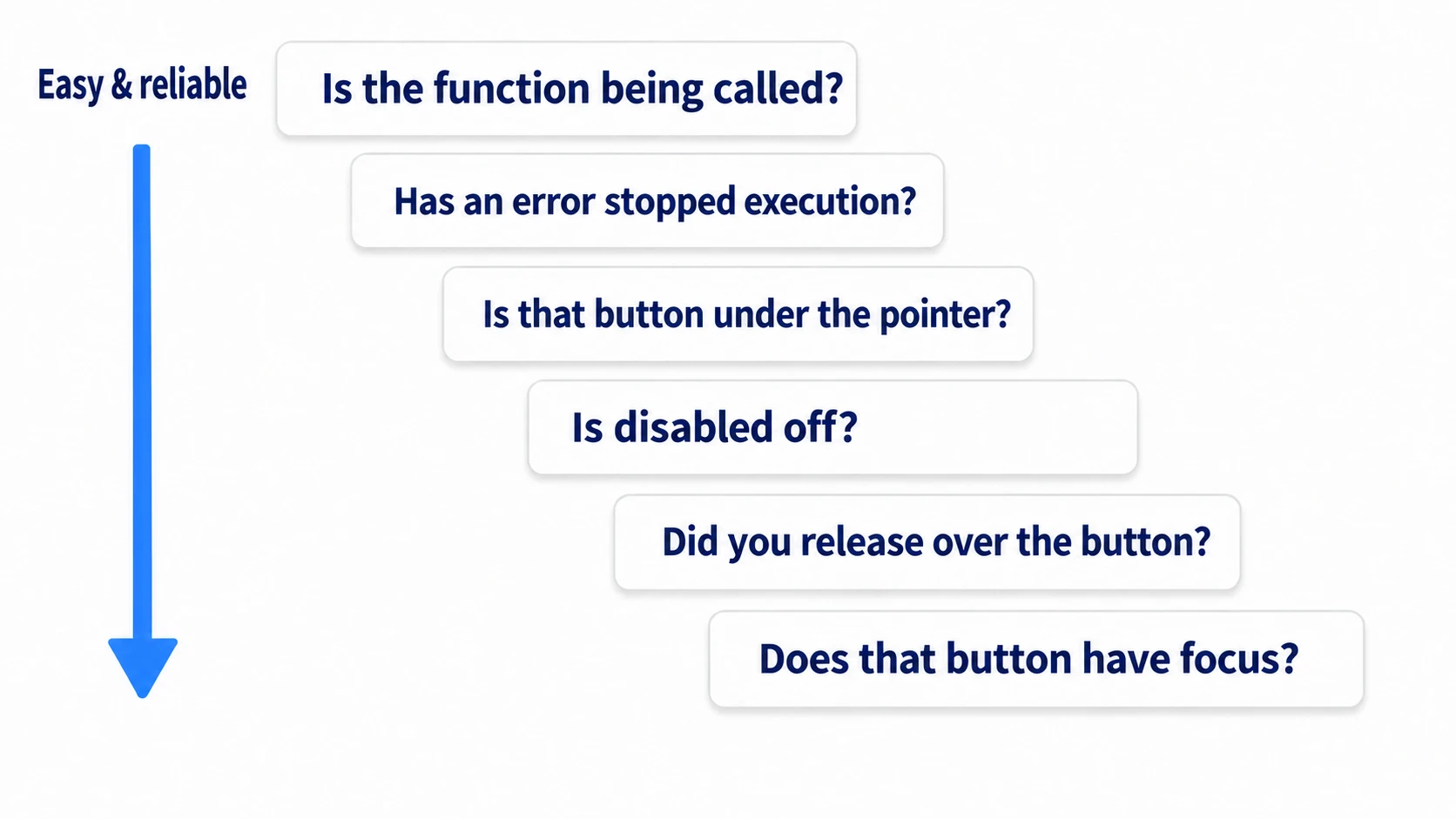
The first is whether the function is called. Put print("called") on the receiving function's first line. If this prints, the button and the signal are alive. The cause is in what comes after, or in the result not showing on screen.
If it doesn't print, suspect the connection itself first. The line you think connects it may point to a different function, or it may not be connected at all. Connections made in the editor can be checked in the Signals dock's list by selecting that button.
The second is whether it's crashing with an error. If you've written button_pressed.connect(...), or copied Godot 3's connect("pressed", self, "_on_pressed"), you get an error before running or the moment it runs. Read the red line and you'll know.
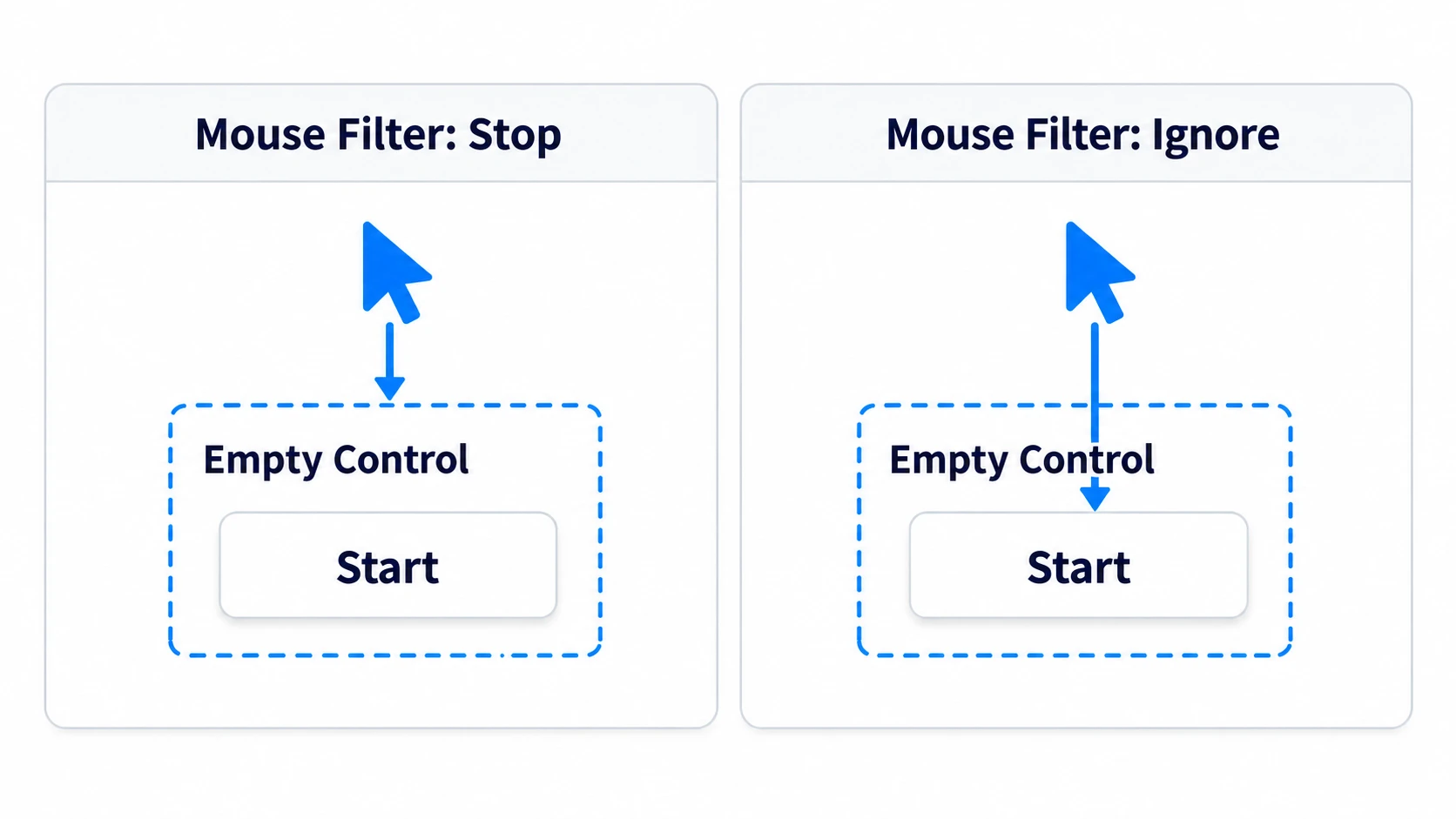
The third is whether the button is the one underneath. If a full-screen ColorRect or an empty Control sits on top, the click goes to it. A Control's Mouse Filter defaults to Stop, so it stops clicks even when transparent. Set the Mouse Filter of whatever is on top to Ignore, and clicks reach down through it (Mouse Input Basics).
The fourth is whether disabled is off. When it's on, the button can't be pressed. Depending on the theme it may not look grayed out, so you can't judge by eye.
The fifth is whether you released over the button. By default, pressed fires not at the moment you press but when you release over the button. Press, slide off, and release outside, and nothing happens. If Action Mode has been changed to Button Press, it fires at the moment you press.
The sixth is whether focus is on that button. If you've gotten this far and it presses with the mouse but not the keyboard, focus is somewhere else.
If it only fails during pause, it's not about any of this but about Process Mode (Pause and Process Mode).
Showing the hovered and focused buttons on screen
The third and sixth can't be seen by eye. The quickest way is to put the names on screen. get_viewport().gui_get_hovered_control() returns the Control under the cursor and gui_get_focus_owner() returns the Control with focus, so write them to a Label every frame (_process() in the hands-on).
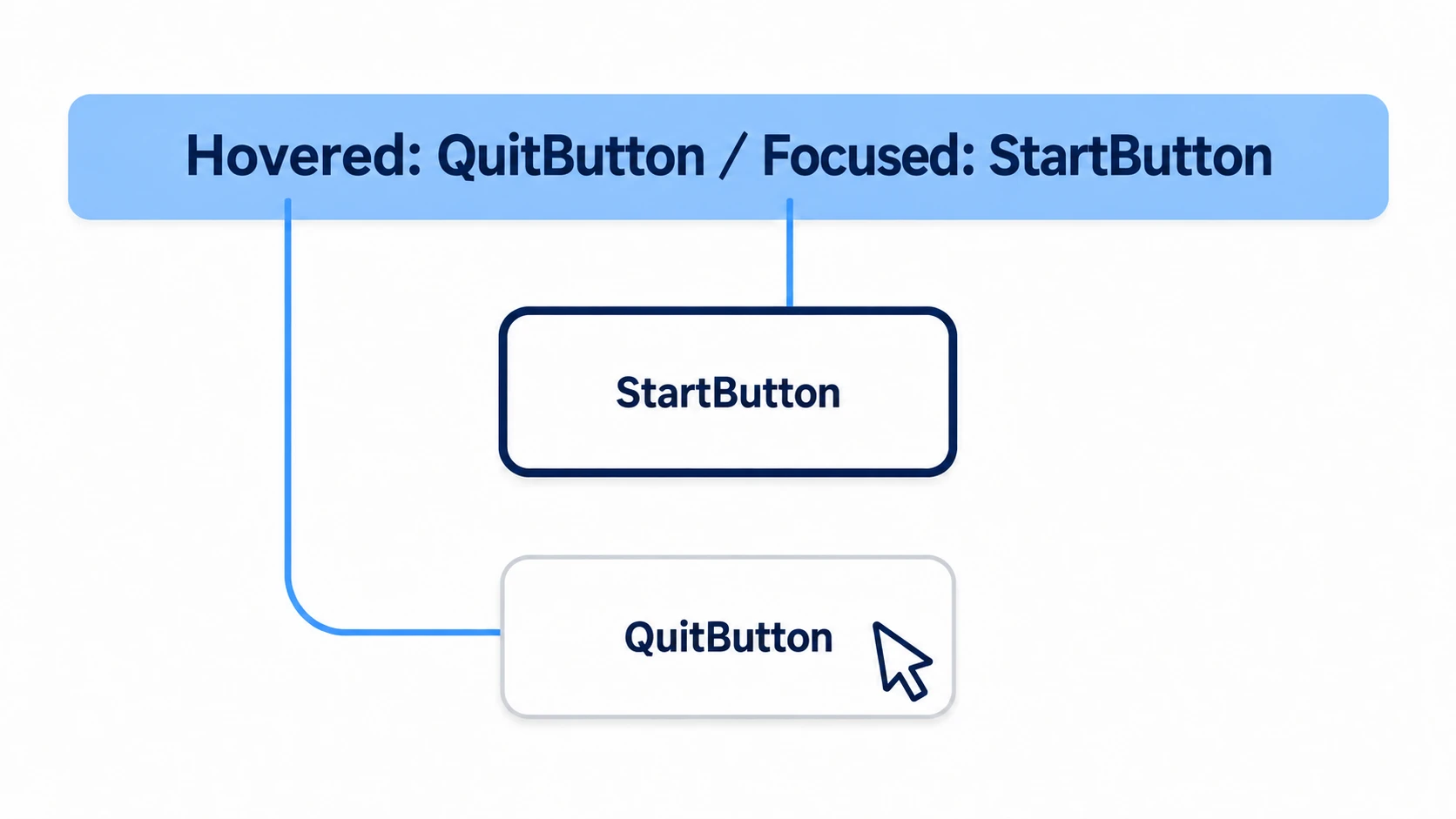
There are only two things to look at. At the moment you want to click, is Hovered the name of the button you want to press? At the moment you press Enter, is Focused the name of the button you want to press?
These two look inside the viewport the script is on. A dialog has its own viewport, so focus inside a dialog doesn't appear on this label. When you want to see that, ask the dialog itself, as in confirm.gui_get_focus_owner().
It doesn't become none over places other than buttons either. A Control stretched over the whole screen and the containers inside it are Controls too, so their names appear. none appears when the mouse is outside the window or over a dialog. A dialog is a separate viewport, so from outside it looks like nothing is there.
A disabled button can't be pressed but still appears as Hovered. If "the button is the one underneath, but the function isn't called," it's time to suspect disabled. These two are what separate the third and fourth steps.
The difference between pressed and button_pressed
Their names are very similar, but they're different kinds of things. Mixing them up is the most common cause at the second step.
| Name | Kind | Meaning |
|---|---|---|
pressed | Signal, no arguments | Confirmed. On release, or Enter while focused |
button_pressed | bool property | Whether it's in the pressed state |
button_down | Signal, no arguments | The instant it's pressed. Not a confirmation |
toggled | Signal, one bool | On a toggle_mode button (a setting where on/off stays after each press), the pressed state switched |
button_pressed is a bool, so you can't call connect() on it. Write it thinking you're connecting it, and it crashes at runtime.
There are two ways to connect.
For buttons placed on screen from the start, the quick way is to select the button in the editor and connect pressed() from the Signals dock. This connection is saved in the scene file. Searching the script for connect won't find it, so it's an easy place to think "it's not connected."
For buttons created at runtime, connect them in code right where you create them.
start_button.pressed.connect(_on_start_pressed)
Writing self as the second argument and the method name as a string as the third is Godot 3 style.
Connecting the same signal to the same function twice is an error, not two runs. It runs twice when you connect separate functions in the editor and in code, and both call the same logic.
ConfirmationDialog (yes/no confirmation)
Two-choice questions like "Quit the game?" are built into ConfirmationDialog. AcceptDialog is an OK-only notice, not for two choices.
- The body is
dialog_text. The heading at the top of the window istitle - The button wording is
ok_button_textandcancel_button_text - OK gives
confirmed; cancel, Esc, or closing givescanceled. Neither has arguments - The left/right order of OK and Cancel changes to match OS conventions. On Windows, OK is on the left
These two are all you receive. Don't connect the OK button's pressed. Put the same logic on both it and confirmed, and one confirmation runs it twice. Don't write code to close it either. dialog_hide_on_ok is on by default, so it closes the moment OK is pressed.
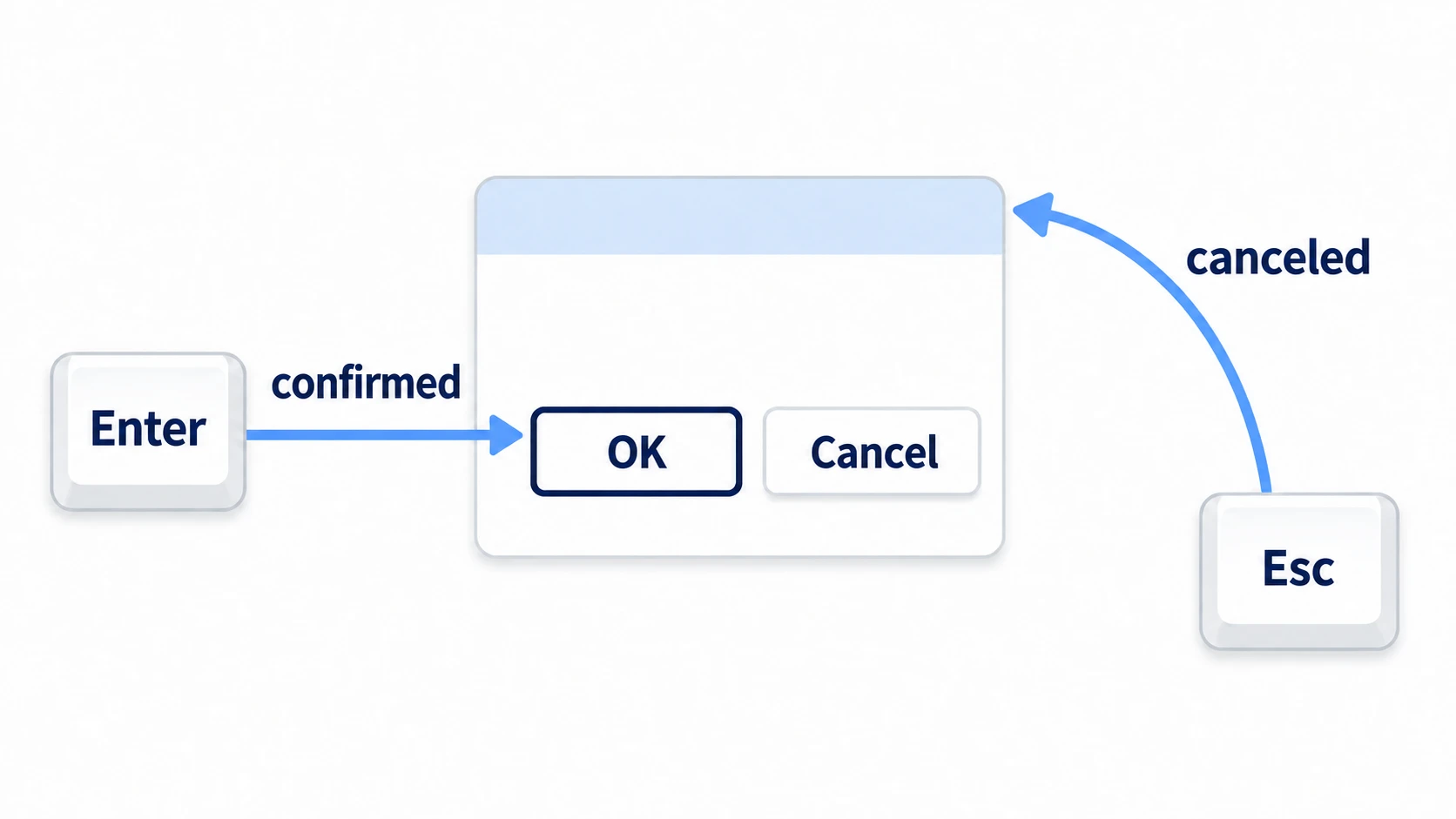
Don't write code for Enter and Esc either. Focus moves to the OK button the moment it opens, so Enter becomes confirmed as-is. Esc is canceled. There's no need to add _unhandled_input(), which receives input the UI didn't use, here.
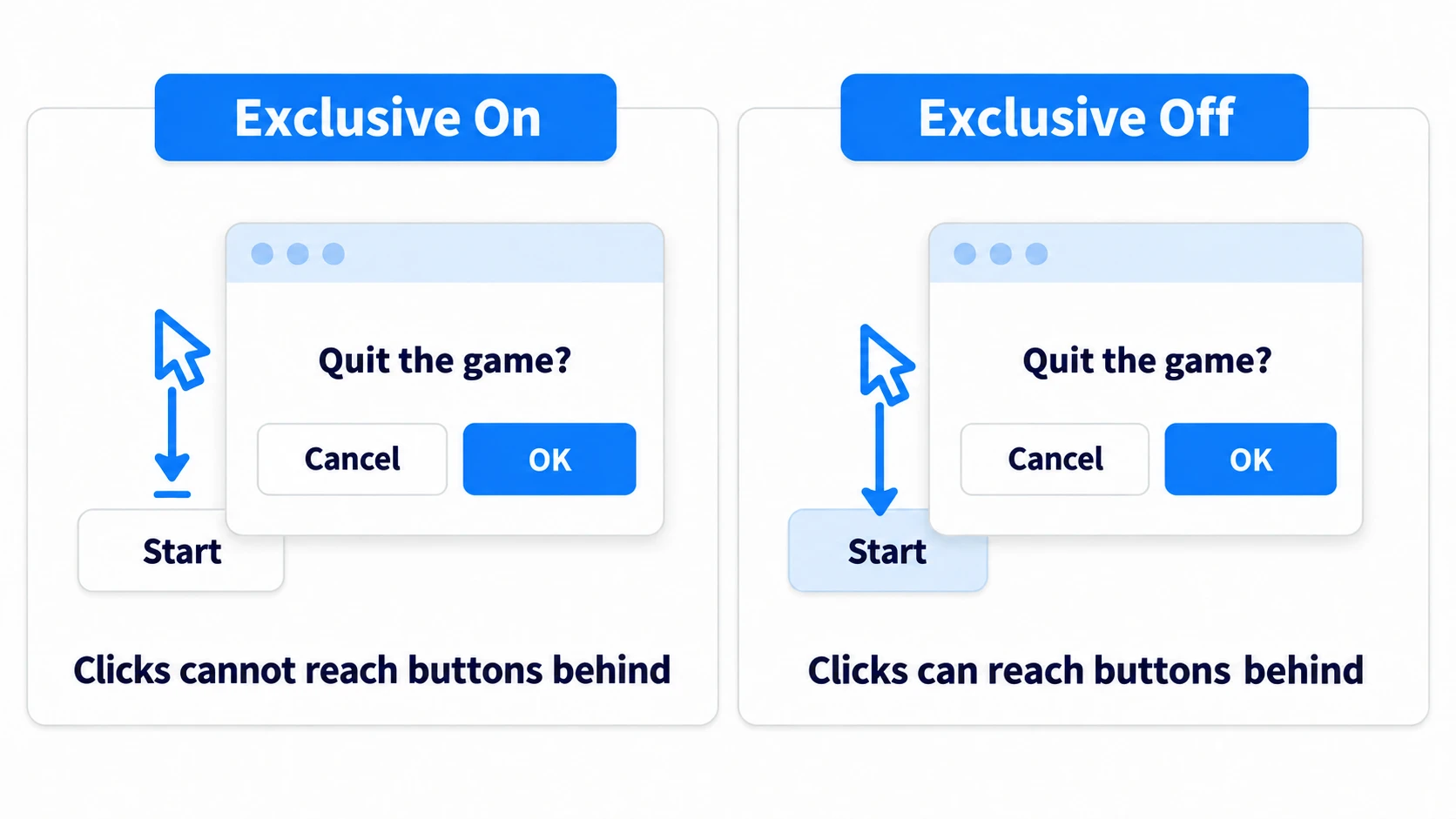
To show it, call popup_centered(), which opens it in the middle of the screen. If the dialog's Exclusive is on, the buttons behind it can't be pressed while it's shown. If it's off, the "Start" behind the dialog can be pressed, so check it in the Inspector.
Build a two-choice question with your own Panel, and you have to write the initial focus position, Enter, Esc, and blocking what's behind all yourself. Leave it to the built-in one, and those four are what you don't have to write.
Hands-On: Confirm Before "Quit"
A title screen, resetting settings, deleting save data—the shape "stop once before pressing" is the same in all of them. You'll place just two buttons and one dialog, and build it up to answering without touching the mouse.
① What to place
Create one new scene.
- Put a Control at the root as Title. Set Anchors Preset to Full Rect, and attach
title.gd - Add a VBoxContainer under Title as Menu. Anchors Preset Center
- Add two Buttons under Menu: StartButton (text "Start") and QuitButton ("Quit")
- Add two Labels under Title: DebugLabel (position
(16, 16)) and StatusLabel (position(16, 480)) - Add a ConfirmationDialog under Title as Confirm. Check that Exclusive is on
- For StartButton, QuitButton, DebugLabel, StatusLabel, and Confirm, turn on "Access as Unique Name" from the right-click menu (so code can get them as
%StartButton)
Leave Confirm placed in the scene, and show the same node again and again instead of recreating it each time. Dialog Text is set from code, so it can stay empty in the Inspector.
② Put it together
# title.gd
extends Control

@onready var status: Label = %StatusLabel
@onready var debug: Label = %DebugLabel
@onready var confirm: ConfirmationDialog = %Confirm

func _ready() -> void:
	%StartButton.pressed.connect(_on_start_pressed)
	%QuitButton.pressed.connect(_on_quit_pressed)
	confirm.confirmed.connect(_on_confirmed)
	confirm.canceled.connect(_on_canceled)
	confirm.dialog_text = "Quit the game?"
	%StartButton.grab_focus()              # put the first focus here

func _process(_delta: float) -> void:
	var hovered := get_viewport().gui_get_hovered_control()
	var focused := get_viewport().gui_get_focus_owner()
	debug.text = "Hovered: %s / Focused: %s" % [
		hovered.name if hovered else "none",
		focused.name if focused else "none"
	]

func _on_start_pressed() -> void:
	_log("Started")

func _on_quit_pressed() -> void:
	confirm.popup_centered()

func _on_confirmed() -> void:
	_log("Quit")

func _on_canceled() -> void:
	_log("Canceled")

func _log(text: String) -> void:
	status.text += text + "\n"
All you wrote for the dialog is the one line popup_centered() and two receiving functions. Enter, Esc, and closing don't appear at all.
Quit is only written to the label, and the game doesn't end. With get_tree().quit(), playback in the editor would stop, and the difference from canceling wouldn't stay on screen.
③ Run it and check
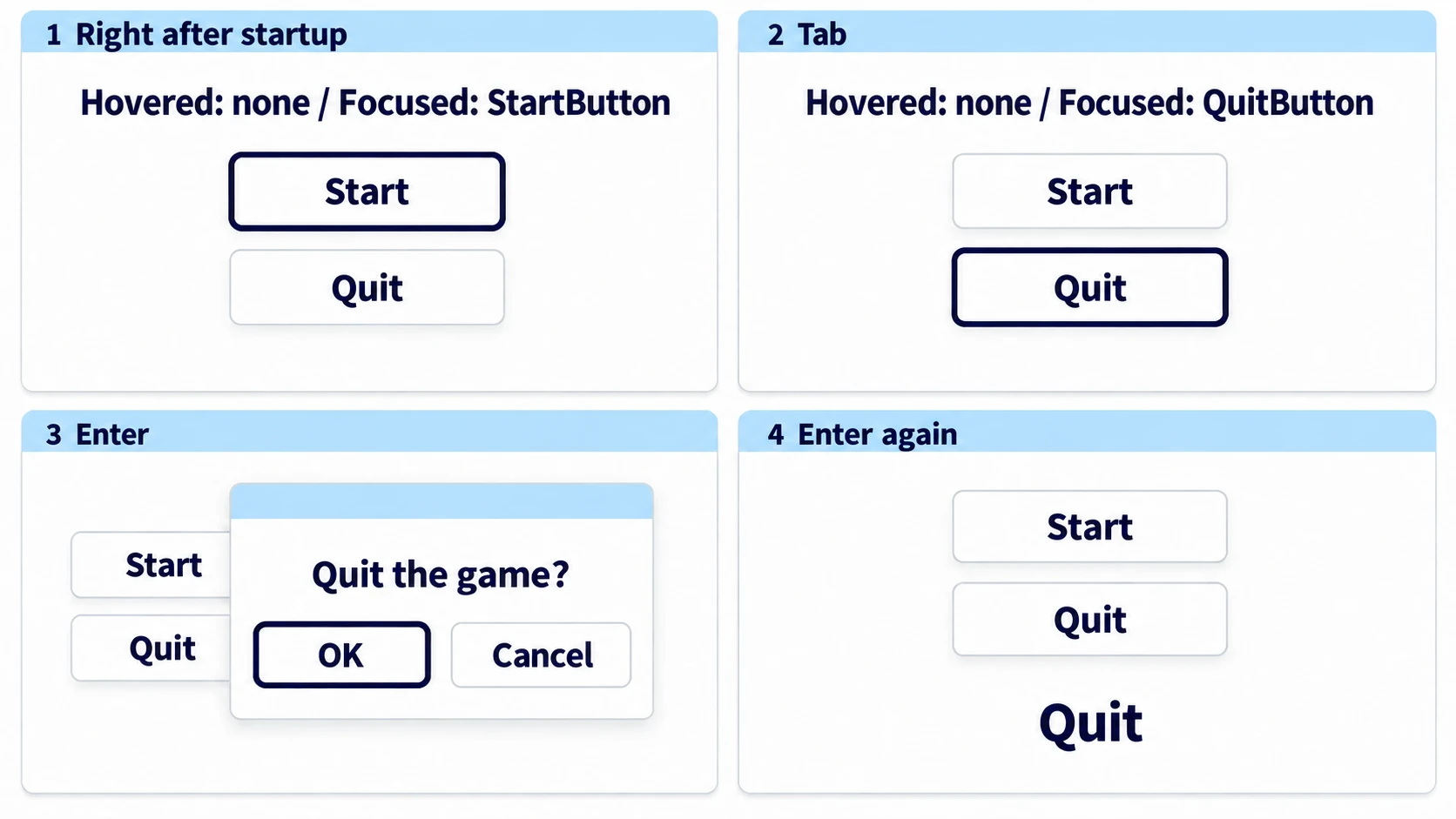
Play with F6, and it starts with an outline on "Start," and the label at the top reads Focused: StartButton. Without touching the mouse, press Tab and it changes to Focused: QuitButton; press Enter there and the dialog opens. If Focused is none right after starting, the grab_focus() line is missing and the first focus is nowhere.
The moment it opens, focus moves to OK, but Focused on the label at the top stays QuitButton. The label looks at the viewport outside the dialog, so that's correct. Press Enter as-is and one more Quit line appears; press Esc and Canceled appears instead.
Open the dialog again, grab its title bar, and drag it a little to the side, and you can see "Start," which was hidden behind it. Clicking there adds no line, and after closing the dialog, clicking the same spot adds Started. If it adds a line even with the dialog open, Confirm's Exclusive is off.
Two points.
- Start narrowing down from "was the function called?": whether
printappears splits the fault into the first half or the second. After that, look at theHoveredandFocusednames, and the rest is settled in about two moves - Hand two-choice questions to ConfirmationDialog: the initial focus position, Enter, Esc, and blocking what's behind come with it without you writing them
Once you've found the cause, turn off Visible on the DebugLabel used for narrowing down. If you delete the node itself, delete the @onready var debug line and _process() along with it.
Troubleshooting
| Symptom | Cause | Fix |
|---|---|---|
| After clicking, pressing Enter presses the same button again even though no outline is visible | A click also moves focus, and by default in 4.7 no outline is shown then | Set Project Settings' GUI > Common > Show Focus State On Pointer Event to Always, and the outline appears on clicks too |
| After adding a script that operates the game screen, buttons stopped responding to clicks | _input() is called before buttons, and marking it with set_input_as_handled() (the handled mark) keeps it from reaching the buttons | Receive game-side clicks in _unhandled_input() |
| Only a confirm dialog shown during pause ignores both clicks and Enter | The tree is stopped, and the dialog's Process Mode is still Inherit | Set the dialog to Always (with When Paused, it doesn't work when the game isn't paused) |
| Answering works with the gamepad's confirm button, but the cancel button doesn't close it | Closing a dialog listens for an Input Map action called ui_close_dialog | In Input Map, turn on Show Built-in Actions (the switch that shows the built-in ui_ actions), and add a gamepad button to ui_close_dialog |
Bonus: Good to Know First
- Buttons whose pressed state stays: turn on
toggle_mode, and each click switches it on or off and it stays that way. Read the state from the argument oftoggled(toggled_on)or thebutton_pressedproperty. To let only one be chosen, like difficulty, assign the same ButtonGroup resource to every button'sbutton_group, and turn ontoggle_modefor all of them - Dialogs appear inside the screen: the project setting
display/window/subwindows/embed_subwindowsis on by default, so they appear embedded inside the game screen. Turn it off and, on environments that support it, they become separate OS windows - If you operate with a gamepad: adding a gamepad button to
ui_accept, and moving focus with the stick, are covered in Gamepad Basics - Make the focus outline easier to see: the outline's color and thickness are handled by the Theme's
focus(Theme Basics). Without a visible outline, keyboard operation suddenly gets hard
Summary
- There are two routes: the mouse answers with the button underneath, the keyboard with the button that has focus. A click also moves focus, but no outline appears
- Narrow down from the top: was the function called → errors → underneath →
disabled→ where you released → focus - Put the names on screen:
gui_get_hovered_control()andgui_get_focus_owner()tell you what's underneath and what's focused button_pressedcan't be connected:pressedis a signal,button_pressedis a bool property- Leave two-choice questions to the dialog: all you receive is
confirmedandcanceled. Enter and Esc come with it
Try opening and closing the menu you're building now without touching the mouse. Which button did your hand stop at along the way?