From the Addressables introduction you learned that content can be delivered "without updating the app," and you made your assets Addressable. Then the day comes — "let's add an event costume post-release" — and you freeze: deliver it from where, exactly, and how? Build the game and look: every Addressable asset is still packed inside the app. Replace files all you want; nothing happens.
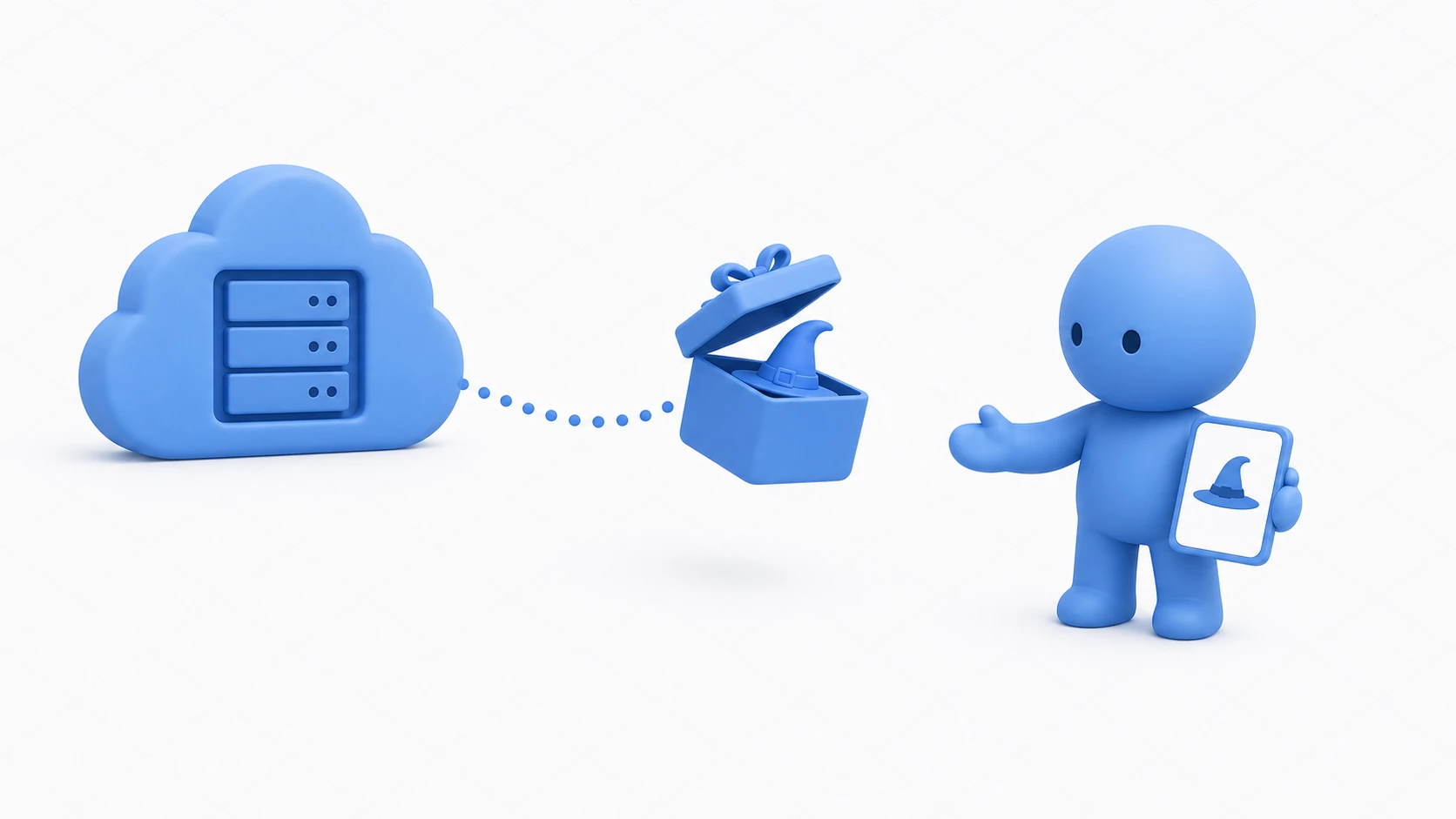
Here's the reveal: making assets Addressable is only the preparation. What actually makes "ship it later" work is a three-piece set — the Remote path setup, the catalog, and the update build. In this article, we run all three, using an event costume delivered after launch.
What you'll learn
- Why Addressable-izing alone doesn't deliver anything (Local vs Remote)
- What Build Path / Load Path mean, and switching between development and production URLs
- The role of the catalog linking app and content, and implementing the startup update check
- The update build (Update a Previous Build) that separates what may change from what stays frozen
- What still works offline, and how to present failures
Tested with: Unity 6 (6000.x), Addressables 2.x
- Addressable-izing Alone Delivers Nothing
- Where It Goes and Where It's Read: Build Path and Load Path
- The Catalog: A Table of Contents Linking App and Content
- Implementing the Startup Update Check
- Update Builds: What May Change, What Stays Frozen
- Hands-On: Shipping an Event Costume Later
- Bonus: Good Things to Know Ahead of Time
- Summary
Addressable-izing Alone Delivers Nothing
First, our current position. Addressable assets are managed in groups, and each group decides "where built bundles are placed, and where they're read from at runtime." The default for everything is Local — bundled into the app at build time, read from inside the app at runtime.
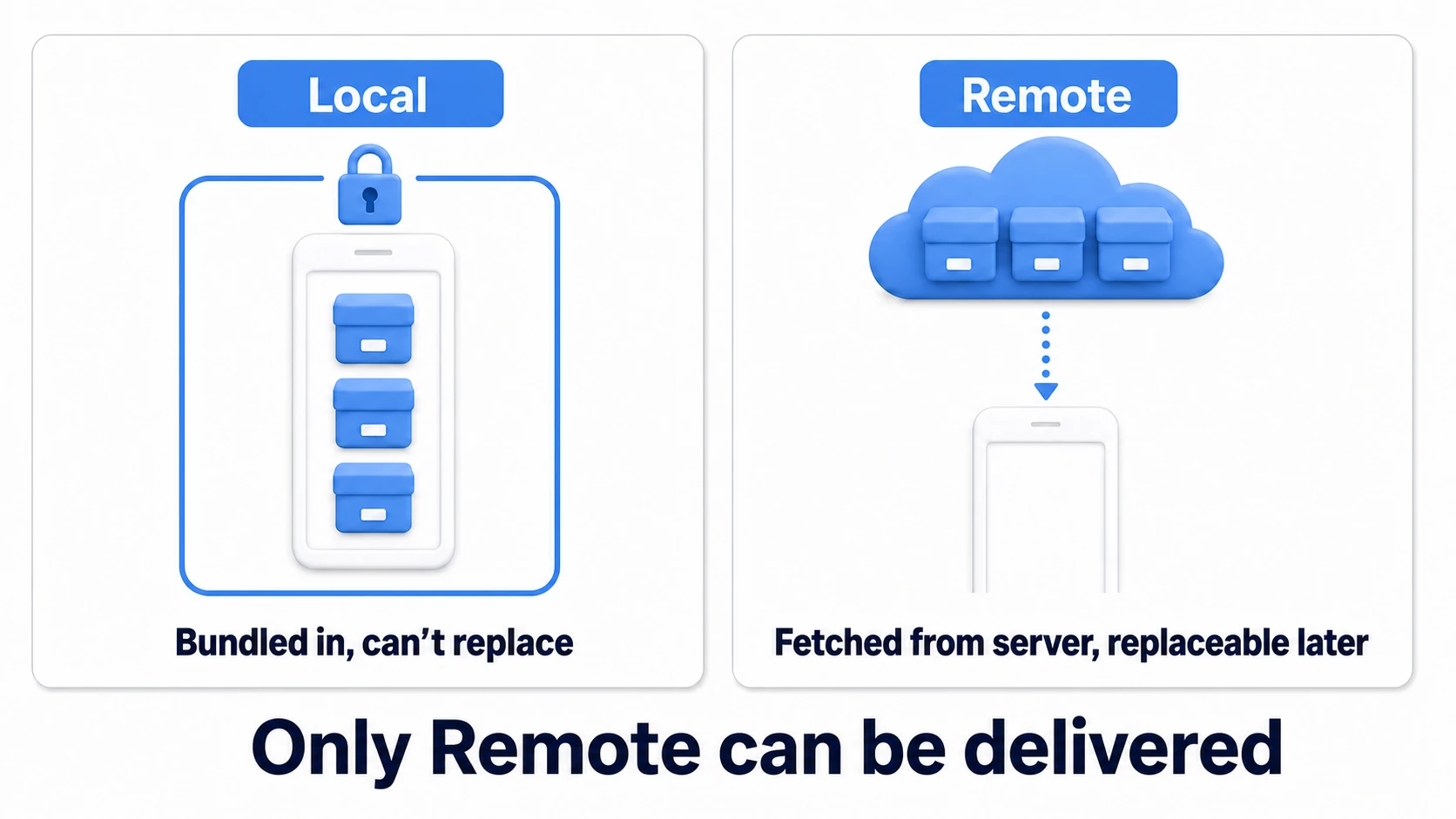
Local groups still get every loading and memory-management benefit from the introduction article — but their contents are part of the app. Changing them post-release usually means shipping an app update. Step one toward "ship it later" is switching the groups you want to deliver to Remote — bundles on a server, downloaded at runtime.
Where It Goes and Where It's Read: Build Path and Load Path
To switch to Remote, pick Remote in the group's Build & Load Paths setting. That sets the group's Build Path (the folder build output is written to) and Load Path (where the app reads from at runtime) to their Remote values together. The actual values are managed centrally in Profiles (Window > Asset Management > Addressables > Profiles).
- Remote.BuildPath: defaults to
ServerData/[BuildTarget]. Building writes bundles and the catalog here. Uploading this folder's contents to your server, wholesale, is the act of delivery - Remote.LoadPath: the URL the app reads from, e.g.
https://cdn.example.com/mygame/[BuildTarget].[BuildTarget]expands to the platform name (StandaloneWindows64, etc.), so per-platform placement works automatically
And the thing real operations always need: switching between development and production URLs. Profiles are pluralizable — make a Development profile (your test server or http://localhost) and a Production profile (the real CDN), and switch before building. With no URLs in code, the only mistake left to make is forgetting to switch.
Testing against an http:// server takes one more setting. In Unity 6, Allow downloads over HTTP (Edit > Project Settings > Player > Other Settings) is not allowed by default, so set it to Allowed in Development Builds and test with a Development Build. On a real device, use your PC's IP address instead of localhost (on the device, localhost means the device itself).
tips: For verification, a rental server or cloud storage static hosting is plenty. The requirement is just "files retrievable over HTTP" — no dedicated game server needed.
The Catalog: A Table of Contents Linking App and Content
The heart of the Remote mechanism is the catalog — a table-of-contents file mapping "address → which asset in which bundle." At load time the app consults the catalog first, then downloads whichever bundles it needs.
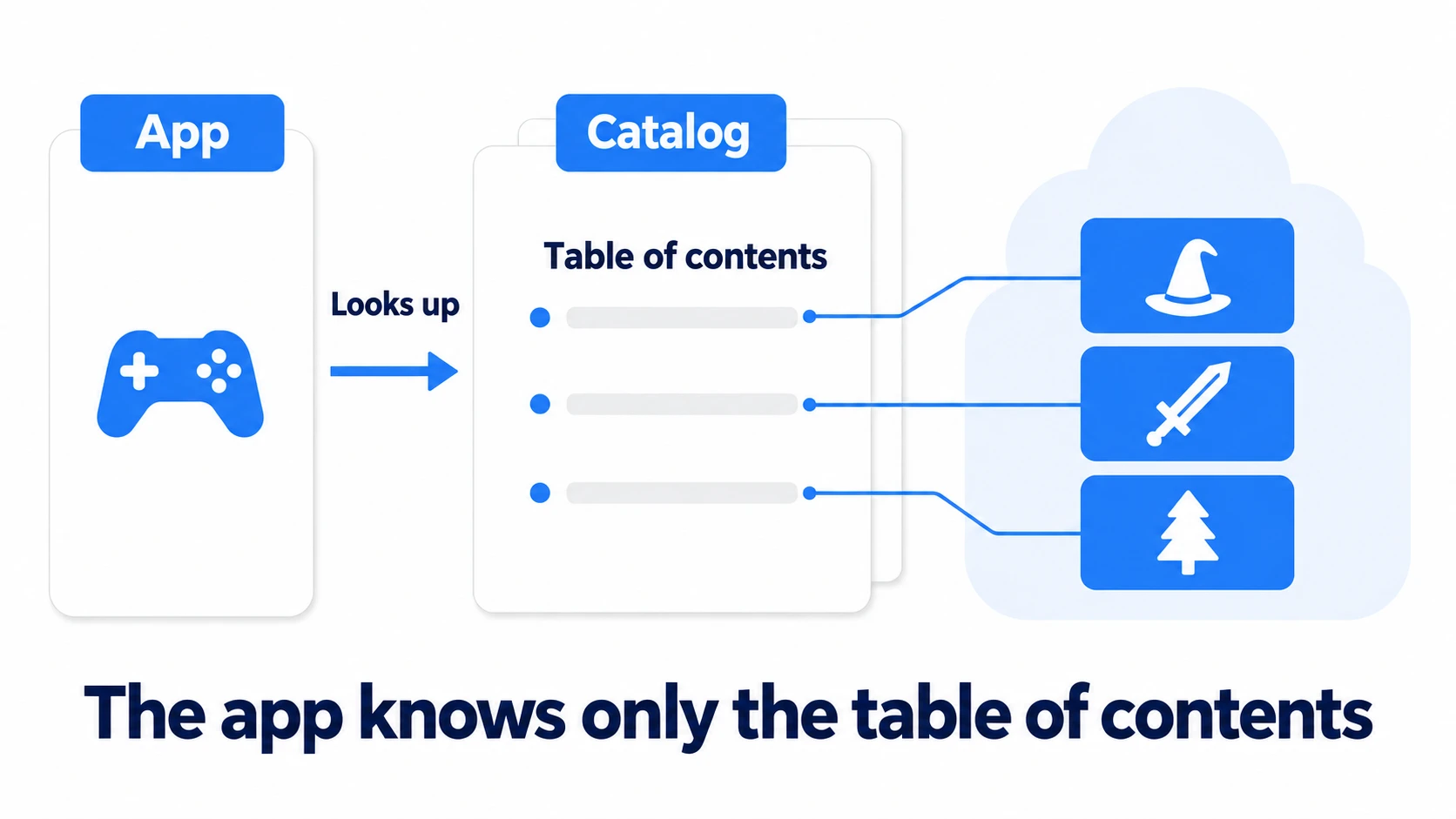
The trick behind "content updates without app updates" lives in this table of contents. The app knows only where the catalog is; it knows the content only through the catalog. So refreshing the catalog and bundles on the server lets the untouched app arrive at brand-new content.
To enable this, turn on Build Remote Catalog in the Addressables settings (AddressableAssetSettings). Builds will then write the catalog itself (by default in Addressables 2.x, a .bin whose name starts with catalog_; a setting can make it .json) plus a small change-detection hash file (.hash) into Remote.BuildPath. The first build is Build > New Build > Default Build Script in the Addressables Groups window. Upload the resulting ServerData contents to your server, and the delivery foundation is complete.
tips: The first build generates
addressables_content_state.bininAssets/AddressableAssetsData/<platform>/(a different file from the catalog's.bin). It's the reference point for update builds (below), so check it into version control and keep it per release.
Implementing the Startup Update Check
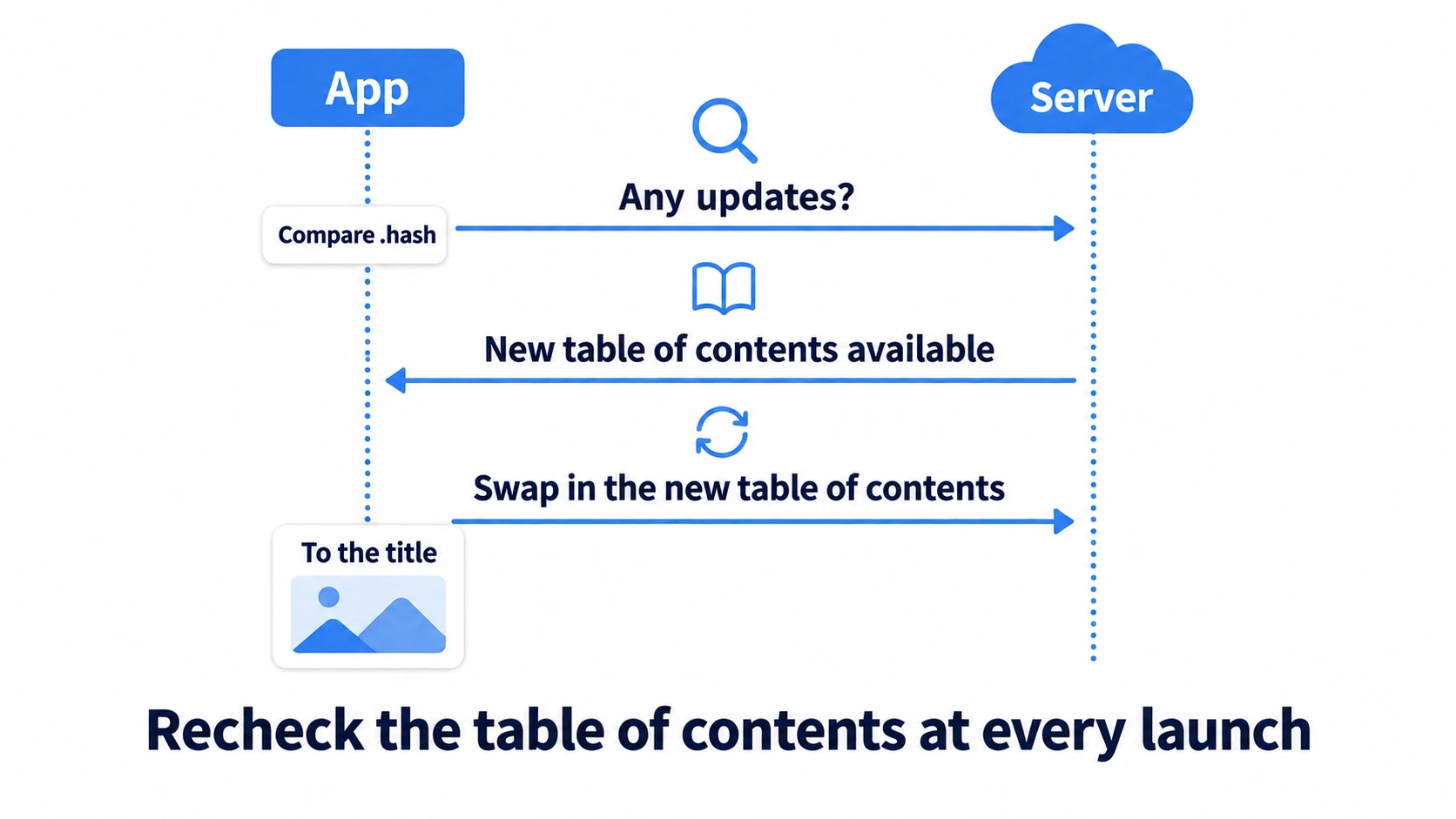
Put a new catalog on the server and, by default, Addressables checks for it when it initializes and swaps in the new table of contents. But if you want to decide what happens when the check fails, or build an "additional data: X MB" screen, write the check yourself. Turn on Only update catalogs manually in the Addressables settings (left off, the automatic check gets there first and your own check always finds zero), then add a startup routine that asks "is there a newer table of contents?" The flow is boilerplate, so here it is ready to use:
using System.Collections;
using UnityEngine;
using UnityEngine.AddressableAssets;
using UnityEngine.ResourceManagement.AsyncOperations;

public class ContentUpdater : MonoBehaviour
{
    private IEnumerator Start()
    {
        // 1. is a newer catalog out there? (compares the .hash file)
        var checkHandle = Addressables.CheckForCatalogUpdates(false);
        yield return checkHandle;

        // if the check failed (offline, etc.), skip it this time and carry on with the catalog we have
        if (checkHandle.Status != AsyncOperationStatus.Succeeded)
        {
            Addressables.Release(checkHandle);
            yield break;
        }

        var updatedCatalogs = checkHandle.Result;
        if (updatedCatalogs != null && updatedCatalogs.Count > 0)
        {
            // 2. if so, swap in the new table of contents
            var updateHandle = Addressables.UpdateCatalogs(updatedCatalogs, false);
            yield return updateHandle;
            Addressables.Release(updateHandle);
            Debug.Log("Catalog updated");
        }

        Addressables.Release(checkHandle);

        // 3. every LoadAssetAsync from here on resolves through the new catalog
    }
}
That's "refresh to the latest catalog on every launch," done. Bundles themselves download automatically, on demand, when you LoadAssetAsync (loading and Release etiquette is unchanged from the introduction).
To pre-download in bulk, check the size with Addressables.GetDownloadSizeAsync(key) and, if it's above zero, call DownloadDependenciesAsync(key) — that mobile-game launch screen saying "additional data: X MB" is built from exactly these two calls.
Update Builds: What May Change, What Stays Frozen
The delivery machinery works. The remaining problem: how to produce update files that don't contradict the apps already in players' hands. Run a casual New Build here and the catalog's name (by default, it includes the build time) changes, so existing apps can't find the new table of contents. Bundle names often change too, breaking consistency with the Local content shipped inside existing apps.
The answer has two parts.
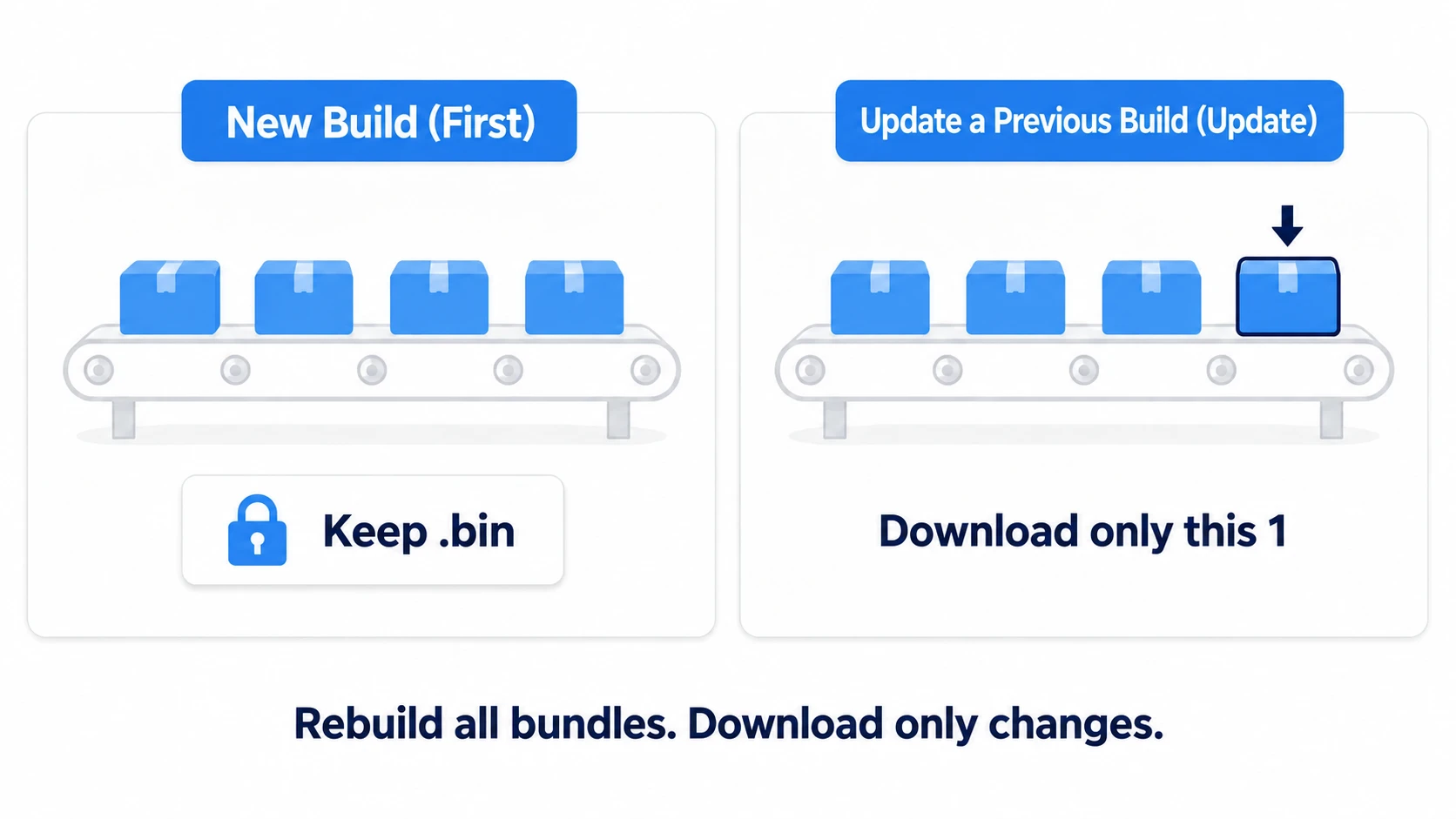
- First release: build everything with Build > New Build and keep
addressables_content_state.bin - Post-release updates: choose Build > Update a Previous Build and point it at the stored
.bin. The build itself rebuilds everything every time, but the catalog updates while preserving compatibility, and existing players download only the bundles holding assets changed since last time. Upload the output over the server contents, and delivery is done. Update builds don't rewrite the.bin, so the next update uses the same original.bin
One more preparation: decide per group whether shipped bundles stay frozen, with Prevent Updates under the group's Content Update Restriction. In a group with it on, changing an asset leaves the shipped bundle as is; only the changed asset moves into a new Remote bundle and ships from there. In a group with it off, the whole bundle containing the changed asset is rebuilt. Turn it on for Local groups shipped inside the app (with it off, the rebuilt Local bundle isn't inside existing apps, so loading fails). A Remote group meant to be swapped out wholesale, like event costumes, can leave it off. This "decide up front what changes and what freezes" instinct is the same operational wisdom as save data compatibility, where IDs freeze and display text stays free.
Hands-On: Shipping an Event Costume Later
Let's run the whole thing: "add a Halloween costume to an already-released game." Limited-time outfits in a live game, extra stages for a shipped demo, seasonal event props — the template is identical.
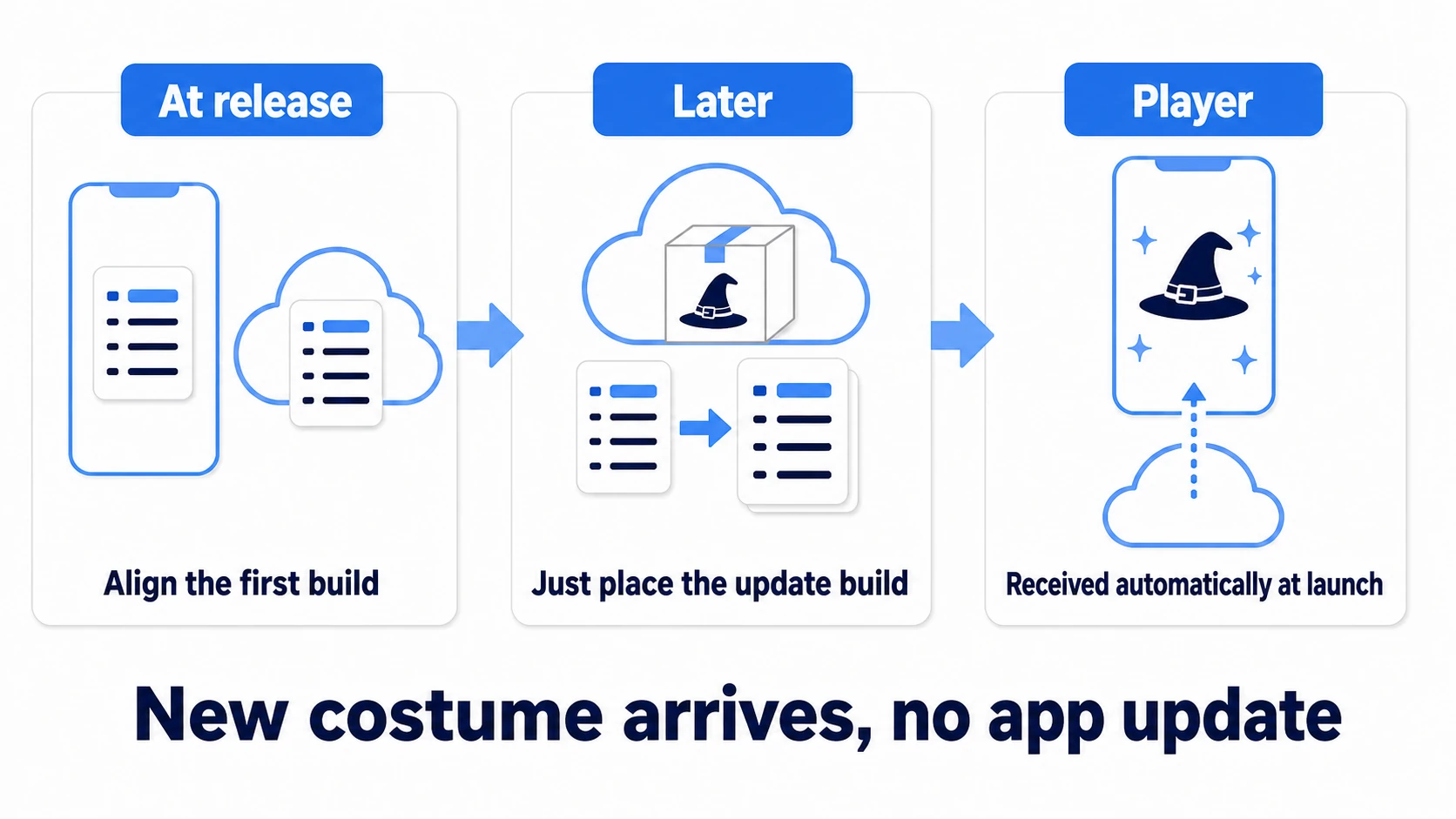
At release (preparation):
- Create a Remote group
EventCostumes(Build & Load Paths Remote, Prevent Updates off) - Enable Build Remote Catalog and Only update catalogs manually, run New Build → upload
ServerDatato the server, store the.bin - Ship the app containing only the
ContentUpdaterabove plus code that loads costumes by address
Later (delivery day):
- Add the Halloween costume prefab to the
EventCostumesgroup with an address (e.g.costume_halloween) - Update a Previous Build (pointing at the stored
.bin) → upload the output over the server contents - That's it. Zero work on the app side
On next launch, players' apps detect the catalog update; when the costume screen loads costume_halloween, the bundle downloads right then and the new costume appears. Before going live, switch the Profile to Development once and rehearse the same flow against your test server — then production day is nothing but an upload.
While verifying, be mean on purpose. Launch in airplane mode: the update check fails, but everything cached or shipped locally still plays. Only the never-downloaded new costume is unavailable — so show "unavailable offline" right there. Treat a failed update not as an error but as "skipped this time," and never block the main game; that's the etiquette of live content.
Two takeaways. Because the app knows only the table of contents (the catalog), swapping things server-side is enough for new content to arrive. And because updates build against the original .bin, you ship only diffs that can never contradict existing apps.
Bonus: Good Things to Know Ahead of Time
- Keep essentials Local: put anything needed from title screen to first stage in Remote and first launch becomes a download queue. Core progression Local, additions Remote — this split decides how good the game feels
- Mind CDN caching: if the catalog's
.hashgets stale in a CDN cache, updates fail to arrive — or worse, mix. Before serious operation, review cache invalidation/purging in the official ContentUpdateWorkflow docs and your CDN's documentation - Upload bundles, then the catalog, then
.hash: the app treats.hashas the signal that an update exists. Upload.hashfirst and the app may go looking for files that haven't arrived yet, and loading fails - Rollback = put the previous output back: if an update misbehaves, restoring the server to the previous output returns apps to the previous state. Which is exactly why you should keep per-release generations of the
ServerDataoutput and the.bin - The overall build pipeline is another article: platform build settings and build numbering rest on the build settings article
Summary
- Addressable-izing is preparation; "ship later" is made real by Remote paths, the catalog, and update builds
- Manage Build Path / Load Path via Profiles, with development and production URLs as switchable profiles
- The app knows only the catalog. Enable Build Remote Catalog, and at startup run
CheckForCatalogUpdates→UpdateCatalogs - Updates use Update a Previous Build: always keep the first
addressables_content_state.bin, and split changeable groups from frozen ones - Design what plays offline, and treat failed updates as "skipped," never stopping the main game
You can now deliver a new costume tomorrow morning without waiting for app review. What's the first thing your game wants to ship "later"?