"I want to move a Rigidbody from a script." "I want to reduce the HP of whatever I hit." — the moment you try to make components work together, the first thing you need is a way to get hold of the other component. The answer is GetComponent<T>().
In Unity's component-oriented design, functionality is split into parts (components). GetComponent is the basic method for pulling out those parts, and it's the first step in script communication. This article covers everything from basic usage to the golden rule of "caching" that makes or breaks performance, plus the related methods you should know.
What You'll Learn
- How to get a component on the same object with
GetComponent<T>()- Why "caching" is the golden rule (and what happens if you call it every frame)
GetComponentInChildren/InParentand their different search scopesTryGetComponentfor writingnullchecks the smart way
Tested with: Unity 6 (6000.x)
Basic GetComponent Usage
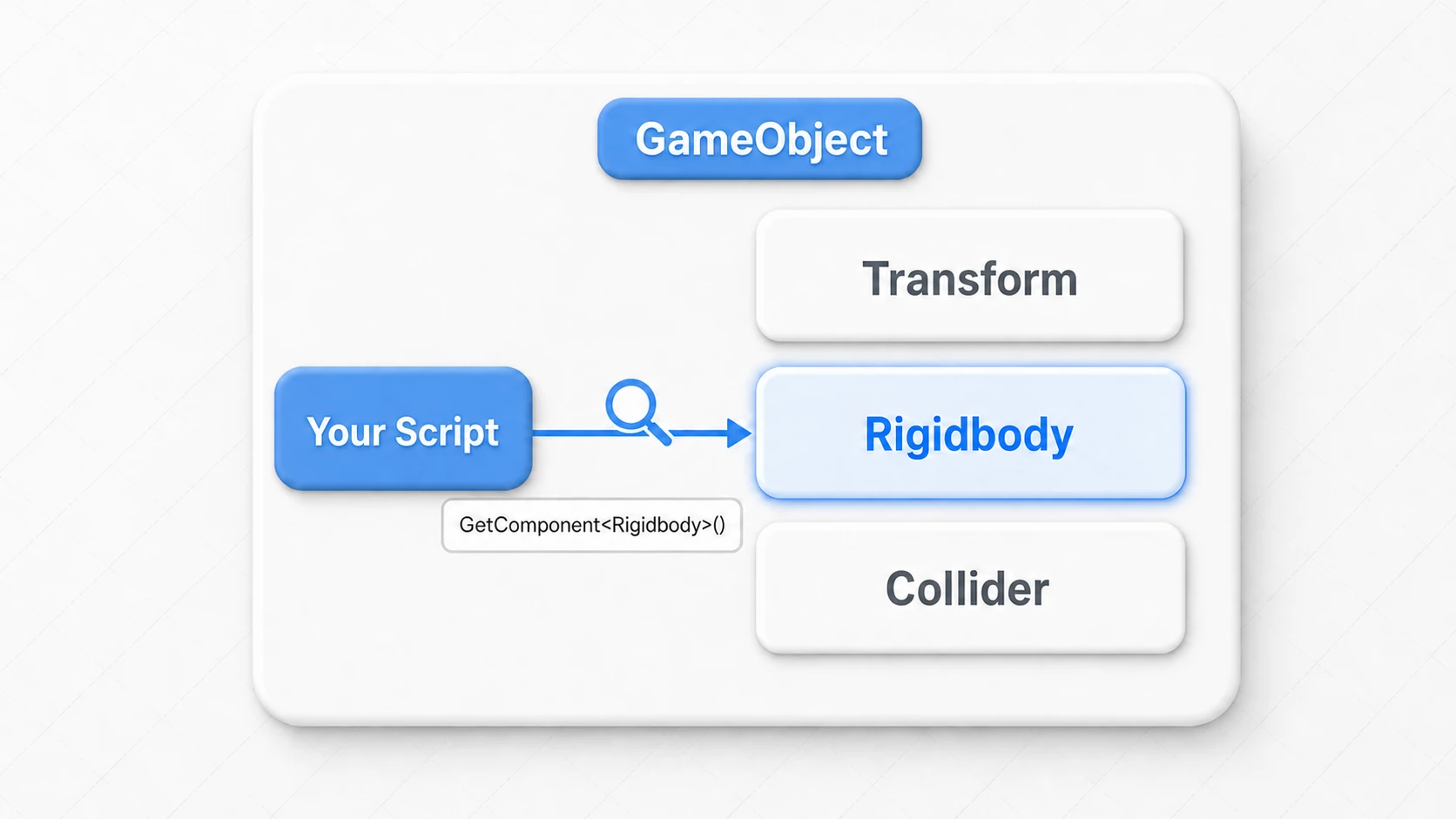
GetComponent<T>() searches for a component of the specified type T on the same GameObject as the script calling it, and returns a reference (instance) to that component. Specify the class name of the component you want to retrieve for T.
Think of it as "grabbing a part from the parts shelf inside the same container, by specifying its type."
Getting Built-in Components
For example, to manipulate a Rigidbody component from a script for physics:
using UnityEngine;

// Make sure a Rigidbody component is added to any GameObject this script is attached to
[RequireComponent(typeof(Rigidbody))]
public class PlayerPhysics : MonoBehaviour
{
    private Rigidbody rb;

    void Start()
    {
        // Get the Rigidbody component attached to this same GameObject
        rb = GetComponent<Rigidbody>();

        // Modify the retrieved Rigidbody's properties
        if (rb != null) // Safety check for successful retrieval
        {
            rb.useGravity = true;
            rb.mass = 1.5f;
        }
        else
        {
            Debug.LogError("Rigidbody component not found!");
        }
    }

    void FixedUpdate()
    {
        // Apply force using the retrieved Rigidbody
        rb.AddForce(Vector3.up * 10f);
    }
}
Adding the [RequireComponent(typeof(Rigidbody))] attribute before the class automatically adds a Rigidbody component when this script is attached—useful for preventing missing component errors. If you add the attribute to a script that's already attached, though, nothing is added; remove the script and attach it again.
Getting Custom Script Components
Similarly, you can retrieve other custom script components. This enables calling functions and referencing variables between scripts.
// PlayerHealth.cs
using UnityEngine;
public class PlayerHealth : MonoBehaviour
{
    public int currentHealth = 100;

    public void TakeDamage(int damage)
    {
        currentHealth -= damage;
        Debug.Log("Took damage! Remaining HP: " + currentHealth);
    }
}

// Enemy.cs
using UnityEngine;
public class Enemy : MonoBehaviour
{
    void OnCollisionEnter(Collision collision)
    {
        // If the colliding object has the "Player" tag
        if (collision.gameObject.CompareTag("Player"))
        {
            // Get the PlayerHealth component from the other GameObject
            PlayerHealth playerHealth = collision.gameObject.GetComponent<PlayerHealth>();

            // Call the retrieved component's public method
            if (playerHealth != null)
            {
                playerHealth.TakeDamage(10);
            }
        }
    }
}
Performance Matters: Cache It!
While GetComponent is convenient, you should always keep in mind that it's a costly operation. Unity checks the components attached to the GameObject one by one until it finds the specified one.
Calling this in Update() or other per-frame functions runs unnecessary searches every frame, degrading performance.
That said, GetComponent is not "pure evil." One or a few calls are within the noise—what actually matters is per-frame repetition across many objects (the hot path). Before contorting your code because something "feels slow," build the habit of measuring in the Profiler first.
Best practice: Call GetComponent once in Awake() or Start() and store (cache) the result in a member variable.
Think of it like this: instead of walking to the warehouse to look for a tool every single time, you fetch it once at the start, keep it in your pocket (a variable), and pull it out of your pocket from then on.
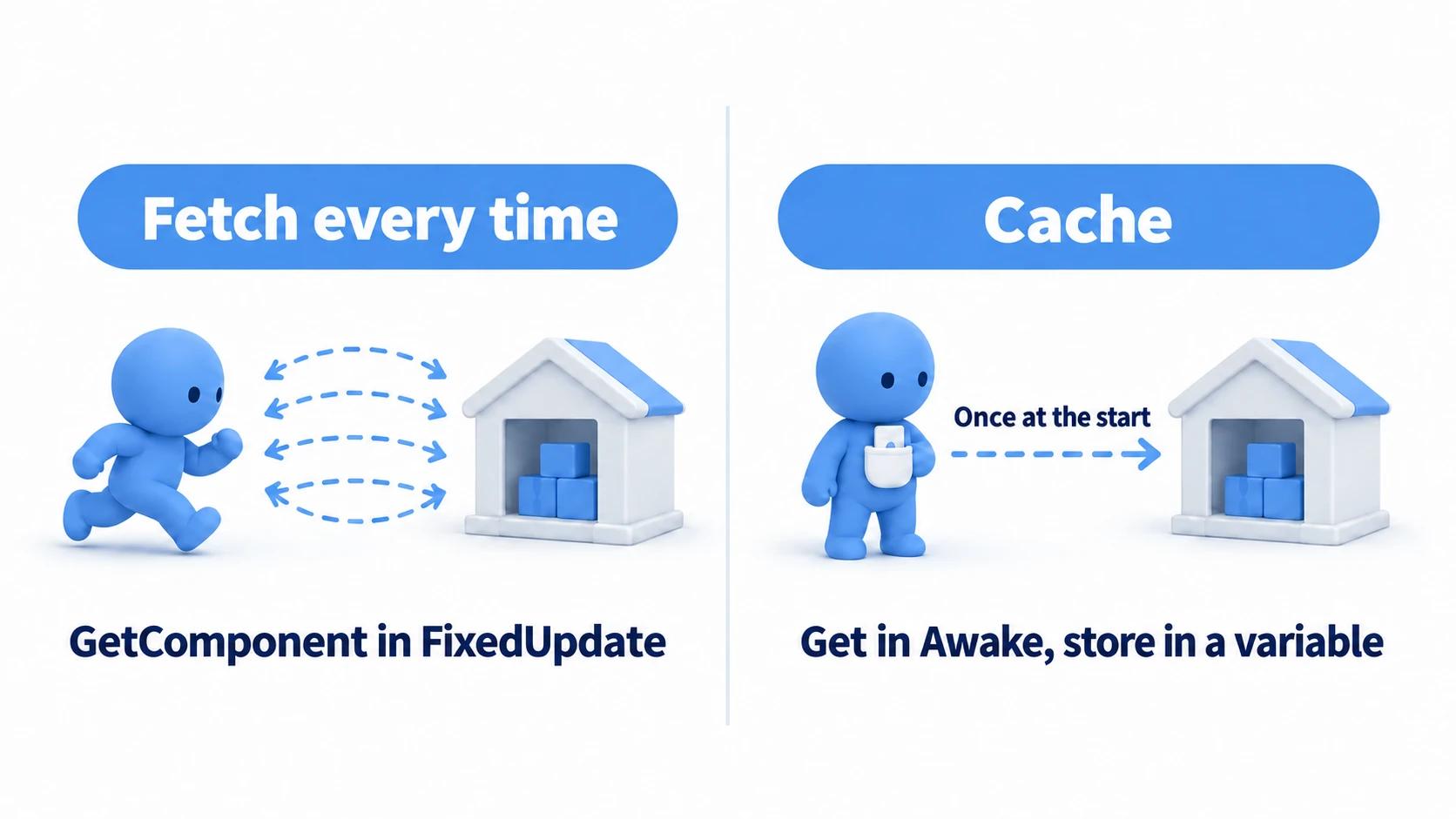
// Bad: Calling GetComponent every time in FixedUpdate
void FixedUpdate()
{
    GetComponent<Rigidbody>().AddForce(Vector3.up);
}

// Good: Cache in Awake, use the variable in FixedUpdate
private Rigidbody rb;
void Awake()
{
    rb = GetComponent<Rigidbody>();
}
void FixedUpdate()
{
    rb.AddForce(Vector3.up);
}
Physics forces like AddForce go in FixedUpdate(), just as in the first example. This "caching" technique is one of the most fundamental and important optimizations in Unity programming.
Related Methods
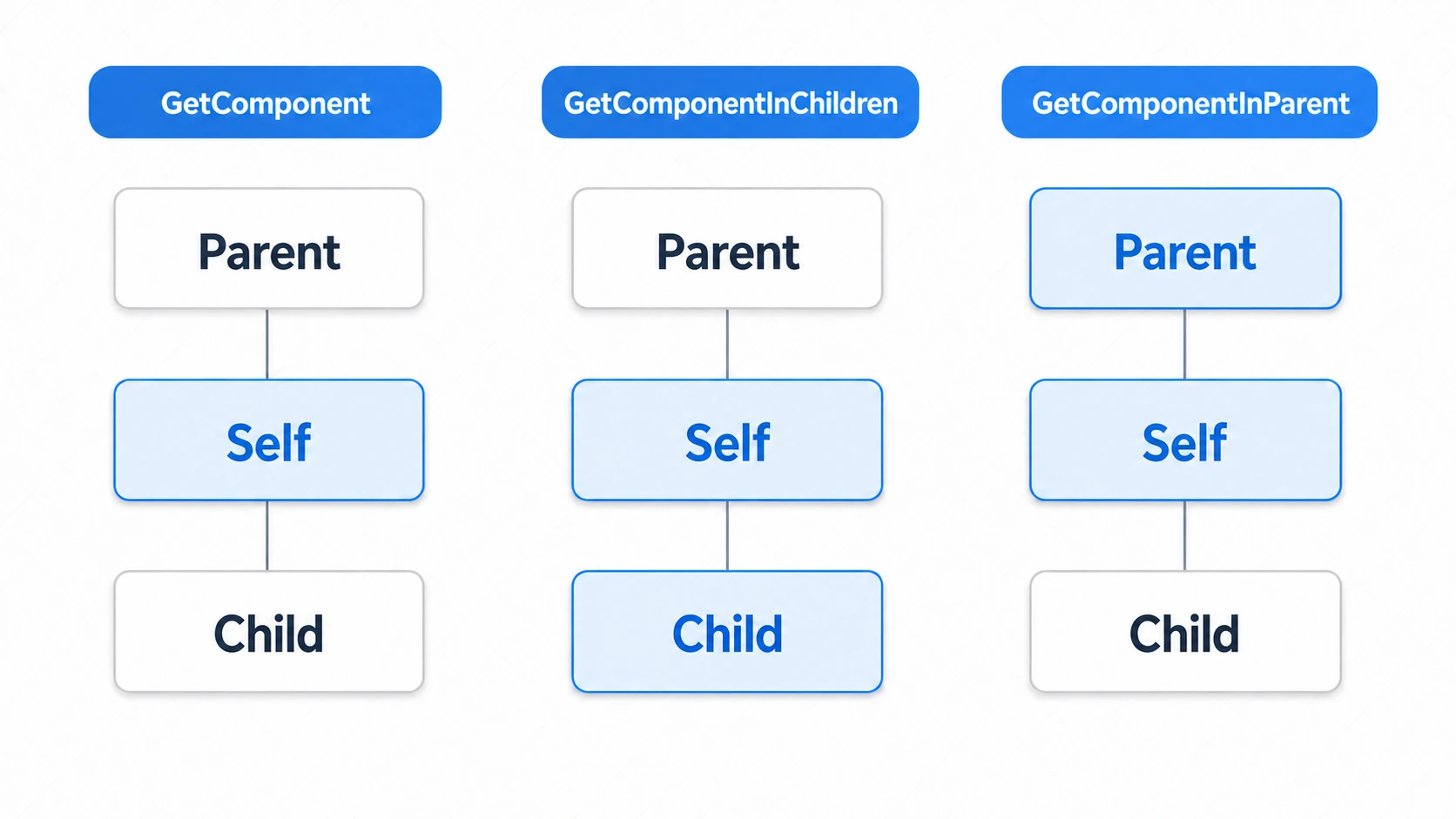
GetComponent has variations with different search scopes:
GetComponentInChildren<T>(): Checks this object first, then its children, returning the firstTcomponent found. If both this object and a child have one, you get this object's.GetComponentInParent<T>(): Checks this object first, then its parents upward, returning the firstTcomponent found.GetComponents<T>(): Returns an array of allTcomponents on the same GameObject.
These methods are also costly—avoid overuse unless necessary.
In real projects, these three extensions come up all the time:
- Include inactive children in the search: pass
trueas inGetComponentInChildren<T>(true)and inactive child objects become searchable too (they're skipped by default). This is both the classic cause of and fix for "I tried to grab a hidden UI part and gotnull." - Climb from a child Collider to the parent's Health: in hit detection where an enemy's head, torso, and legs each have their own Collider, the standard move is for the child object the bullet hit to reach the parent's health via
GetComponentInParent<EnemyHealth>(). No matter which body part is hit, the damage arrives at one place. - Interfaces work as the type argument: you can write
GetComponent<IDamageable>()with an interface as the type. "Whether it's a player or a wooden crate, if it implementsIDamageable, the same code deals damage"—your gateway to flexible design.
A Safer Way to Write It: TryGetComponent
Since Unity 2019.2, you can use TryGetComponent<T>(out T component). It's similar to GetComponent, but returns a bool indicating whether the component was found, storing the reference in the out parameter on success. This lets you write null checks more concisely.
// Using GetComponent
Rigidbody rb = GetComponent<Rigidbody>();
if (rb != null)
{
    // Process
}

// Using TryGetComponent
if (TryGetComponent<Rigidbody>(out Rigidbody rb2))
{
    // Process
}
TryGetComponent also looks only at the same GameObject; there's no version that searches parents or children. To search the parents, compare the result of GetComponentInParent with null.
Troubleshooting
| Symptom | Cause | Fix |
|---|---|---|
NullReferenceException | The component you're getting isn't on that GameObject | Check in the Inspector where the component is. If it's on a child or parent, use GetComponentInChildren / InParent |
| Collisions happen but HP doesn't drop (no error either) | The other object isn't tagged Player, or has no PlayerHealth. Either way, the if quietly skips it | Add Debug.Log(collision.gameObject.name); as the first line of OnCollisionEnter to see whether it runs and whether the other object is the one you expect |
Compile error CS0236 | You called it on the field's declaration line, as in private Rigidbody rb = GetComponent<Rigidbody>(); | Declare the field only, and assign it inside Awake |
The Inspector shows Rigidbody 2D, but you always get null | GetComponent<Rigidbody>() looks for the 3D version | Get 2D components by their 2D type names, such as Rigidbody2D |
Bonus: Good to Know for Later
Once you're comfortable with GetComponent, keeping these perspectives in mind will take your designs up a level.
- For references to other objects, consider Inspector assignment first:
GetComponentis a tool for grabbing parts "inside the same object." When you need a reference to a different object, exposing a variable with[SerializeField]and assigning it via drag & drop in the Inspector is the fastest and safest first choice. - When references start piling up, move toward decoupled design: An architecture where everything calls
GetComponenton everything else gets tangled as objects multiply. Events and delegates let you notify others "without knowing who they are," enabling a decoupled design. See our events and delegates guide for details. - Learn about attributes like
[RequireComponent]: The[RequireComponent]you saw in this article is one example of a mechanism called Attributes, and there are many other useful ones. You can learn them all in our Attribute guide. - Want to revisit how objects and parts relate: the GameObject and Component mindset is covered in GameObjects and Components Explained.
Summary
GetComponent is the key method for connecting components and creating complex interactions in Unity.
GetComponent<T>(): The fundamental way to get other components on the same GameObject.- Caching is critical: Retrieve in
Start()orAwake(), store in a variable, and reuse. GetComponentInChildren,GetComponentInParent: Can retrieve components from parent/child objects, but be mindful of cost.TryGetComponent: A newer option for cleaner null checking.
Master this method and your Unity programming skills will dramatically improve.