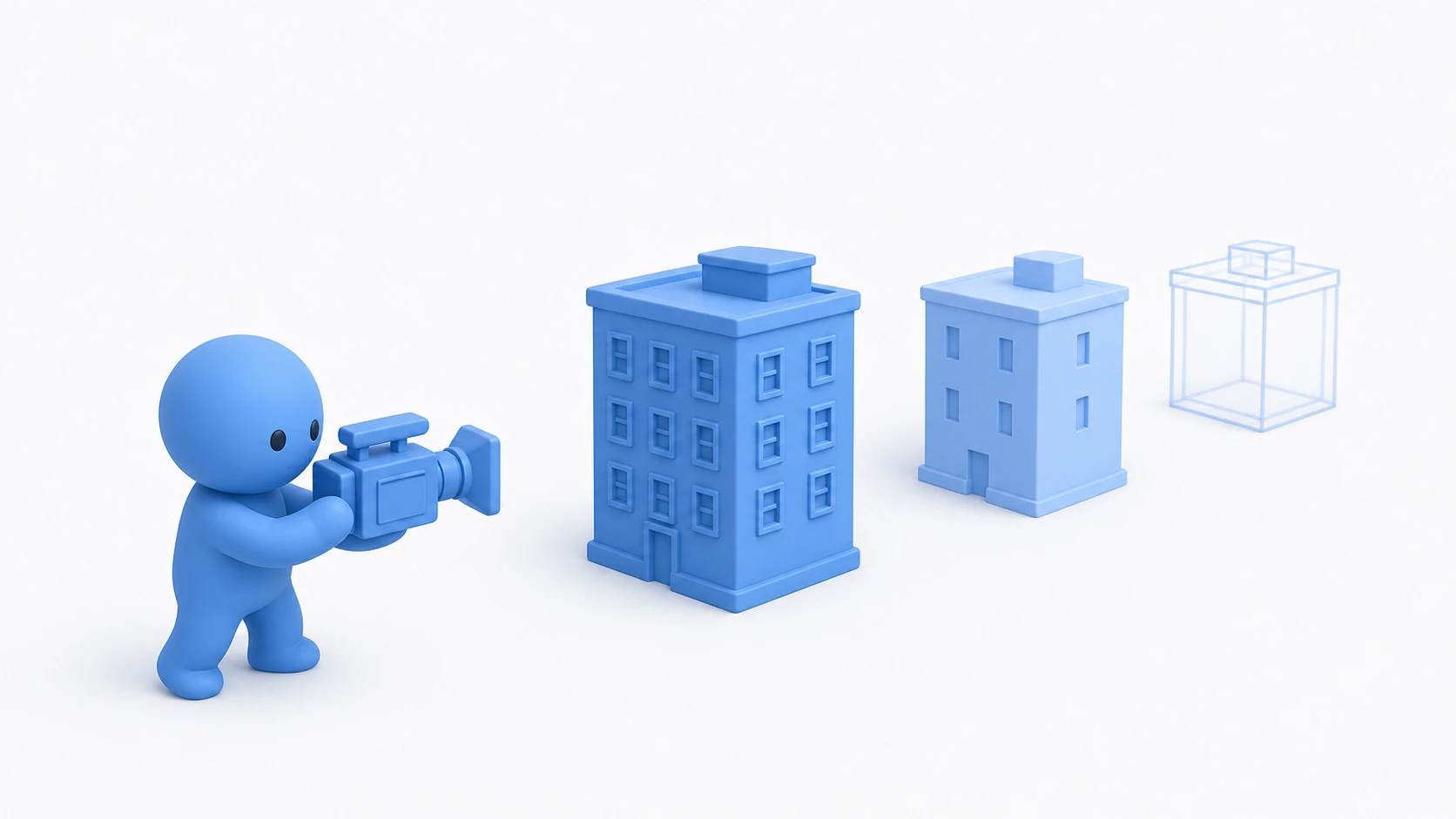
You scatter background props, plant trees, add more enemies — and the busier the scene gets, the lower the frame rate drops. Open "Stats" in the Game view and the Batches count has ballooned into the thousands. The culprit is the draw call.
A draw call is a rendering command from the CPU to the GPU: "draw this mesh with this material." The GPU still has plenty of rendering capacity left, but the CPU issuing the commands hits its limit first — that's the classic symptom of too many draw calls.

What You'll Learn
- Why draw calls burden the CPU (the restaurant-order metaphor)
- Assessing the current state — the Stats window and the Frame Debugger
- When to use each of the four reduction techniques — SRP Batcher, static batching, GPU instancing, and dynamic batching
- Texture atlases — getting objects to share a material
- Practical: actually cutting the Batches of a busy forest stage
Tested with: Unity 6 (6000.x) / URP
What Is a Draw Call — The Order-Slip Analogy
The relationship between the CPU and GPU is a lot like a waiter (CPU) and the chef in the kitchen (GPU). The chef cooks (renders) fast, but the waiter has to walk to the kitchen for every single order slip, re-explaining the "ingredients" (textures) and the "cooking method" (shader settings) each time.
- Set the rendering state: tell the GPU which shader, textures, and blend mode to use
- Issue the draw command: send the "render now" instruction (the draw call)
The problem is that this re-explaining happens every time the material changes. A red car and a blue car may share the same mesh, but with different materials they become separate orders. If 1,000 objects each have their own material, that's 1,000 kitchen trips every frame — and the CPU is maxed out on that alone.

There's only one direction the fix can take: "combine identical orders onto a single slip" — and that's batching.
Count First — Stats and the Frame Debugger
Before optimizing, start with measurement.
- Stats window: click "Stats" in the top-right of the Game view to see Batches (effectively your draw call count) and SetPass (how many times shaders/materials are switched; SetPass Calls in the Profiler). Keep these two numbers in mind from the start. From Unity 6.4, the display changed and breaks Draw Calls down into SRP Batcher and others.
- Frame Debugger: open "Window > Analysis > Frame Debugger" to replay a single frame one draw call at a time. It shows what gets drawn in what order — and even tells you why a draw call couldn't be batched with the previous one. This is the definitive tool for investigating draw calls.
Choosing the Right Reduction Technique
| Technique | Target | In a Nutshell |
|---|---|---|
| SRP Batcher | Almost every object in URP/HDRP | Today's workhorse. Works as long as the shader matches |
| Static batching | Objects that never move | Big gains. Just tick the Static flag |
| GPU instancing | Masses of identical-looking objects | The ultimate weapon for grass, trees, and crowds |
| Dynamic batching | Small moving objects | Legacy. Fine to leave off these days |
SRP Batcher — Today's Workhorse
In URP/HDRP, the first thing to check is whether the SRP Batcher is active. Unlike traditional batching, which "reduces the number of order slips," the SRP Batcher slashes the communication cost per slip. Because it keeps material data resident on the GPU, it processes objects quickly even with different materials, as long as they use the same shader (variant).

- How to use it: enable "SRP Batcher" on the URP asset (Universal Render Pipeline Asset) — it's on by default in recent versions.
- Caveat: custom shaders must be written in an SRP Batcher-compatible way (grouping properties into a
CBUFFER). Shader Graph shaders are compatible automatically. - How to verify: if the Frame Debugger shows draws grouped as an "SRP Batch," it's working.
Static Batching — Bake Everything That Doesn't Move
This technique merges objects that never move into one giant mesh at build time.
- How to use it: select your background props, buildings, terrain decorations, and so on, then turn on "Static" in the top-right of the Inspector (Batching Static alone is enough). It only takes effect when Static Batching is on under Project Settings > Player.
- Requirement: only objects that share the same material get merged together.
- The trade-off: holding the combined mesh increases memory usage. On mobile, watch the balance between the gains and the memory cost.
GPU Instancing — Lots of the Same Thing
A technique that renders hundreds to thousands of objects with the same mesh + same material in a single draw call. It shines wherever you have "masses of copies" — forest trees, patches of grass, bullet-hell projectiles, stadium crowds.
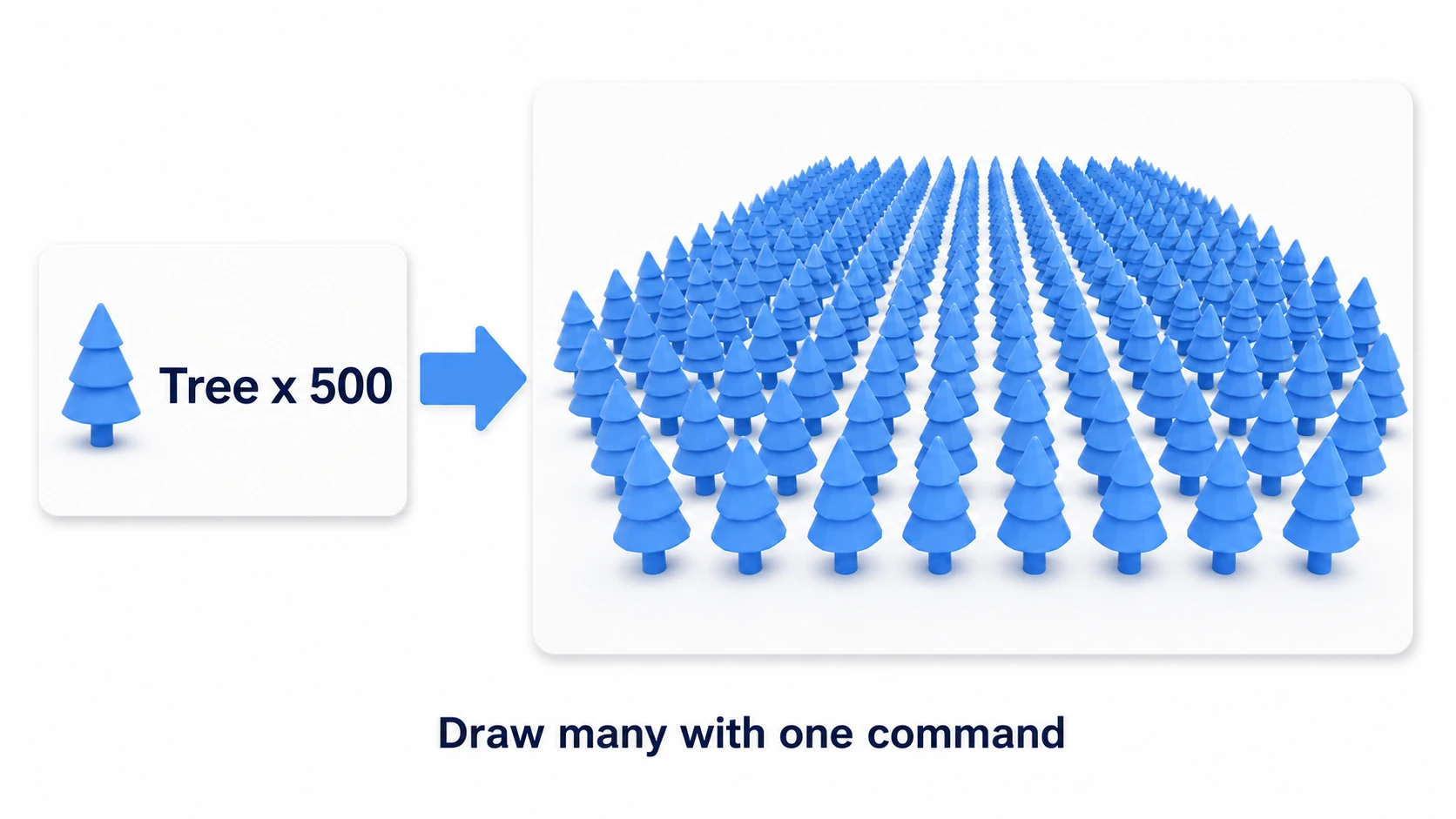
- How to use it: just tick "Enable GPU Instancing" in the material's Inspector.
- Note: In URP, objects whose shader is SRP Batcher-compatible use the SRP Batcher first, and GPU instancing isn't used. If ticking it doesn't change the numbers, they're already batched by the SRP Batcher.
- Key strength: unlike static batching, each object can still move. Position, rotation, color, and more can vary per instance.
Dynamic Batching — Legacy
An old technique that merges small moving objects on the CPU every frame. It has strict vertex-count limits, and the merging work itself costs CPU time, so now that the SRP Batcher is available, it's generally fine to leave it off. It's enough to just remember the name as an option for older projects or small objects on the Built-in pipeline.
Texture Atlases — Prep Work for Sharing Materials
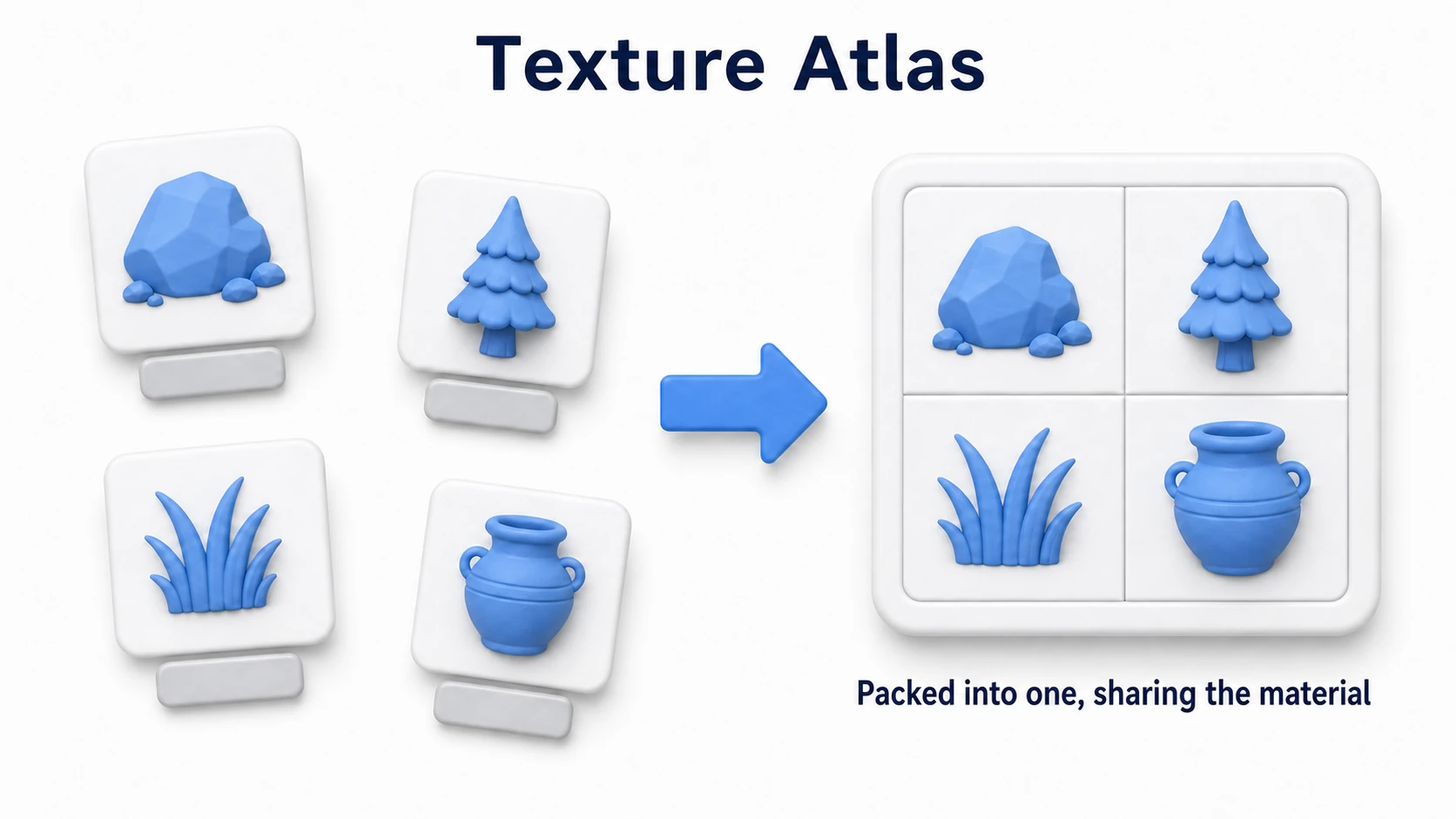
Both static batching and GPU instancing require the "same material" as a precondition. But if your rocks, trees, and grass each have their own texture, they end up with separate materials too — and there's nothing to batch.
The fix is to pack multiple small textures into one large texture (an atlas) so everything can share a single material. It's the "prep work" that creates batching opportunities in the first place; in 2D, it's a built-in feature as the Sprite Atlas.
The decision rule fits on one line: "If Batches feels high, open the Frame Debugger and see why things aren't batching." Once you know the reason, which of the four techniques above to apply follows naturally.
Practical: Lightening a Busy Forest Stage
The forest of an open-field action RPG, the props filling a tower-defense map, the roadside trees of a racing game — "scenes with masses of things that don't move" are where draw call reduction pays off the most, in any genre. Let's walk through the whole process on a forest stage with 200 trees, 100 rocks, and 1,000 clumps of grass.
- Count the current state: open "Stats" in the Game view. Say it reads Batches: 3,200 — jot that number down (your baseline for measuring the effect).
- See the reason: replay the drawing one step at a time in the Frame Debugger. You should see each tree drawn separately, with the reason it couldn't be batched (such as "different materials") displayed. Pin down the cause here before you make any changes.
- Static flag for things that don't move: select everything that never moves during gameplay — rocks, stumps, fences — and turn on "Static" in the top-right of the Inspector. For prefabs, you fix the source once.
- GPU instancing for masses of identical looks: tick "Enable GPU Instancing" on the tree and grass materials. It's fine even if they sway in the wind (anything already batched by the SRP Batcher in URP stays with the SRP Batcher).
- Pack the leftover props into an atlas: if fine decorations like lanterns, signs, and pots each hold their own texture, combine them into an atlas and unify them onto a single material.
- Count again: recheck Stats. With this setup, dropping to around Batches: 300 is the typical result. The look doesn't change by a single pixel — only the CPU load of issuing draw commands drops sharply.
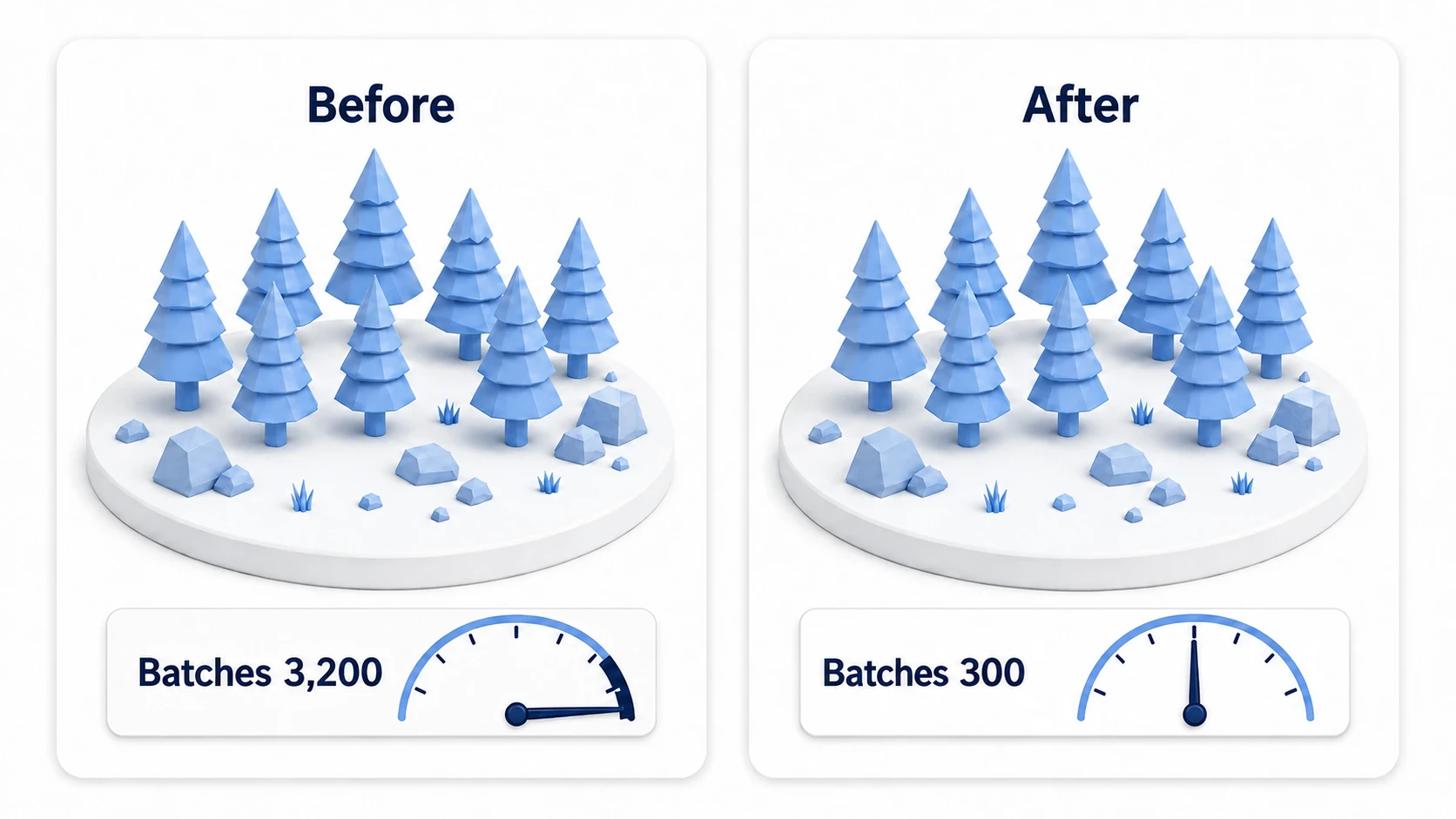
There are two key points: "Nail down 'why things aren't batching' in the Frame Debugger first" (if you act on a guess, you'll melt hours into optimizations that don't work), and the basic assignment of "Static for things that don't move, Instancing for masses of identical looks." If you want to make measuring the effect a habit, pair this with how to use the Profiler.
Bonus: Good to Know for Later
- Batches vs. SetPass Calls: Batches is "how many orders," SetPass Calls is "how many times the cooking method changes." SetPass Calls are the more expensive of the two, so reducing the variety of materials and shaders always pays off.
- Typical reasons batches break: different materials, different lightmaps, different shader variants, mixing transparent and opaque objects, and so on. The Frame Debugger displays the reason in plain English, so searching for that text usually leads straight to the fix.
- Overdraw is a separate problem: even after cutting draw calls, the GPU side can still be heavy. Overlapping transparency (overdraw) is a classic GPU cost, covered in mobile optimization.
- LOD and culling: for optimizations that "draw less" in the first place, there's LOD (simplifying models with distance) and occlusion culling (skipping what's hidden behind occluders). Both combine well with draw call reduction.
- Don't draw what's far away or hidden: to cut the number of things drawn in the first place, see LOD and Occlusion Culling
Summary
- A draw call is an order slip from the CPU to the GPU. With too many, the CPU chokes before the GPU does.
- Start by assessing the situation with Stats (Batches / SetPass Calls) and the Frame Debugger. Don't guess.
- On URP/HDRP, the SRP Batcher is the star. Mind the compatible syntax for custom shaders.
- Use static batching for things that don't move, and GPU instancing for masses of identical-looking objects.
- Batching's precondition is shared materials. Create the opportunity with texture atlases.
Before "removing objects," try "combining the order slips" — that alone can make a scene with the same amount of content run dramatically lighter. How many Batches does your project's Stats window show right now?