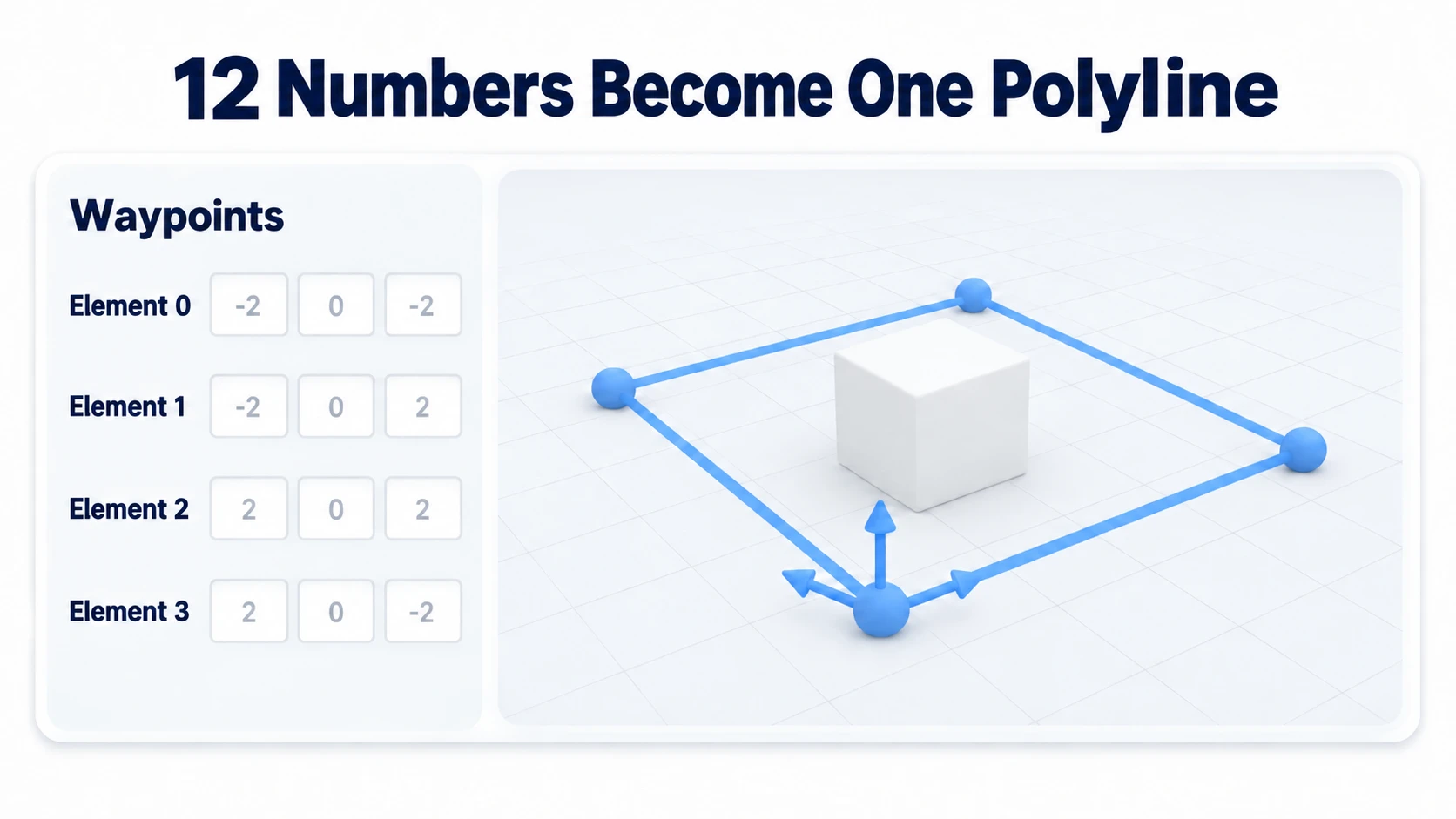
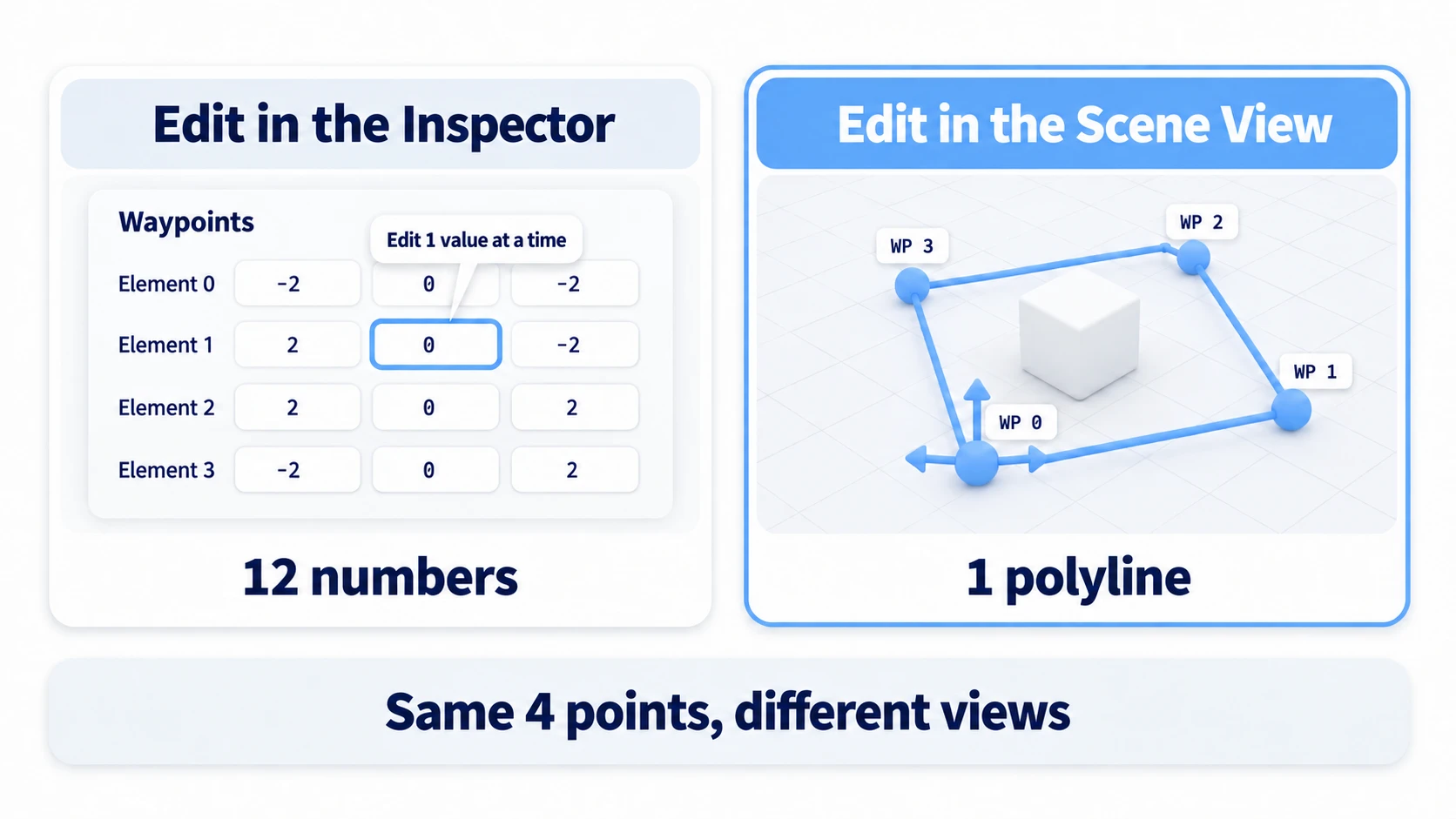
A row of points like an enemy's patrol route is much easier to lay out if you can grab and move it directly in the Scene view. Hold it as a Vector3 array, though, and every time you move one point, you retype numbers in the Inspector. After retyping, you press Play to check the position. With four points, that's twelve numbers to type.
Unity's built-in Colliders and lights let you grab corners and circles in the Scene view to change their shape. Write a CustomEditor, and you can give your own components the same handles.
This article explains how to move the points of a patrol route in the Scene view with CustomEditor and OnSceneGUI.
What You'll Learn
- A
CustomEditorreplaces the default Inspector display- Why the Inspector side rewrites through
serializedObjectwhile the Scene view side rewritestarget- The steps for putting grabbable handles in the Scene view with
OnSceneGUIandHandles- Hands-on: grab and move an enemy's patrol route in the Scene view
Tested with: Unity 6 (6000.x)
What a CustomEditor Is: One Class for the Inspector and the Scene View
You can replace how your own component is displayed by writing one class that inherits Editor. Give the class [CustomEditor(typeof(PatrolRoute))]. Now that class handles the display when PatrolRoute is selected.
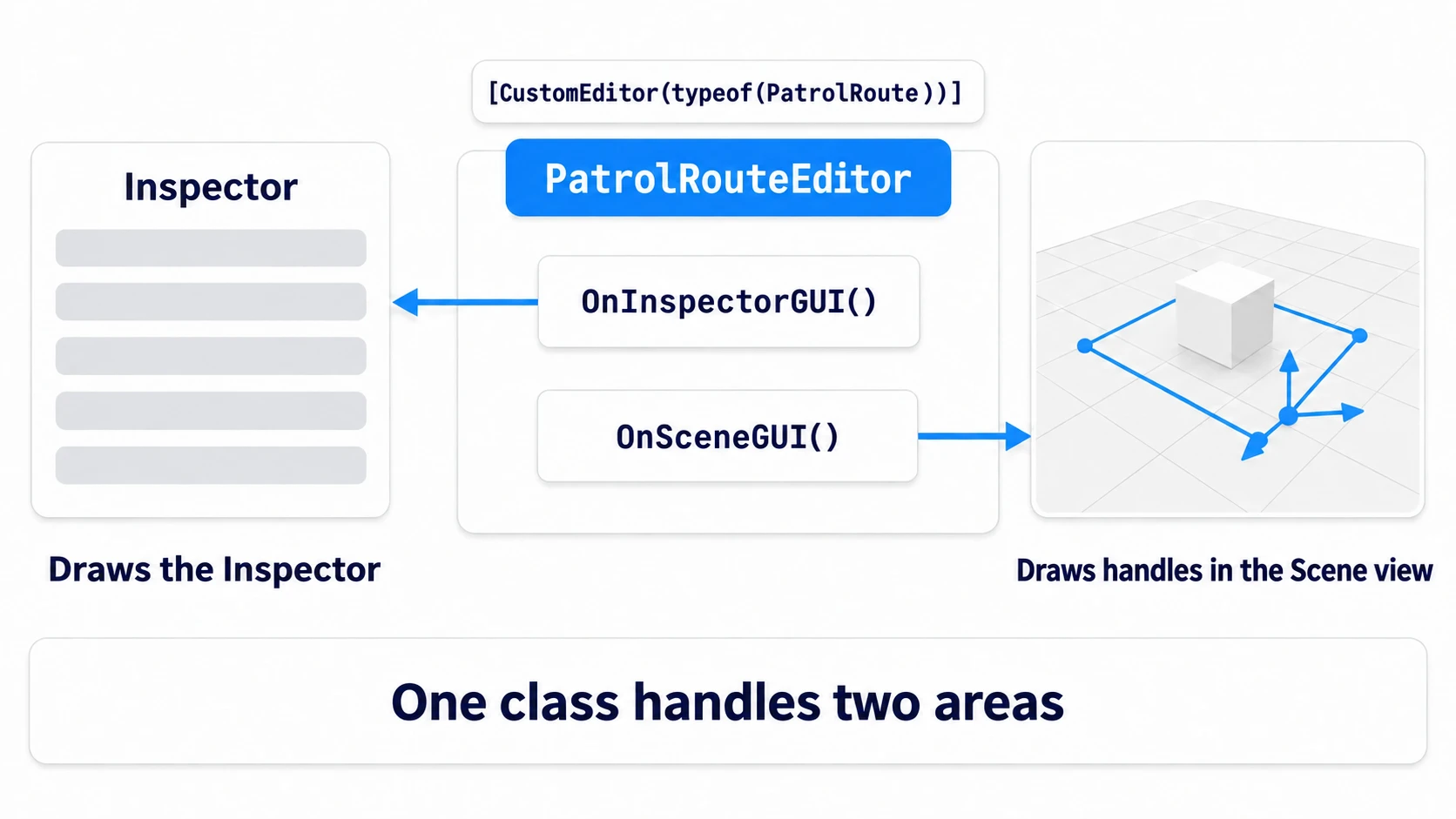
It handles two places. OnInspectorGUI() draws the Inspector panel. OnSceneGUI() draws handles in the Scene view. Both are written in the same class. Put this script in an Editor folder so it isn't included in builds. The rules for where to put it are covered in Unity Editor Extensions.
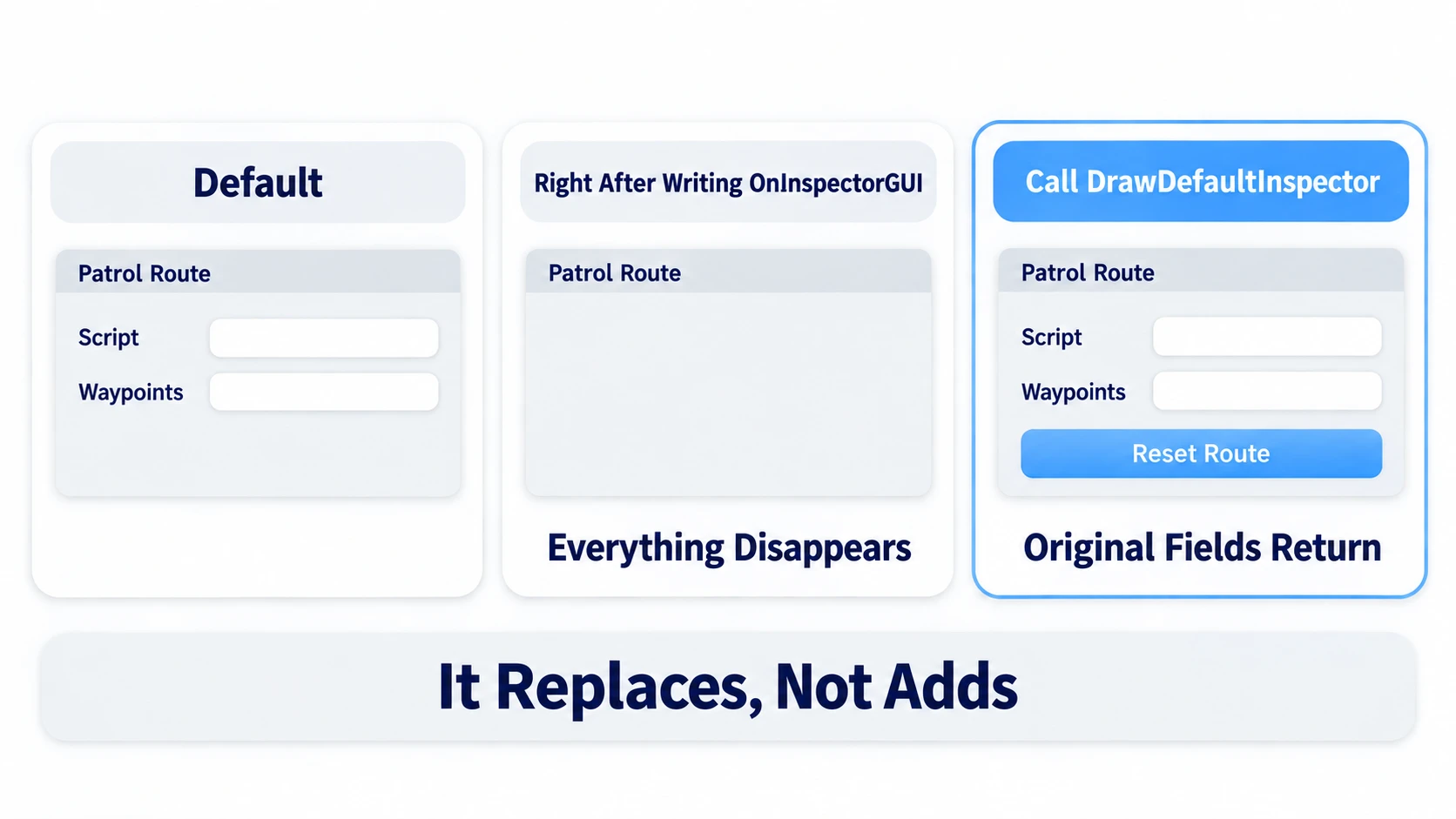
The first stumbling block is that the moment you write OnInspectorGUI(), the default field display disappears. This method is written with override, a way of replacing the parent class's processing with your own, so the Inspector is "replaced," not "added to." If you just want to add a button, call DrawDefaultInspector() first to have it draw the original items.
// Assets/Editor/PatrolRouteEditor.cs
using UnityEngine;
using UnityEditor;

[CustomEditor(typeof(PatrolRoute))]
public class PatrolRouteEditor : Editor
{
    public override void OnInspectorGUI()
    {
        DrawDefaultInspector();          // Draw the default items as-is

        if (GUILayout.Button("Reset Route"))
            Debug.Log("reset");          // Then add your own controls
    }
}
PatrolRoute is the "component that holds a patrol route" built in the hands-on section. If you're following along, create a class with just public Vector3[] waypoints; first.
In other engines: Godot's EditorInspectorPlugin and Unreal Engine's Details Panel Customization (
IDetailCustomization) are similar: mechanisms for adding your own UI to a target class's Inspector.
Drawing the Inspector: serializedObject
When rewriting values in the Inspector, you can rewrite target (the currently selected component) directly. But just rewriting it directly doesn't automatically give you three features: undoing with Ctrl+Z, recording a Prefab's "values for just this object," and applying to multiple selected objects at once.
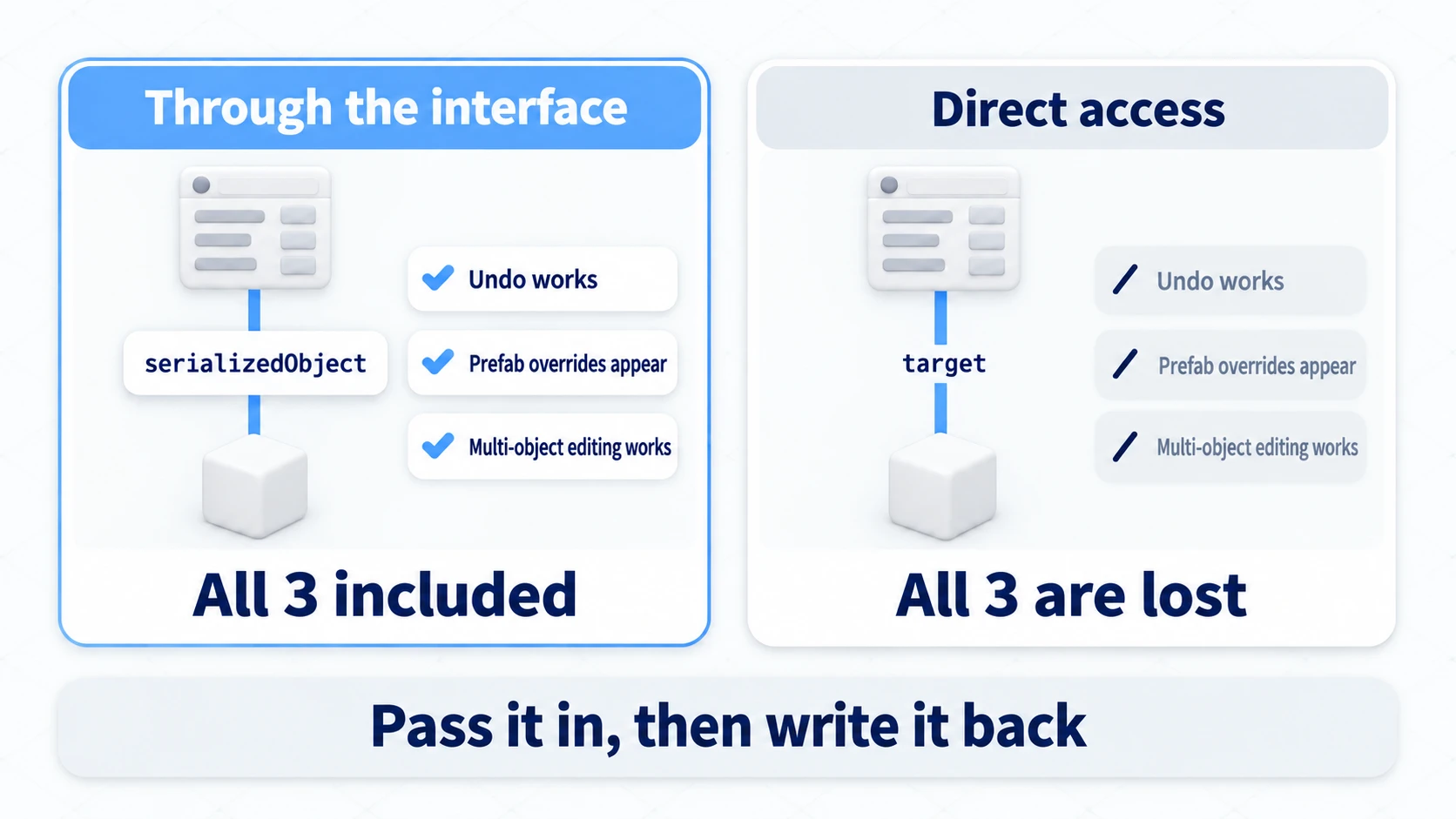
serializedObject is a window onto a copy of the component's values made for the Inspector. The Inspector reads and writes through this window, and along the way Unity takes care of the three features.
[CustomEditor(typeof(PatrolRoute))]
[CanEditMultipleObjects]                 // Use this Inspector even when multiple objects are selected
public class PatrolRouteEditor : Editor
{
    SerializedProperty waypointsProp;

    void OnEnable()
    {
        waypointsProp = serializedObject.FindProperty("waypoints");
    }

    public override void OnInspectorGUI()
    {
        serializedObject.Update();                            // ① Reread the current values
        EditorGUILayout.PropertyField(waypointsProp, true);   // true draws the array's contents too
        serializedObject.ApplyModifiedProperties();           // ② Write them back
    }
}
What you pass to FindProperty() isn't the Inspector's display name but the C# field name. Even though it displays as Waypoints, you pass waypoints, matching case exactly. If the name isn't found, it returns null. Pass that to PropertyField and it throws, and nothing below it gets drawn.
[CanEditMultipleObjects] is an attribute declaring support for multiple selection. Without it, selecting two shows only Multi-object editing not supported. in that area.
OnSceneGUI and Handles: Grabbable Handles in the Scene View
Things you can grab in the Scene view are called handles. The square dots at a Collider's corners and the circle around a light's range are examples. Putting handles on your own component is what OnSceneGUI() does.
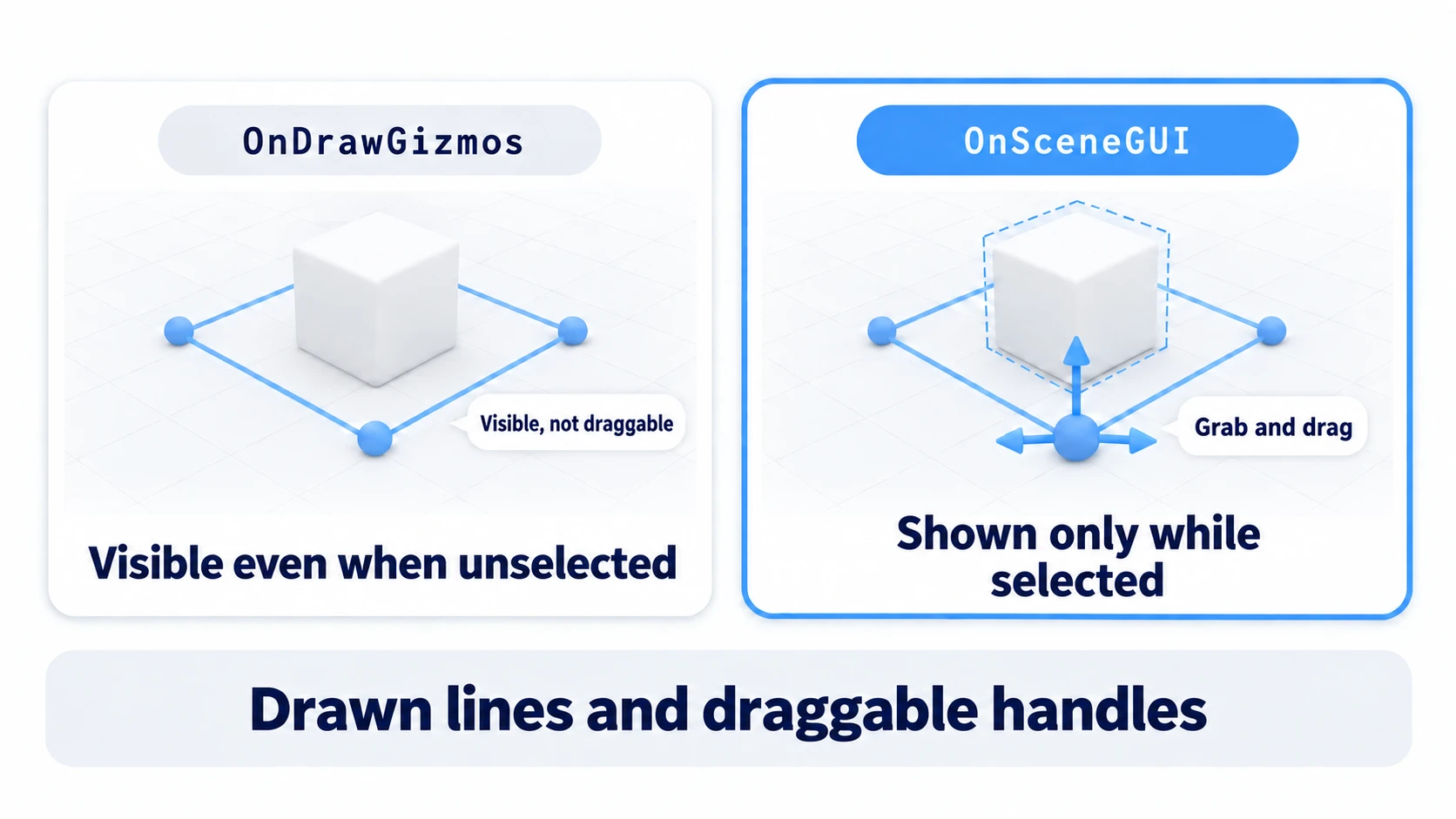
Lines drawn with Gizmos' OnDrawGizmos are only visible; you can't grab them. OnSceneGUI() is called only while that component is selected, and handles shown here can be grabbed with the mouse. Unlike OnInspectorGUI(), it's written without override.
To show one handle and write the value back, write it in this order.
EditorGUI.BeginChangeCheck();                          // ① Start watching for movement
Vector3 moved = Handles.PositionHandle(world, Quaternion.identity);   // ② Draw the handle
if (EditorGUI.EndChangeCheck())                        // ③ Go inside only when it moved
{
    Undo.RecordObject(route, "Move Waypoint");         // ④ Record before assigning
    route.waypoints[i] = tr.InverseTransformPoint(moved);   // ⑤ Then assign
}
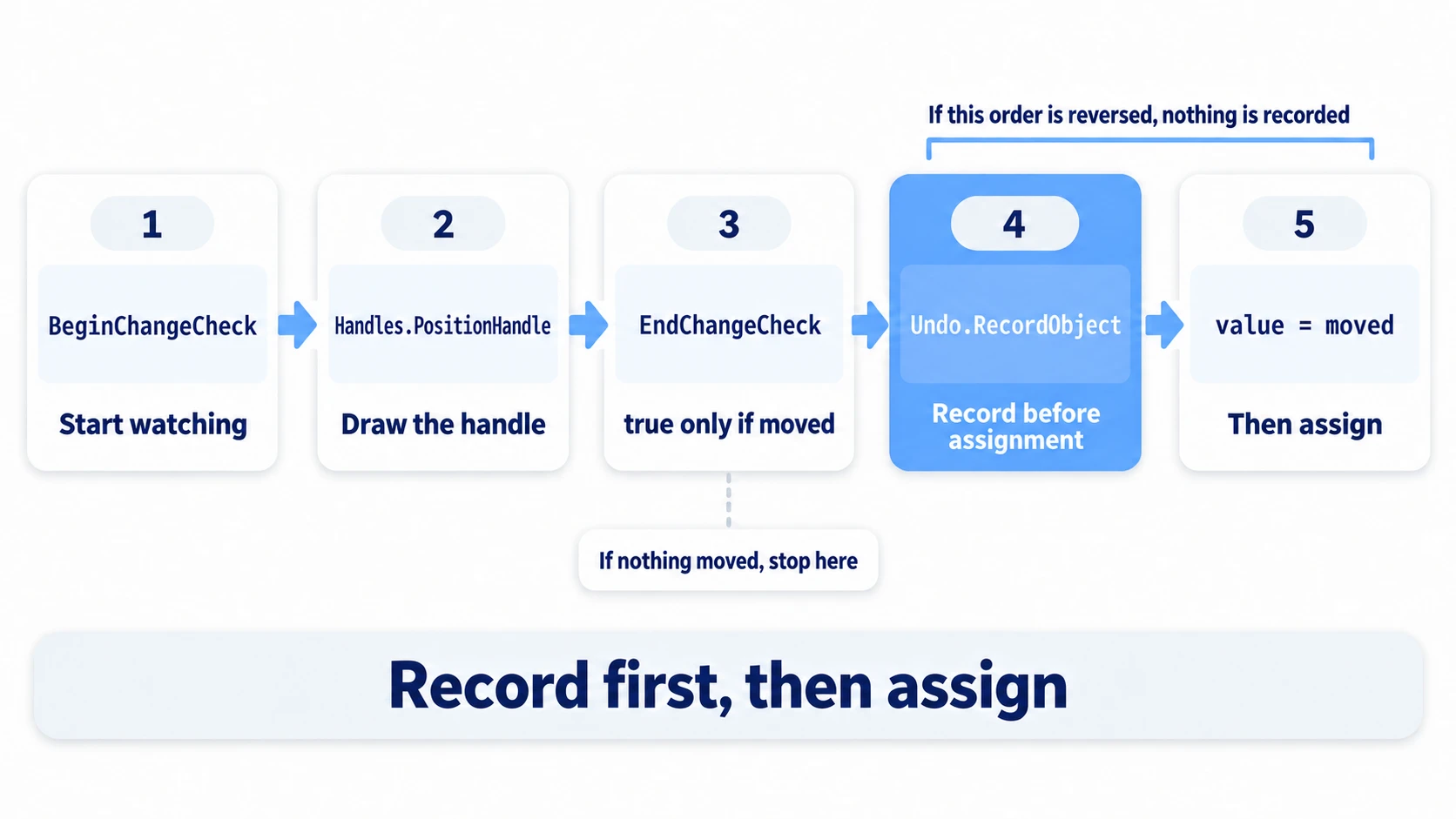
Undo.RecordObject() notes the values at the moment it's called. Call it after assigning, and the change isn't recorded. Skip it and just assign to target, and Ctrl+Z doesn't work. The scene name in the Hierarchy doesn't get the unsaved * either. During a drag, EndChangeCheck() returns true many times. Even so, one drag becomes one Ctrl+Z.
Unlike the Inspector side, you don't use serializedObject in here. After Undo.RecordObject, rewrite target directly. Unity's official documentation also writes OnSceneGUI using target.
| Place | How to rewrite values |
|---|---|
OnInspectorGUI | serializedObject → PropertyField → ApplyModifiedProperties |
OnSceneGUI | Undo.RecordObject → assign directly to target |
Local and World Coordinates
What Handles takes and returns is normally world coordinates (where something is in the whole scene). Patrol route points, on the other hand, are easier to work with in local coordinates (where something is as seen from this enemy).
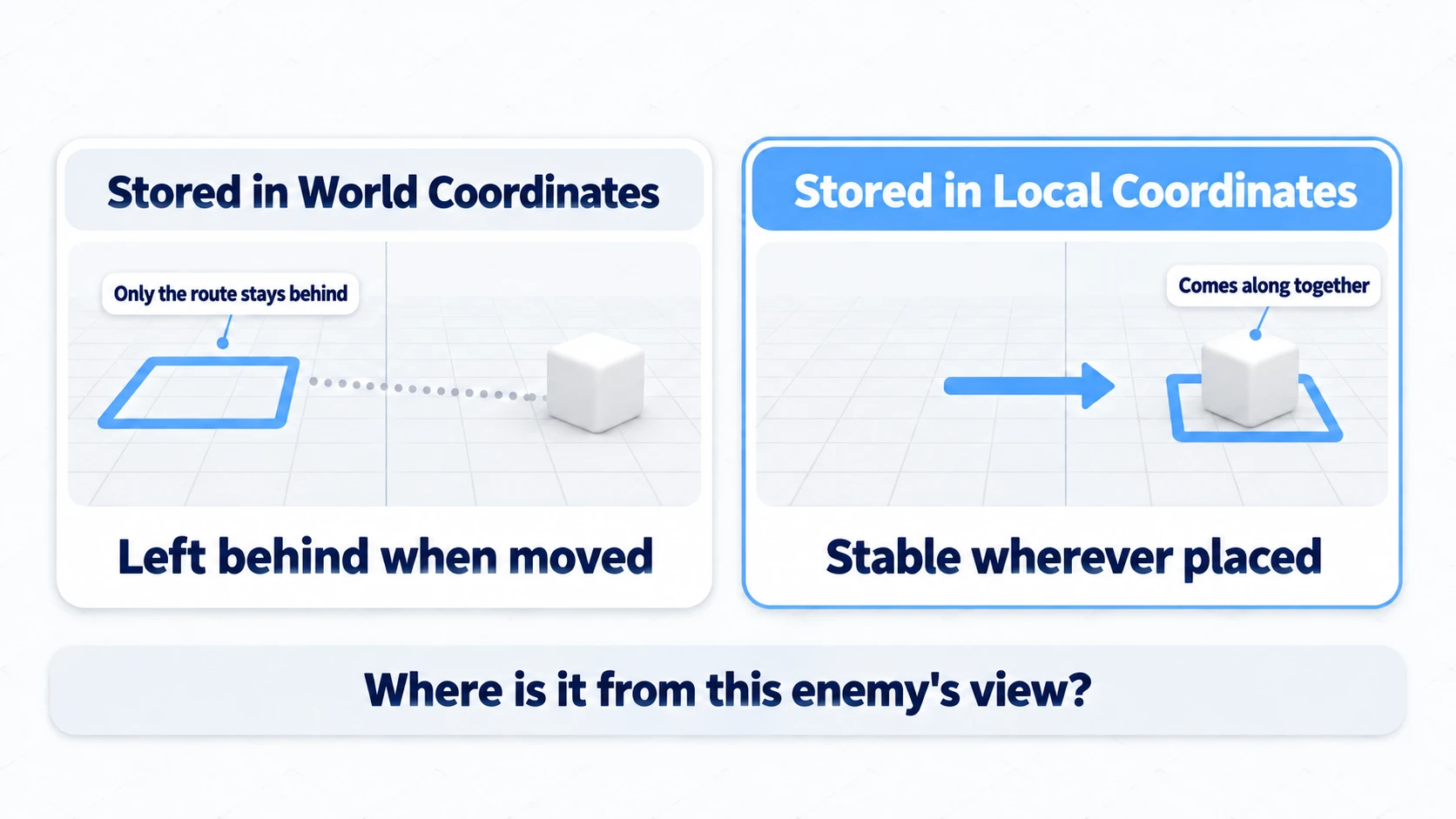
Keep them in world coordinates, and when you make the enemy a Prefab and place it in another room, only the route is left behind at the original location. In local coordinates, moving the enemy brings the route along.
To get the best of both, convert back and forth. Right before passing to Handles, go out to world with transform.TransformPoint(). Before saving, come back to local with transform.InverseTransformPoint().
In other engines: For grabbable handles in the scene, Godot's EditorNode3DGizmoPlugin and Unreal Engine's Component Visualizer (
FComponentVisualizer) play similar roles.
Hands-On: Grab and Move the Patrol Route in the Scene
An enemy's patrol in a top-down action game, a guard's rounds in a stealth game, a lap course in a racing game — data that holds a loop of connected points in space as an array shows up in every genre. Here we make an enemy's patrol route fixable by dragging in the Scene view.
① What to place
- In a new scene, place a floor with
GameObject > 3D Object > Plane - Place one Cube with
GameObject > 3D Object > Cube. Name itEnemy, with Position(0, 0.5, 0) - As an obstacle, place another Cube with Position
(2, 0.5, 0) - Create
Assets/Scripts/PatrolRoute.csandAssets/Editor/PatrolRouteEditor.cswith the code in ② below. If you wrotePatrolRouteEditorin the previous section, rewrite that file. Two files with the same class name won't compile - Once compiling finishes, attach
PatrolRoutetoEnemywithAdd Component. If you already attached it in the previous section, chooseResetfrom the component's ⋮ to return the array to its initial four points
② Assemble it
First, the component that holds the route. It isn't an editor extension, so put it outside the Editor folder.
// Assets/Scripts/PatrolRoute.cs
using UnityEngine;

public class PatrolRoute : MonoBehaviour
{
    // Held relative to the enemy. Move the enemy and the route comes along
    public Vector3[] waypoints =
    {
        new Vector3(-2f, 0f, -2f),
        new Vector3( 2f, 0f, -2f),
        new Vector3( 2f, 0f,  2f),
        new Vector3(-2f, 0f,  2f),
    };

    // Keep the path visible even when not selected
    void OnDrawGizmos()
    {
        if (waypoints == null || waypoints.Length < 2) return;

        Gizmos.color = Color.cyan;
        for (int i = 0; i < waypoints.Length; i++)
        {
            Vector3 a = transform.TransformPoint(waypoints[i]);
            Vector3 b = transform.TransformPoint(waypoints[(i + 1) % waypoints.Length]);   // Back from the last point to the first, making a loop
            Gizmos.DrawLine(a, b);
            Gizmos.DrawSphere(a, 0.15f);
        }
    }
}
Next, the editor side. This class handles both the Inspector and the Scene view. Put it in Assets/Editor/.
// Assets/Editor/PatrolRouteEditor.cs
using UnityEngine;
using UnityEditor;

[CustomEditor(typeof(PatrolRoute))]
[CanEditMultipleObjects]
public class PatrolRouteEditor : Editor
{
    SerializedProperty waypointsProp;

    void OnEnable()
    {
        waypointsProp = serializedObject.FindProperty("waypoints");
    }

    // Inspector side: go through serializedObject
    public override void OnInspectorGUI()
    {
        serializedObject.Update();
        EditorGUILayout.HelpBox("Drag the points in the Scene view to move them", MessageType.Info);
        EditorGUILayout.PropertyField(waypointsProp, true);
        serializedObject.ApplyModifiedProperties();
    }

    // Scene view side: rewrite target after Undo.RecordObject
    void OnSceneGUI()
    {
        PatrolRoute route = (PatrolRoute)target;   // Each call handles just one object
        if (route.waypoints == null) return;       // Don't crash even if the array is emptied

        Transform tr = route.transform;

        for (int i = 0; i < route.waypoints.Length; i++)
        {
            Vector3 world = tr.TransformPoint(route.waypoints[i]);   // Local → world

            Handles.Label(world + Vector3.up * 0.4f, $"WP {i}");

            EditorGUI.BeginChangeCheck();
            Vector3 moved = Handles.PositionHandle(world, Quaternion.identity);
            if (EditorGUI.EndChangeCheck())
            {
                Undo.RecordObject(route, "Move Waypoint");                // Record before assigning
                route.waypoints[i] = tr.InverseTransformPoint(moved);     // World → local
                PrefabUtility.RecordPrefabInstancePropertyModifications(route);
            }
        }
    }
}
The last line is for when the enemy is placed from a Prefab. When you rewrite target directly, unless you call this, it isn't recorded as "values for just this instance." When you save and reopen the scene, it goes back to the Prefab's route. What you pass is the component holding waypoints, not the GameObject.
③ Run it and check
Select Enemy in the Hierarchy. The note "Drag the points in the Scene view to move them" appears in the Inspector's Patrol Route area. Expand Waypoints below it. There are three things to check.
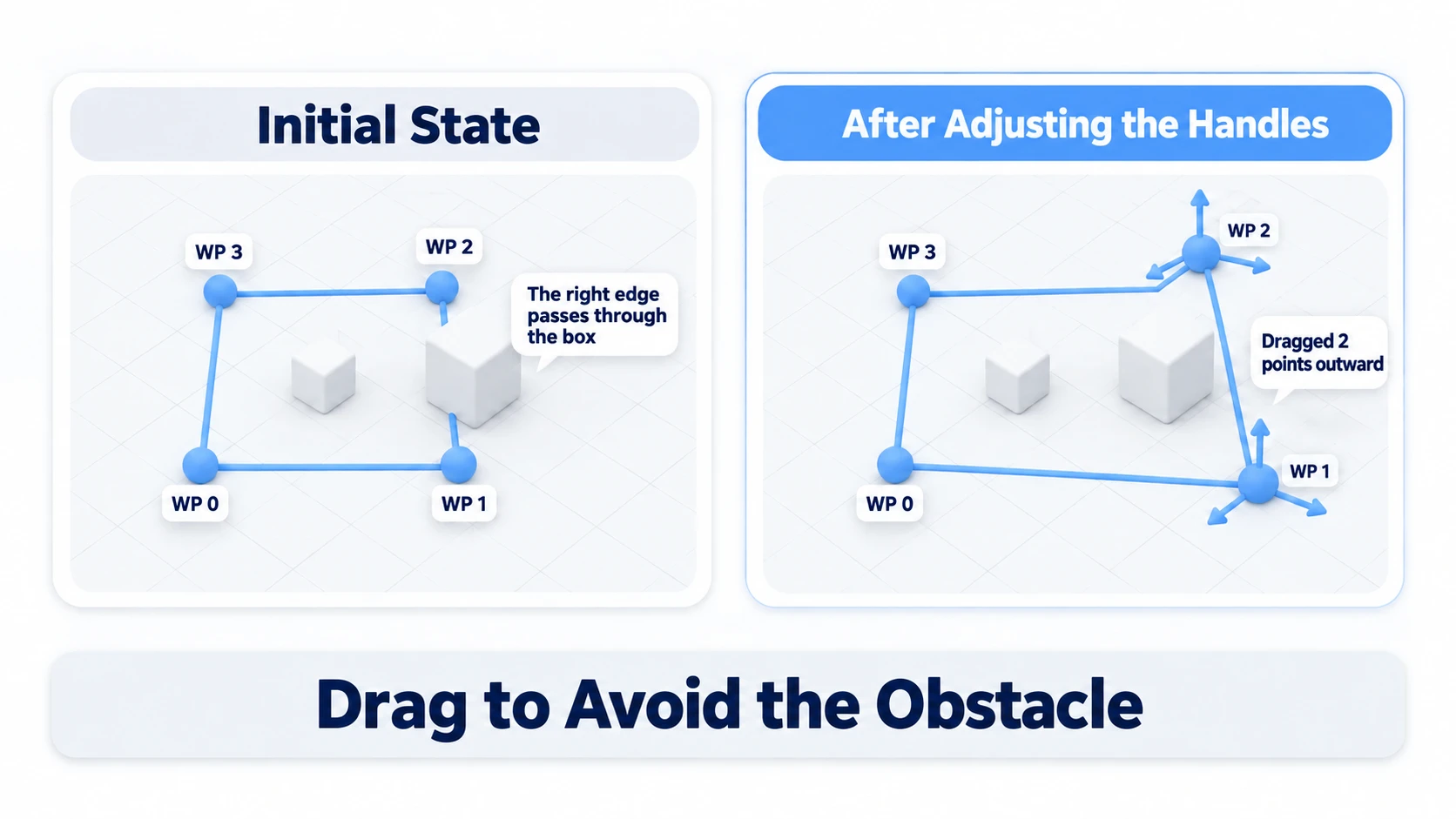
First, move handles appear on the four points, with the labels WP 0 through WP 3 above them. The route is a square with sides of 4. The right edge joining WP 1 and WP 2 runs straight through the box at (2, 0.5, 0). If no handles appear, check that Gizmos at the top of the Scene view is on, and that PatrolRoute is checked in the dropdown next to it. While it's off, OnSceneGUI itself isn't called.
Next, grab the red arrow (the x direction) on WP 1 and WP 2, and drag them outward until x is about 4. The cyan polyline goes around the box on the spot. The x values of Element 1 and Element 2 in the Inspector change along with it. Release, then press Ctrl+Z, and only WP 2, the last one you dragged, goes back. One drag is one Ctrl+Z. Once you've checked, redo it with Ctrl+Y (Cmd+Shift+Z on macOS).
To finish, try changing Enemy's Position to (-3, 0.5, 0). The route keeps its shape and moves along with it, detour around the box included. Not a single Element value in the Inspector changes. That's because the points are held as positions seen from the enemy. What used to be retyping twelve numbers has become grabbing and moving points.
What this code builds is only the ability to edit the path. Even if you press Play, the enemy doesn't walk yet.
There are two key points.
- Write differently depending on the place: the Inspector side goes through
serializedObject. The Scene view side assigns directly totargetafterUndo.RecordObject - Hold points in local coordinates: go out to world with
TransformPoint, and come back to local withInverseTransformPoint. Move the enemy and the route comes along. The walking side continues in moving AI with NavMesh
Troubleshooting
| Symptom | Cause | Fix |
|---|---|---|
I wrote a CustomEditor, but nothing about PatrolRoute's display changed | The X in [CustomEditor(typeof(X))] names a different class, so it attached to that class instead | Make the name inside typeof match the target component's class name |
| Trying to grab a point moves the enemy itself | On screen, the point's arrow overlaps the standard Move tool's arrow, and you grabbed that one | Place the points away from the body, or zoom in and grab from an angle where the arrows don't overlap |
| Points moved during Play go back when I stop | Changes to the scene during Play are thrown away when you stop Play | Edit points after stopping Play |
| When the enemy walks, the route moves or rotates along with it | The route is held in coordinates relative to the walking enemy itself. As the enemy advances, so do the destinations; when it turns, so does the route | Attach PatrolRoute to an empty GameObject that doesn't walk, separate from the enemy. If you make it a Prefab, make that empty GameObject and the enemy children of the same parent |
Bonus: Good to Know First
- To change only how one field looks, use a PropertyDrawer: it replaces how a single field of a specific type, or with a specific attribute, is drawn. An example like a homemade
[ReadOnly]attribute is in Unity Attributes - You can also make the points empty child objects: put an empty GameObject at each point and hold them as
Transform[]instead ofVector3[], and you can select points in the Hierarchy and move them with the standard Move tool. If you don't want the Hierarchy filling up as points multiply, hold them in an array with handles, as this article does - As points multiply, grab them with small dots: past 10 points, the arrows overlap and you can't tell which one you're grabbing. Normally use small
Handles.FreeMoveHandledots, and show arrows only for the one point you've selected. It feels close to the built-in "Edit Collider"
Summary
- A
CustomEditorreplaces things: to keep the default items, callDrawDefaultInspector()first - The Inspector side uses
serializedObject: Undo, Prefab overrides, and multi-selection all come with it - The Scene view side assigns directly to
target: callUndo.RecordObjectbefore that - Handles go watch → record → assign: after confirming it moved, write
Undo.RecordObject, then the assignment - Hold spatial coordinates locally and grab them in the scene: twelve numbers become one polyline
Where in your project are you typing Vector3 arrays into the Inspector?