The graphics look good. The movement feels right. But when you actually play it, the game somehow feels cheap — pressing a button makes no sound, landing a hit makes no sound. Half of a game's sense of impact actually comes from audio.
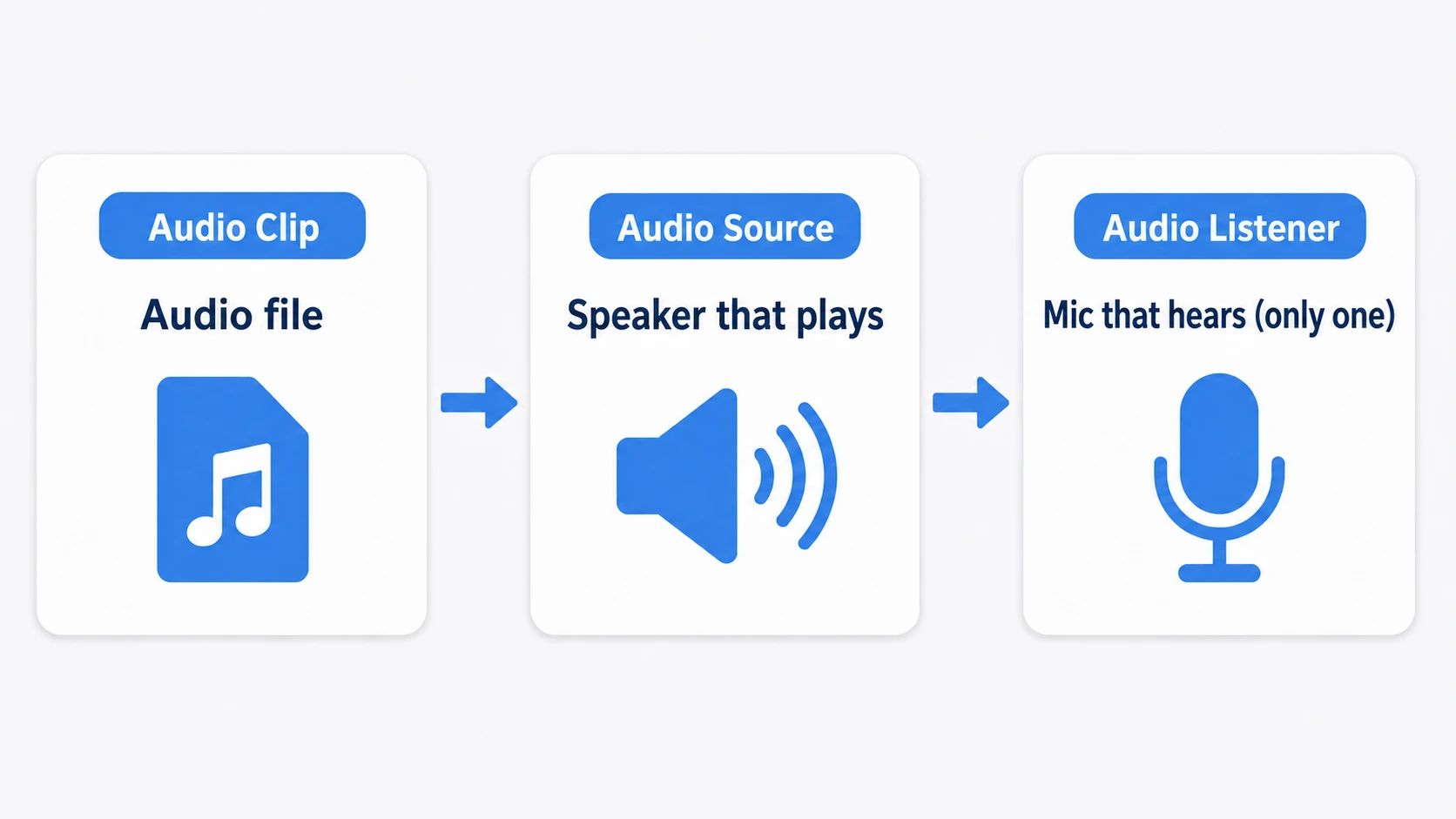
Unity's audio system boils down to three key players.
- Audio Clip: The audio file itself (.wav, .mp3, .ogg, etc.)
- Audio Source: The speaker that plays the sound (as many as you want per scene)
- Audio Listener: The microphone that hears the sound (only one per scene — it comes attached to the Main Camera by default)
What You'll Learn
- The three elements of audio — Clip, Source (speaker), and Listener (microphone)
- Looping BGM and the standard pattern for sound effects (
PlayOneShot)- Spatial Blend — when to use 2D sound vs. 3D sound
- Getting started with the Audio Mixer to build "BGM Volume" and "SFX Volume" sliders
- Practical: building the footsteps of an enemy closing in from behind
Tested with: Unity 6 (6000.x)
Playing BGM (Background Music)
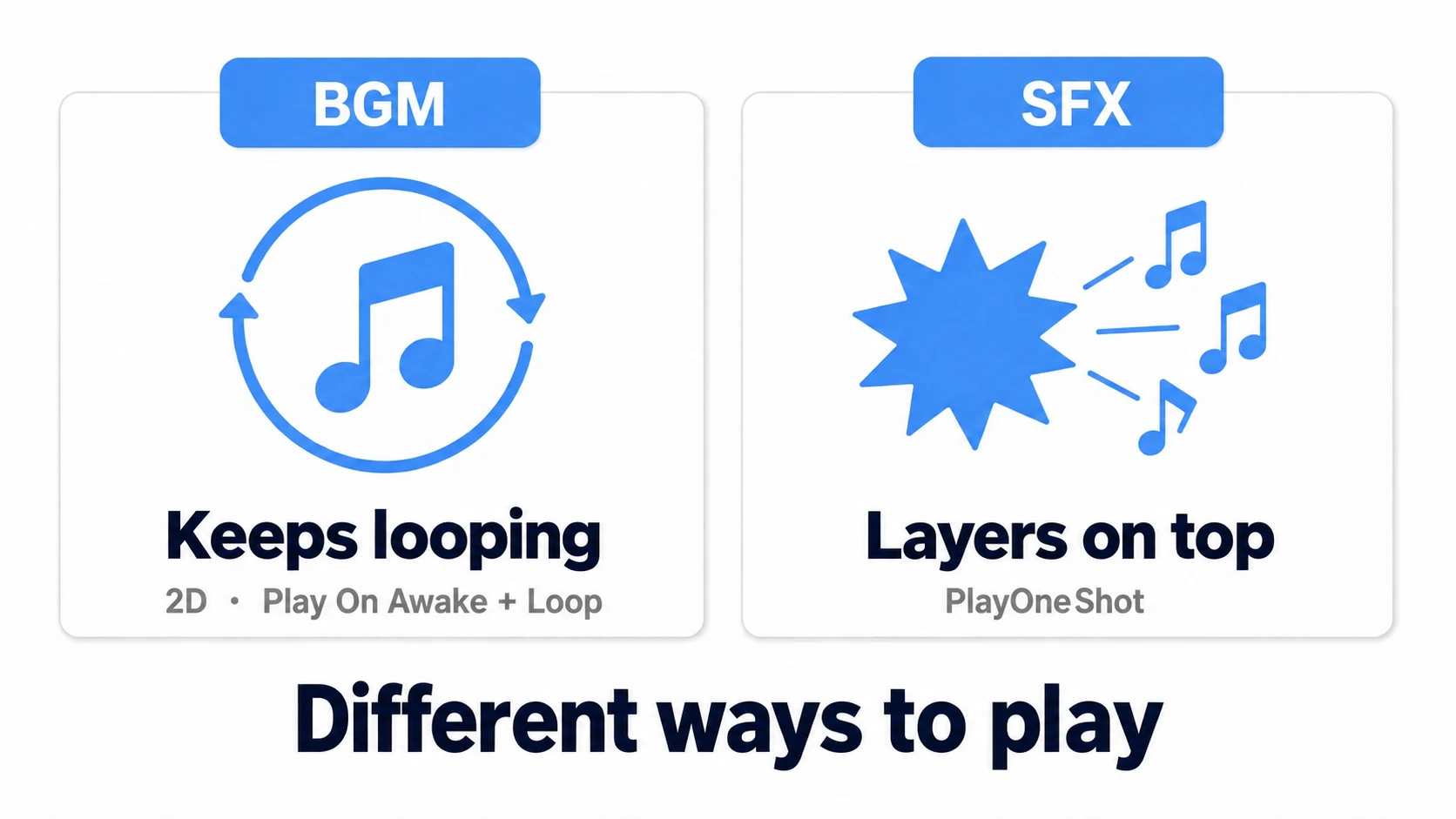
The basic pattern for BGM is "starts as soon as the scene begins, and loops forever." No script required.
- Create an empty GameObject and name it something like "BGMManager".
- Add an
Audio Sourcecomponent and configure it as follows.
| Property | Setting | Meaning |
|---|---|---|
| Audio Resource (AudioClip in Unity 2022 and earlier) | Your BGM file | The track to play |
| Play On Awake | On | Starts playing when the scene begins |
| Loop | On | Returns to the beginning when the track ends |
| Spatial Blend | 0 (2D) | Same volume no matter where you are |
tips If you want the BGM to keep playing across scenes, combine it with DontDestroyOnLoad. This is the standard fix for the classic "BGM restarts from the beginning on every scene transition" problem.
Playing Sound Effects
Sound effects (SFX) play "exactly once, the moment an event happens." The standard approach is PlayOneShot() — it layers a new sound on top without stopping whatever is currently playing, so rapid button mashing or consecutive hits never cut each other off.
- Add an
Audio Sourceto the object that should play the sound, and turn off bothPlay On AwakeandLoop. - Call
PlayOneShot()from a script.
using UnityEngine;

[RequireComponent(typeof(AudioSource))]
public class PlayerAudio : MonoBehaviour
{
    public AudioClip jumpSound;
    public AudioClip hitSound;

    private AudioSource audioSource;

    void Awake()
    {
        audioSource = GetComponent<AudioSource>();
    }

    public void PlayJump()
    {
        // The second argument lets you adjust the volume per sound
        audioSource.PlayOneShot(jumpSound, 0.8f);
    }

    public void PlayHit()
    {
        audioSource.PlayOneShot(hitSound);
    }
}
Leaving a Sound Behind — PlayClipAtPoint
"The exploding enemy disappears, but the explosion sound should keep playing at that spot" — when the object producing the sound gets destroyed, the built-in static method AudioSource.PlayClipAtPoint() comes in handy.
void OnDestroyed()
{
    // Automatically creates a temporary AudioSource at the given position,
    // plays the clip, and cleans itself up when finished
    AudioSource.PlayClipAtPoint(explosionSound, transform.position);
    Destroy(gameObject);
}
Because it creates and destroys a temporary GameObject internally, it's not suited for high-frequency sounds fired nearly every frame (use a pooled Audio Source for those). Think of it as the tool for "occasional sounds that need to stay where they happened." Note that sounds played this way are 3D (Spatial Blend 1), so they play quieter at spots far from the camera.
3D Sound and Spatial Blend
The Spatial Blend slider on an Audio Source determines "whether the sound has a position."
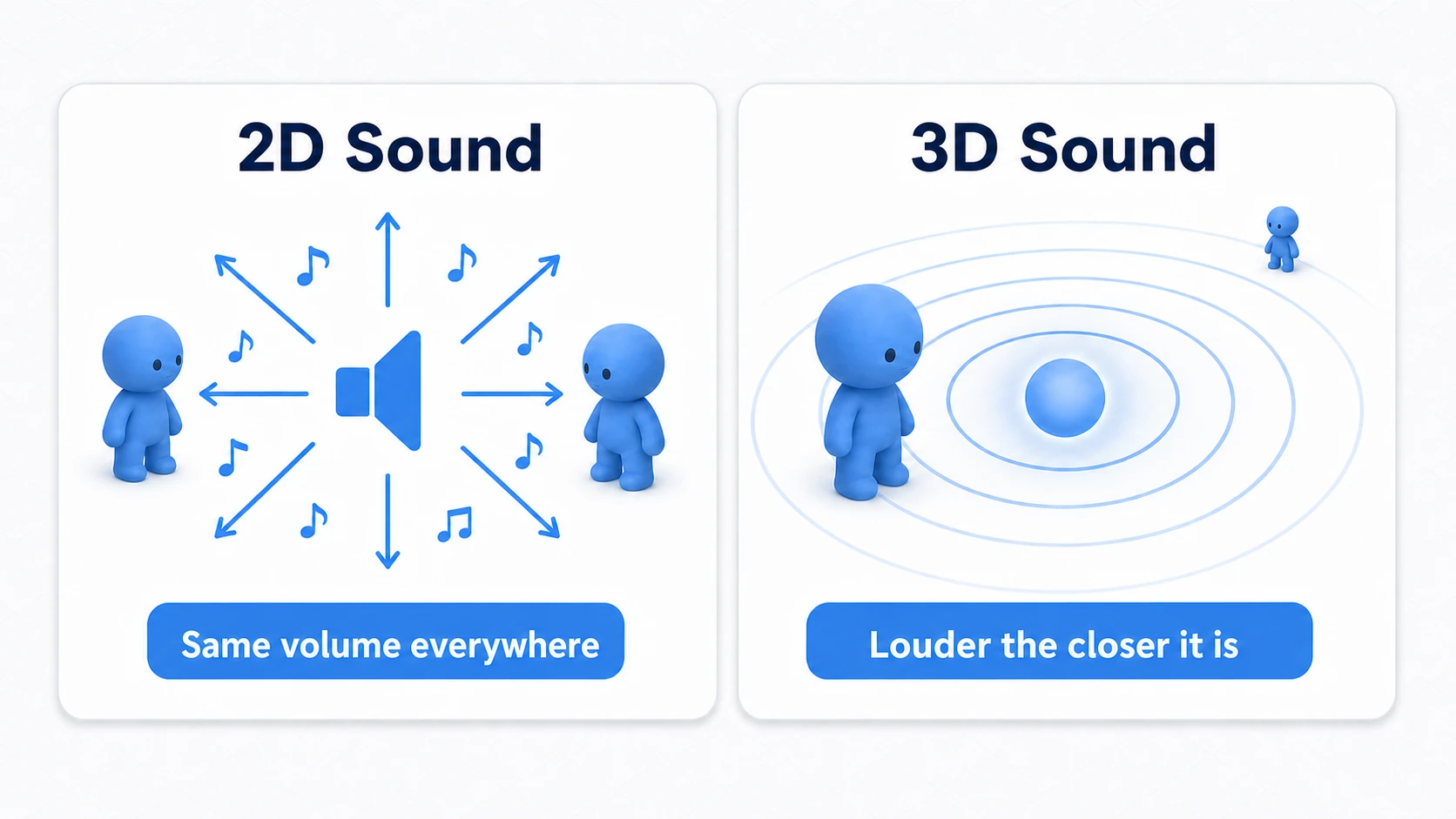
- 0 (2D): Always heard at the same volume and balance, regardless of camera position. Use for BGM and UI sounds.
- 1 (3D): The sound appears to come from the
Audio Source's position in the scene. Louder up close, quieter far away, and from the left if the source is on the left. Use for enemy footsteps, explosions, and ambient sounds.
The decision rule fits in one line: "If the sound has a 'place,' use 3D; if not, use 2D." For 3D sounds, you can tune how far they carry with Min Distance/Max Distance and the Volume Rolloff curve.
One spec here is easy to misread. With the default Logarithmic Rolloff, Max Distance is not "the distance where the sound goes silent." Beyond Max Distance, the sound doesn't go silent; a faint sound keeps playing. Linear Rolloff, by contrast, reaches exactly zero volume at Max Distance. If you want a sound to become completely inaudible at a fixed range, choose Linear or a custom curve. The fastest way to internalize the difference is to walk around a sound source in the Scene and compare how the two rolloffs sound.
Audio Mixer — The Foundation for Volume Settings
The "BGM Volume" and "SFX Volume" sliders in a settings menu are conventionally built with the Audio Mixer.
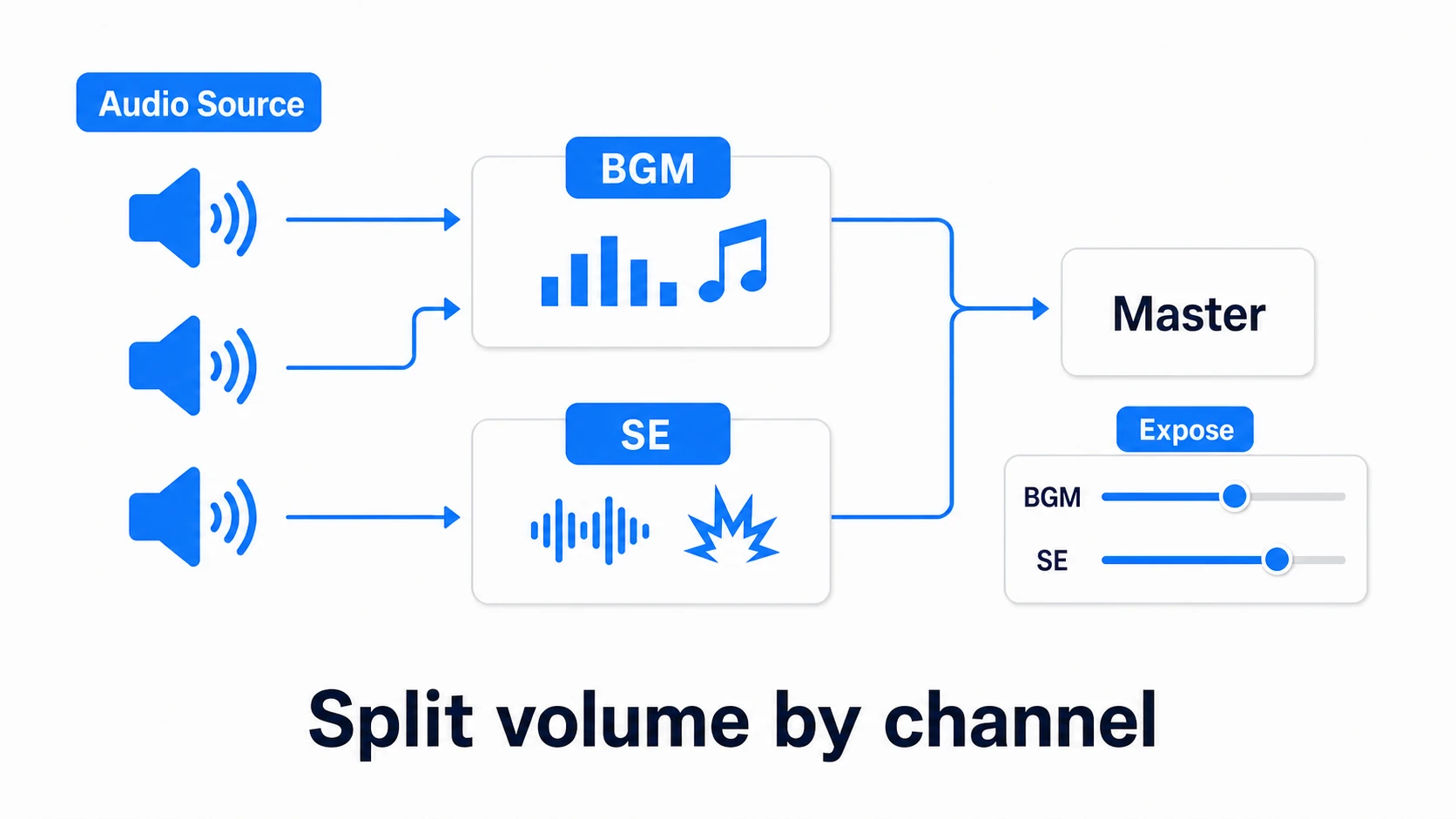
- Create a mixer via "Window > Audio > Audio Mixer" and add groups named
BGMandSE(put both side by side under Master; if one is a child of the other, lowering one lowers both). - Set the Output of each
Audio Sourceto the corresponding group. Sounds now flow through separate "BGM" and "SFX" channels. - Right-click the group's Volume and choose "Expose" to make it scriptable, then change it with
audioMixer.SetFloat("BGMVolume", dbValue).
tips Mixer volume is in decibels (-80 to 0), so passing a slider's 0–1 value directly won't work correctly. The standard idiom is to convert it with
Mathf.Log10(value) * 20. Whenvalueis 0, though, this gives negative infinity, so pass -80 directly in that case. Saving the volume slider and building the UI is covered end to end in the practical section of the PlayerPrefs guide.
Practical: Footsteps of an Enemy Closing In from Behind
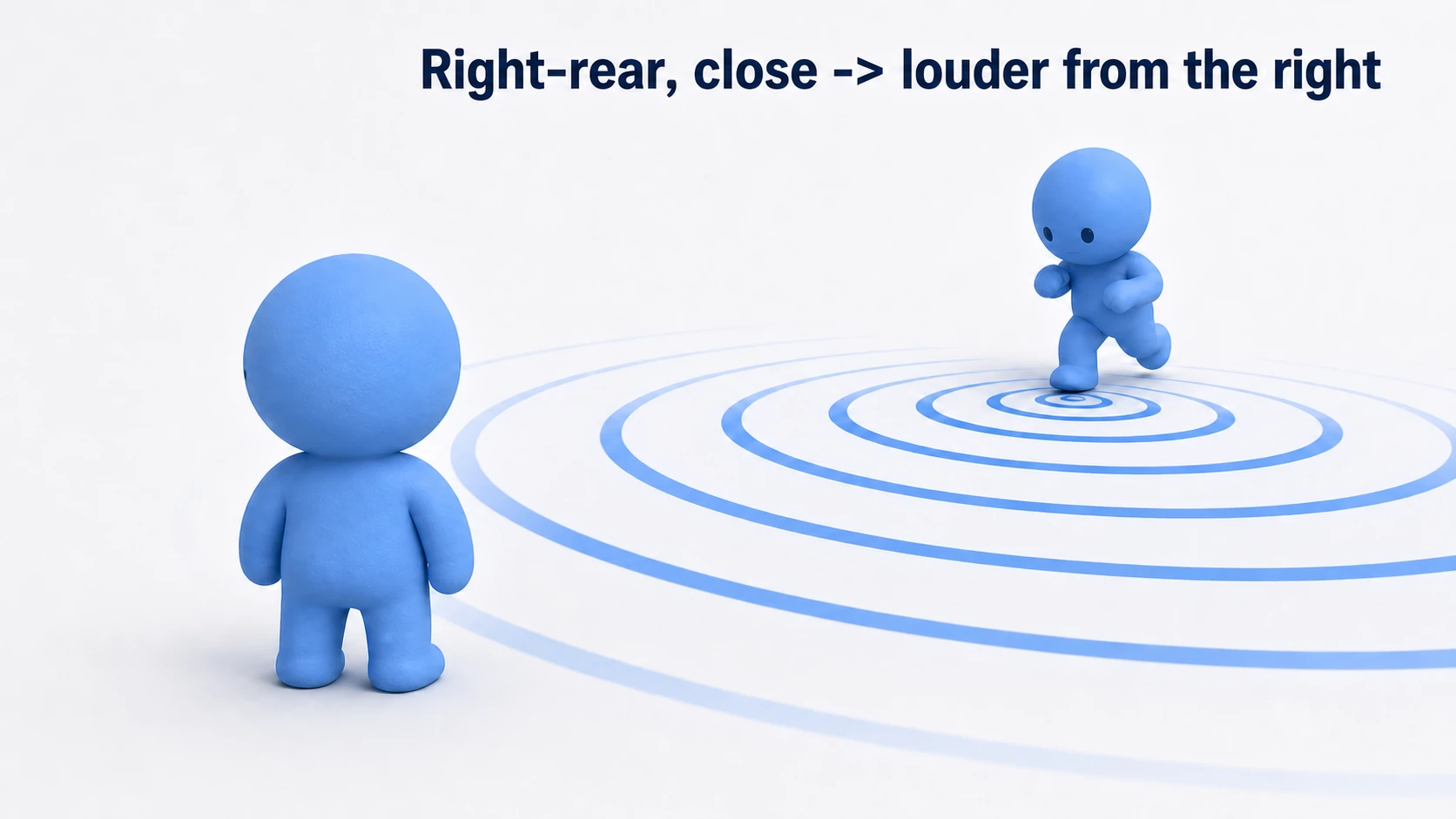
A guard sneaking up behind you in a stealth game, something advancing down the hallway in a horror game, a beast prowling the darkness in a survival game — "you can't see it, but you can hear it" is where 3D sound truly shines. You can build it with nothing but the parts from this article (3D settings + PlayOneShot + pitch randomization).
Audio Source settings (attached to the enemy):
| Property | Setting | Goal |
|---|---|---|
| Spatial Blend | 1 (3D) | Heard from the enemy's position |
| Min Distance | 2 | Full volume up to this distance |
| Max Distance | 15 | A guide for the range its presence reaches (with Logarithmic, it doesn't go silent past this point) |
| Volume Rolloff | Logarithmic | Grows loud sharply as it nears (tension) |
Note: With Logarithmic, a faint sound remains even outside Max Distance. If you want "complete silence beyond the range," switch
Volume Rolloffto Linear, or use a custom curve that drops to 0 at the end.
// EnemyFootsteps.cs (attach to the enemy)
using UnityEngine;

[RequireComponent(typeof(AudioSource))]
public class EnemyFootsteps : MonoBehaviour
{
    [SerializeField] private AudioClip[] footstepClips; // Provide several
    [SerializeField] private float stepInterval = 0.5f; // Pace

    private AudioSource audioSource;
    private float stepTimer;

    void Awake()
    {
        audioSource = GetComponent<AudioSource>();
    }

    void Update()
    {
        stepTimer += Time.deltaTime;
        if (stepTimer >= stepInterval)
        {
            stepTimer = 0f;
            PlayFootstep();
        }
    }

    private void PlayFootstep()
    {
        // A different clip and a slightly different pitch each time kills the "mechanical" feel
        AudioClip clip = footstepClips[Random.Range(0, footstepClips.Length)];
        audioSource.pitch = Random.Range(0.95f, 1.05f);
        audioSource.PlayOneShot(clip);
    }
}
Hit play and stand with your back to the enemy. If it's behind you on the right, you'll hear it from the right speaker; if it's far, you'll hear it faintly. The player can pinpoint the position of an enemy that isn't even on screen, by sound alone. Shorten stepInterval when it runs and lengthen it (plus lower the volume) for a sneaking approach, and the enemy AI's state starts showing up in the audio — deepening the game's tension another notch.
There are two key points: "Decide Max Distance through game design as 'the distance its presence reaches'" (tune it for the distance you want to convey to the player, not for physical accuracy), and "kill the repetitive feel with multiple clips + random pitch." If you want to sync the footstep timing with the animation, evolve this by calling PlayFootstep() from an animation event.
Bonus: Good to Know for Later
- Only one Audio Listener: Having two in a scene triggers a warning. This tends to happen when you add multiple cameras, so disable the Listener on one of them.
- There's a limit on simultaneous sounds: By default, only 32 actual voices can play at once. In a bullet-hell game that fires too many sound effects, the oldest sounds get cut off. You can adjust priorities via the
Audio Source'sPrioritysetting. - Import settings affect memory: The convention is
Load Type: Streamingfor long tracks like BGM andDecompress On Loadfor short sound effects. For mobile specifics, see Mobile Optimization. - Randomize the pitch: When playing the same sound effect repeatedly, randomizing
pitchbetween 0.95 and 1.05 removes the mechanical feel of consecutive hit sounds. It's a one-line audio quality upgrade. - The next step is "music that moves with the situation": Once you're comfortable with the Audio Mixer, you can build exploration↔combat switching and lowering the BGM during dialogue with dynamic BGM (snapshots and ducking). It's an advanced topic that greatly raises a game's sense of polish.
Summary
- Three key players — Clip (the sound), Source (the speaker), and Listener (the microphone — one per scene).
- BGM = Play On Awake + Loop + Spatial Blend 0. Combine with DontDestroyOnLoad to persist across scenes.
- For sound effects,
PlayOneShot()is the standard. For sounds from objects that get destroyed, useAudioSource.PlayClipAtPoint(). - Choose Spatial Blend by the rule "sounds with a place are 3D, sounds without one are 2D."
- For 3D, Max Distance is "the distance its presence reaches" — decide it as a game-design number. With Logarithmic, the sound doesn't go silent past it.
- Build volume settings with Audio Mixer groups + Expose.
Start by adding just two sounds: a button click and a hit sound. That alone makes your project feel noticeably more like a real game. What would your game "sound" like if you played it with your eyes closed?