How do you back up your Unity project — by copying the whole folder? MyGame_backup, MyGame_0712, MyGame_final_v2_REALLY_final... The moment you actually need to "go back to yesterday," you can't tell which copy is the right one. Meanwhile the multi-gigabyte copies pile up and your disk quietly fills.
This article solves that anxiety at the root by putting your Unity project under proper version control (Git). Unity has folders that must never go into Git and files you must never ignore — knowing the initial setup makes all the difference in safety. Get it in place before your project grows. Ideally, today.
What you'll learn
- How version control differs from folder-copy backups
- The two Unity settings to check first (Force Text / Visible Meta Files)
- A Unity-specific .gitignore (keep Library, Temp, and build outputs out)
- Why .meta files must be committed together with their assets
- When to hand large binaries to Git LFS
- The standard rules for avoiding scene conflicts in team projects
- Hands-on: change a Prefab on a branch, inspect the diff, and roll back with confidence
Tested with: Unity 2022.3 LTS / Unity 6, Git 2.x
- A backup and version control are not the same thing
- Two Unity settings to check first
- A Unity .gitignore: decide what stays out
- Commit .meta files together with their assets
- Large binaries go to Git LFS
- History helps even solo — two people need rules
- Hands-on: change a Prefab on a branch, roll back safely
- Troubleshooting
- Bonus: things worth knowing early
- Summary
A backup and version control are not the same thing
A folder copy is "a snapshot of everything on one particular day." Version control instead records a history of diffs: when, what, and why something changed.
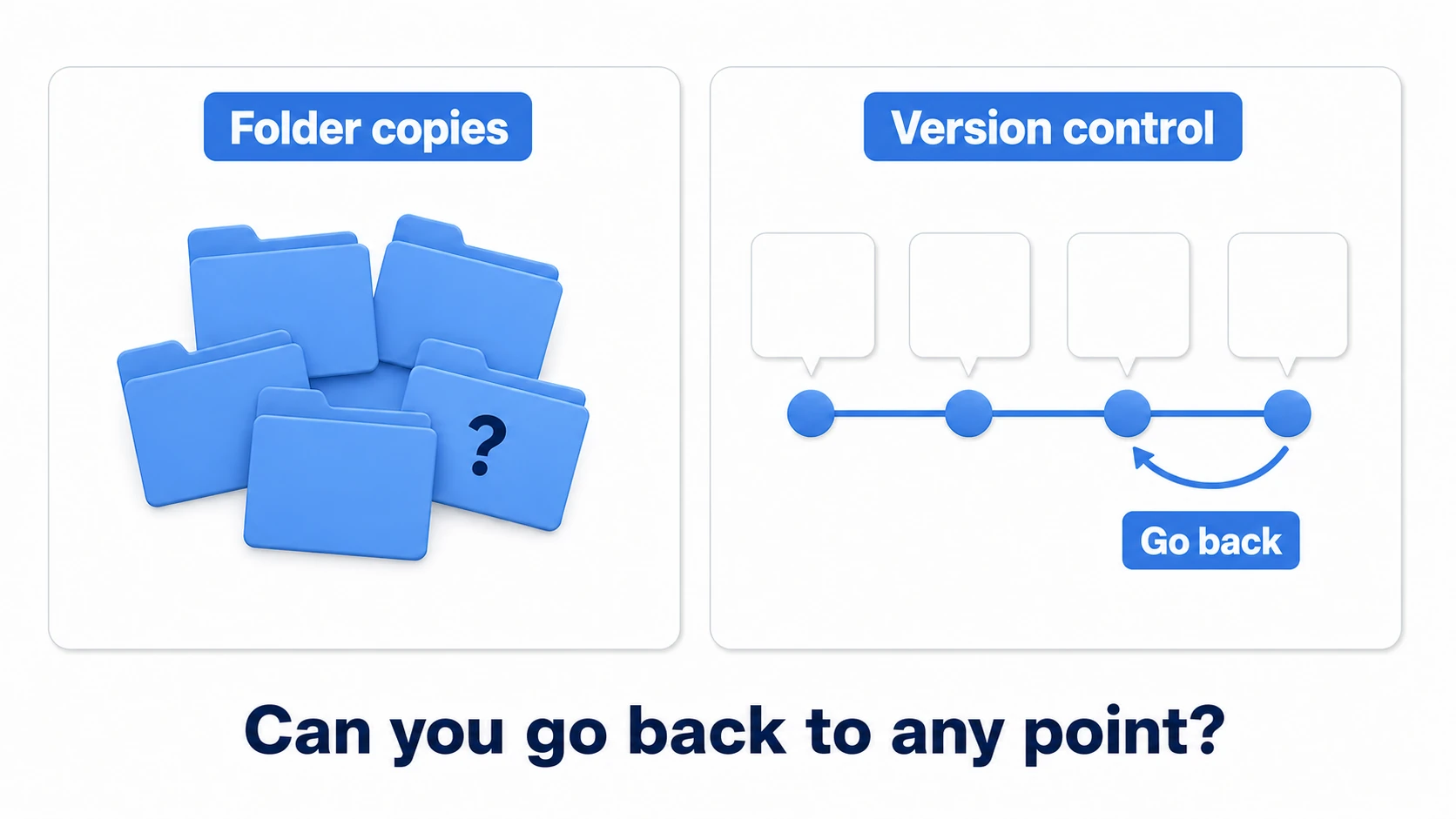
The difference shows on the day things go wrong.
- You choose where to return: jump precisely to "three days ago, when it worked," commit by commit
- You can see what changed: a list of files touched between yesterday and today, with their diffs. Debugging speed changes completely
- It barely grows: unchanged files are reused rather than stored again, far lighter than a mountain of full copies
- Experiments stop being scary: cut a branch and "try it, throw it away if it fails" takes seconds
Unity's Ctrl+Z only undoes what you did while the editor has been open. Version control takes the whole project back to how it was three days ago.
Basic Git operations (init, commit, push) aren't Unity-specific, so this article focuses on the setup and habits unique to Unity projects. If Git itself is new to you, a GUI client like GitHub Desktop or Fork is an easy way in.
Two Unity settings to check first
Before using Git, check two editor settings. Asset Serialization is under "Edit > Project Settings > Editor," and Version Control is under "Edit > Project Settings > Version Control" (since Unity 2020.1, Version Control has its own page, separate from Editor).
1. Asset Serialization Mode: Force Text
Saves Scenes and Prefabs as text (YAML). Text is what lets Git record diffs and lets you eyeball what changed. With binary serialization, all you can ever know is "something changed."
2. Version Control: Visible Meta Files
Treats .meta files as normal files visible to Explorer and Git — the prerequisite for managing them in Git.
tips: On recent Unity versions, both are already the defaults. It's still worth one look — if a project inherited binary serialization from an older setup, nothing else in this article works.
A Unity .gitignore: decide what stays out
A Unity project folder mixes things Git should manage with things that must never go in. The sorting rule is simple: if Unity can regenerate it automatically, keep it out.
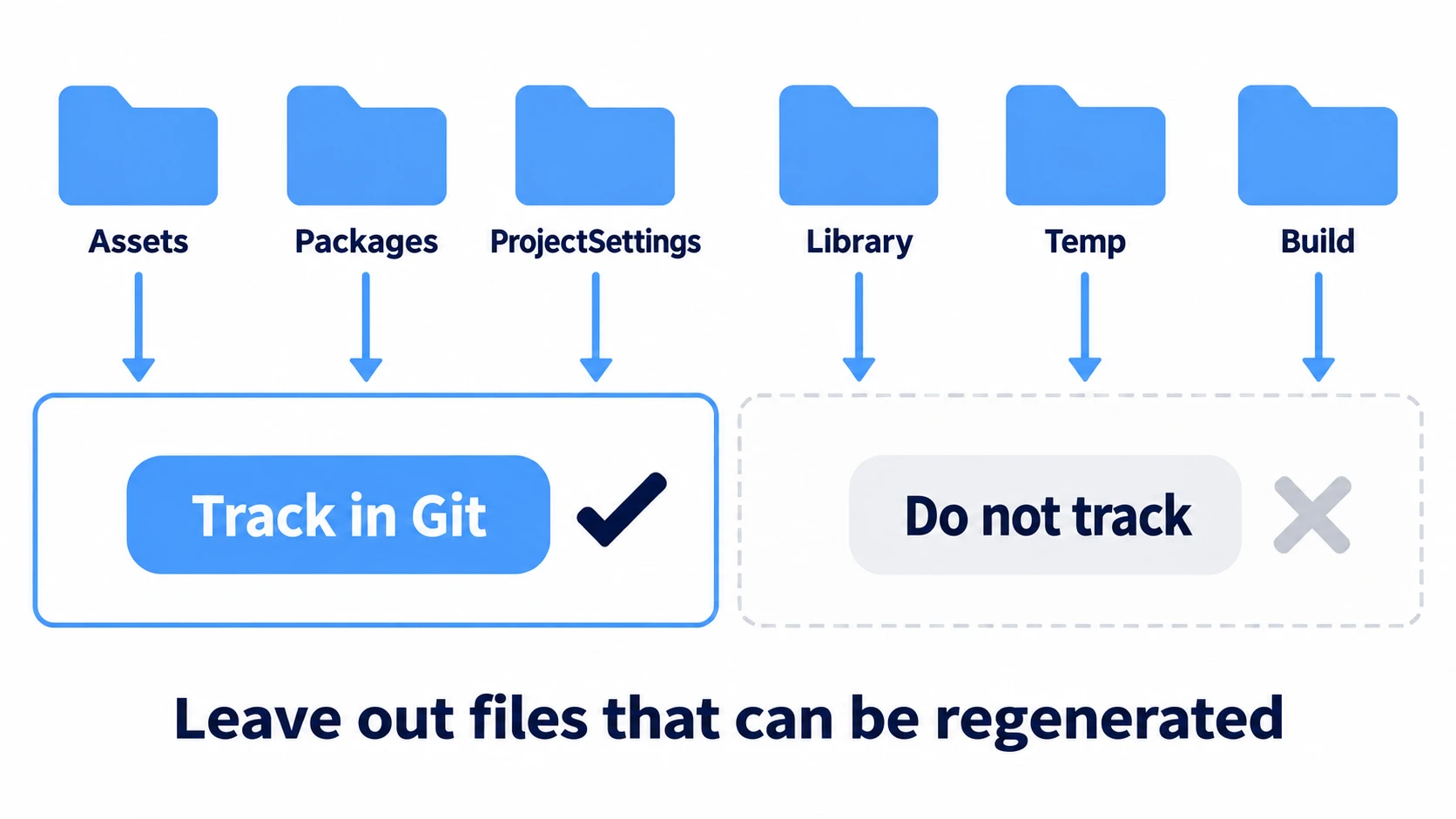
| Folder | In Git? | Why |
|---|---|---|
Assets/ | Yes | The game itself (including .meta files) |
Packages/ | Yes | The list of packages you use (manifest.json) |
ProjectSettings/ | Yes | Project settings — without these it won't open the same way |
Library/ | No | Unity's regenerable cache. Huge (can reach gigabytes) |
Temp/, Logs/, Obj/ | No | Temporary files and logs |
UserSettings/ | No | Personal editor layout — fine for it to differ per person |
Build/ and other build outputs | No | Outputs you can rebuild anytime |
Put .gitignore at the project root (one level above Assets). This minimal version is enough to start safely.
# Auto-generated by Unity (never commit)
/[Ll]ibrary/
/[Tt]emp/
/[Oo]bj/
/[Ll]ogs/
/[Uu]serSettings/
/[Mm]emoryCaptures/

# Build outputs
/[Bb]uild/
/[Bb]uilds/
*.apk
*.aab

# IDE-generated files
.vs/
.idea/
*.csproj
*.sln
Note: When you're ready to go all-in, the standard move is to base yours on the official Unity template in GitHub's gitignore collection — a more exhaustive list that includes everything above.
Commit .meta files together with their assets
One warning points the opposite way from .gitignore: the .meta file generated for every asset must never be ignored or deleted.
Each .meta holds a unique ID (GUID), and every Inspector reference and Prefab connection is wired through that GUID, not the file name. The mechanism itself is illustrated in the project organization article, so head there for the details. In a Git context, two points matter:
- Forget to commit a
.metaand references break on other machines: it works on your PC, but a teammate pulls and everything isMissing— the classic cause is "committed the asset, not its.meta." Build the habit of checkinggit statusfor stray untracked.metafiles - Delete assets together with their
.meta: remove only the asset and Unity warns about the orphaned meta on every launch. Delete inside the Unity editor and both go together — do file operations inside the editor as a rule, same as in the organization article
Large binaries go to Git LFS
Git is built for diffing text, and it's bad at binaries like images, 3D models, and audio. Binary diffs don't work, so every change stacks the whole file onto your history, and the repository swells without limit.
That's what Git LFS (Large File Storage) is for. Files tracked by LFS leave only a lightweight pointer (a claim ticket) in the repository itself, while the real data lives in separate storage.
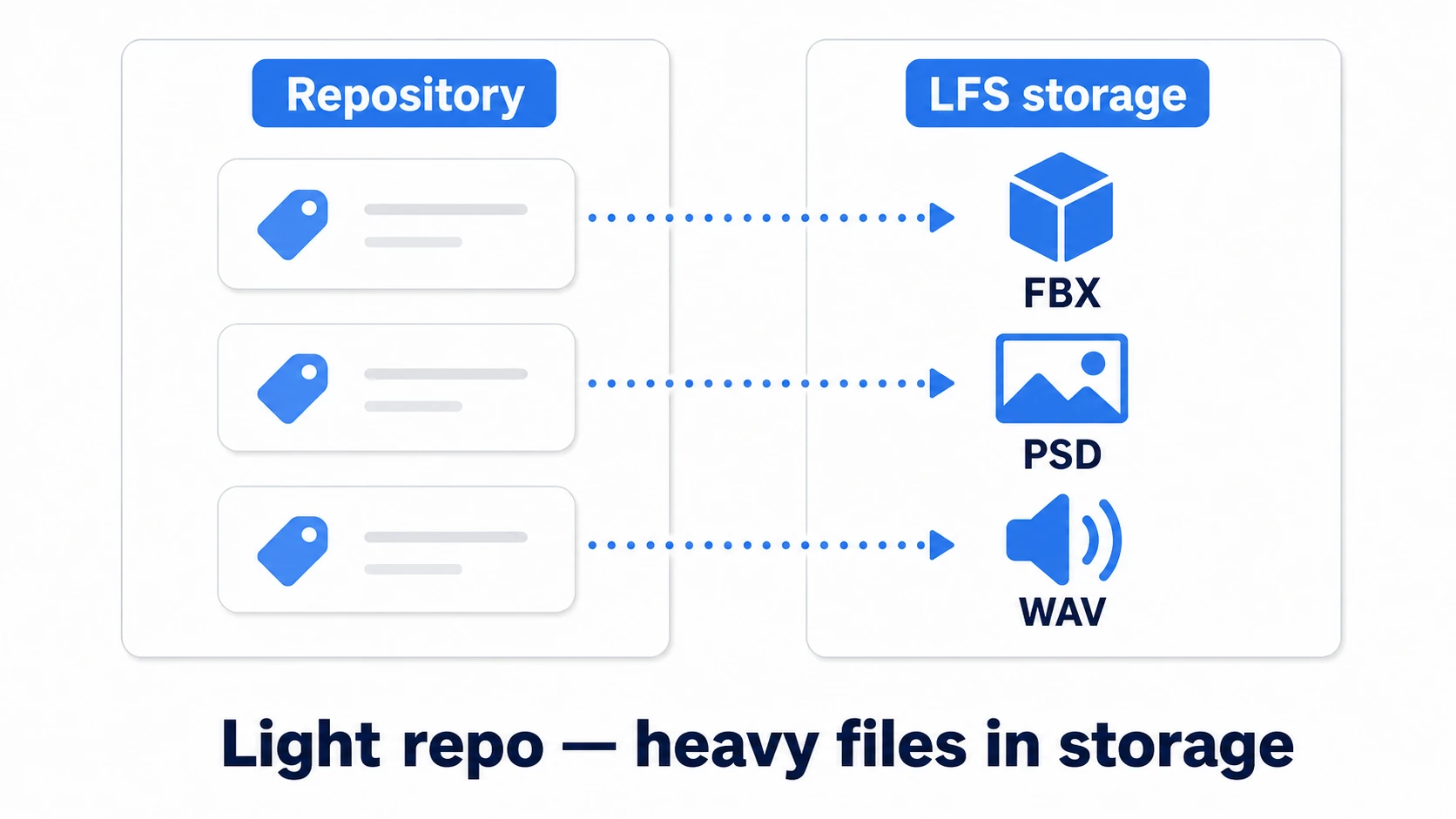
Setup is three steps.
# 1. Enable LFS (once per computer)
git lfs install

# 2. Choose which file types LFS holds (this creates .gitattributes)
git lfs track "*.fbx"
git lfs track "*.psd"
git lfs track "*.wav"

# 3. Commit .gitattributes (this file IS the sorting rule)
git add .gitattributes
git commit -m "Set up Git LFS"
git lfs track only sets the sorting rule for files you add or change from now on. Files that are already committed don't move to LFS automatically.
Rules of thumb for sorting:
| File | Where | Why |
|---|---|---|
Large binaries: .fbx, .psd, .wav, .mp4 | LFS | No usable diffs, big sizes |
Textures like .png | Depends on size (LFS if large) | Small icons are fine in plain Git |
.cs, .md, .json, .asmdef | Plain Git | Text — the core of diff-based work |
Scenes and Prefabs (.unity, .prefab) | Plain Git | Already text via Force Text; you want the diffs |
Note: GitHub enforces a hard 100 MB per file limit and rejects pushes that exceed it. Migrating to LFS after the fact means rewriting history — a pain — so if video or high-res PSDs are anywhere in your plans, set up LFS from the start.
History helps even solo — two people need rules
Solo: first, earn the ability to go back
Even working alone, version control pays off from day one. Keep the routine simple.
- Commit at meaningful checkpoints: "Implement jump," "Add enemy HP bar" — one coherent change per commit. A giant commit bundling several days robs you of places to return to
- Risky experiments go on a branch: gambles like "rewrite all the physics" start with a branch. If it flops, delete the branch — main stays untouched
Teams: don't touch the same scene at the same time
With two or more people, one new problem appears: conflicts when the same file is edited simultaneously.
C# script conflicts are plain text and merge normally. The problem is scenes. Even as Force Text YAML, a scene file is a huge auto-generated document never meant for human reading, and resolving its conflicts by hand is genuinely hard.
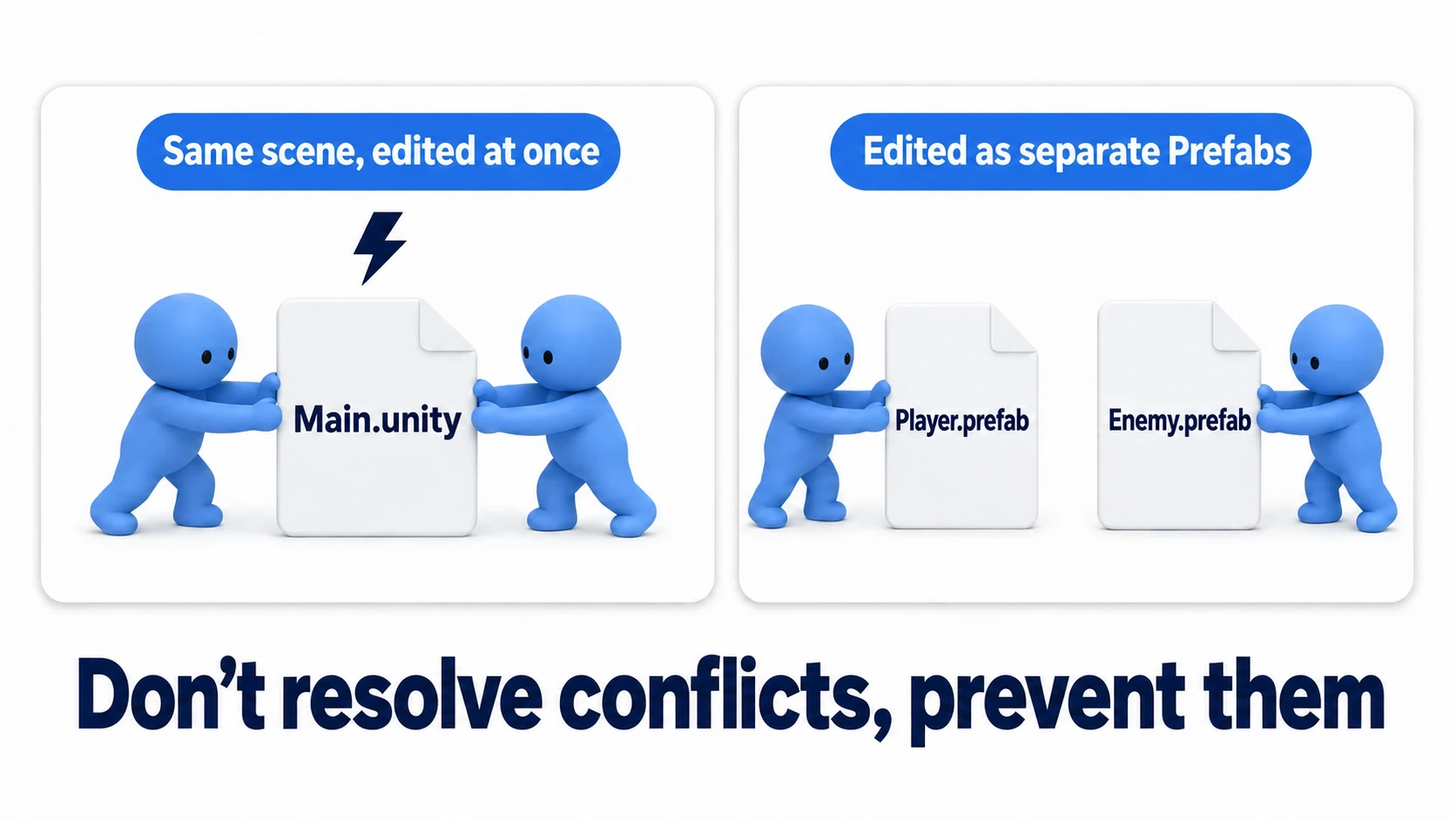
So the standard team rule is not to resolve conflicts but to never cause them.
- Don't touch the same scene simultaneously: assign scenes per person — "today A owns Title, B owns Stage1"
- Split scenes by role: instead of one giant Main scene, separate UI, stages, and shared managers into their own scenes — the desire to "edit the same file" mostly disappears. See the project organization article for how to split
- Turn shared objects into Prefabs: with enemies and gimmicks as Prefabs edited in Prefab Mode, changes land in a separate
.prefabfile instead of the scene itself. Ownership is easier to divide and the unit of conflict shrinks
Hands-on: change a Prefab on a branch, roll back safely
To finish, one experience that turns version control from insurance into a tool: the everyday scenario of "I want to buff the enemies, but I'm scared of wrecking the balance." Let's do it on a branch.
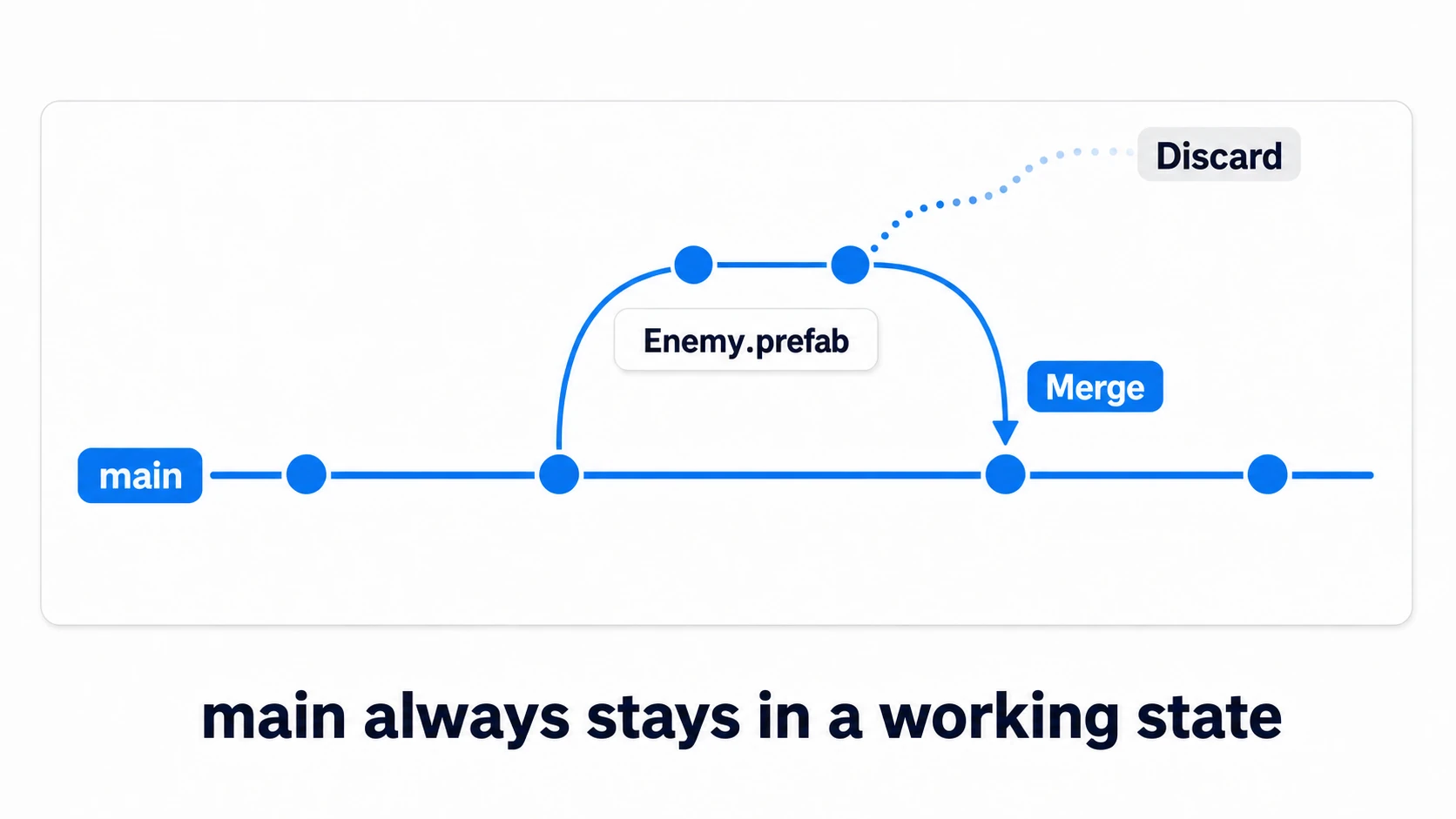
# 1. Cut an experiment branch (main is preserved as of this moment)
git switch -c tune-enemy-power

# 2. In Unity, tweak Enemy.prefab's attack power and speed, then save

# 3. Check what actually changed
git diff Assets/Prefabs/Enemy.prefab

# 4. Commit the change to this branch
git add -A
git commit -m "Try stronger enemies"
Look at the git diff output. Thanks to Force Text, the Prefab change is visible as text. You don't need to read all the YAML — but if the enemy's script has a variable like public float speed = 2f;, you can spot the line where speed: 2 became speed: 5, and that's exactly enough to confirm only the change you intended went in.
Step 4, the commit, is the key. Git records only what you saved and committed. Uncommitted changes stay in your working folder rather than on the branch, so deleting the branch wouldn't remove them. Close Unity before switching branches, too (with it open, a large reimport runs, and an unsaved scene can overwrite what you just switched to).
# 5a. Playtest feels good? Merge into main
git switch main
git merge tune-enemy-power

# 5b. Balance is wrecked? Discard the whole branch (main is untouched)
git switch main
git branch -D tune-enemy-power
Press Play and see for yourself. If you merged, the buffed enemy is simply there; if you discarded, the original enemy stands there as if nothing ever happened. Once this "failure costs nothing" feeling sinks in, bold experiments become routine. And if git status ever shows a flood of files you don't recognize, that's the sign your .gitignore is leaking — check whether Library/ or Temp/ snuck in, against the table in this article.
Two takeaways. Main always stays in a working state (experiments live on branches). You don't have to read the whole diff (just confirm the intended change is what went in).
Troubleshooting
| Symptom | Cause | Fix |
|---|---|---|
Your first commit lists paths starting with Library/ | .gitignore isn't taking effect (for example, it isn't one level above Assets) | Stop before committing, then check where .gitignore is and what's in it |
| A freshly cloned project looks frozen for a while when you open it | The first import is rebuilding Library/ | Don't force-quit; wait (bigger projects take longer) |
| After cloning, textures and models look broken | The clone happened on a computer without Git LFS, so only pointers arrived instead of the real files | On that computer, run git lfs install, then git lfs pull |
Bonus: things worth knowing early
- Never commit secrets: API keys, signing keystores, service credential JSONs — once committed, scrubbing them from history is painful. Put them in
.gitignorefrom the start, and if one ever lands in a public repository, revoke and reissue the key - Paid assets and public repositories: assets bought on the Asset Store generally prohibit redistribution. Including them in a public repository can violate the license — if you want to open-source your project, plan a structure that excludes purchased assets
- Unity ships a scene merge tool: if you ever truly must resolve a scene conflict, Unity's bundled UnityYAMLMerge (Smart Merge) can be registered as Git's merge tool. It's a last resort — the "never cause conflicts" habits come first
Summary
- Graduate from folder copies. Version control is a history of when and what changed, with any point recoverable
- The Unity prerequisites are Force Text and Visible Meta Files (defaults on recent versions)
- The
.gitignorerule: anything regenerable stays out — excludeLibrary/,Temp/, and build outputs - Commit
.metafiles together with their assets — forget one and another machine sees Missing references - Hand large binaries to Git LFS, before you hit GitHub's 100 MB limit
- For teams: don't touch the same scene at the same time — split scenes and Prefab shared objects so conflicts never happen
From git init to the first commit is a ten-minute job once you've done it. Before the next time you open your project, why not pay those ten minutes — and make today the last day of "REALLY final" folders?