Volume from the AudioMixer article, resolution from the display settings article, language from the Localization article, key rebinding from the rebinding article — individually, you can do it all. Then you assemble them into a single settings screen, and a different enemy appears: save keys scattered everywhere, only half the settings restored on launch, sliders that move without changing the sound.
The hard part of a settings screen isn't the features — it's integration. This article gathers everything into one data object (SettingsData), separates the applying from the saving, and finishes with full restoration at startup. Deep dives stay in the linked articles; here we focus purely on wiring it into one.
What you'll learn
- How settings screens typically collapse (scattered saves, missed restores)
- Unifying everything into SettingsData
- The apply code for volume (AudioMixer), display (Screen), language (Localization), and controls (rebinds)
- Consolidating storage into one PlayerPrefs key (as JSON)
- Hands-on: a SettingsManager that restores everything at startup
Tested with: Unity 6 (6000.x), Input System, Localization package
A settings screen is one system, not a collage
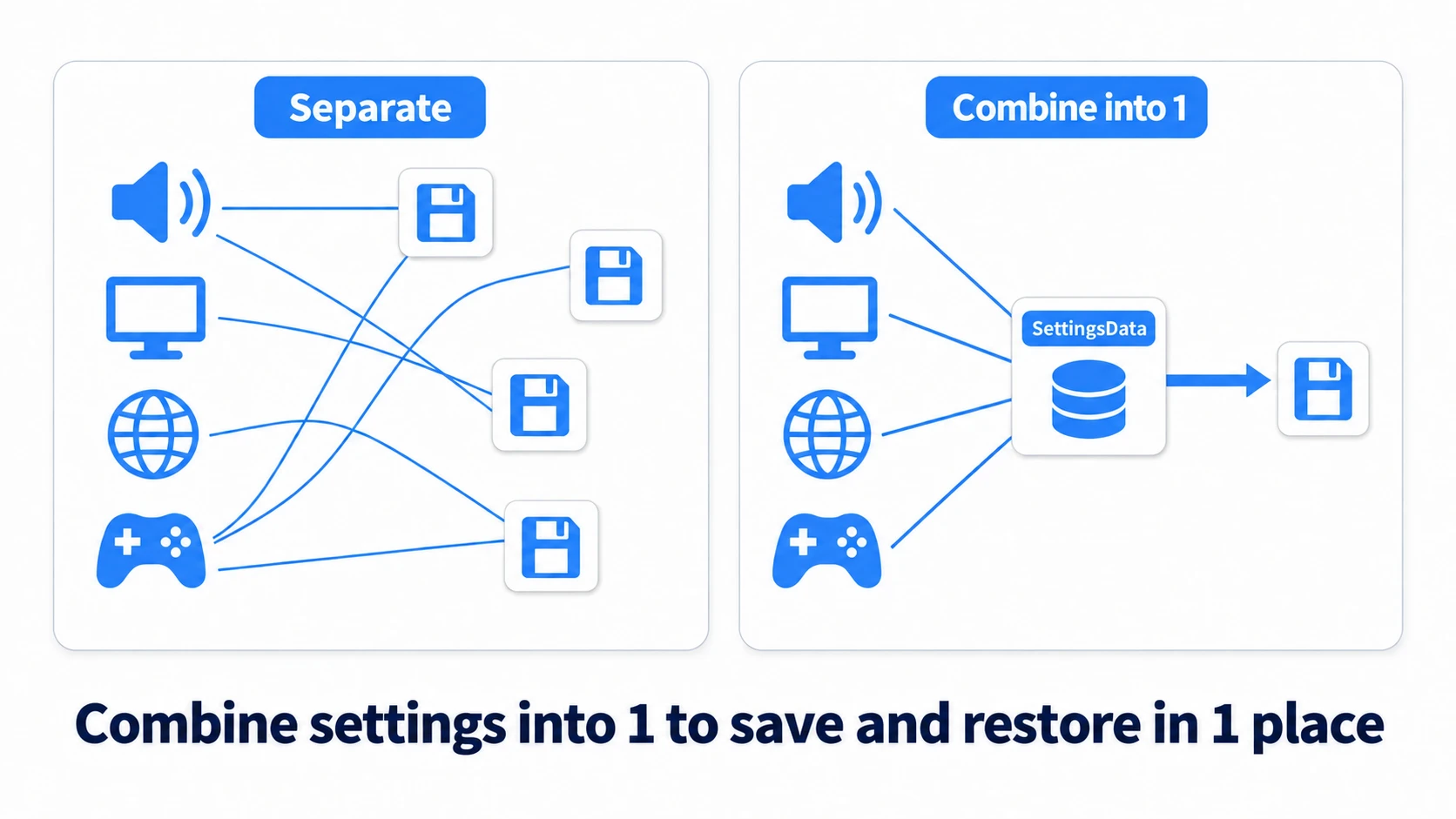
Paste the per-article code straight into a settings screen and you tend to get this:
- Volume: script A saves
PlayerPrefs.SetFloat("bgm") - Resolution: script B saves
"width"and"height"ints - Language: your own
"lang"key and the official selector, in parallel - Rebinds: ...oops, never saved at all
The result: "only the volume resets every launch," "the language disagrees after restarting." The cause is simple — one concern (settings) scattered across the codebase. So is the cure: gather it in one place.
The design: one data object, an applier, a saver
Three parts make up the design.
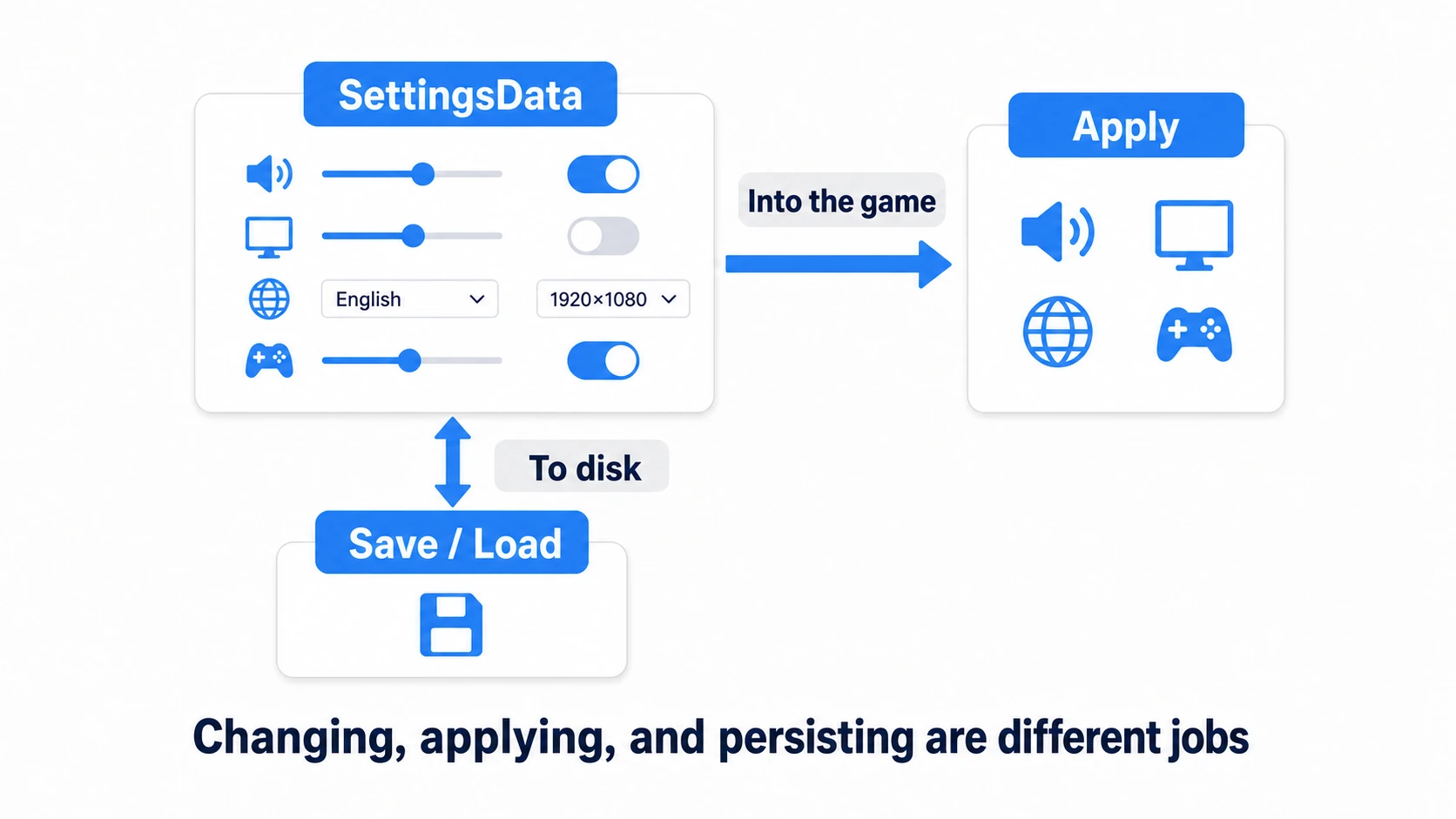
| Part | Job |
|---|---|
| SettingsData | A plain class holding every value (the unit of saving) |
| Apply | Push values into the game (to the Mixer, Screen, Locale...) |
| Save / Load | Write and read SettingsData wholesale |
Keeping them apart is the crux: changing a value, reflecting it in the game, and persisting it to disk are three different jobs. Moving a slider triggers Apply only; confirming triggers Save; launching triggers Load + Apply.
// SettingsData.cs — the container (a plain data class)
[System.Serializable]
public class SettingsData
{
    // Volume (0-1)
    public float masterVolume = 0.8f;
    public float bgmVolume = 0.8f;
    public float seVolume = 0.8f;

    // Display
    public int resolutionWidth = 1920;
    public int resolutionHeight = 1080;
    public bool fullscreen = true;

    // Controls (rebind overrides as JSON; empty = defaults)
    public string bindingOverridesJson = "";

    // Language deliberately absent — the official selector owns it (see below)
}
Apply code for the four fields
Each field's "how to reflect" comes straight from its article. The essentials:
Volume → AudioMixer (details in the AudioMixer article):
// Convert the slider's 0-1 into the Mixer's logarithmic dB
void ApplyVolume(string parameter, float value01)
{
    float dB = Mathf.Log10(Mathf.Clamp(value01, 0.0001f, 1f)) * 20f;
    audioMixer.SetFloat(parameter, dB); // an exposed parameter like "BGMVolume"
}
Display → Screen (details in the display settings article):
void ApplyDisplay(SettingsData data)
{
    Screen.SetResolution(data.resolutionWidth, data.resolutionHeight, data.fullscreen);
}
Language → Localization (details in the Localization article):
// Just switch SelectedLocale. Persistence and startup restore belong to
// the official PlayerPrefs selector — never save your own copy (no dual bookkeeping)
void ApplyLanguage(Locale locale)
{
    LocalizationSettings.SelectedLocale = locale;
}
Note that a new project's Startup Selectors don't include the Player Pref Locale Selector. Add it to the Startup Selectors in Localization Settings and place it above the System Locale Selector (below it, the OS language wins every time).
Controls → Input System (details in the rebinding article):
// On save: extract only the overrides as JSON
data.bindingOverridesJson = inputActions.SaveBindingOverridesAsJson();

// On restore: read them back (empty string = default bindings, do nothing)
if (!string.IsNullOrEmpty(data.bindingOverridesJson))
{
    inputActions.LoadBindingOverridesFromJson(data.bindingOverridesJson);
}
If you receive input through a PlayerInput component, save and restore against the playerInput.actions that player actually uses (loading into a different copy has no effect on the controls).
Saving: one PlayerPrefs key
PlayerPrefs is plenty for settings — as long as the keys don't scatter. Serialize SettingsData to JSON and store it under one key.
const string SettingsKey = "game_settings";

void Save(SettingsData data)
{
    string json = JsonUtility.ToJson(data);
    PlayerPrefs.SetString(SettingsKey, json);
    PlayerPrefs.Save();
}

SettingsData Load()
{
    if (!PlayerPrefs.HasKey(SettingsKey))
    {
        return CreateDefaults(); // first launch: build defaults from the environment (below)
    }
    return JsonUtility.FromJson<SettingsData>(PlayerPrefs.GetString(SettingsKey));
}
With one key, "forgot to save that one setting" becomes structurally impossible. Adding options means adding fields to SettingsData, nothing more. And the day the structure changes significantly, the version-field idea from save data versioning applies unchanged.
Hands-on: restore everything at startup
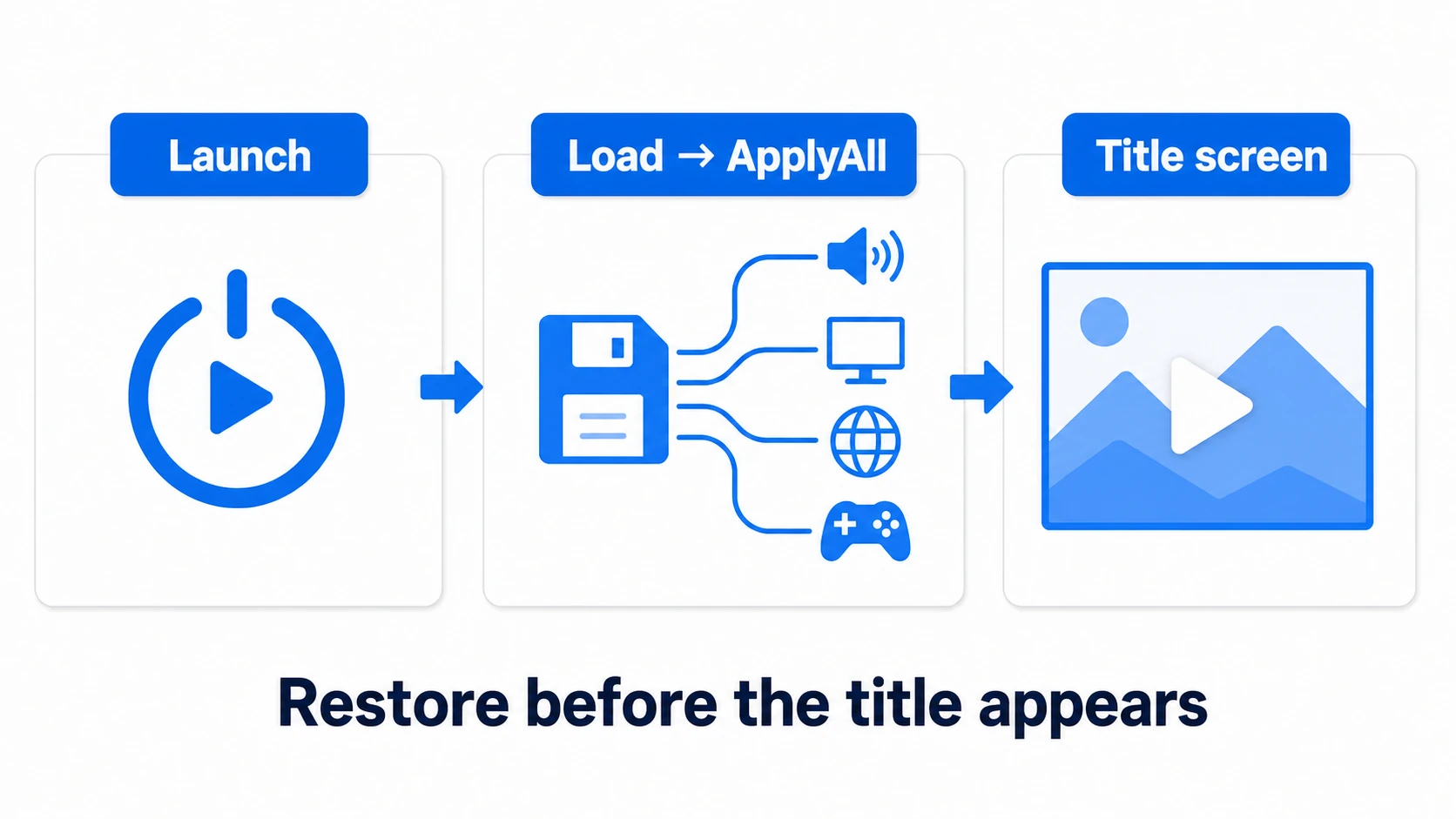
The finishing piece is the SettingsManager that ties it all together. Three jobs: Load → ApplyAll at startup, Apply when the UI changes a value, Save on confirmation.
// SettingsManager.cs — one per startup scene
using UnityEngine;
using UnityEngine.Audio;
using UnityEngine.InputSystem;

public class SettingsManager : MonoBehaviour
{
    [SerializeField] private AudioMixer audioMixer;
    [SerializeField] private InputActionAsset inputActions;

    public SettingsData Current { get; private set; }

    const string SettingsKey = "game_settings";

    void Awake()
    {
        // The single startup entry point: load first
        Current = Load();
    }

    void Start()
    {
        // AudioMixer's SetFloat may not take effect in Awake, so apply everything from Start
        ApplyAll(Current);
    }

    public void ApplyAll(SettingsData data)
    {
        ApplyVolume("MasterVolume", data.masterVolume);
        ApplyVolume("BGMVolume", data.bgmVolume);
        ApplyVolume("SEVolume", data.seVolume);

        Screen.SetResolution(data.resolutionWidth, data.resolutionHeight, data.fullscreen);

        if (!string.IsNullOrEmpty(data.bindingOverridesJson))
        {
            inputActions.LoadBindingOverridesFromJson(data.bindingOverridesJson);
        }
        // Language restores itself via the official selector — hands off here
    }

    // ---- Called from UI sliders/toggles (instant feedback) ----
    public void SetBgmVolume(float value01)
    {
        Current.bgmVolume = value01;
        ApplyVolume("BGMVolume", value01);
    }

    // ---- Called when closing/confirming the settings screen ----
    public void SaveCurrent()
    {
        Current.bindingOverridesJson = inputActions.SaveBindingOverridesAsJson();
        PlayerPrefs.SetString(SettingsKey, JsonUtility.ToJson(Current));
        PlayerPrefs.Save();
    }

    // ---- First launch: defaults from the player's environment ----
    SettingsData CreateDefaults()
    {
        var data = new SettingsData
        {
            resolutionWidth = Screen.currentResolution.width,
            resolutionHeight = Screen.currentResolution.height,
            fullscreen = true
        };
        return data;
    }

    SettingsData Load()
    {
        if (!PlayerPrefs.HasKey(SettingsKey)) return CreateDefaults();
        return JsonUtility.FromJson<SettingsData>(PlayerPrefs.GetString(SettingsKey));
    }

    void ApplyVolume(string parameter, float value01)
    {
        float dB = Mathf.Log10(Mathf.Clamp(value01, 0.0001f, 1f)) * 20f;
        audioMixer.SetFloat(parameter, dB);
    }
}
The UI wiring is plain: sliders' OnValueChanged calls SetBgmVolume (the sound must change the instant the slider moves — that's what a good settings screen feels like), and the close button calls SaveCurrent.
The verification ritual: lower the BGM, switch to windowed mode, rebind one key, close the settings screen. Quit the game completely and relaunch. If the title's BGM stays quiet, the window stays windowed, and the rebound key still works — every path is connected. If exactly one of them reverted, suspect a missing Apply in that field (it saved fine; it just never got reflected). Settings bugs are far more often Apply leaks than Save leaks.
Two takeaways. One startup entry point (Load in Awake, ApplyAll in Start — everything passes through it). Apply instantly, save at boundaries (don't write PlayerPrefs per slider tick).
Bonus: things worth knowing early
- Dangerous settings deserve an undo window: a failed resolution change can leave the screen unreadable and the game uncontrollable. "Keep these settings? Reverting in 10 seconds" is PC gaming's classic insurance
- Ship a reset button from day one: "Restore defaults" is
ApplyAll(new SettingsData())plusRemoveAllBindingOverrides()for the controls. It's the rescue path for players who've tangled their own settings — cheap to build early - Graphics quality tiers are the next field: adding Quality Settings (Low/Medium/High) needs one more int in SettingsData and a
QualitySettings.SetQualityLevel()call
Summary
- The settings screen's enemy is integration: scattered save keys and missed restores are the two big accidents
- Split into SettingsData (data), Apply (reflection), Save/Load (persistence)
- Store as JSON under one PlayerPrefs key; language alone stays with the official selector
- The startup entry point is one place: Load in
Awake→ ApplyAll inStart - Verify with a full restart; a single reverted field means a missing Apply, not a missing Save
Restart your game right now — how many of the four settings survive? If all four do, you've already graduated from this article.