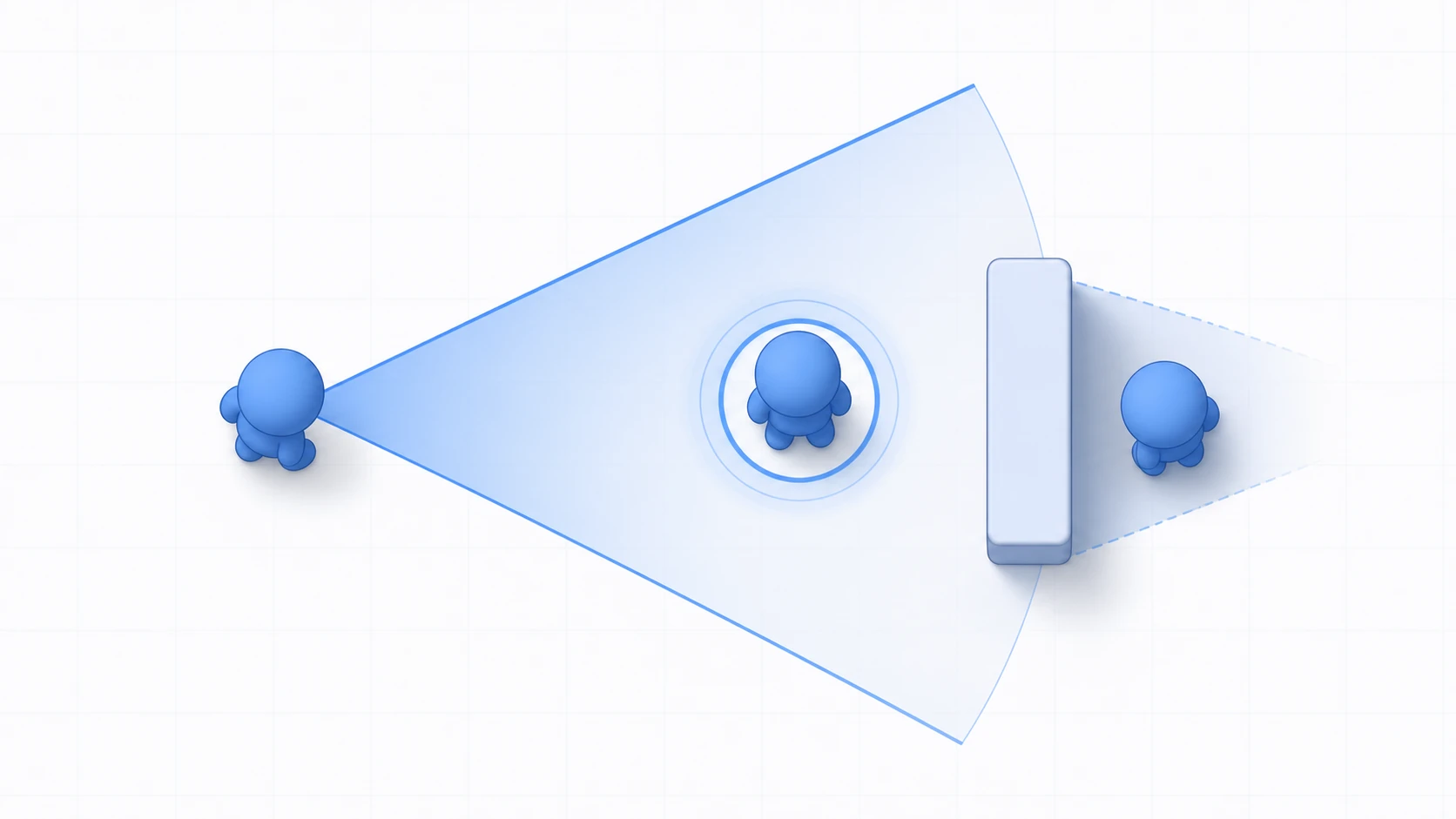
Give an enemy AI behavior like "patrol, chase the player when spotted, attack when close, and return to patrol when it loses sight" — build this with a state machine and the "which state to which state" transitions explode as states grow, tangling everything up. That's why the go-to for mid-to-large AI is the Behavior Tree: a technique that assembles behavior as a tree, making reuse and extension far easier.
This article covers Behavior Trees' basic nodes (Sequence, Selector, Condition, Action), the Success/Failure/Running concept, when to use them vs state machines, the Unity 6 Behavior package, and the practical build of a patrol → spot → chase → attack enemy.
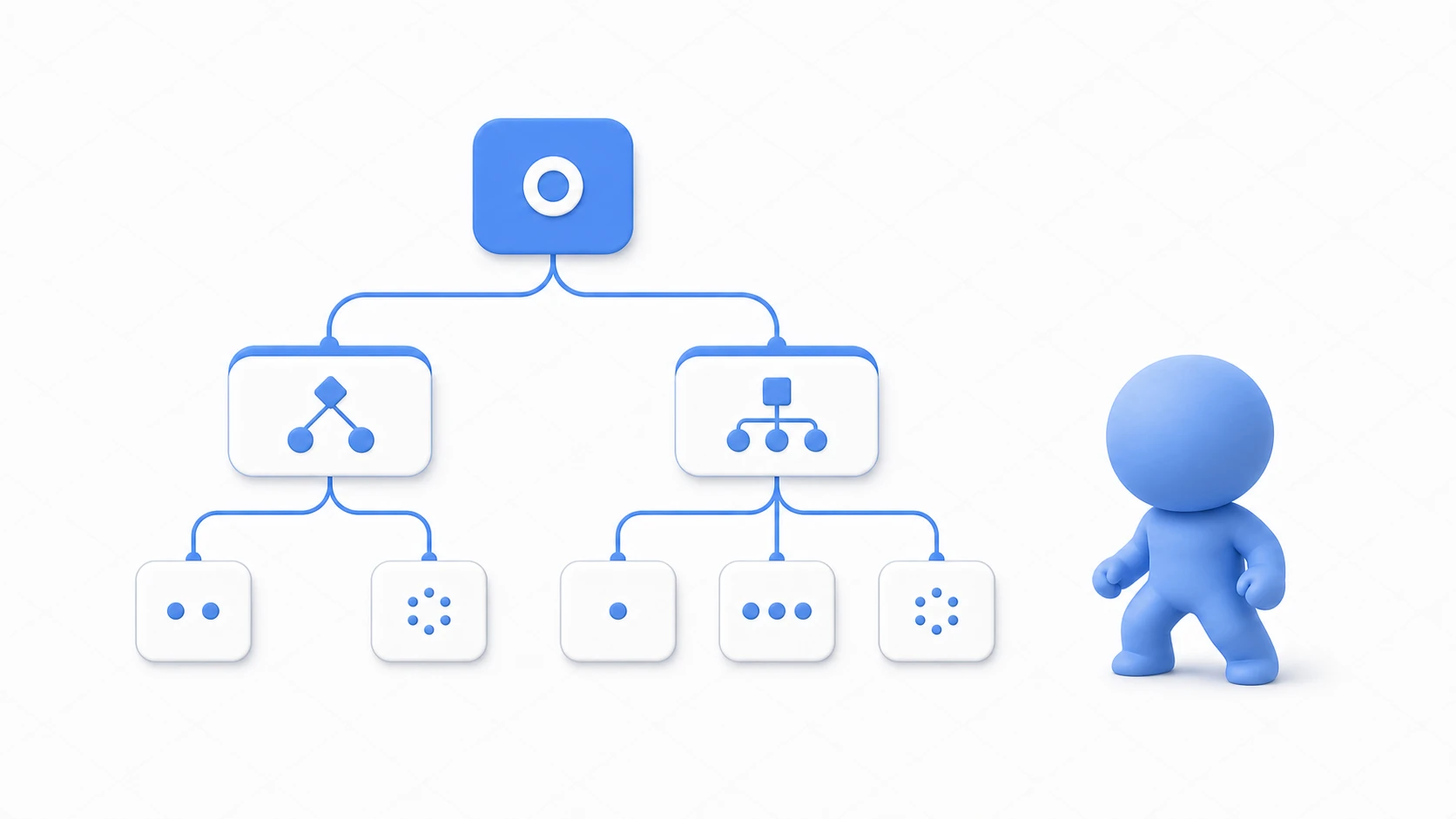
What you'll learn
- Behavior Tree basic nodes (Sequence, Selector, Condition, Action)
- The three results: Success / Failure / Running
- When to use them vs state machines (FSM vs BT)
- The Unity 6 Behavior package (graph, Blackboard, custom Action)
- Practice: building a patrol → spot → chase → attack enemy with a BT
Tested on: Unity 6 (6000.0.16f1 or later) + Behavior package 1.0.15 or later. The Behavior package's UI and API change frequently between releases—if your version looks different, check the official documentation. The BT concepts themselves also apply to 2022.3
Behavior Tree basic nodes
A Behavior Tree runs by traversing from the Root downward. Nodes broadly split into "branches (composite nodes)" and "leaves (conditions and actions)." Nail these four and you can read any BT.
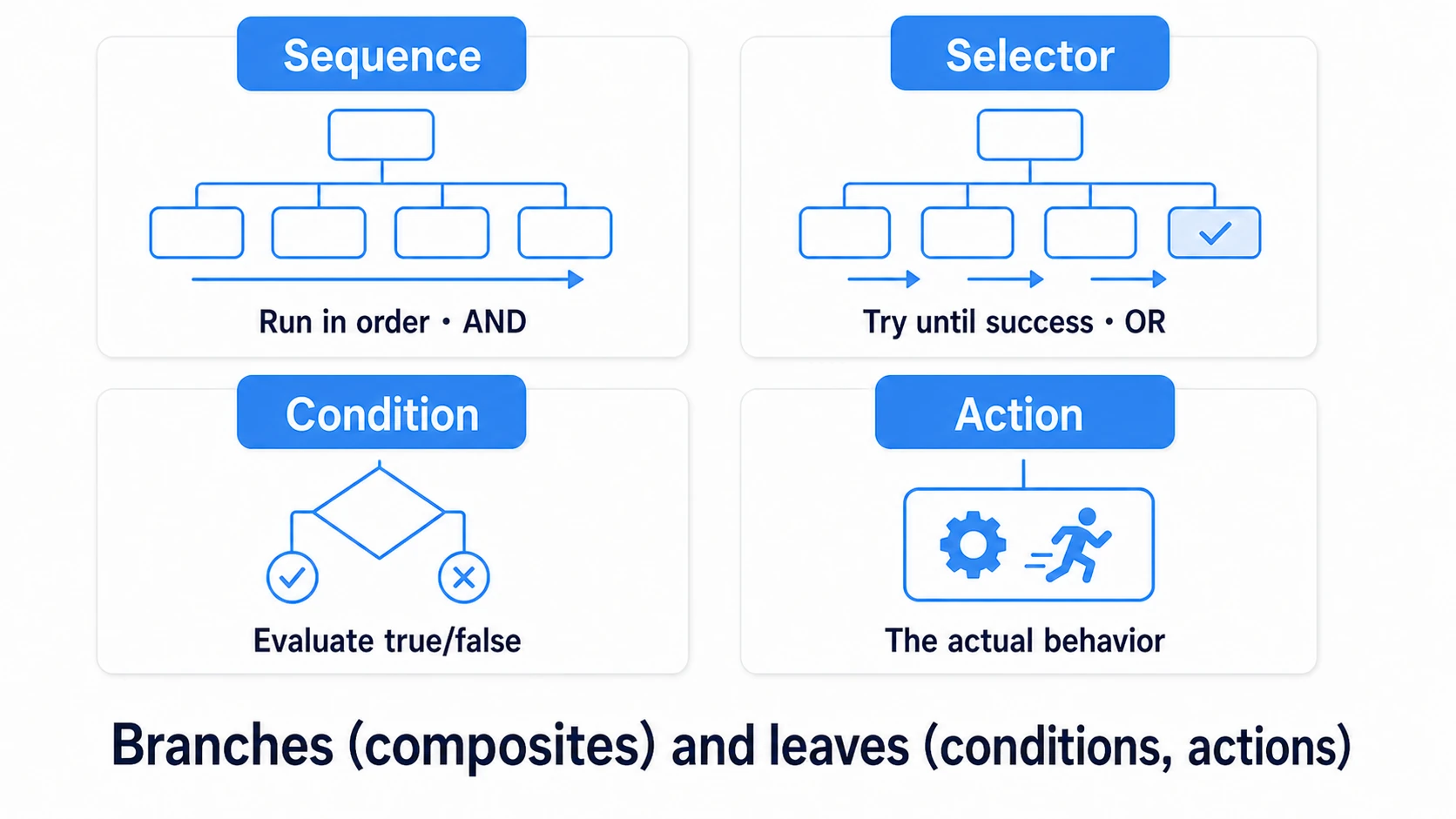
| Node | Role |
|---|---|
| Sequence | Runs children in order, succeeds if all succeed. Fails at the first failure (= AND) |
| Selector | Tries children in order, succeeds if any succeeds. Fails if all fail (= OR, fallback) |
| Condition | A leaf that evaluates a true/false state like "can it see the player" |
| Action | A leaf that performs the actual behavior like "move" or "attack" |
The combination of these two composites is the heart of a BT. Sequence expresses the steps "do A, then B, then C," and Selector expresses the priority "try A first, else B, else C." For example, just placing "an attack Sequence," "a chase Sequence," and "a patrol Action" under a Selector in priority order builds smart decision-making: "attack if you can, else chase, else patrol."
The three results: Success, Failure, Running
Each BT node returns one of three results to its parent every time it runs. This mechanism controls the flow of the whole tree.
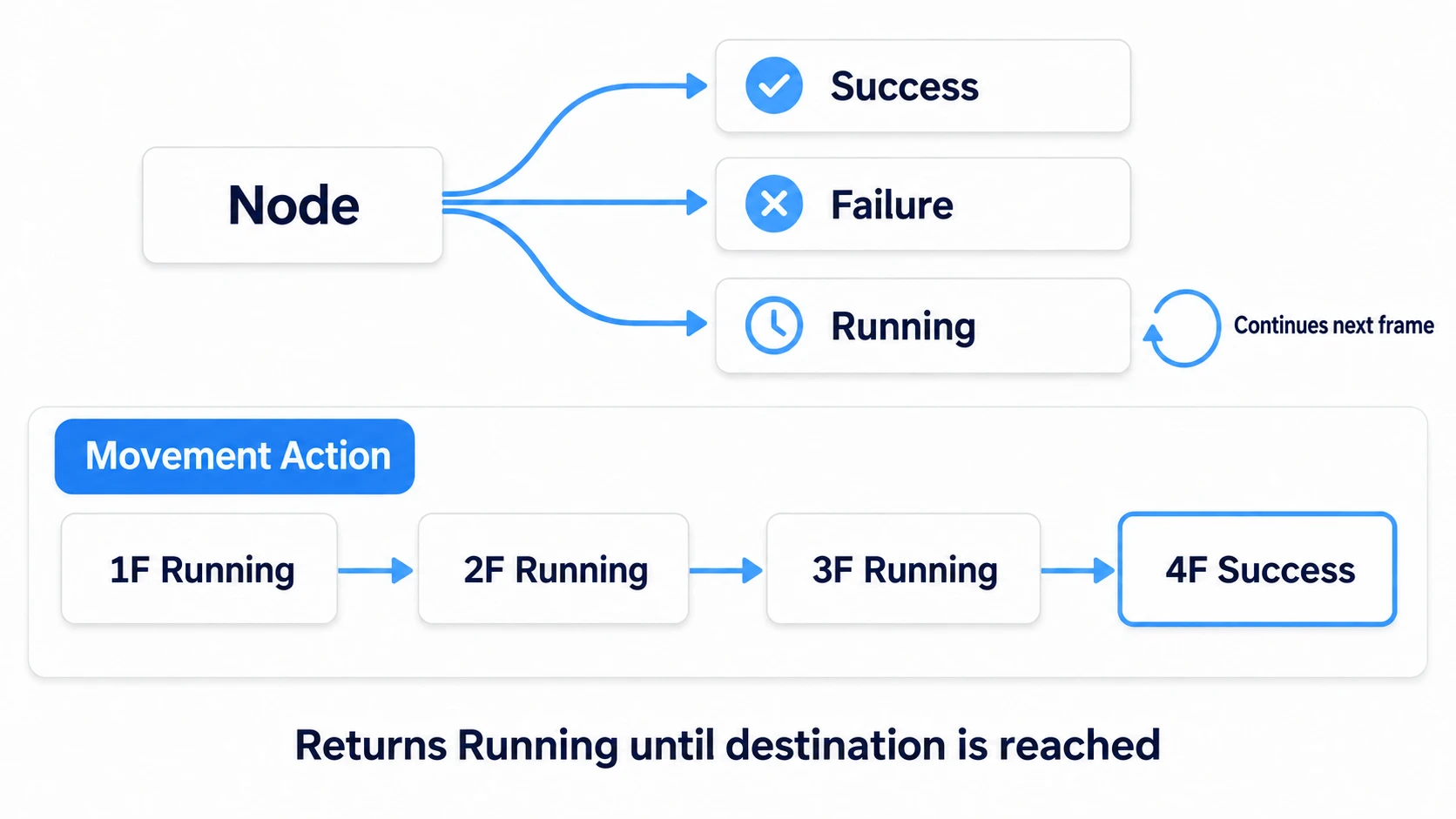
- Success: the node's process succeeded. A Sequence advances to the next child; a Selector confirms success there
- Failure: the process failed. A Sequence confirms failure there; a Selector tries the next child
- Running: not finished yet. It means it continues next frame — the tree is evaluated every frame and resumes from the Running node
Running is especially important. Multi-frame processes like "move to the destination" or "play the attack animation" keep returning Running until done, then return Success. This lets a BT naturally express continuous behavior like "in the middle of walking."
When to use them vs state machines
"So do I not need state machines anymore?" No. The two have different strengths, chosen by scale.
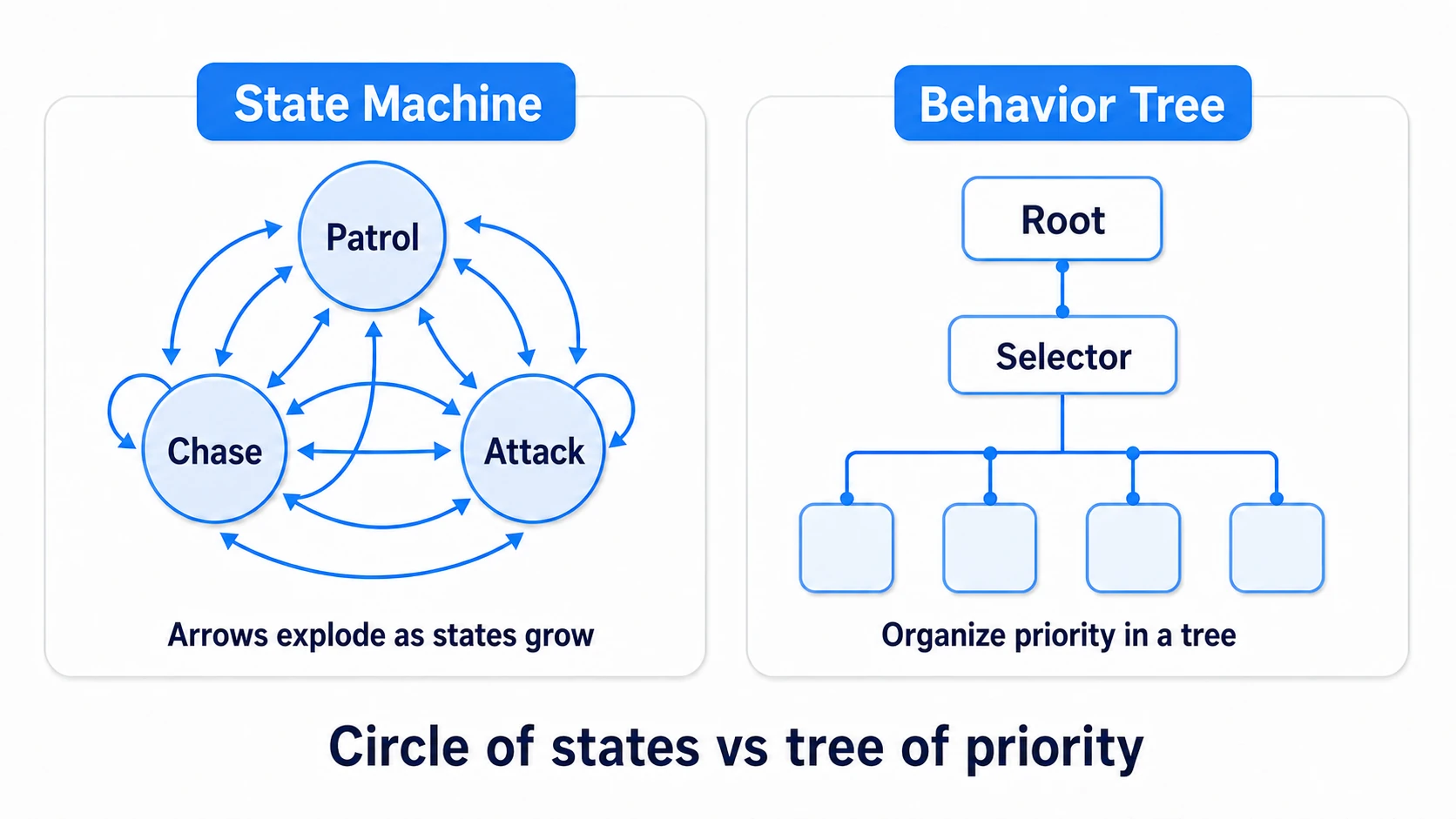
- State machine (FSM): think in terms of "which state am I in now." Connect state transitions with arrows. Best for few, simple behaviors. But as states grow, transition arrows increase to N×N and break down easily
- Behavior Tree (BT): think in terms of "a prioritized tree of things to do." Organizes behavior in a hierarchy, extended by swapping branches. Suited to complex AI with many branches you want to reuse
The rule of thumb is less about the number of states and more about the shape of the transitions. Simple transitions suit an FSM; once you need "choose by priority," "interrupt mid-action," or "reuse branches across enemies," a BT fits better. A trash mob with "just patrol and die" is fine with an FSM, but a boss-level AI with "patrol, alert, chase, attack, retreat, heal…" is far easier to manage as a BT. Rather than starting with a BT, migrate once the FSM gets cramped — that's the realistic path.
The Unity 6 Behavior package
Unity 6 introduced the official Behavior package (com.unity.behavior), letting you build Behavior Trees visually in a graph editor. You drag to connect nodes and design the tree while seeing it.
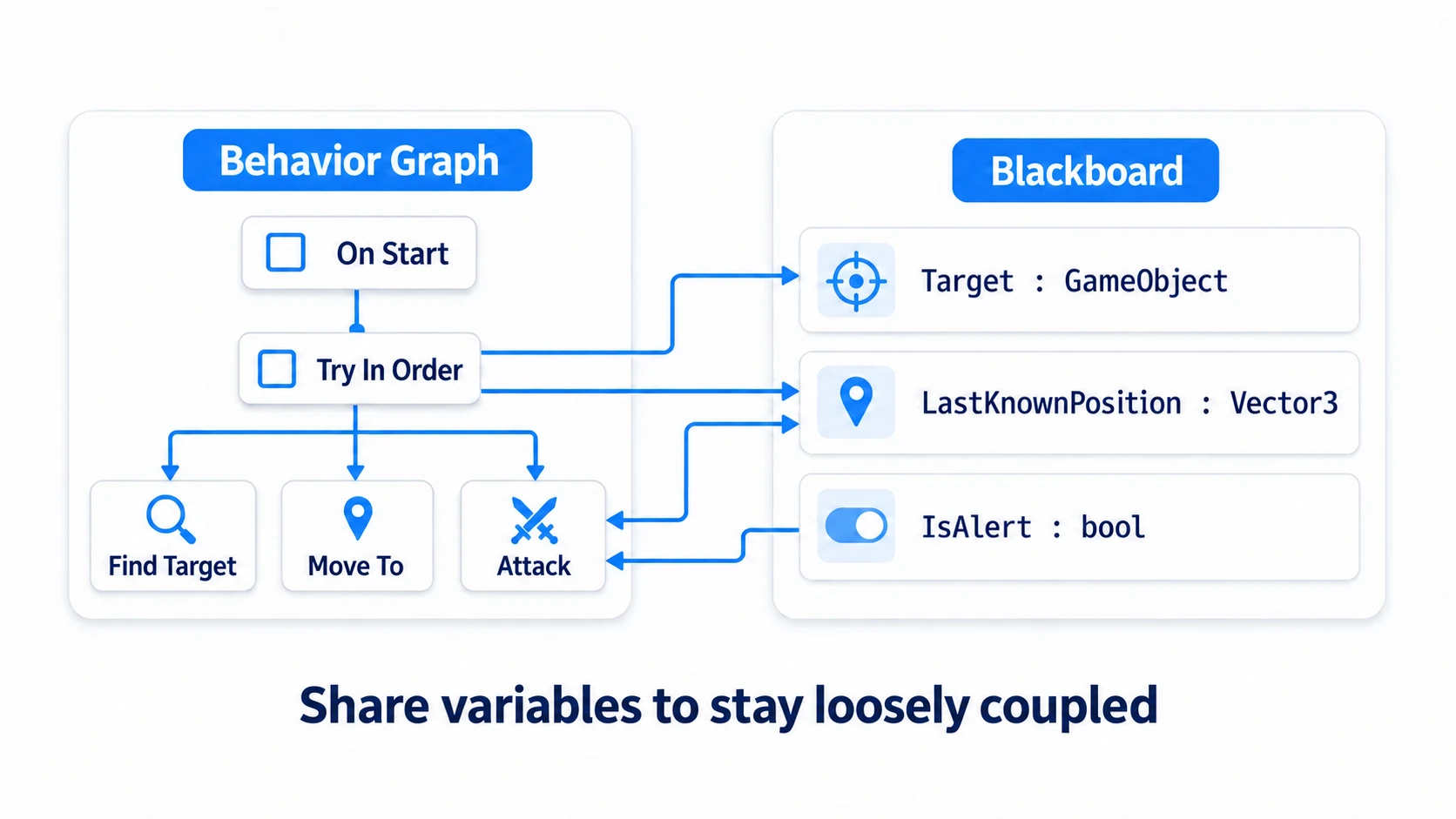
- Graph editor: install
com.unity.behaviorin the Package Manager and create a Behavior Graph asset. Arrange nodes to build the tree - Blackboard: a shared variable store across the whole tree. Put "Target," "LastKnownPosition," etc. here and have each node read and write to share information. Key to keeping nodes loosely coupled
- Custom Action nodes: for behavior beyond the standard nodes, write your own in C#. Right-click in the graph →
Create new > Actionand you get a template script with the required attributes. Write your processing inOnUpdateand the like, and return aStatus(Success/Failure/Running)
using System;
using Unity.Behavior;
using Unity.Properties;
using UnityEngine;
using Action = Unity.Behavior.Action;

// Example custom Action node that moves to a Blackboard destination
// Keep the two lines above the class as the Create new > Action template wrote them (the id is filled in for you)
[Serializable, GeneratePropertyBag]
[NodeDescription(name: "Move To Target", story: "Move to [Target]", category: "Action", id: "5c0d2f7e9a3b4e61b8f4a2c7d9e0b1f3")]
public partial class MoveToTargetAction : Action
{
    [SerializeReference] public BlackboardVariable<GameObject> Target;
    [SerializeReference] public BlackboardVariable<float> Speed = new(3f);

    protected override Status OnUpdate()
    {
        if (Target?.Value == null) return Status.Failure;

        var self = GameObject.transform;
        self.position = Vector3.MoveTowards(
            self.position, Target.Value.transform.position, Speed.Value * Time.deltaTime);

        // Success on arrival, Running (continues next frame) if not yet
        return Vector3.Distance(self.position, Target.Value.transform.position) < 0.1f
            ? Status.Success : Status.Running;
    }
}
In Unity Behavior's UI, the node that plays the Selector role is called Try In Order, and the graph's entry point (the Root) is On Start. Conditions can't be placed as standalone nodes: place a Conditional Guard and assign the condition from Assign Condition in the Node Inspector. When searching for the node, type Try In Order, not Selector.
2022.3 has no official BT:
com.unity.behavioris a Unity 6 feature. To use it in Unity 2022.3 LTS, third-party assets like Behavior Designer are the standard. Nodes and terms differ slightly per implementation, but the BT concepts of Sequence / Selector / Success·Failure·Running are shared.
Practice: a patrol → spot → chase → attack enemy
Where a BT shines most is an enemy AI that bundles multiple behaviors by priority. A patrolling sentinel in a Metroidvania, a chasing monster in a top-down ARPG, a guard in a stealth game — all built with this structure.
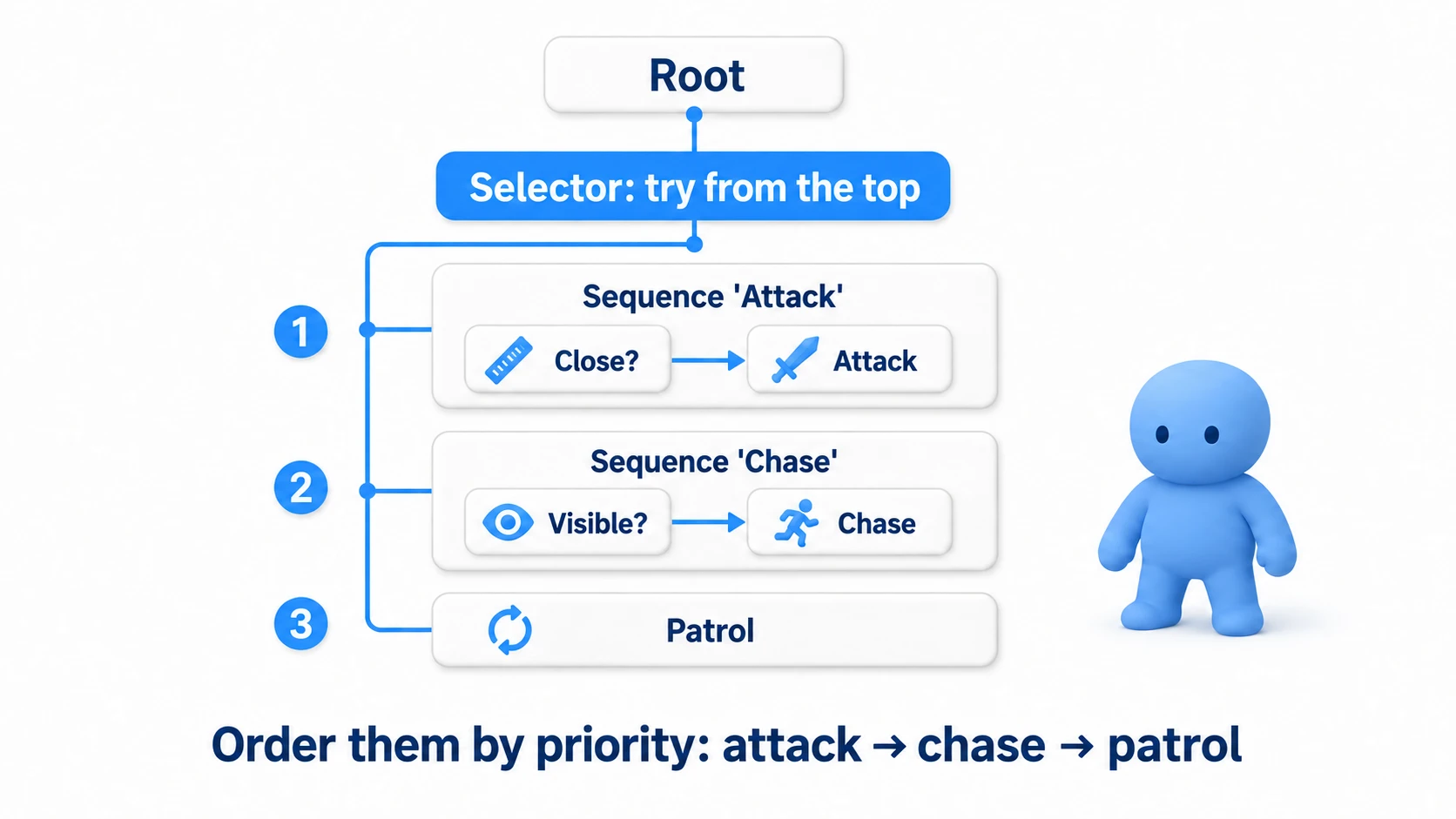
Getting this guard AI running in Unity Behavior takes four steps:
- Create a Behavior Graph asset: right-click in the Project window →
Create > Behavior > Behavior Graph - Give the enemy an agent: add a
Behavior Agentcomponent (its class name in scripts isBehaviorGraphAgent) to the enemy GameObject and assign the graph you created - Register the Player in the Blackboard: create variables like
Target(GameObject) in the graph's Blackboard, right-click and chooseExpose. A field appears in theBehavior Agent's Inspector; assign the scene's Player there. Nodes reference the player through this variable - Play and watch: open the graph editor during Play mode and pick the enemy from
Debugin the toolbar, and the currently running node gets a marker. You can watch the behavior switch—patrol → spot → chase—right on the tree
The tree structure is just placing a Selector directly under the Root and arranging behaviors from highest priority down.
Root
└── Selector (try top to bottom)
    ├── Sequence: Attack
    │   ├── Condition: Is the player in attack range?
    │   └── Action: Attack
    ├── Sequence: Chase
    │   ├── Condition: Can it see the player? (line of sight)
    │   └── Action: Move toward the player
    └── Action: Patrol (default behavior)
The Selector tries children top to bottom. "Attack if in range" → else "chase if visible" → else "patrol" — the behavior is chosen in priority order.
To build this tree in Unity Behavior, make the Root On Start (turn on Repeat in the Node Inspector), make the Selector Try In Order, and assign each branch's condition to a Conditional Guard. There's no built-in "can see" condition, so start by substituting Check Distance, which measures distance.
One thing trips people up here. Try In Order remembers the child that's returning Running, and while it does, it doesn't retry the conditions above. The Patrol action keeps returning Running even after reaching a waypoint, so as is, a patrolling enemy won't switch to chasing when the player comes close. Select the attack and chase Conditional Guards and set Abort Target in the Node Inspector to Both. The moment the condition holds, it interrupts the lower branch (patrol) and moves to its own branch; when the condition stops holding, it stops its own branch and moves on to the next child (Abort Target exists from Behavior 1.0.15).
Two points: "put higher-priority behaviors at the top" (the Selector tries top-down, so the order is the priority), and "give Abort Target to conditions that should switch mid-action" (without it, the conditions above aren't rechecked while a running branch continues). Combine the chase movement with AI pathfinding via NavMesh for a proper enemy that chases while avoiding obstacles.
Good to know first
- Often an FSM is enough: BTs are powerful but carry setup and learning costs. For simple behaviors like trash mobs, a state machine is quicker. Migrate to a BT once "the FSM branches get painful."
- Watch out for forgetting Running: in multi-frame processes like moving or playing, returning
Successbefore completion makes the tree move on to the next node without waiting for arrival. Be strict about "returnRunningif not done yet." - Line-of-sight via Raycast: the "can it see the player" condition is typically judged by casting a Raycast from the enemy to the player and checking for walls in between. Adding an angle (field of view) makes it feel like a stealth game.
- Loose coupling via Blackboard: nodes referencing each other directly make the tree hard to rearrange. Put shared values in the Blackboard and have nodes exchange through it for smooth branch swapping and reuse.
Summary
- A Behavior Tree assembles behavior as a tree. Sequence (run in order, AND) and Selector (try until success, OR) are the heart
- Each node returns Success / Failure / Running. Multi-frame processes keep returning
Runninguntil done - FSM for simple transitions, BT once priorities and interrupts grow. Migrate once the FSM gets cramped, rather than starting with a BT
- Unity 6 has the official Behavior package (graph, Blackboard, custom Action); 2022.3 uses assets like Behavior Designer
- Practice: just arranging attack → chase → patrol by priority in a Root Selector makes a smart enemy AI
Start with a tiny BT of just "patrol" and "chase." Add two under a Selector and you already have an "enemy that chases when it spots you." Add attack and retreat as branches and the AI gets smarter and smarter. How will your game's enemies decide what to do?
Further reading
- State Machine Design Pattern — the precursor to BTs; the difference from FSMs and when to use each
- AI Pathfinding with NavMesh — the pathfinding the chase action calls
- The Complete Guide to Raycast — implementing line-of-sight (can it see the player)
- Unity Manual: Unity Behavior — the primary source on the Behavior package