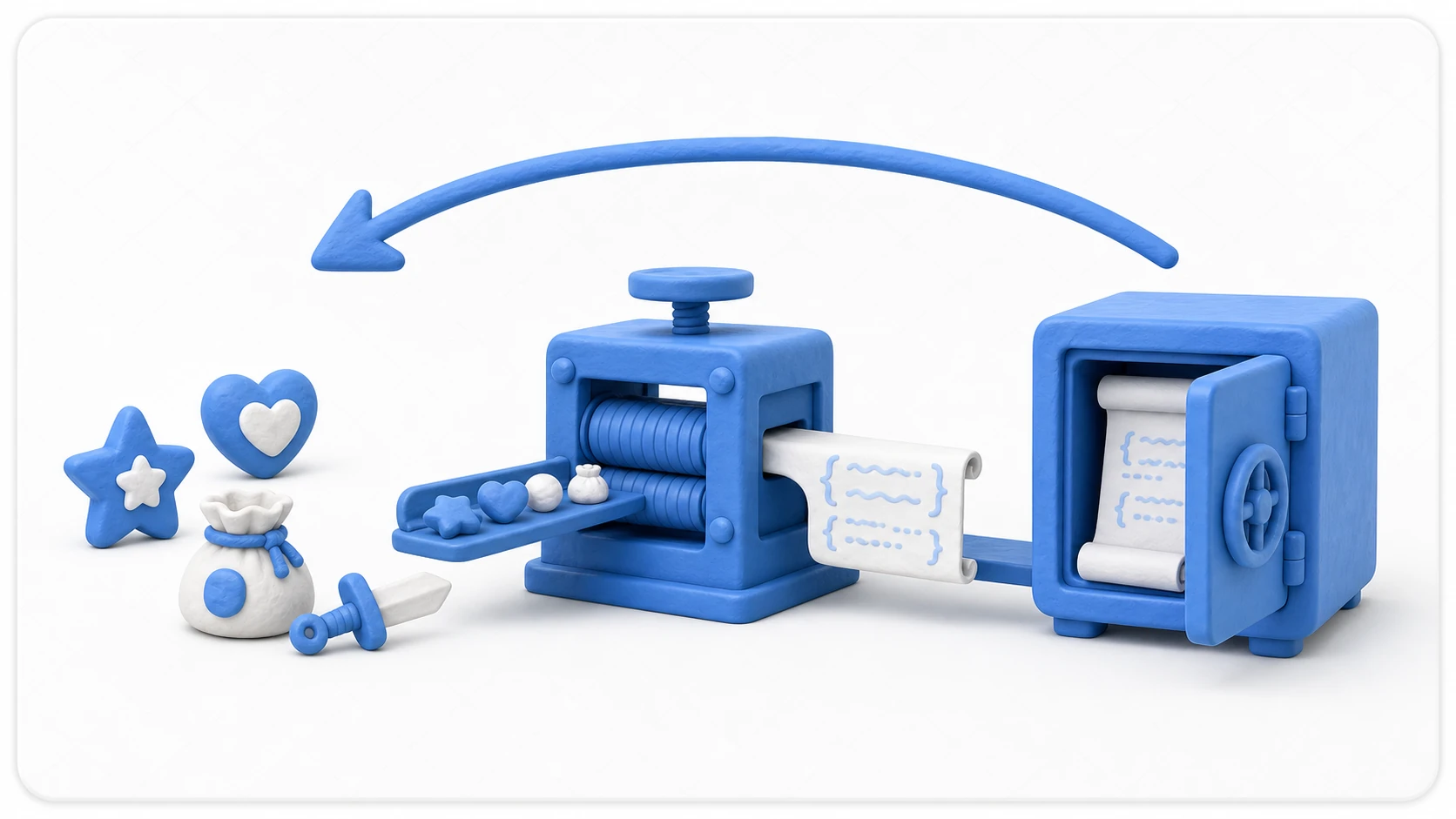
Those volume settings the player carefully adjusted—gone the moment they restart the game. A game that doesn't save its data goes back to "meeting you for the first time" on every launch. The easiest way to save small pieces of data like volume, graphics quality, and high scores is Unity's built-in PlayerPrefs.
This article covers the basics of PlayerPrefs (Set/Get/Save), the pitfalls and cases where you shouldn't use it that hide behind its convenience, and how to wire it into a real options screen.
What You'll Learn
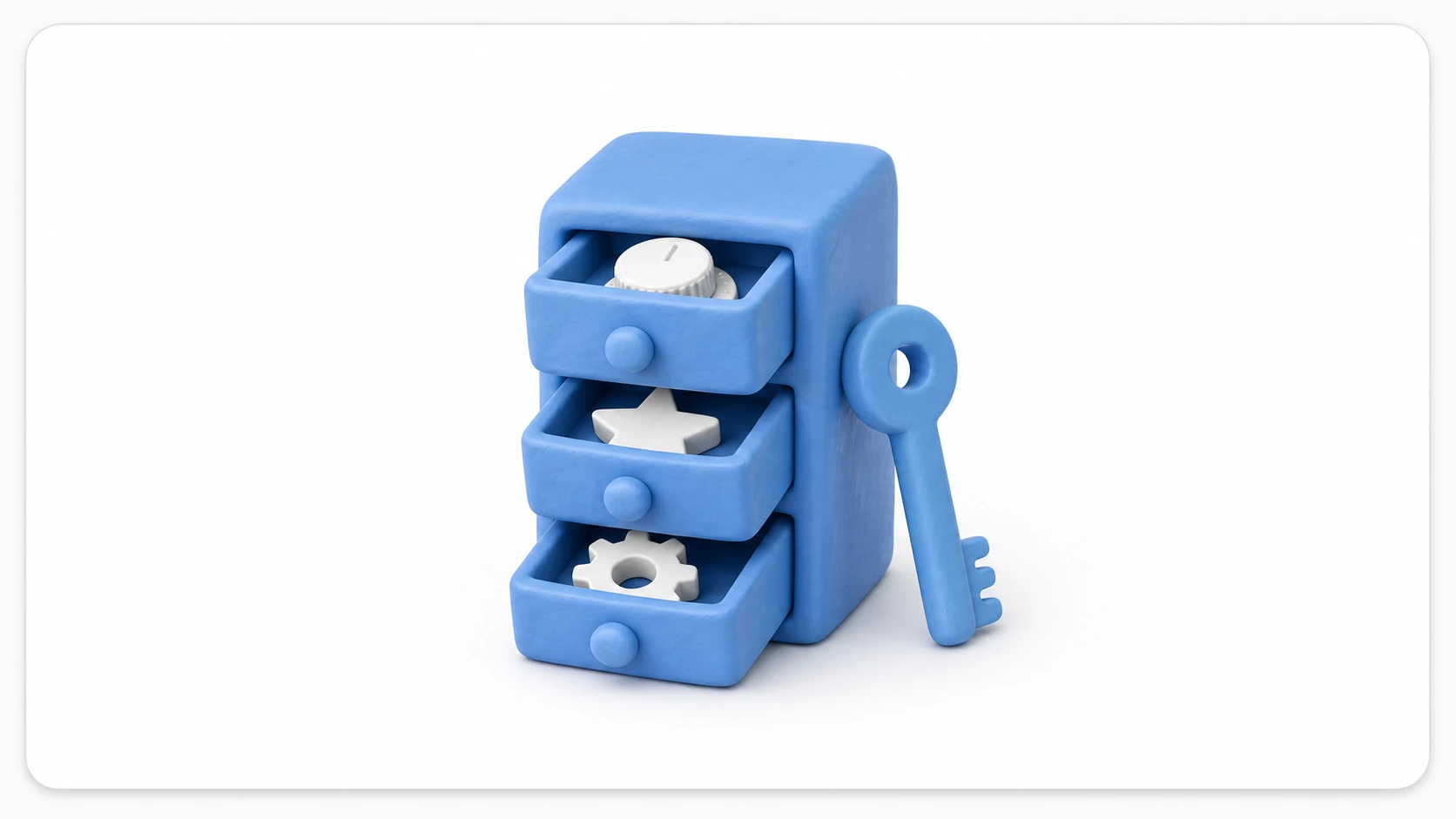
- The basics of
PlayerPrefs—storing data as key-value pairs- The
Set/Getmethods and the golden rule of default values- When to call
Save()(protecting against crashes)- When NOT to use it—no encryption, only three data types
- Choosing the right tool: PlayerPrefs for settings, JSON files for save data
Tested with: Unity 6 (6000.x)
Basic Usage of PlayerPrefs
PlayerPrefs supports only three data types: int, float, and string. Each type has a corresponding Set method (for saving) and Get method (for loading).

Saving Data: The Set Methods
To save data, use SetInt(), SetFloat(), or SetString(). The first argument is a key (a string) that identifies the data, and the second argument is the value you want to save.
using UnityEngine;

public class GameSettings : MonoBehaviour
{
    public void SaveVolume(float volumeLevel)
    {
        // Save the float volume value under the key "MasterVolume"
        PlayerPrefs.SetFloat("MasterVolume", volumeLevel);
    }

    public void SaveHighScore(int score)
    {
        // Save the int high score under the key "HighScore"
        PlayerPrefs.SetInt("HighScore", score);
    }
}
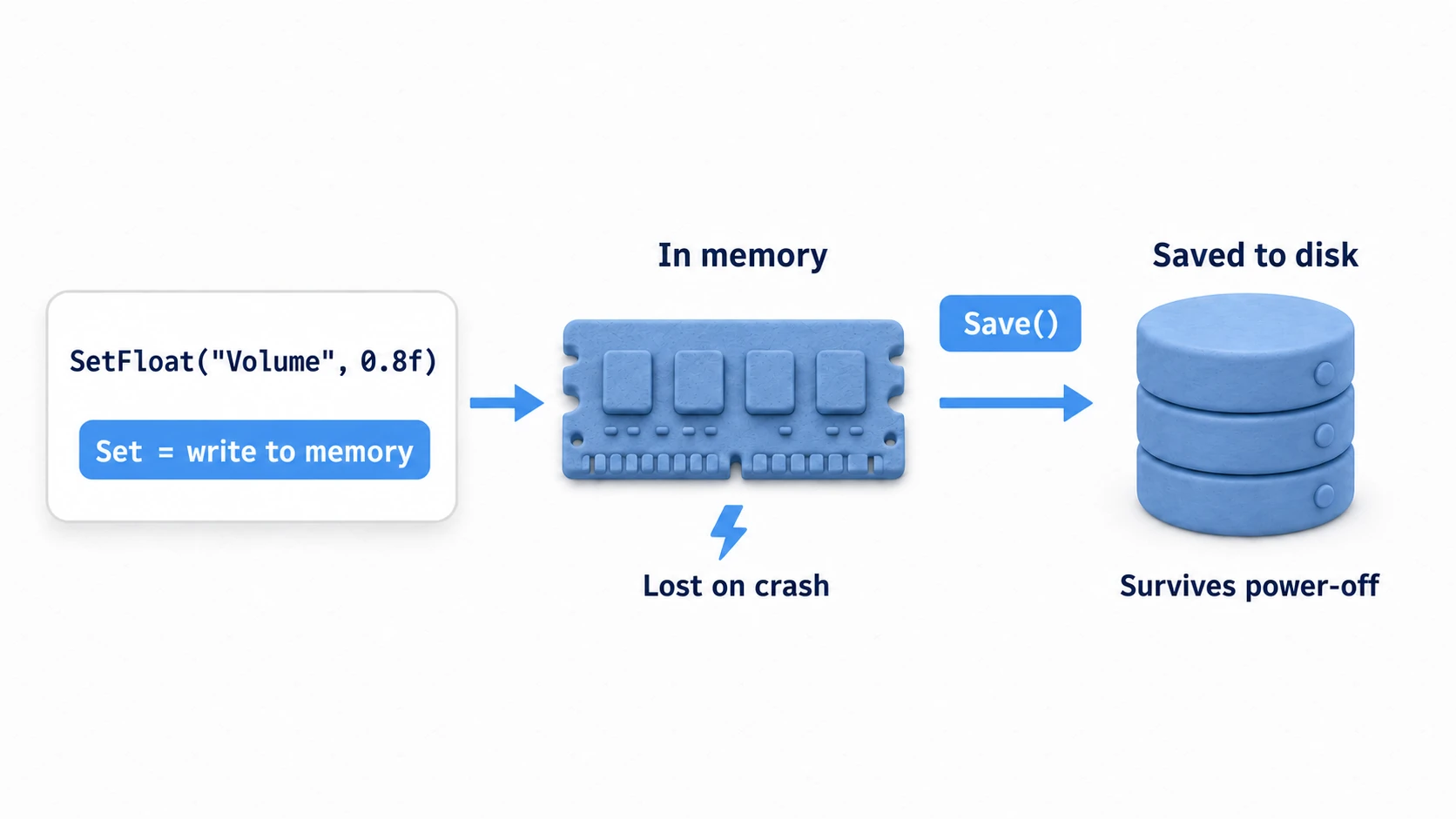
Important: A value changed with a Set method can be read back right away while the game runs, but when it's written to disk depends on the platform. Quitting normally writes it automatically, but a crash or a forced kill can lose values that weren't written yet. To prevent that, it's safest to call PlayerPrefs.Save() right after saving important data to explicitly flush it to disk.
public void SaveAllSettings()
{
    PlayerPrefs.SetInt("QualityLevel", 2);
    PlayerPrefs.SetFloat("MusicVolume", 0.8f);

    // Immediately write the in-memory changes to disk
    PlayerPrefs.Save();
}
Loading Data: The Get Methods
To load saved data, use GetInt(), GetFloat(), or GetString(). The first argument is the key you used when saving.
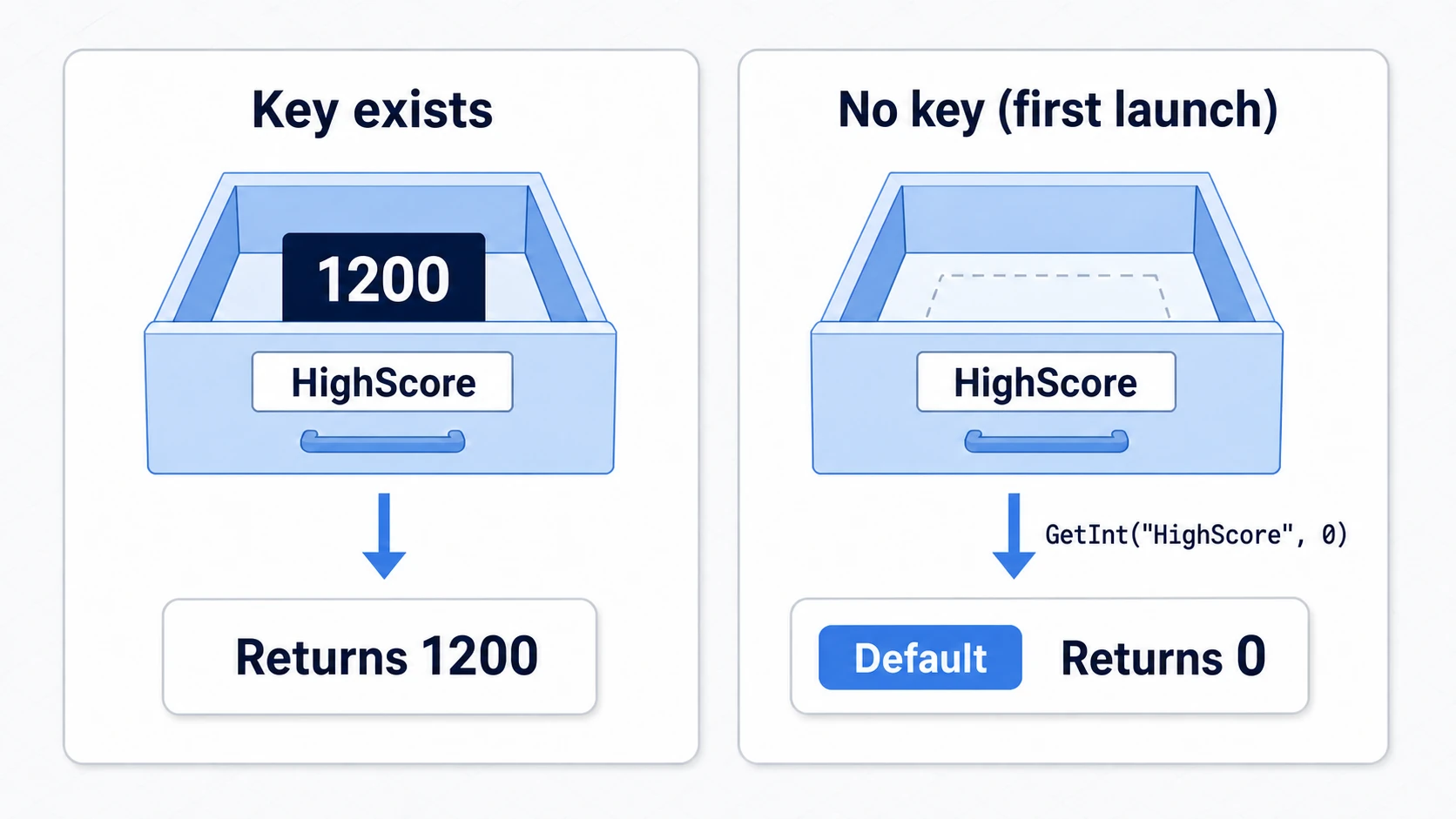
Here, specifying a default value as the second argument is extremely important. If no data exists for the given key (e.g., on the game's first launch), this default value is returned. Without a default value, a missing key returns 0 or an empty string, which can cause unintended behavior.
using UnityEngine;
using UnityEngine.UI;
using TMPro;   // TextMeshPro is the current standard for text display

public class LoadSettings : MonoBehaviour
{
    public Slider volumeSlider;
    public TextMeshProUGUI highScoreText;

    void Start()
    {
        // Load the "MasterVolume" data; use the default value 1.0f if it doesn't exist.
        float savedVolume = PlayerPrefs.GetFloat("MasterVolume", 1.0f);
        volumeSlider.value = savedVolume;

        // Load the "HighScore" data; use the default value 0 if it doesn't exist.
        int highScore = PlayerPrefs.GetInt("HighScore", 0);
        highScoreText.text = "High Score: " + highScore;
    }
}
tips: For why you should use
TextMeshProUGUIinstead of the legacyTextfor text display, see the TextMeshPro article.
Other Useful Methods
PlayerPrefs.HasKey(string key): Returns aboolindicating whether data exists for the given key. Handy when you want to branch logic for the first launch.PlayerPrefs.DeleteKey(string key): Deletes the data for the given key.PlayerPrefs.DeleteAll(): Deletes allPlayerPrefsdata. Useful for a game reset feature, but handle it with care—it's extremely powerful.
Pitfalls and Limitations of PlayerPrefs
PlayerPrefs is very quick and convenient, but it's not a silver bullet. It's important to understand the cases where you shouldn't use it.
1. Security Issues
Data saved with PlayerPrefs is not encrypted. Any moderately tech-savvy user can easily find the stored file and modify its contents. Storing tamper-sensitive data like high scores or in-game currency directly in PlayerPrefs is very risky.
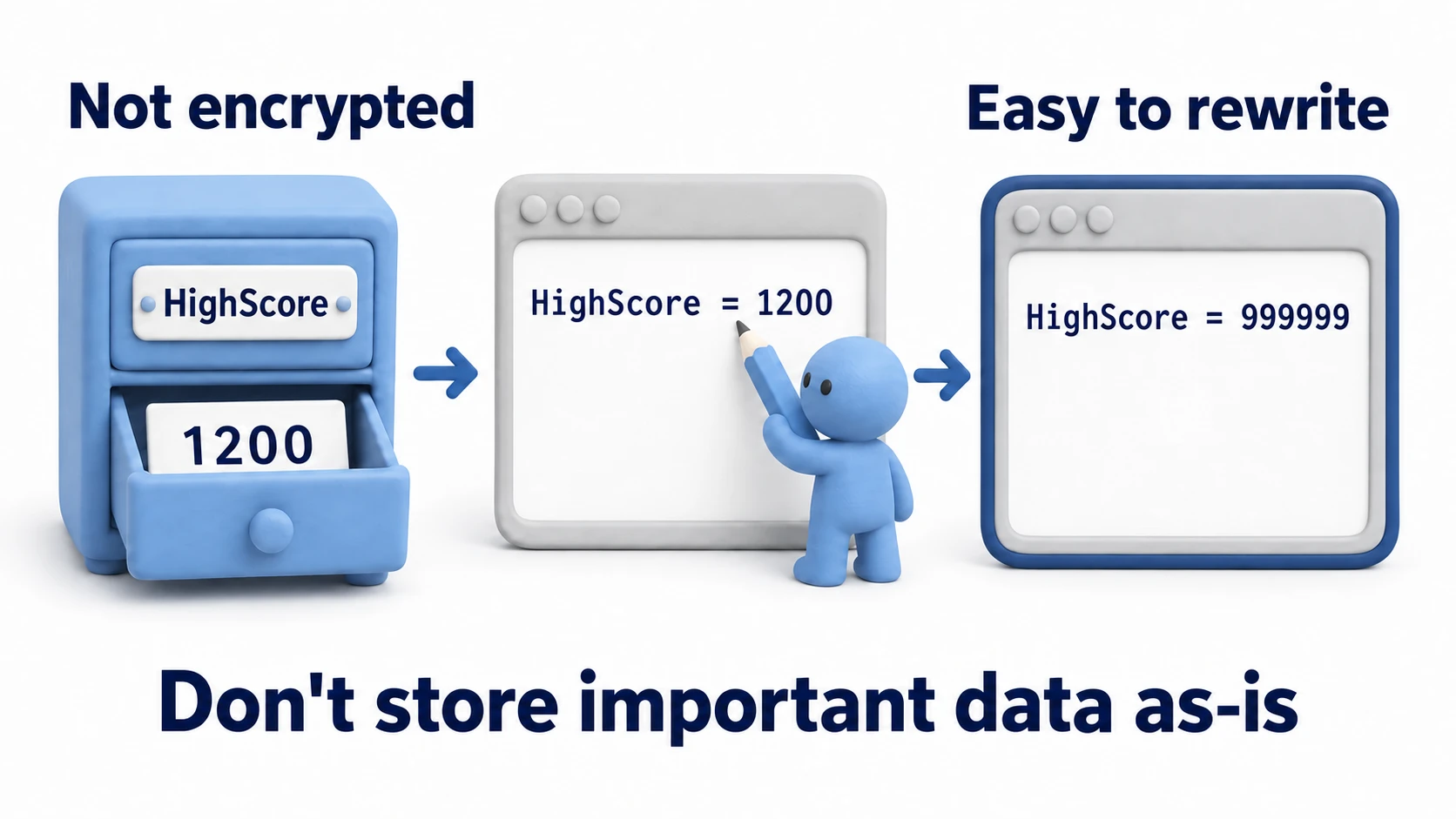
Countermeasures:
- If you need to store important data, always apply your own encryption before writing it to
PlayerPrefs. - Alternatively, skip
PlayerPrefsentirely and consider a more robust save system: write the data to a file in JSON or binary format and encrypt the file itself.
2. Storing Complex Data
PlayerPrefs can only handle int, float, and string. It's a poor fit for structured data such as a player's inventory (a list of items), character stats, or quest progress.
Countermeasures:
- You can use a library like
JsonUtilityorJson.NETto serialize instances of your own classes into JSON strings and save them withPlayerPrefs.SetString(). This is a relatively easy and common approach. - For larger, more complex save data, creating a dedicated save file (e.g., in binary format) is better in terms of performance and extensibility.
Practical: Building an Options Screen That Saves Volume
Whether it's an action game, an RPG, or a puzzle game, every released title has a "volume slider on the options screen." And the spec is always the same—apply instantly when moved, save on close, restore on the next launch. Let's actually build the most classic use of PlayerPrefs.
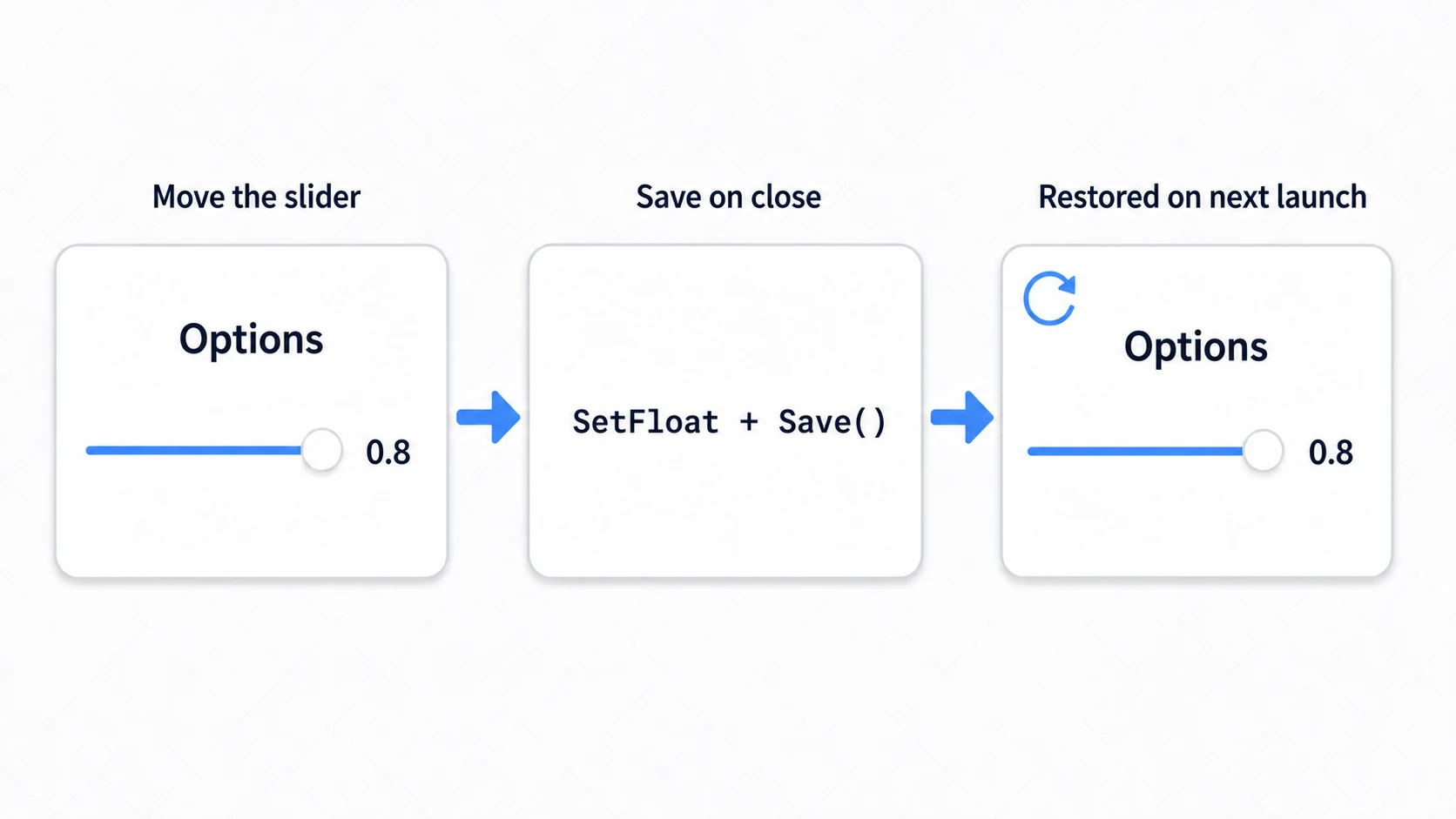
Wire the following script to a uGUI Slider (see UI Basics).
using UnityEngine;
using UnityEngine.UI;

public class VolumeSettings : MonoBehaviour
{
    private const string VolumeKey = "MasterVolume";   // Make the key name a constant (prevents typo accidents)

    [SerializeField] private Slider volumeSlider;

    void Start()
    {
        // On launch: restore the saved volume (default 1.0 on first run)
        float saved = PlayerPrefs.GetFloat(VolumeKey, 1.0f);
        volumeSlider.value = saved;
        AudioListener.volume = saved;

        // When the slider moves, apply to audio instantly (don't save yet)
        volumeSlider.onValueChanged.AddListener(v => AudioListener.volume = v);
    }

    // Called from the "close" button on the options screen
    public void SaveAndClose()
    {
        PlayerPrefs.SetFloat(VolumeKey, volumeSlider.value);
        PlayerPrefs.Save();   // Flush to disk once, at close time
        gameObject.SetActive(false);
    }
}
There are two key points.
- Apply every frame, but save only "on close": Calling
Save()every time the slider moves causes frequent disk writes. The standard pattern is to split them—apply to audio (AudioListener.volume) instantly, and write to disk just once when the screen closes. - Restore and default value go together: If you pass a default value in
GetFloat(key, 1.0f)when restoring inStart(), the game naturally starts at "max volume" even on the first launch.
Note that this script sits on the options panel itself. If the panel starts hidden, Start() doesn't run until it opens, so the volume isn't restored at launch. In that case, move the two restore lines (GetFloat and AudioListener.volume) to an object that's active from the start, like a title-screen manager.
If you want separate sliders for BGM and SE, splitting the keys into "BGMVolume"/"SEVolume" isn't enough: both would overwrite the same AudioListener.volume. To control them separately, change the volume per group in a mixer (Audio Mixer). For full-fledged volume control, see the audio basics article.
Bonus: Good to Know for Later
- The bool-saving idiom:
boolvalues can't be stored directly, so the standard trick is to convert them to int 0/1:PlayerPrefs.SetInt("IsTutorialDone", isDone ? 1 : 0)andGetInt("IsTutorialDone", 0) == 1. - Turn key names into constants: Writing string keys like
"MasterVolume"all over your code turns typos into bugs. It's best to centralize them in one place, e.g.,public static class PrefsKeys { public const string MasterVolume = "MasterVolume"; }. - Where the data actually lives: On Windows it's stored in the registry (
HKCU\Software\[CompanyName]\[ProductName]for builds,HKCU\Software\Unity\UnityEditor\[CompanyName]\[ProductName]for the Editor), on macOS/iOS in plist files, and on Android in SharedPreferences. If you "can't find the file," that's because it's in the registry. - Editor and builds are separate:
PlayerPrefsin the Editor is stored in a different location than in a built player (on Windows, the registry location differs as shown above). If "data saved in the Editor doesn't show up on the device," that's normal behavior. - Building a full settings screen: saving volume, display, and language together is covered in Wiring the Settings Screen Into One System.
Summary
PlayerPrefs is the perfect entry point to data persistence in Unity.
- Easily stores three types—
int,float, andstring—as key-value pairs. - Save with the
Setmethods, load with theGetmethods. After an important save, callSave(). - With
Getmethods, the golden rule is to specify a default value in case the data doesn't exist. - The data is not encrypted, so it's unsuitable for tamper-sensitive data like high scores.
- Storing complex data structures requires extra work, such as serializing to JSON.
Understand the strengths and weaknesses of PlayerPrefs and use the right tool for the job: PlayerPrefs for simple options like volume settings, and a more robust file-based system for complex, important information like save data. We cover how to build a full save system in the JSON save article.