The game ran beautifully on PC. Then you put it on an Android phone or iPhone — pinch zoom doesn't exist, pressing a button also drags the character, and the score is hiding behind the notch. Mobile problems all become personal the moment your game hits a real device.
This article uses the New Input System's Enhanced Touch to build the mobile basics in one pass: tap, drag, long-press, and pinch, the guard that stops UI touches from leaking into gameplay, and Safe Area support. At the end we assemble a top-down map you can pan with one finger and pinch-zoom with two.
What you'll learn
- Why mouse-compat isn't enough, and enabling Enhanced Touch
- The standard threshold logic for tap / drag / long-press
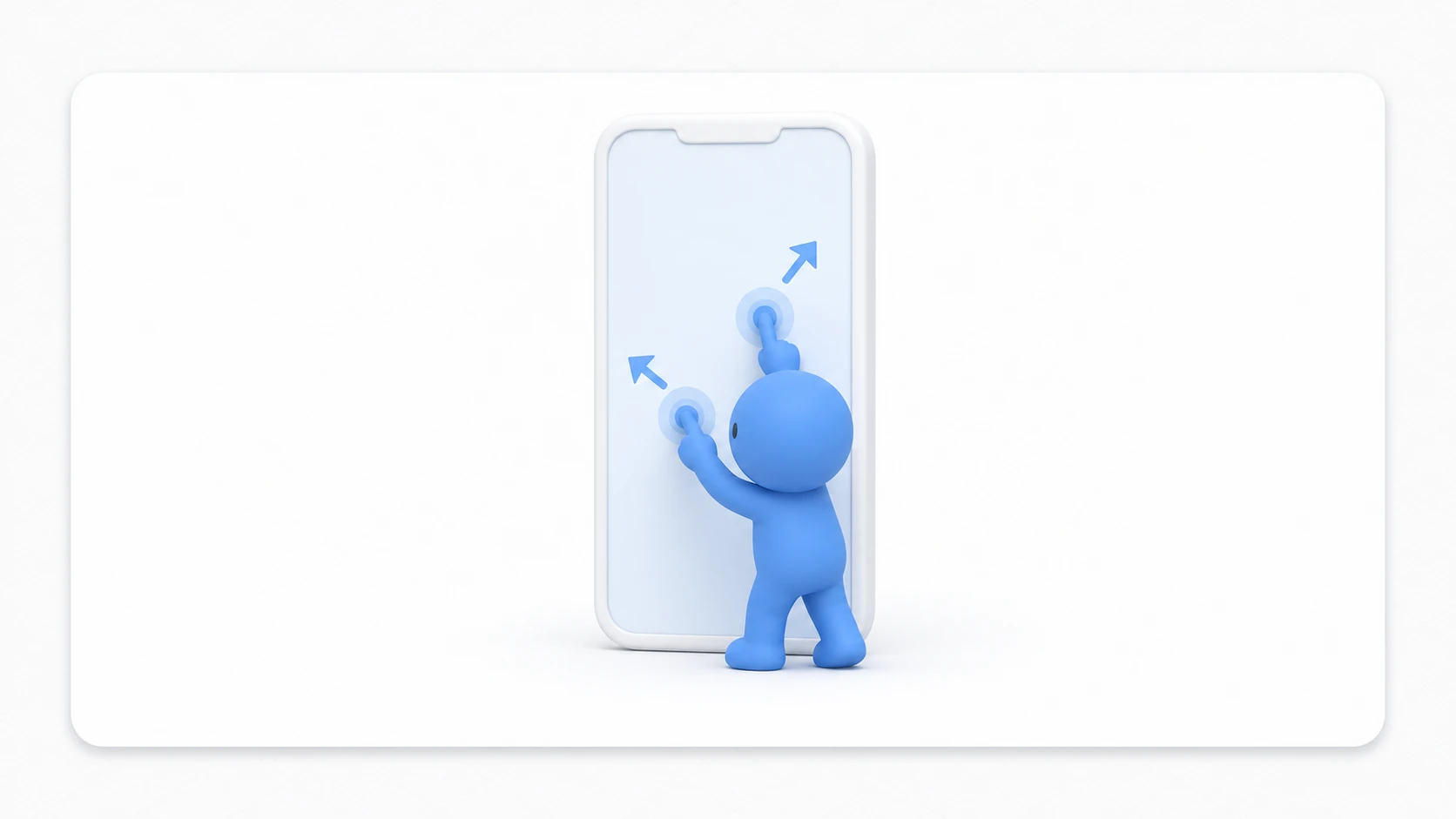
- Computing two-finger pinch (zoom) and pan
- Keeping UI touches out of gameplay (
IsPointerOverGameObject)- Dodging notches and punch-holes with
Screen.safeArea- Hands-on: a top-down map with pinch zoom
Tested with: Unity 6 (6000.x), Input System
Why mouse compatibility isn't enough
Unity translates touches into mouse events to a degree, so a "tap = click" game may run unchanged. You still need touch-specific code, because touch and mouse are fundamentally different.
- There are multiple fingers: a mouse cursor is always singular; fingers land two and three at a time. Pinch zoom is the flagship example
- There is no "position while not touching": a mouse reports position just by moving; a finger pops into existence on contact and vanishes on release. Hover doesn't exist either
- Each finger has a lifetime: touch (began) → move (moved) → release (ended). Only by following that flow of states can you tell a drag from a long-press
The API for "tracking multiple fingers, with IDs and states" is the New Input System's Enhanced Touch.
Enabling Enhanced Touch
Enhanced Touch sleeps by default to save power. Enable it once before use.
using UnityEngine;
using UnityEngine.InputSystem.EnhancedTouch;
// Alias the Touch type to avoid name collisions
using Touch = UnityEngine.InputSystem.EnhancedTouch.Touch;

public class TouchBootstrap : MonoBehaviour
{
    void OnEnable()
    {
        EnhancedTouchSupport.Enable();
    }

    void OnDisable()
    {
        EnhancedTouchSupport.Disable();
    }
}
Once enabled, Touch.activeTouches gives you every finger currently on the screen.
void Update()
{
    foreach (Touch touch in Touch.activeTouches)
    {
        // Per finger: ID, position, and phase
        Debug.Log($"Finger {touch.touchId}: {touch.screenPosition} ({touch.phase})");
    }
}
touch.phase is the finger's lifetime: Began (contact) → Moved / Stationary → Ended / Canceled. Every gesture below is just a reading of that flow.
Detecting taps, drags, and long-presses
The one-finger basics separate cleanly with two thresholds: how far it moved, and how long it stayed down.
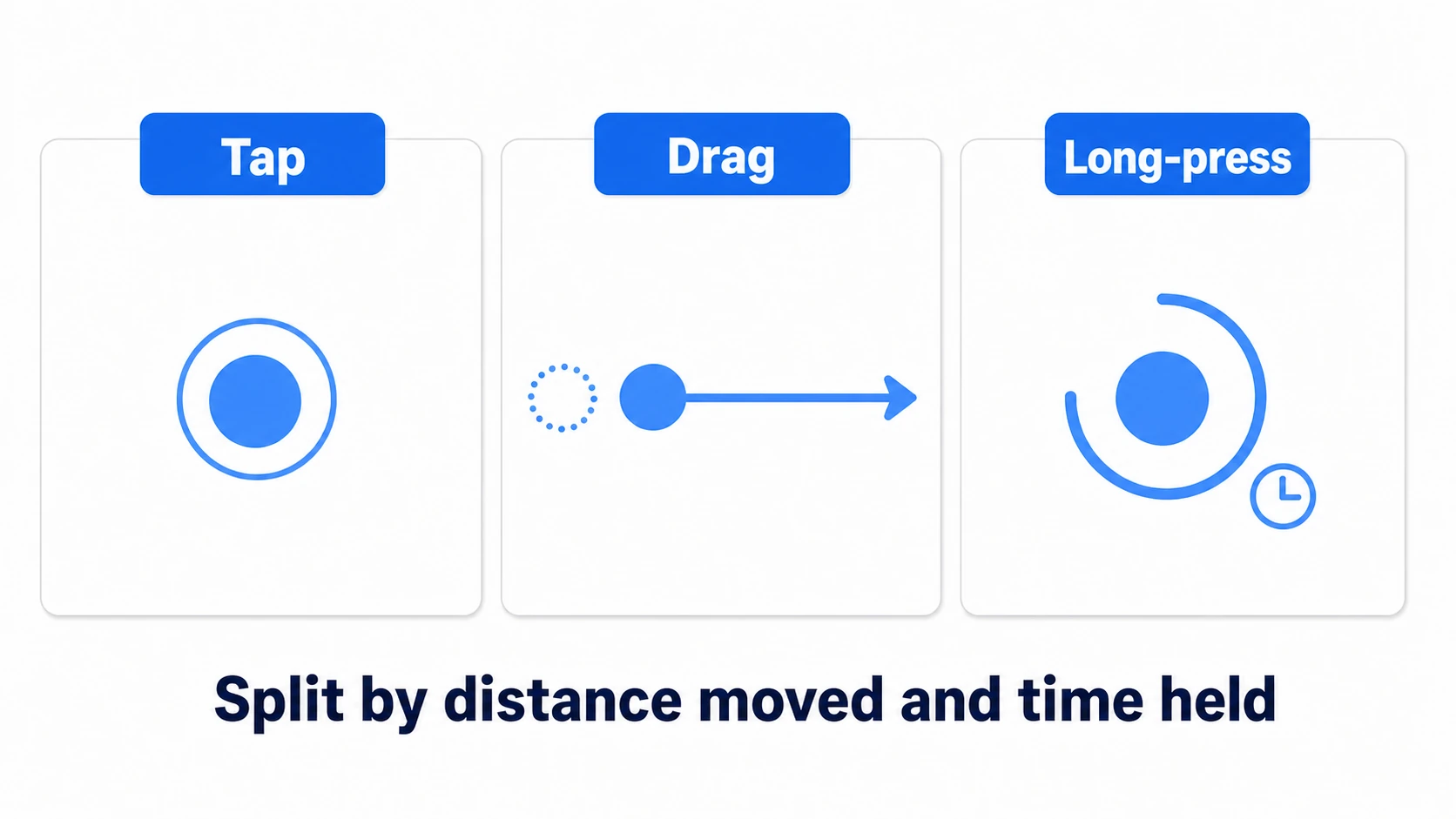
- Tap: released quickly, having barely moved
- Drag: moved past the distance threshold (and stays a drag while moving)
- Long-press: stayed nearly still past the time threshold
using UnityEngine;
using UnityEngine.InputSystem.EnhancedTouch;
using Touch = UnityEngine.InputSystem.EnhancedTouch.Touch;

public class GestureDetector : MonoBehaviour
{
    [SerializeField] private float dragThreshold = 20f;   // farther than this = drag (pixels)
    [SerializeField] private float holdTime = 0.5f;       // longer than this = long-press (seconds)

    private Vector2 startPosition;
    private float startTime;
    private bool isDragging;
    private bool holdFired;

    void Update()
    {
        if (Touch.activeTouches.Count != 1) return;
        Touch touch = Touch.activeTouches[0];

        switch (touch.phase)
        {
            case UnityEngine.InputSystem.TouchPhase.Began:
                startPosition = touch.screenPosition;
                startTime = Time.time;
                isDragging = false;
                holdFired = false;
                break;

            case UnityEngine.InputSystem.TouchPhase.Moved:
            case UnityEngine.InputSystem.TouchPhase.Stationary:
                // Past the distance threshold, treat it as a drag from now on
                if (!isDragging && Vector2.Distance(touch.screenPosition, startPosition) > dragThreshold)
                {
                    isDragging = true;
                }

                // Still, and past the time threshold: long-press (fires once)
                if (!isDragging && !holdFired && Time.time - startTime > holdTime)
                {
                    holdFired = true;
                    Debug.Log("Long-press!");
                }

                if (isDragging)
                {
                    Vector2 delta = touch.delta;
                    Debug.Log($"Dragging: {delta}");
                }
                break;

            case UnityEngine.InputSystem.TouchPhase.Ended:
                // Released without dragging or long-pressing = tap
                if (!isDragging && !holdFired)
                {
                    Debug.Log("Tap!");
                }
                break;
        }
    }
}
The exact numbers depend on your game, but around 20 pixels for the drag threshold and 0.5 seconds for long-press are sane starting points. Fingers naturally slip a little during a tap, so never demand zero movement for a tap.
Two fingers: pinch and pan
With two fingers down, think in terms of the distance between the two points, and their midpoint.
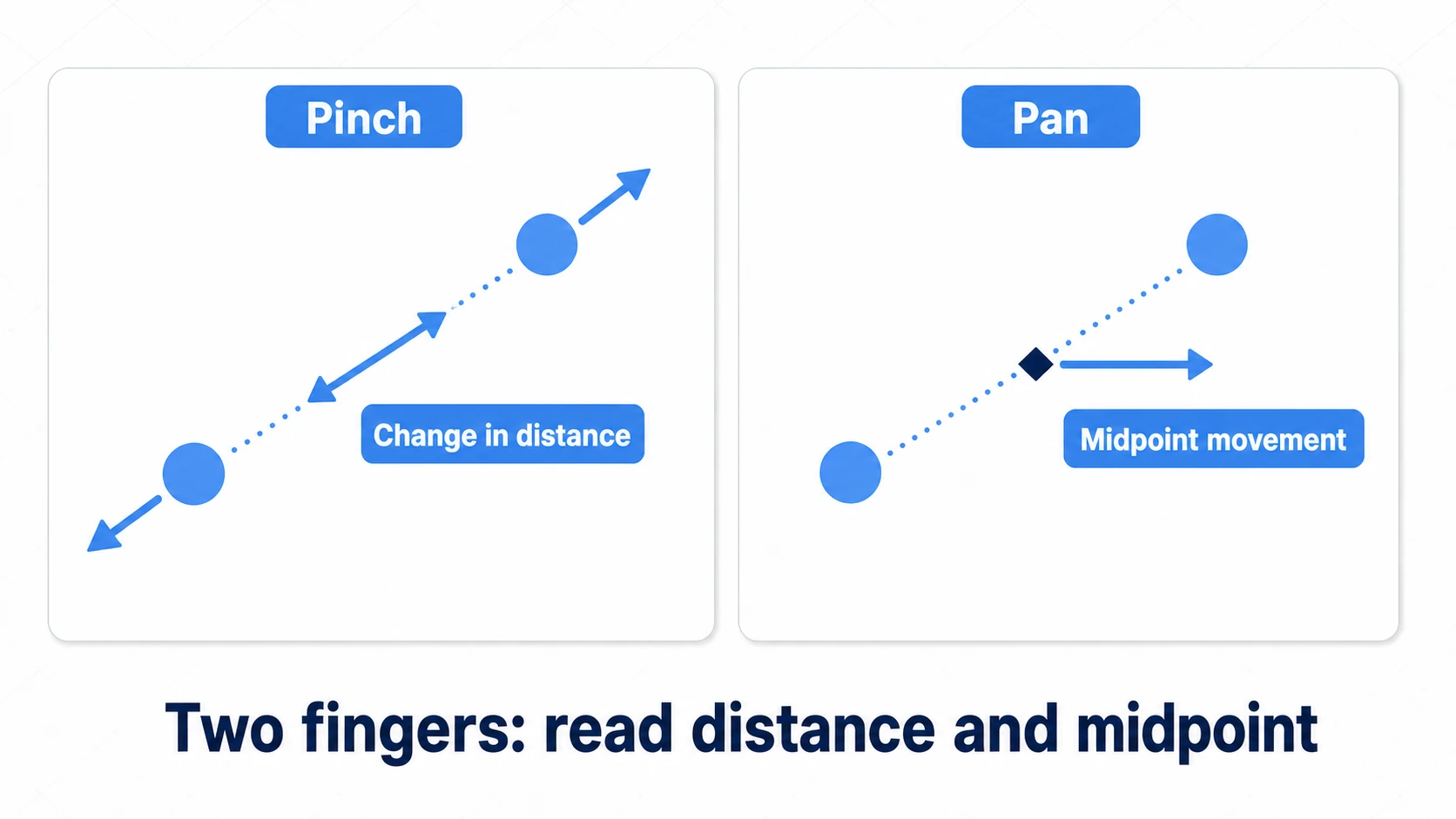
- Pinch (zoom): the change in distance between the two fingers. Spreading zooms in, squeezing zooms out
- Pan: the movement of the midpoint between the two fingers
private float previousDistance;

void HandleTwoFingers()
{
    Touch t0 = Touch.activeTouches[0];
    Touch t1 = Touch.activeTouches[1];

    float currentDistance = Vector2.Distance(t0.screenPosition, t1.screenPosition);

    // Right after a finger lands there's no "previous distance" — record and bail
    if (t0.phase == UnityEngine.InputSystem.TouchPhase.Began ||
        t1.phase == UnityEngine.InputSystem.TouchPhase.Began)
    {
        previousDistance = currentDistance;
        return;
    }

    // The change in distance is your zoom amount (positive = spread = zoom in)
    float pinchDelta = currentDistance - previousDistance;
    previousDistance = currentDistance;

    Debug.Log($"Pinch: {pinchDelta}");
}
The crucial habit: reset your "previous" values the instant the finger count changes. Skip that, and the camera lurches the moment a second finger lands — the classic zoom misfire. The hands-on code below builds this in.
Keep UI touches out of the game
This accident is guaranteed on mobile: you tap the pause button, and the map underneath registers a drag and shifts. One touch, and both UI and gameplay respond.
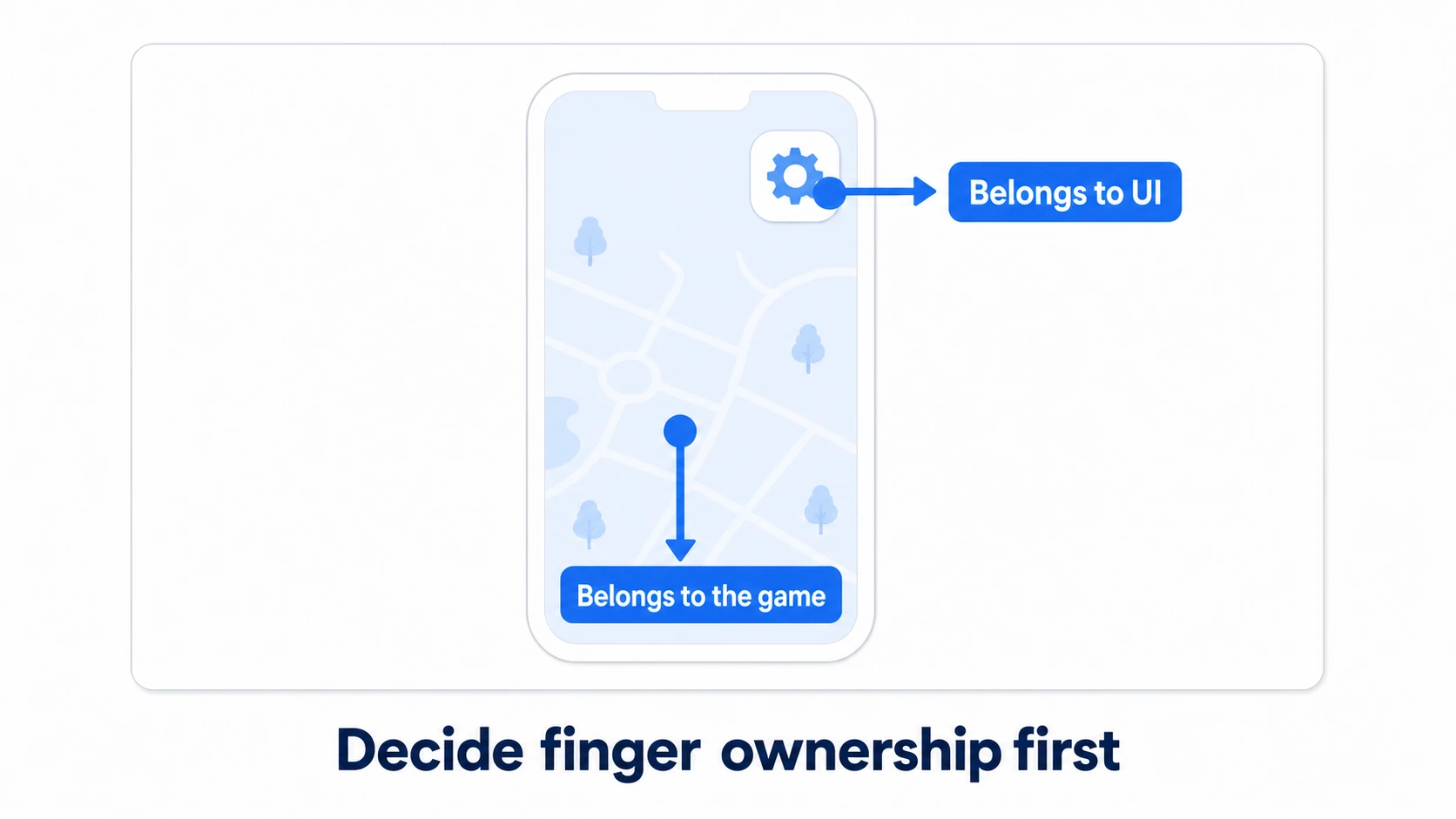
The standard guard: as a touch begins, ask "is this finger over UI?"
using UnityEngine.EventSystems;

bool IsTouchOnUI(Touch touch)
{
    // Passing touchId is the point — the parameterless overload can misbehave for touches
    return EventSystem.current != null &&
           EventSystem.current.IsPointerOverGameObject(touch.touchId);
}
Filter UI-owned touches at the entrance of your gameplay input. Settle the ownership rule early — "a finger that lands on UI belongs to UI; every other finger belongs to the game" — and your gesture logic stays clean.
Note: This check requires an
EventSystemin the scene (creating a uGUI Canvas adds one automatically). In a New Input System project, also confirm the EventSystem usesInputSystemUIInputModule— with the oldStandaloneInputModule, UI won't respond to touch at all.
Dodge the notch with Screen.safeArea
From input to display. Modern phones lose their corners to notches, punch-holes, and rounded edges. Do nothing, and the score you placed top-left hides behind the notch.
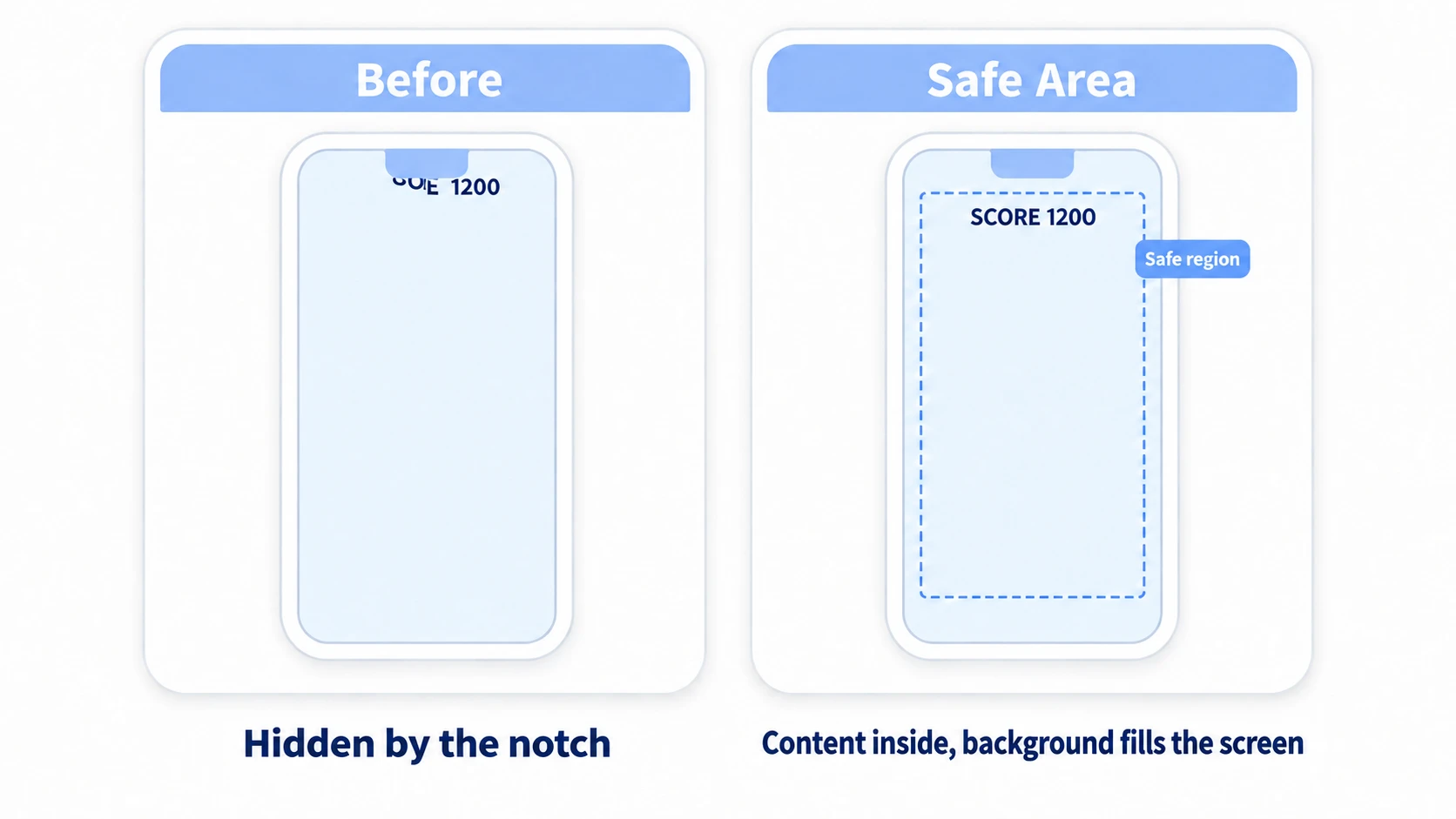
Unity reports the rectangle that's safe for display and touch via Screen.safeArea. The standard pattern is a script on your UI root that maps its anchors to the safe area.
using UnityEngine;

// Attach to the "UI root" panel directly under the Canvas
public class SafeAreaFitter : MonoBehaviour
{
    private RectTransform rectTransform;
    private Rect lastSafeArea;

    void Awake()
    {
        rectTransform = GetComponent<RectTransform>();
        Apply();
    }

    void Update()
    {
        // Track safe-area changes (e.g. screen rotation)
        if (Screen.safeArea != lastSafeArea)
        {
            Apply();
        }
    }

    void Apply()
    {
        Rect safeArea = Screen.safeArea;
        lastSafeArea = safeArea;

        // Convert the safe area's pixel rect into 0-1 anchors
        Vector2 anchorMin = safeArea.position;
        Vector2 anchorMax = safeArea.position + safeArea.size;
        anchorMin.x /= Screen.width;
        anchorMin.y /= Screen.height;
        anchorMax.x /= Screen.width;
        anchorMax.y /= Screen.height;

        rectTransform.anchorMin = anchorMin;
        rectTransform.anchorMax = anchorMax;
        rectTransform.offsetMin = Vector2.zero;
        rectTransform.offsetMax = Vector2.zero;
    }
}
The usage trick: put one "SafeArea panel" directly under the Canvas, and parent every score and button to it. Make this panel an empty GameObject (right-click → "Create Empty"). Create it with "UI > Panel" and it comes with a full-screen Image that claims every touch as "over UI," so not a single finger reaches the game. Backgrounds and full-screen effects go outside the panel (directly under the Canvas), stretched to the whole screen. The rule of thumb: information and controls stay in the safe zone; atmosphere fills the screen. If Canvas and anchors are still fuzzy, read that first and this script will click.
Hands-on: a top-down map with pinch zoom
All the parts are here — time to assemble one input scheme. A strategy game's map screen, a tower defense placement view, a city builder's overhead camera: "one finger pans, two fingers pinch-zoom, UI never misfires" is a skeleton you'll reuse everywhere.
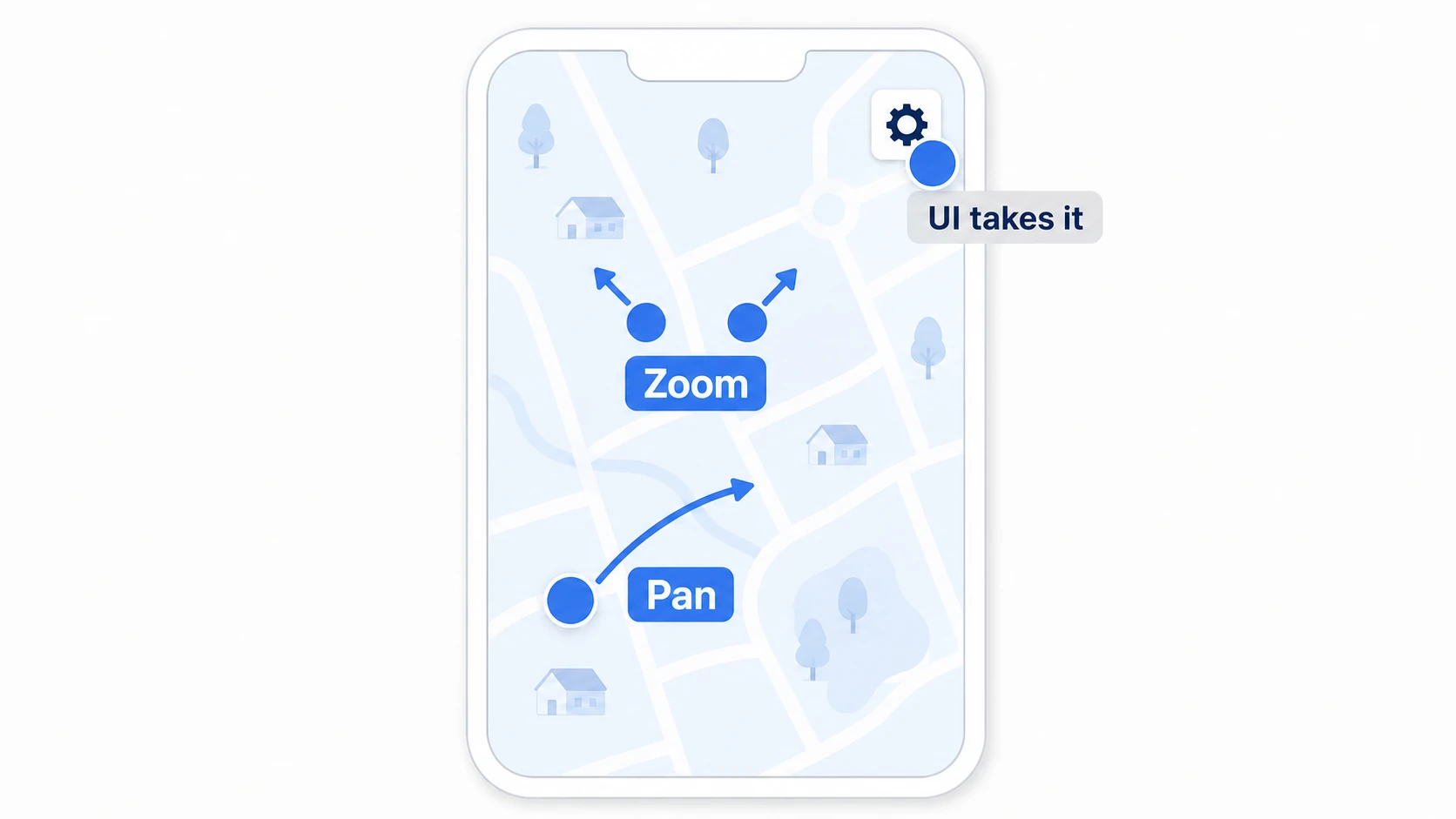
The complete script, for a top-down orthographic camera.
using UnityEngine;
using UnityEngine.EventSystems;
using UnityEngine.InputSystem.EnhancedTouch;
using Touch = UnityEngine.InputSystem.EnhancedTouch.Touch;
using TouchPhase = UnityEngine.InputSystem.TouchPhase;

[RequireComponent(typeof(Camera))]
public class TouchMapCamera : MonoBehaviour
{
    [SerializeField] private float panSpeed = 1f;
    [SerializeField] private float zoomSpeed = 0.05f;
    [SerializeField] private float minZoom = 3f;
    [SerializeField] private float maxZoom = 15f;

    private Camera cam;
    private float previousPinchDistance;
    private int previousTouchCount;

    void OnEnable()
    {
        EnhancedTouchSupport.Enable();
    }

    void OnDisable()
    {
        EnhancedTouchSupport.Disable();
    }

    void Awake()
    {
        cam = GetComponent<Camera>();
    }

    void Update()
    {
        // Touches that started on UI never drive this camera
        int gameTouchCount = 0;
        Touch first = default;
        Touch second = default;

        foreach (Touch touch in Touch.activeTouches)
        {
            if (IsTouchOnUI(touch)) continue;

            if (gameTouchCount == 0) first = touch;
            else if (gameTouchCount == 1) second = touch;
            gameTouchCount++;
        }

        // The instant the finger count changes, discard "previous" values (prevents zoom/pan misfires)
        if (gameTouchCount != previousTouchCount)
        {
            if (gameTouchCount == 2)
            {
                previousPinchDistance =
                    Vector2.Distance(first.screenPosition, second.screenPosition);
            }
            previousTouchCount = gameTouchCount;
            return;
        }

        if (gameTouchCount == 1)
        {
            Pan(first);
        }
        else if (gameTouchCount == 2)
        {
            Pinch(first, second);
        }
    }

    void Pan(Touch touch)
    {
        if (touch.phase != TouchPhase.Moved) return;

        // Convert on-screen finger movement into world-space movement
        float unitsPerPixel = cam.orthographicSize * 2f / Screen.height;
        Vector2 delta = touch.delta * unitsPerPixel * panSpeed;

        // Move the camera opposite the finger for a "grab the map" feel
        transform.position -= new Vector3(delta.x, 0f, delta.y);
    }

    void Pinch(Touch t0, Touch t1)
    {
        float currentDistance = Vector2.Distance(t0.screenPosition, t1.screenPosition);
        float pinchDelta = currentDistance - previousPinchDistance;
        previousPinchDistance = currentDistance;

        // Spread the fingers to move in (smaller orthographicSize), squeeze to pull out
        float newSize = cam.orthographicSize - pinchDelta * zoomSpeed;
        cam.orthographicSize = Mathf.Clamp(newSize, minZoom, maxZoom);
    }

    bool IsTouchOnUI(Touch touch)
    {
        return EventSystem.current != null &&
               EventSystem.current.IsPointerOverGameObject(touch.touchId);
    }
}
Try it on a device (the Device Simulator can't reproduce two fingers, so check the pinch on hardware). The map should follow one finger as if grabbed, two spreading fingers should zoom in, and a finger on the corner button should leave the map perfectly still — those three together are a pass. If the camera lurches at the moment of a zoom, check the reset when the finger count changes (previousTouchCount comparison) — that joint is where this input scheme breaks most often.
Two takeaways. The moment the finger count changes is the top accident spot (always reset previous values there). Check UI ownership once, at the entrance (not scattered inside each gesture handler).
Bonus: things worth knowing early
- Device Simulator for notch-aware checks: switch the Game view to Simulator and you get real devices' notches and safe areas. Great as a first pass before device testing — but the Simulator can't reproduce two fingers, so check the pinch and tune its speed on a real phone
- Tap targets have a minimum size: fingers are fatter tools than cursors. Keep buttons above roughly 1 cm square (about 44 pt on iOS, 48 dp on Android). On mobile, fewer bigger buttons beats more smaller ones almost every time
- Haptics for confirmation:
Handheld.Vibrate()buzzes the device. A short pulse when a long-press lands adds real confidence to the interaction. Finer control over strength belongs to per-platform APIs and plugins
Summary
- Touch is "multiple fingers appearing and vanishing." Track each by ID, position, and phase with Enhanced Touch
- Tap / drag / long-press separate with two thresholds: distance and time
- Pinch is the change in two-point distance; pan is midpoint movement. Reset previous values when the finger count changes
- Keep UI touches out of gameplay with
IsPointerOverGameObject(touchId) - UI lives inside a
Screen.safeAreapanel; backgrounds may fill the screen
Open your game in the Device Simulator right now — which piece of UI breaks first? Mobile support starts with fixing that one spot.