With Animator basics and the 3D character build behind you, motions play fine. Then the next requests stop you cold: "deal damage only at the moment the blade comes down," "make the attack's lunge distance match the animation," "put the hand flat against the wall." You can play animations — but animation and the game world aren't synchronized.
The three tools in this article each solve one kind of desync: Animation Events (timing), Root Motion (movement), and IK (contact). We'll cover where each shines, where each bites, and finish by building a lunge attack.
What you'll learn
- The three tools' division of labor (timing, movement, contact)
- Calling code on a specific motion frame with Animation Events
- When to turn Root Motion on, off, and the
OnAnimatorMovehybrid- Snapping a hand onto a target with IK (
OnAnimatorIK)- Hands-on: a lunge attack from Root Motion + Animation Events
Tested with: Unity 6 (6000.x), Humanoid rig
Three tools, three kinds of desync
All three close gaps between animation and the game world — but different gaps.
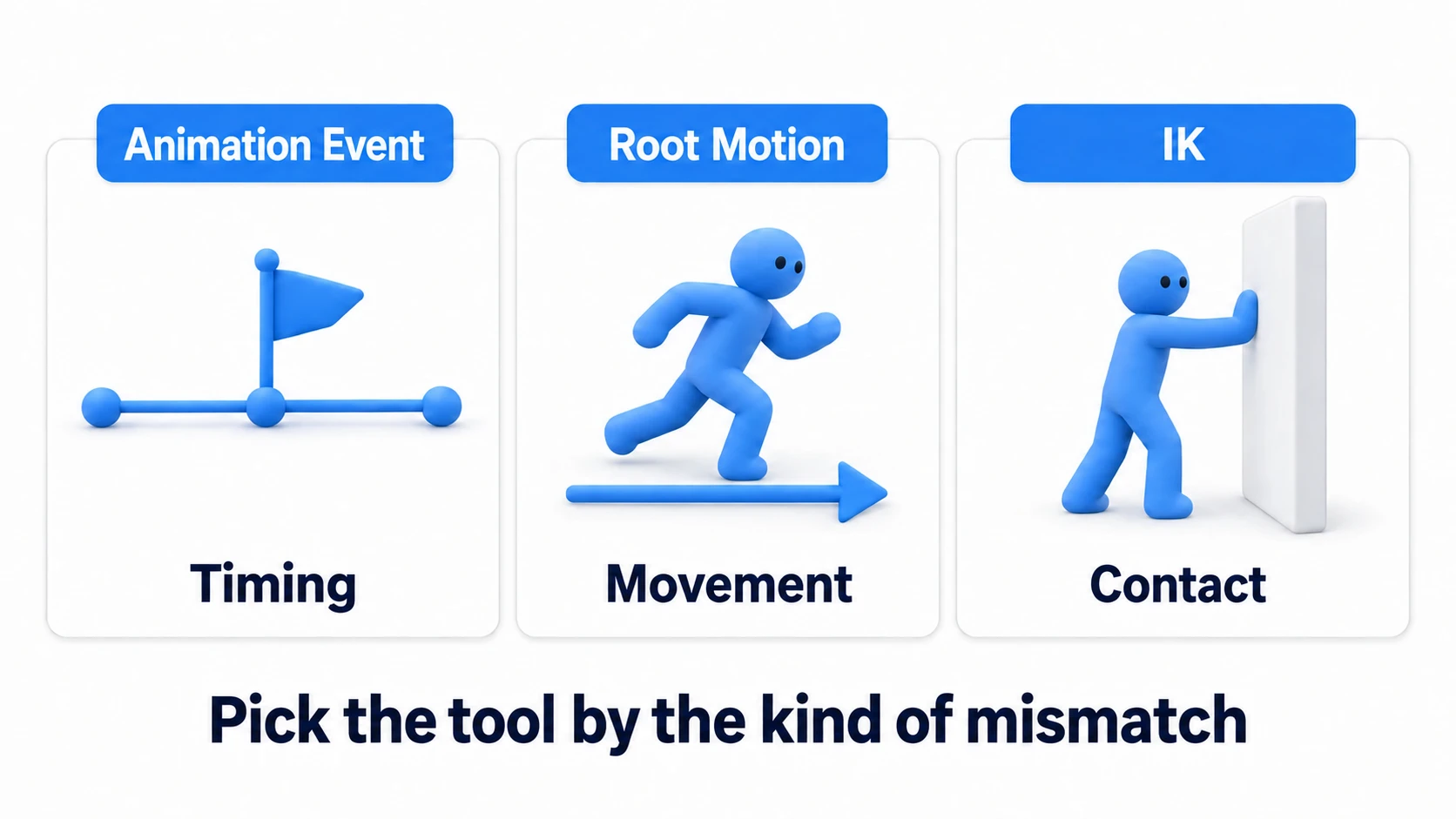
| Tool | What it syncs | Typical uses |
|---|---|---|
| Animation Event | Timing (call code at this instant) | Hit windows, footsteps, VFX |
| Root Motion | Movement (animated distance = character distance) | Lunges, dodge rolls, cinematics |
| IK | Contact (hand/foot position = world object) | Hands on walls, grabbing levers, foot planting |
When unsure which to reach for, name the thing that's out of sync. Timing off? Event. Distance off? Root Motion. Hand position off? IK. The tool picks itself.
Animation Events: call code at the moment
Trying to match "the moment the blade comes down" with code timers breeds magic numbers like WaitForSeconds(0.37f) that break every time you swap the motion. The correct direction is reversed: plant a marker on the motion itself, and call code from there. That's an Animation Event.
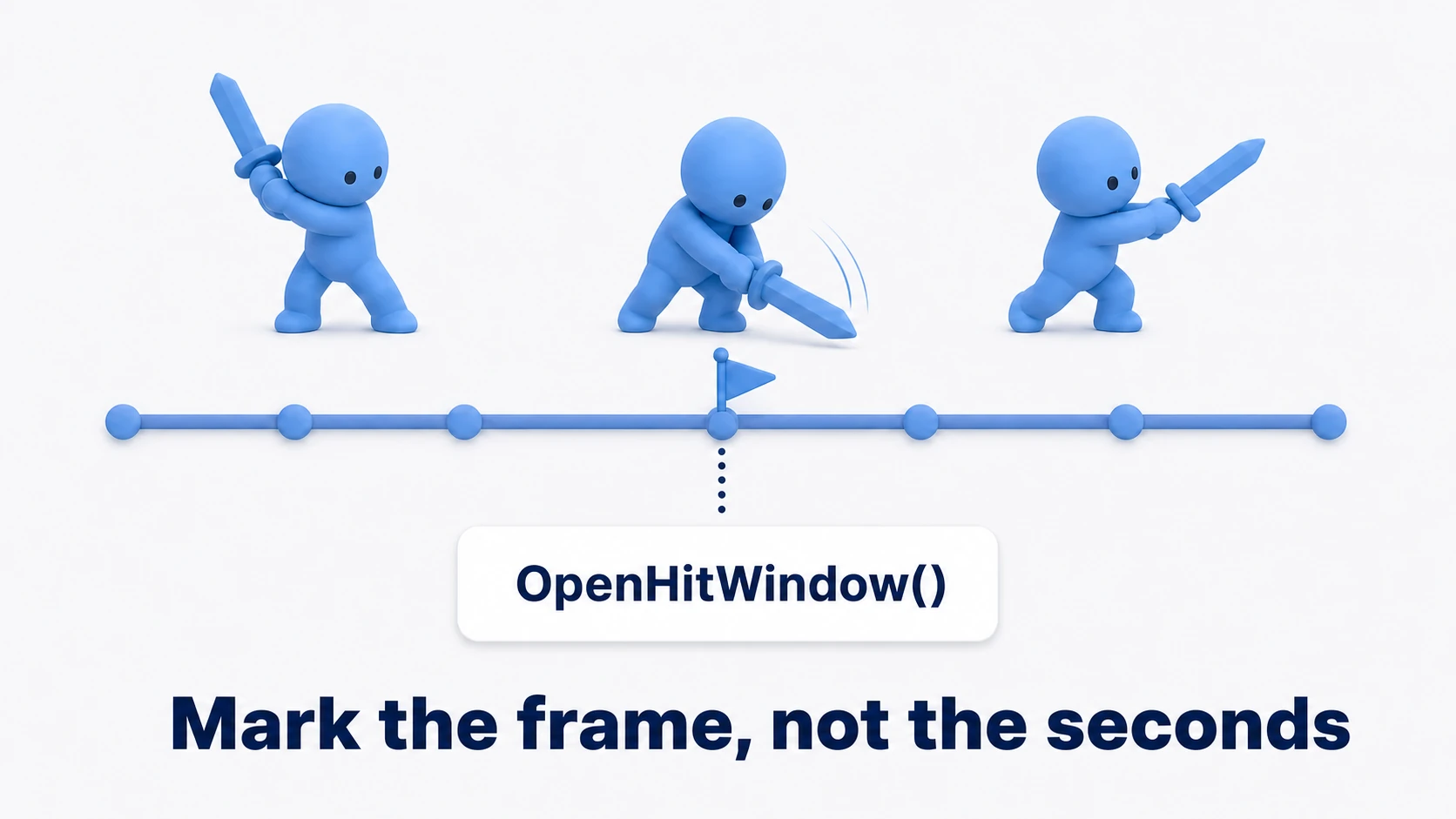
To place one, select the clip and open the Animation window (or the model's Import Settings > Animation tab > Events), press the add event button at the target frame, and type the function name. The receiving side:
// AttackEventReceiver.cs — attach to the same GameObject as the Animator
using UnityEngine;

public class AttackEventReceiver : MonoBehaviour
{
    [SerializeField] private SwordHitbox hitbox;
    [SerializeField] private AudioSource footstepSource;

    // Called from the downswing-start frame
    public void OpenHitWindow()
    {
        hitbox.Swing();
    }

    // Called from the foot-plant frame of the walk cycle
    public void PlayFootstep()
    {
        footstepSource.Play();
    }
}
Two traps live here. The target must be a method on a script attached to the Animator's own GameObject (making it public is the safe choice). And a typo in the function name isn't caught at compile time — you only find out when playback reaches that frame and the Console shows a "has no receiver" error. When "my event doesn't fire," check those two things first.
Recognize SwordHitbox? It's the attack window from the damage systems article — now opened and closed on the motion's actual frames instead of a coroutine's fixed seconds. That's the practical payoff of Animation Events.
Root Motion: hand movement to the animation
Most walk cycles have forward movement baked into them. Root Motion applies that baked movement to the character's actual position, toggled by the Animator's Apply Root Motion.
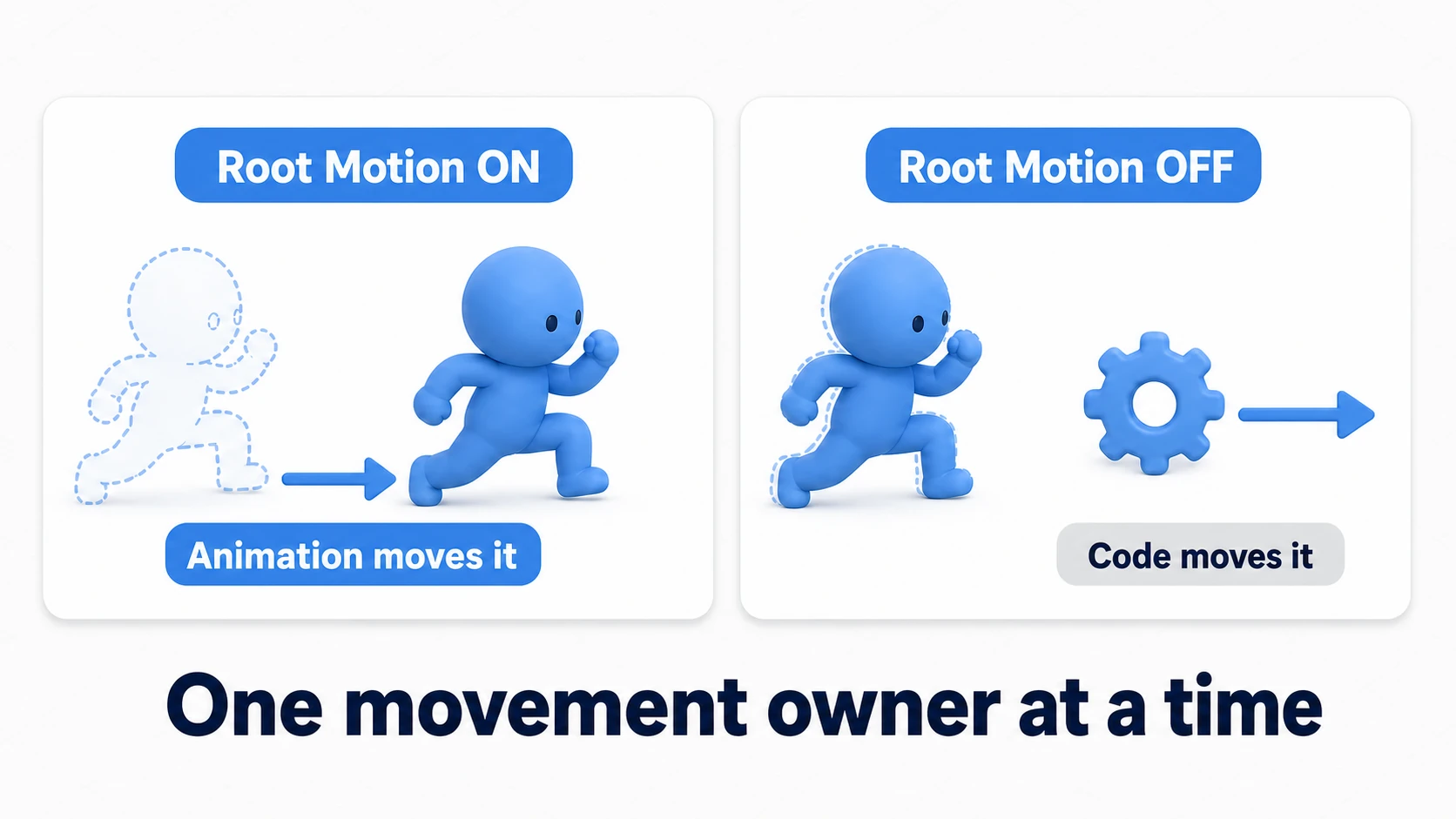
The instinct for choosing:
- On: attack lunges, dodge rolls, finishers — anywhere the animator designed the distance and it must match. Visuals and movement don't diverge
- Off: everyday locomotion — anywhere snappy input response matters. Driving velocity directly through CharacterController or a Rigidbody feels more game-like
And a commonly used option is the hybrid: write OnAnimatorMove() and you receive Root Motion's movement to apply yourself.
// RootMotionReceiver.cs — attach to the same GameObject as the Animator
using UnityEngine;

[RequireComponent(typeof(CharacterController))]
public class RootMotionReceiver : MonoBehaviour
{
    private Animator animator;
    private CharacterController controller;
    private float verticalVelocity;

    void Awake()
    {
        animator = GetComponent<Animator>();
        controller = GetComponent<CharacterController>();
    }

    // Defining this replaces automatic root-motion application
    void OnAnimatorMove()
    {
        // Take the animation-driven movement
        Vector3 delta = animator.deltaPosition;

        // Don't let the animation own height — add gravity ourselves (press down slightly while grounded)
        verticalVelocity = controller.isGrounded ? -1f : verticalVelocity + Physics.gravity.y * Time.deltaTime;
        delta.y = verticalVelocity * Time.deltaTime;

        controller.Move(delta);
        transform.rotation *= animator.deltaRotation;
    }
}
If the character doesn't move forward even with Apply Root Motion on, check Bake Into Pose under Root Transform Position (XZ) in the clip's import settings (the Animation tab). When it's on, the movement is baked into the pose and isn't extracted as Root Motion.
"Horizontal movement follows the animated lunge; gravity and grounding stay in our own system" — the standard recipe for having Root Motion's conviction and code's stability.
IK: fit hands and feet to the world
Animation clips were authored in the world they were recorded in. In your actual game, walls and levers sit at different distances every time — so a "reach out" motion leaves the hand floating centimeters from the target. IK (Inverse Kinematics) closes those last centimeters: give it a goal for the hand, and Unity back-solves the elbow and shoulder so the palm lands exactly.
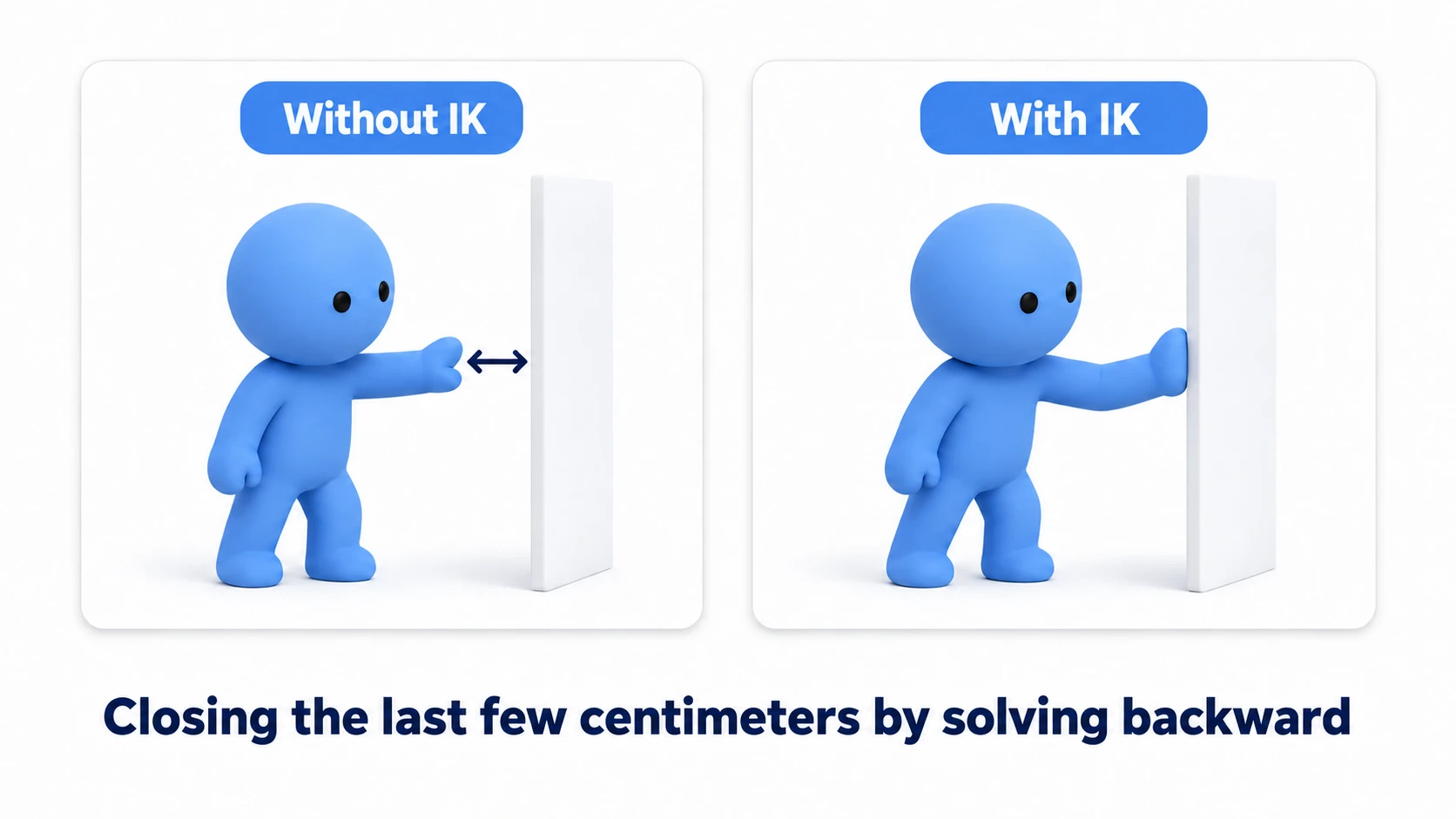
Setup is two items: a Humanoid rig, and IK Pass checked in the target layer's settings (gear icon) in the Animator Controller. Then OnAnimatorIK() starts firing (it isn't called if the Animator's Avatar field is empty).
// HandIK.cs — attach to the same GameObject as the Animator
using UnityEngine;

public class HandIK : MonoBehaviour
{
    [SerializeField] private Transform target;   // what to touch (a point on the wall, etc.)
    [SerializeField, Range(0f, 1f)] private float weight = 1f;

    private Animator animator;

    void Awake()
    {
        animator = GetComponent<Animator>();
    }

    // Runs every frame while IK Pass is enabled
    void OnAnimatorIK(int layerIndex)
    {
        if (target == null) return;

        // Right-hand goal. Weight 0 = pure animation, 1 = fully snapped
        animator.SetIKPositionWeight(AvatarIKGoal.RightHand, weight);
        animator.SetIKPosition(AvatarIKGoal.RightHand, target.position);
    }
}
The trick: never snap weight straight to 1. Interpolate 0→1 over a short time and the hand settles onto the target naturally; interpolate back 1→0 when letting go. Door handles, levers, hands on walls — the credibility of "touching the world" jumps a grade.
Hands-on: build the lunge attack
Combining two of the three — Root Motion and Animation Events — we'll build the action-game staple: the lunge attack. A committed step forward with the swing, and the hit window open only while the blade travels. The soulslike heavy, the musou charge slash, the ARPG combo starter — all this skeleton.
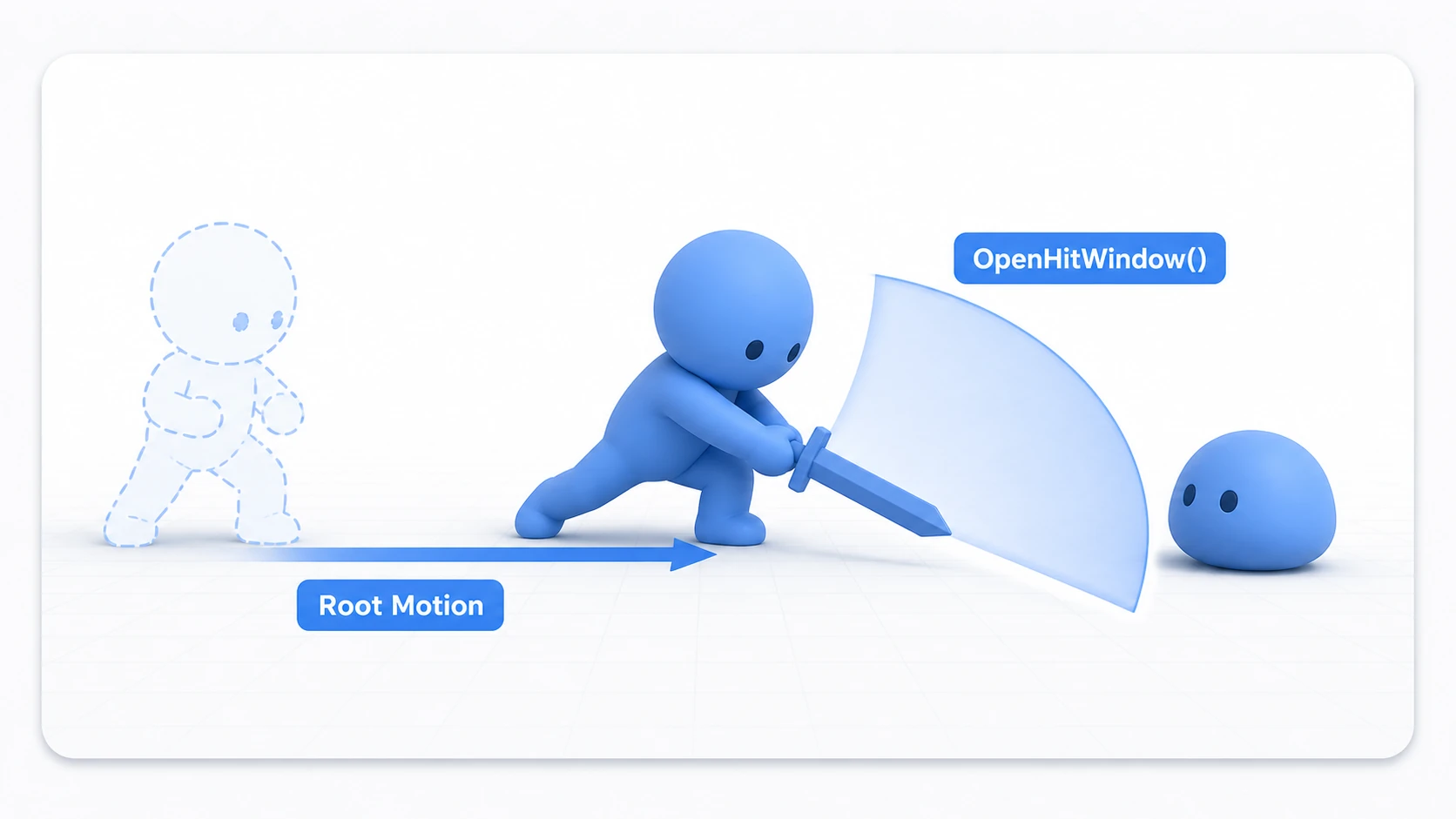
Four steps:
- Let Root Motion drive the attack state: use a clip with the lunge baked in, and route it through
RootMotionReceiverso animation owns horizontal movement. The skating feet you get from "code pushes forward while the attack plays" disappear - Plant two Animation Events on the clip:
OpenHitWindowon the downswing-start frame,CloseHitWindowat the follow-through (add a window-closing method toSwordHitbox). Hit timing is now pinned to real motion frames (for the sword's trigger to react, the player side needs a Rigidbody, as set up in the damage systems article) - Cut movement input during the attack: entering the attack state in your state machine stops normal locomotion and hands position control to Root Motion. One mover at a time — the basic etiquette of Root Motion
- Verify in Play: attack near an enemy — the lunge closes the gap, and HP drops only while the blade travels
Look at what happens without this setup, and the design explains itself. Replace the events with fixed coroutine seconds, then swap in a faster attack clip: the window now opens after the swing has finished. Turn off Root Motion and move by code: the visual lunge and the actual distance disagree, and sliding feet wreck your spacing. Each tool was plugging exactly its own leak.
Two takeaways. Timing lives on the motion (never chase it with code seconds). One movement owner per situation (Root Motion during attacks, code during locomotion — and if you must mix, do it explicitly in OnAnimatorMove).
Bonus: things worth knowing early
- Foot planting (Foot IK): feet sinking into slopes or floating on stairs is a job for foot IK. The built-in state checkbox and curves work, but for serious use the next item is the better home
- The Animation Rigging package: this article's IK is the built-in Humanoid basic. Two-handed weapon grips, head look-at, and full rig control belong to the official Animation Rigging package — the grown-up version of everything here
- Cutscenes belong to Timeline: for "characters moving inside a fixed-length staging," Timeline beats the state machine. The movement-ownership thinking from Root Motion applies there unchanged
Summary
- Pick the tool by the desync: timing = Animation Event, movement = Root Motion, contact = IK
- Animation Events call methods on the Animator's own GameObject — typos aren't caught at compile time, only by a Console error during playback
- Root Motion for lunges, rolls, and staging; code for responsive locomotion;
OnAnimatorMovefor the hybrid - IK needs Humanoid + IK Pass, then
OnAnimatorIK— and interpolate the weight for natural contact - The lunge attack = Root Motion movement + Animation Event windows. No stopwatch code
Is your attack's hit window still counted with WaitForSeconds? Move the marker onto the motion — and swapping animations stops being scary.