You want to move an object, so you write transform.position = targetPosition; — and it instantly teleports to the destination. Every Unity beginner has been there. With direct assignment, both movement and rotation just snap into place, and you never get the smoothness of a professional game.
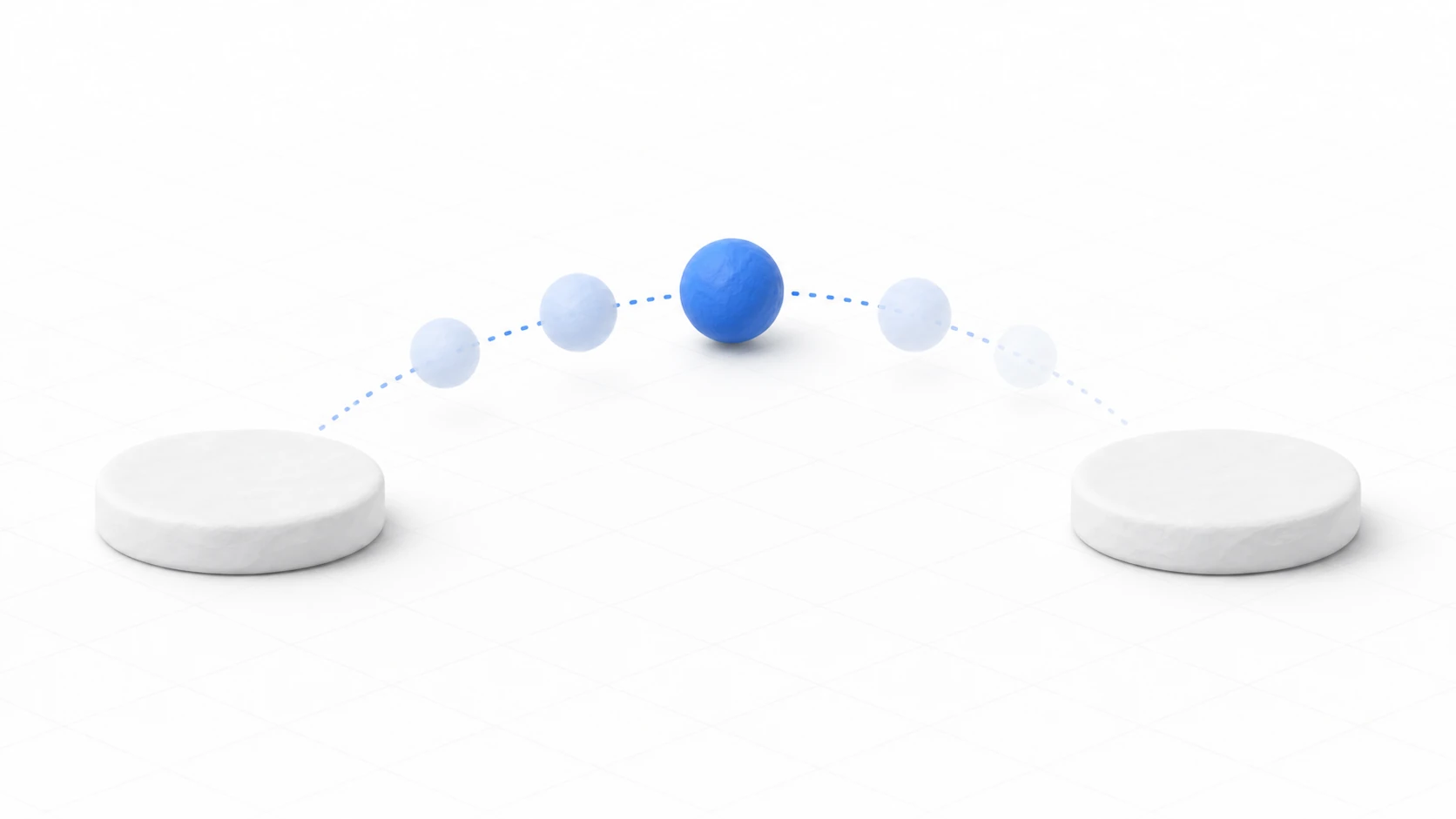
That smoothness comes from two interpolation functions: Lerp and Slerp. In this article, we'll cover how each one works and when to use which, uncover why objects mysteriously slow down as they approach their target, and show you the right tools for constant-speed motion (MoveTowards / RotateTowards).
What You'll Learn
- How
Lerp(A, B, t)works and what the interpolation factortmeans- Why you should use
Slerpinstead of Lerp for rotation- Why objects decelerate as they approach the target ("easing out")
MoveTowards/RotateTowardsfor constant-speed motion
Tested with: Unity 6 (6000.x)
What is Lerp (Linear Interpolation)?
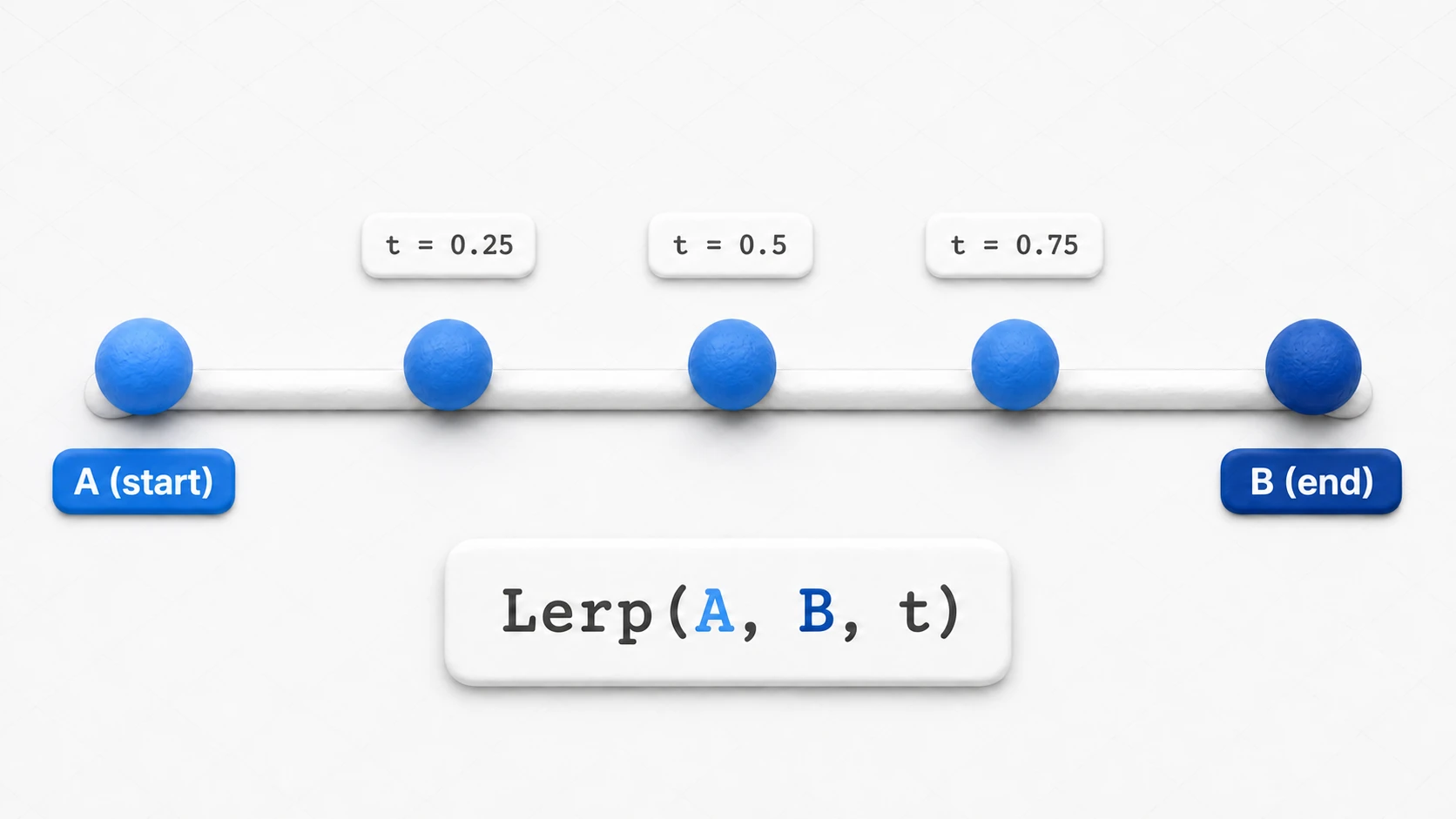
Lerp stands for "Linear Interpolation." It's a calculation that interpolates (fills in) between two values (A and B) along a straight line, based on a specified ratio (t).
Unity provides this function for various types, including Vector3.Lerp, Color.Lerp, and Mathf.Lerp.
Basic function form:
// A: start value, B: end value, t: interpolation factor (0.0f to 1.0f)
result = Lerp(A, B, t);
- When
t = 0.0f, the result isA. - When
t = 1.0f, the result isB. - When
t = 0.5f, the result is exactly halfway betweenAandB.
Lerp is most commonly used wherever you need a linear change — moving objects, transitioning colors, or smoothly changing numeric values.
What is Slerp (Spherical Linear Interpolation)?
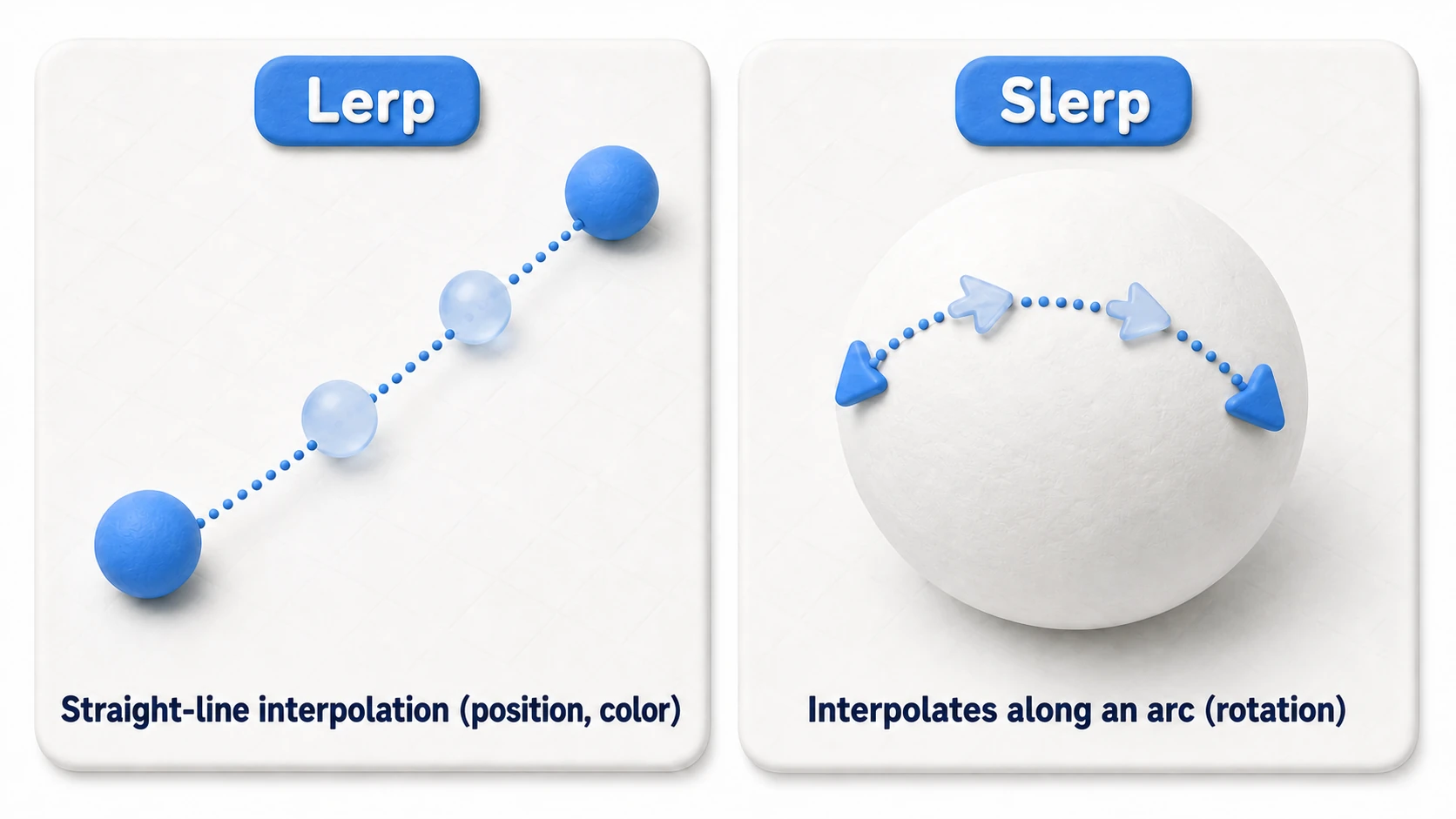
Slerp stands for "Spherical Linear Interpolation." While Lerp connects two points with a straight line, Slerp interpolates along an arc on a sphere.
Slerp is primarily used with Quaternions — in other words, for object rotation.
Why Does Rotation Need Slerp?
Rotation is a change in angle, so it's natural to interpolate along a circular arc rather than a straight line. If you interpolate rotation with Lerp, the angular velocity becomes uneven partway through, which can make the motion look slightly off. Slerp interpolates evenly along the arc, so turning characters and rotating cameras look smooth.
The Key Differences Between Lerp and Slerp
| Feature | Lerp (Linear) | Slerp (Spherical Linear) |
|---|---|---|
| Interpolation path | Straight line | Arc on a sphere |
| Main use | Vector3 (position), Color, float (numbers) | Quaternion (rotation) |
| Sweeping t from 0 to 1 | Moves along the line at constant speed | Rotates along the arc at constant angular velocity |
| Computational cost | Light | Slightly heavier than Lerp (rotation math) |
A Common Beginner Pitfall: Why Does It Slow Down Near the Target?
If you write something like Vector3.Lerp(transform.position, target, 0.1f) inside Update() — moving a fixed fraction of the way from the current position to the target every frame — the object slows down as it approaches the target.
This isn't a property of Lerp itself; it comes from how you use it. Each frame you cover "10% of the remaining distance," so as the remaining distance shrinks, so does each step. The result is fast at first, slow at the end — an effect called easing out.
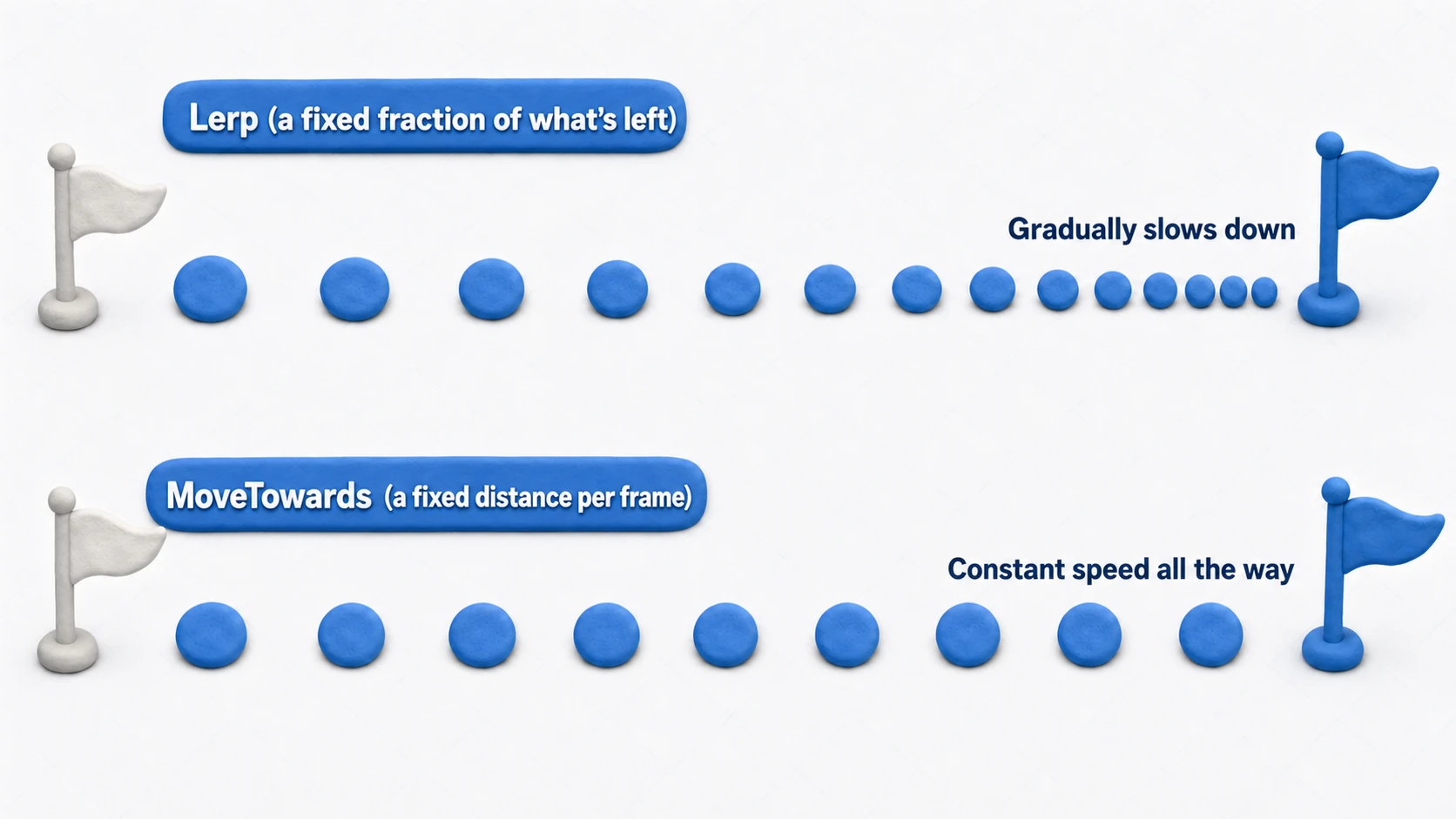
For something like a follow camera, where you want a natural deceleration, this behavior is actually ideal. But it's the wrong tool when you want constant-speed motion — for that, use MoveTowards, covered below.
Practical Examples
Example 1: Smooth Following with Lerp (Easing Out)
This code smoothly moves an object toward a target. You get a natural deceleration animation — slowing down as it approaches the target — with almost no effort.
// File name: LerpFollow.cs
using UnityEngine;

public class LerpFollow : MonoBehaviour
{
    public Transform target;   // The object to follow

    // Follow strength (higher = catches up faster)
    [Range(0.1f, 10f)]
    public float smoothness = 3f;

    void Update()
    {
        if (target == null) return;

        // Move a fixed fraction of the way from the current position to the target each frame.
        // As the remaining distance shrinks, so does each step — a natural deceleration (easing out).
        transform.position = Vector3.Lerp(
            transform.position,
            target.position,
            smoothness * Time.deltaTime);
    }
}
Note: Using
smoothness * Time.deltaTimefortis a very common pattern, but strictly speaking, the deceleration curve varies slightly with frame rate. It's fine for most games, but if you need it to be perfectly consistent,Vector3.SmoothDampis another option.
Example 2: Use MoveTowards for Constant Speed
When you want to specify a speed, like "move toward the target at 3 meters per second," Vector3.MoveTowards is the right answer. It advances a fixed distance each frame and stops dead when it reaches the target.
// File name: ConstantMove.cs
using UnityEngine;

public class ConstantMove : MonoBehaviour
{
    public Transform target;
    public float speed = 3f; // Movement speed (units per second)

    void Update()
    {
        if (target == null) return;

        // Move exactly speed * Time.deltaTime toward the target each frame (constant speed)
        transform.position = Vector3.MoveTowards(
            transform.position,
            target.position,
            speed * Time.deltaTime);
    }
}
Example 3: Smooth Turning with Slerp
Use Slerp for rotation-following behavior, like an enemy character slowly turning to face the player.
// File name: SlerpLookAt.cs
using UnityEngine;

public class SlerpLookAt : MonoBehaviour
{
    public Transform target;

    [Range(0.1f, 10f)]
    public float rotationSmoothness = 5f;

    void Update()
    {
        if (target == null) return;

        // Compute the target rotation for facing the target
        Vector3 direction = target.position - transform.position;
        Quaternion targetRotation = Quaternion.LookRotation(direction);

        // Smoothly rotate from the current rotation toward the target rotation along the arc.
        // Like Example 1, this pattern also eases out (slows down at the end).
        transform.rotation = Quaternion.Slerp(
            transform.rotation,
            targetRotation,
            rotationSmoothness * Time.deltaTime);
    }
}
If you want constant-speed rotation, use Quaternion.RotateTowards (rotate at N degrees per second) — the rotational counterpart of MoveTowards.
Common Mistake: Manipulating Quaternion Values Directly
Unity manages rotation internally with a mathematical structure called a Quaternion. It holds four values — x, y, z, and w — but you should never modify them directly.
To create rotations, use Quaternion.Euler() (convert from Euler angles) or Quaternion.LookRotation() (build from a direction), and for interpolation, use Slerp / RotateTowards. Stick to this combination and you'll rarely need to think about what's inside a Quaternion.
Hands-On: Comparing Three Ways to Move a Follow Camera
To wrap up, let's put everything into a single experiment. The subject: moving a camera toward a goal position. A camera pan in a top-down ARPG, a follow camera in a 2D platformer, a view switch in a racing game — every genre needs this motion. And even though all three approaches "move toward the same goal," how you build t completely changes the character of the motion.
Here's the key premise: Lerp is not a "smoothing function." It's simply a function that returns the point at ratio t between A and B. What determines the motion is how you construct t each frame. The following script is a lab rig that lets you switch between three approaches in the Inspector and compare them.
// File name: CameraFollowLab.cs
using UnityEngine;

public class CameraFollowLab : MonoBehaviour
{
    public enum Mode { FixedTimeLerp, RatioLerp, SmoothDamp }

    public Transform target;          // The goal to move toward (player or boss position)
    public Mode mode = Mode.RatioLerp;

    [Header("For (1) fixed-time Lerp")]
    public float duration = 2f;       // Always arrive in exactly this many seconds
    private Vector3 startPos;
    private float elapsed;

    [Header("For (2) ratio Lerp")]
    public float smoothness = 3f;

    [Header("For (3) SmoothDamp")]
    public float smoothTime = 0.3f;   // Rough "seconds to catch up"
    private Vector3 velocity;         // Velocity memory. MUST be a field (a local variable forgets it every frame)

    void Start()
    {
        startPos = transform.position;
    }

    void LateUpdate()
    {
        if (target == null) return;
        Vector3 goal = target.position + new Vector3(0f, 0f, -10f);

        switch (mode)
        {
            case Mode.FixedTimeLerp:
                // Build t yourself as "elapsed time / duration". At duration seconds, t = 1 and you always arrive
                elapsed += Time.deltaTime;
                transform.position = Vector3.Lerp(startPos, goal, elapsed / duration);
                break;

            case Mode.RatioLerp:
                // Move a fixed fraction from the current position each frame. Soft, but asymptotic (never lands exactly)
                transform.position = Vector3.Lerp(
                    transform.position, goal, smoothness * Time.deltaTime);
                break;

            case Mode.SmoothDamp:
                // Specify "catch up in about smoothTime seconds". Remembers velocity, so even the start is smooth
                transform.position = Vector3.SmoothDamp(
                    transform.position, goal, ref velocity, smoothTime);
                break;
        }
    }
}
Switch between the three modes in Play mode and the difference in character becomes obvious:
- (1) Fixed-time Lerp: Arrives exactly at
durationseconds, dead on. Ideal for "fixed-length" presentation moments like a boss-entrance camera pan or a cutscene - (2) Ratio Lerp: Fast out of the gate, softly decelerating at the end. But since it only covers "a fixed fraction of the remaining distance" each frame, in theory it never fully arrives (visually, it appears to stop)
- (3) SmoothDamp: Remembers its velocity, so it's smooth from the very start even when the goal moves. You tune it in the intuitive unit of "catch up in about
smoothTimeseconds" — the standard choice for follow cameras
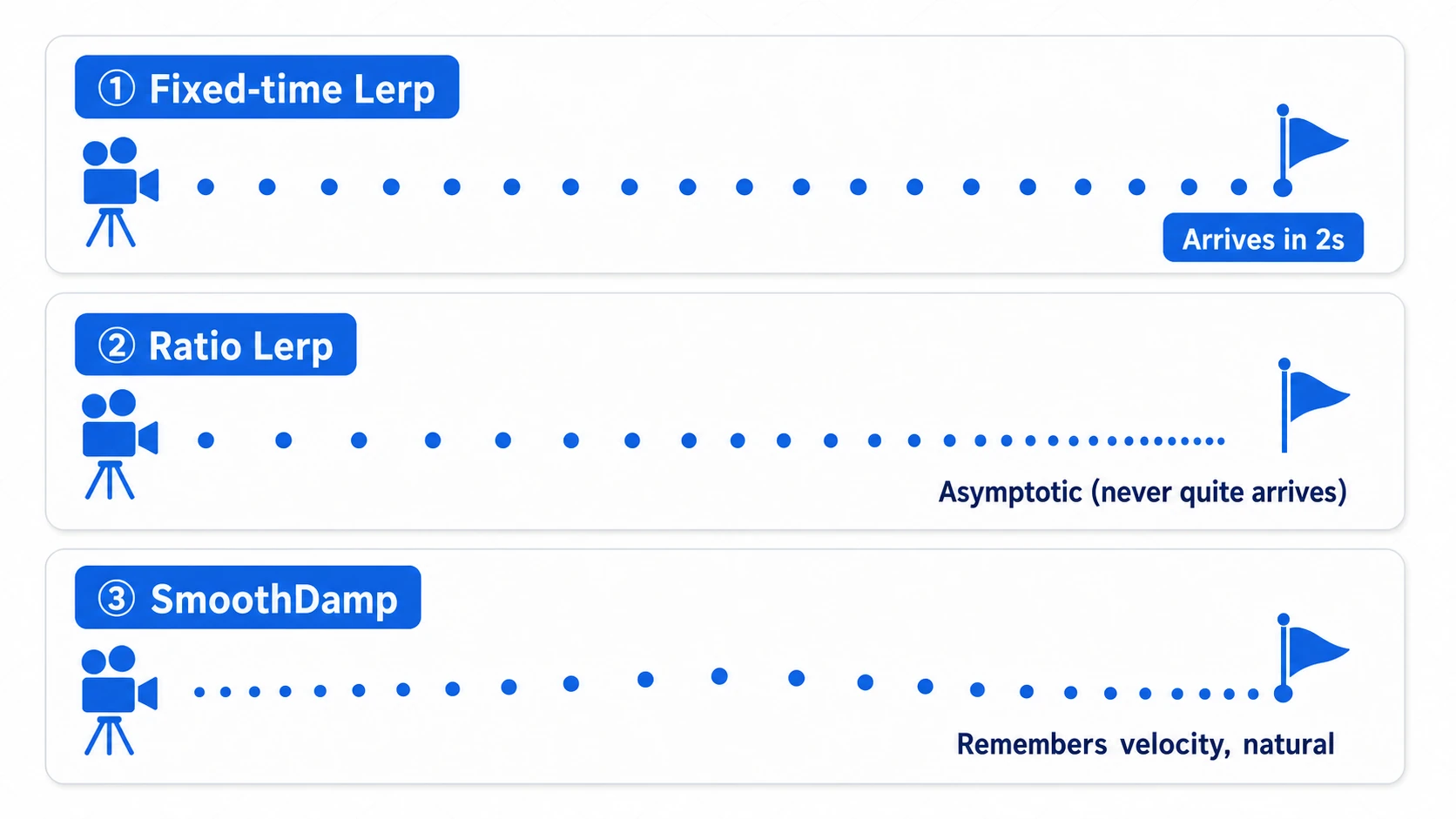
As a final check, set Application.targetFrameRate to 30, 60, and 120 and play (it may not take effect while VSync is on in the Game view). Modes (1) and (3) keep essentially the same motion; mode (2)'s deceleration curve shifts slightly (harmless in most games — as the note says, switch to SmoothDamp if you need it consistent).
Once the experiment is done, pick one movement from your own game and decide which tool builds it. A cutscene with a fixed duration calls for the fixed-time Lerp; following a target that keeps moving calls for SmoothDamp; rotation calls for Slerp. If you can choose based on the personality you just watched — reasons included — you've graduated from this article.
Bonus: Good to Know for Later
Once you're comfortable with interpolation, these topics are worth exploring next.
- Check arrival with a threshold: Mode (2)'s ratio Lerp is asymptotic, so
if (transform.position == goal)rarely becomestrue(Unity's==treats tiny differences as equal, so it may happen to, but you can't count on it). For "do something on arrival," use a threshold likeVector3.Distance(transform.position, goal) < 0.01f. - Understanding Quaternions themselves: "Why does rotation need four values?" and "What is gimbal lock?" are covered in the Quaternion article.
- Fundamentals of movement in Update: Why you multiply by
Time.deltaTimeand how it relates to frame rate are covered in the Update vs FixedUpdate article — a solid foundation for everything here. - Richer animation curves: For complex motion like "start slow, accelerate, then decelerate," draw an
AnimationCurvein the Inspector and feedcurve.Evaluate(t)intot— you get complete freedom. Tween libraries (such as DOTween) are another popular choice.
Summary
This article took a deep dive into Lerp and Slerp, the two pillars of smooth motion in Unity.
- Lerp (linear interpolation) is for linear changes like position and color.
- Slerp (spherical linear interpolation) is for Quaternions (rotation), smoothly interpolating along an arc on a sphere.
- Moving a fixed fraction of the way from the current value to the target each frame produces easing out (gradual deceleration). This comes from how you use Lerp/Slerp, not from the functions themselves.
- For constant-speed motion, use
Vector3.MoveTowards/Quaternion.RotateTowards. - The basic recipe for avoiding choppy motion is to approach the target a little bit each frame inside
Update, instead of assigning values directly.
"Want a decelerating follow? Use Lerp/Slerp. Want to set a speed? Use MoveTowards/RotateTowards." Master this distinction, and your game's motion will feel a whole level smoother.