Tested with: Unity 6 (6000.x) — migration table current as of 2026-10-10
You followed the tutorial word for word, yet a yellow warning appears in the Console. You pasted code from an AI assistant and got told it's "obsolete" — nothing is broken, but it feels unsettling. The cause is often not a mistake in your code, but simply that your reference material is out of date.
Unity has been evolving for nearly 20 years, so articles, videos, and AI training data on the internet are full of deprecated (Obsolete) APIs. This article explains how deprecation works, provides a migration table of old-vs-new APIs you'll commonly run into in the Unity 6 era, and shows how to investigate warnings for APIs you don't recognize. Bookmark it and use it like a dictionary.

What You'll Learn
- How deprecation (Obsolete) works, and the stages from warning to removal
- A migration table for common APIs like
FindObjectOfTypeandRigidbody.velocity- How to find the replacement API on your own from the warning message
- A safe migration routine: fix one warning and verify the behavior stays the same
- Tips for dealing with outdated information (articles, videos, AI output)
Why Do APIs Become "Old"?
Every time Unity improves a feature, it doesn't delete the old API outright — it retires it in stages.
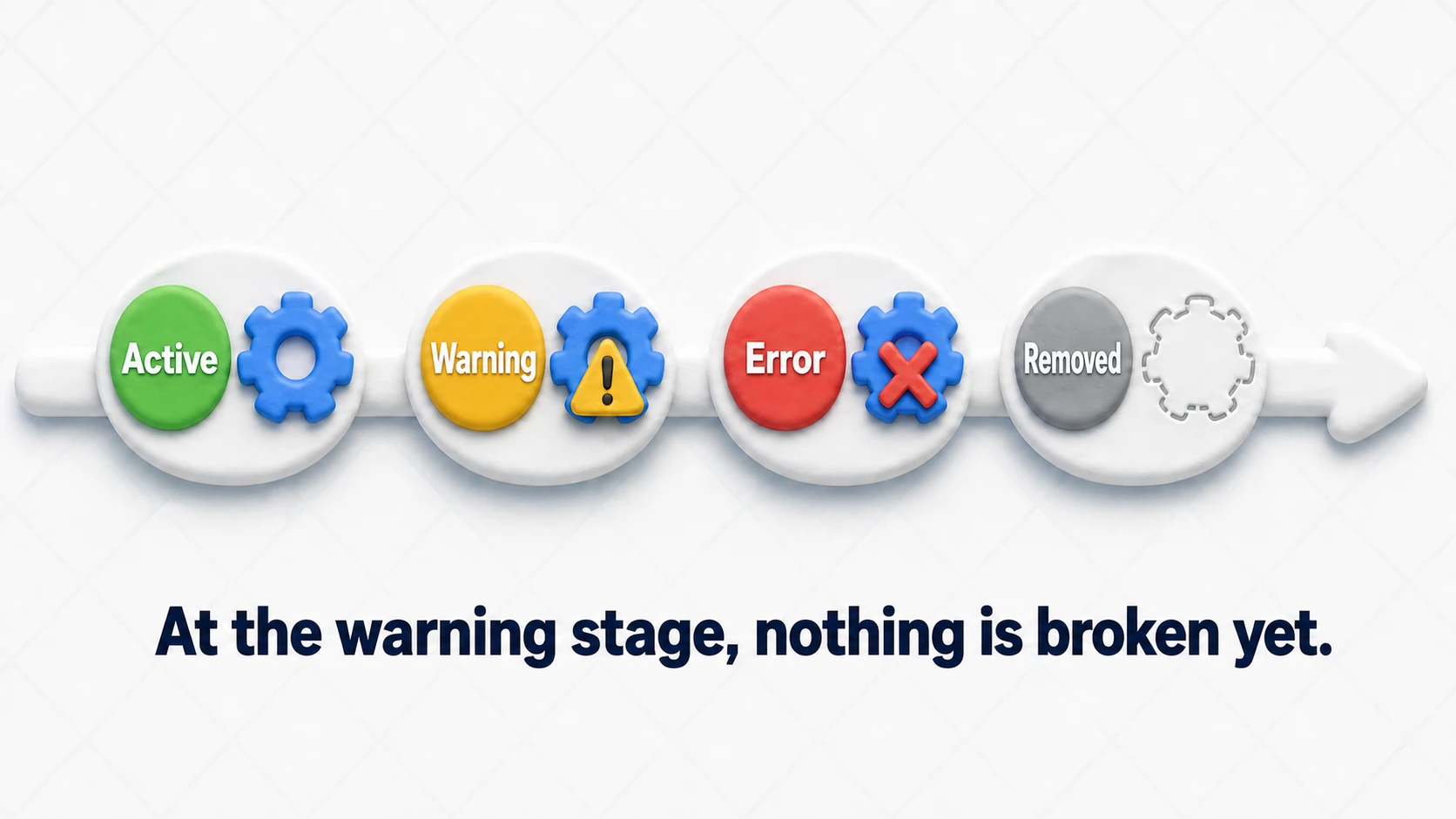
- Active: Works normally
- Deprecated (warning): Marked with the
[Obsolete]attribute; using it triggers a yellow warning. Still works - Deprecated (error): Becomes a compile error. You can't build until you rewrite it
- Removed: The API itself is gone
Some APIs jump straight to an error, and some stay at the warning stage for a long time, but most follow this order. In other words, a yellow warning means "nothing breaks right now, but start packing for the move". There's no need to panic, but there's also no reason to use the old API in new code.
Migration Table for Common APIs
Here are the APIs beginners are most likely to encounter in old tutorials, roughly ordered from most to least common.
| Old way | New way | Notes |
|---|---|---|
FindObjectOfType<T>() | FindFirstObjectByType<T>() | If any instance will do, FindAnyObjectByType<T>() is faster |
FindObjectsOfType<T>() | FindObjectsByType<T>(FindObjectsSortMode.None) | A sort mode is now required. None is fastest but the order is not guaranteed (see the hands-on section) |
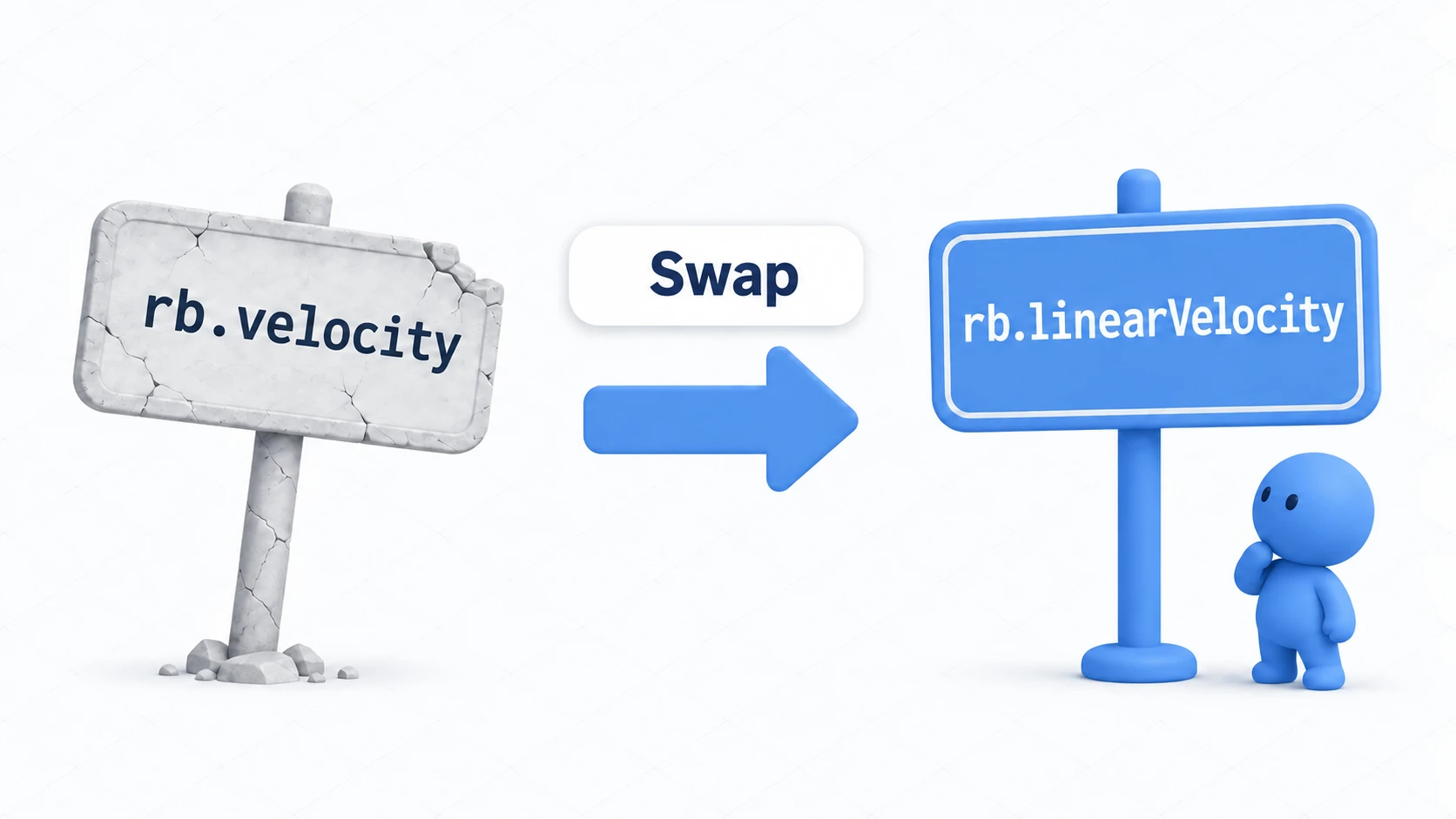
Rigidbody.velocity | Rigidbody.linearVelocity | Renamed in Unity 6. The 2D version is also linearVelocity |
Input.GetKey etc. (legacy Input) | New Input System | The legacy system still coexists for now. For migration, see the New Input System article |
WWW | UnityWebRequest | The previous generation of networking APIs; deprecated for a long time |
Application.LoadLevel() | SceneManager.LoadScene() | Requires using UnityEngine.SceneManagement;. See the SceneManager article |
File > Build Settings | File > Build Profiles | A menu change, not an API change (Unity 6) |
Note that Unity 6.4 changed the Find family once more. FindFirstObjectByType and the FindObjectsByType overload that takes FindObjectsSortMode are now deprecated too; from 6.4 on, the replacements are FindAnyObjectByType<T>() and the no-argument FindObjectsByType<T>(). If the replacement in the table warns again, check your Unity version (a number like 6000.4).
// The pattern you'll often see in old tutorials
GameManager gm = FindObjectOfType<GameManager>();   // Triggers a warning
rb.velocity = new Vector3(0f, 5f, 0f);              // Triggers a warning

// The Unity 6 way
GameManager gm = FindFirstObjectByType<GameManager>();
rb.linearVelocity = new Vector3(0f, 5f, 0f);
Note: The
FindFirstObjectByTypefamily is still an "expensive operation that searches the entire scene", just like the old API. The fundamentals — call it once inStartand cache the result instead of calling it every frame, or rethink how references are wired in the first place — are covered in the GetComponent article and the event channels article.
How to Investigate a Warning
Even if you hit a warning for an API not in this table, you can solve it yourself. There are only two steps.
Step 1: Read the warning message to the end
An Obsolete warning almost always spells out the name of the replacement API.
warning CS0618: 'Object.FindObjectOfType<T>()' is obsolete:
'Object.FindObjectOfType has been deprecated. Use Object.FindFirstObjectByType
instead or if finding any instance is acceptable the faster
FindAnyObjectByType'
The only part you need is the Use ... instead sentence. That one line is the official answer.
Step 2: Verify it in the official Scripting Reference
Search for the replacement API's name in the official Unity Scripting Reference to confirm exactly how to use it and which versions it applies to. Make it a habit to go "old blog post → check the current state in the official reference", and outdated information will stop leading you astray.
Note: AI assistants can also suggest old APIs, depending on when they were trained. A safe two-step approach is to specify "use current Unity 6 APIs" in your prompt, then verify any API name it gives you against the official reference.
Hands-On: Migrate One Warning, Behavior Included
Knowing the migration table and actually migrating safely are two different skills. Let's practice on a script copied from an old tutorial — the kind that finds all enemies at the start of a wave and hands out numbered tags, a shape you'll see in tower defense and shoot-'em-ups alike.
// Code from an old tutorial (triggers a warning)
void StartWave()
{
    Enemy[] enemies = FindObjectsOfType<Enemy>();
    for (int i = 0; i < enemies.Length; i++)
    {
        enemies[i].SetNumber(i + 1);  // Hand out tags: No. 1, 2, 3... from the front
    }
}
Here's the routine:
- Double-click the yellow warning in the Console to jump to the line
- Read the
Use ... insteadpart of the message — here it'sFindObjectsByType - Rewrite it per the migration table
- Press Play and verify the behavior is the same — this is the real work
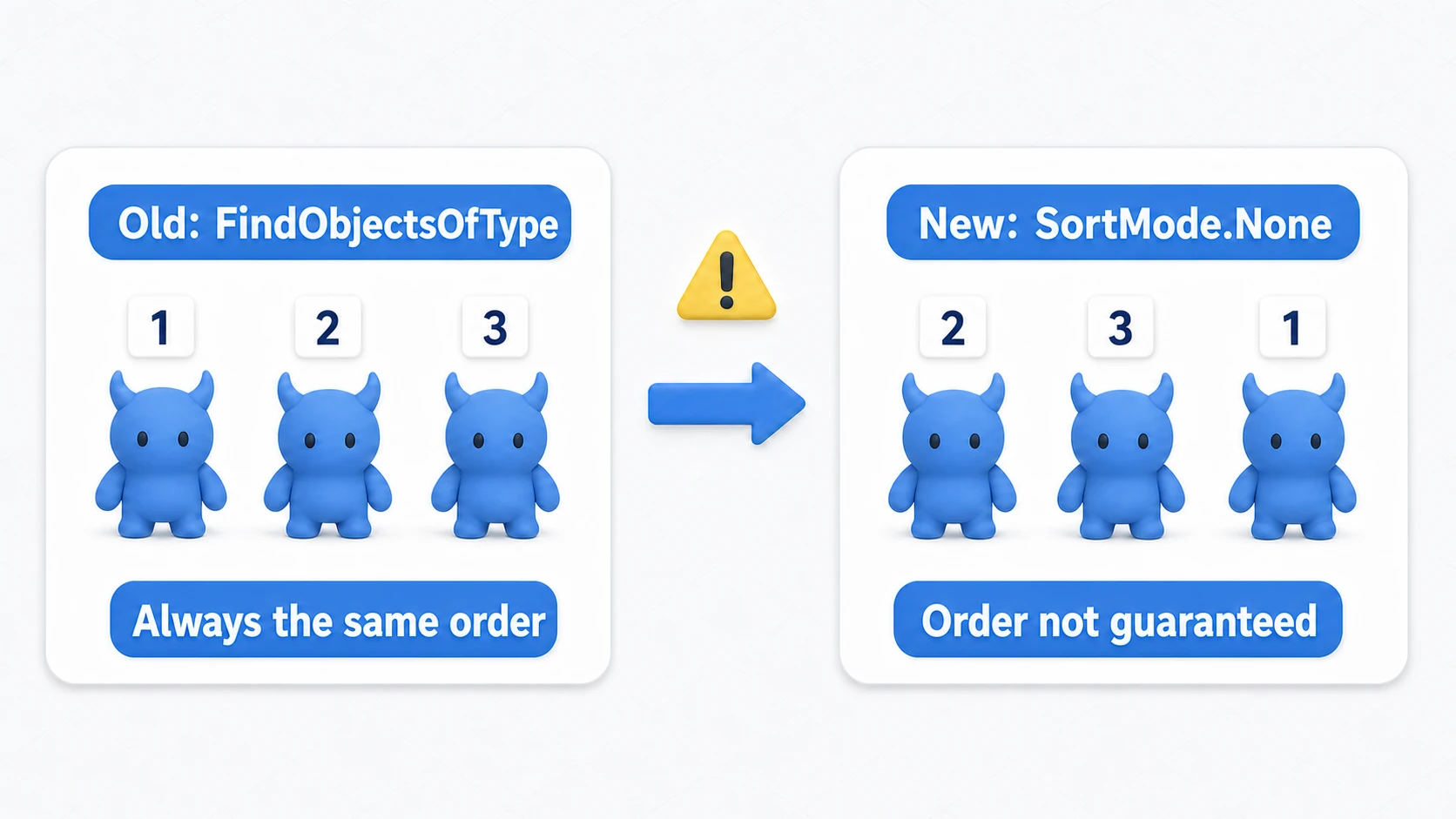
Here's the thing: making the warning disappear doesn't finish this migration. The old FindObjectsOfType returned results sorted by InstanceID, but the replacement's FindObjectsSortMode.None guarantees no order at all. "Enemy No. 1" can be a different individual on every run — the warning is gone, yet the behavior changed. A quiet accident. If the order carries meaning, say so explicitly:
// If order matters, request the same ordering the old API used
Enemy[] enemies = FindObjectsByType<Enemy>(FindObjectsSortMode.InstanceID);
From Unity 6.4 on, the overload that takes a SortMode is deprecated, so if order matters, sort the results yourself after fetching them, by a rule you choose such as the name.
A migration is complete not when "the warning disappeared" but when "I verified the same behavior". Internalize this one-warning routine, and you can walk any API not in the table through the same safe move.
Bonus: Good to Know for Later
Once you're comfortable with the basics of migrating APIs, these topics will come in handy next.
- The API Updater, your ally when migrating projects: When you open an old project in a newer Unity version, the API Updater automatically offers to rewrite old APIs that can be replaced mechanically. It's not a silver bullet, though, so manual migration knowledge like this article covers is still necessary.
- Check the Changelog before upgrading: Engine updates can change behavior. Before a major version upgrade, get in the habit of skimming the "API Changes" section of the official Upgrade Guide / Changelog — it prevents accidents.
- LTS as an option: If stability matters most, the standard move is to use the LTS (Long Term Support) release, which stops adding features and only receives fixes. Especially while you're learning, a well-documented, stable LTS can be more comfortable than the flashy features of the latest release.
- Check automatically that nothing broke: write tests like "there should be three enemies" before upgrading, and you'll notice behavior changes right away (Unity Test Framework).
Summary
Warnings aren't your enemy — they're a signpost saying "there's a better way to write this".
- APIs retire in stages: active → warning → error → removed. At the yellow-warning stage, nothing is broken yet.
- The most common migrations are
FindObjectOfType→FindFirstObjectByTypeandvelocity→linearVelocity. Use this article's table as your dictionary. - For unfamiliar warnings, two steps solve it: read the
Use ... insteadpart of the message → verify it in the official reference. - A migration is done when you've verified the same behavior, not when the warning disappears. Places where behavior changes silently — like result ordering — are exactly what to check in Play mode.
- Old articles, videos, and AI output aren't "wrong" — they were correct at the time. The strongest defense is the habit of checking the current state in the official reference.
We'll keep adding to the migration table in this article as Unity continues to update.