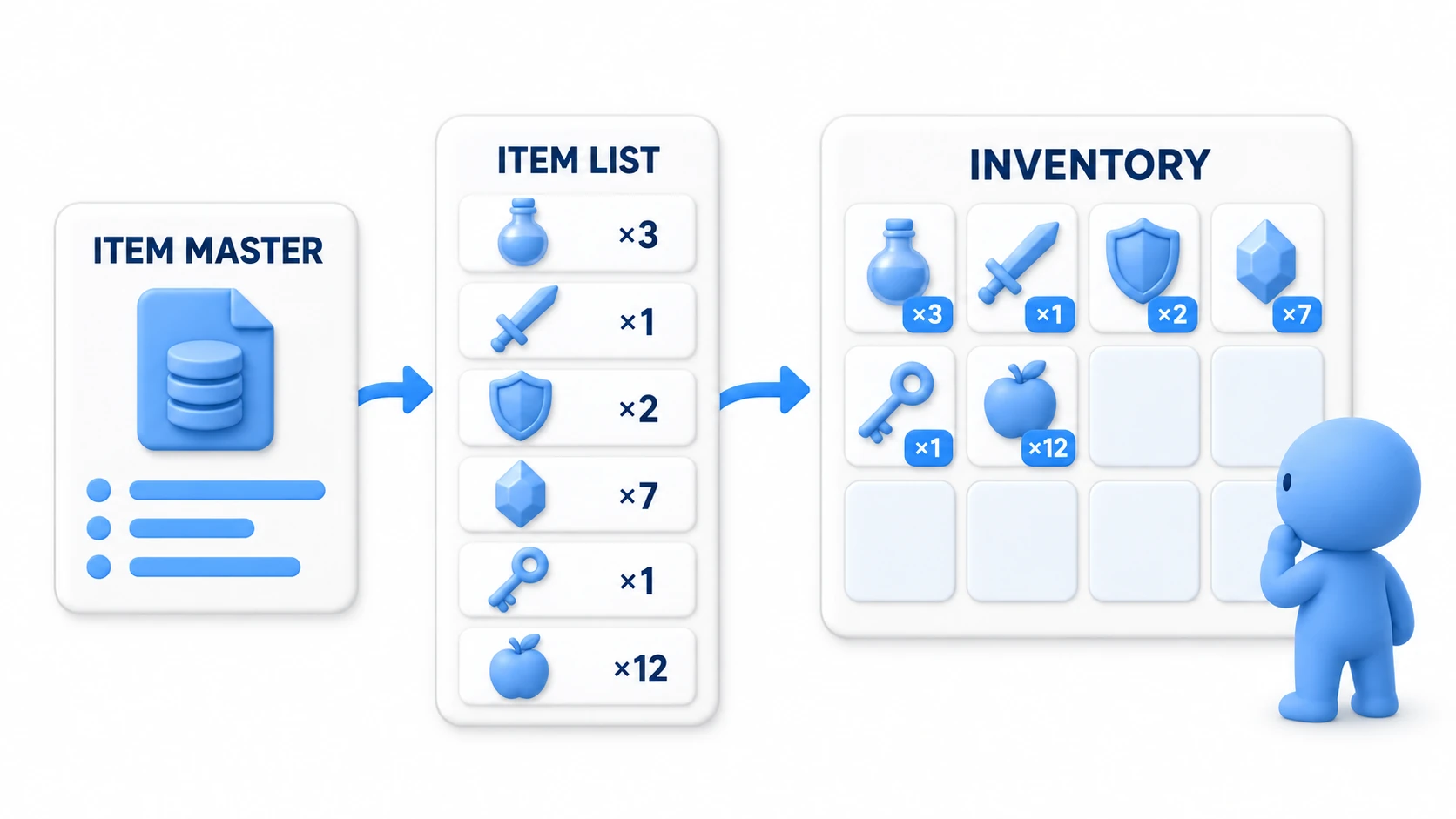
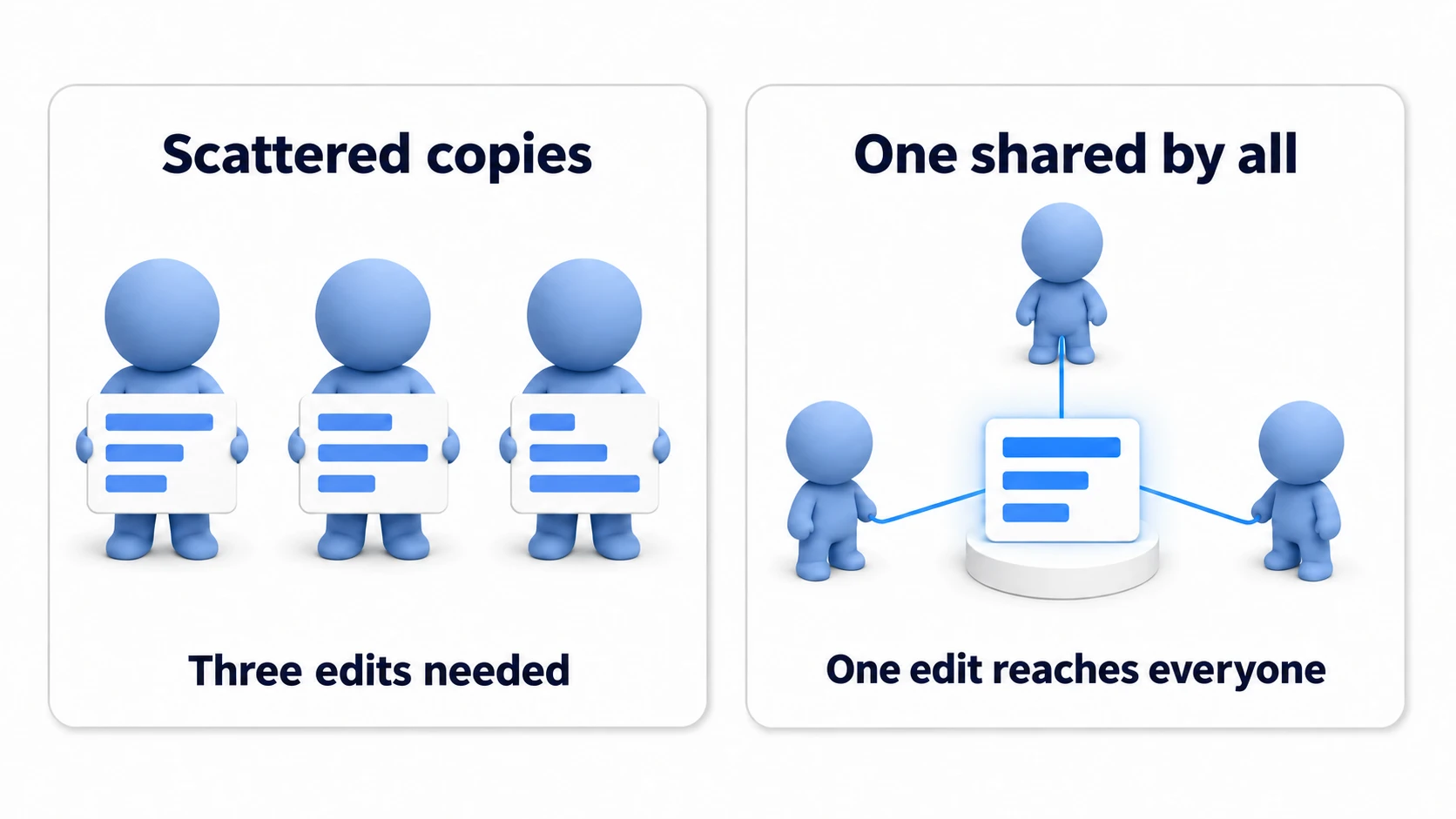
"I want to tune the goblin's HP to 80. …Wait, do I have to fix the goblin, the goblin archer, and the goblin captain Prefabs one by one?"—if you write enemy stats and item info directly into MonoBehaviour fields, you'll always hit this wall once your Prefabs branch out. The data gets copied once per Prefab and drifts apart, and one tweak turns into many fixes.
What solves this problem at its root is the ScriptableObject. Hold your data as a single "asset independent of the scene" and have everyone reference it—tune once, and it applies to everyone. This article covers everything from the basic concept of ScriptableObjects to data-driven design and applications as an event system.

What You'll Learn
- A ScriptableObject is a "data asset" independent of any scene
- Creating assets with
[CreateAssetMenu]and managing master data- Sharing one piece of data across everything — eliminating duplication, missed edits, and wasted memory
- A common pitfall — don't overwrite master data at runtime
- Advanced usage: leveraging ScriptableObjects as GameEvents (event channels)
Tested with: Unity 6 (6000.x)
What Is a ScriptableObject? Understanding the Basics
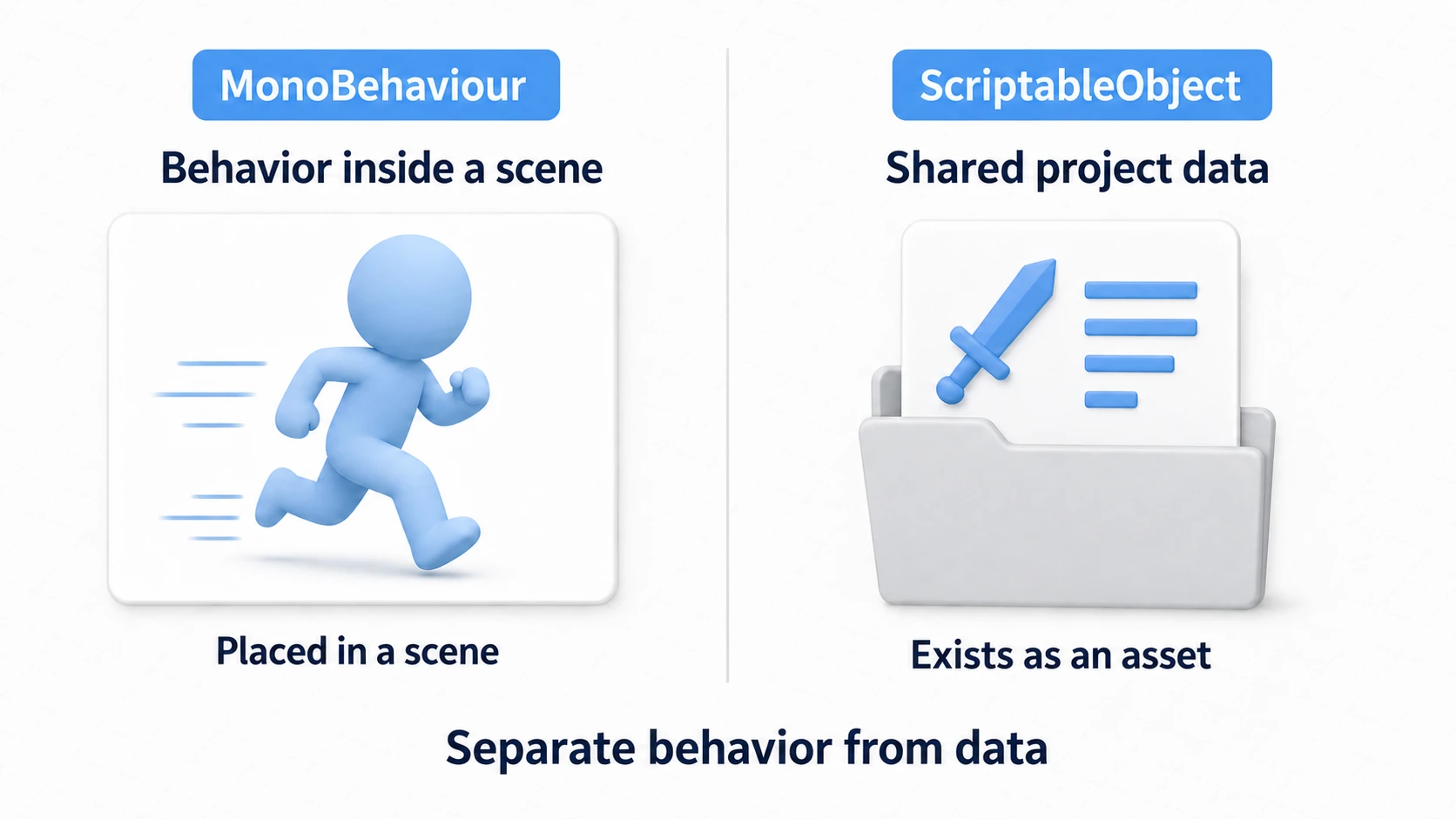
A ScriptableObject is a special Unity class designed to store data only. While a MonoBehaviour defines the behavior of an object in a scene, a ScriptableObject defines shared data at the project level.
Its most important characteristic is that a ScriptableObject instance is saved as an asset in your project and exists independently of any scene. This lets you fully separate data from logic (MonoBehaviours) and efficiently share the same data across multiple components.
How to Create a ScriptableObject
To create a ScriptableObject, first write a C# script that inherits from the ScriptableObject class. Then add the [CreateAssetMenu] attribute above the class definition so you can easily create assets from the Unity editor menu.
// Assets/Scripts/ItemData.cs
using UnityEngine;

// Adds "Create/Game Data/Item Data" to the Unity editor menu
[CreateAssetMenu(fileName = "NewItemData", menuName = "Game Data/Item Data")]
public class ItemData : ScriptableObject
{
    // Item name
    public string itemName = "Default Item";
    // Item description
    [TextArea]
    public string description = "A standard item.";
    // Item attack power
    public int attackPower = 10;
    // Item icon (Sprite)
    public Sprite itemIcon;
}
After saving this script, right-click in the Project window of the Unity editor and choose "Create" → "Game Data" → "Item Data" to create a new asset file of type ItemData (with the .asset extension). This asset becomes the "master data" for your game.
By structuring the menuName of the [CreateAssetMenu] attribute thoughtfully, you can keep your project assets organized. For example, nesting them under a hierarchy like "Game Data/" works well.
Achieving Data-Driven Design
The real power of ScriptableObjects lies in enabling data-driven design — an architectural approach where game behavior is controlled by data rather than code.
1. Sharing and Referencing Data
Reference the ItemData asset you created from a MonoBehaviour that actually uses it in the game.
// Assets/Scripts/Item.cs
using UnityEngine;

public class Item : MonoBehaviour
{
    // Reference to the ScriptableObject
    [SerializeField]
    private ItemData data;

    // Called when the item is used
    public void Use()
    {
        Debug.Log($"Used {data.itemName}. Attack power is {data.attackPower}.");
        // Actual game logic (e.g., modifying the player's stats)
    }

    // Property for external access to the data (optional)
    public ItemData Data => data;
}
Attach this Item component to a GameObject, then drag and drop the ItemData asset you created into the field in the Inspector.
Even with multiple MonoBehaviour instances (GameObjects), there is only one referenced ItemData asset. The data is shared, which improves memory efficiency.
2. Centralized Data Management
For example, if you want to change a sword's attack power from 10 to 15, you only need to edit the ItemData asset once, and the change propagates to every Item component that references it. This directly improves maintainability.
3. A Common Pitfall
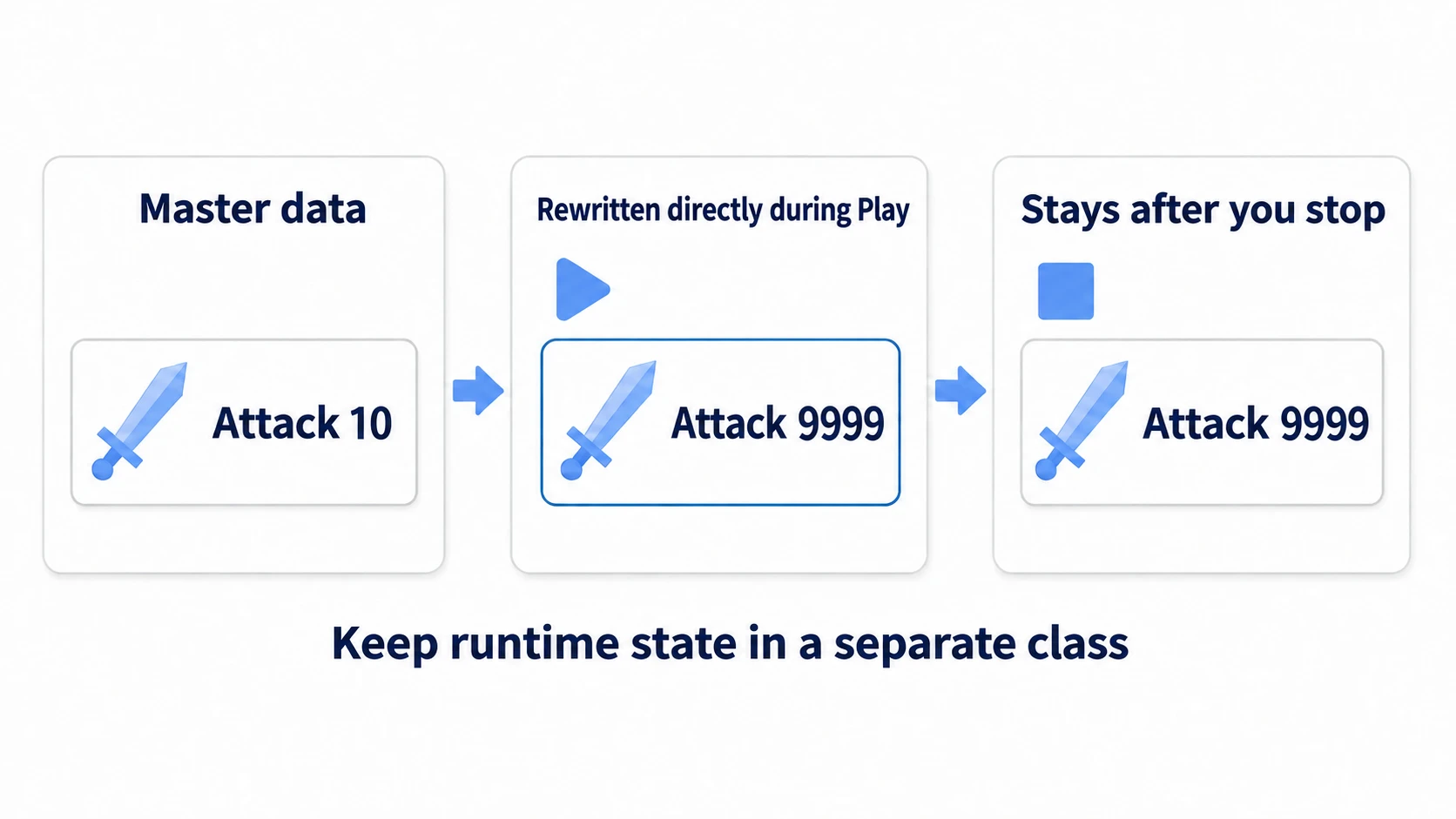
A common mistake is overwriting ScriptableObject data directly through the Inspector of a GameObject in the scene. This modifies the master data itself and can cause unintended behavior. Treat master data as immutable by default, and manage runtime state in a separate class.
Advanced: Using ScriptableObjects as an Event System
ScriptableObjects aren't limited to static data storage — they also make powerful "data containers" for managing in-game events and state. This is especially useful for small to mid-sized solo projects, where it saves you the effort of building a complex event system from scratch.
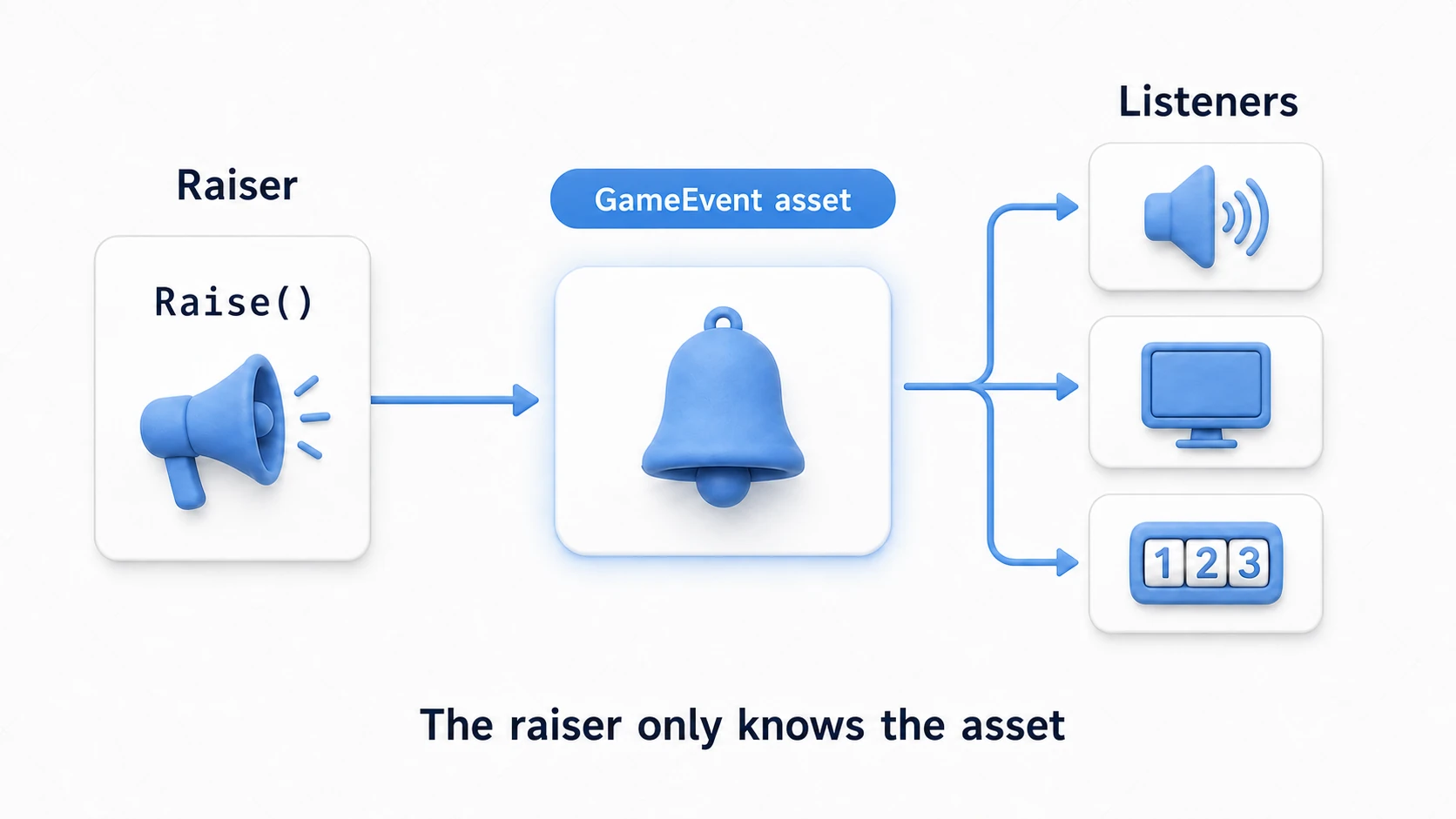
Creating a GameEvent
Create a ScriptableObject that broadcasts a specific event (e.g., "the player took damage" or "the score was updated").
// Assets/Scripts/GameEvent.cs
using UnityEngine;
using System.Collections.Generic;

[CreateAssetMenu(fileName = "NewGameEvent", menuName = "Game Data/Game Event")]
public class GameEvent : ScriptableObject
{
    // List of listeners subscribed to this event
    private readonly List<GameEventListener> listeners = new List<GameEventListener>();

    // Fires the event
    public void Raise()
    {
        // Iterating in reverse keeps this safe even if listeners
        // are removed from the list during execution
        for (int i = listeners.Count - 1; i >= 0; i--)
        {
            listeners[i].OnEventRaised();
        }
    }

    // Registers a listener
    public void RegisterListener(GameEventListener listener)
    {
        if (!listeners.Contains(listener))
            listeners.Add(listener);
    }

    // Unregisters a listener
    public void UnregisterListener(GameEventListener listener)
    {
        if (listeners.Contains(listener))
            listeners.Remove(listener);
    }
}
Creating a GameEventListener
Create a MonoBehaviour (listener) that receives the event.
// Assets/Scripts/GameEventListener.cs
using UnityEngine;
using UnityEngine.Events;

public class GameEventListener : MonoBehaviour
{
    // The event asset to subscribe to
    public GameEvent Event;
    // The UnityEvent invoked when the event fires
    public UnityEvent Response;

    private void OnEnable()
    {
        // Register with the event when the object becomes active
        Event.RegisterListener(this);
    }

    private void OnDisable()
    {
        // Unregister from the event when the object becomes inactive
        Event.UnregisterListener(this);
    }

    // Called when the event fires
    public void OnEventRaised()
    {
        Response.Invoke();
    }
}
How to Use It
- Create a
GameEventasset (e.g.,PlayerDiedEvent.asset). - At the point where you want to fire the event (e.g., when the player's HP hits 0), call
PlayerDiedEvent.Raise(). - Attach a
GameEventListenercomponent to the GameObject that should receive the event, and assignPlayerDiedEvent.assetto itsEventfield. - In the
Responsefield, configure the method to run when the event fires (e.g., showing the game-over screen) from the Inspector.
With this setup, the event source and its handlers no longer need direct references to each other, letting you build loosely coupled, flexible systems.
Practical: Building a Weapon Database
An RPG's weapon list, a roguelite's relics, a tower-defense game's tower types—managing "things whose variety keeps growing" is where ScriptableObjects feel best. Here, let's build a weapon database that starts from three types: sword, bow, and staff.
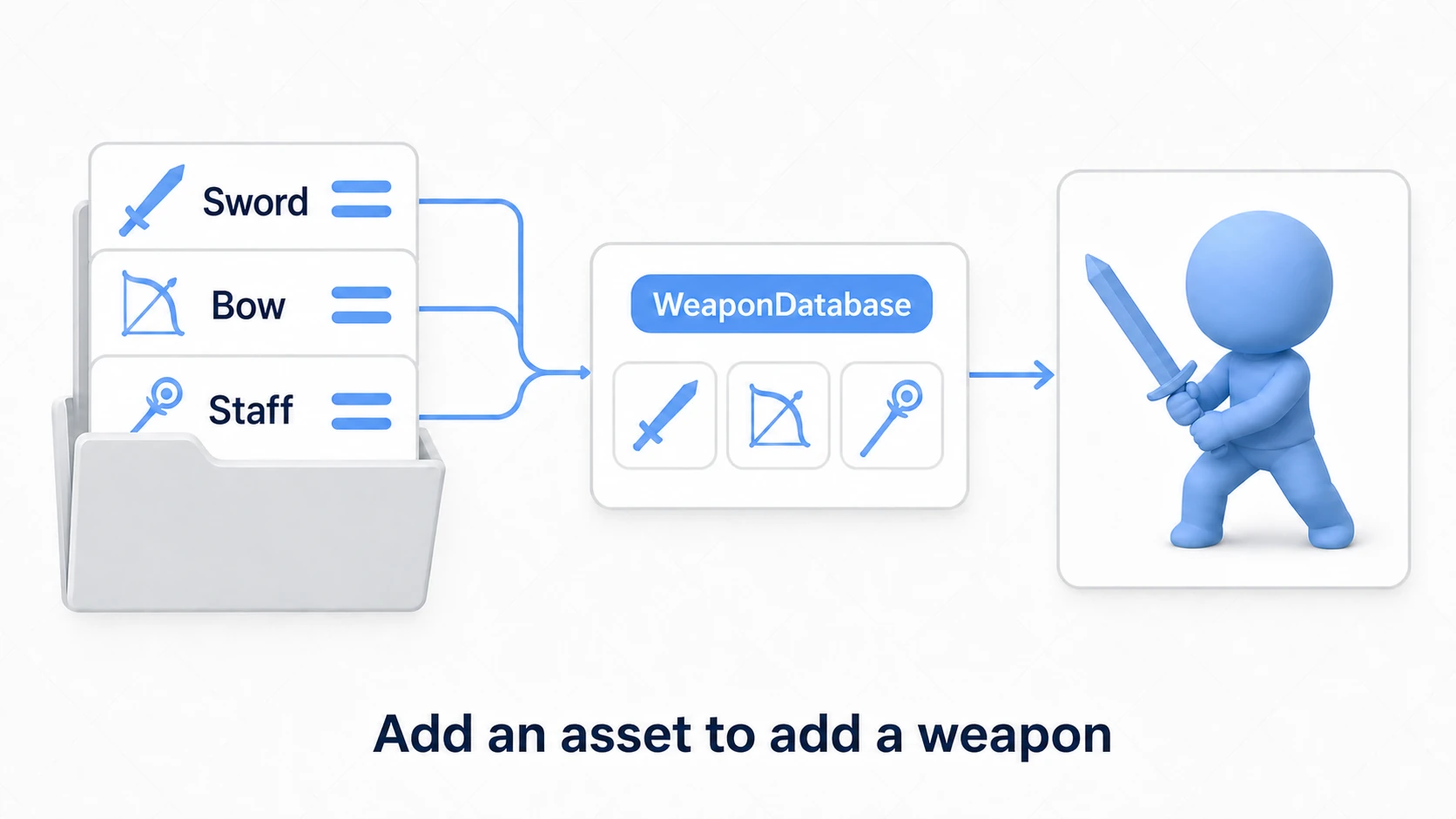
First, create a data type where one weapon type = one asset.
// WeaponData.cs —— definition for one weapon type
using UnityEngine;

[CreateAssetMenu(fileName = "NewWeapon", menuName = "Game Data/Weapon")]
public class WeaponData : ScriptableObject
{
    public string weaponName;
    public int attackPower;
    public float attackInterval = 1f;   // Attack interval (seconds)
    public Sprite icon;
}
From Create > Game Data > Weapon, create Sword.asset, Bow.asset, and Staff.asset, and enter each one's values in the Inspector. Next, create a database that bundles all weapons—also as a ScriptableObject.
// WeaponDatabase.cs —— a catalog of all weapons
using System.Collections.Generic;
using UnityEngine;

[CreateAssetMenu(fileName = "WeaponDatabase", menuName = "Game Data/Weapon Database")]
public class WeaponDatabase : ScriptableObject
{
    public List<WeaponData> weapons;   // Register weapon assets in the Inspector

    // Look up a weapon by name (null if not found)
    public WeaponData Find(string name) =>
        weapons.Find(w => w.weaponName == name);
}
The consuming side only references the single database.
using UnityEngine;

public class PlayerAttack : MonoBehaviour
{
    [SerializeField] private WeaponDatabase database;
    private WeaponData currentWeapon;

    void Start()
    {
        // Switching equipment is just changing "which asset it points to"
        currentWeapon = database.Find("Sword");
    }

    public void Attack()
    {
        Debug.Log($"Attack with {currentWeapon.weaponName}! Power: {currentWeapon.attackPower}");
    }
}
There are two key points.
- Adding a weapon is done entirely by "creating an asset": To add a fourth weapon, an "Axe," you write zero lines of code. Just create
Axe.assetand register it in the database's List. Balance tuning is just adjusting the asset's values, so you can even hand tuning off to designers and planners. - Keep "what you own" on the save-data side:
WeaponDatais immutable master data. "Which weapons the player owns" is saved as a List of weapon names or IDs on the JSON save side, and re-resolved into actual instances withdatabase.Find()on load. This division of roles is the backbone of data design.
Bonus: Good to Know for Later
- Runtime changes persist only in the editor: If you modify a ScriptableObject during Play mode in the editor, the values can remain after you stop playing (values changed in the Inspector are also saved to the
.assetfile; builds don't save them). This behavioral difference is a breeding ground for bugs, so always keep runtime state in a separate class. - Event channel design in depth: A more developed version of the GameEvent pattern from the advanced section (typed events, better debuggability) is covered in Introduction to ScriptableObject Event Channel Design.
- Graduating from enum + switch: When your "switch statement per item type" starts to bloat, that's a sign to replace it with one ScriptableObject asset per type. Adding a new item then changes from "editing code" to "creating an asset."
- Relationship with save data: The standard division of roles is ScriptableObjects for master data (immutable definitions) and JSON saves for player state (mutable progress). Put "quantity owned" in the save file and "item definitions" in SOs. How to hold state that grows as you play, like item counts, is covered in the inventory system article.
Summary
ScriptableObjects are a key tool for dramatically improving data management and architecture quality in Unity. Here are the main takeaways from this article:
- Separation of data and logic: ScriptableObjects hold data only and keep it independent of MonoBehaviours, improving code reusability and maintainability.
- Better memory efficiency: Data is loaded into memory only once as an asset and shared by multiple components, eliminating wasted memory.
- Foundation of data-driven design: By managing master data for weapons, enemies, and items as assets, you can add and tune them with no code changes.
- Event system applications: Used as
GameEventassets, they decouple event sources from listeners and help you build flexible systems.
Make active use of ScriptableObjects to build cleaner, more scalable Unity projects.