The little test room ran at 60 fps. Then the stage grew into a city, and the frame rate started rolling downhill — the mountain pass every 3D game crosses as it grows. The culprit is usually your camera's diligence: it's rendering a speck of a building 500 meters away at full detail, and faithfully drawing every street hidden behind the wall in front of you.
This article assembles the three-tool kit for not drawing what can't be seen (or barely can): LOD to swap models by distance, Occlusion Culling to skip what's blocked, and distance design (Far Clip plus fog) — applied to slimming down a city stage.
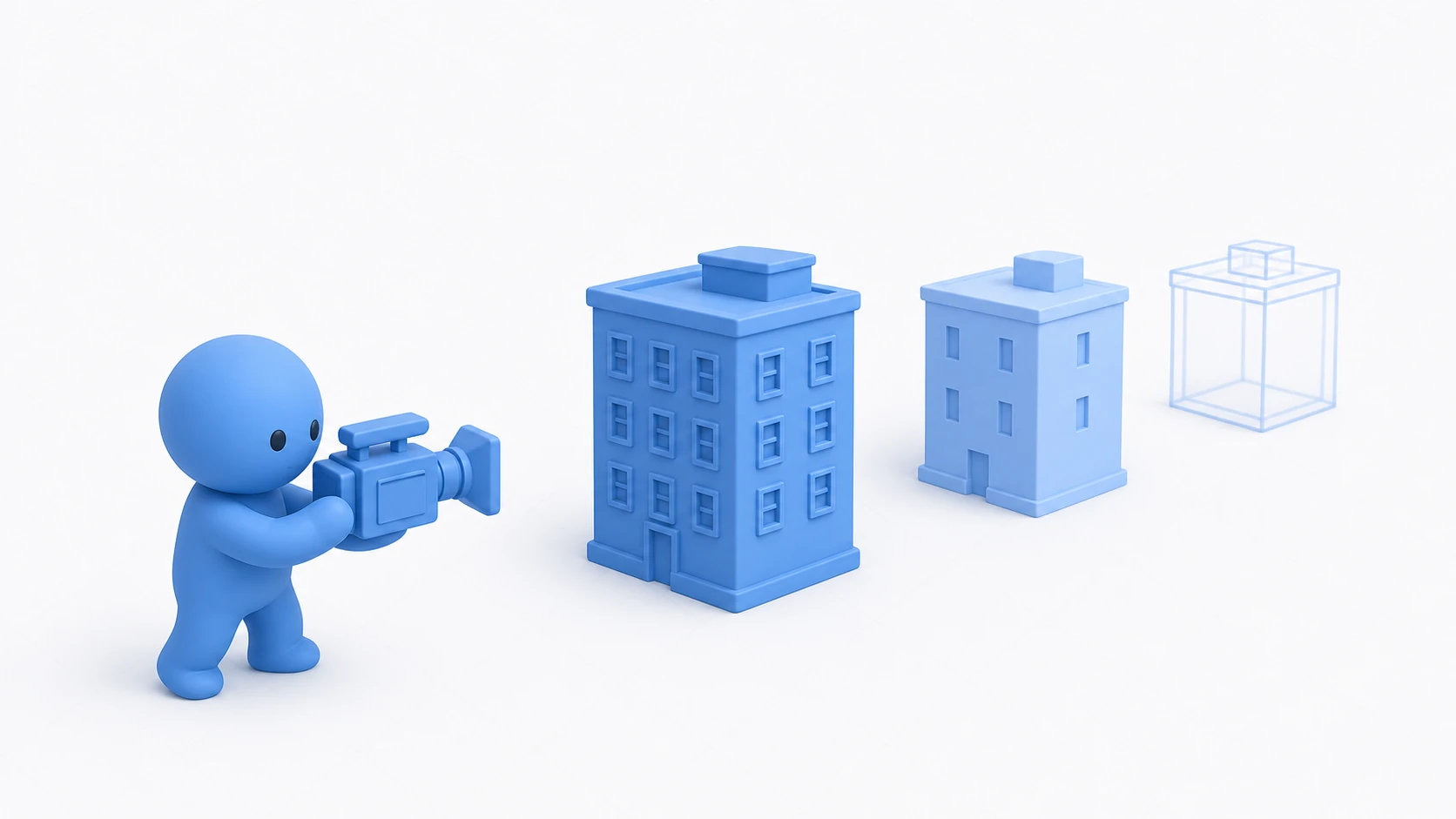
What you'll learn
- The two big costs (full detail at distance, geometry behind walls)
- Swapping models by distance with LOD Group
- Baking Occlusion Culling, and where it does / doesn't help
- Distance design with Far Clip and fog, plus per-layer draw distances
- Hands-on: lightening a city stage with Stats numbers as evidence
Tested with: Unity 6 (6000.x)
The two big costs: distance and walls
First, draw the line between what Unity does for you and what it doesn't.
- Done for you: anything outside the camera's view frustum is skipped — Frustum Culling is automatic
- Not done (part 1): inside the view, a building 500 m away renders as detailed as one 1 m away. A few pixels on screen, tens of thousands of polygons of work
- Not done (part 2): inside the view, things completely hidden behind walls still render. The depth test skips coloring the hidden pixels, but the vertex work and the draw commands are still paid
So the headroom lies in two directions — distance and occlusion — and each gets its own tool.
LOD: swap models by distance
LOD (Level of Detail) means detail steps by distance: full-detail LOD0 up close, mid-detail LOD1 farther out, low-detail LOD2 beyond that, and finally Culled (not drawn at all). Unity switches them automatically by on-screen size.
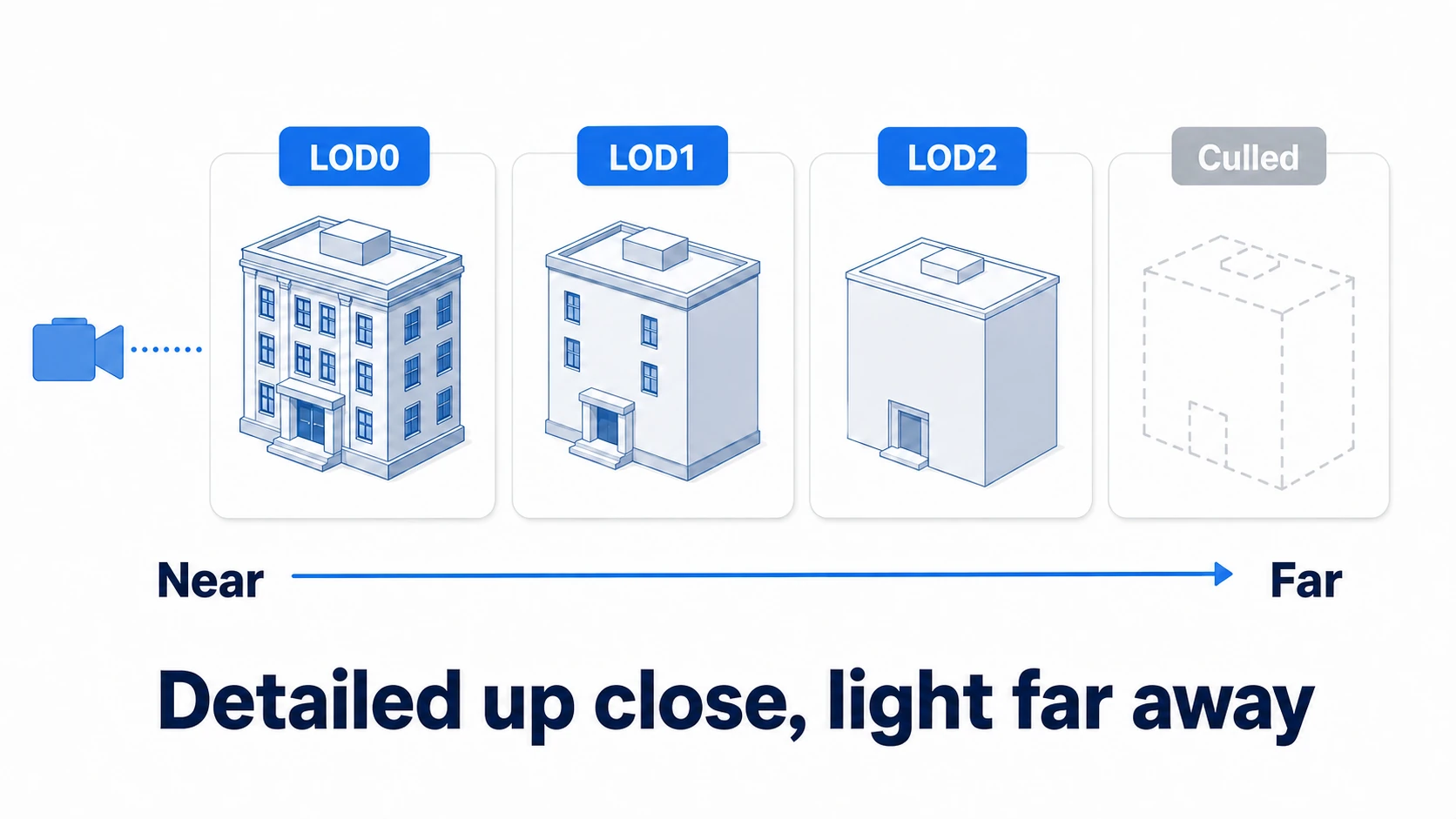
Setup is simple:
- Add an LOD Group component to the parent GameObject
- Assign the detail-stepped child meshes (e.g.
Building_LOD0,Building_LOD1,Building_LOD2) to the LOD Group's slots - Adjust the switch thresholds (the object's on-screen height as a fraction of the screen height) by dragging the bars in the Inspector (drag the camera icon to preview)
tips: If the switch "pops" visibly, the first fix is pushing the threshold out beyond where players actually look. For large landmarks that still pop, LOD Group's Fade Mode (Cross Fade) blends the transition (in URP, enable LOD Cross Fade in the URP Asset and use a shader that supports it). And if stepped models are out of reach, even just LOD0 plus Culled buys you "don't draw the far stuff." In that case, delete LOD 1 and beyond with Delete from the right-click menu (entering a level with no mesh makes the object vanish at that distance).
Occlusion Culling: skip what's blocked
The other waste hides behind walls. Occlusion Culling pre-computes (bakes) what's visible from where, then skips occluded objects at runtime.
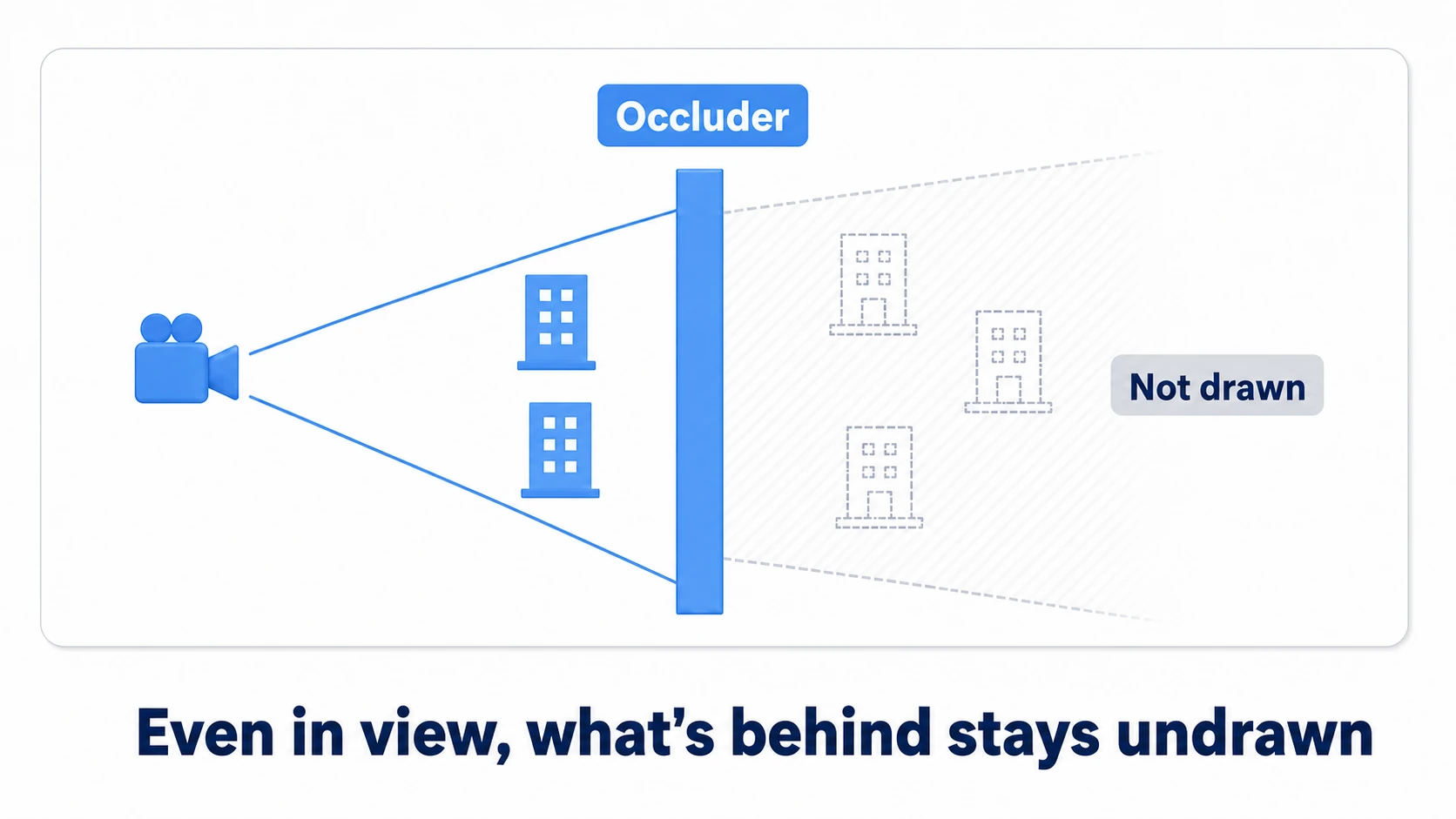
Three steps:
- Flag non-moving objects as Static: select buildings, walls, terrain and check Static at the top-right of the Inspector (at minimum Occluder Static — things that block — and Occludee Static — things that get blocked. Moving enemies and pickups are not part of the bake)
- Open Window > Rendering > Occlusion Culling and press Bake on the Bake tab
- Open the Visualization tab of the Occlusion window, select the camera in the Hierarchy, and watch the Scene view: the culling is judged from the selected camera's position. Move the camera behind a wall and watch the occluded objects drop out
This tool has sharply defined territory. Indoors, cities, caves — scenes full of big occluders — see dramatic wins. Open plains see almost none, leaving only baked-data size and query cost. Decide per scene.
Distance design: Far Clip and fog
The third tool is the design question: how far should you draw at all?
- Shrink the Camera's Far Clip (Far under Clipping Planes in the Inspector): the default 1000 is overkill for many games. Pull it in to "the distance that matters to gameplay," and everything beyond leaves the frustum — free, standard culling
- Hide the cut with fog: shrinking Far Clip makes distant objects vanish along a hard edge. Enable Fog in the Lighting settings and sink that edge into haze — the cut becomes natural aerial perspective. Fog itself doesn't reduce what's drawn, but paired with Far Clip it gets you both lightness and looks: a classic for a reason
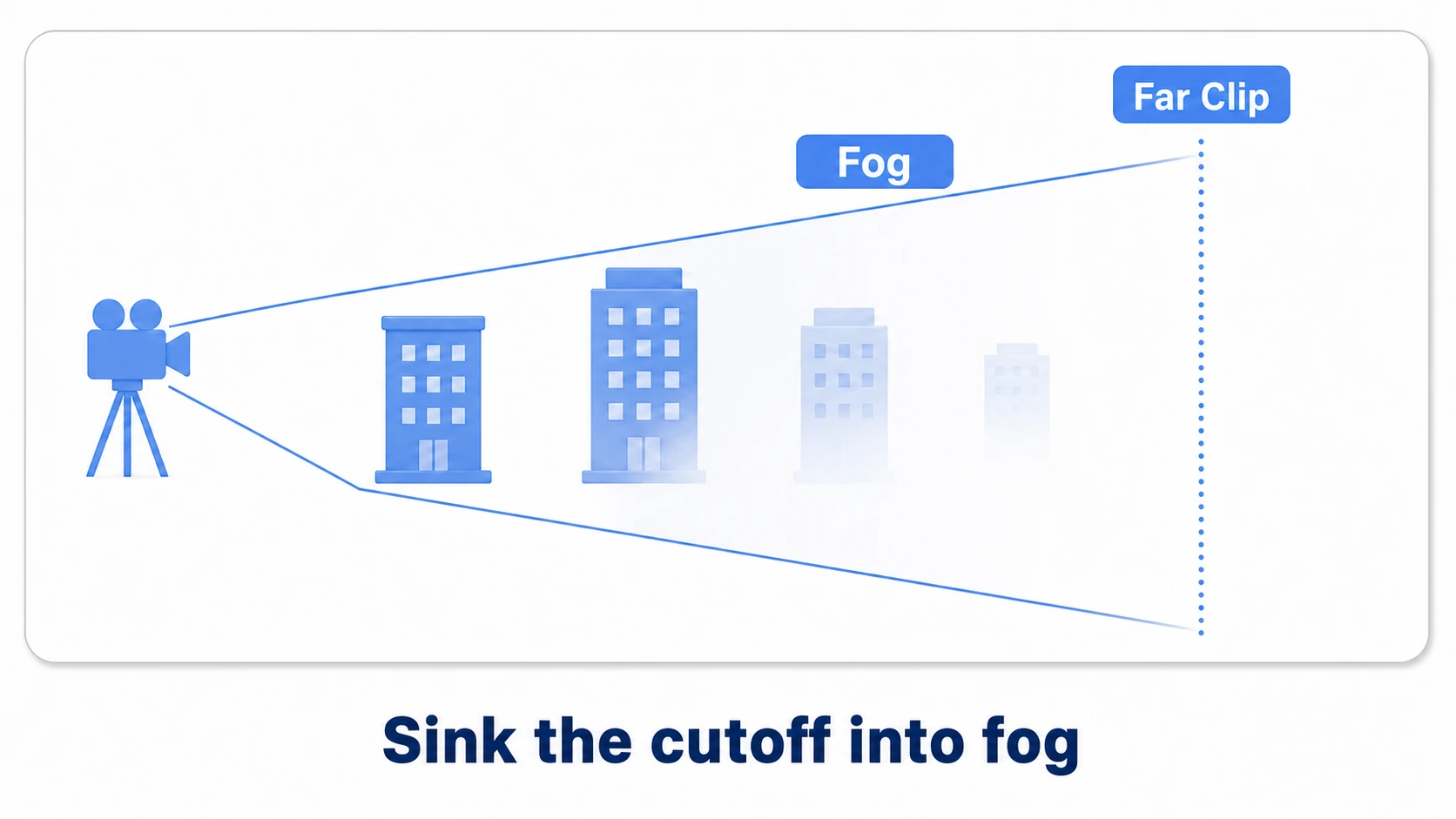
One step further: different draw distances per layer — the open-world staple of "big buildings draw far, small props (bins, signs, grass) draw near."
// CameraDistanceCulling.cs — attach to the camera
using UnityEngine;

public class CameraDistanceCulling : MonoBehaviour
{
    void Start()
    {
        Camera cam = GetComponent<Camera>();

        // Per-layer draw distances (0 = use the camera's Far Clip)
        float[] distances = new float[32];
        int smallProps = LayerMask.NameToLayer("SmallProps");
        if (smallProps < 0) return; // Returns -1 if the layer doesn't exist, so do nothing
        distances[smallProps] = 40f; // props draw to 40 m
        cam.layerCullDistances = distances;
    }
}
Make a props layer (e.g. SmallProps), assign it to the clutter, and "distant small stuff" vanishes wholesale from rendering. Before hand-tuning LODs one by one, this single sweep takes the big bite.
Hands-on: lighten a city stage, by the numbers
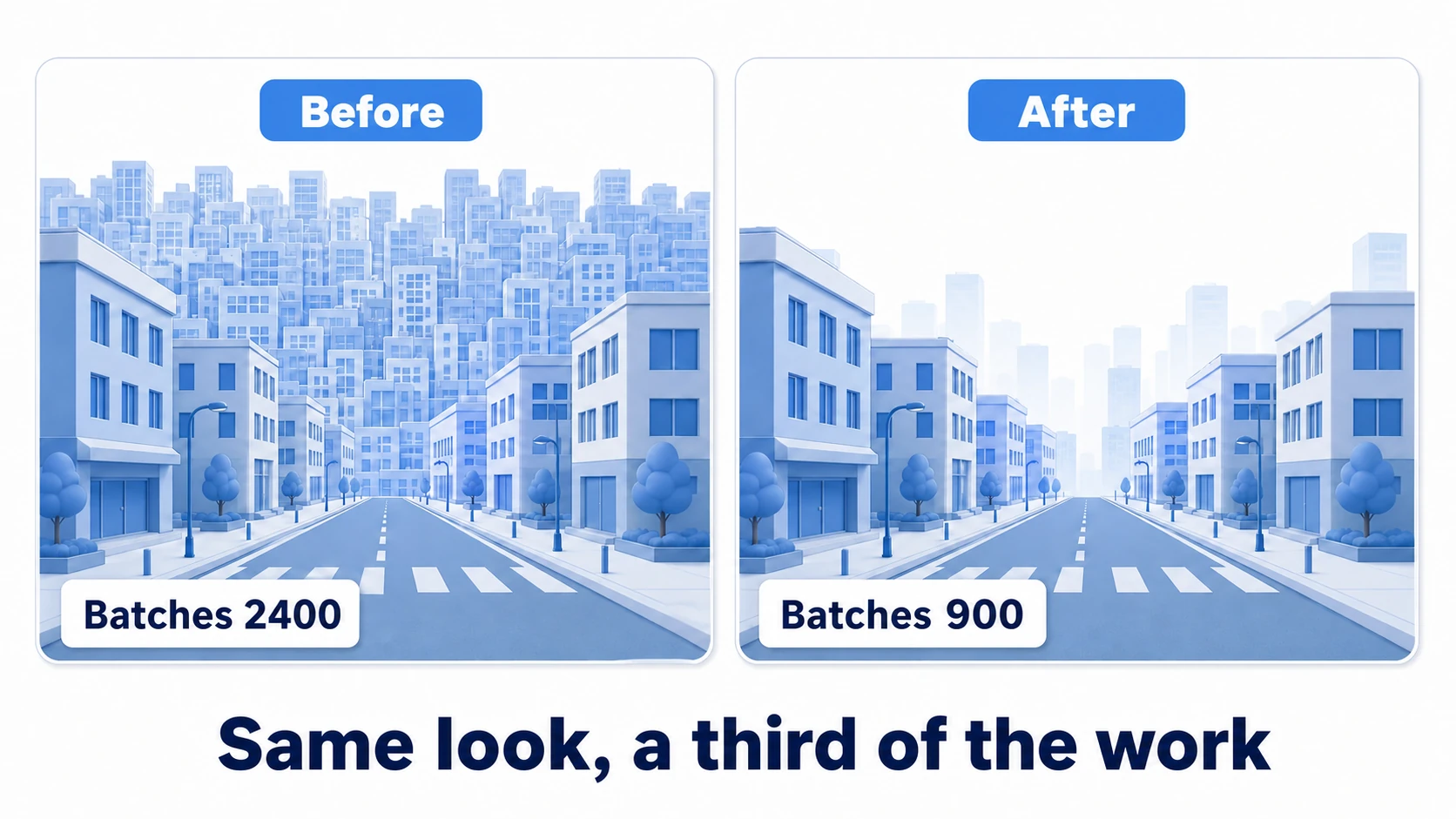
Tools assembled — time to lighten that heavy city. The key discipline: verify with numbers, not feel. Open the Stats overlay in the Game view and compare Batches (draw submissions) and Tris (triangles) at the same camera position, before and after (from Unity 6.4, Stats shows these as Draw Calls and Triangles).
- Record the baseline: park the camera where players actually stand and screenshot Stats (say, Batches 2,400 / Tris 8.2M)
- Distance-cull the props layer: move bins, AC units, and signage to
SmallProps, cut at 40 m. Tris takes its first step down - LOD the starring buildings: set up LOD Groups starting from the biggest screen-space offenders. Don't do all of them — watch Stats and work in order of impact; the top handful is usually enough
- Bake Occlusion Culling: a city is wall-to-wall occluders, a perfect match. Step into an alley and whole hidden blocks drop out — Batches falls hard
- Finish with Far Clip + fog: choose the horizon, hide the seam in haze, then re-shoot Stats at the same spot and put the numbers side by side (say, Batches 2,400→900 / Tris 8.2M→2.1M)
If the numbers dropped and the image barely changed, that difference was the invisible work. If LOD switches pop, push thresholds outward; if objects "forget to disappear" in alleys, suspect missing Static flags — the occlusion bake never considers non-Static objects in the first place.
Two takeaways. Always compare Stats at the same spot, before and after (feel lies). Work in order of impact: the bulk distance cull first, then LODs for the stars, then occlusion where occluders are plentiful.
Bonus: things worth knowing early
- The last LOD step can be a billboard/impostor: a flat card baked from the model, dramatic for trees and crowds. Unity's Terrain trees use this built-in; impostor assets cover the general case
- Reducing draw submissions themselves is a different article: batching same-material objects and GPU instancing belong to the Draw Call optimization article. LOD and occlusion shrink what you draw; batching streamlines how. Use both
- On mobile, the bake data is part of the budget: occlusion bake data ships in the build. In mobile optimization terms, weigh the win against the bytes
Summary
- Standard Frustum Culling only removes what's outside the view. "Distant full-detail" and "behind walls" are yours to solve
- LOD Group swaps models by distance — even Culled alone helps when stepped models aren't available
- Occlusion Culling = Static flags + Bake, removing what's blocked. A tool for occluder-rich scenes only
- Distance design: shrink Far Clip, hide the seam with fog, and sweep small props with
layerCullDistances - Prove it with Stats at the same spot — Batches and Tris are your evidence
Open Stats on your city stage right now: what's the Batches count? Every tool for cutting it in half is now on your bench.