"Grab the item on touch," "deal damage when the bullet hits," "start an event when the player enters the area"—most game interactions begin the moment something touches something else. The functions that handle this detection are OnCollisionEnter and OnTriggerEnter, and which one to use is something every beginner gets stuck on at first.
The rule is simple: if you want objects to bounce off each other, use Collision; if you want them to pass through and just detect the contact, use Trigger. This article covers the differences between the two, how to use each, and the checklist to run through when you hit "my event isn't firing!"
What You'll Learn
- The difference between Collision and Trigger, and how to choose
- When Enter / Stay / Exit are each called
- The requirements for events to fire (why Rigidbody is needed)
- How to use the contact info (
Collision/Collider) passed to your function
Tested with: Unity 6 (6000.x)
Physics Events vs Trigger Events
Unity's contact events fall into two main categories:
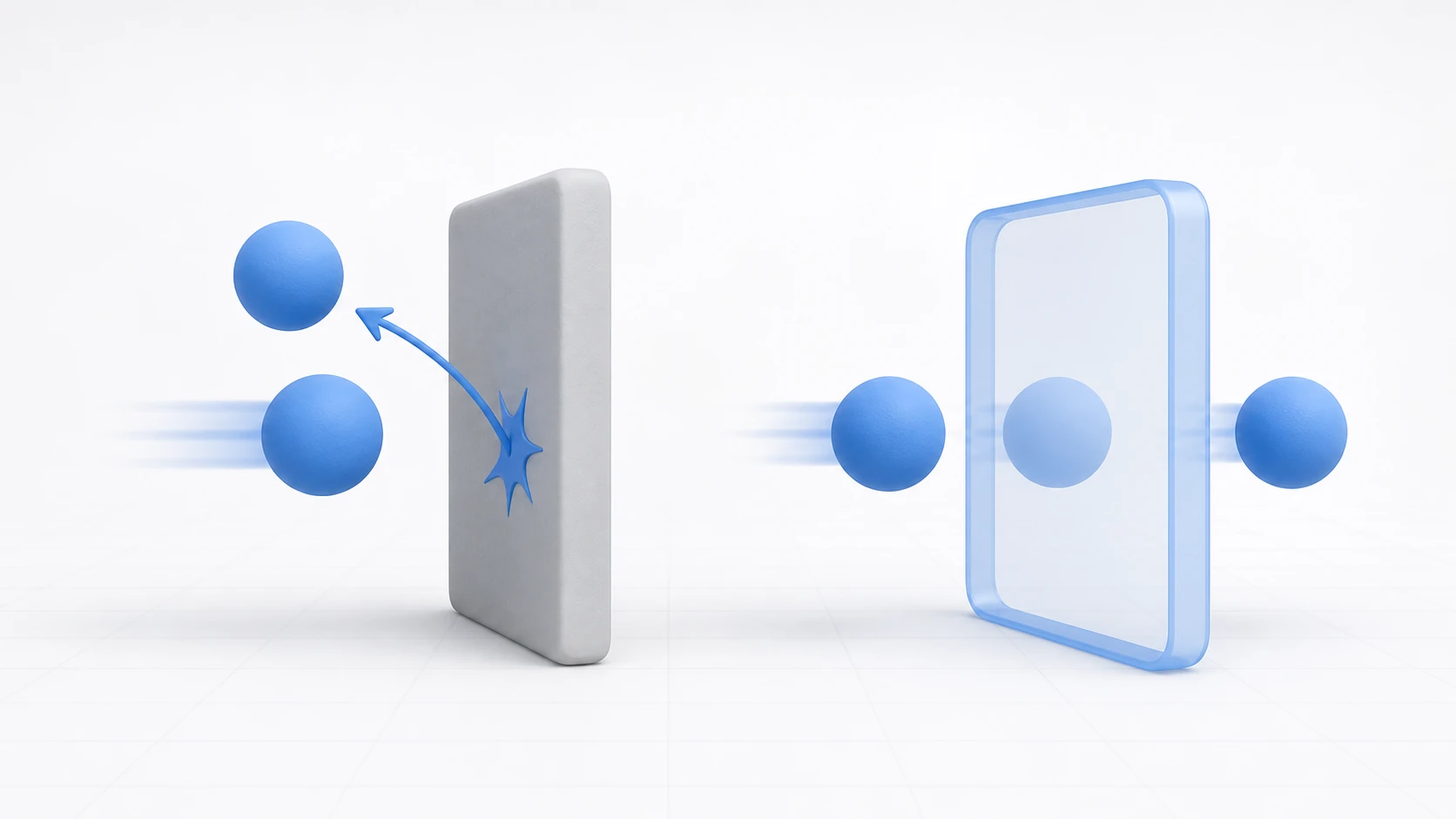
- Physics Events (Collision): Occur when objects physically "collide." Like real-world collisions, objects bounce off or push against each other. Handled by
OnCollisionfunctions. - Trigger Events: Occur when objects enter or exit a specific "zone." Objects pass through each other without physical interaction. Handled by
OnTriggerfunctions.
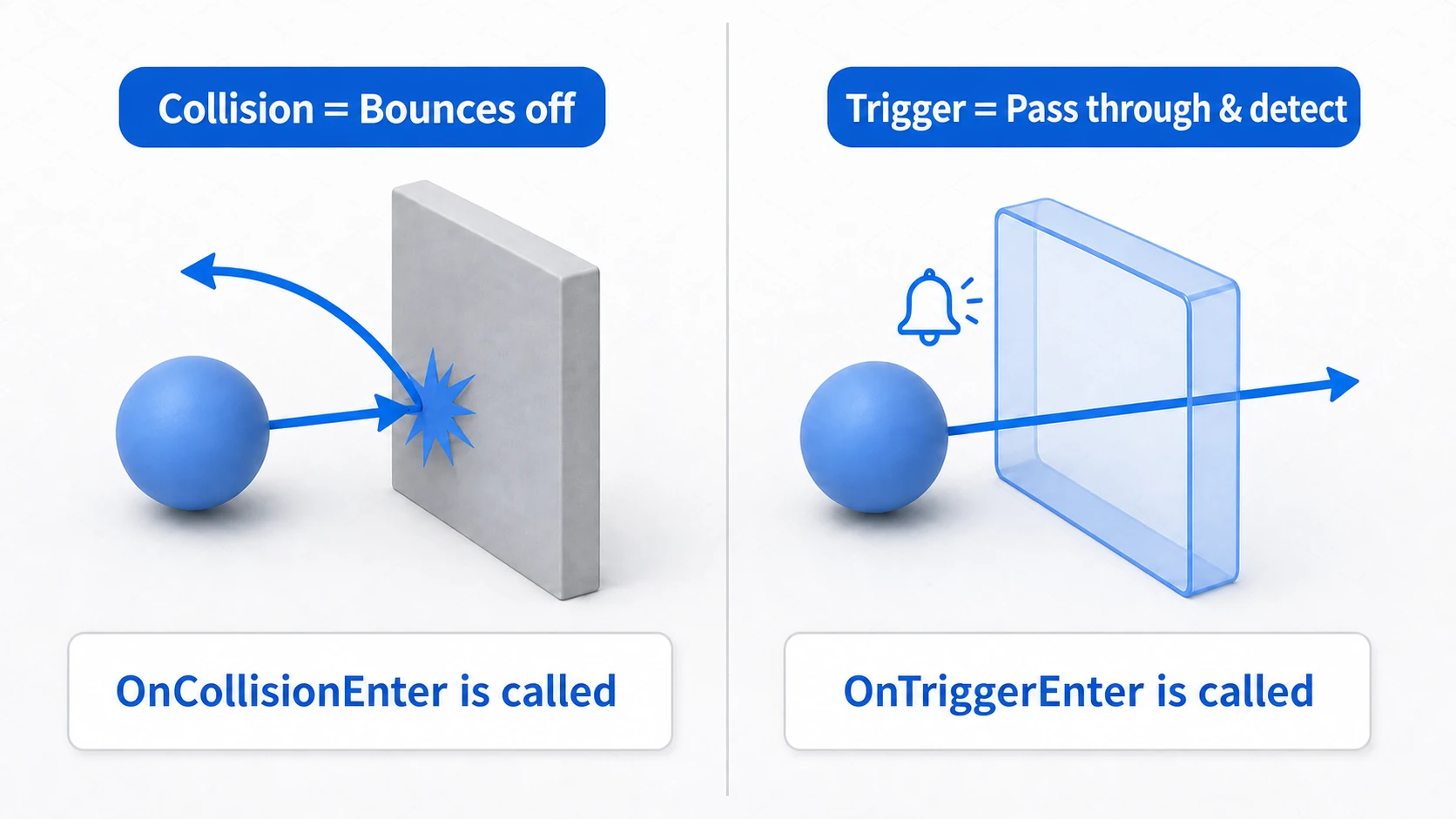
Which event type to use depends on the behavior you want:
- For physical rebounds like wall/floor collisions or billiard ball impacts, use Collision.
- For zone detection without physical interaction—item pickup zones, event areas, warp portals—use Trigger.
Using Collision Events
There are three Collision event functions: OnCollisionEnter, OnCollisionStay, and OnCollisionExit.
| Event Function | When Called |
|---|---|
OnCollisionEnter(Collision other) | Once, the moment collision with another Collider begins. |
OnCollisionStay(Collision other) | Every physics update while in contact with another Collider. |
OnCollisionExit(Collision other) | Once, the moment separation from another Collider occurs. |
Note: To be precise, the
Stayfunctions "keep firing" on every physics update (the same timing asFixedUpdate), not once per rendered frame. At high frame rates there will be rendered frames whereStaydoesn't fire at all. Inside physics callbacks,Time.deltaTimealso returns the fixed step (the same value asTime.fixedDeltaTime), so either one works for damage-over-time math. Also,OnCollisionStaymay not be sent to a Rigidbody that has stopped and gone to sleep.
These functions receive a Collision class instance as an argument. This other object contains various collision information—the colliding object, contact point, normal vector, etc.
using UnityEngine;

public class CollisionDetector : MonoBehaviour
{
    // Called the moment we collide with another object
    void OnCollisionEnter(Collision collision)
    {
        // Access the colliding GameObject via collision.gameObject
        Debug.Log("Collided with " + collision.gameObject.name + "!");

        // If the other object has the "Enemy" tag, destroy ourselves
        if (collision.gameObject.CompareTag("Enemy"))
        {
            Destroy(gameObject);
        }
    }
}
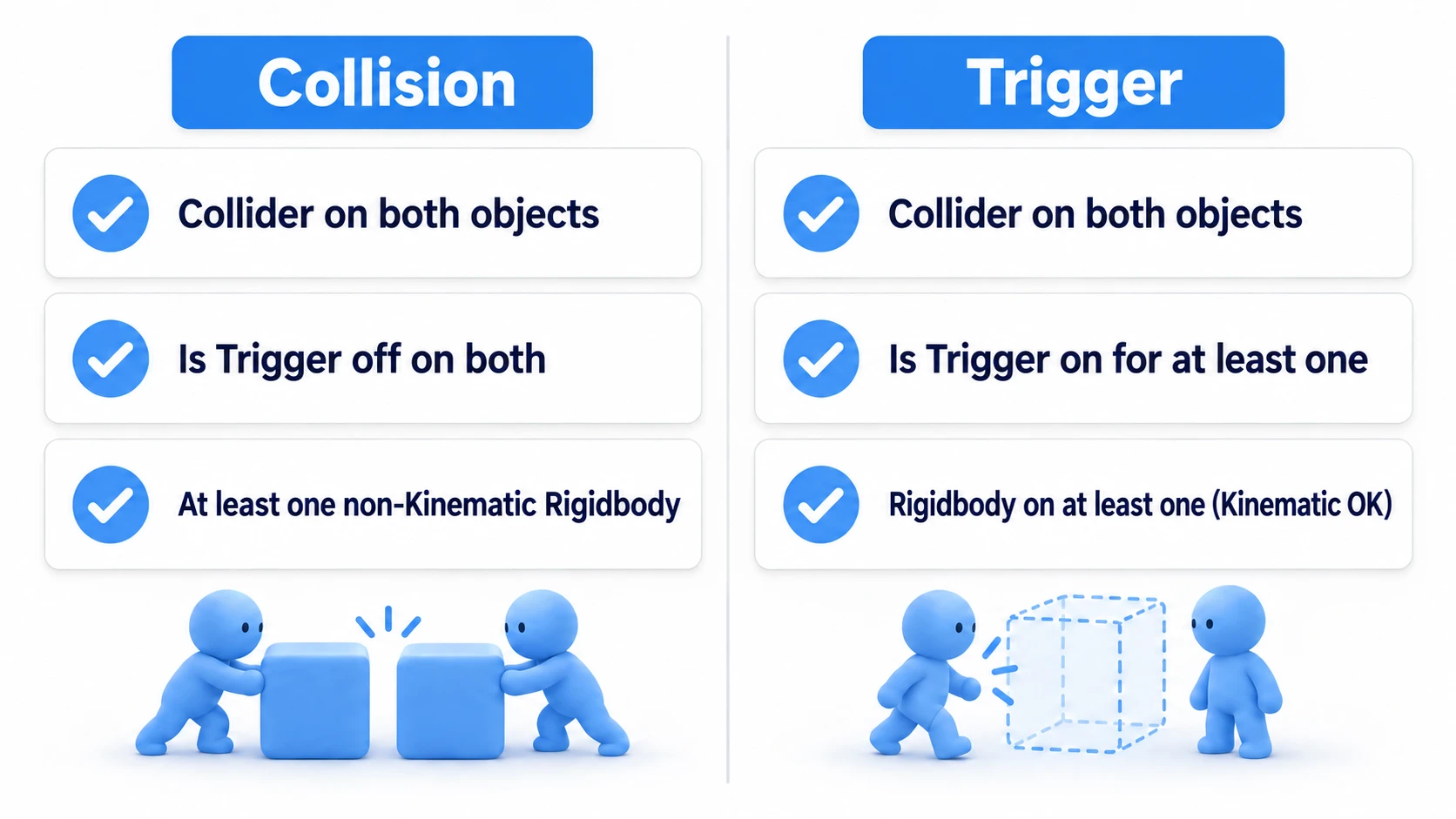
Collision Event Requirements
- Both colliding objects must have
Collidercomponents. - At least one of the colliding objects must have a
Rigidbodycomponent (a regular one, with Is Kinematic off). Is Triggermust be off on both Colliders.
Using Trigger Events
To use Trigger events, check the Is Trigger property on the Collider component. This makes the Collider function as an "area" for triggering events rather than a physical shape.
There are also three Trigger event types:
| Event Function | When Called |
|---|---|
OnTriggerEnter(Collider other) | Once, the moment another Collider enters the trigger zone. |
OnTriggerStay(Collider other) | Every physics update while another Collider remains in the trigger zone. |
OnTriggerExit(Collider other) | Once, the moment another Collider exits the trigger zone. |
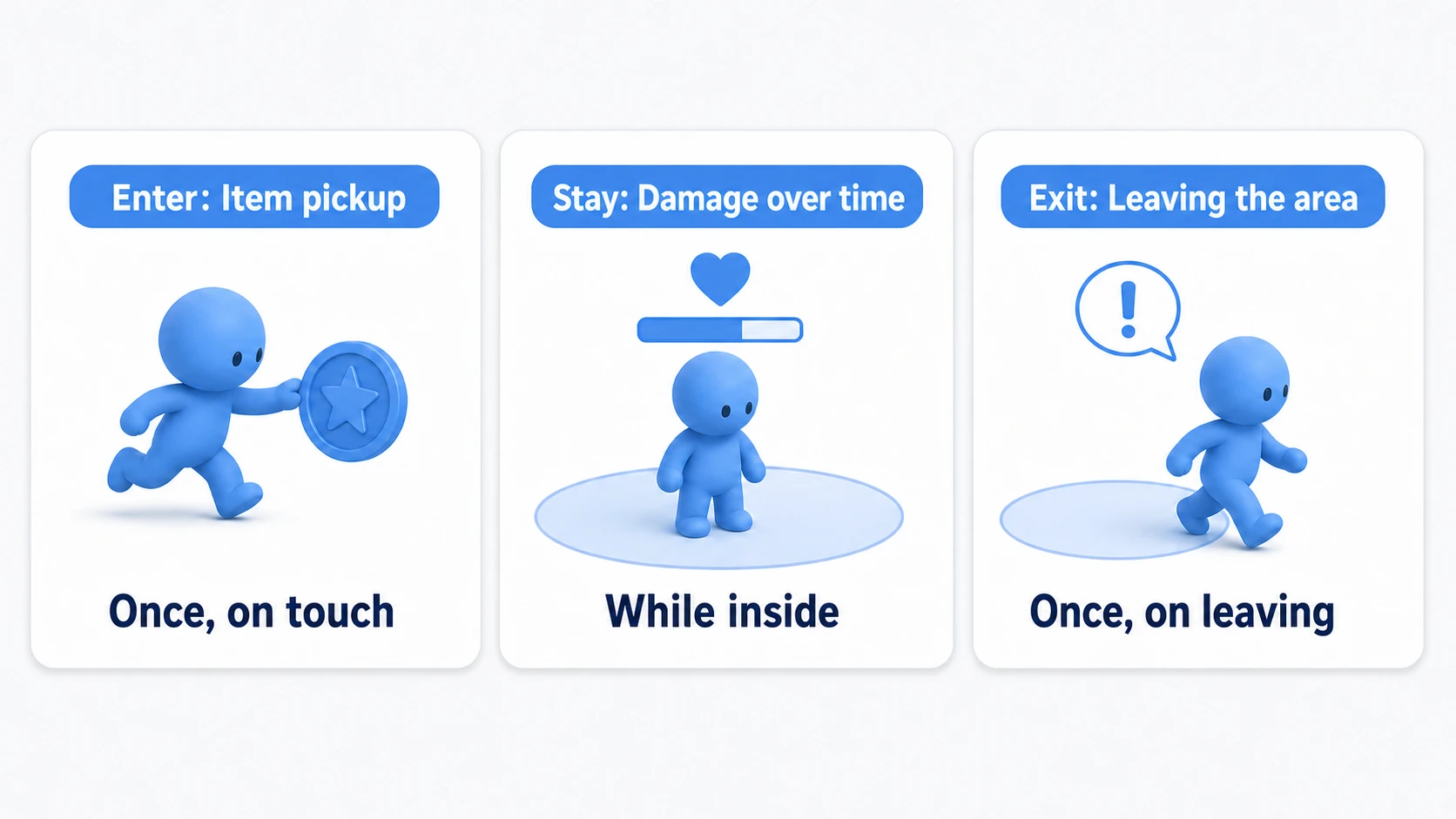
The relationship between Enter, Stay, and Exit is simply "the moment you entered, while you're inside, the moment you left." It's easiest to picture as a character passing through a zone (the Collision functions follow the same pattern).
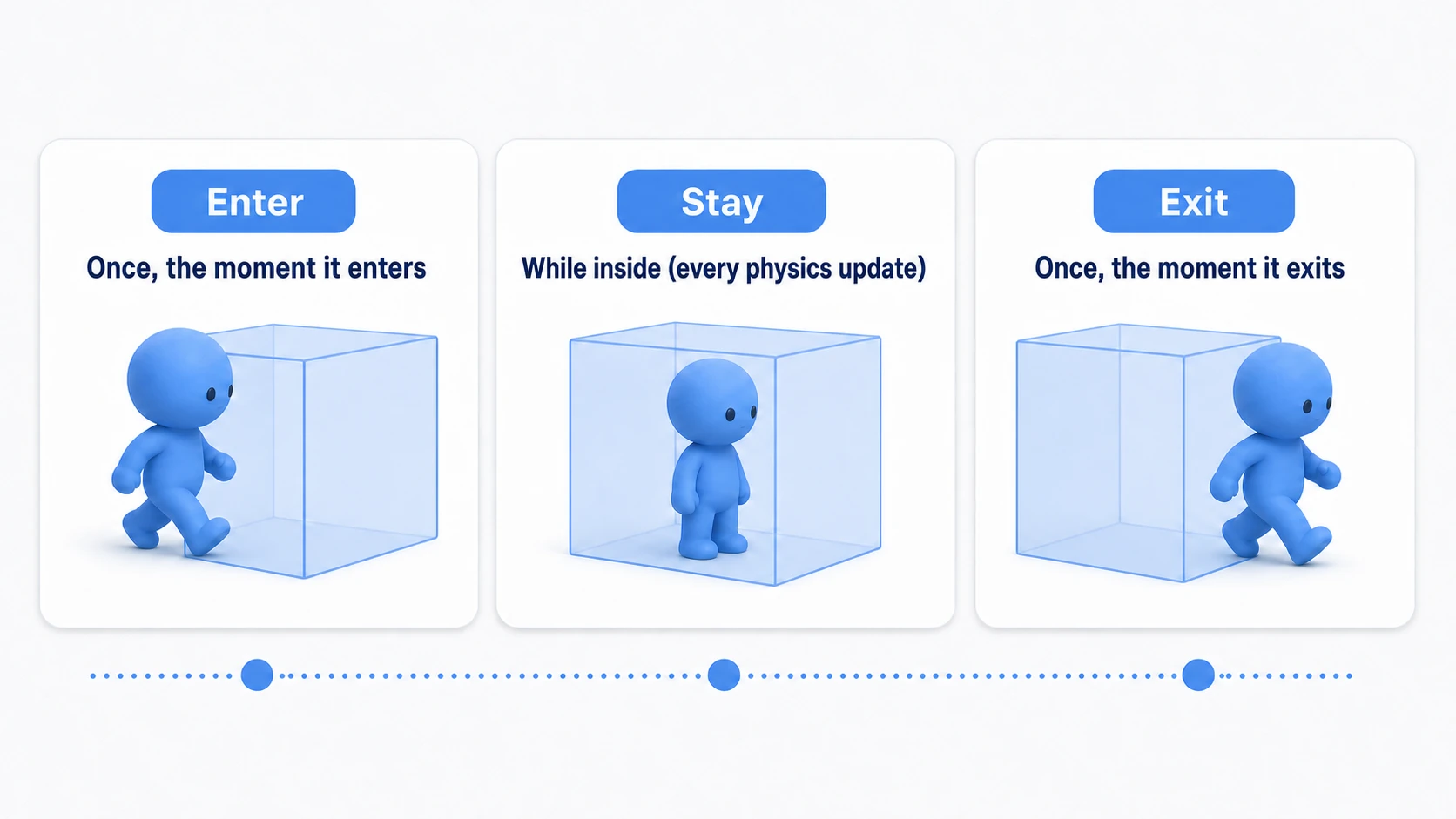
In real game development, the standard way to split these up is: one-shot events go in Enter/Exit, reactions to an ongoing state go in Stay. Keep that in mind and you'll always know where a given piece of logic belongs.
These functions receive a Collider class instance as an argument. The other parameter contains the Collider component that entered the zone.
using UnityEngine;

public class ItemCollector : MonoBehaviour
{
    // Called the moment another Collider enters the trigger zone
    void OnTriggerEnter(Collider other)
    {
        // Access the entering GameObject via other.gameObject
        Debug.Log(other.gameObject.name + " entered the item zone.");

        // If it has the "Player" tag, hide the item (ourselves)
        if (other.CompareTag("Player"))
        {
            Debug.Log("Item collected!");
            gameObject.SetActive(false);
        }
    }
}
Trigger Event Requirements
- Both objects must have
Collidercomponents. - At least one object must have a
Rigidbodycomponent (Kinematic is fine). - At least one object's Collider must have
Is Triggerenabled.
Note: When your event "just won't fire," the cause is almost always a missing
Rigidbody. Both Collision and Trigger share the same requirement: at least one of the two objects needs a Rigidbody.
That said, which events actually fire depends on the Rigidbody's state. "Just add a Kinematic Rigidbody" is not a universal fix—check the combinations below:
| Situation | Collision events | Trigger events |
|---|---|---|
| One side has a regular Rigidbody | Fire | Fire |
| One side is a Kinematic Rigidbody (other side is Collider-only) | Don't fire | Fire |
| Kinematic vs. Kinematic | Don't fire | Fire |
| Collision disabled in the Layer Collision Matrix | Don't fire | Don't fire |
- Putting a Kinematic Rigidbody on the detection zone (Trigger) side is the standard way to satisfy the requirement without adding physics behavior.
- But if you want physical collision (Collision) events and both sides are Kinematic, nothing fires—at least one side needs a regular Rigidbody.
- Layer pairs disabled in the Layer Collision Matrix produce neither kind of event. If "all the requirements are met but nothing fires," check here.
- If fast-moving bullets tunnel through objects, switch the Rigidbody's
Collision Detectionto one of theContinuousmodes.
When Calls Come Out Wrong
| Symptom | Cause | Fix |
|---|---|---|
| Picking up one coin adds 2 to the score | Events reach both objects. You wrote the score increment on both the player and the coin | Put the increment on only one side |
Entering once calls OnTriggerEnter several times | The other object has several Colliders on child objects. Calls happen per Collider pair | Set a "handled" flag and do nothing from the second call on |
After a Destroy inside the handler, OnTriggerExit never comes | Exit isn't sent for Colliders that were destroyed or deactivated | Run your exit logic yourself before destroying |
Other Event Functions
Unity provides various event functions beyond physics events. For example, mouse events detect when the cursor is over an object's Collider:
OnMouseEnter(): When the cursor enters the Collider area.OnMouseExit(): When the cursor leaves the Collider area.OnMouseDown(): When a mouse button is pressed while over the Collider.
These are useful for features like clicking to select 3D objects in the scene.
Warning: The
OnMouseevents are for objects with Colliders only—they are not how you handle uGUI buttons or panels. UI clicks go through the EventSystem (Button'sonClick, etc.); see the Button events article. Also,OnMouseevents depend on the legacy Input System, so they don't work through Unity 6.3 whenActive Input Handlingin Project Settings is set to "Input System Package (New)" only (from 6.4 on, they're called). In projects using the New Input System, implement click detection another way, such as with a Raycast.
Bonus: Good to Know for Later
Once you're comfortable with contact events, here's where to go next:
- "I only want to collide with enemies" is a job for layers: Before branching with tag
ifchecks, you can disable unwanted collision pairs entirely via the Layer Collision Matrix. See the layers and tags article. - To "see" before you touch, use Raycast: Pre-contact checks like "is there an enemy in front of my crosshair?" are the domain of Raycast. The Physics.Raycast article will get you up to speed.
- In 2D games, the functions get a 2D suffix: With 2D physics you use
OnCollisionEnter2D(Collision2D)/OnTriggerEnter2D(Collider2D)—both the function names and the argument types are 2D variants (the 3D functions are never called). See the 2D physics article.
Summary
Contact events are fundamental for adding interactivity to games. Understand the difference between OnCollision and OnTrigger and choose appropriately:
- Need physical rebounds → Collision (
Is Triggeroff). - Only need zone entry/exit detection (objects pass through) → Trigger (
Is Triggeron). - Both event types require at least one object to have a
Rigidbody.
Master these event functions to create vibrant game worlds that richly respond to player actions.