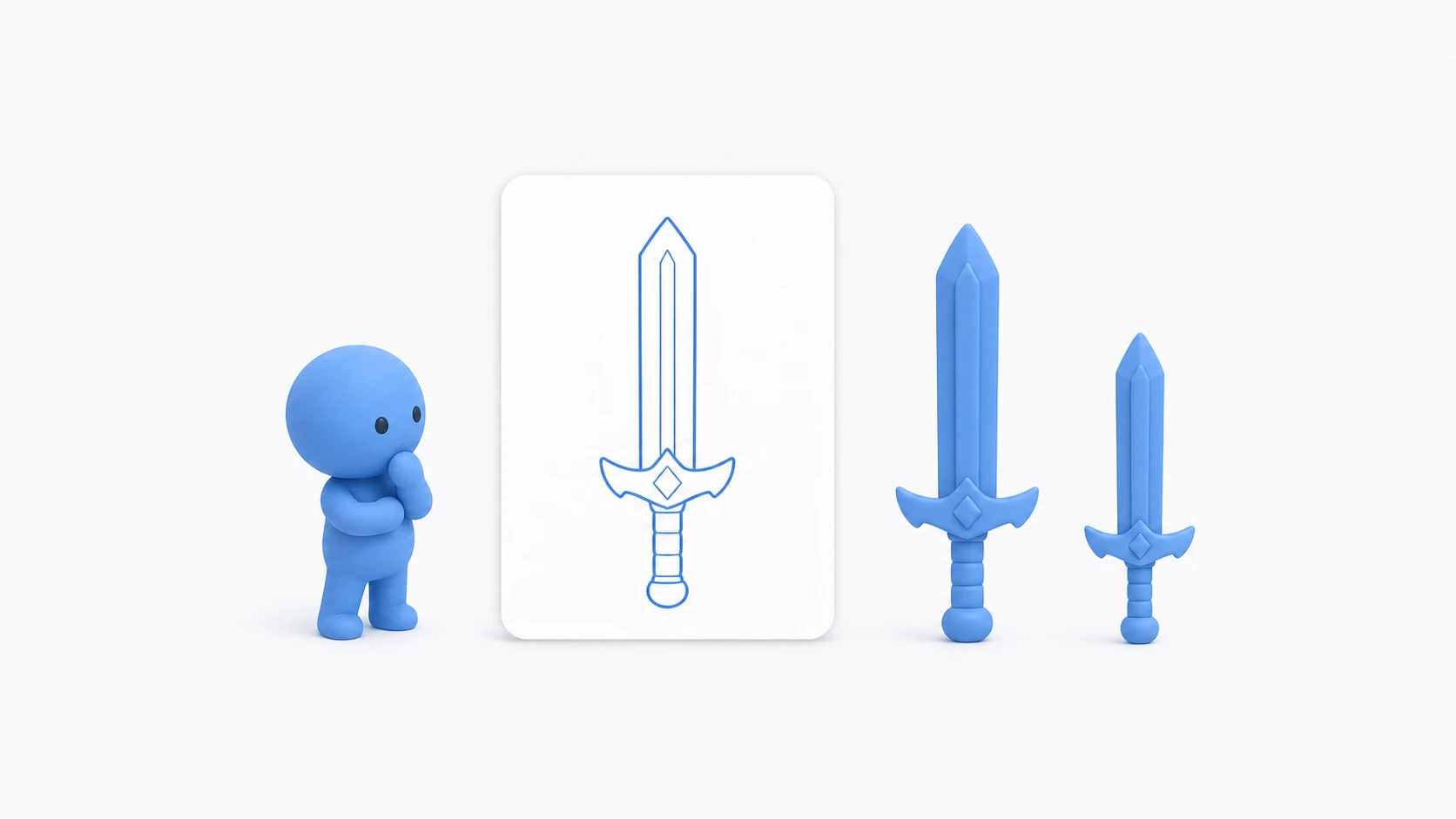
You want three enemies, so you create three variables: enemy1, enemy2, enemy3. It works—but once you need ten enemies, you're stuck with ten variables and ten copy-pasted blocks of code. This "lots of the same kind of data" problem is exactly what C# collections solve, and the two you'll use most are arrays and Lists.
In this article, we'll cover the basics of arrays and Lists, the key difference between them and when to use which, plus practical Unity examples: managing spawn points in the Inspector and tracking active enemies with a List.

What You'll Learn
- How to declare, access, and loop over "arrays"—numbered variables bundled together
- How to use the resizable "List" (Add / Remove / Count)
- How to decide between arrays and Lists
- Practical Unity patterns like Inspector integration and enemy list management
Tested with: Unity 6 (6000.x)
Arrays: A Row of Numbered Boxes
An array reserves a set of variables of the same type as a single "numbered shelf." Let's start with the mental picture.
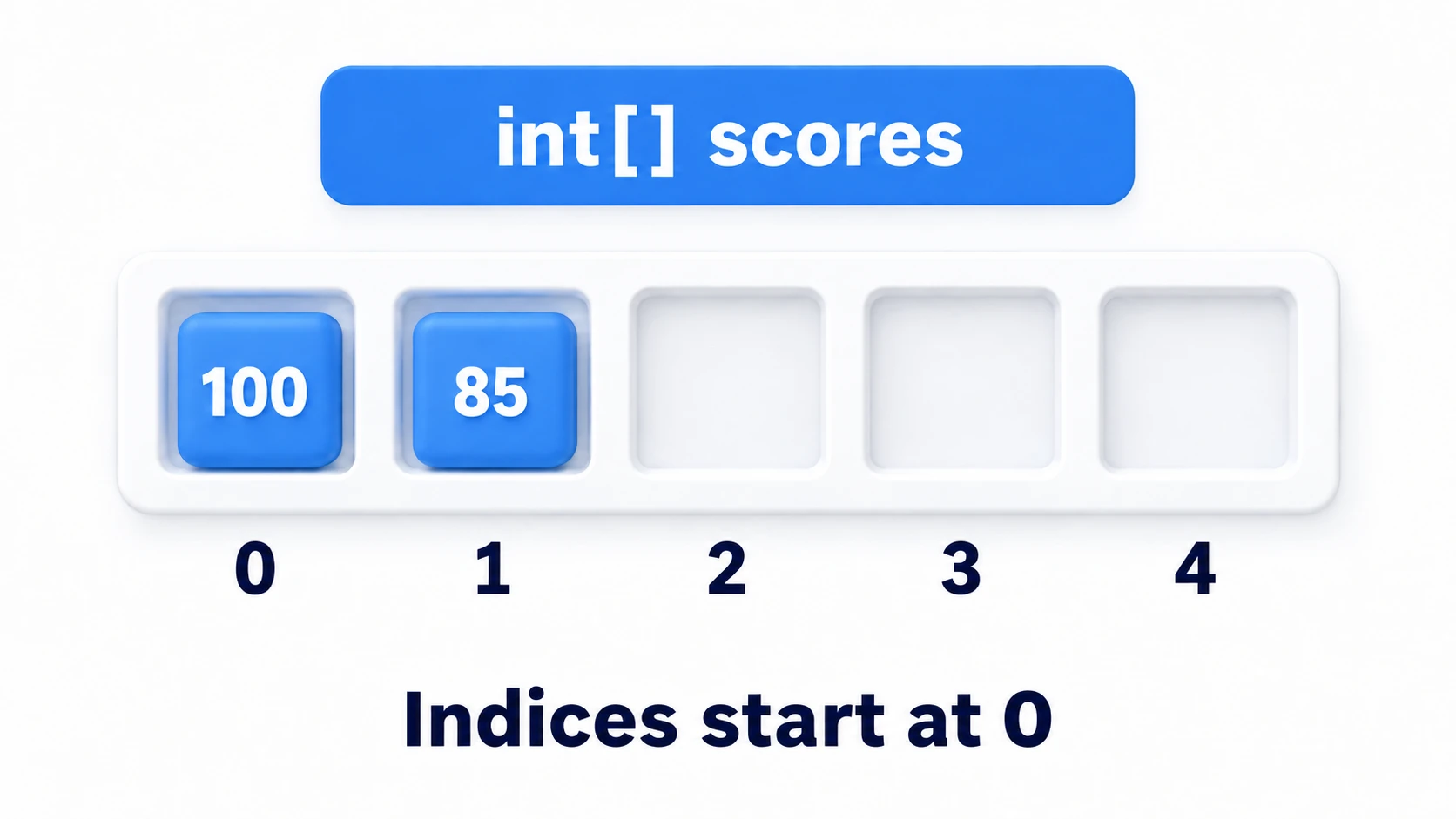
Each slot on the shelf is a variable, and each one has a number called an index. The crucial detail: indices start at 0. An array with 5 elements uses indices 0 through 4.
using UnityEngine;

public class ArrayExample : MonoBehaviour
{
    void Start()
    {
        // Create an int array with 5 elements (all initialized to 0)
        int[] scores = new int[5];

        // Read and write by index (zero-based!)
        scores[0] = 100;
        scores[1] = 85;

        // You can also create an array with its contents up front
        string[] stageNames = { "Forest", "Cave", "Castle" };

        // Length gives you the number of elements
        Debug.Log($"Stage count: {stageNames.Length}"); // 3

        // foreach processes every element in order
        foreach (string name in stageNames)
        {
            Debug.Log($"Stage: {name}");
        }
    }
}
Warning: Accessing an index that doesn't exist throws an
IndexOutOfRangeException. Writingscores[5]on a 5-element array is the classic mistake (the last element isscores[4]).
An array's size is fixed at the moment you create it. There's no "let me add one more later." That's where List comes in.
List: A Shelf That Grows and Shrinks
A List is a "stretchable shelf" that lets you freely add and remove elements after creation. To use it, you need using System.Collections.Generic; at the top of your file.
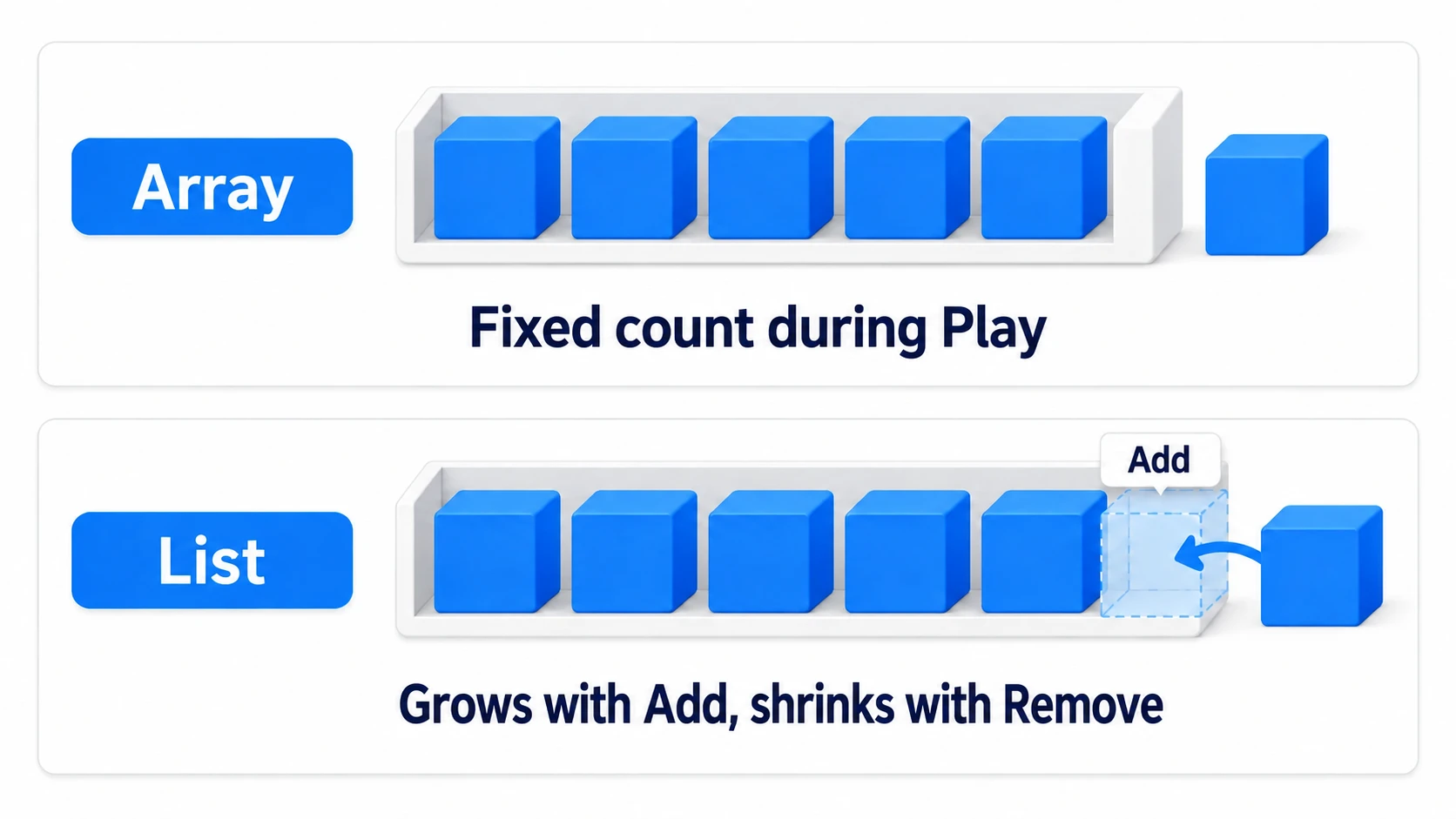
You write the type you want to store inside the <>, like List<int> (this is the same generics mechanism we saw in the GetComponent article).
using System.Collections.Generic; // Required for List!
using UnityEngine;

public class ListExample : MonoBehaviour
{
    void Start()
    {
        // Create an empty List
        List<string> inventory = new List<string>();

        // Add: appends to the end (the shelf grows automatically)
        inventory.Add("Health Potion");
        inventory.Add("Iron Sword");
        inventory.Add("Shield");

        // Count gives the current number of elements (like an array's Length)
        Debug.Log($"Item count: {inventory.Count}"); // 3

        // Index access works just like arrays
        Debug.Log($"First item: {inventory[0]}"); // Health Potion

        // Remove: deletes the specified element (the shelf shrinks)
        // Note: even if duplicates exist, only the FIRST match is removed
        inventory.Remove("Health Potion");

        // Contains: check whether an item is present
        if (inventory.Contains("Iron Sword"))
        {
            Debug.Log("You can equip the sword");
        }
    }
}
Array vs. List: Which to Use
| Feature | Array (int[]) | List (List<int>) |
|---|---|---|
| Size | Fixed at creation | Grows and shrinks freely |
| Element count | .Length | .Count |
| Add / Remove | Not possible | Add / Remove |
| Best for | Data with a fixed count | Data that changes during gameplay |
The decision rule is simple.
- The count is known up front (stage lists, spawn points, equipment slots) → array
- Items come and go during gameplay (active enemies, inventory, unlocked achievements) → List
If in doubt, starting with a List is fine. Arrays shine when the "fixed count" constraint communicates design intent, or when you're squeezing out performance.
Practical Examples in Unity
Example 1: Managing Spawn Points in the Inspector
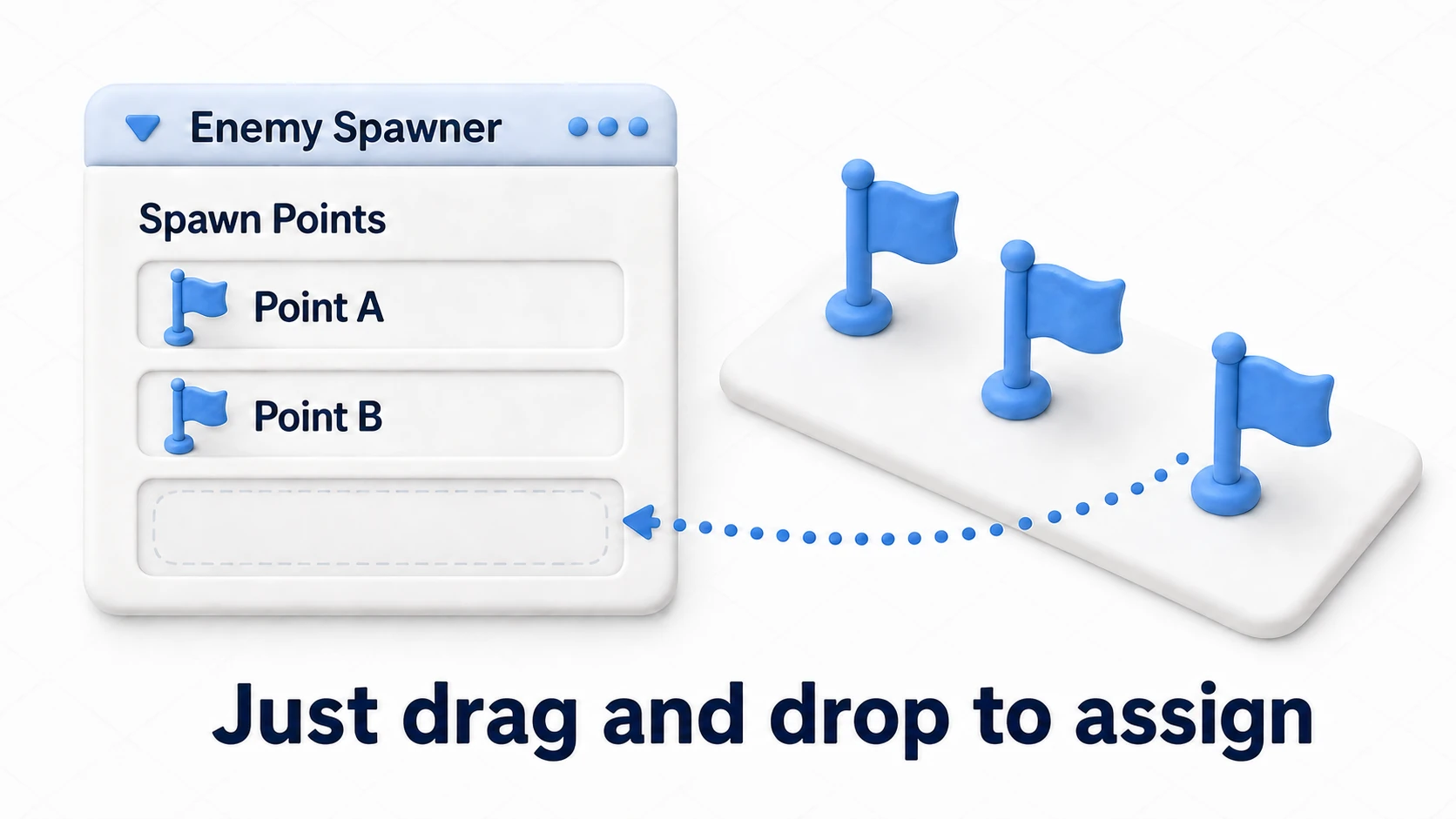
A public array shows up as a list in the Inspector, and you can assign elements via drag and drop. This is where collections first prove their worth in Unity.
using UnityEngine;

public class EnemySpawner : MonoBehaviour
{
    public GameObject enemyPrefab;

    // Appears in the Inspector as "Spawn Points"
    public Transform[] spawnPoints;

    void Start()
    {
        // Spawn one enemy at every spawn point
        foreach (Transform point in spawnPoints)
        {
            Instantiate(enemyPrefab, point.position, point.rotation);
        }
    }
}
Just place three empty GameObjects in the scene and drag them into Spawn Points in the Inspector. Want more spawn points later? Add elements in the Inspector—no code changes needed. (A new slot starts empty, so drag the new spawn point object into it.)
Example 2: Tracking Active Enemies with a List
"Enemies currently in the scene" shrink when defeated and grow when spawned—exactly the kind of data a List is made for.
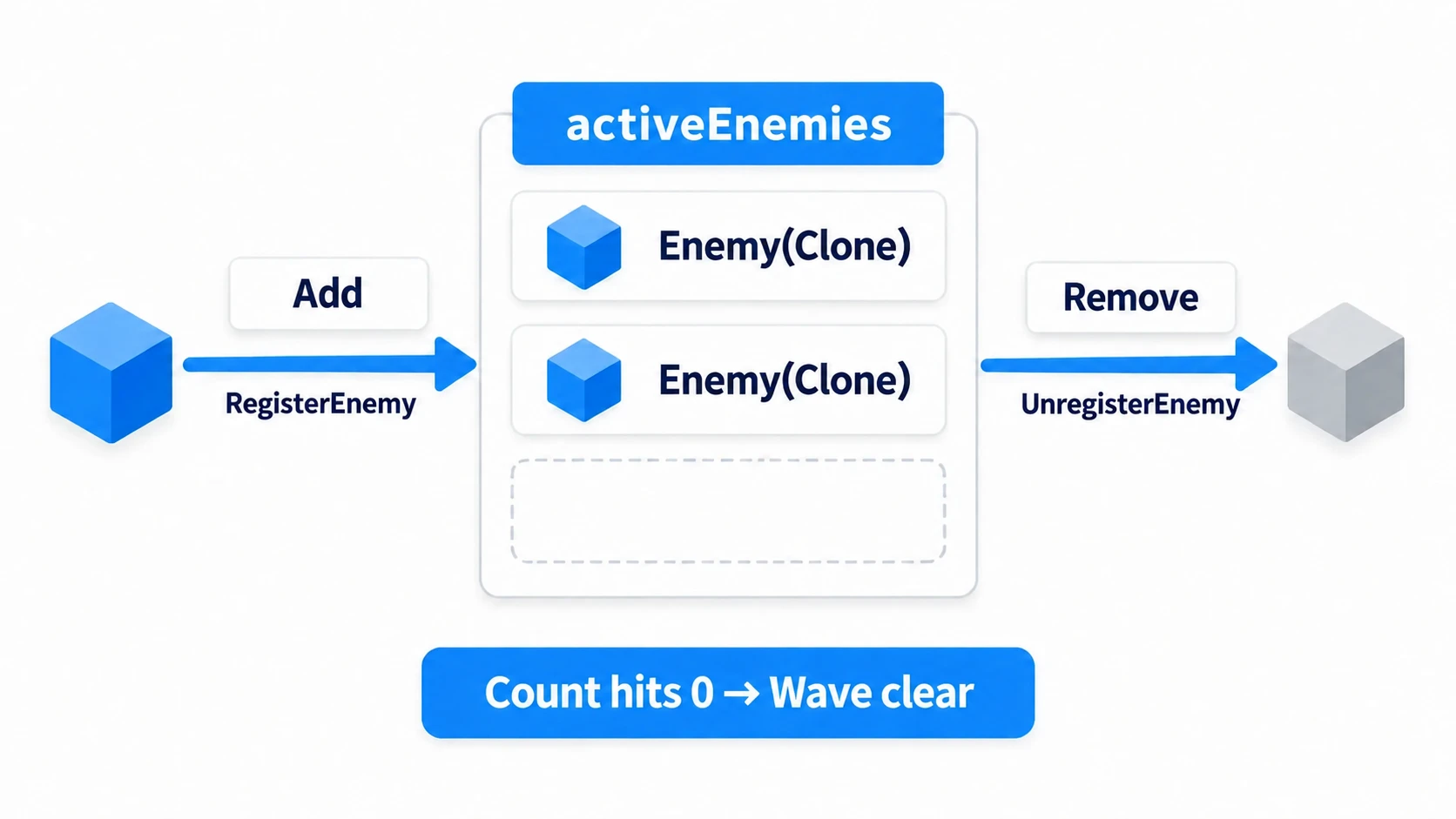
using System.Collections.Generic;
using UnityEngine;

public class EnemyManager : MonoBehaviour
{
    // List tracking the enemies currently active
    private List<GameObject> activeEnemies = new List<GameObject>();

    public void RegisterEnemy(GameObject enemy)
    {
        activeEnemies.Add(enemy); // Add on spawn
    }

    public void UnregisterEnemy(GameObject enemy)
    {
        activeEnemies.Remove(enemy); // Remove on defeat

        // Checking for a full wipe is just a Count check
        if (activeEnemies.Count == 0)
        {
            Debug.Log("Wave cleared!");
        }
    }
}
Warning: Calling
Removeon a List while iterating it withforeachthrows anInvalidOperationException. If you need to remove elements mid-loop, the standard workaround is aforloop that runs from the end backwards (for (int i = list.Count - 1; i >= 0; i--)).
Troubleshooting
| Symptom | Cause | Fix |
|---|---|---|
UnassignedReferenceException | A slot in Spawn Points is empty in the Inspector, or the Enemy Prefab field is empty | Drag an object into the empty slot. Remove unused slots by lowering Size |
NullReferenceException on the Add line | You only declared the list, as in private List<string> items;, and never created it with new (a List that isn't shown in the Inspector is yours to create) | Add = new List<string>(); to the declaration |
| "Wave clear!" never appears after you defeat every enemy | You Destroyed the enemies without calling UnregisterEnemy. The destroyed enemies stay in the List as null, so Count never reaches 0 | Call UnregisterEnemy before you Destroy an enemy |
Bonus: Good to Know for Later
Once you're comfortable with arrays and Lists, these topics are the natural next steps.
- Looking things up "by name"? Use Dictionary: With
Dictionary<string, int>, you can look up values by key instead of by number, likeitems["Health Potion"]. It's a workhorse for things like mapping item IDs to their data. - A perfect match for prefab spawning at scale: The next step after managing spawned enemies and items in a List is object pooling—reusing them efficiently instead of creating and destroying. It appears as "a reuse mechanism built on Lists" in the object pooling article.
- Watch out for GC with heavy churn: Adding elements to a List can trigger internal array reallocation, and doing it in bulk repeatedly puts pressure on GC (garbage collection). When that starts to matter, the GC article is a good reference.
- There's a design that doesn't expose the List as
public: apublic List<...>can beAdded to orRemoved from by any other script at will. As you get comfortable, make the Listprivateand expose only "gateway methods" for adding and removing (the earlierRegisterEnemy/UnregisterEnemyare exactly this)—it closes off a whole class of bugs.
Summary
Collections—handling multiple pieces of data together—are the foundation of game logic.
- An array is a "fixed shelf with numbered slots." Its size is set at declaration, and you work with
.Lengthand indices (starting at 0). - A List is a "shelf that grows and shrinks." Use
Add/Remove/.Countto resize freely. Don't forgetusing System.Collections.Generic;. - The rule of thumb: fixed count → array, changing count → List. If in doubt, a List is fine.
publicarrays and Lists appear as lists in the Inspector, assignable via drag and drop.Removeinside aforeachthrows an exception. To delete while looping, useforfrom the end backwards.
Say goodbye to enemy1, enemy2, enemy3. Whether it's 10 enemies or 100, collections handle them with the same few lines of code.