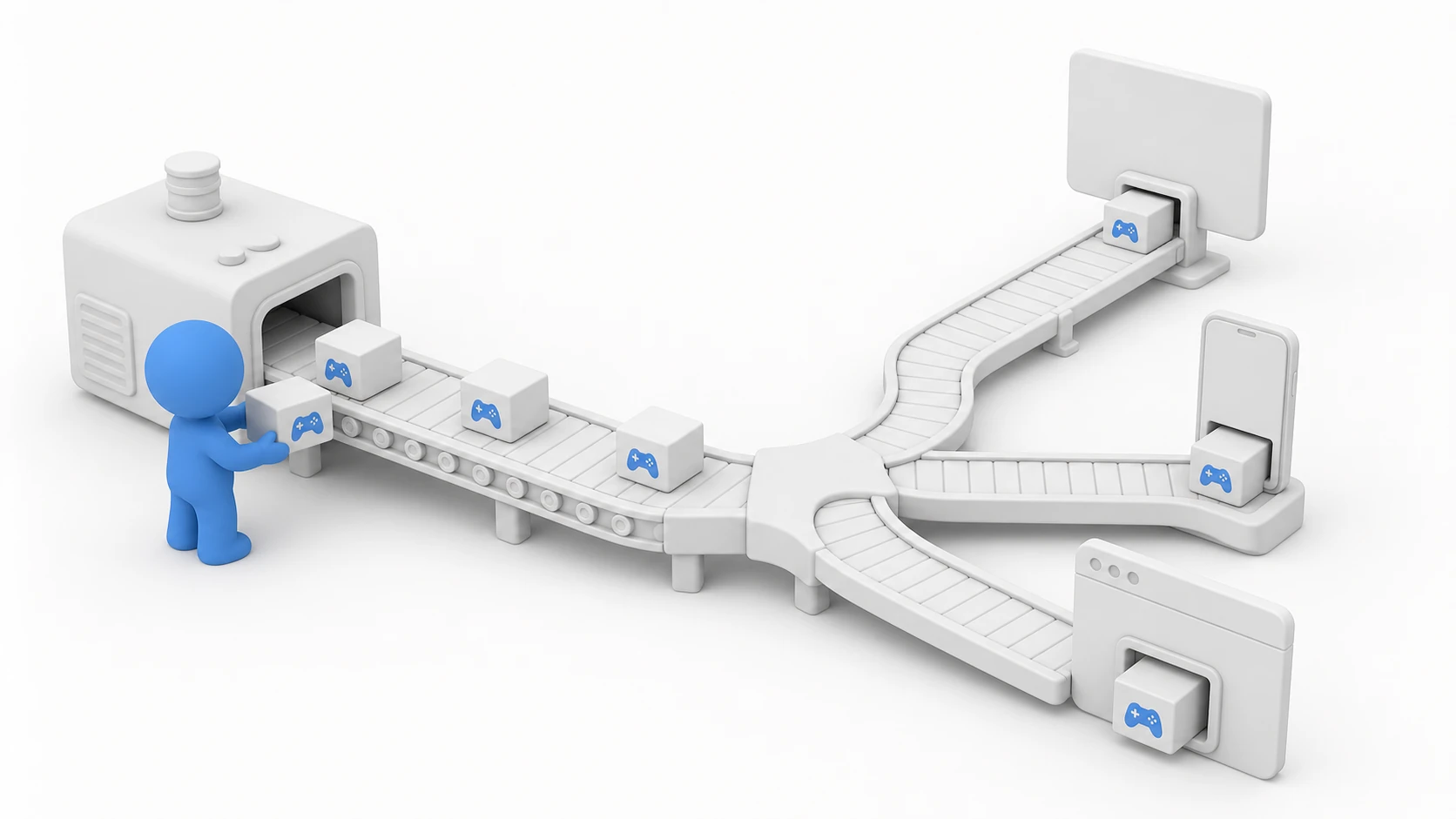
"I'd love to release this game internationally someday..." When that thought crosses your mind, the first hurdle you face is localization. Have you ever pictured a future where you scatter if (language == "en") branches across every screen—and quietly closed that thought away?
The Unity Localization package is Unity's official solution for multilingual support. It manages text, images, audio, fonts, and more per language, and lets you switch between them at runtime. It also integrates with CSV files and Google Spreadsheets, making collaboration with translators seamless.
Tested with: Unity 6 (6000.x), Localization 1.5

What You'll Learn
- The core concepts of the Localization package (Locale, String Table, Asset Table)
- Language selection at startup (Locale Selector priority, saving with PlayerPrefs)
- How to localize text, images, and fonts
- Smart Strings (variable insertion and plurals)
- Translation workflows with CSV / Google Spreadsheets integration
Core Concepts
| Concept | Description |
|---|---|
| Locale | A combination of language and region (e.g., en-US, ja-JP) |
| String Table | A container that manages text per language |
| Asset Table | A container that manages images, audio, and other assets per language |
| Locale Selector | The mechanism that decides which Locale to use |
| Smart Strings | A feature for localizing dynamically changing strings |
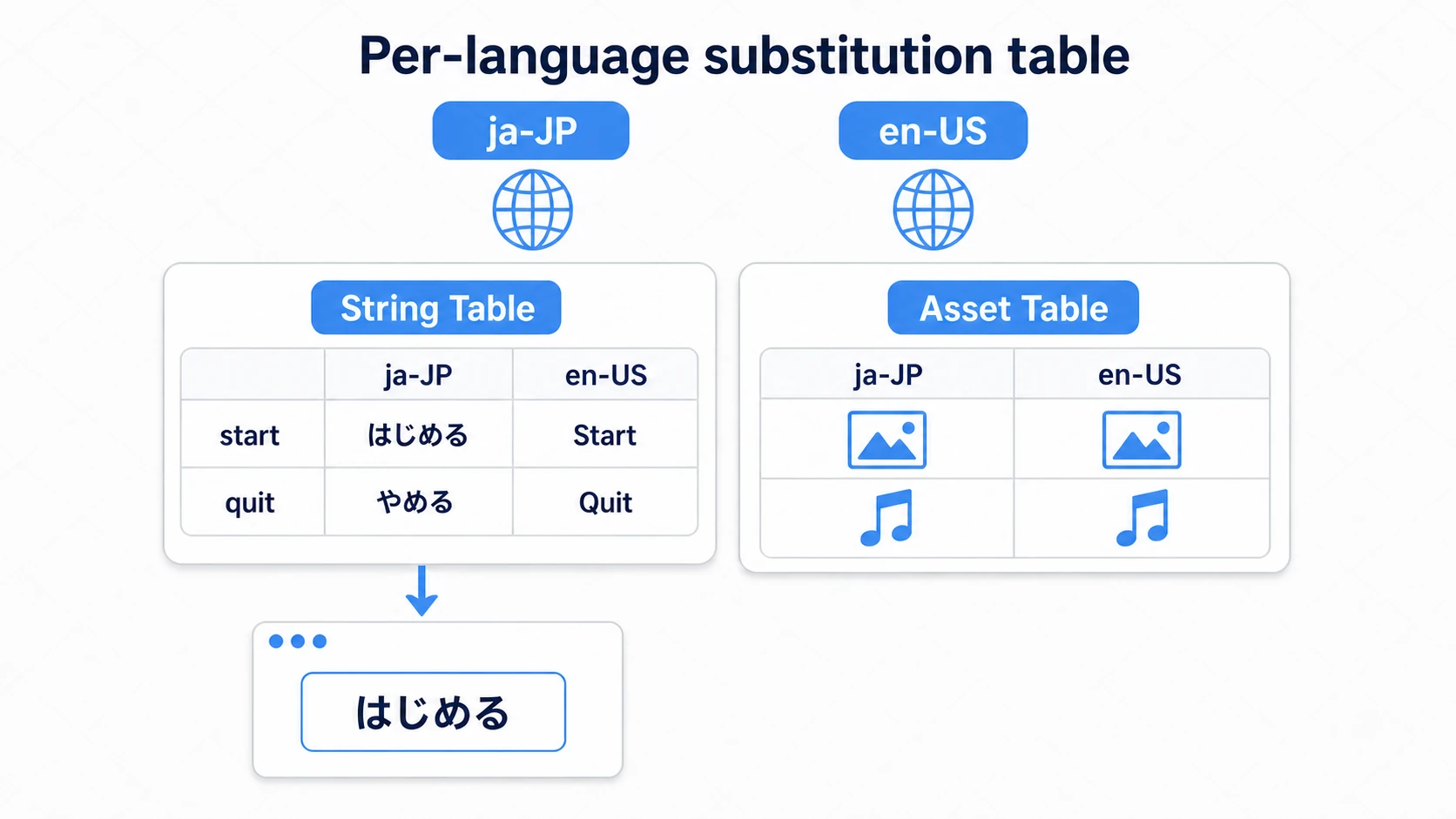
The key idea is a "per-language substitution table". Text goes into a String Table, and images and audio go into an Asset Table; your UI only ever references the keys in those tables.
Installation
Install the package from the Package Manager.
- Select
Window > Package Manager(in Unity 6.1 and later,Window > Package Management > Package Manager) - Choose
Unity Registryin the list on the left - Find and select
Localizationin the list - Click the
Installbutton in the bottom right
Setup
Creating the Localization Settings
- Select
Edit > Project Settings > Localization - Click the
Createbutton - Choose where to save the asset
Creating Locales
- Click the
Add Localebutton in the Localization Settings window (older versions called itLocale Generator) - Check the languages you want to support (e.g., English, Japanese)
- Click the
Add Localesbutton
Locale Selector: Choosing a Language at Startup
The Locale Selector is the mechanism that decides which language to use when the app starts.
Adding the Player Pref Locale Selector
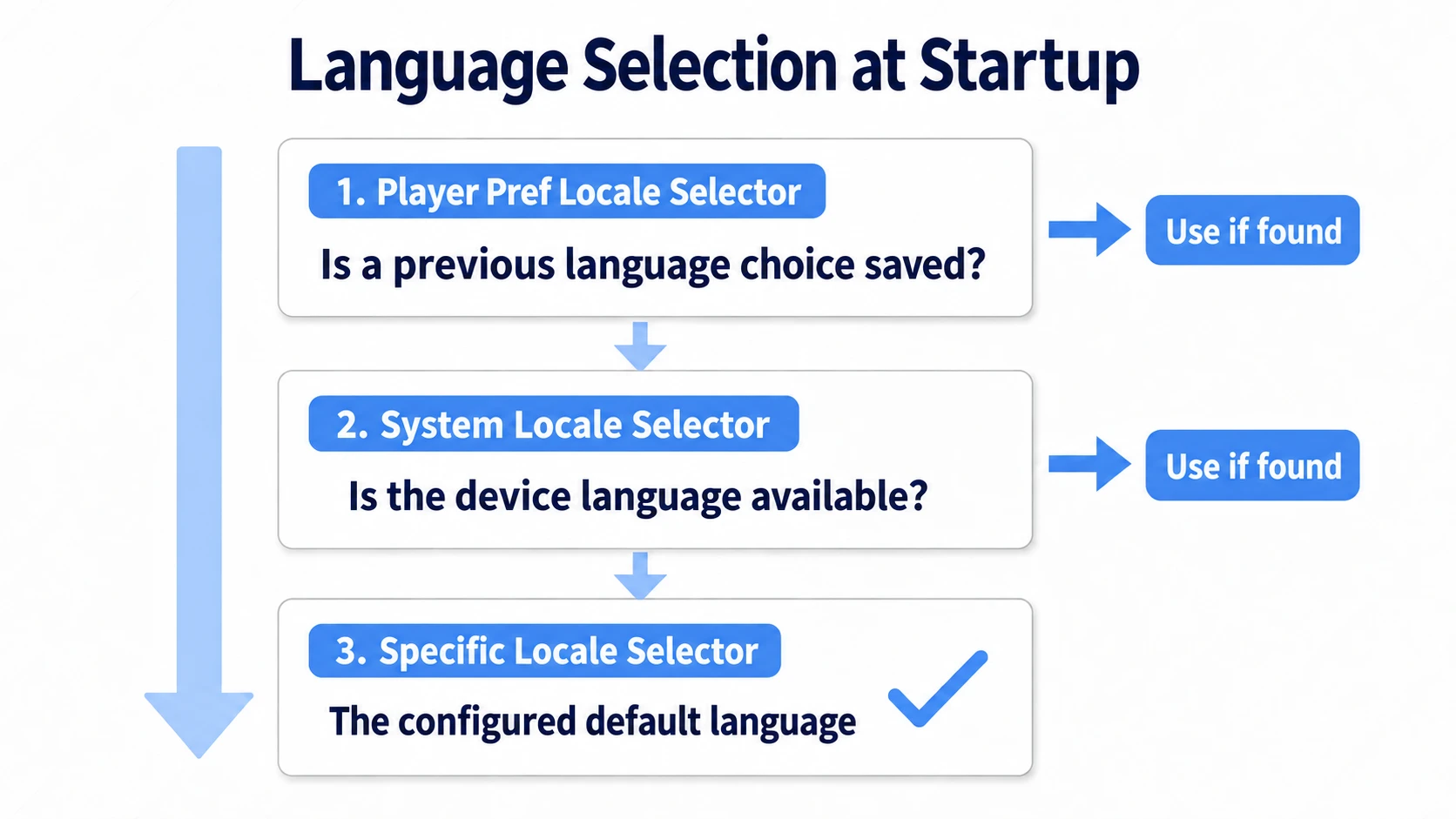
A newly created Localization Settings asset already contains three selectors: Command Line Locale Selector → System Locale Selector → Specific Locale Selector. That's enough to start in the device's language. To reuse the language the player chose next time, add the Player Pref Locale Selector.
- Open
Edit > Project Settings > Localization - Click
+in theLocale Selectorssection - Add a
Player Pref Locale Selector - Drag it to the top (selectors are evaluated from top to bottom)
Startup Selector Priority
| Selector | Description |
|---|---|
| Command Line Locale Selector | Specifies the language via command-line arguments (for debugging) |
| System Locale Selector | Uses the device's language settings |
| Specific Locale Selector | Forces a specific language |
| Player Pref Locale Selector | Saves and restores the language chosen by the user |
Recommended setup: Put the
Player Pref Locale Selectorfirst, followed by theSystem Locale Selector, and finally aSpecific Locale Selector(as a fallback). The language is then resolved in this order: user choice → system language → default language.
Saving the Language with the Player Pref Locale Selector
With a Player Pref Locale Selector in place, all your code needs to do is change SelectedLocale. The Selector records the choice when it changes and restores it on the next launch.
using UnityEngine;
using UnityEngine.Localization.Settings;

public class LanguageSettings : MonoBehaviour
{
    // Change the language (with a Player Pref Locale Selector, saving and restoring are automatic)
    public void SetLanguage(string localeCode)
    {
        var locale = LocalizationSettings.AvailableLocales.GetLocale(localeCode);
        if (locale != null)
        {
            LocalizationSettings.SelectedLocale = locale;
        }
    }
}
Warning (use one saving mechanism): the
Player Pref Locale Selectorsaves the language under the keyselected-locale. If you add your own separate save likePlayerPrefs.SetString("selected_language", ...), the two stored values can disagree, and a different language gets picked after a restart. Consolidate saving into the Selector; treat hand-rolled saving as the fallback for projects that don't use one.
Localizing Text
Creating a String Table
- Open
Window > Asset Management > Localization Tables - Click the
New Table Collectionbutton at the top - Set
TypetoString Table Collection - Enter a table name in
Name(e.g.,UI Texts) - Click the
Createbutton
Localizing UI Text
- Select a GameObject with a TextMeshPro component
- In the Inspector, right-click the TextMeshPro component's header and choose
Localize(this adds aLocalize String Eventand wires it to the text automatically) - Choose the table and entry in
String Reference
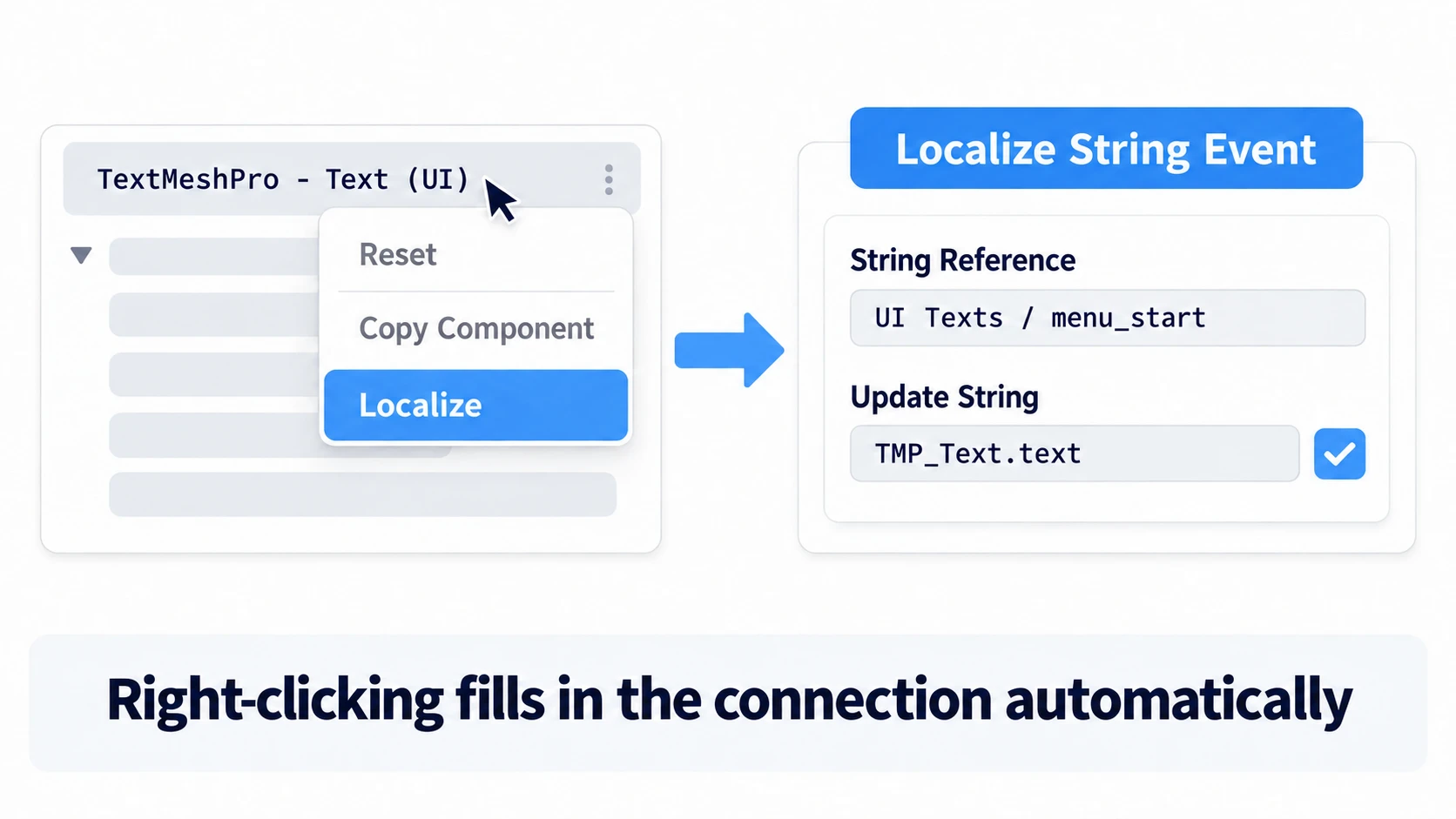
If you add a Localize String Event by hand with Add Component, you must register the TextMeshPro in Update String and pick text. Until it's wired, switching languages doesn't change what's displayed.
Localizing from a Script
using UnityEngine;
using UnityEngine.Localization.Settings;

public class LocalizedTextExample : MonoBehaviour
{
    async void Start()
    {
        try
        {
            var localizedString = await LocalizationSettings.StringDatabase
                .GetLocalizedStringAsync("UI Texts", "menu_start").Task;
            Debug.Log(localizedString);
        }
        catch (System.Exception e)
        {
            Debug.LogError($"Localization failed: {e.Message}");
        }
    }
}
A word of caution about async void: Exceptions thrown in
async voidmethods do not propagate to the caller, so always handle errors withtry-catch. For production projects, consider aUniTask- orCoroutine-based implementation instead.
Localizing Assets
Creating an Asset Table
- Open
Window > Asset Management > Localization Tables - Click the
New Table Collectionbutton and setTypetoAsset Table Collection - Enter a table name in
Name(e.g.,Game Assets) - Click the
Createbutton
Using Localization Scene Controls
- Open
Window > Asset Management > Localization Scene Controls - Set the Asset Table Collection you created in
Asset Table - Turn on
Track Changes - Switch languages with
Active Localeand assign the assets in your scene for each language
Switching Fonts
When you need different fonts per language—for example, switching between Japanese and English—use an Asset Table.
Managing Fonts with an Asset Table
- Create an Asset Table Collection (e.g.,
Fonts) with an entry (e.g.,ui_font) - Register a TextMeshPro Font Asset (
TMP_FontAsset) for each language - Swap the font when the language changes with the script below (TextMeshPro has no built-in font-switching component)
using TMPro;
using UnityEngine;
using UnityEngine.Localization;

public class LocalizedFontExample : MonoBehaviour
{
    [SerializeField] private TMP_Text textComponent;
    [SerializeField] private LocalizedAsset<TMP_FontAsset> font = new LocalizedAsset<TMP_FontAsset>(); // Pick Fonts / ui_font in the Inspector

    // Subscribing starts the first load, and it fires again whenever the language changes
    void OnEnable() => font.AssetChanged += ApplyFont;
    void OnDisable() => font.AssetChanged -= ApplyFont;

    void ApplyFont(TMP_FontAsset value)
    {
        textComponent.font = value;
    }
}
TextMeshPro Fallback Fonts
For CJK (Chinese, Japanese, Korean) support, configuring fallback fonts is essential.
- Select your main font asset
- Open
Fallback Font Assetsin the Inspector - Add a Japanese (or other CJK) font asset
Font Asset Creator: To use Japanese fonts with TextMeshPro, you need to create a Font Asset containing Japanese characters via
Window > TextMeshPro > Font Asset Creator. Set a font that includes Japanese as theSource Font File, and specify the characters you use with aCharacter Setoption such asCharacters from File.
Smart Strings
Smart Strings localize text that changes dynamically. They are based on the SmartFormat library. To use them, turn on Smart for each entry in the Localization Tables window.
Inserting Variables
Here is a Japanese entry that means "Hello, {player_name}!":
こんにちは、{player_name}さん!
Handling Plurals
Japanese has no grammatical plural, so the Japanese entry simply inserts the variable.
Japanese entry (meaning "{count} items"):
{count}個のアイテム
English:
{count} {count:plural:item|items}
Smart Strings syntax follows the SmartFormat library. Because plural rules differ between languages, each language needs its own configuration.
Setting Variables from a Script
using UnityEngine;
using UnityEngine.Localization.Components;

public class SmartStringExample : MonoBehaviour
{
    [SerializeField] private LocalizeStringEvent localizeStringEvent;

    void Start()
    {
        // Set variables via Arguments (recommended)
        localizeStringEvent.StringReference.Arguments = new object[] { 5 };
        localizeStringEvent.RefreshString();
    }
}
Smart Strings variables: Use placeholders like
{0}and{1}; values are assigned in the order of theArgumentsarray. For a named variable like{count}above, add a name and a value, as inlocalizeStringEvent.StringReference.Add("count", new IntVariable { Value = 5 })(IntVariablelives inUnityEngine.Localization.SmartFormat.PersistentVariables).
Practical: Building a Language Dropdown
An RPG's options screen, a puzzle game's settings, a visual novel's title—every multilingual game has a "language" dropdown somewhere. Let's assemble the parts we've covered so far (Locale, Player Pref Locale Selector) into this classic piece of UI.
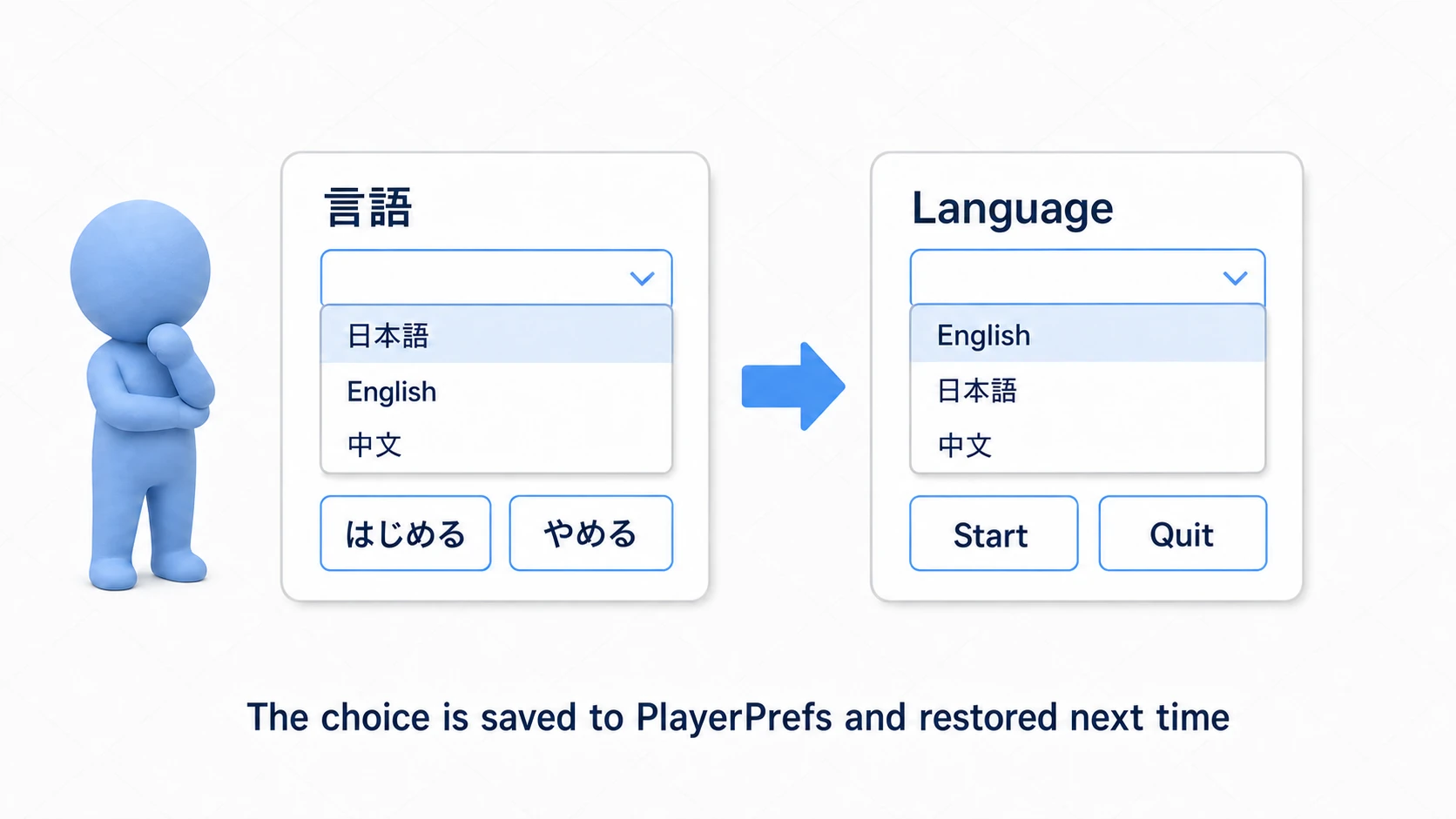
Line up the available Locales in a TMP_Dropdown and switch on selection.
using System.Collections;
using UnityEngine;
using UnityEngine.Localization.Settings;
using TMPro;

public class LanguageDropdown : MonoBehaviour
{
    [SerializeField] private TMP_Dropdown dropdown;

    IEnumerator Start()
    {
        // Wait until initialization finishes (it can be uninitialized right after launch)
        yield return LocalizationSettings.InitializationOperation;

        // Populate the dropdown with the available Locales
        dropdown.ClearOptions();
        var locales = LocalizationSettings.AvailableLocales.Locales;
        foreach (var locale in locales)
        {
            dropdown.options.Add(new TMP_Dropdown.OptionData(locale.LocaleName));
        }

        // Select the current language and sync the displayed value
        dropdown.value = locales.IndexOf(LocalizationSettings.SelectedLocale);
        dropdown.RefreshShownValue();

        // Switch the language when the selection changes
        dropdown.onValueChanged.AddListener(index =>
        {
            LocalizationSettings.SelectedLocale = locales[index];
            // With a Player Pref Locale Selector configured, the choice is saved and restored automatically
        });
    }
}
There are two key points.
- Switching is a single assignment to
SelectedLocale: every text driven by aLocalize String Eventis replaced across the whole screen once loading finishes. You don't need to write per-UI update code. - Leave saving to the Player Pref Locale Selector: if you set the
Player Pref Locale Selectorto top priority back in the Locale Selector section, both saving the choice and restoring it on the next launch happen automatically. Writing your ownPlayerPrefs.SetStringis the fallback for when you don't use a Selector.
Testing
Switching Languages in the Game View
- In Play Mode, a language dropdown (
Locale Game View Menu) appears at the top of the Game View (if it doesn't, check that it's enabled inEdit > Preferences > Localization; it never appears in a build) - Click it to switch languages
- Changes are reflected in real time, even in Play Mode
The Preview Window
- Open
Window > Asset Management > Localization Tables - Select a table
- Click an entry to display the Preview
- Check how it renders in each language
Testing from a Script
#if UNITY_EDITOR
[UnityEditor.MenuItem("Debug/Switch to Japanese")]
static void SwitchToJapanese()
{
    var locale = LocalizationSettings.AvailableLocales.GetLocale("ja");
    LocalizationSettings.SelectedLocale = locale;
}

[UnityEditor.MenuItem("Debug/Switch to English")]
static void SwitchToEnglish()
{
    var locale = LocalizationSettings.AvailableLocales.GetLocale("en");
    LocalizationSettings.SelectedLocale = locale;
}
#endif
Managing Tables with CSV
Exporting to CSV
- Select a table in the Localization Tables window
- Choose
CSV...from theExportmenu at the top of the window
Importing from CSV
- Select a table in the Localization Tables window
- Choose
CSV...from theImportmenu at the top of the window (to keep existing entries and add to them,CSV(Merge)...)
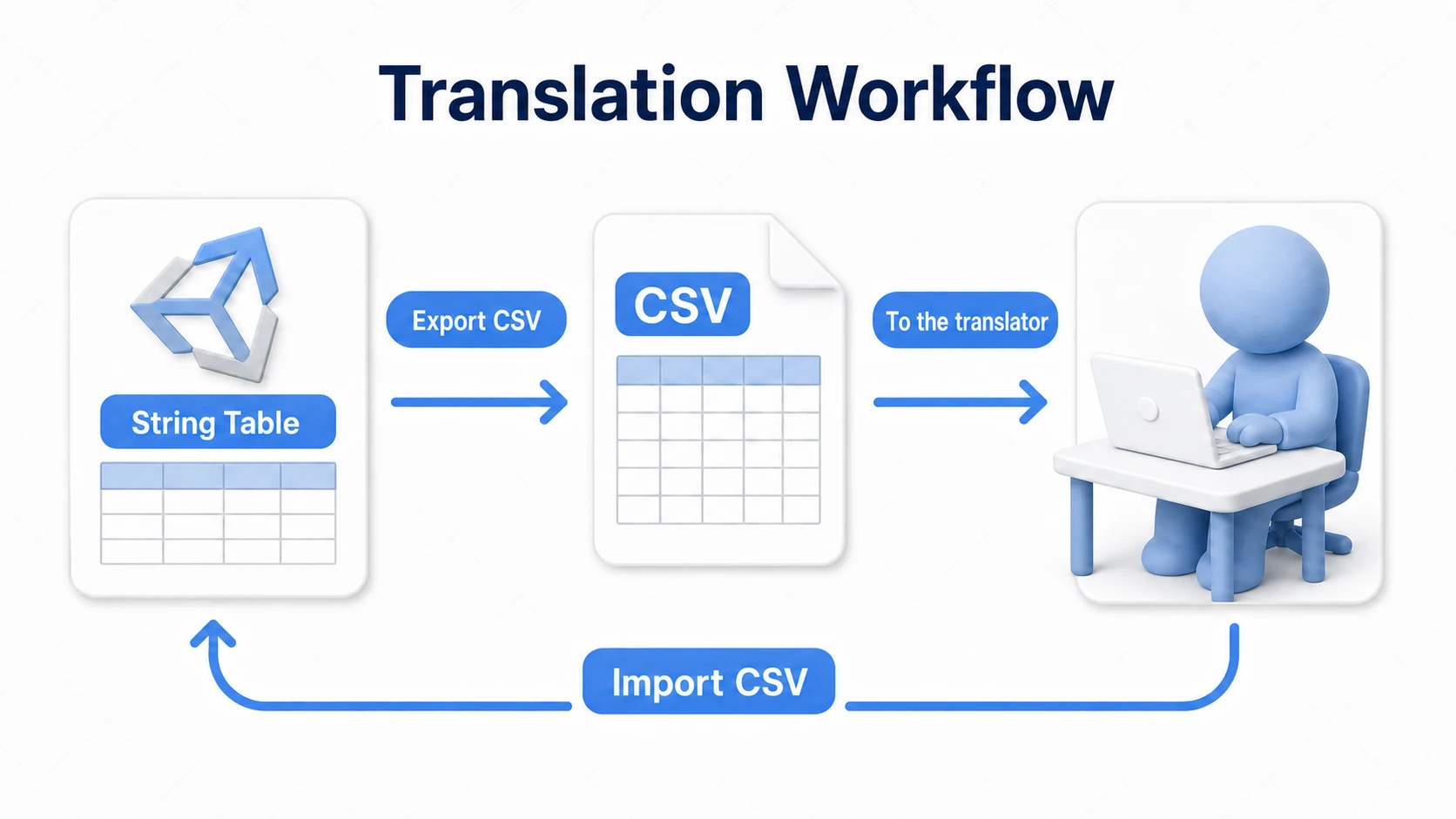
Google Spreadsheets Integration
The Google Spreadsheets Service makes collaboration with translators even smoother.
Setup Steps
Google Sheets support ships inside the Localization package, so no extra package is needed.
- In the Google Cloud Console, enable the Google Sheets API and create an OAuth client ID (desktop app)
- In Unity, choose
Assets > Create > Localization > Google Sheets Serviceto create the service asset - On that asset, choose
OAuthas the authentication type, load the client ID's credentials (JSON), and clickAuthorize - In the String Table Collection's Inspector, add a
Google Sheets Extensionwith the+underExtensions, point it at your spreadsheet, and Push / Pull
Important (handling the credentials): the OAuth client's credentials (JSON) are a secret. Never commit it to a Git repository (add it to
.gitignore; this matters doubly for public repos). If it leaks, third parties can operate your Google account's resources.
More details: For the full Google Spreadsheets integration procedure, refer to the official Unity documentation.
Addressables Integration
Impact on Build Size
When you add multilingual support, the text and assets for every language are included in the build, which can significantly increase build size. This is especially noticeable when:
- You support a large number of languages
- You use a different font for each language
- You localize large assets such as audio or textures
The Localization package already runs on top of Addressables. Locales, String Tables, and Asset Tables are registered in Addressables groups the moment you create them. For large projects, changing those groups' settings lets players download only the languages they need. The mechanics of Addressables itself are covered in Getting Started with Addressables.
How to Set It Up
- Open
Window > Asset Management > Addressables > Groups - Find the per-language groups (names such as
Localization-String-Tables-followed by the language name) - Switch the groups for languages you want to download later to Remote (loaded from a server; see the remote content article)
Benefits
- Smaller downloads: Load only the languages you need
- On-demand loading: Fetch only the required assets when switching languages
- Remote delivery: Supports distributing language packs from a CDN
Summary
The Unity Localization package is a powerful tool for making your Unity project multilingual.
- Localize text, images, and audio - Managed with String Tables and Asset Tables
- Smart Strings - Localize dynamic strings naturally, following each language's grammar
- CSV / Google Spreadsheets integration - Smooth collaboration with translators
- Addressables integration - Load only the languages you need and cut download size
If you are aiming for the global market, the Unity Localization package is well worth adopting. Which language region will your game reach next?
Further Learning