You've read about GameObjects, C# basics, input, UI. And yet, facing a brand-new project's empty scene — you don't know what to place first. Between knowing the parts and finishing one game runs a river wider than it looks.
This article is the bridge: a capstone. We're building a one-screen game: collect 5 coins in 60 seconds. Modest, yes — but it contains the backbone every game has: title, controls, pickups, score, time limit, results, retry, and a build. Assets are Cubes and Spheres. Scripts are four files. Let's reach the end today.
What you'll learn
- The straight road from a blank project to a playable build
- The four-script structure (PlayerMover / Coin / GameFlow / GameHud)
- Collecting a coin exactly once with a trigger
- The Title → Playing → Result → retry state flow
- UI for score and remaining time
- The smoke test: verifying the build outside the Editor
Tested with: Unity 6 (6000.x), Input System enabled (if you build with Unity 2022.3, read
linearVelocityasvelocity)
- What we're building: start from the finished picture
- Setup: the minimal scene and Prefabs
- PlayerMover: make it move
- Coin: collectible exactly once
- GameFlow: cycling Title, Playing, Result
- GameHud: showing score and time
- Build it, hand it to a friend
- Troubleshooting
- Bonus: four remix challenges
- Summary
What we're building: start from the finished picture
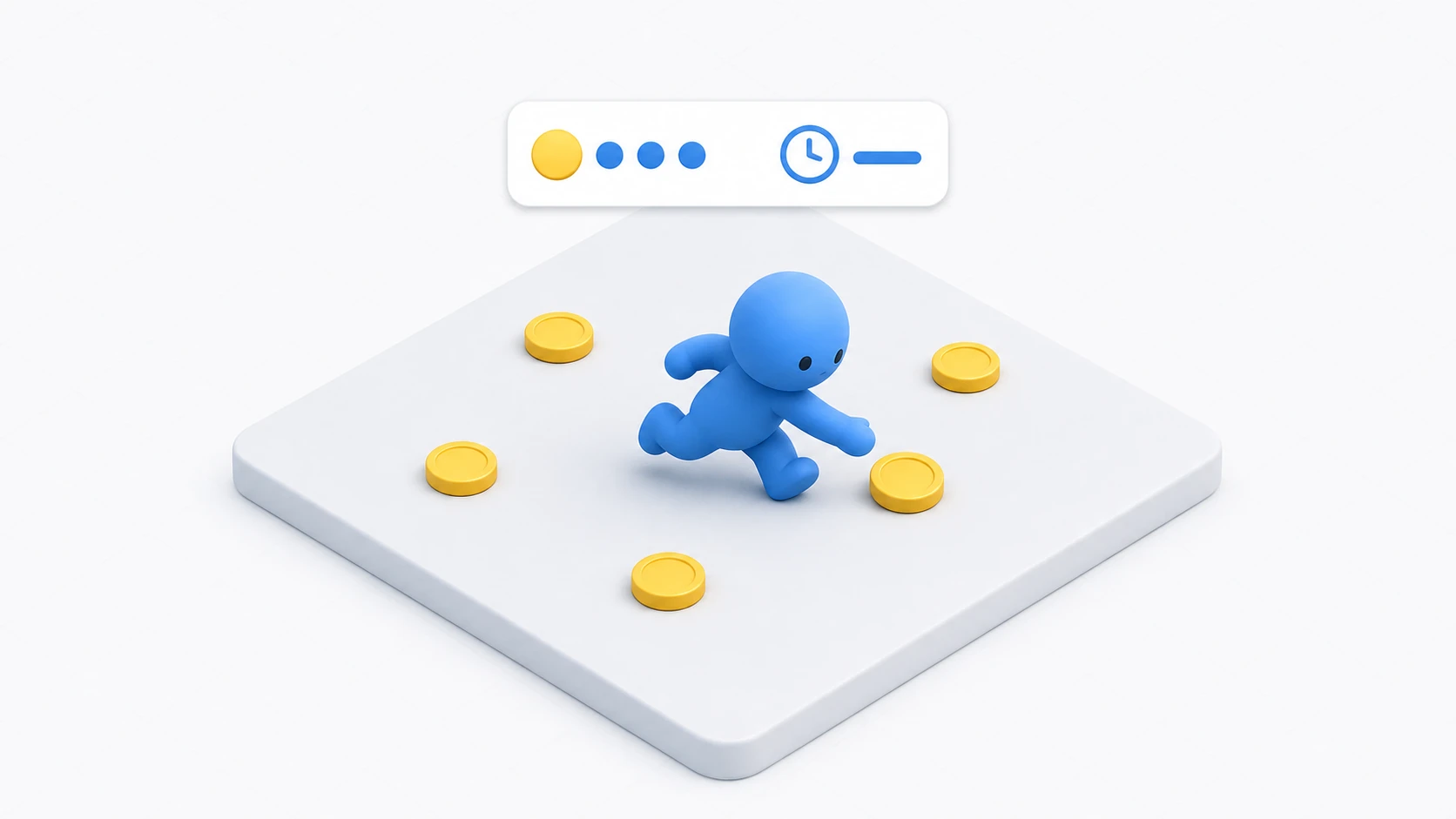
To avoid getting lost, look at the goal first. The screen: a player (Capsule) running on a floor, five coins (yellow Spheres), score and remaining time at the top. Press "Start" on the title screen and a 60-second countdown begins; collect them all — or run out of time — and you reach the result screen. "Retry" starts over.
Four scripts, one job each. This "split by responsibility" instinct comes straight from the C# classes article.
| Script | Job | What it does NOT do |
|---|---|---|
PlayerMover | Read input and move | Knows nothing of score or time |
Coin | Vanish when taken, send one notice | Doesn't know which number it was |
GameFlow | The rules (state, count, timer) | Draws nothing on screen |
GameHud | Display only | Makes no rule decisions |
Setup: the minimal scene and Prefabs
Create a new 3D project (a template with the Input System enabled) and place the following. Don't spend time on looks — the star of this article is the experience of finishing.
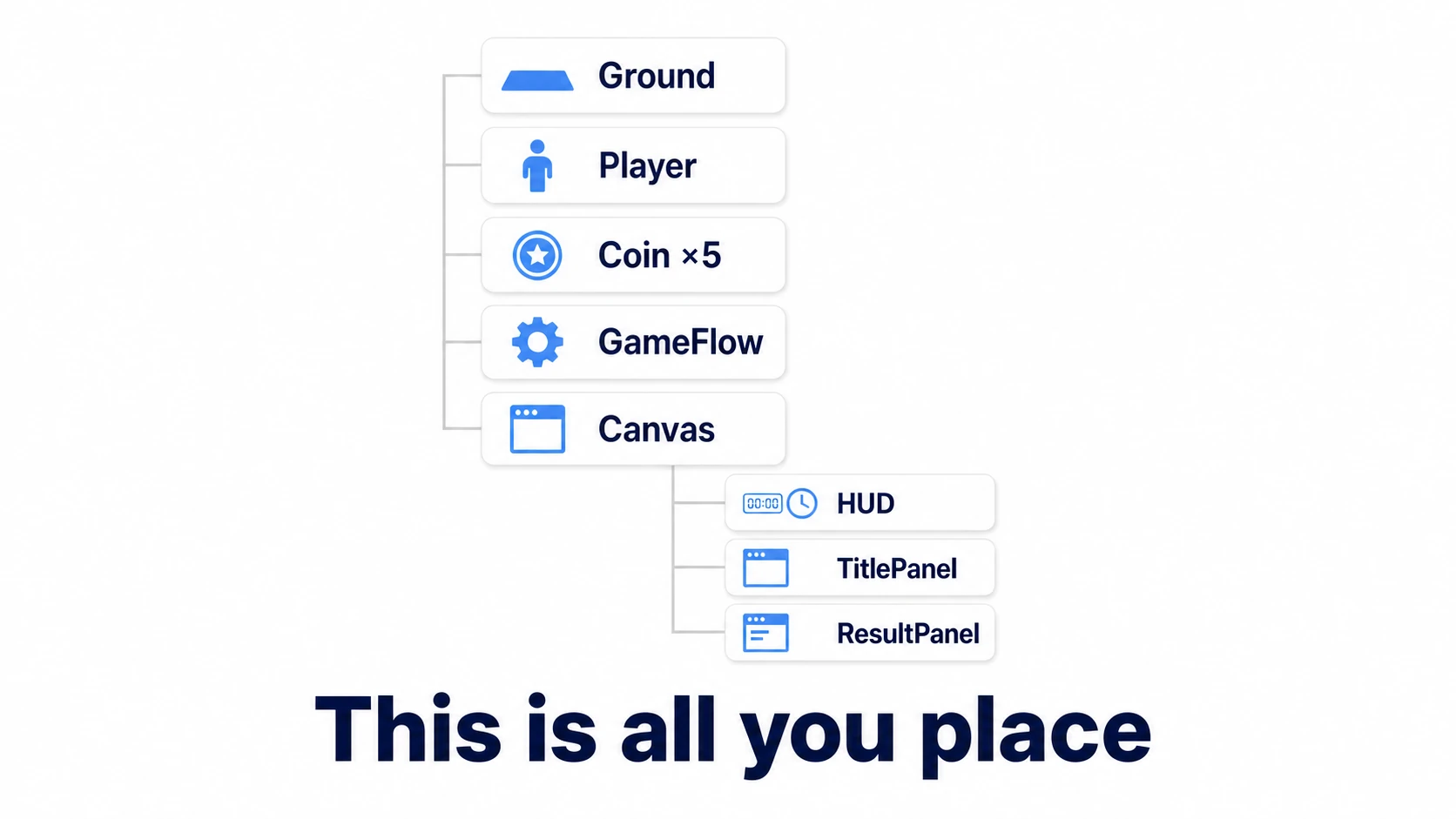
- Ground: 3D Object > Plane, scaled to about (2, 1, 2)
- Player: 3D Object > Capsule, named
Player. Add a Rigidbody and check all of X/Y/Z under Constraints > Freeze Rotation (so it can't tip over) - Coin: 3D Object > Sphere, scale (0.5, 0.5, 0.5), give it a yellow material, and set its Sphere Collider to Is Trigger. Name it
Coin - Drag the Coin into the Project window to make it a Prefab, then scatter five in the scene (the Prefab article in action)
- GameFlow: an empty GameObject — home for the flow script
- Canvas: creating UI > Text - TextMeshPro adds the Canvas and EventSystem automatically (import TMP essentials when the dialog appears)
Check: Hierarchy shows Ground / Player / Coin ×5 / GameFlow / Canvas, and pressing Play produces no errors.
PlayerMover: make it move
Script one. It reads the keyboard (WASD/arrows) and a gamepad's left stick, following the site's standard pattern of read in Update, apply physics in FixedUpdate.
// PlayerMover.cs — attach to Player
using UnityEngine;
using UnityEngine.InputSystem;

[RequireComponent(typeof(Rigidbody))]
public class PlayerMover : MonoBehaviour
{
    [SerializeField] private float moveSpeed = 6f;

    private Rigidbody rb;
    private Vector2 input;

    void Awake()
    {
        rb = GetComponent<Rigidbody>();
    }

    void Update()
    {
        // Read input in Update (keyboard and gamepad both supported)
        input = Vector2.zero;

        if (Keyboard.current != null)
        {
            if (Keyboard.current.wKey.isPressed || Keyboard.current.upArrowKey.isPressed) input.y += 1f;
            if (Keyboard.current.sKey.isPressed || Keyboard.current.downArrowKey.isPressed) input.y -= 1f;
            if (Keyboard.current.dKey.isPressed || Keyboard.current.rightArrowKey.isPressed) input.x += 1f;
            if (Keyboard.current.aKey.isPressed || Keyboard.current.leftArrowKey.isPressed) input.x -= 1f;
        }

        if (Gamepad.current != null && input == Vector2.zero)
        {
            input = Gamepad.current.leftStick.ReadValue();
        }

        // Cap the length at 1 so diagonals aren't faster
        input = Vector2.ClampMagnitude(input, 1f);
    }

    void FixedUpdate()
    {
        // Apply to physics in FixedUpdate
        Vector3 velocity = new Vector3(input.x, 0f, input.y) * moveSpeed;
        velocity.y = rb.linearVelocity.y; // leave gravity alone
        rb.linearVelocity = velocity;
    }
}
Check: press Play and the capsule runs across the floor with WASD — or the stick, if a gamepad is plugged in.
Coin: collectible exactly once
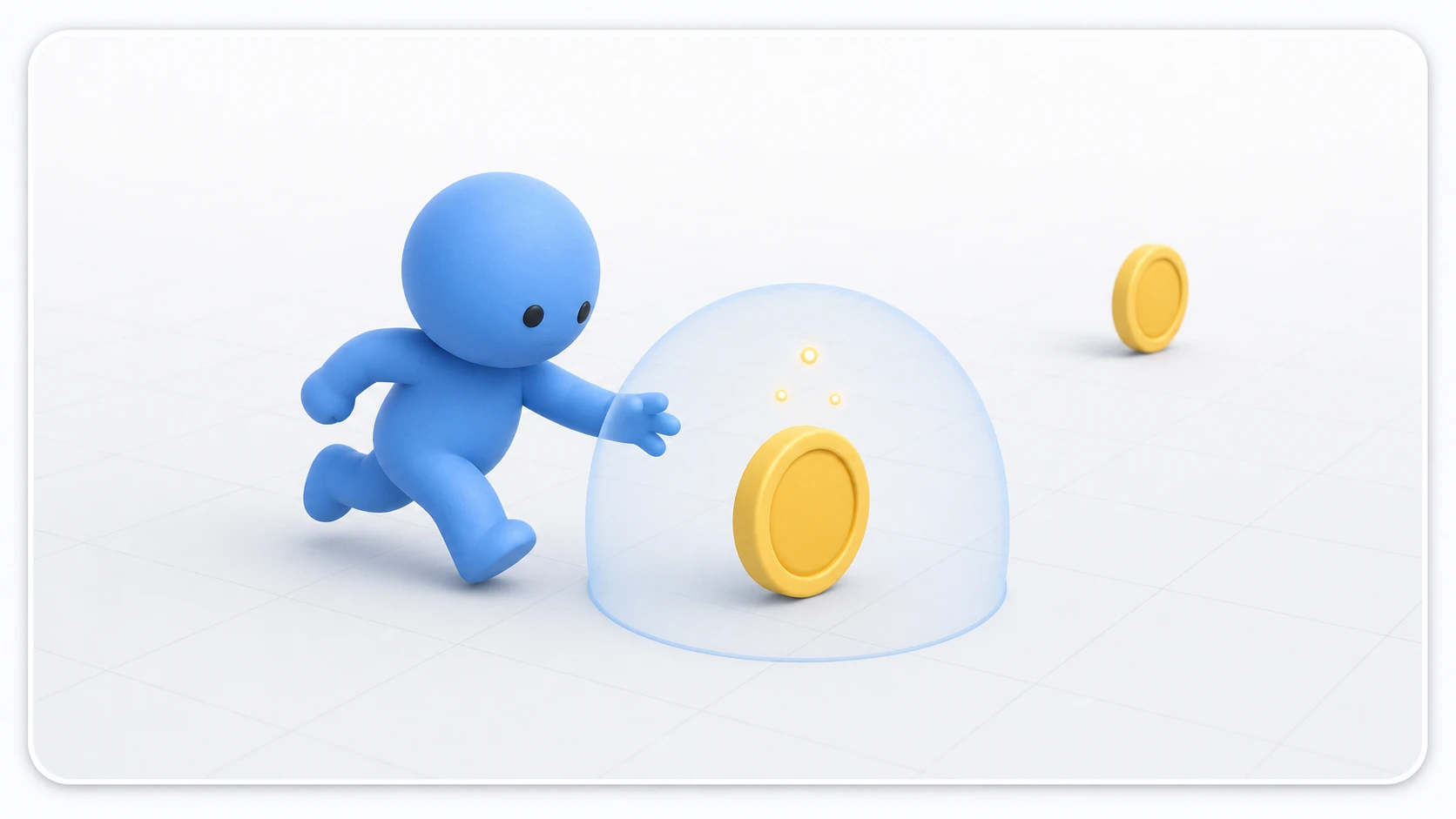
Script two. A coin is a part that does one thing: when the player touches it, notify once and disappear. This is trigger basics going live, wired with a loosely-coupled C# event.
// Coin.cs — attach to the Coin Prefab
using System;
using UnityEngine;

public class Coin : MonoBehaviour
{
    // The global "a coin was collected" notice (GameFlow listens)
    public static event Action OnCollected;

    private bool collected; // double-collect guard

    void Update()
    {
        // A little presence: spin
        transform.Rotate(0f, 180f * Time.deltaTime, 0f);
    }

    void OnTriggerEnter(Collider other)
    {
        if (collected) return;                    // rejects same-frame multi-hits
        if (!other.CompareTag("Player")) return;  // ignore everything but the player

        collected = true;
        OnCollected?.Invoke();
        Destroy(gameObject);
    }
}
Don't forget to set the Player object's Tag to Player (the Tag dropdown at the top of the Inspector). Even if the object is named Player, a Tag left at Untagged means the coins won't react, and no error appears, so it's easy to miss. The collected flag is insurance that "even with multiple Colliders, the notice fires once" — dig deeper into that once-only problem and you arrive at the damage systems article.
Check: run into a coin and it disappears. No score yet — but no Console errors either.
GameFlow: cycling Title, Playing, Result
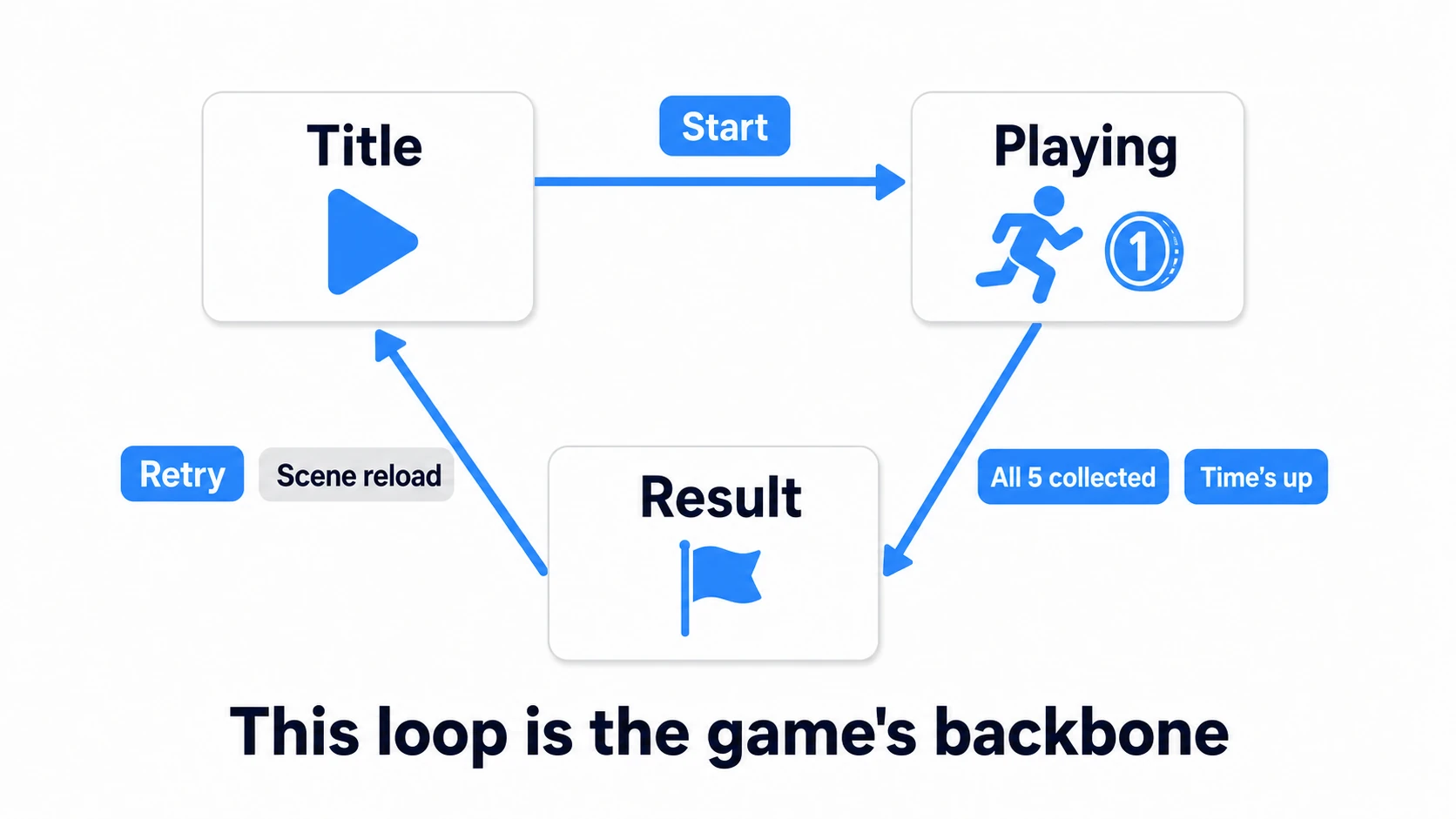
Script three is the heart. It manages the game's state across Title → Playing → Result and owns the coin count and timer rules — a minimal cut of the GameManager pattern.
// GameFlow.cs — attach to the empty "GameFlow" object
using UnityEngine;
using UnityEngine.SceneManagement;

public class GameFlow : MonoBehaviour
{
    public enum State { Title, Playing, Result }

    [SerializeField] private float timeLimit = 60f;
    [SerializeField] private int targetCoins = 5;
    [SerializeField] private PlayerMover player;

    public State Current { get; private set; } = State.Title;
    public int Coins { get; private set; }
    public float TimeLeft { get; private set; }
    public bool IsCleared { get; private set; }

    void OnEnable()
    {
        Coin.OnCollected += HandleCoinCollected;
    }

    void OnDisable()
    {
        // Static events survive scene reloads — unsubscribing is mandatory
        Coin.OnCollected -= HandleCoinCollected;
    }

    void Start()
    {
        TimeLeft = timeLimit;
        player.enabled = false; // can't move during the title screen
    }

    void Update()
    {
        if (Current != State.Playing) return;

        TimeLeft -= Time.deltaTime;
        if (TimeLeft <= 0f)
        {
            TimeLeft = 0f;
            FinishGame(cleared: false); // time's up
        }
    }

    public void StartGame() // wired to the title screen's Start button
    {
        Current = State.Playing;
        player.enabled = true;
    }

    public void Retry() // wired to the result screen's Retry button
    {
        // Reload the whole scene = score and coins all reset to initial state
        SceneManager.LoadScene(SceneManager.GetActiveScene().buildIndex);
    }

    void HandleCoinCollected()
    {
        if (Current != State.Playing) return; // don't count outside play

        Coins++;
        if (Coins >= targetCoins)
        {
            FinishGame(cleared: true); // got them all
        }
    }

    void FinishGame(bool cleared)
    {
        IsCleared = cleared;
        Current = State.Result;
        player.enabled = false; // can't move during results
    }
}
Three things worth reading twice. The player is stopped with enabled = false before and after play (no running around during the title). Coins don't count outside Playing (the guard atop HandleCoinCollected). And retry is a scene reload — timer, coins, everything reliably reinitializes, so lingering-state bugs like "the timer runs double speed on the third retry" are structurally impossible. The price is that OnDisable unsubscribe: skip it and stale subscriptions stack up with every reload.
GameHud: showing score and time
The last script only displays. Under the Canvas, create:
- ScoreText and TimeText (TextMeshPro), side by side at the top
- TitlePanel: a translucent Panel with a "Start" Button
- ResultPanel: a translucent Panel with a result Text and a "Retry" Button (fine to leave visible — the script takes control)
// GameHud.cs — attach to the Canvas
using TMPro;
using UnityEngine;

public class GameHud : MonoBehaviour
{
    [SerializeField] private GameFlow gameFlow;
    [SerializeField] private TextMeshProUGUI scoreText;
    [SerializeField] private TextMeshProUGUI timeText;
    [SerializeField] private GameObject titlePanel;
    [SerializeField] private GameObject resultPanel;
    [SerializeField] private TextMeshProUGUI resultText;

    void Update()
    {
        scoreText.text = "Coins " + gameFlow.Coins + "/5";
        timeText.text = Mathf.CeilToInt(gameFlow.TimeLeft) + "s left";

        titlePanel.SetActive(gameFlow.Current == GameFlow.State.Title);
        resultPanel.SetActive(gameFlow.Current == GameFlow.State.Result);

        if (gameFlow.Current == GameFlow.State.Result)
        {
            resultText.text = gameFlow.IsCleared ? "Cleared!" : "Time's up...";
        }
    }
}
Wire GameFlow and the UI parts in the Inspector, then assign GameFlow.StartGame to the Start button's OnClick, and GameFlow.Retry to the Retry button. As a finishing touch, add one line to Coin's OnTriggerEnter — AudioSource.PlayClipAtPoint(pickupSound, transform.position); — with a [SerializeField] private AudioClip pickupSound; to receive any free sound effect you like. A pickup sound makes it feel like a game overnight.
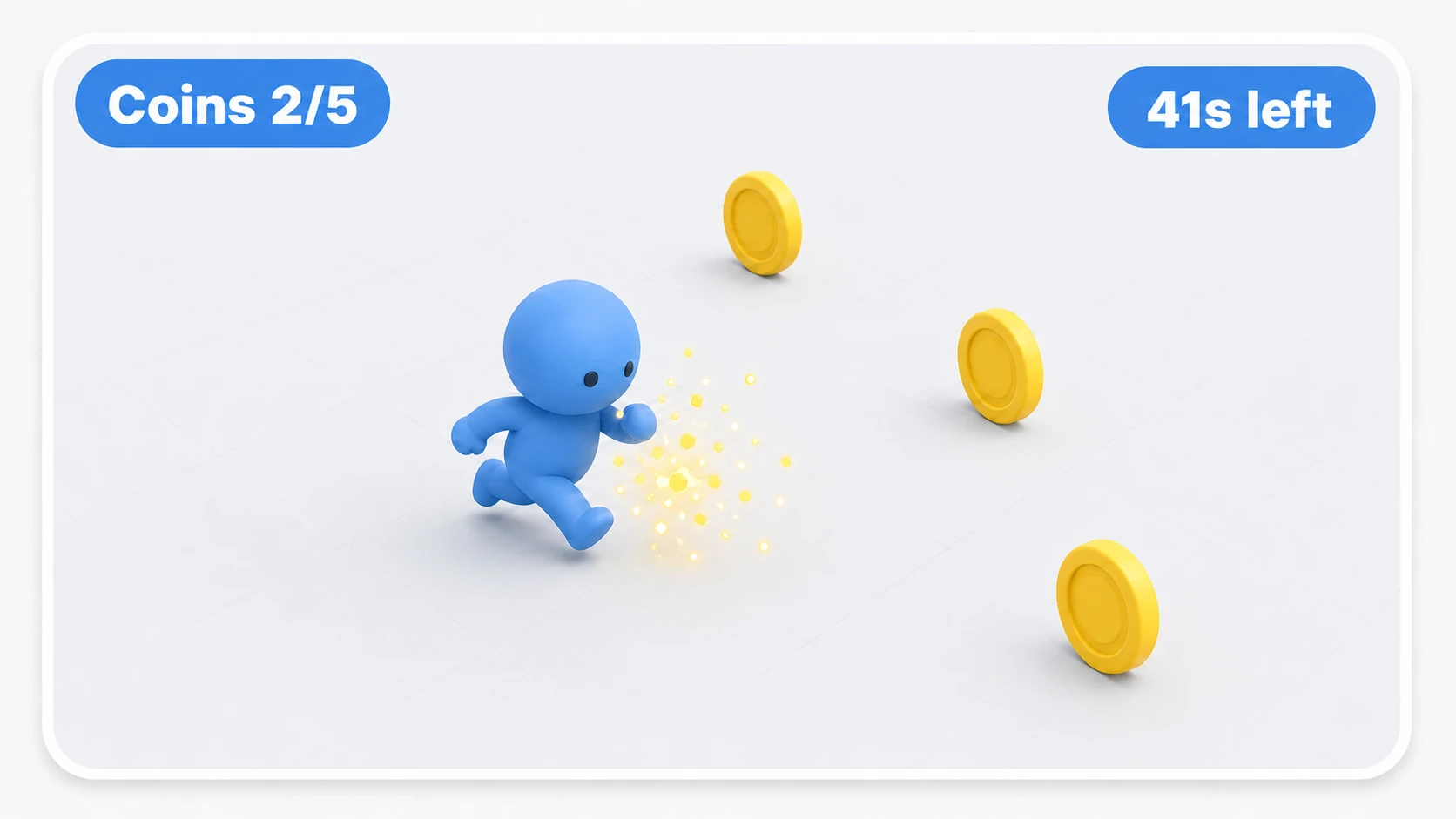
Check: Title "Start" → the 60-second countdown runs → score rises with each coin → "Cleared!" at five, or "Time's up..." if you idle → "Retry" starts over from the title. When that loop runs, the game is complete.
Build it, hand it to a friend
What runs inside the Editor is still a project. It becomes a game when it runs outside.
- Open File > Build Profiles (File > Build Settings in Unity 2022.3)
- In the Scene List, press Add Open Scenes to register your scene (forget this and you'll build an empty game)
- Confirm the platform is Windows/Mac and press Build, choosing an output folder
- Launch the executable and play one full loop without the Editor — Title → Playing → both endings → Retry. That's the smoke test
By default the game starts in fullscreen, so close it with Alt + F4 (set Fullscreen Mode to Windowed in Player Settings to open it in a normal window).

And the final step: zip the build folder and hand it to a friend. The executable alone won't start (it also needs the GameName_Data folder and UnityPlayer.dll), so hand over the whole folder. If another human being can play it without you explaining anything — congratulations. You've gone from "someone who knows Unity features" to someone who has finished a game. That difference is bigger than it sounds.
If the build launches to a black screen, the culprit is almost always the missing scene registration. If it works in the Editor but the build is silent, check for an unassigned AudioClip.
Troubleshooting
| Symptom | Cause | Fix |
|---|---|---|
UnassignedReferenceException the moment you press Play | The Player field on GameFlow is empty | Drag the Player from the Hierarchy into the field |
| Pressing Start does nothing | GameFlow.StartGame isn't assigned to the Start button's OnClick | Use "+" in the button's OnClick, add GameFlow, and choose StartGame |
| The capsule falls through the floor | Is Trigger is on for the Player's Capsule Collider | Only the coins use Is Trigger. Turn it off on the Player |
Bonus: four remix challenges
A finished game is the best laboratory there is. Pick one and break things on purpose.
- Add a hazard: a red Sphere that subtracts 5 seconds on touch. It's a Coin duplicate with a different notice. For real damage systems, continue to the health and damage article
- Keep a high score: save the clear time with PlayerPrefs and show "Best" on the title screen
- More coins, new layout:
targetCoinsplus Prefab placement is a first taste of level design. One hard-to-reach coin makes the game interesting - Ship to the browser: switch the build target to WebGL and people can play from a URL. Details in the build settings article
Summary
- A game's backbone is the loop Title → Playing → Result → retry. Every big game is flesh on this skeleton
- Four scripts, split by role: the mover, the collectible, the rules, the display
- "Exactly once" starts with one flag; retry is most reliable as a scene reload (just never forget the static event unsubscribe)
- Done means one full loop played outside the Editor — and graduation means a zip in someone else's hands
The next thing you want to make is probably already in your head. A 2D platformer? An RPG with saves? — the backbone you built here carries over to any of them, unchanged. So: what will you finish next?