The outlines of enlarged text look jagged. You display Japanese and part of it turns into "□". You update the score display every frame and somehow it gets heavy — Unity text woes boil down to about these three. And all three can be solved by understanding TextMeshPro (TMP) correctly.
This article covers the SDF mechanism at the core of TextMeshPro's quality, the font asset side where Japanese display trips people up, and the performance optimization of dynamic text that games use so heavily.

What You'll Learn
- SDF — the mechanism behind text that doesn't blur when scaled up
- Creating font assets and the missing-character (□) fix for Japanese
- Scripting
TextMeshProUGUIand rich text tags- Reducing draw calls (sharing font assets and material presets)
- Update methods that avoid mesh rebuilds (the every-frame-update trap)
Tested with: Unity 6 (6000.x)
The Basic Concept of TextMeshPro: What Is SDF?
What decisively sets TextMeshPro apart from the standard text component is that it renders text using a technique called SDF (Signed Distance Field).
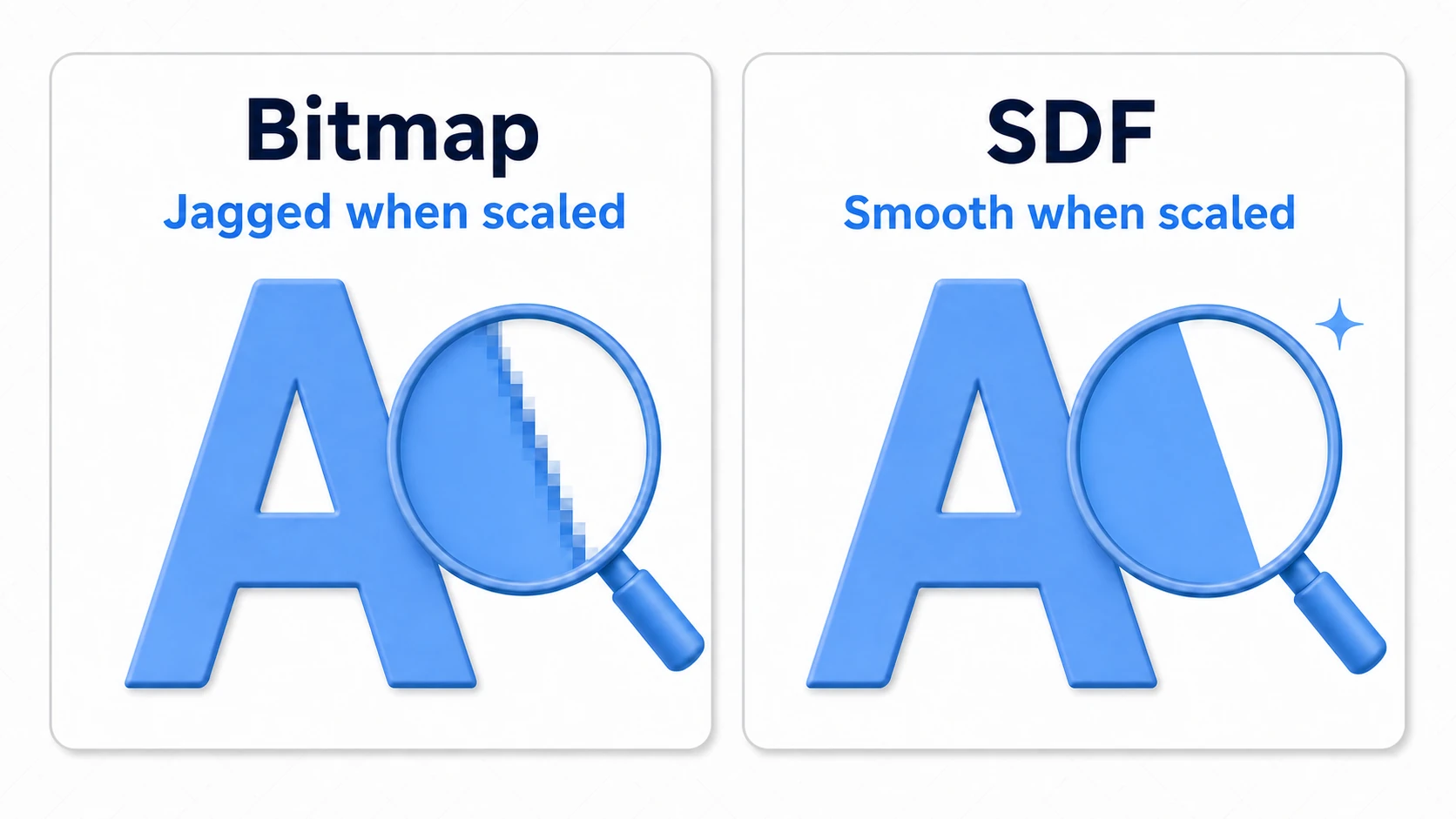
Standard text bakes the font into a texture as a bitmap image. With that approach, scaling text up stretches the pixels, so edges blur or turn jagged.
SDF, on the other hand, stores distance-from-the-outline information in the texture. The GPU uses that distance information to draw the character's outline smoothly in real time, so even when you scale it up or down a lot, the outline stays hard to blur (extreme magnification or thin strokes can still break down). This is the foundation of TextMeshPro's "high quality."
Installing TextMeshPro
In Unity 6, TextMeshPro ships inside the uGUI package (com.unity.ugui), so there's nothing extra to install. To place it in a scene, choose GameObject -> UI -> Text - TextMeshPro. The first time, press Import TMP Essentials in the TMP Importer that appears.
Common Beginner Pitfalls and Solutions
1. Forgetting to Create a Font Asset
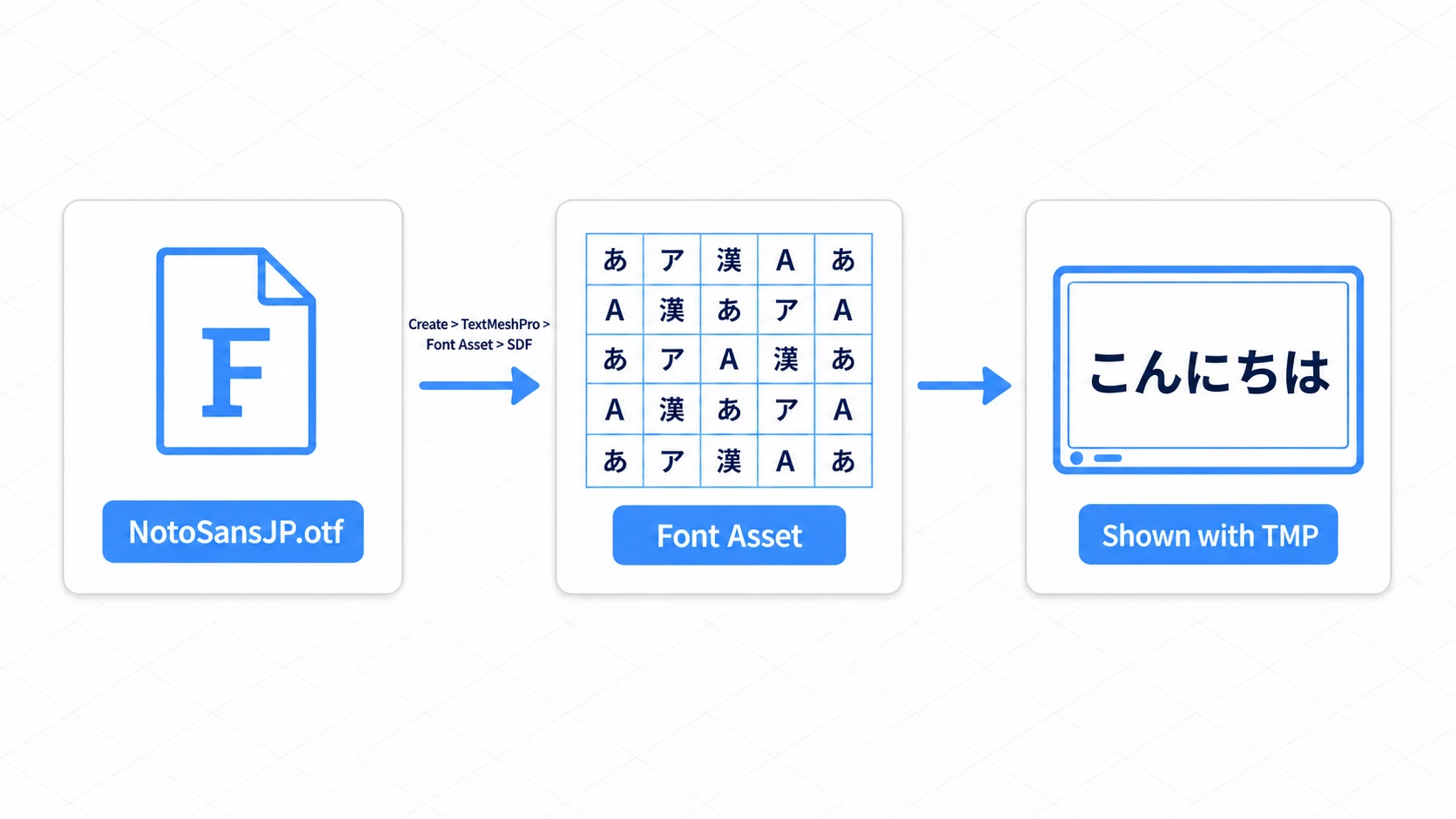
TextMeshPro can't use ordinary font files (.ttf or .otf) as-is. You must create a dedicated Font Asset.
The pitfall: You place a TMP text in the scene, but the font stays the default "Liberation Sans SDF," and setting a Japanese font doesn't take effect.
The solution:
- Import the font file you want to use (e.g.
NotoSansJP-Regular.otf) into your project. - Right-click the imported font file and choose
Create->TextMeshPro->Font Asset->SDF(an asset made this way is Dynamic: it adds characters to the atlas at runtime as they're used). - Drag and drop the generated font asset into the
Font Assetslot of the TMP component.
2. Missing Characters (Insufficient Atlas Size)
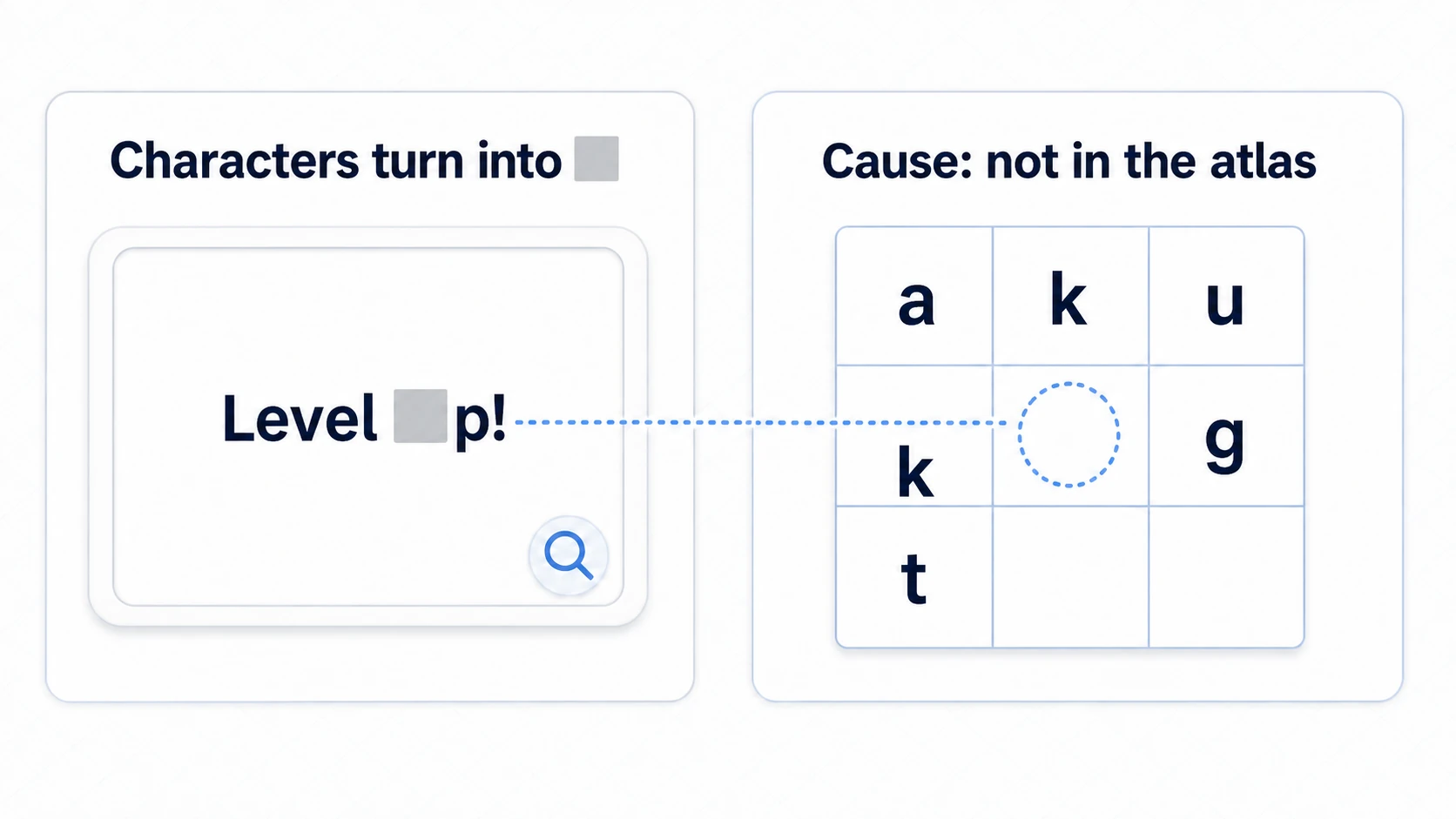
When you use a language with many characters, like Japanese or Chinese, the font asset you created may not include every character, and some show up as "□" or "?". This happens because not all the needed characters are baked into the font asset's texture (atlas) (sometimes the font file itself lacks the character).
The solution: Review the Character Set setting when creating the font asset.
- Use a custom character list: Listing only the characters you need in a text file and passing it via
Characters from Filein the Font Asset Creator'sCharacter Set(Window > TextMeshPro > Font Asset Creator) is the most efficient (useCustom Charactersto paste them straight into a field). - Use a dynamic atlas: Setting
Atlas Population ModetoDynamicautomatically adds needed characters to the atlas at runtime. Watch out for the performance impact and increased memory usage, though.
Dynamic Text Manipulation and Rich Text
TextMeshPro is easy to manipulate from C# scripts just like the standard text component, but the component type you reference is different.
1. Basic Text Updates
To manipulate a TMP component, declare using TMPro; and reference TextMeshProUGUI (for uGUI) or TextMeshPro (for 3D).
using UnityEngine;
using TMPro; // required

public class TmpTextUpdater : MonoBehaviour
{
    // Attach a TextMeshProUGUI component from the Inspector
    [SerializeField]
    private TextMeshProUGUI scoreText;

    private int currentScore = 0;

    void Start()
    {
        // Set the initial text
        UpdateScoreText();
    }

    // Method that increases the score and updates the text
    public void AddScore(int amount)
    {
        currentScore += amount;
        UpdateScoreText();
    }

    private void UpdateScoreText()
    {
        // Update the text directly
        scoreText.text = "Current Score: " + currentScore.ToString();
    }
}
Update text event-driven (when the score changes, etc.) rather than inside Update() or LateUpdate() whenever possible. Updating text every frame triggers a mesh rebuild and is a major cause of performance drops.
2. Using Rich Text Tags
One of TextMeshPro's powerful features is HTML-like rich text tags. They let you dynamically change a character's color, size, style, and more from a script.
using UnityEngine;
using TMPro;

public class TmpRichTextExample : MonoBehaviour
{
    [SerializeField]
    private TextMeshProUGUI messageText;

    // Display an important message with rich text
    public void DisplayImportantMessage(string playerName, int damage)
    {
        // Use tags like <color>, <b>, <size>
        string richMessage = $"<color=#FF0000><b>{playerName}</b></color> took <size=150%>{damage}</size> damage!";

        messageText.text = richMessage;
    }

}
Here, <color=#FF0000> changes the color, <b> makes it bold, and <size=150%> changes the size dynamically.
tips: Avoid creating continuous changes like blinking by rewriting the
textproperty every frame (the mesh rebuild described later runs every frame). For an alpha blink, change themessageText.alphaorcolorproperty while leaving the string alone (doing it with tags means rebuilding the string itself every frame).
Secrets of Performance Optimization
TextMeshPro is more performant than standard text, but misuse can hurt performance.
1. Reducing Draw Calls
TextMeshPro's biggest optimization point is that text objects using the same font asset and material can, as much as possible, be batched into a single draw call.
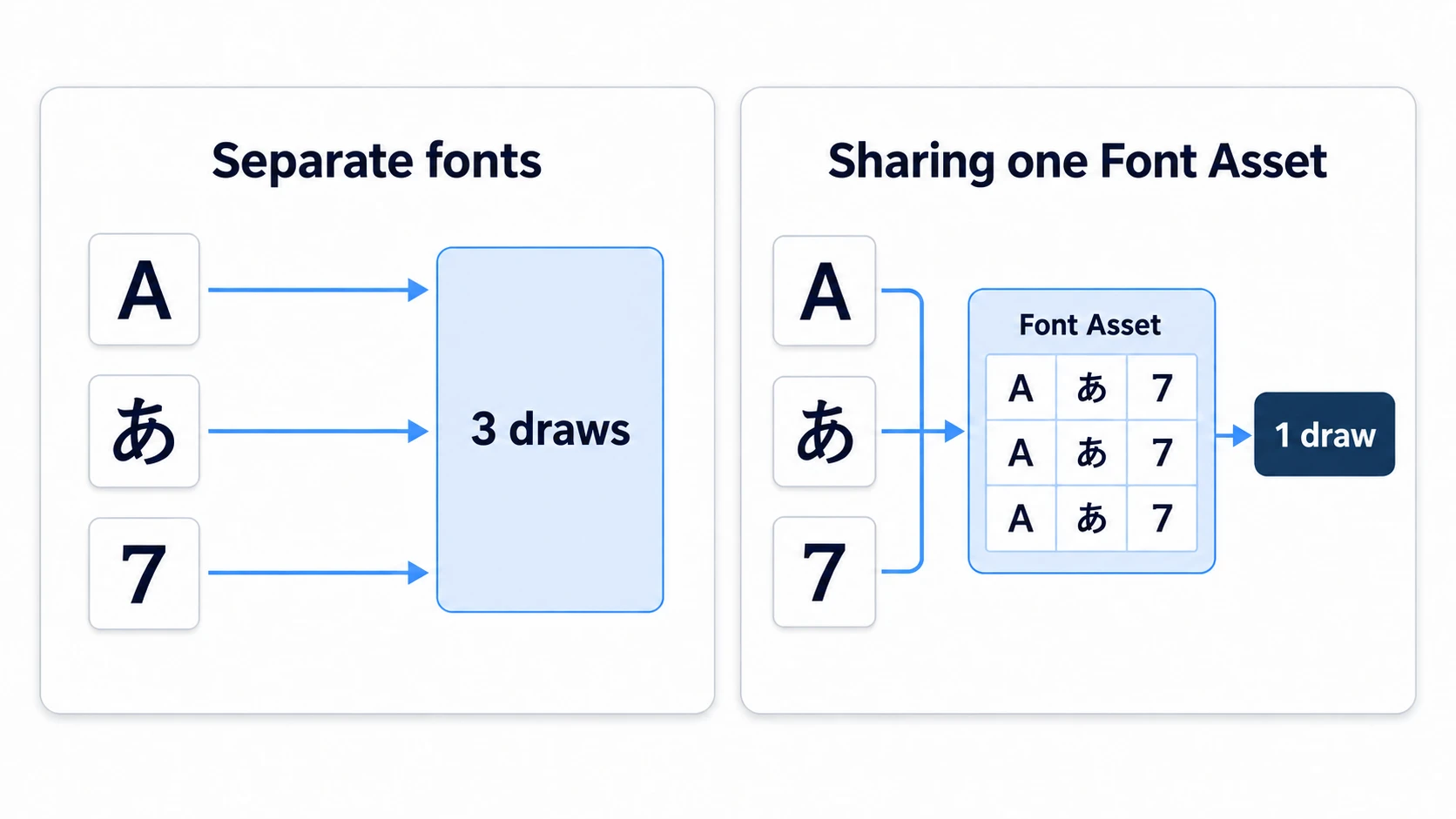
- Unify font assets: Be thorough about using the same font asset across the whole UI.
- Share material instances: Create text color, outline, and other settings as a material preset and share it across multiple text objects to reduce draw calls.
2. Avoiding Text Rebuilds
When the text content changes, TextMeshPro rebuilds the text mesh. This is a heavy operation.
- Minimize string changes: For frequently updated text like a score display, optimize string generation (especially
string.Formatand concatenation) and update only when needed. - Disable hidden text: Disable off-screen or hidden text to take it out of rendering (either
gameObject.SetActive(false)or disabling just the component withtextComponent.enabled = falsedoes it).
Hands-On: Building Floating Damage Numbers
An RPG's attack hit, a roguelike's critical, an idle game's tap effect — "a number that floats up softly and fades above the enemy's head" is a signature use of TextMeshPro across every genre. Let's assemble the SDF, rich text, and lightweight update methods so far into a single effect.
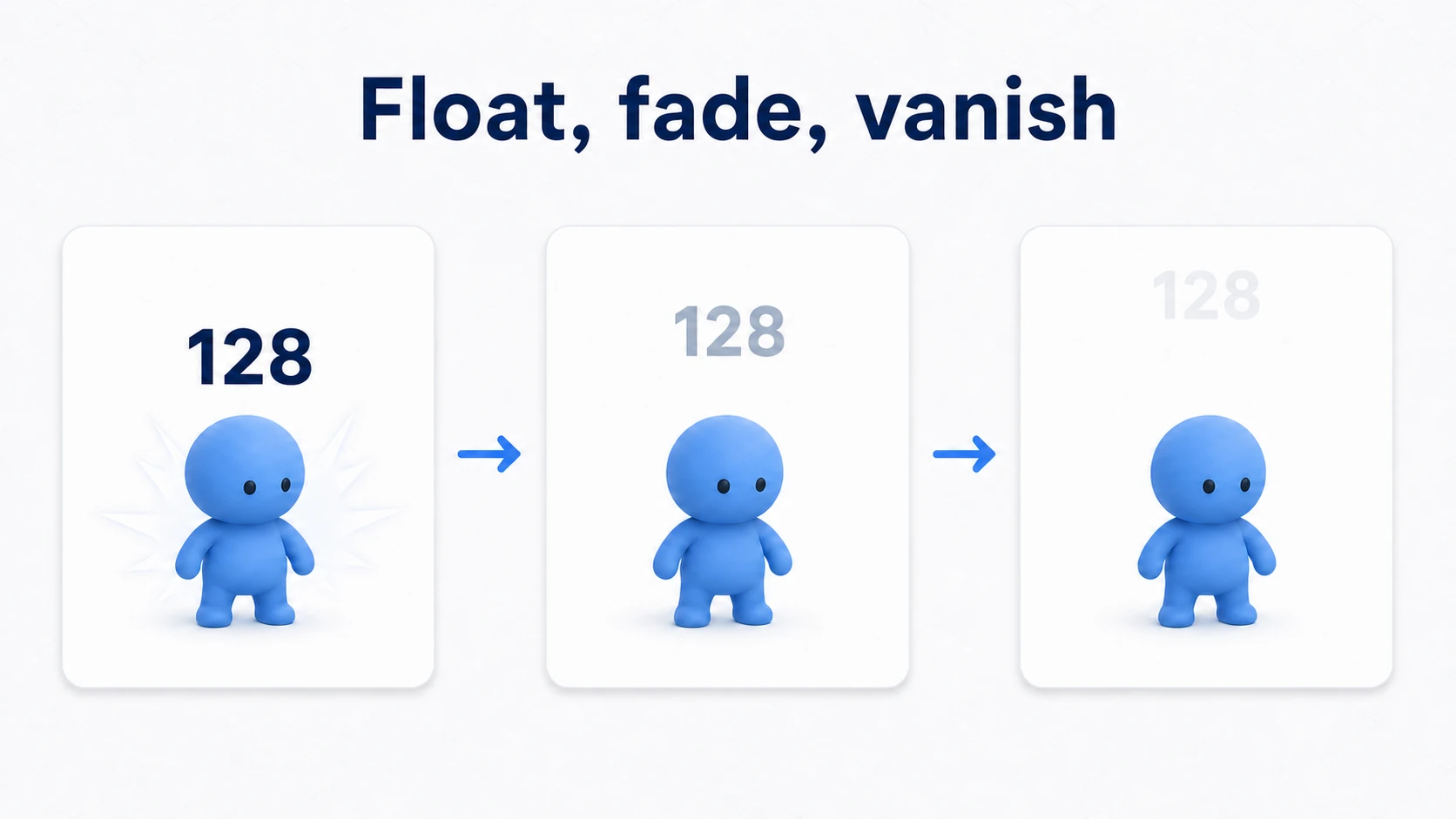
The mechanism is "spawn a 3D TextMeshPro → raise it while lowering alpha → destroy it when gone." Prepare a damage-number prefab (with a TextMeshPro component) and attach the following script.
using UnityEngine;
using TMPro;

public class DamagePopup : MonoBehaviour
{
    [SerializeField] private float floatSpeed = 1.5f;   // Rise speed
    [SerializeField] private float lifetime = 0.8f;     // Display time

    private TextMeshPro tmp;   // 3D version (not uGUI)
    private float elapsed;

    void Awake() => tmp = GetComponent<TextMeshPro>();

    // Call right after spawning to set the damage value (criticals emphasized with rich text)
    public void Setup(int damage, bool isCritical)
    {
        tmp.text = isCritical
            ? $"<size=150%><b>{damage}</b></size>"
            : damage.ToString();
    }

    void Update()
    {
        // Float upward
        transform.position += Vector3.up * floatSpeed * Time.deltaTime;

        // Don't rewrite text; only lower alpha (the string stays as set at spawn)
        elapsed += Time.deltaTime;
        tmp.alpha = Mathf.Clamp01(1f - elapsed / lifetime);

        if (elapsed >= lifetime) Destroy(gameObject);
    }
}
The caller just Instantiates the prefab where the enemy took damage and calls Setup(damage, isCritical).
Two points matter most.
- Rewrite
textonly once, at spawn: Do the fade withtmp.alpha. The string stays as set at spawn, so there's no per-frame string building (like rewriting an<alpha>tag). It's the practical form of the "update optimization" this article covered. - Games with lots of numbers should move to pooling:
Instantiate/Destroyon every consecutive hit causes GC spikes. As the volume grows, the standard evolution is to move onto the object pooling mechanism.
Bonus: Good Things to Know in Advance
- Fallback fonts: Characters not in your main font asset (emoji, other languages) are automatically looked up from another asset registered in
Fallback Font Assets. It's practically mandatory for a Japanese + emoji combination. - Key Font Asset Creator settings: When making a Japanese asset, the balance of
Sampling Point Size(the character's source resolution),Atlas Resolution(the atlas size, 2048–4096 for Japanese), andPaddingdetermines quality. Start with Auto Sizing + 2048. - Text in 3D space: Separate from the uGUI
TextMeshProUGUI, there'sTextMeshPro(GameObject > 3D Object > Text - TextMeshPro) that you can place directly in 3D space. Overhead damage numbers and signboards use this one. It doesn't face the camera on its own, so in games where the camera turns, align it every frame withtransform.rotation = Quaternion.LookRotation(transform.position - Camera.main.transform.position);. - To revisit the UI foundation: For the basics of the Canvas and anchors where text is placed, see the UI basics guide.
- Expanding into dialogue or multiple languages: the typewriter effect is built in the dialogue system article, and per-language strings are covered in Unity Localization.
Summary
- Understand SDF and create font assets: TextMeshPro's high-quality rendering comes from SDF, and the font you use must be created and set up as a dedicated font asset.
- Prevent Japanese missing characters with atlas settings: Handle it with a custom character list or
Atlas Population Mode: Dynamic. - Use rich text tags: Using tags like
<color>,<size>, and<b>dynamically from C# scripts easily achieves an expressive UI. - Be thorough about draw call optimization: Sharing the same font asset and material preset across multiple text objects to minimize rendering load is essential for maintaining performance in large-scale UI.
- Optimize dynamic updates: For frequently updated text, avoid rewriting
textevery frame, do fades withalpha, and minimize mesh rebuilds.
Start by creating one Japanese font asset, and get hands-on with a small effect like damage numbers.