The "Resolution" and "Fullscreen" settings you find in every PC game's options menu exist for a reason — players' monitors range from 1080p to 4K and ultrawide, so letting the player choose is a must-have feature for any PC release.
In Unity, the Screen class gives you script-level control over both. This article covers changing settings at runtime, picking the right display mode, building a resolution dropdown for your options screen, and saving the player's choice.
What You'll Learn
- Changing resolution and display mode at runtime with
Screen.SetResolution()- The differences between the four
FullScreenModevalues (borderless is the standard)- Practical: completing an options-screen resolution picker with
Screen.resolutions- Default startup settings and saving the player's choice
Tested with: Unity 6 (6000.x)
Changing Settings at Runtime with the Screen Class
Screen is a static class, so you can use it directly as Screen.~ from anywhere.
Getting the Current State
int width = Screen.width;    // Current game screen width (pixels)
int height = Screen.height;  // Current game screen height
bool isFullScreen = Screen.fullScreen; // Whether the game is fullscreen
Changing Resolution and Display Mode: SetResolution()
using UnityEngine;

public class ResolutionController : MonoBehaviour
{
    // Switch to Full HD borderless fullscreen
    public void SetFullScreen1080p()
    {
        Screen.SetResolution(1920, 1080, FullScreenMode.FullScreenWindow);
    }

    // Switch to HD windowed mode
    public void SetWindowed720p()
    {
        Screen.SetResolution(1280, 720, FullScreenMode.Windowed);
    }
}
Hook these up to a UI Button's OnClick() and the mode switches on click. One thing to keep in mind: SetResolution takes effect at the end of the frame in which it's called. Screen.width may still return the old value immediately afterward — remembering this will save you some head-scratching.
Toggling Fullscreen Only
If you just want to switch the display mode while keeping the resolution, assigning to Screen.fullScreen is the easiest way.
public void ToggleFullScreen()
{
    Screen.fullScreen = !Screen.fullScreen;
}
When it turns fullscreen on, the mode is the default fullscreen mode set in Player Settings. To pick borderless for sure, specify it with FullScreenMode (next section).
Choosing a Display Mode with the FullScreenMode Enum
SetResolution also accepts a bool (true for FullScreenWindow, false for Windowed), but it's standard to pick the mode precisely with FullScreenMode.
| Mode | Description | When to Use |
|---|---|---|
| FullScreenWindow | Borderless (a window stretched over the entire screen) | The modern standard. Smooth Alt+Tab |
| ExclusiveFullScreen | Exclusive fullscreen (takes over the display) | Windows only. Alt+Tab is sluggish, so it's rarely used today |
| Windowed | Regular window | For players who prefer windowed mode |
| MaximizedWindow | Maximized window | Windows and macOS (on Windows, maximized with a title bar) |
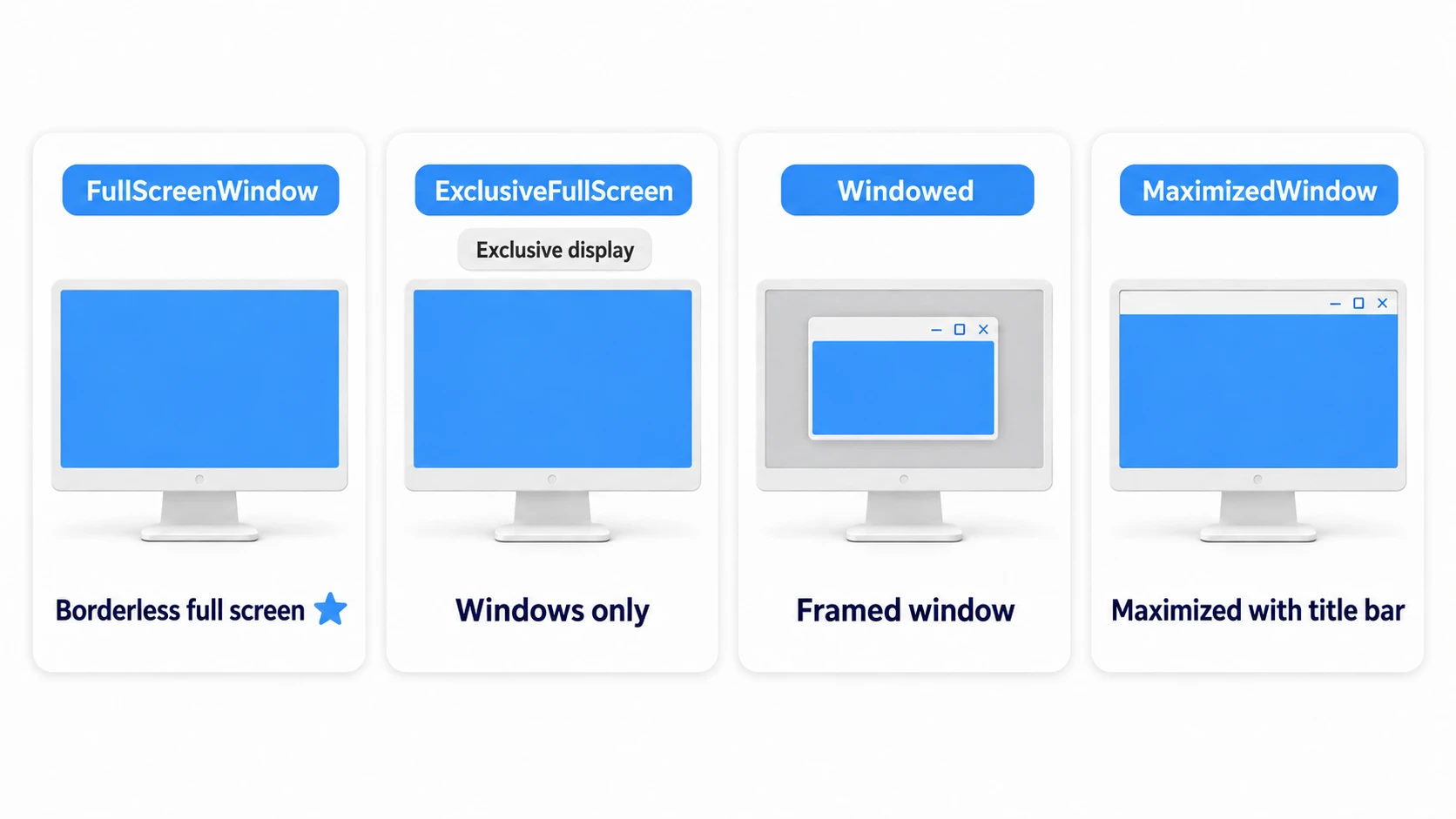
If in doubt, defaulting to FullScreenWindow (borderless) is the safe modern choice.
public void SetBorderlessFullScreen()
{
    // Go borderless at the monitor's current full resolution
    Resolution current = Screen.currentResolution;
    Screen.SetResolution(current.width, current.height, FullScreenMode.FullScreenWindow);
}
Practical: Completing the Options-Screen Resolution Picker
Whether it's an indie game for Steam or a demo on itch.io, if you ship on PC there's no getting around the options-screen trio of "resolution dropdown + fullscreen toggle + save". Let's combine the pieces from this article and finish it off.
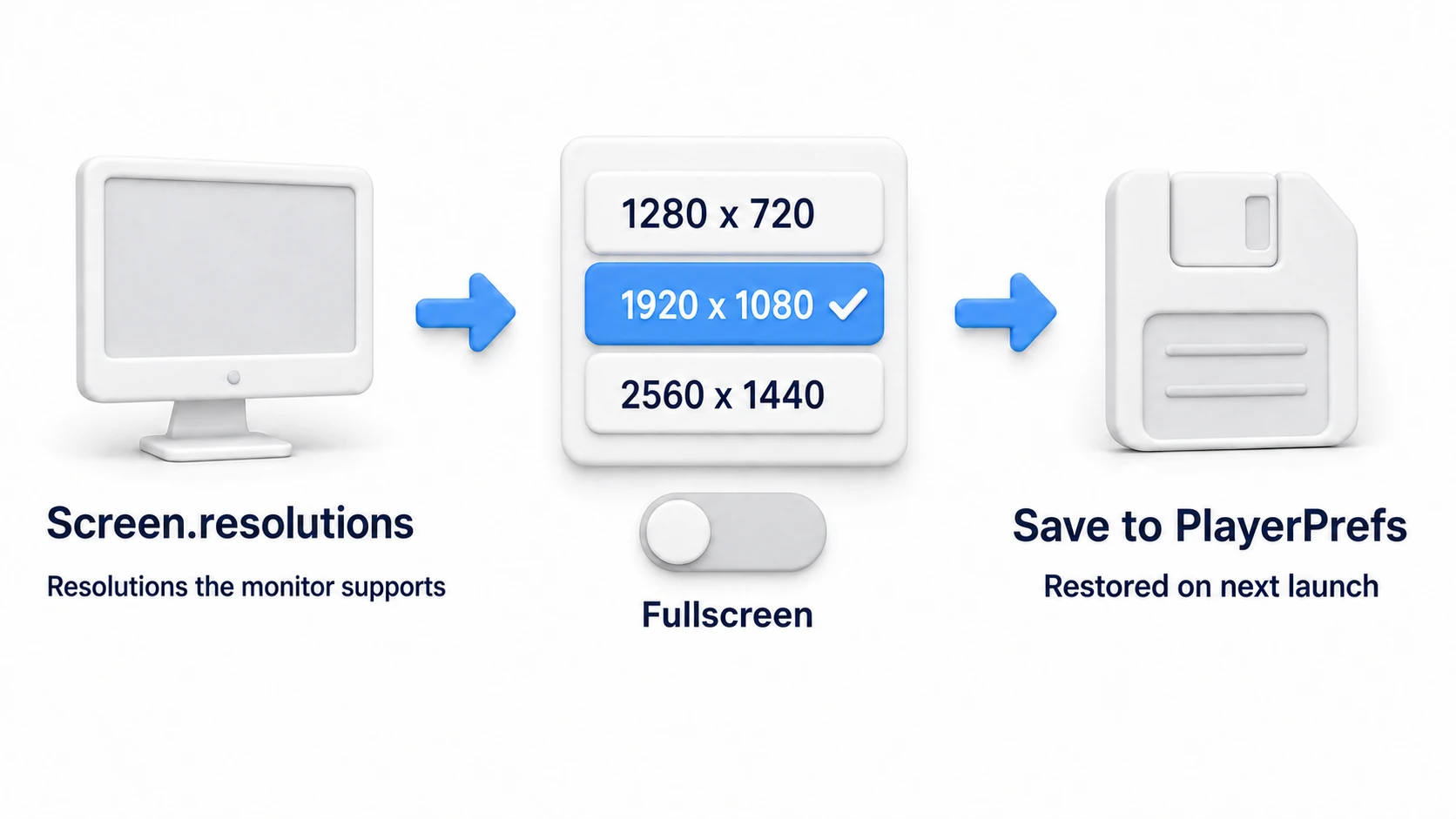
The key is Screen.resolutions. If you hard-code a list like "1920x1080", "2560x1440", and so on, a laptop with a small screen ends up listing resolutions bigger than its screen. Screen.resolutions gives you the list of resolutions the monitor actually supports.
using UnityEngine;
using System.Linq;
using TMPro;

public class ResolutionDropdown : MonoBehaviour
{
    private const string WidthKey = "ResolutionWidth";
    private const string HeightKey = "ResolutionHeight";

    [SerializeField] private TMP_Dropdown dropdown;
    private Resolution[] resolutions;

    void Start()
    {
        // The same width/height appears once per refresh rate, so dedupe by size
        resolutions = Screen.resolutions
            .GroupBy(r => new { r.width, r.height })
            .Select(g => g.First()) // Keep one entry per size
            .ToArray();

        dropdown.ClearOptions();
        dropdown.AddOptions(resolutions.Select(r => $"{r.width} x {r.height}").ToList());

        // Restore the previous selection (or the current resolution if none saved) by finding the saved width and height in the list
        int width = PlayerPrefs.GetInt(WidthKey, Screen.width);
        int height = PlayerPrefs.GetInt(HeightKey, Screen.height);
        int saved = FindIndex(width, height);
        dropdown.SetValueWithoutNotify(saved);
        ApplyResolution(saved);

        dropdown.onValueChanged.AddListener(OnResolutionSelected);
    }

    void OnResolutionSelected(int index)
    {
        ApplyResolution(index);
        // Save the moment it's chosen: the width and height, not the index
        PlayerPrefs.SetInt(WidthKey, resolutions[index].width);
        PlayerPrefs.SetInt(HeightKey, resolutions[index].height);
    }

    void ApplyResolution(int index)
    {
        Resolution r = resolutions[Mathf.Clamp(index, 0, resolutions.Length - 1)];
        Screen.SetResolution(r.width, r.height, Screen.fullScreenMode);
    }

    int FindIndex(int width, int height)
    {
        for (int i = 0; i < resolutions.Length; i++)
        {
            if (resolutions[i].width == width && resolutions[i].height == height)
                return i;
        }
        return resolutions.Length - 1; // Fall back to the highest resolution
    }
}
What you save is the width and height, not the dropdown index. Swap monitors and the list's contents and order change, so the same index would point to a different resolution. At startup, look up the saved width and height in the list again.
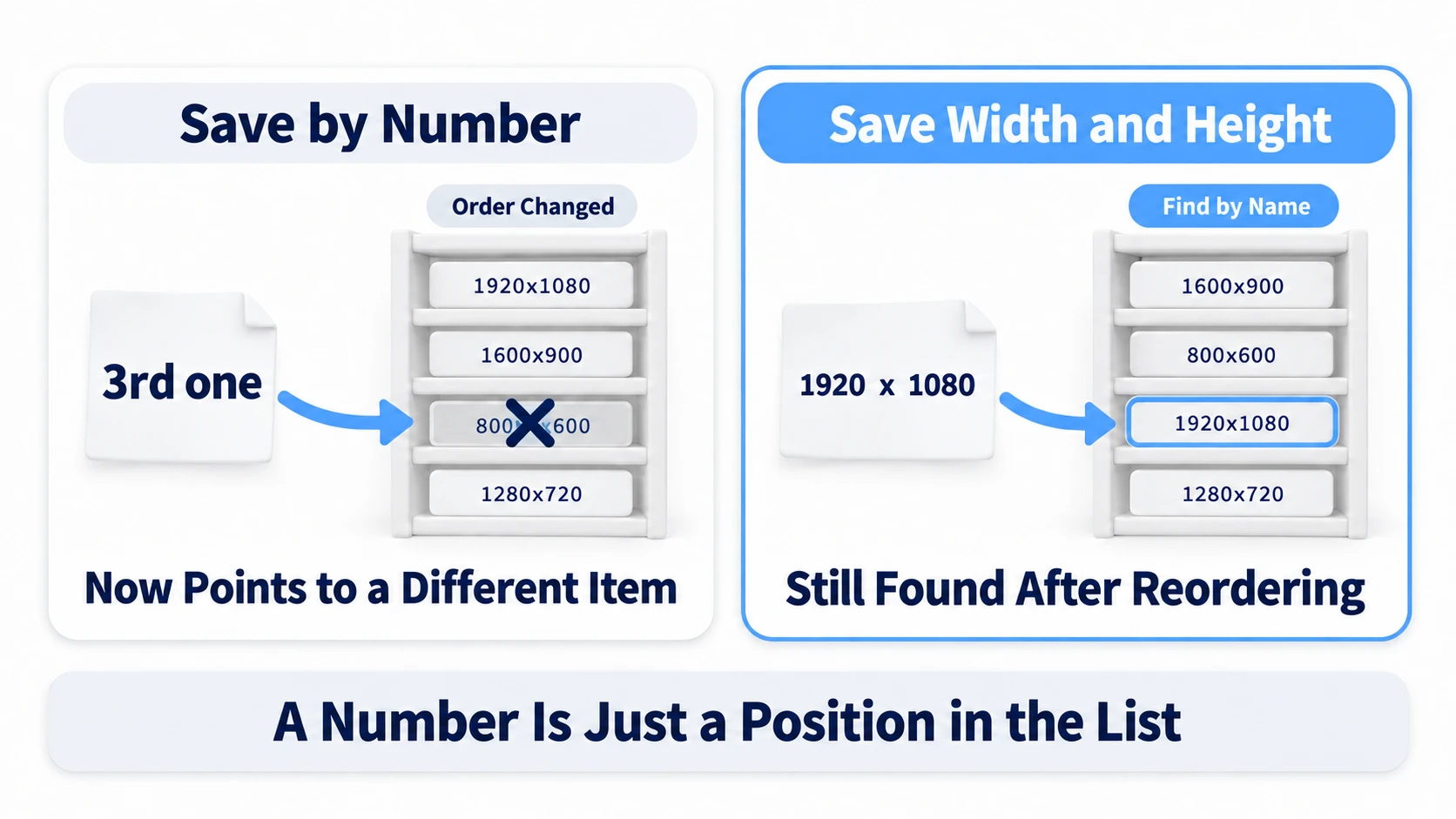
For the fullscreen toggle, run Screen.fullScreenMode = isOn ? FullScreenMode.FullScreenWindow : FullScreenMode.Windowed; in a Toggle's onValueChanged and save it to PlayerPrefs the same way—and your trio is complete (restore it with SetIsOnWithoutNotify).
There are two key points. "Don't hard-code the options; build them from Screen.resolutions" (whether it's ultrawide or 4K, the list is generated to match that monitor automatically) and "Use SetValueWithoutNotify when restoring" (assigning directly to value fires onValueChanged, applying the setting twice on every launch). For the finer points of saving, see Getting Started with PlayerPrefs.
Default Build Settings (Player Settings)
The defaults for first launch are configured under Resolution and Presentation in "Edit > Project Settings > Player".
- Fullscreen Mode: The default display mode at startup.
- Default Screen Width / Height: The window size when launching in windowed mode.
- Resizable Window: Whether players can resize the window by dragging its edges.
Bonus: Good to Know for Later
- Not needed on mobile: On iOS/Android you generally use the device screen as-is, so there's no resolution picker UI. Instead, lowering the render resolution is a common performance lever (see Render Scale in the mobile optimization guide).
- UI scaling is a separate problem: If your UI breaks when the resolution changes, that's a Canvas Scaler configuration issue. See the Canvas and RectTransform article.
- Aspect ratio differences: Building against a 16:9 assumption leads to cropping or letterboxing on ultrawide (21:9) and 16:10 displays. Setting up your camera framing and UI anchors flexibly keeps you safe.
- You can't test it in the Editor:
Screen.SetResolutionhas no effect in the Editor's Game view (the Game view's size is managed by the Editor). Verify the behavior in an actual build.
Summary
- Change resolution and display mode with
Screen.SetResolution(width, height, FullScreenMode). It takes effect at the end of the frame. - Borderless (FullScreenWindow) is the modern standard for the default display mode.
- Build the options list from
Screen.resolutionsinstead of hard-coding it. - Save the selection to PlayerPrefs as width and height, and restore it with SetValueWithoutNotify to avoid a double apply.
- Set the first-launch defaults in Player Settings > Resolution and Presentation.
Once you have the trio of "resolution dropdown + fullscreen toggle + saved settings", the foundation of a PC options screen is complete. Is your game comfortable for players on ultrawide monitors, too?