You hit the pause button and set Time.timeScale = 0f — so far so good. But then the pause menu's fade-in freezes too, and the screen looks stuck. You panic and remove the animation, and now "the game is paused but the particles are still moving"... Pause implementation is a classic trap that catches everyone who doesn't know how Unity's "time" actually works.
This article explains how Time.timeScale works, gives you a precise breakdown of what stops and what doesn't, shows how to build UI that keeps moving during pause, and covers the cases where you shouldn't use the timeScale approach at all.

What You'll Learn
- What
Time.timeScalereally is (a "faucet" for in-game time)- A precise breakdown of what stops and what doesn't at timeScale = 0
- How to implement a PauseManager with event notifications
- How to build UI that runs during pause (Unscaled Time /
WaitForSecondsRealtime)- The limits of the timeScale approach, and when to switch to a flag-based one
Tested with: Unity 6 (6000.x)
What Time.timeScale Really Is: The Faucet for In-Game Time
Unity runs two clocks side by side: in-game time and real time. Time.timeScale is the faucet (flow valve) connecting the two.
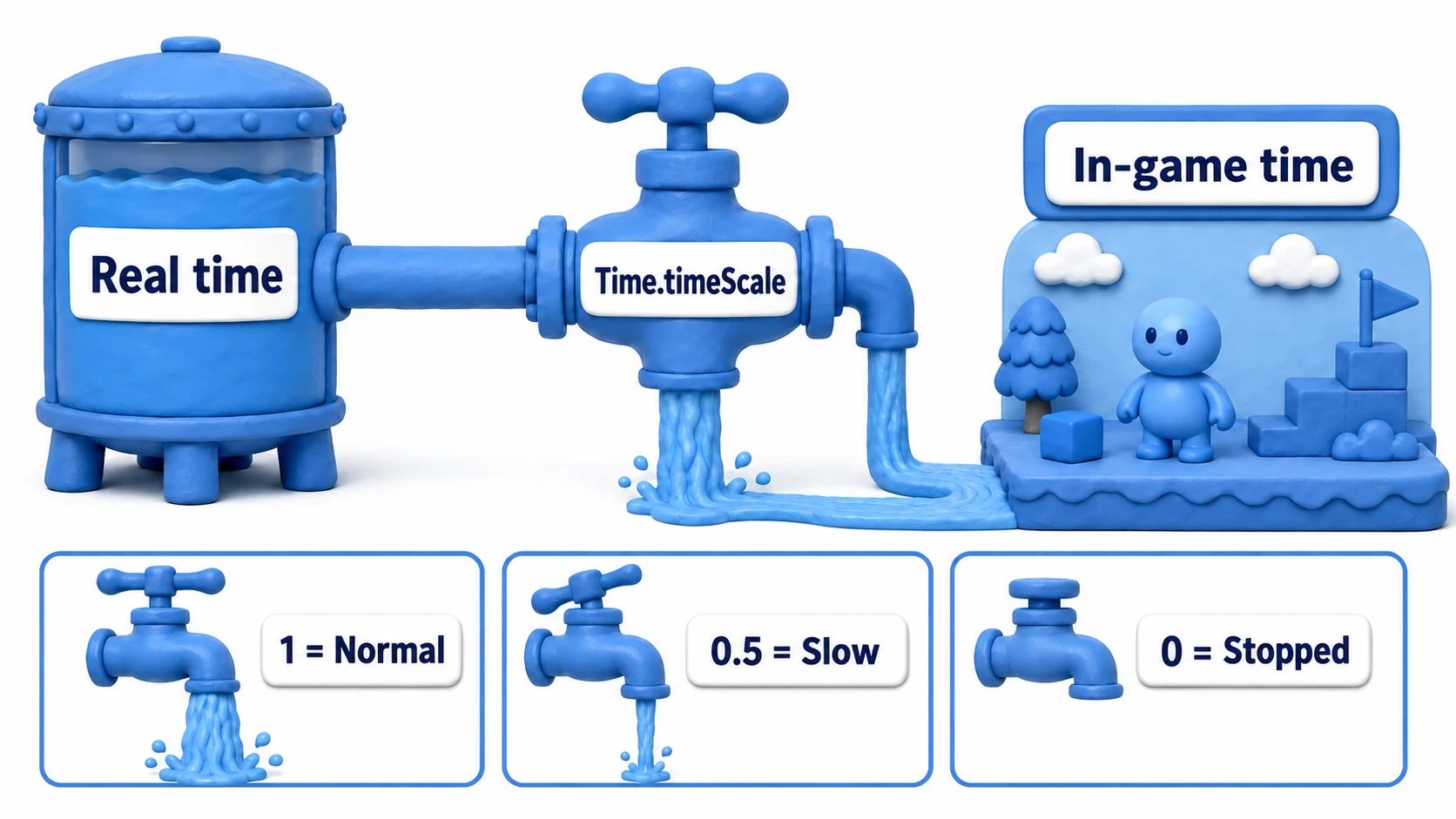
The per-frame elapsed time Time.deltaTime is actually "real elapsed time × timeScale". In other words —
timeScale = 1: normal speed (same flow as real time)timeScale = 0.5: slow motion (half the flow)timeScale = 0: in-game time stops completely (faucet closed)
This is why pause can be written in a single line: everything driven by Time.deltaTime stops in unison the instant you close the faucet.
What Stops and What Doesn't
The root of the confusion is the misconception that "timeScale = 0 stops everything." What actually stops is only whatever rides on in-game time — anything running on real time keeps going.
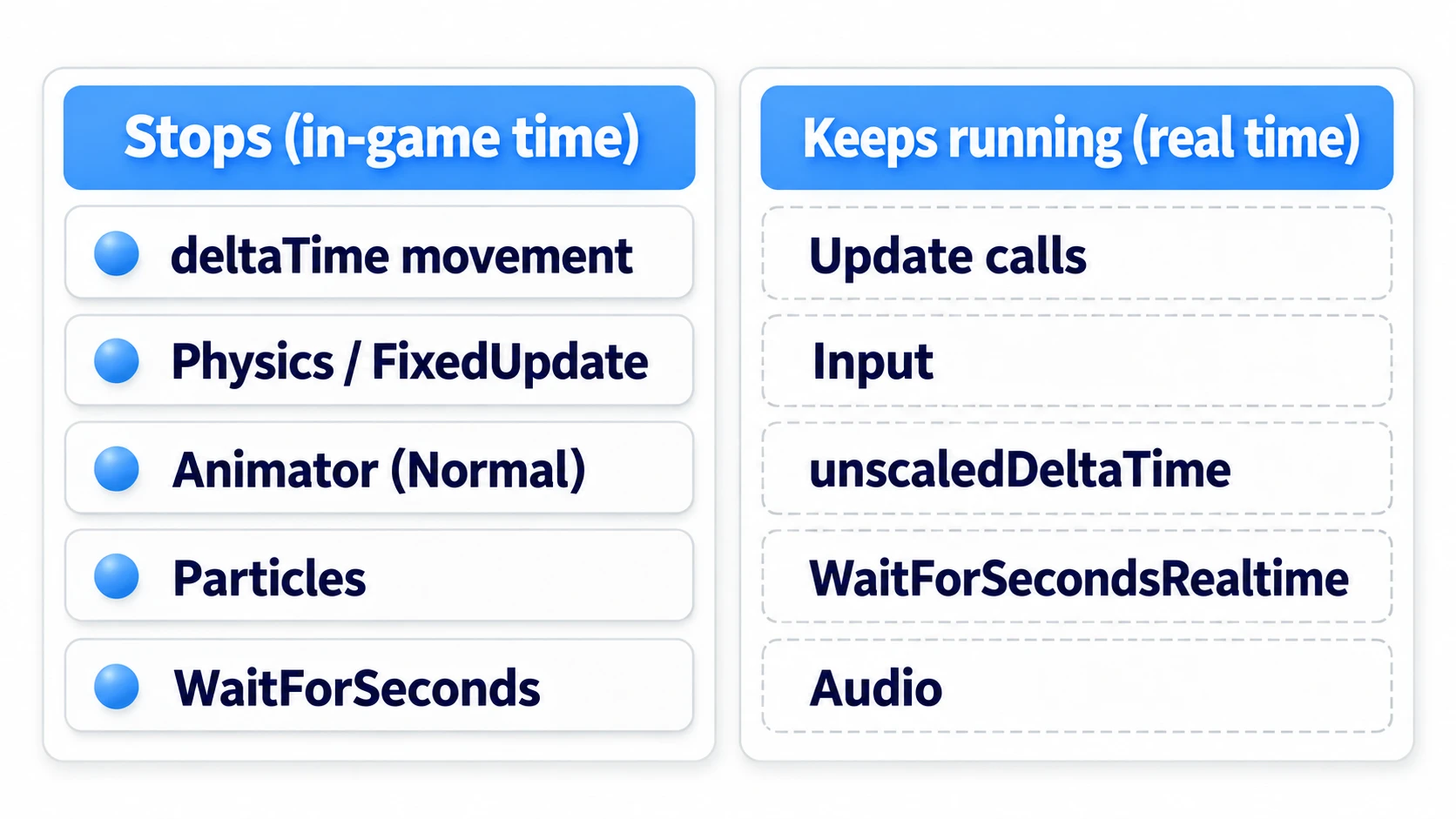
| Stops (in-game time) | Keeps running (real time) |
|---|---|
Movement and rotation using Time.deltaTime | The Update calls themselves (deltaTime just becomes 0) |
Physics and FixedUpdate (no longer called) | Player input (keys, mouse, buttons) |
| Animator (when Update Mode is Normal) | Time.unscaledDeltaTime / unscaledTime |
Particles, Invoke, WaitForSeconds | WaitForSecondsRealtime, Animator (Unscaled Time) |
| — | Audio (stop it with AudioListener.pause) |
The two entries in the top right are especially important. Update keeps getting called, so you always have a place to write "pause-only" logic, and input stays alive, so the player can still unpause. Conversely, audio does not stop on its own — you have to stop it explicitly.
The flip side: movement written without Time.deltaTime (a one-liner like transform.position += dir * speed;) keeps moving every frame during pause. When "my character slides even though the game is paused," check this first.
Note:
FixedUpdateis the exception — rather than "deltaTime becoming 0," the calls themselves stop. Since physics time isn't advancing, the next physics update simply never arrives. For the relationship betweenUpdateandFixedUpdate, see the Update vs FixedUpdate article.
Core Implementation: A PauseManager with Event Notifications
Just "closing the faucet" is only half an implementation. Take it one step further and broadcast pause-state changes via an event — then UI visibility toggles, audio stops, and so on can each be handled by the systems themselves, and your PauseManager never bloats (a two-layer design: do the work directly, announce it via events).
using System;
using UnityEngine;

public class PauseManager : MonoBehaviour
{
    // Event that broadcasts pause-state changes (argument: true while paused)
    public static event Action<bool> OnPauseChanged;

    public static bool IsPaused { get; private set; }

    // Remember the pre-pause flow rate (supports pausing during slow motion)
    private static float previousTimeScale = 1f;

    public static void SetPaused(bool paused)
    {
        if (IsPaused == paused) return;
        IsPaused = paused;

        // 1. Open or close the faucet for in-game time
        //    The point: restore "the pre-pause flow rate," not a hardcoded 1
        if (paused)
        {
            previousTimeScale = Time.timeScale;
            Time.timeScale = 0f;
        }
        else
        {
            Time.timeScale = previousTimeScale;
        }

        // 2. Audio doesn't stop automatically, so stop it explicitly
        AudioListener.pause = paused;

        // 3. Notify every system of the change (subscribers handle UI toggling etc.)
        OnPauseChanged?.Invoke(paused);
    }
}
The caller (say, a pause button or the Escape key) just calls PauseManager.SetPaused(!PauseManager.IsPaused). The pause menu UI subscribes to OnPauseChanged and toggles its own visibility (for how to subscribe, follow the OnEnable/OnDisable rule from the events and delegates article).
When the pause menu reloads a scene for "Retry" or "Back to Title," call PauseManager.SetPaused(false) first. Time.timeScale, AudioListener.pause, and the static IsPaused aren't reset by a scene reload, so if you forget, the new scene starts as a still image.
Mini Experiment: Pause During Slow Motion
The meaning of previousTimeScale clicks within a minute of experimenting. Bind some key to set Time.timeScale = 0.25f (pretend it's a special-move slow-motion effect), then pause and resume.
- The "restore to 1" implementation: The moment you resume, the slow motion snaps off and the effect is ruined
- The "restore the pre-pause value" implementation (the code above): The game resumes still in slow motion, as if nothing happened
While you're at it, notice that the pause menu's fade speed doesn't change even during slow motion. The fade runs on unscaledDeltaTime (real time), so the split between "in-game time = scaled / real time = unscaled" becomes literally visible.
Also note that if (IsPaused == paused) return; at the top of SetPaused doubles as mash protection. However fast you hammer the pause key, the state just flips cleanly back and forth — no double notifications, no corrupted speed backup.
If you saw all three things in this experiment — the game resuming still in slow motion, the fade moving through a frozen world, the state flipping cleanly under mashing — your pause feature is done. And when you later add slow-motion effects that touch timeScale, this "restore the previous value" foundation keeps paying off. One catch: if you pause while a hit-stop has timeScale at 0, the value to restore is also 0, and the world stays frozen after you resume. Don't accept pause input during a hit-stop.
Building UI That Runs During Pause
Now, back to the problem from the intro. The pause menu's fade-in froze because that animation was riding on in-game time. The fix: keep the world frozen, but run the menu on real time.
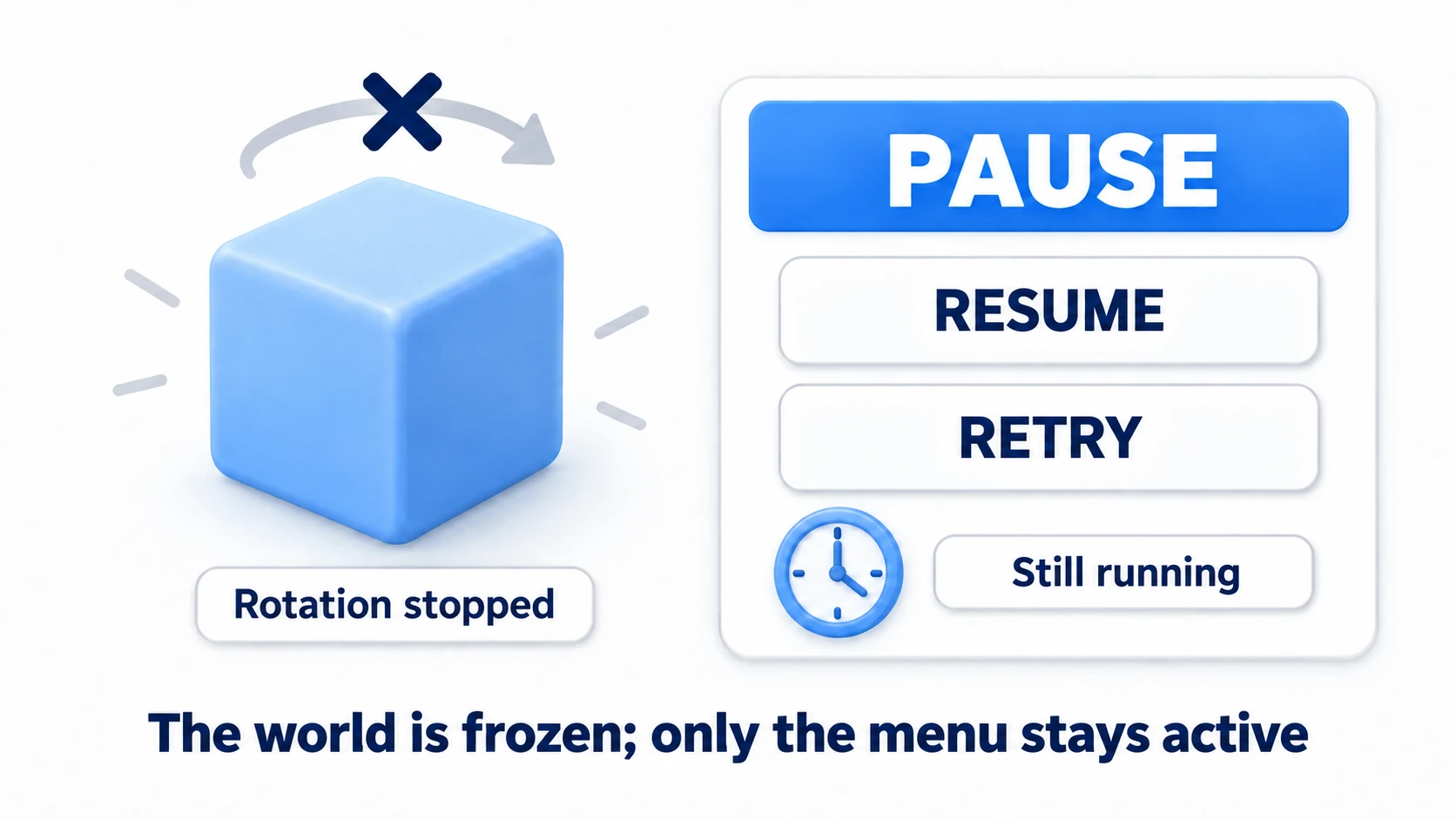
There's one fix per mechanism you're using.
- Animator animations: On the Animator component, change Update Mode from
NormaltoUnscaled Time. That alone keeps them playing during pause - Coroutine waits: Replace
WaitForSecondswithWaitForSecondsRealtime - Script-driven UI: Replace
Time.deltaTimewithTime.unscaledDeltaTime - Menu click sounds:
AudioListener.pausestops every sound, so setignoreListenerPause = true;from a script on the menu'sAudioSource(this setting doesn't appear in the Inspector)
// A fade-in that keeps running during pause (uses unscaledDeltaTime)
using UnityEngine;

public class PauseMenuFade : MonoBehaviour
{
    [SerializeField] private CanvasGroup canvasGroup;

    void Update()
    {
        if (!PauseManager.IsPaused) return;

        // deltaTime is 0, but unscaledDeltaTime keeps advancing in real time
        canvasGroup.alpha = Mathf.MoveTowards(
            canvasGroup.alpha, 1f, Time.unscaledDeltaTime * 4f);
    }
}
Note that uGUI button click detection itself runs on real time, so your pause menu is clickable with no extra work.
Caveats: When to Walk Away from timeScale
The timeScale approach is a sledgehammer that "freezes the entire world." That's exactly why it can't be used in games where the world must not freeze wholesale.
- Multiplayer: You can't stop the world's clock for your own convenience. Pausing just opens a menu — the game keeps running
- Worlds that keep moving during pause: For requirements like "enemies drift slowly behind the menu" or "I only want to freeze some objects," a full stop is far too blunt
In these cases, switch to the approach where each system checks an IsPaused flag and stops only the logic it wants stopped. The PauseManager above already has IsPaused and OnPauseChanged, so deleting the Time.timeScale line gives you the base of a flag-based manager. But since each system stops itself, Rigidbody momentum, Animators, and particles each need their own stopping code too (leave them alone and things keep sliding or animating). Enemy AI halts itself with if (PauseManager.IsPaused) return;, while background effects ignore the flag and keep moving — a selective pause.
The decision comes down to one question: "Should this logic run on in-game time, or on real time?" Get that classification right, and you'll never be lost with either the timeScale approach or the flag approach.
Bonus: Good to Know for Later
Once pause is working, these topics come into view next.
- Integrating with game-wide state management: Pause is one part of a "Playing ⇄ Paused" state transition. Fold it into the
GameStatefrom the GameManager pattern article and it's managed consistently alongside the title screen and game over. - Turning notifications into an event channel: When the subscribers to your pause notification (enemy AI, BGM, timers...) start multiplying across scenes, Case 2 in the event channels article is exactly this scenario.
- Applying it to slow-motion effects: Intermediate values like
timeScale = 0.3fwork great for a slow-motion special-move shot. A classic technique here is scalingTime.fixedDeltaTimealong with it (0.02f * timeScale) to keep the physics granularity consistent.
Summary
Pause implementation is all about understanding how time works.
Time.timeScaleis the faucet for in-game time. SincedeltaTime = real time × timeScale, setting it to 0 stops all time-dependent logic in unison.Updateand input don't stop (deltaTime just becomes 0).FixedUpdatestops being called. Stop audio explicitly withAudioListener.pause.- Build the PauseManager as a timeScale toggle plus event notification set. Leave the UI and audio responses to the subscribers.
- Move anything that should run during pause onto real time:
Unscaled Timefor Animator,WaitForSecondsRealtimefor coroutines,unscaledDeltaTimefor scripts. - For multiplayer or selective pause, use the flag approach. Sort everything with the one-line question: "in-game time, or real time?"
"The world is frozen, but the menu glides in smoothly" — now you can build that satisfying pause screen in your own game.