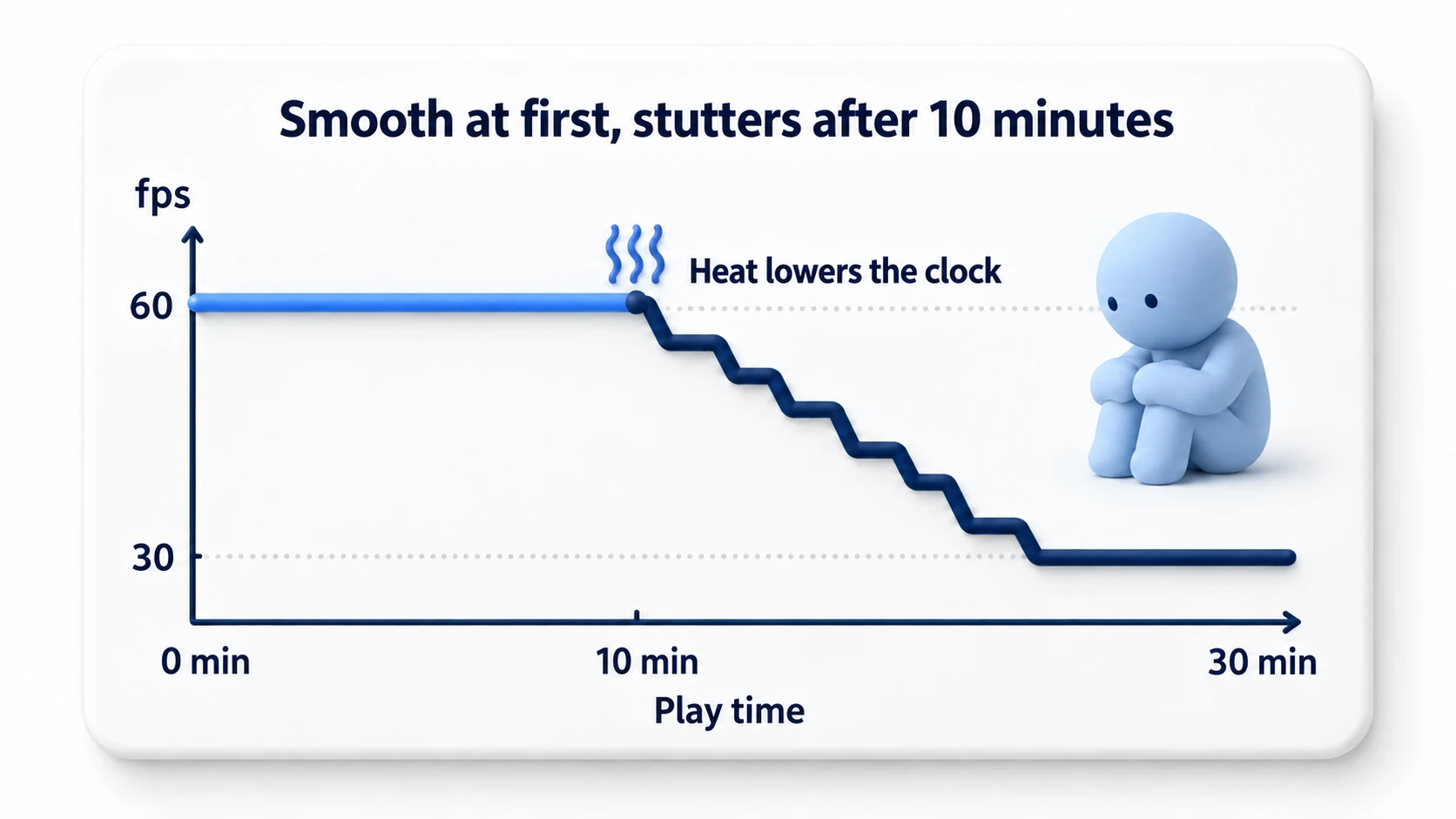
It runs smoothly in the Editor, but stutters on a real device. The first 10 minutes are fine, but the device heats up as you play and the frame rate drops. Players leave reviews saying "it drains my battery" — classic mobile development problems.
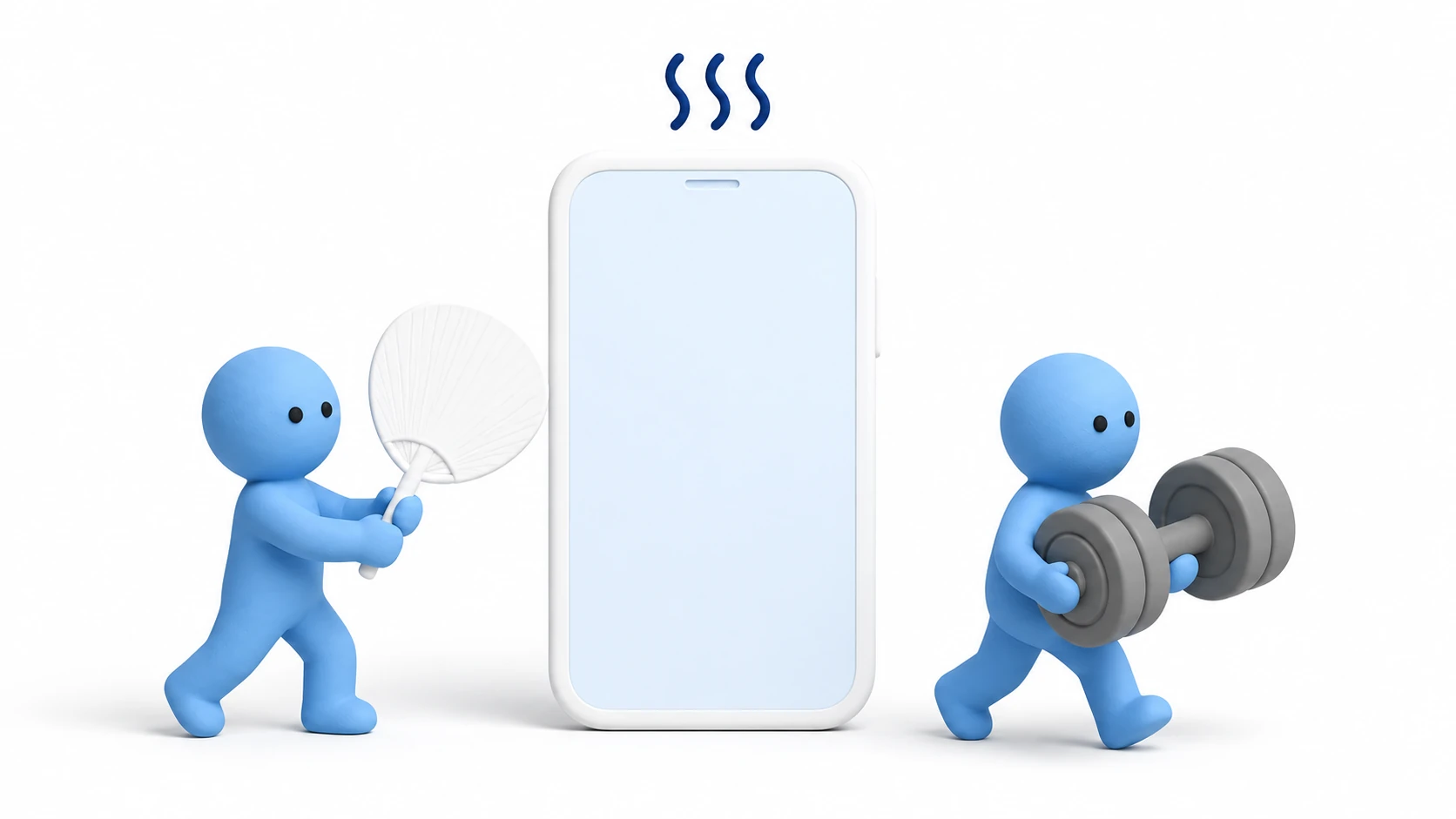
Mobile has two constraints that PC doesn't: heat and battery. Under sustained load, the device forcibly lowers CPU/GPU clock speeds to prevent overheating (thermal throttling), and performance takes a nosedive. In other words, on mobile the goal isn't just "it runs" — it's "it runs with headroom."
What You'll Learn
- Mobile-specific constraints — thermal throttling and battery
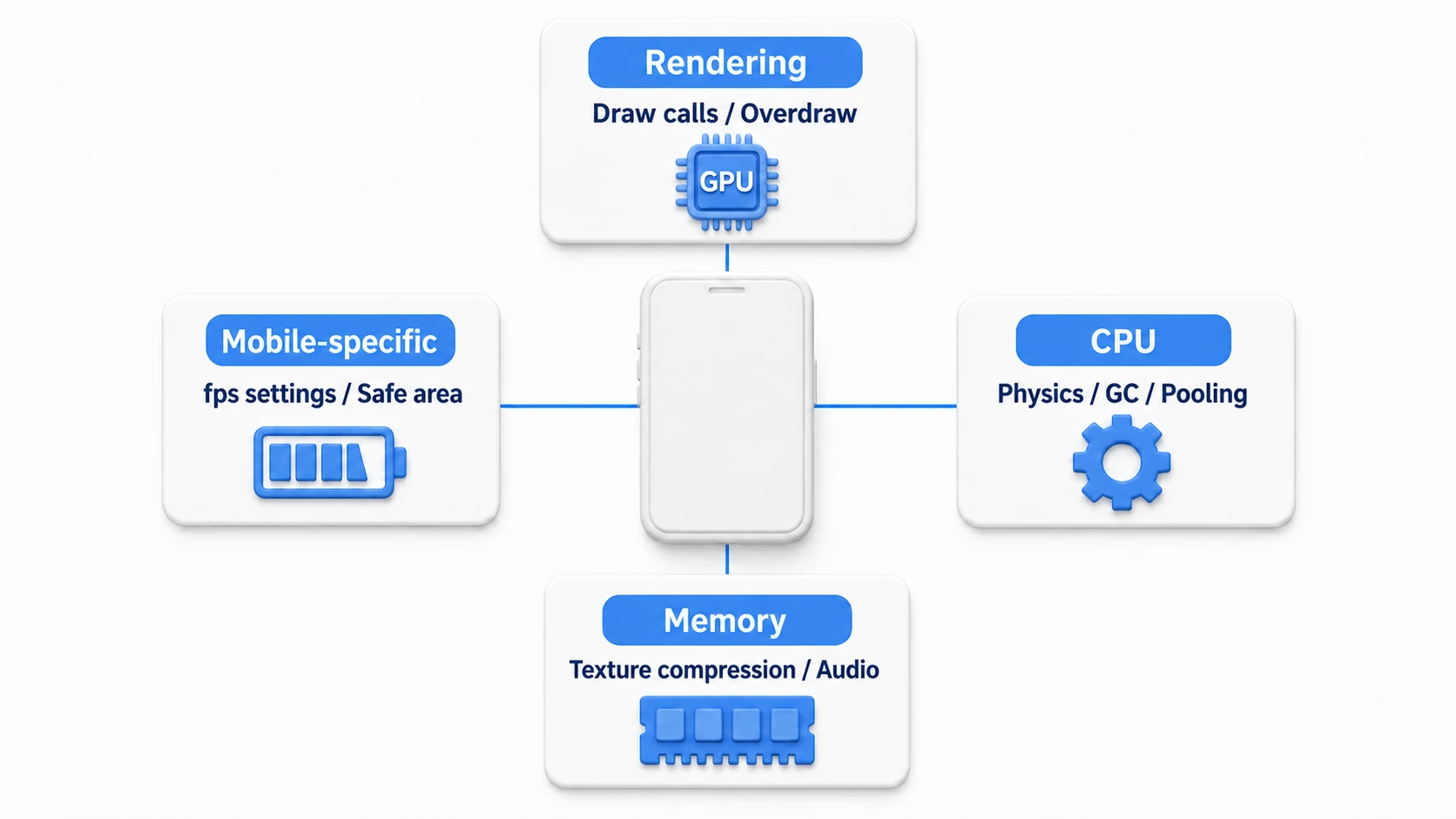
- The four pillars of optimization — rendering (GPU), CPU, memory, and mobile-specific concerns
- The essentials of each topic, plus links to detailed articles (this article is a hub)
- Practical: the pre-release on-device check to run
Tested with: Unity 6 (6000.x) / URP
"Comfortable for the first 10 minutes, then it starts to stutter as you play" — the culprit behind this is thermal throttling. Because heat is the cause, you will never catch it in a measurement taken right after launch.
The big picture of the countermeasures is four pillars. A different move works for each kind of load, so this article sums up the essentials of each pillar and the entry point to its detailed article.
1. Reducing Rendering Load (GPU)
GPU load translates directly into heat and battery drain. Making rendering as light as possible is the first step toward avoiding thermal throttling.
Reducing Draw Calls
If the CPU sends the GPU too many draw commands (draw calls), the CPU becomes the bottleneck before the GPU ever does. The three pillars are enabling the SRP Batcher, texture atlases, and static batching. For how they work and when to use each, see Draw Calls and Batching.
Managing Polygon Count and Overdraw
- Polygon count: A good ballpark for mobile is tens of thousands to a few hundred thousand for the whole screen. Use LOD (Level of Detail) to automatically swap distant objects for simplified models.
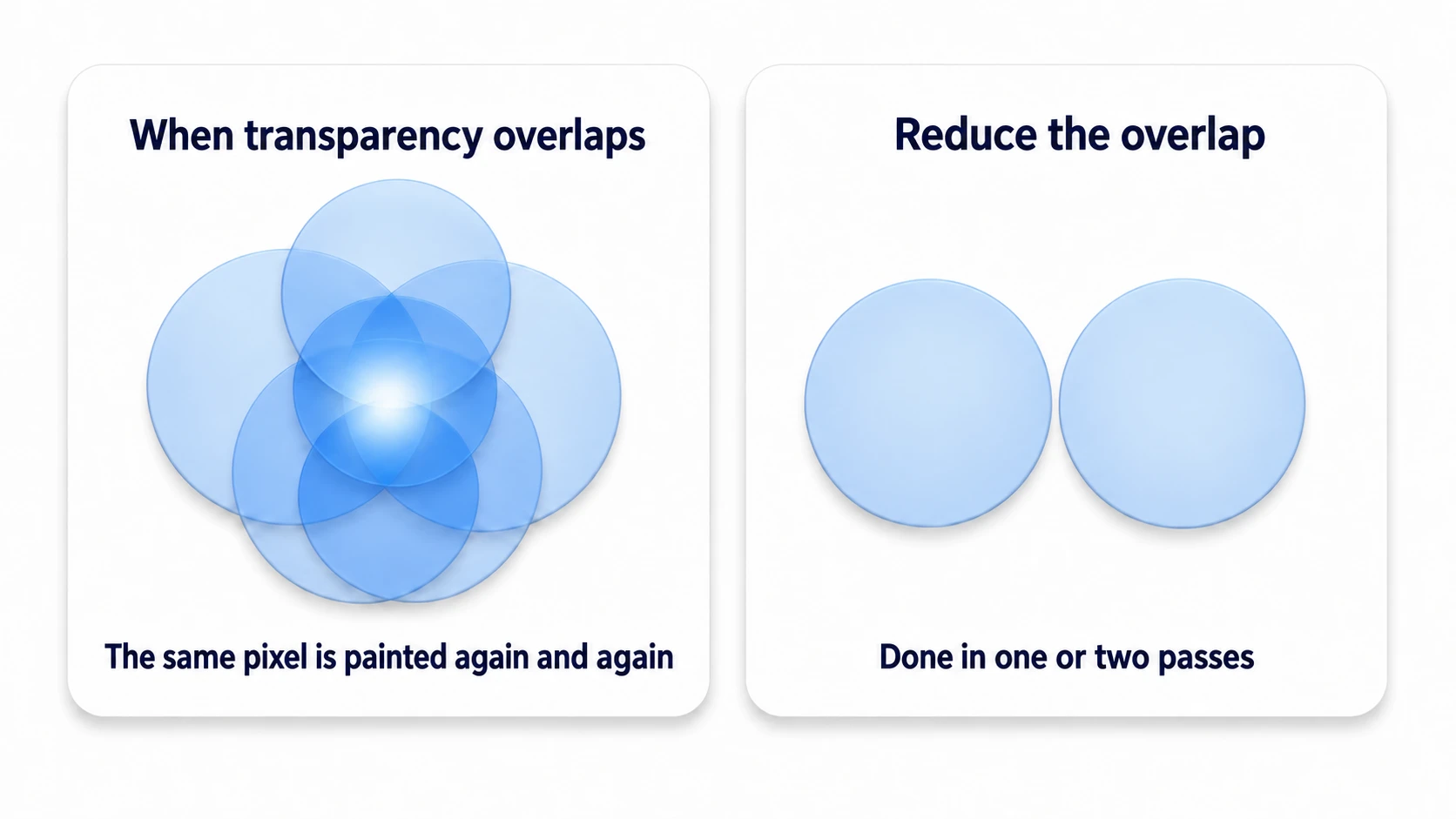
- Overdraw: Painting the same pixel multiple times in a single frame. Overlapping translucent particles are the usual culprit, and they're the archenemy of mobile GPUs. In URP, enable Overdraw under Rendering in "Window > Analysis > Rendering Debugger": areas painted more times show up brighter, so reduce the overlapping effects there (UI in Screen Space - Overlay doesn't appear in this view).
- Resolution scaling: Lowering "Render Scale" in your URP asset to 0.8–0.9 reduces the 3D rendering load while keeping Screen Space - Overlay UI crisp (Screen Space - Camera and World Space UI get softer along with it). It's an instant win on high-resolution devices.
2. Reducing CPU Load
Physics
- If you're still using the default Fixed Timestep of
0.02(50Hz) in "Project Settings > Time," it's worth revisiting based on how much physics precision you actually need. A larger value means fewer physics updates and a lighter CPU load (see Update vs FixedUpdate). - Basic prep work: don't attach a
Rigidbodyto static background objects, and use the Layer Collision Matrix (Project Settings > Physics) to disable collision checks between layers that never need them.
C# Code
- Reducing GC allocations: On mobile, GC spikes are directly felt by the player. For techniques to eliminate per-frame
newcalls and string concatenation, see GC Optimization. - Object pooling: Eliminate
Instantiate/Destroyfor bullets, enemies, and effects with pooling. On mobile it's practically mandatory. - Caching GetComponent: Calling
GetComponentinsideUpdateshould always be replaced with caching.
3. Memory Management
Use too much memory and you won't just stutter — the OS will kill your app outright.
- Textures: The biggest memory consumer. In the texture import settings, configure per-platform Max Size and compression format (ASTC recommended). You can author at 2048 and ship 1024 to mobile, for example.
- Audio: For long tracks like BGM, use
Load Type: Streamingto play without loading into memory. For short SFX,Decompress On Loadis the standard choice. - Asset load management: Understand how "a scene plus its references gets pulled into memory in a chain," and use Addressables to control load timing when needed.
4. Mobile-Specific Considerations
- Target frame rate: On Android and iOS,
Application.targetFrameRateleft at its default (-1) runs the game at 30fps. To run at 60fps, setApplication.targetFrameRate = 60;explicitly. Conversely, for games with little motion like puzzle games, deliberately locking to 30fps is a perfectly legitimate design decision for heat and battery reasons. - Touch input: For multi-touch and gestures, the current standard is the Touch support in the Input System.
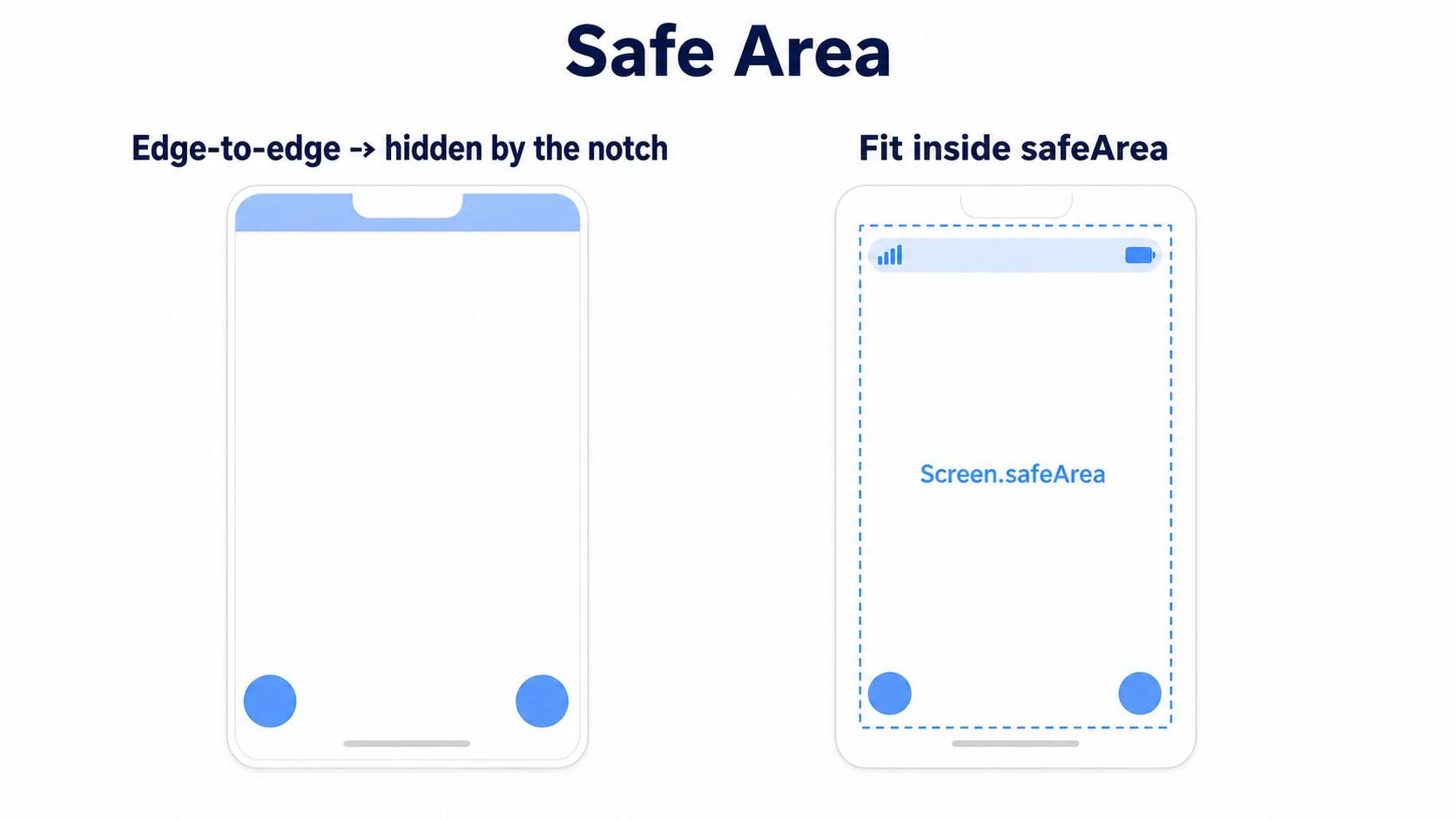
- Safe area support: To avoid areas hidden by notches or punch holes, use
Screen.safeAreato adjust the bounds of your UI root panel. Learn it together with how Canvas and anchors work.
Practical: Running the Pre-Release On-Device Check
Casual puzzle, 3D action, or idle game — the moment you release on mobile, shipping without passing a "heat test" on a real device is dangerous. However smooth the Editor or a freshly launched device feels, players play for 30 minutes straight. Run the following at least once before release.
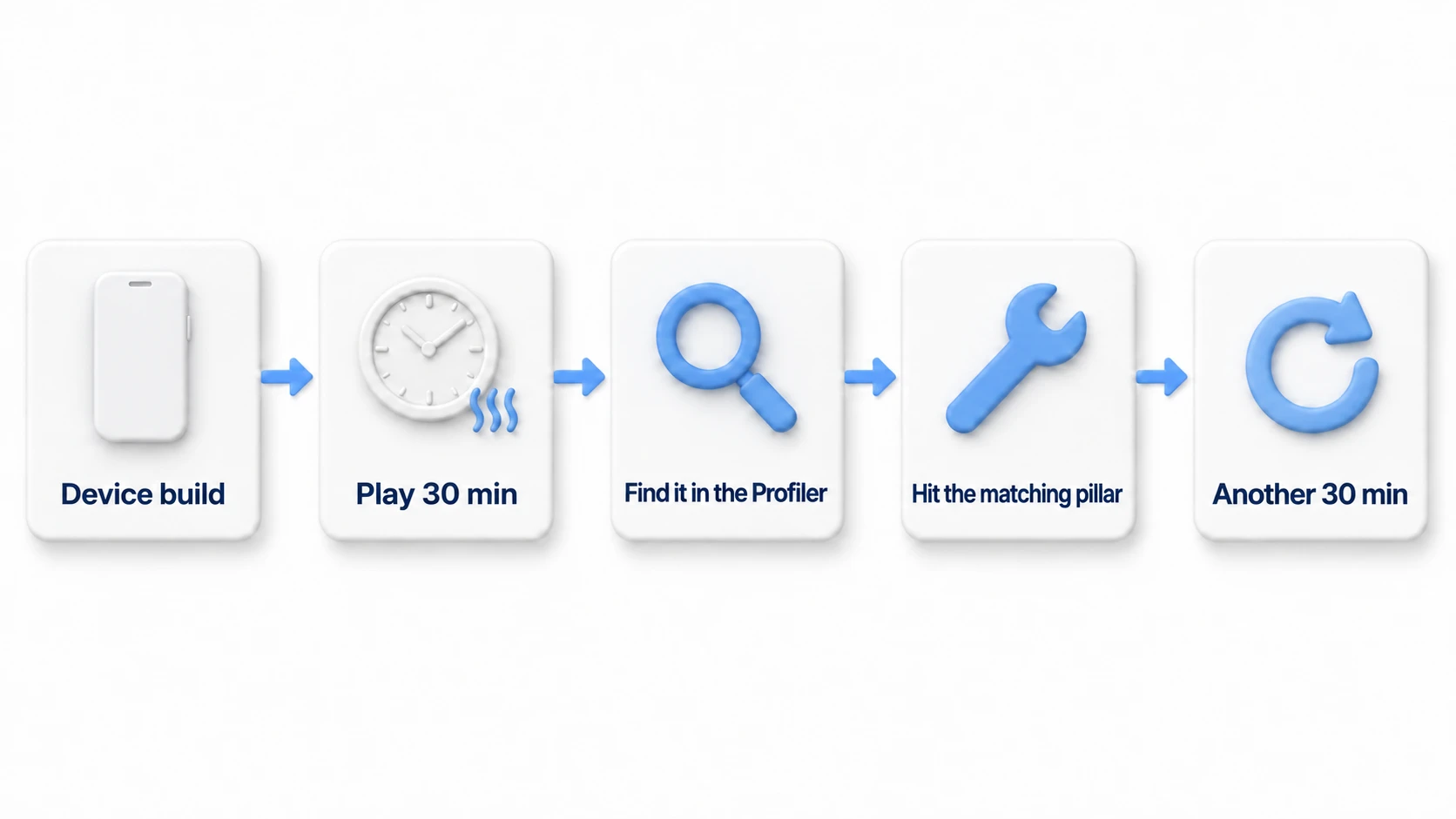
- Test with a release-equivalent build on a real device: A Development Build adds profiling overhead. Do the final performance check with release settings.
- Play for 30 minutes straight on a mid-range device: Prepare one device from the middle of your expected player base, not the latest flagship. Note how it feels and how hot the device gets at the 10-, 20-, and 30-minute marks.
- When it starts to drop, attach the Profiler and pin down the culprit: Switch to a Development Build and, with the stutter happening, connect the Profiler to the device to see whether the CPU (scripts, physics) or the GPU (rendering) is the limit. On mobile devices the Profiler's GPU Usage often isn't available, so also check whether lowering Render Scale raises the fps (if it does, rendering is heavy).
- Decide which of the four pillars to hit: If rendering is heavy, go for draw call reduction and Render Scale; if it's scripts, GC optimization and pooling; if you get memory warnings, texture compression — hit only the pillar that matches the cause.
- Play for another 30 minutes: Repeat the same test after your fix, and you pass once you've confirmed "still playable after 30 minutes."
There are two key points: "a heat problem only reproduces once you put time into it" (a 5-minute test tells you nothing), and "always separate CPU from GPU before you fix anything." If you act without separating them, you swing and miss — optimizing code when the GPU was actually the limit.
Bonus: Good to Know for Later
- Testing for thermal throttling: Don't just test "the first 5 minutes after launch" — verify with 15–30 minutes of continuous play. Your game's true performance is what remains after heat has lowered the clocks.
- Adaptive Performance: On Samsung devices and others, there's an official package that lets your game read the device's thermal state and dynamically lower quality. Worth considering for serious mobile releases.
- Surprising battery drains: Excessive network traffic, vibration, GPS, and screen brightness also eat battery. Offer options to turn off whatever your game can control.
- Device performance gaps: GPU performance can differ by 10x or more between high-end and low-end devices. The standard approach is to define separate Quality Levels and auto-select one at launch based on the device.
- Touch input and screen cutouts: swipes, pinches, and the Safe Area that avoids notches are covered in mobile touch and Safe Area
- Don't draw what's far away or hidden: LOD, which swaps distant models for lighter ones, and Occlusion Culling, which skips hidden objects, are covered in the LOD and Occlusion Culling article
- Watch your memory use: use too much and the OS terminates the whole app. Find out what's lingering with the Memory Profiler article
Summary
- Mobile's enemies are heat and battery. The goal is not just "it runs" but "it runs with headroom."
- Rendering: Reduce draw calls, fight overdraw, tune Render Scale.
- CPU: Physics prep work, zero GC allocations, pooling.
- Memory: Texture compression (ASTC), audio Streaming, Addressables.
- Mobile-specific: targetFrameRate, touch input, safe area.
- Before release, run a 30-minute heat test on a mid-range device. Five minutes tells you nothing.
And above all — profile on real devices as you go. Editor numbers don't reflect mobile reality. Have you ever played your own game for 30 minutes straight on a real device?