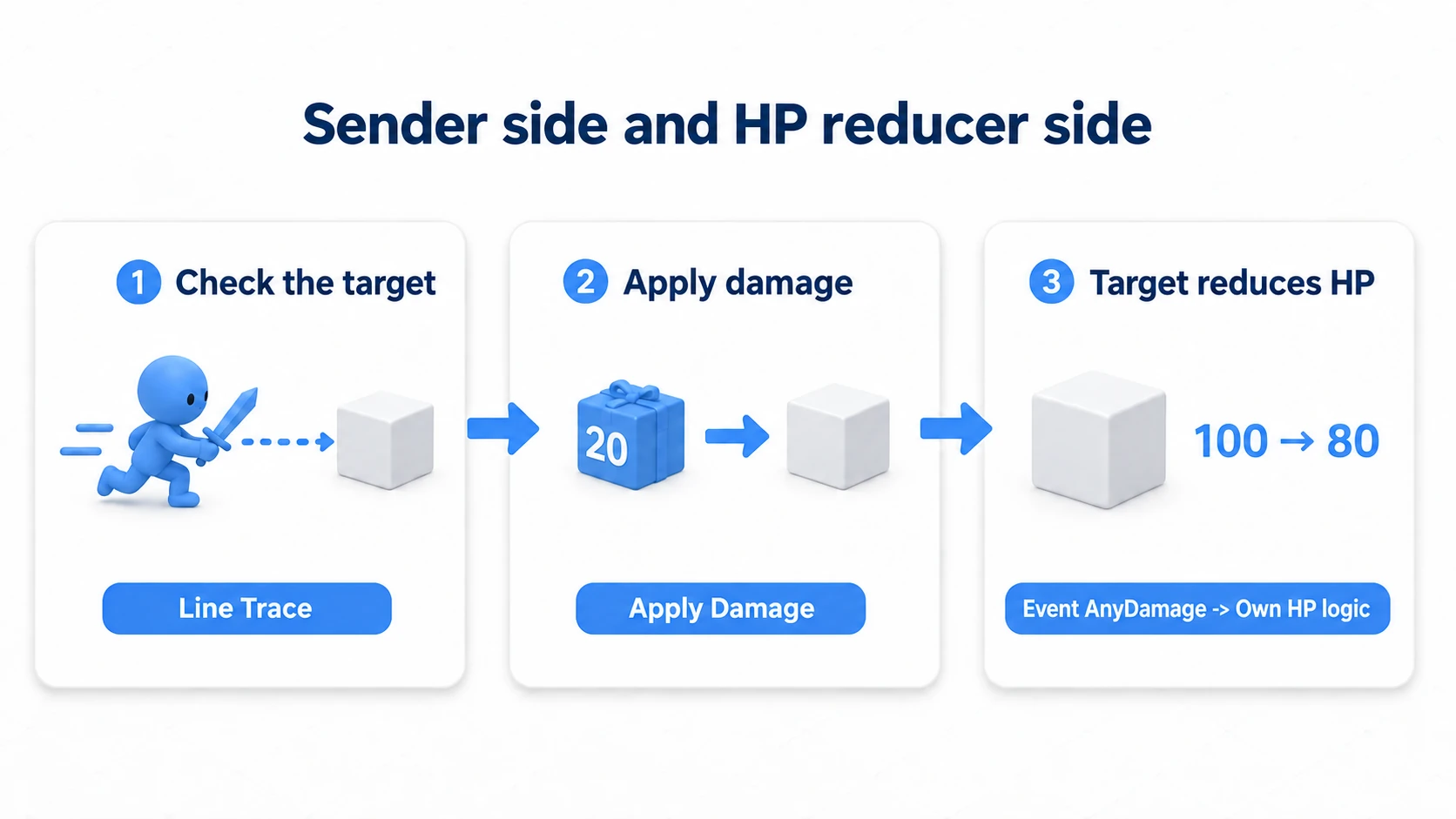
Things got heavy once you added more enemies. Inspecting a defeated enemy produces an error. Opening a graph after a while, you cannot tell where to fix it. Once your Blueprints work, these are the troubles that show up.
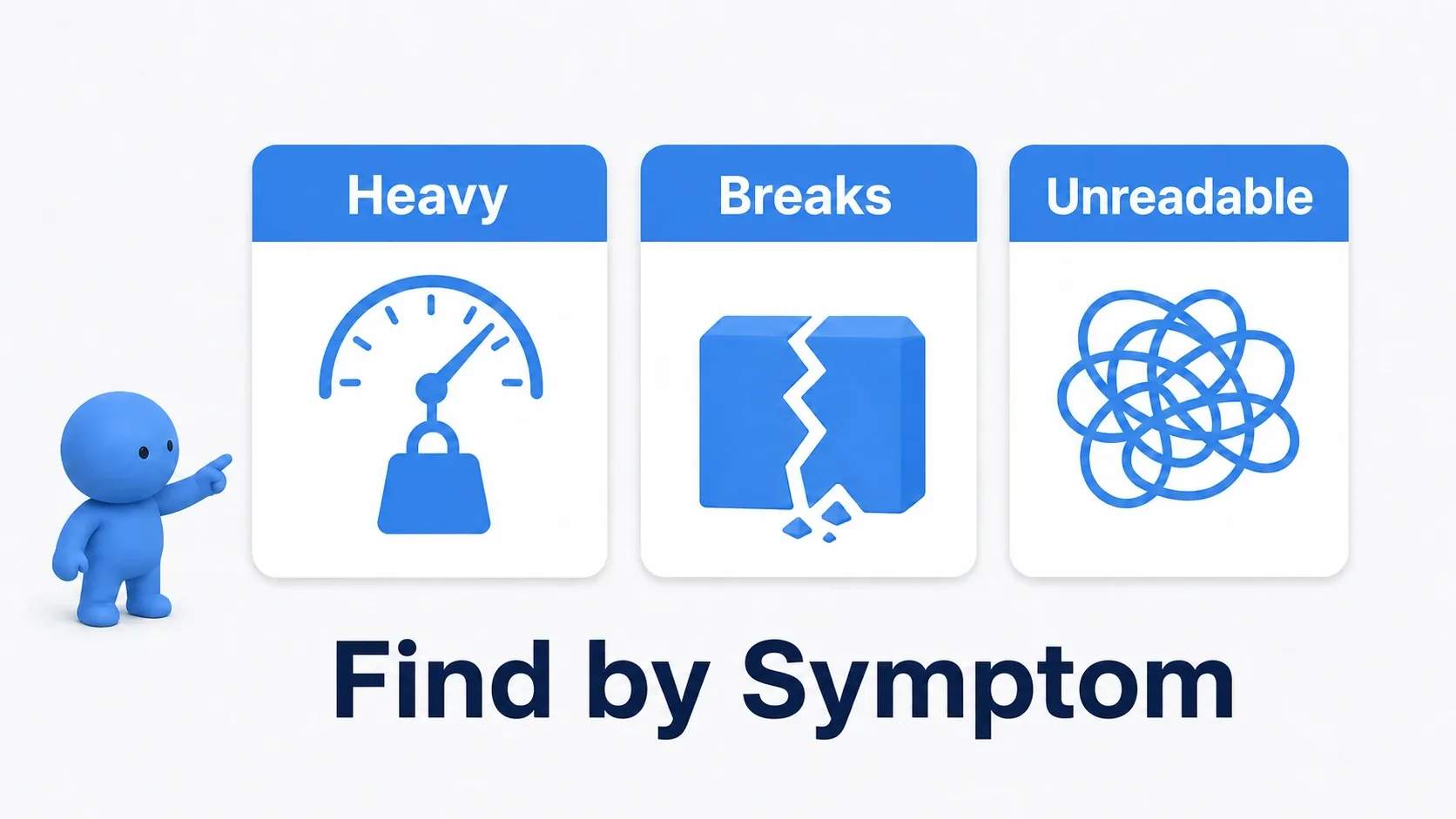
This article investigates ten common stumbles from three angles: heavy, misbehaving, and unreadable. It is not a list of forbidden nodes but a checklist for reviewing "does the way I am using this fit this situation?"
At the end, we use a small example that displays a marker's position to fix how the target is found and what happens after it disappears. When reviewing an existing Blueprint, confirm one spot at a time the same way.
What You'll Learn
- How to review the number of times something runs, how targets are found, and reuse of calculations
- Easily misunderstood distinctions in references, Cast, physics, and Dispatchers
- How functions, variables, and comments make the place to fix easy to find
- Hands-on confirmation of both the marker present and the marker gone cases
First, look at which symptom you have
Blueprint is not necessarily the only cause of a stuttering screen; rendering and physics load matter too. On the other hand, if "only right after killing an enemy can I not read its position," you need to check the target you are reading before making anything faster.
| What is troubling you | Where to look first |
|---|---|
| Heavy when counts grow, or long load times | What runs how many times, and which assets it depends on |
| Errors on destroyed targets, odd motion or notifications | Whether the target is valid, and whether the feature is used as intended |
| You cannot tell where to change something | Grouping of logic, where variables live, and naming |
Working with one instance and working comfortably with a hundred are two different confirmations. That said, scaling to a hundred does not necessarily produce a problem. Consider the count in use, the call frequency, and the behavior you need, and read the items related to the symptom.

Group 1: heavy, or loading more
Mistake 1: Connecting to Event Tick without considering the frequency you need
Event Tick is normally called every frame. With 100 Actors updating every frame at 60 FPS, that is 6,000 calls a second at the entry point alone. What you do inside changes the cost.
Smooth following may need every frame, but displaying a countdown may be fine once a second. To react only the instant something starts overlapping a volume, use an Overlap event; to notify only when HP changes, use an Event Dispatcher.
A Timer also works for periodic work, but the reason it gets lighter is reducing it to the number of calls you need. Calling the same heavy logic at the same frequency will not be solved by swapping in a Timer. The Tick and Timer article uses a watchtower that only moves while you are nearby to compare them.
Mistake 2: Re-collecting a fixed target every time
Get All Actors Of Class collects Actors of the specified Class (kind of Actor) and returns them as an array — a list of several values in order. The load grows with the number of matching Actors, the call frequency, and the work done afterward.
If you just want to open one specific door, holding a reference — the thing that lets you designate that instance later — saves you from building the list each time.
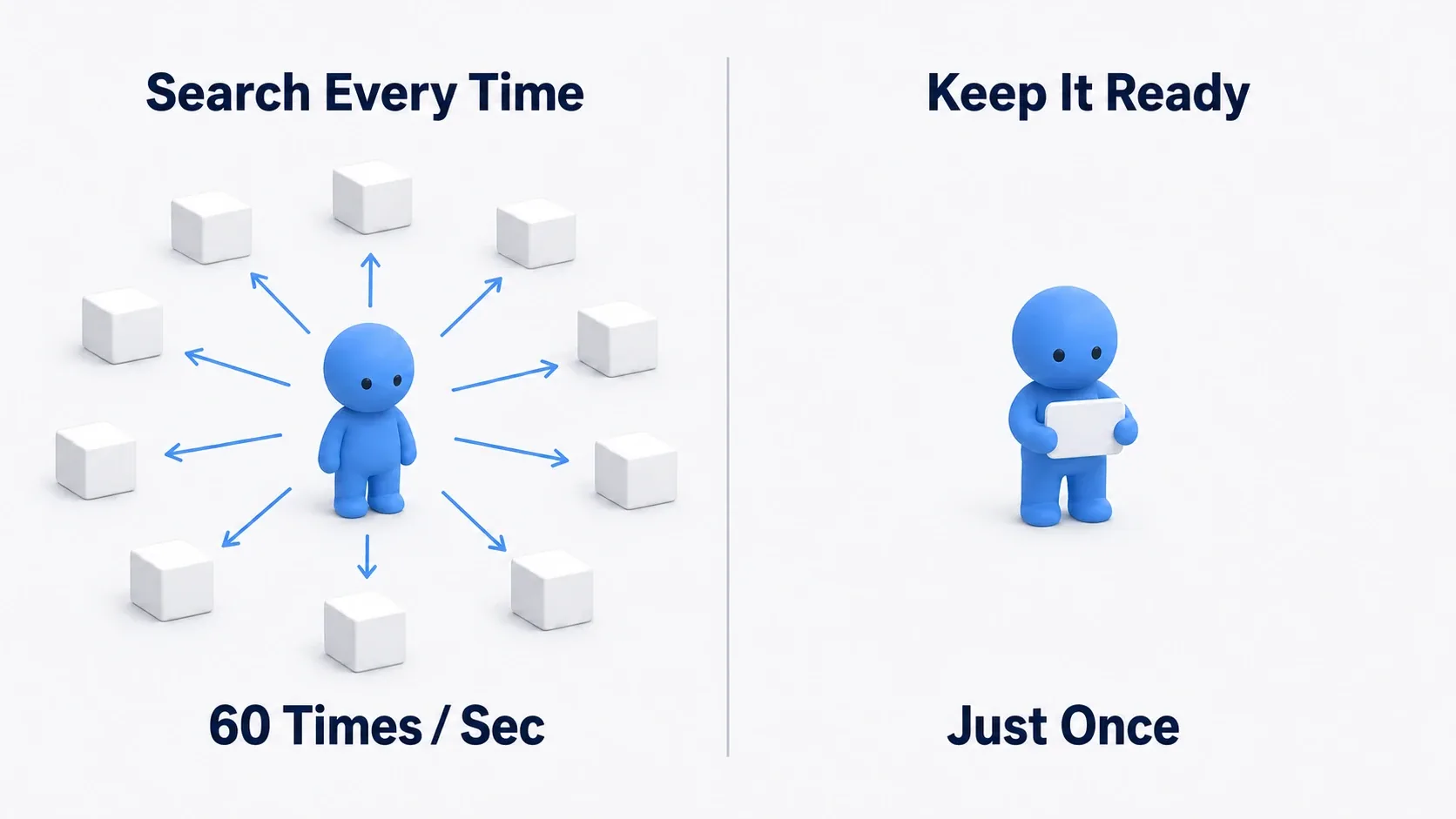
The 60 times/second in the diagram is an example of calling every frame at 60 FPS. Doing it once at the start works when the target you use does not change.
To handle multiple enemies, you can also reuse a list fetched in BeginPlay. But if enemies are born or destroyed later, update the list too. Registering on spawn and removing on exit is another way to manage it.
Taking index 0 of the array does not necessarily give you the target you want. If nothing is found, the array is empty. In the hands-on at the end, we change this "collect and take the first" into directly specifying the one instance we placed.
Mistake 3: Assuming a Pure node's result is stored
A variable Get or an addition has no white exec pin. Such a Pure node is evaluated when the logic using its result needs it. Placing one in the graph does not mean it remembers its first computed result forever.
For example, using a heavy calculation's result in separate Sets or Prints may recompute it each time. When using it from a loop, watch the iteration count too. Rather than judging call counts by the number of wires, look at which logic needs that value, and when.
To reuse the same result, Set it into a variable once and then Get it. But you also have to decide when to store it: "recompute on each event," "update when the target changes," and so on. Continuing to use a stale value is fast but wrong.
There is no need to replace every lightweight Get and addition with a stored variable. Pure suits logic that computes a value. When writing your own, keep the roles aligned and do not mix in work like rewriting HP (the Function and Macro article).
Mistake 4: Casting in places where you do not need the target's type
Cast To BP_Enemy checks whether the reference you hold can be treated as a BP_Enemy. It is useful when reading enemy-specific values. It is not a node for finding a new target or turning something into a different kind of Actor.
The other thing to watch is a hard reference — the relationship where one asset directly designates another as required for loading. Casting to a specific Blueprint creates a dependency on that Class. If dependencies chain from there to meshes and so on, it becomes a reason more gets loaded.
If all you want to convey is "take damage," a Blueprint Interface can provide a common call. But if variable types or other nodes still carry dependencies on concrete Classes, those need checking too. Switching to an Interface is not a mechanism that erases every dependency.
Do not judge performance by the number of Casts; think about whether you need to know the target. The Interface article sends damage to an enemy and a crate through the same call and inspects the dependencies in the Reference Viewer. The comparison of three communication methods also helps you decide.
Group 2: misbehaving
Mistake 5: Using a reference after the target is gone
The UI keeps trying to read the HP of an enemy you already killed. A locked-on enemy is gone but the code keeps querying its position. In such situations the referenced target may no longer be usable. An unset reference does not point at anything either.
Is Valid checks whether a reference is usable. Check it where retrieval can fail, or right before using an Actor that can be destroyed. When invalid, branch to something appropriate: "hide the display," "report no target," and so on.
In Blueprint, using an invalid reference leads to runtime errors such as Accessed None. It does not necessarily bring the whole game down, but it will not do what you expected.
And Is Valid is not a feature for finding a lost target again. If the player respawned, you need a mechanism to re-acquire a reference to the new instance.
Mistake 6: Confusing applying force with setting velocity
Applying "pushing force" to a physics-driven box and directly deciding "its current velocity" are different. Mixing them produces motion like a box that stops when you wanted it launched.
| What you want | Mainly used | How to think about it |
|---|---|---|
| Keep pushing with thrust | Add Force | Calling it every frame while applying force is a valid usage |
| Push instantly, as in an explosion | Add Impulse | Applies that moment's push effect |
| Decide the velocity directly | Set Physics Linear Velocity | Set it after considering how to treat existing motion |
Calling Add Force every frame is not itself a mistake. On the other hand, setting the same velocity every frame with Set Physics Linear Velocity and Add to Current off overwrites velocity that collisions changed.

For a normal Character's walking and jumping, start from the Character Movement Component settings. Understand it as separate from the mechanism driving physics boxes and vehicles.
Mistake 7: Binding without deciding how long the notification is needed
Bind on an Event Dispatcher registers logic to run when a notification arrives. If a screen that should only update while open keeps receiving notifications after it closes, unnecessary work remains.
When you are done receiving, Unbind removes the registration. Sometimes BeginPlay and EndPlay pair up; sometimes you split it between opening and closing a screen. The important part is that the period the receiver is alive and the period the notification is needed are not necessarily the same.
With Blueprint Dispatchers, invalidated receivers drop out of the call list. But if you keep holding the Widget after closing the screen, it may keep receiving. Deciding to stop notifications you no longer need is the author's job.
With Unbind Event, match the registered object and event. Unbind All Events removes other registrations too, so be careful with the scope when you only want to stop your own (hands-on with Bind and Unbind).
Group 3: unreadable
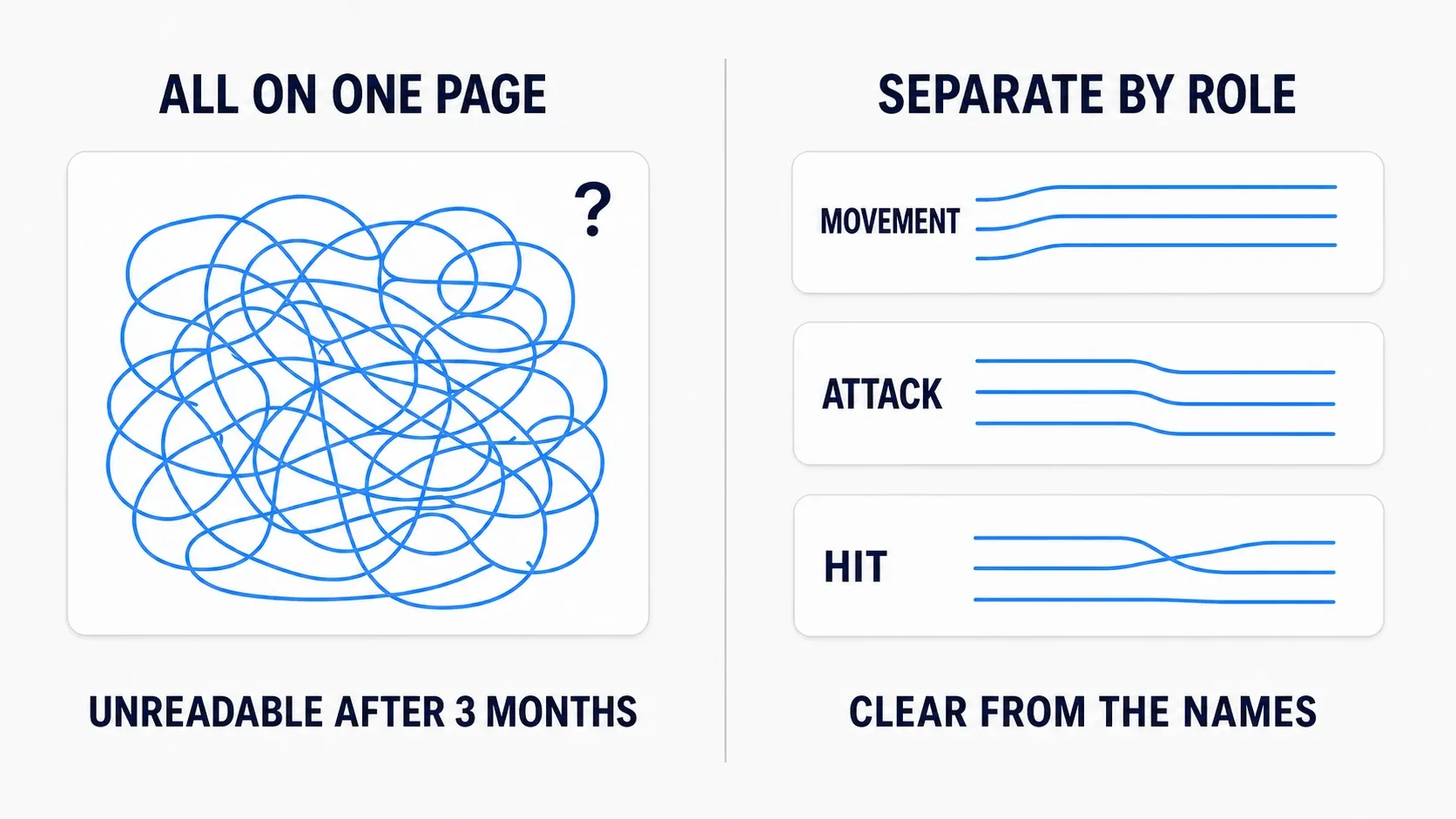
Mistake 8: Cramming different roles into one graph
When display updates and door-opening logic sit in the middle of the HP subtraction, the place you want to change becomes hard to find. Start by marking groups with a Comment Box and splitting roles into "update HP" and "update display."
Logic called repeatedly, or logic you want to read by name, can be extracted into a Function. Collapse Graph folds nodes in place into a single unit. You can still inspect the inside, but it differs from a Function's mechanism of calling shared logic from elsewhere.
A Function cannot hold logic that waits for completion, such as Delay. In that case leave it on the event side, or check the placement constraints and use a Macro. Ways to split things up are covered in 10 techniques for organizing graphs.
Mistake 9: Leaving temporary values in Class variables
Values used by later logic, such as HP, belong in a Class variable held by that instance. Put "a total used only during this calculation" in the same place, though, and the previous value lingers, so only the second run's total comes out wrong.
Values used only inside a function work better as Local variables, where their role is contained within that call. Give a total's Local variable a default of 0 and every call starts summing from zero.
That said, if you re-sum within the same call, resetting there is a separate consideration. Do not memorize it as "make it Local and no reset is ever needed" (hands-on with Class and Local variables).
Mistake 10: Names and comments that don't reveal the purpose
Value1 and Value2 do not tell you what is being compared. Use names that bring the situation to mind: Health for current HP, ChaseRange for the distance at which chasing starts.
Comments help more when they record the reasoning too, not just "set HP to 0" but "do not accept further damage after being defeated." You can write a heading like "Update health" for a group, and reasons near branches that are easy to misread.
Prefixing Booleans with b, or Interfaces with BPI_, are conventions you agree on within a team. It is not a constraint that a Blueprint Boolean must start with b to work.
Hands-On: fixing logic so a missing marker causes no trouble
We build an example where F displays a marker's position and G destroys that marker. It starts as "search every time and use the first one." We change it to directly specify the instance we use, and not read the position once it is gone.

The coordinates in the diagram are an example. Compare the position of the marker you placed against the numbers shown on screen.
Here we practice the idea of narrowing what you search plus branching on an invalid reference. Since it only runs a few times on key input, it is not an experiment where you will feel an FPS improvement.
Create a UE5 Third Person template in Blueprint, choosing None if there is a Variant option. Save a new practice Level or work in the template's Level.
1. Place one marker whose position we query
Create BP_PracticeMarker with Actor as parent. Add a Static Mesh under DefaultSceneRoot and set the standard Cube. Relative location and rotation are 0, Scale is 1, Collision Presets is NoCollision, and Simulate Physics is off.
If you cannot find Cube, turn on "Show Engine Content" in the asset picker's settings and choose the Cube in Engine/BasicShapes.
Compile, save, and place exactly one in the Level. Set the Actor's Scale to 1 and move it somewhere visible from the Player Start. Its center sits about 50 cm above the floor. In the Outliner, rename this instance to PracticeMarker.
Select the marker and note the X, Y, and Z under Location in the Details. These are world coordinates — the position within the whole Level. We compare them against the numbers displayed later.
2. Create a function that displays the position of the Actor it receives
Open "Open Level Blueprint" from the Level's Blueprint menu. Create a Function PrintMarkerPosition here and turn Pure off so it can be called on the white line. Add Marker to Inputs as an Actor Object Reference type; create no Outputs. Object Reference is the type that receives an actual Actor instance.
- Connect the function entry's white line to Print String and set Duration to 10 seconds.
- From the entry's Marker output, create Get Actor Location and connect it to Target.
- Pass Get Actor Location's Return Value to To String (Vector).
- Connect To String's Return Value to Print String's In String.
A Vector here is the position value bundling X, Y, and Z. To String (Vector) turns it into text that can be displayed. This function is responsible for displaying the position of whatever it receives.

3. Build the "before" version that searches every time and uses the first
In the Level Blueprint's Event Graph, build the following connections.
- Place a keyboard F event and connect Pressed to Get All Actors Of Class. Actor Class is BP_PracticeMarker.
- From Out Actors, create an Array Get (a copy) with Index 0.
- From Get All Actors Of Class's white output, call your PrintMarkerPosition.
- Pass the Array Get output into PrintMarkerPosition's Marker input.
Index specifies which element of the array to take. Counting starts at 0, so Index 0 is the first. Use this Level Blueprint's own function call and connect the marker being passed to the Marker input.

Compile, save, and Play. Click the game view, press F, and confirm X, Y, and Z match the Location from earlier. Differing decimal digits are fine as long as it is the same position.
It works now because there is one marker. But it builds a list every time and assumes the first element is the target. With two markers, this wiring does not tell you which one you meant.
4. Directly specify the placed marker
Stop Play. Select PracticeMarker in the Level, right-click in the Level Blueprint, and create "Create a Reference to PracticeMarker." That is a reference pointing at that one instance you placed.
Remove the Get All Actors Of Class and Array Get that followed F, and connect F Pressed directly to PrintMarkerPosition. Pass the reference to the placed PracticeMarker into the Marker input.
Compile, save, start a new Play, and press F to confirm the same X, Y, and Z appear. The position display stays the same; only how the target is decided has changed. Stop Play.
5. Add a branch for when the target is absent
Between F Pressed and PrintMarkerPosition, place an Is Valid that has white exec pins. Choose the form that splits execution into Is Valid / Is Not Valid, not the one that only returns a Boolean.
- Pass the same PracticeMarker reference to Input Object.
- Connect Is Valid's white output to PrintMarkerPosition. The Marker input takes the same reference.
- On the Is Not Valid side, place another Print String with In String
Marker missingand Duration 10 seconds.
Marker missing is a confirmation message meaning "there is no marker." When invalid, the position-fetching function is not called at all. You do not need to change anything inside PrintMarkerPosition.

6. Destroy it with G and confirm both results
Add a G event to the Level Blueprint. Connect G Pressed to another Is Valid, passing the same PracticeMarker reference to Input Object. From the Is Valid side, call Destroy Actor with the same reference as Target. Leave the Is Not Valid side doing nothing.

Destroy Actor destroys the marker for that Play session. The placement saved in the editor remains, so restarting Play brings the marker back.
Compile, save, and try in this order.
| Action | Result to confirm |
|---|---|
| Start a new Play and press F | The marker's X, Y, and Z appear |
| Press G | The Cube marker disappears |
| Press F again | Marker missing appears instead of a position |
| Repeat G and F | It does not read a destroyed target's position or add reference runtime errors |
| Stop Play, restart, and press F | The restored marker's position can be displayed |
If it still tries to show a position after the marker is gone, check whether a white line still runs from F directly to the function, and whether Is Valid is inspecting the same reference. Runtime errors can also be found in the Output Log or in the Message Log after stopping Play.
Finally, stop Play, move the marker 100 cm along X, then Play again and press F. Seeing the new position confirms that reusing a reference and freezing a position value are different things. Restore the original position afterward.
In this exercise the one instance to use was decided from the start. To switch to a different marker during the game, you would extend it to re-store the selected target into an Actor reference variable. Is Valid alone does not switch you to a new target.
Bonus: Good to Know Up Front
Compare before and after under the same conditions
Optimization needs measurement on top of eyeballing behavior. The Game line in stat unit is a clue to the time spent on game-side work. But it includes more than Blueprint, AI among them.
Compare with the same Level, the same instance count, and the same actions, and watch out for the impact of added display and logging. For details, continue to the stat command article. Do not conclude "fewer nodes must mean higher FPS."
Before moving to C++, look at what is being repeated
Logic that repeats heavy calculation many times can improve when implemented in C++. But if the design searches for the same target repeatedly, you can review whether that search is needed at all before changing languages.
Confirm the behavior first, measure the heavy spot, and make one change that matches the reason. That makes it easier to judge what actually helped than fixing everything at once.
Summary
When reviewing a Blueprint, think from the symptom you have rather than hunting for forbidden node names.
| Symptom | What to review |
|---|---|
| Heavy, or loading more | Tick frequency, rebuilding lists, Pure evaluation, dependencies on concrete Classes |
| Misbehaving | Reference validity, force versus velocity, how long notifications are needed |
| Hard to read | The roles of logic, variable lifetime, names and comments |
In the hands-on we changed collecting markers every time into a direct reference and added a branch that does not read the position once it is gone. Trying both whether normal behavior is unchanged and whether changed conditions cause trouble is a step toward verifying a fix.
To chase causes in more detail, try pausing execution and inspecting values in the Blueprint Debugger article.
Further Reading