Your Blueprint's Variables panel has HP, movement speed, and a running total from a calculation all lined up. As variables multiply, it gets hard to tell "values this Actor remembers" from "values used only once during a calculation."
Class Variables and Local Variables are what separate the two. Values you want to keep for later logic, like HP, are Class; intermediate math used only inside a function is Local. Both hold values, but they differ in the scope you can use them from and how long the value persists.
To see that difference, we call the same total calculation twice. We create a bug where the result goes 300 → 600 even though the array never changed, then fix it to 300 → 300.

What You'll Learn
- Where you create Class Variables and Local Variables
- The difference between "where can I use it" and "how long does the value last"
- How to think about separating state from intermediate math
- How to fix the bug where a previous value lingers when you call the same summation twice
Two kinds of variable: scope and lifetime
Class Variables are the ones you create under "Variables" in the My Blueprint panel. The HP and movement speed variables you normally use are these. Local Variables are created under "Local Variables," which appears when you open a function. They are used only inside that function.
The first thing to grasp is that Class Variables also hold separate values per Actor. Build Enemy A and Enemy B from the same enemy Blueprint and attacking Enemy A does not reduce Enemy B's HP.
One such object actually created from a Blueprint is called an instance. Class Variable here means "member variable," not a static variable shared by every instance of the class.
Where you can use it: scope
Scope is the range from which you can directly read and write that variable. For Enemy A's HP, both Enemy A's damage logic and its healing logic use the same value. A Local Variable created in a damage calculation function, meanwhile, is used only by that function.

| Comparison | Class Variable | Local Variable |
|---|---|---|
| Where usable within the same Blueprint | Several functions and events | Inside the function it was created in |
| After the function call ends | The value stays on that instance | No intermediate value carries to the next call |
| Values it suits | HP, movement speed, current equipment | In-progress totals, temporary calculation data |
Handling a Class Variable from another Actor also involves a reference designating the target and settings for external access. It does not mean "usable unconditionally from any Actor." Here we compare within a single Actor.
How long the value lasts: lifetime
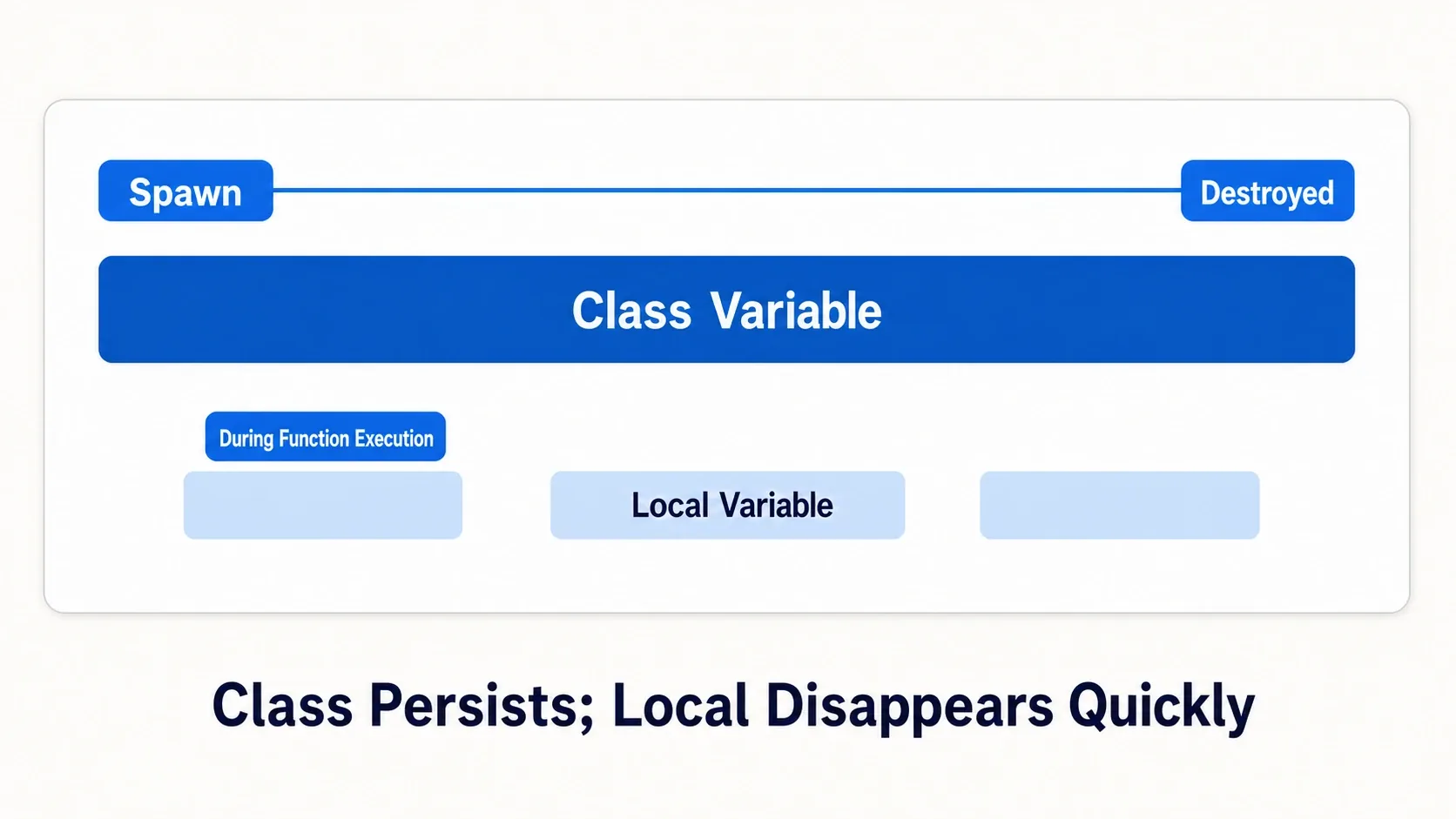
A Class Variable remembers what earlier logic stored for as long as the Actor exists. Take damage and drop HP to 80, and the next healing operation starts from 80.
A Local Variable starts from its default value each time the function is called. The default is the starting value configured on that variable. Give a total's Integer variable a default of 0 and every call computes from 0. Even if the previous call left it at 300, that 300 does not carry over.
Note that a Class Variable's value lasts as long as that instance exists. That is separate from save data you keep after the game exits.
The basic rule: state is Class, intermediate math is Local
Asking "after this logic finishes, do I want to use this value in the next one?" makes the placement easy to decide.
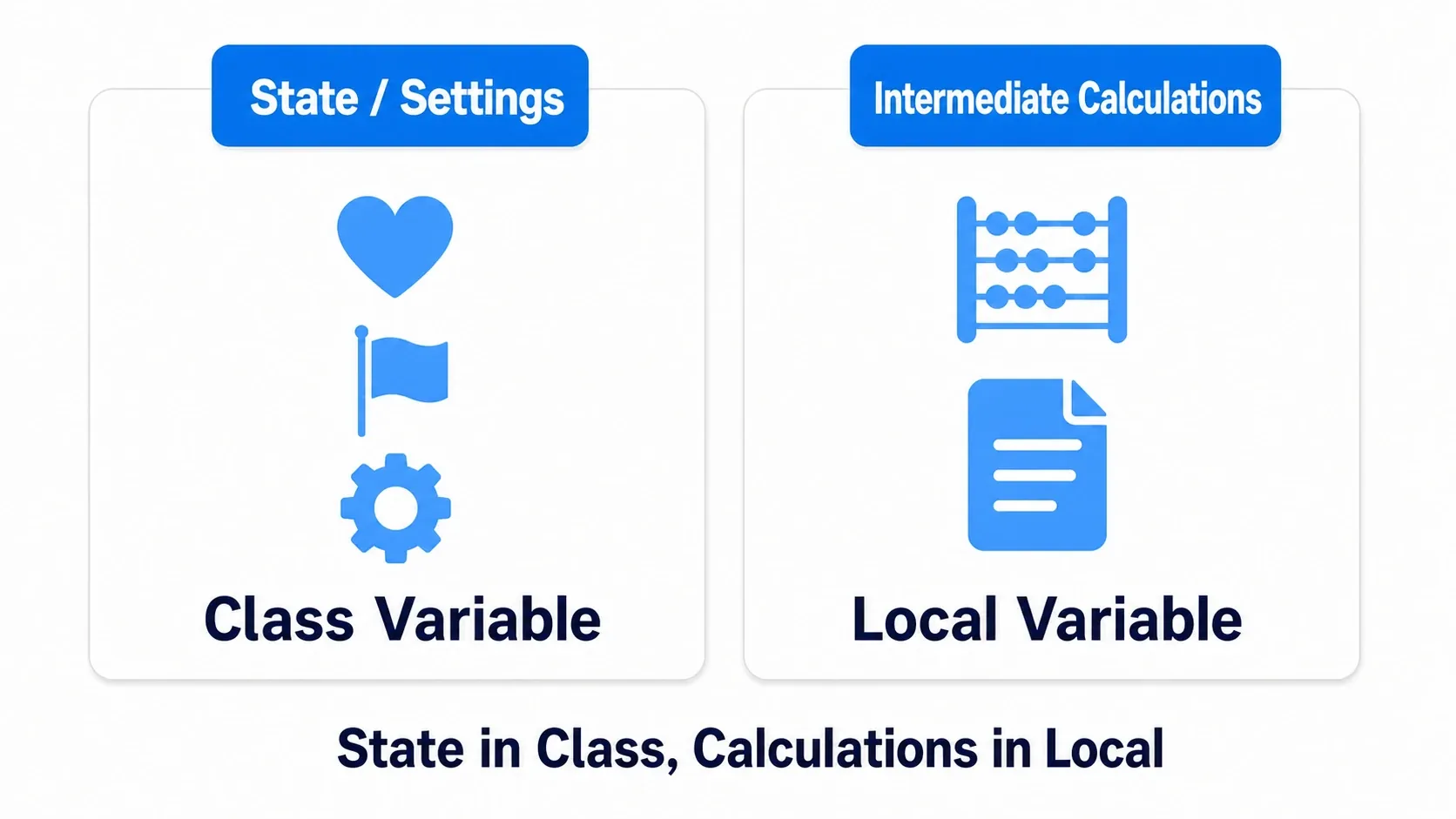
Values you remember, like HP, are Class
The player's CurrentHP decreases from attacks, increases from healing, and feeds the on-screen HP bar. Since it would be a problem if it reset to the initial value on every operation, it goes in a Class Variable.
Beyond current HP, settings such as max HP and movement speed, and a reference designating the equipped weapon, are also values the Actor remembers.
In-progress totals are Local
For example, a function computing the total score for a results screen adds 100, 100, and 100 in turn. The intermediate 100 and 200 are only needed during the calculation. The next time you start the same summation, you want to add from 0 again.
Make that in-progress total a Local Variable. The final 300 can be handed back to the caller as the function's return value. A return value says "this is the result of this work," and the caller does not need to read a variable inside the function directly.
What goes wrong if everything is a Class Variable
Holding intermediate math in a Class Variable is not automatically a bug. But it does require the following management.
- Align the starting value each time. If the previous total lingers, reset it to 0 before calculating.
- Track which logic wrote it. Using the same variable in another function widens the area you have to search when a value changes.
- Distinguish state from intermediate math. Even as Variables multiply, keep it organized so you can find key values like HP.
For a calculation contained within a function, making it a Local Variable also narrows where you have to look to that function. In the hands-on next, we actually observe the first problem — the previous total lingering.

Hands-On: fixing the bug where the second total is 600
Say you defeated three of the same enemy and earned 100 points each, and you compute the total. Compute it once or compute it again, the correct answer is 300 points.
1. Prepare the summing Actor and its variables
Choose Actor as the Blueprint Class parent and create BP_ScoreTester. Place exactly one in the level. This Actor has no visual, so confirm the placement in the Outliner.
Create these two under Variables in My Blueprint. Integer is the type for whole numbers.
| Variable name | Type | Default | Where |
|---|---|---|---|
ScoreArray | Array of Integer | 100, 100, 100 | Variables |
TotalScore | Integer | 0 | Variables |
An Array is a list of values of the same type in order. Set ScoreArray's type to Integer and choose Array in the container selector next to the type. After Compile, use "+" in the default value field to add three elements, all 100 (→ Array, Set, and Map Basics).
2. Create the function where the previous value lingers
Create CalculateTotalScore with the "+" under Functions. In the Details' Outputs, add an output named Total of type Integer. Since we specify the order of two calls with a white exec line, turn the function's "Pure" off.
Place a For Each Loop inside the function. It pulls array elements out one at a time. Use Loop Body for the per-element work and Completed for what happens after everything finishes.
Assemble it in this order. When you drag a variable into the graph, Get reads the value and Set writes it.
- Connect the function entry's white exec output to For Each Loop's exec input. Connect Get ScoreArray to Array.
- Place an Integer
+node and connect For Each Loop's Array Element to A and Get TotalScore to B. - Connect
+'s result to Set TotalScore's value input. Connect Loop Body's white line to Set TotalScore too. - Connect Completed's white line to the Return Node. Connect a separately placed Get TotalScore to the Return Node's Total.
Leave Set TotalScore's white output unconnected, which returns control to the loop. Connecting from Set to the Return Node ends the function after adding just the first element. The Completed side is what returns the total.

Execution order and the addition are split across two diagrams. The For Each Loop's Array Element omitted in the upper diagram connects to the addition in the lower one. Rather than creating a separate "Array Element" node, use the value pin the loop provides.

3. Call the same function twice in a row
From Event BeginPlay in the Event Graph, place CalculateTotalScore and Print String alternating twice each, and connect the white lines in this order.
Event BeginPlay
  → CalculateTotalScore (1st) → Print String (1st result)
  → CalculateTotalScore (2nd) → Print String (2nd result)
Pass the first function's Total output to the first Print String. Put 1st: in Append's A and the Total converted to String in B, then connect Append's result to In String. The Integer-to-String conversion node is inserted when you connect the pins. Do the same for the second with 2nd: and the second Total.
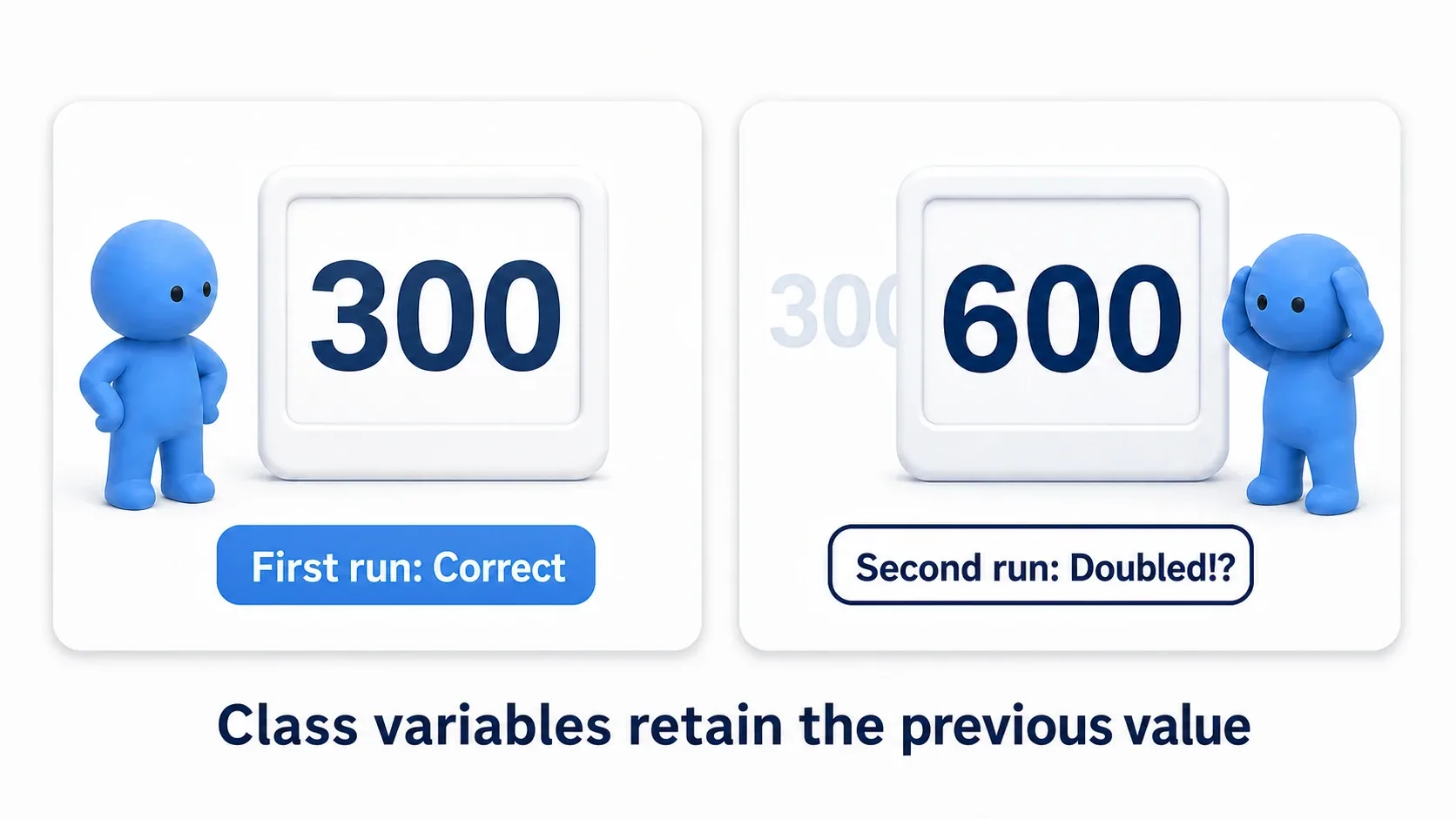
Set Print String's Duration to 10 seconds, then Compile, save, and Play. Seeing 1st: 300 and 2nd: 600 means you reproduced the bug. New messages may appear above older ones, so read by the "1st" and "2nd" labels rather than by position (→ How to use Print String).
Since TotalScore is a Class Variable, the 300 stored on the first run remains. The second run adds 100 three more times on top of that 300, giving 600. The array did not grow.
4. Move the in-progress total to Local
Stop Play and open CalculateTotalScore. Create RunningTotal as an Integer under Local Variables in My Blueprint, and set its default to 0 after Compile.
Replace Set TotalScore inside the function with Set RunningTotal, and both Get TotalScore nodes with Get RunningTotal. ScoreArray, the addition, the loop, and the Return Node connections stay the same. Once the node replacement is done, delete the now-unused TotalScore from Variables.
Compile, save, and Play again, and you get 1st: 300 and 2nd: 300. RunningTotal starts from its default 0 on each call, so it does not inherit the previous total.
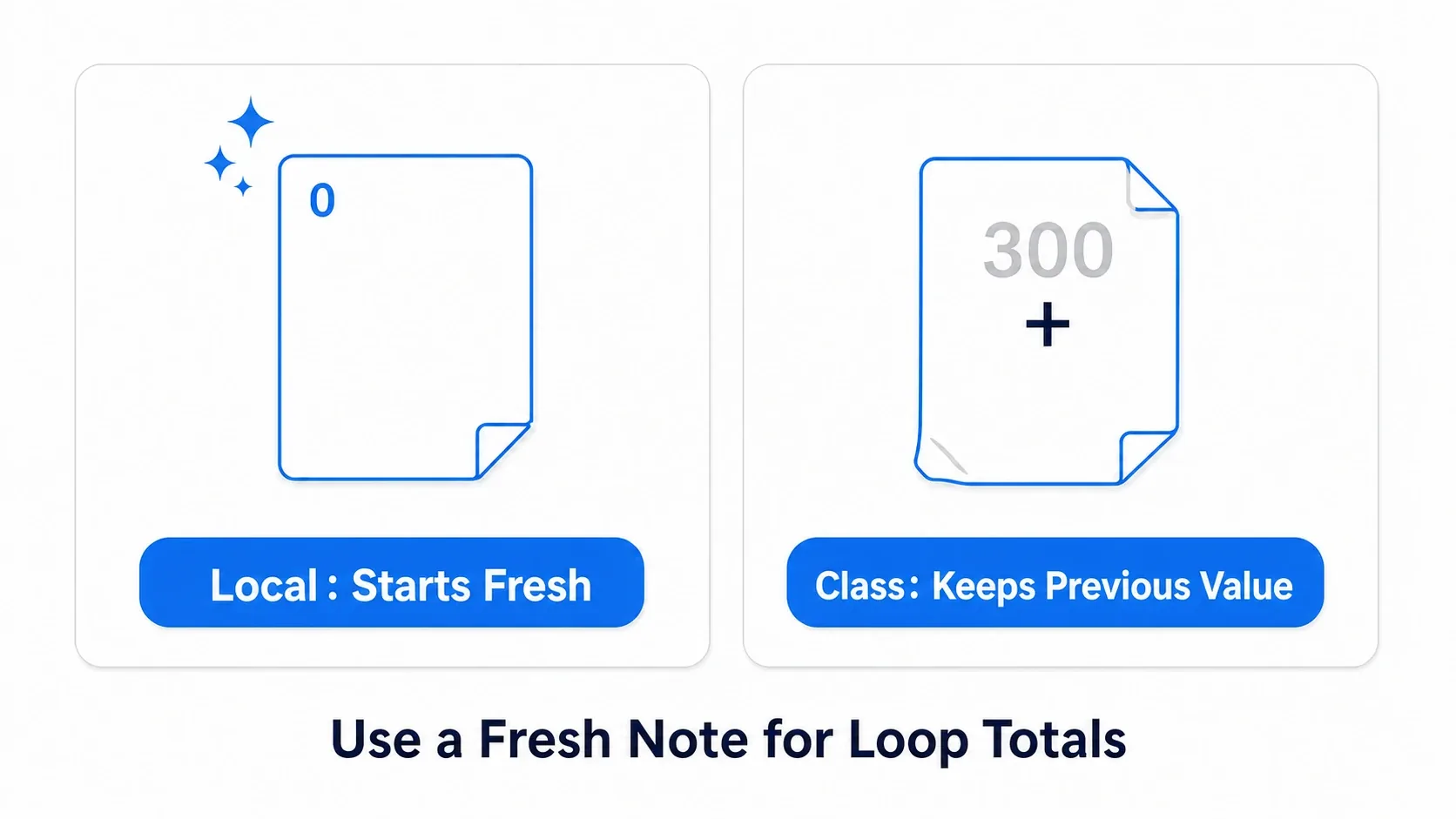
Finally, change ScoreArray to 100, 200, 300. If both calls report 600, you are summing from the array each time rather than displaying a hard-coded 300.
Does resetting the Class Variable to 0 also fix it?
Yes. Placing Set TotalScore = 0 at the start of the original function also returns 300 every time. Here we chose a Local Variable that makes clear it is for this function's calculation, because no other logic uses the in-progress total.
The point is not to avoid Class but to decide placement based on whether the value needs to persist. If you want to use the final result later, the caller can store the return value in a Class Variable.
Bonus: Good to Know Up Front
When you want intermediate math in the Event Graph
The named Local Variables we used are created by opening a function. The Event Graph has no equivalent panel. Once the logic comes together, consider extracting it into a function.
That said, if you just add a value and pass it straight to the next pin, you can compute without a variable at all. There is no need to think "it is intermediate math, so I must add a Local" (→ The difference between Function and Macro).
Making one enemy tougher than the rest
Turn on "Instance Editable" on a Class Variable and you can change the value in the Details of an instance placed in the level. You can set Enemy A's MaxHP to 200 and Enemy B's to 100. That is the setting that lets you edit values per instance in the level.
Group variables by purpose as they grow
Setting Category in a variable's Details to something like Stats or Config classifies them within My Blueprint. On top of separating Class and Local, grouping your state and configuration variables makes them easier to find.
Summary: what to consider before creating a variable
| What is this value for? | How to choose |
|---|---|
| Something to remember for later, like HP or equipment | Class Variable |
| An in-progress total used only while one function runs | Local Variable |
| Handing a computed result back to the caller | A function Output and the Return Node |
| Computing and passing straight on | Connecting pins directly may need no variable at all |
Class Variables remember state; Local Variables support that function's calculation. When results change from the second run on, as with the 300 → 600 here, check which value is still there when the calculation starts.
Ways to group logic are covered in The difference between Function and Macro, and organizing whole graphs in 10 techniques for organizing Blueprints.
Further Reading