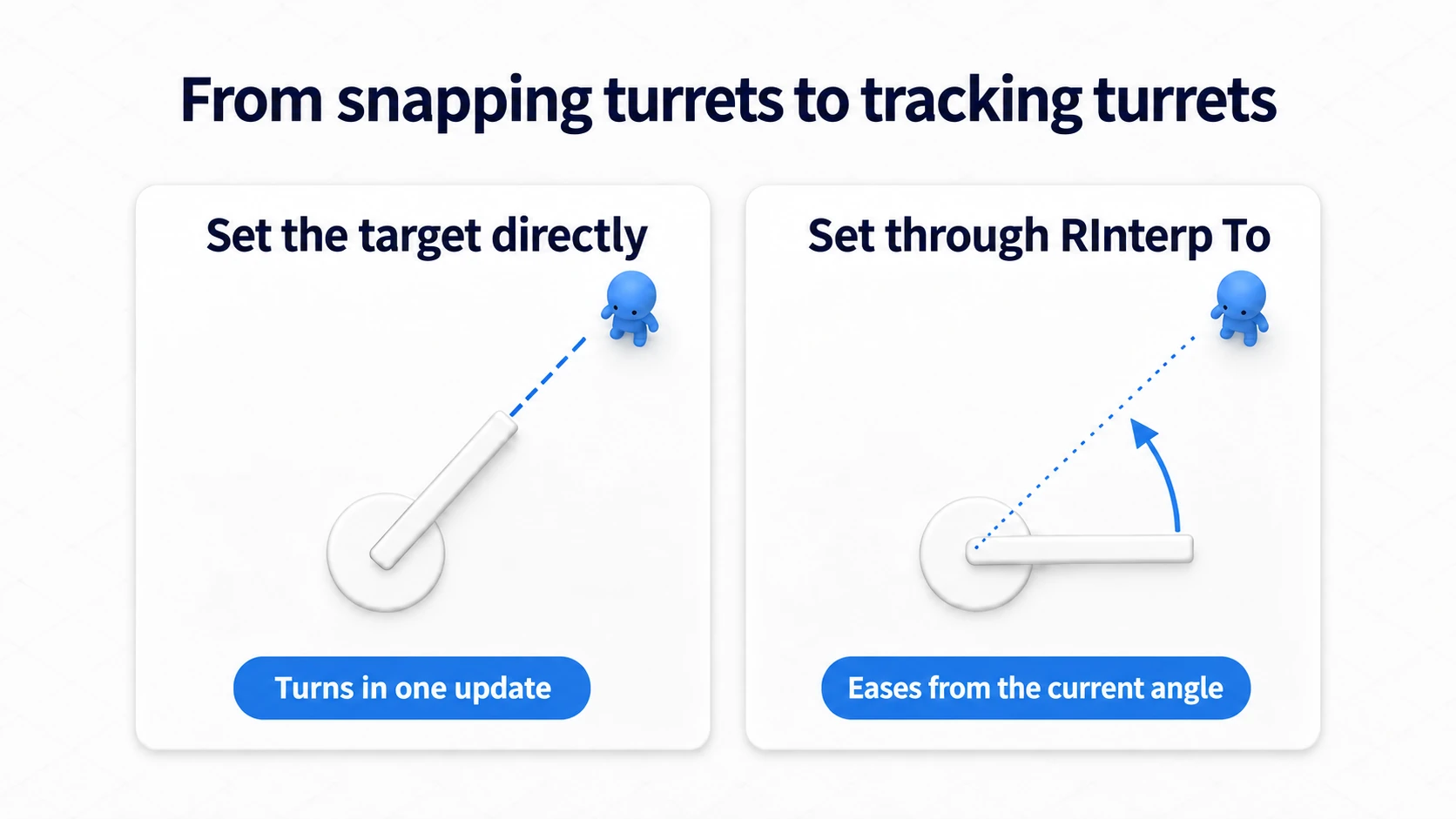
You added a lock to a chest and motion for opening it. Then mashing the key mid-open restarts the motion, or a chest you reset opens again a moment later. That happens easily when "what state it is in" and "what that state accepts" live in separate places.
An Enum lets you express a chest's state as exactly one of "locked", "unlocked", "opening", and "opened". A Switch routes execution based on that value. This article builds a small chest and, beyond switching states, gets cancelling mid-way right.

What You'll Learn
- Choosing between Boolean and Enum based on what you want to express
- Creating an Enum and splitting logic per state with a Switch
- Gathering state changes into one entry point that stops and starts motion together
- A hands-on confirming the benefit with mashing and mid-way resets
- An Enum expresses "exactly one right now"
- Hands-On prep: a chest with four states
- Create the Enum and use it as a variable type
- Call the right logic per state with a Switch
- Stop the current motion before changing state
- Hands-On: connect the lid motion and the controls
- Try mashing and resetting mid-way
- What to revisit when adding states
- How it differs from an AnimBP State Machine
- Bonus: extending it to your own game
- Summary
An Enum expresses "exactly one right now"
Boolean (bool) expresses a choice of two, true or false. It suits on-and-off things like "play a sound effect".
Our chest, meanwhile, has four states.
| State | Meaning | If you try to open |
|---|---|---|
Locked | It is locked | It does not open |
Closed | Unlocked, but the lid is shut | It starts opening |
Opening | The lid is in motion | The motion continues |
Open | It has finished opening | Nothing happens |
Closed here does not mean "anything shut"; it means unlocked and openable . It looks the same as Locked but accepts different actions.
You could hold these as separate Booleans IsLocked , IsOpening , and IsOpen . But setting one to true means resetting the others to false. Forget one and you can store a combination this chest's rules never use, such as "locked yet opening".
An Enum (enumeration) is a type holding one value from a predefined set of options. Making a CurrentState variable an Enum gives it one of four states, and Locked and Opening can never both be set. It removes the work of keeping several flags in sync.

That said, an Enum only holds state names. It does not automatically create the lid motion or the check preventing opening while locked. We connect those with a Switch and logic we write.
In a game where you can attack while moving, "moving" and "attacking" can hold at the same time. Rather than cramming everything into one Enum, think of it as gathering the things you want to pick exactly one of, along the same axis .
Hands-On prep: a chest with four states
We use a Third Person Blueprint project. Choose None if the version offers a "Variant". If you can create variables and functions and connect pins, you can follow along.
We build the practice chest with Cubes standing in for the body and the lid. Rather than a hinge, the lid rises 100 cm straight up over 2 seconds. The shape is simple so the relationship between state and motion stays visible.
F: unlock itE: open it. Do not restart the motion if it is already openingR: stop the motion even mid-way and return to a locked, closed chest

Place the body and the lid
- Create a Blueprint Class
BP_StateChestwith Actor as its parent. - Add two Static Mesh components named
BodyandLid, both children ofDefaultSceneRoot. - Assign the standard Cube (
Engine/BasicShapes) to both. If you cannot find it, turn on engine content display in the asset picker. - Match the table below with rotation 0 on both. "Mobility" is Movable, "Simulate Physics" off, and "Collision Presets" NoCollision.
Movable means it can change position during play. We move the lid from Blueprint.
| Component | Relative Location | Scale |
|---|---|---|
| Body | X=0 / Y=0 / Z=50 | X=2 / Y=1.5 / Z=1 |
| Lid | X=0 / Y=0 / Z=110 | X=2 / Y=1.5 / Z=0.2 |
Relative Location is a position measured from the parent. Here, measured from the chest's Root, the Body's bottom sits at the Root's height and the Lid's bottom sits on the Body's top face.
Place one BP_StateChest in the level with the Actor's Scale at 1, 1, 1 and the Root height on the floor. Put it where it is visible from the player start. We test with keys here, so no collision is used.
Create the Enum and use it as a variable type
Right-click in the Content Browser and choose "Blueprints" → "Enumeration". Name it E_ChestState , open it, and create these four entries with "Add Enumerator".
| Display Name | Example Description |
|---|---|
| Locked | Locked. Does not accept the open action |
| Closed | Unlocked. Accepts the open action |
| Opening | The lid is in motion |
| Open | Finished opening |
Display Name is what appears in the variable picker and on Switch pins. Description helps you recall the meaning later. Match the names to the table and save.
Create a CurrentState variable on BP_StateChest. Search for E_ChestState as its type, compile, and set the default to Locked . The Enum asset is "the list of options" and the variable is "the value this chest holds now".

Call the right logic per state with a Switch
First get text printing per state. Add a function EnterChestState to BP_StateChest with "Pure" off. Add an input State typed E_ChestState. No return value is used.
Pure is off because we call it with white exec pins to display things and change positions.
That function is where the logic for entering a given state lives. For now it only prints; we add the lid motion later.
- Drag from State's output on the function entry, search for
Switch, and createSwitch on E_ChestState. Connect State to itsSelection. - Connect the function entry's white exec output to the Switch's white input.
- From the Switch's Locked, Closed, Opening, and Open, call four separate
Print Stringnodes. - Use the same names as the pins for the display text. Turn on "Print to Screen" and set Duration to
5on all four.

A Switch reads Selection at the moment white exec arrives and continues to the matching output . Changing the Enum value somewhere does not run this Switch.
Back in the event graph, wire Event BeginPlay → EnterChestState , passing Get CurrentState to the call's State. Compile and Play, and Locked appearing means the first branch works.
Stop Play, change CurrentState's default to Closed, and restart, and Closed appears. Return it to Locked afterwards. Only Print runs at this stage, so the chest's appearance does not change.
Stop the current motion before changing state
Next we add "open" and "reset". First decide where state changes get written.
For instance, changing CurrentState to Locked mid-open and returning the lid to the closed position is not enough. If the logic moving the lid still runs, the next update moves it back up.
So gather state changes into a function ChangeChestState following this order.
- If the same state is specified, end there
- Stop the lid's current motion
- Change CurrentState to the new value
- Start the new state's display and behavior with EnterChestState

The current state combined with the rules for moving to the next is the state machine we are building. A "state transition" is a switch such as Closed to Opening.
Ending when the same state is specified keeps a "make it Opening again" request during Opening from restarting the motion. That alone does not permit or forbid every transition. The condition preventing opening while locked goes on the action side later.
Hands-On: connect the lid motion and the controls
1. Build a Timeline going 0 to 1 over 2 seconds
A Timeline changes values over time. Here we make a value rising from 0 to 1 over 2 seconds, representing how far the lid has opened.
Right-click in BP_StateChest's event graph, choose Add Timeline , and name it TL_Open . Double-click to open it, add a Float Track, and name it Alpha .
Right-click the Float Track's graph to add two keys and set each one's Time and Value. A key marks "at this time, this value".
| Key | Time | Value |
|---|---|---|
| Start | 0 | 0 |
| End | 2 | 1 |
Select the keys, right-click, and set interpolation to Linear, changing values at a constant rate between keys. Set Length to 2 with AutoPlay and Loop off. Alpha represents "how far along we are": 0 at the start, 0.5 halfway, 1 at the end.
Return to the event graph. Leave that Timeline node in place for later. Do not move the Timeline itself into a function. It is the part that keeps updating over time after playback starts.
2. Build the state-change function
Create a function ChangeChestState with Pure off. Its input is NewState , typed E_ChestState.
- Search for
==from Get CurrentState to create the Enum comparison. Pass the function input NewState to the other side. - Connect the function entry's white output to a Branch and the comparison result to Condition.
- Leave True empty. Being the same state, it ends here.
- From False, wire
Stop,Set CurrentState, andEnterChestStatein order. - Pass NewState to both Set CurrentState's value and EnterChestState's State.

The Stop used here is the Timeline Component's Stop . Get TL_Open from My Blueprint into the graph and search from its blue pin for Stop. Use the node whose Target became TL_Open.

The Timeline itself and the nodes controlling its playback are separate. Inside a function, you can name the Timeline like this and instruct it to "stop" or "play from the start".
From Stop's white output, wire the following order. Use this function's input for NewState in the diagram. No new member variable is needed.

From now on, gather Set nodes rewriting CurrentState into this one function. The default Locked serves as the pre-start setting.
3. Update the position while opening
In the event graph containing TL_Open, add a Float Lerp . Lerp picks a value between two values according to Alpha.
Set A to 110 and B to 210 , and connect the Timeline's Alpha to Alpha. We move from the closed lid height 110 to the open height 210. Alpha at 0.5 gives the midpoint 160.

Next, drag Lid from the components list into the graph and create Set Relative Location from its blue output.
- White input: TL_Open's
Update - Target: Lid
- New Location: X=0, Y=0, Z from Lerp's result
- Sweep: off
Right-click New Location's Vector pin and use "Split Struct Pin" to separate X, Y, and Z so you can wire only Z. Update is the output when the Timeline refreshes its value. Changing the position from there raises the lid gradually.

From TL_Open's Finished , call the ChangeChestState you built with NewState Open . That is the switch when the 2-second playback ends.
4. Add behavior to EnterChestState
Return to EnterChestState. Add the following after the four Print Strings. Keep the Selection and Print connections as they are.
| Switch output | What to do after the Print |
|---|---|
| Locked | Set Relative Location: Lid to 0, 0, 110 |
| Closed | Set Relative Location: Lid to 0, 0, 110 |
| Opening | Play from Start with TL_Open as Target |
| Open | Set Relative Location: Lid to 0, 0, 210 |

The Print Strings in the diagram are the ones you already wired to the Switch. Add behavior after them. Place the position nodes from the table after Closed's and Open's Prints too.
All three position nodes use Target Lid with Sweep off. Create Opening's Play from Start by dragging a blue wire from a Get of TL_Open and searching. Choose Play from Start, beginning at time 0 , not Play, which resumes.
Keep the EnterChestState called from BeginPlay. CurrentState's default is already Locked, so calling ChangeChestState(Locked) from BeginPlay would end on the same-state check. Call EnterChestState directly for the initial display and position.
5. Separate the open action from unlocking
Create two functions on BP_StateChest with Pure off and no inputs.
UseChest receives the open action. Wire the entry's white exec to a Switch on E_ChestState and Get CurrentState to Selection.
| Output | Logic |
|---|---|
| Locked | Print String showing Locked |
| Closed | Call ChangeChestState with NewState Opening |
| Opening | Print String showing Opening |
| Open | Print String showing Open |

Set Print Duration to 5 with Print to Screen on here too. Since Opening does not call ChangeChestState, mashing during the opening only adds text while the lid keeps moving.
UnlockChest removes the lock. Compare Get CurrentState against Locked with == and pass it to a Branch's Condition. Wire the function entry's white line to the Branch and, from True, call ChangeChestState with NewState Closed. Leave False empty.

Now pressing F on an already open chest does not return it to Closed. Expressing state with an Enum and writing the conditions permitting each action are different jobs.
6. Operate the placed chest with keys
Compile and save BP_StateChest. Select the chest placed in the level and open the Level Blueprint from the toolbar. Right-click the graph to create a reference to the selected BP_StateChest.
A reference names "that chest" placed in this level. Call your functions from its blue pin.
| Keyboard event Pressed | Function to call | Inputs |
|---|---|---|
| F | UnlockChest | Target is the placed chest |
| E | UseChest | Target is the placed chest |
| R | ChangeChestState | Target is the placed chest, NewState is Locked |

The diagram shows the R key. Target the same placed chest for F and E and wire them to the functions in the table.
For all three, connect the key event's white Pressed to the function's white input. The chest's functions hold the chest's behavior and the Level Blueprint holds the test controls. If creating references is new, the Level Blueprint versus Blueprint Class article also helps.
Try mashing and resetting mid-way
Compile both Blueprints, Play, and click the game window. From a position where the chest is visible, do the following.
| Action | Text and lid motion |
|---|---|
| Start Play | Locked. The lid is at the closed height |
| Press E | Locked. It does not open |
| Press F | Closed. Unlocked, but not opening yet |
| Press E | Opening. The lid starts rising |
| Wait 2 seconds | Open. The lid stops 100 cm higher |
| Press R | Locked. The lid returns to the closed height immediately |
Next press F, then E, and press E several times while it is opening. The Opening text repeats but the motion does not restart, ending at Open.
Finally, reset with R once more, press F and E, and press R before the 2 seconds finish . Success is the lid closing and staying Locked and closed even after waiting longer than 2 seconds.
Compare with only reverting the state
Stop Play and wire ChangeChestState's False directly to Set CurrentState, temporarily bypassing Stop. Leave the other connections alone.
Compile, Play again, and try F → E → R immediately. It closes right after the reset, but the Timeline keeps running, so the lid rises again and Finished switches it to Open.

CurrentState never held two values at once. The cause is that you reverted the state value without stopping the motion the previous state started .
After checking, stop Play and restore the False → Stop → Set CurrentState wiring. Compile and reconfirm with the same actions. Stop halts playback and does not call Finished by itself.
When it does not work
| Symptom | Where to check |
|---|---|
| Locked does not print at the start | Whether BeginPlay calls EnterChestState. ChangeChestState ends on the same value |
| F and E do nothing | Whether the game window has focus, and whether the Level Blueprint's Pressed and Target for the placed chest are connected |
| It prints Opening but does not move | Whether Play from Start's Target is TL_Open, and whether the Timeline's Update reaches Lid's Set Relative Location |
| The lid jumps somewhere strange | Whether Lid's parent is DefaultSceneRoot, and whether Relative Location's X/Y are 0 with Z from Lerp 110 to 210 |
| It rises fully but stays Opening | Whether the Timeline's Finished calls ChangeChestState(Open) |
| It opens on its own after a reset | Whether ChangeChestState goes through Stop, and whether Stop's Target is TL_Open |
What to revisit when adding states
Say you want to add Broken to the chest. Beyond adding a name to the Enum, decide "when it enters that state", "what happens on entry", and "what happens when acted on".
Here, EnterChestState's and UseChest's Switches are what to revisit. Wire the broken appearance and its response to actions to the new outputs, and check whether UnlockChest should still refuse to unlock. More pins does not mean logic gets written for you.

The Enum asset's Reference Viewer traces the Blueprints using it. After adding, renaming, or removing entries, open the usage sites, compile, and check Switch connections and variable defaults. If saved data records the state, check that loading path too.
As states grow, do not split purely by count; watch for mixed axes. "Open/closed state" and "rarity" are different axes and belong in separate variables. Conversely, splitting into two variables does not remove the constraints between combinations.
How it differs from an AnimBP State Machine
Animation Blueprints also have a State Machine . That one handles playback and transitions, such as moving from an idle animation to a run.
Our Enum handles game rules like "it is locked, so it cannot open", and an AnimBP State Machine handles "which motion to show and how". For characters, you can pass game-side speed and state into the AnimBP and use them as transition conditions.
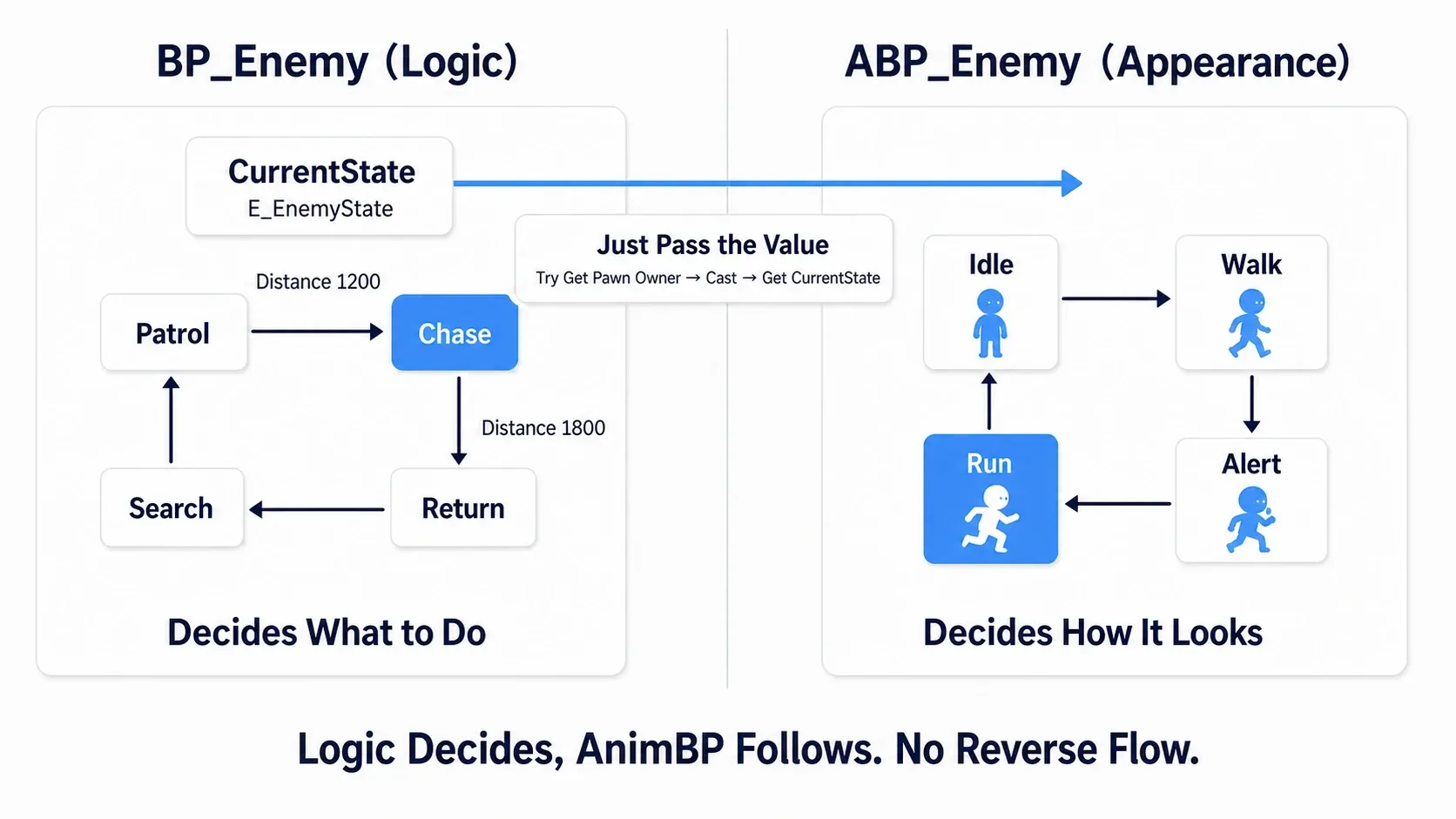
That said, passing a value does not create animations or transition conditions. There are also setups using notifications during animations in game logic. For the playback side in detail, see the AnimBP State Machine and Blend Space article.
Bonus: extending it to your own game
- Possessing a key can be a condition : we used F as a test unlock. In a real game, replace the entry with calling UnlockChest only while holding a key, or sending UseChest to a nearby chest.
- Split cleanup into a function as it grows : with one Timeline to stop, we put Stop in ChangeChestState. Once per-state Timer stops and effect removal accumulate, gather them into something like ExitChestState taking the old state and update CurrentState afterwards.
- Notify outward after the state settles : to tell UI or quests it opened, use Event Dispatcher. Putting it in the logic for entering Open, rather than in every lid position update, keeps the intent clear.
- The idea works for enemy AI too : change speed when moving from patrol to chase and stop the movement request when chasing ends. The actual movement and detection are still needed separately. For behavior priority, Behavior Tree; for states and transitions in a dedicated editor, StateTree is also an option.
- Two choices can stay Boolean : a chest that only cares "has it been opened once" does not need these four states. Decide the states you need from the rules you add.
Summary
An Enum expresses "which state it is in" as one value and a Switch routes logic by that value. Add "when it may advance" and "what to stop and start when switching" and mashing and mid-way cancellation become manageable.
Check not only that the chest opens normally but that pressing R mid-way leaves it closed. Aligning the state names and aligning the actual motion — handling both is the point of this hands-on.
Reference: Epic's flow control explanation, Timeline nodes, Timeline Component Stop.