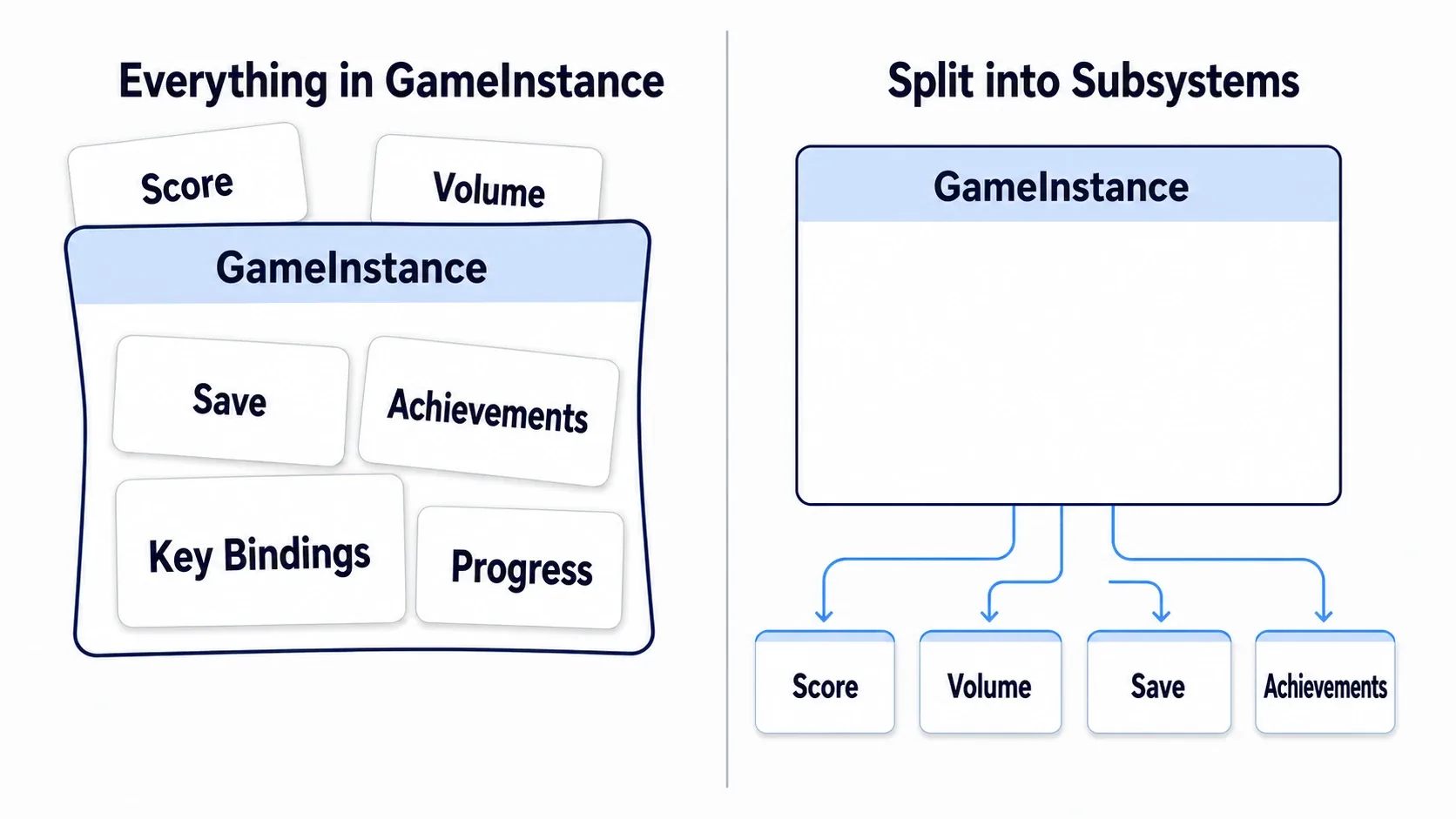
You added a variable to GameInstance so score survives stage changes. Then you add volume settings, saving, and achievements, and now fixing the score means opening one large class crowded with every other feature.
Subsystem is the mechanism for placing such features separately. Here we gather the score logic into one class and call "add 100 points" and "read the current score" from Blueprint. Move to the next stage and the 300 points remain. Add another 100 and it becomes 400.

What You'll Learn
- What a Subsystem separates, and its relationship to its owner
- How to choose between GameInstance, World, and LocalPlayer
- Calling score logic written in C++ from Blueprint
- What survives level travel, reset, and restarting Play
- A Subsystem is a home for one feature
- Whose data it holds, and how long it survives
- How it differs from making your own single instance
- Hands-On prep: testing score across two maps
- Build a score Subsystem in C++
- Display the current value in Blueprint
- Wire up scoring, travel, and reset
- Run it and confirm the carry-over
- Bonus: when building it into a game
- Summary
A Subsystem is a home for one feature
GameInstance is a home that survives level travel during a run. If you only want to hold one score for now, the GameInstance BP approach is entirely sufficient.
Subsystems help once the features you put there multiply. Split score, volume, and saving into separate classes and changing the score means opening the score class.
A GameInstance Subsystem runs with GameInstance as its owner. Prepare your own score class and UE creates that instance per GameInstance. You do not place an Actor in the level or add creation logic to GameInstance.
A "class" is the blueprint describing the mechanism; an "instance" is the running thing holding values. The Get node we use later does not rebuild from the blueprint each time; it fetches the same instance that GameInstance holds .
Whose data it holds, and how long it survives
Choosing a Subsystem means thinking about two things: whose data it keeps separately and how long it should remember . The former is scope; the latter is lifetime.
For a split-screen two-player game, you might share the cumulative score while keeping input settings separate for P1 and P2. Both are values you want after level travel, but the same home does not necessarily fit.

| Kind | Owner and lifetime | Where it fits |
|---|---|---|
| GameInstance | Per GameInstance. Until the run ends | Score across stages, save management |
| World | Per World. Until that world ends | Managing enemies and spawn points in a world |
| LocalPlayer | Per local LocalPlayer. Until that player is removed | Per-player input and UI settings for P1 and P2 |
| Engine | While the engine runs | Engine-side features spanning multiple worlds |
| Editor | While the editor runs | Authoring tools such as asset organization |
The "Local" in LocalPlayer means a player operating on this machine . It does not mean one is created for every player connected online.
Also, Engine Subsystems are used while the game runs. Do not lump them with Editor Subsystems as "editor only". For game development, choosing from the first three above keeps things tidy.
A World and a level file are not the same unit
A World is the container where Actors live. One World can additionally load several levels or areas.
The Open Level we use here opens the destination map and swaps the World. In that case the World Subsystem is rebuilt too. With streaming that loads part of the same World, an area is added but the World Subsystem is not rebuilt.

So for "reset the enemy count to 0 whenever you change rooms", placing it in a World Subsystem is not enough; you also need reset logic at the room switch. Keep the game's boundaries separate from the boundaries at which UE rebuilds things.
How it differs from making your own single instance
A design where "one shared instance is used" is called a singleton . Building it yourself means deciding when it is created and cleaned up.
For instance, putting the score in a static variable shared at the program level rather than per instance can leave the value alive after Stop, while the editor is open. Starting the next Play from the previous 300 points makes it hard to tell whether your reset logic is correct.
With a GameInstance Subsystem, a new Play's GameInstance gets a new score instance. You can standardize on writing initial values in Initialize() , called at start, and cleanup in Deinitialize() , called at the end.

This describes GameInstance Subsystems. Engine Subsystems are not rebuilt on every Play. Variables written directly on GameInstance are also new each Play, so the main benefit of moving off the direct approach is that features separate cleanly .
Hands-On prep: testing score across two maps
From here we build a ScoreSubsystem for score. It assumes the CppFirstStep project used in First step into C++. Have a C++ build environment ready, plus familiarity with connecting Blueprint nodes.
Before enemies or a HUD, we change a number with a key press. Whether the logic ran is confirmed from on-screen text and the Output Log.

| Key | Action |
|---|---|
| P | Add 100 points and display the current score |
| N | Open Level2 from Level1 |
| R | Reset this run's total to 0. The run's high score remains |
- Save a walkable third-person map as
Level1with "Save Current Level As". - Duplicate it to make
Level2. Keep Player Start in both. - Add a large Cube to Level2 only, so you can tell the maps apart.
- Reopen Level1. Set Play options to "Number of Players" 1 and "Net Mode" "Play Standalone". The usual "Selected Viewport" target is fine.
Build the operations below in each map's Level Blueprint , opened from the level editor's "Blueprints" menu → "Open Level Blueprint". To see whether values survive a level change, do not create the score itself as a variable here.
Build a score Subsystem in C++
Choose "Tools → New C++ Class", select "All Classes", and search for GameInstanceSubsystem . Use it as the parent and name the class ScoreSubsystem .
Replace the generated .h and .cpp with the code below. CPPFIRSTSTEP_API corresponds to this project's name. In another project, keep the auto-generated API macro.
The part that holds values, and the entry points callable from outside
TotalScore is this run's total and HighScore is the highest reached during the run. Both start at 0. They are private , so Blueprint cannot write them directly and changes go through the add and reset functions.

// ScoreSubsystem.h
#pragma once

#include "CoreMinimal.h"
#include "Subsystems/GameInstanceSubsystem.h"
#include "ScoreSubsystem.generated.h"

UCLASS(BlueprintType)
class CPPFIRSTSTEP_API UScoreSubsystem : public UGameInstanceSubsystem
{
    GENERATED_BODY()

public:
    virtual void Initialize(FSubsystemCollectionBase& Collection) override;
    virtual void Deinitialize() override;

    UFUNCTION(BlueprintCallable, Category = "Score")
    void AddScore(int32 Amount);

    UFUNCTION(BlueprintCallable, Category = "Score")
    void ResetRun();

    UFUNCTION(BlueprintPure, Category = "Score")
    int32 GetTotalScore() const { return TotalScore; }

    UFUNCTION(BlueprintPure, Category = "Score")
    int32 GetHighScore() const { return HighScore; }

private:
    int32 TotalScore = 0;
    int32 HighScore = 0;
};
BlueprintCallable is work callable from BP; BlueprintPure is an entry point that reads a value. Pure nodes have no white exec pin and are called when the value is needed downstream.
Initialization, scoring, and reset
// ScoreSubsystem.cpp
#include "ScoreSubsystem.h"

void UScoreSubsystem::Initialize(FSubsystemCollectionBase& Collection)
{
    Super::Initialize(Collection);
    TotalScore = 0;
    HighScore = 0;
    UE_LOG(LogTemp, Log, TEXT("ScoreSubsystem initialized. Total=0 High=0"));
}

void UScoreSubsystem::Deinitialize()
{
    UE_LOG(LogTemp, Log, TEXT("ScoreSubsystem deinitialized."));
    Super::Deinitialize();
}

void UScoreSubsystem::AddScore(int32 Amount)
{
    if (Amount <= 0)
    {
        return;
    }

    TotalScore += Amount;
    HighScore = FMath::Max(HighScore, TotalScore);
    UE_LOG(LogTemp, Log, TEXT("Score +%d Total=%d High=%d"),
        Amount, TotalScore, HighScore);
}

void UScoreSubsystem::ResetRun()
{
    TotalScore = 0;
    UE_LOG(LogTemp, Log, TEXT("Score reset. Total=%d High=%d"),
        TotalScore, HighScore);
}
Amount is the points to add, and values of 0 or less add nothing. FMath::Max picks the larger of two values, so HighScore only rises when the total exceeds the previous high. ResetRun() zeroes only TotalScore, leaving the high score.
Initialize is the initialization UE calls when the Subsystem starts being used. It is a separate call from the constructor, and here it zeroes both scores. Super:: calls the parent class's version. Deinitialize logs that it ended.
Build so the class becomes usable
Save your code and assets and close UE. In Visual Studio, select "Development Editor" and "Win64" and build the CppFirstStep game project. On success, reopen the .uproject .
The class we defined in C++ is created automatically, so do not create it with Spawn Actor or Construct Object . You also do not change the Game Instance Class in "Maps & Modes" to ScoreSubsystem.
Display the current value in Blueprint
Open Level1's Level Blueprint and right-click to search for Get Score Subsystem . That node's blue output is a reference to the running ScoreSubsystem. You use it to say "ask this instance to do something".
Drag from the blue output and create Get Total Score , and that reference connects to Target. Target is "whose total to read". Even with several Get nodes, they read the same score inside the same GameInstance.
Build one display routine
Right-click, add a Custom Event, and name it ShowTotal . Add no arguments. This event gathers the logic that displays the current total.

- Connect Get Score Subsystem's blue output to Get Total Score's Target.
- Create
To String (Integer)from Get Total Score's integer output. It converts the number into a string Print String can display. - Add a Print String and connect the converted string to "In String".
- Connect ShowTotal's white exec wire to Print String and set Duration to
5.0.

The A in the diagram marks the string continuing from the previous diagram. No node needs adding for it. Enable Print String's "Print to Screen" and "Print to Log".
Next connect a node that calls Show Total from Event BeginPlay . Right-click and search for Show Total, or drag the event from My Blueprint into the graph to call it. That is not creating a second Custom Event definition.

Compile and Play and 0 appears on screen. Displaying 0 here means you fetched the Subsystem and called a C++ function from BP.
Wire up scoring, travel, and reset
Press P to add 100 points
Add a P key event in the Level Blueprint. The white exec order is Pressed → Add Score → Show Total .
Connect Get Score Subsystem's reference to Add Score's Target and set Amount to 100 . Adding before displaying means you see the score right after the press.

Click the play window, press P three times, and confirm 100 → 200 → 300. Leave Released unconnected. One key press corresponds to one addition here.
Press R to reset this run's total to 0
Wire the R key's Pressed → Reset Run → Show Total . Reset Run's Target is also Get Score Subsystem. Reset Run takes no arguments.

The total returns to 0 but HighScore remains. Confirm with Score reset. Total=0 High=300 in the Output Log.
Press N to travel to Level2
In Level1's Level Blueprint, build the N key's Pressed → Open Level (by Name) with Level Name set to Level2 .

Compile, save, then open Level2. Build the following in its Level Blueprint too.
- The ShowTotal definition and the logic reading and displaying the current value
- Event BeginPlay → Show Total
- P → Add Score → Show Total
- R → Reset Run → Show Total
Copying the same node group is fine. Do not build N travel in Level2. The key point is not to place Reset Run in either BeginPlay . Resetting on every level open would zero the value even though the Subsystem survived.
Run it and confirm the carry-over
Save both maps, return to Level1, and Play. Even if you tried R earlier, this fresh Play starts at 0.
| Action | What you see |
|---|---|
| Play in Level1 | 0. The initialization log appears once |
| Press P three times | 100 → 200 → 300 |
| Press N | You travel to Level2 with its large Cube, showing 300 |
| Press P once in Level2 | 400 |
| Press R | 0. The log reads Total=0 High=400 |
| Press P once | 100. The log reads Total=100 High=400 |
| Stop and Play again | Both total and high score are 0. A new initialization log |
If ScoreSubsystem initialized. does not increase across the Open Level and 300 shows at the destination, the instance holding the values survived and only the displaying level is new .

The on-screen numbers vanish after five seconds. The display disappearing is not the Subsystem's value disappearing. Use the Output Log to re-read it.
| Problem | Where to check |
|---|---|
| Get Score Subsystem is not found | A successful C++ build, the BlueprintType specifier, whether the parent is GameInstanceSubsystem |
| Pressing P does not increase it | Play window focus, the Pressed wire, Add Score's Target, Amount = 100 |
| The display shows the previous score | Whether Show Total is called after Add Score |
| No number appears in Level2 | Whether you built ShowTotal and the BeginPlay call in Level2 too |
| It reads 0 in Level2 | Whether BeginPlay calls Reset Run, or whether you display a different variable |
| Level2 does not open | The map's save, the spelling of Level Name, errors in the Output Log |
Bonus: when building it into a game
Change the scoring trigger to a game occurrence
Instead of the P key, call Add Score where an enemy's defeat is confirmed and it works as kill score. So the same enemy's death logic does not repeat, combine it with the already-dead check covered in HP and dying responsibilities.
Destroy Actor can be called for purposes other than defeating an enemy. Rather than "destroyed means score", scoring from where the in-game success is decided prevents points from cleaning up unneeded enemies.
To extend to a real HUD, change notifications like Event Dispatcher are an option. Even then, read the current value right after building the display . Waiting only for the next scoring notification leaves the destination screen without the earlier 300 points.
Carrying over, saving, and networking are separate
HighScore is also a value living only in the running game. To keep it for the next launch, save it with Save Game.
Also, a GameInstance Subsystem's values are not automatically shared with peers over the network. Design a shared multiplayer score together with the GameState role and networking.
Level Actors may not exist at initialization
A GameInstance Subsystem's Initialize runs early in the game's setup. Do value initialization there and avoid mixing in logic that searches for players or enemies that do not exist yet.
For worlds there is UWorldSubsystem , and UTickableWorldSubsystem when you also need per-frame work. But moving data that should survive level travel to the World side just because you want Tick changes its lifetime. Decide the owner first, then think about the update method.
When Subsystems of the same kind have initialization dependencies, Collection.InitializeDependency<T>() inside Initialize specifies what to prepare first. It is not a way to force-create Subsystems with different owners.
To limit a World Subsystem to game worlds, narrow the targets with DoesSupportWorldType() and similar. The editor has Worlds too, so "a world exists" does not mean "the game started".
Start by picking one feature out of whatever GameInstance has grown into. Once "which owner it belongs to" and "what it can be asked to do from outside" are decided, you can split things the same way as the score example.
Summary
- A Subsystem is "a container per feature, living as long as its owner"
- GameInstance lasts the run, World lasts the level, LocalPlayer lasts that player
- Logic written in C++ can be called from Blueprint once you mark it
The question when choosing is "from when to when does this feature need to be alive?" That decides the owner.
To try one container first, see GameInstance basics; for how to write the C++, see First step into C++.
Reference: Programming Subsystems, The five Subsystem kinds, World Subsystem, LocalPlayer Subsystem.