Has HP changed? Is the player nearby? Wire it to Event Tick and you can check every frame, but do you really need to check that often?
For an HP display, check when HP changes. For a patrol sweep, every 0.5 seconds. Choosing what triggers work makes it clearer why the work runs at all, and it cuts unnecessary repetition.
This article sorts out when to use Tick, Timer, and events . In the hands-on we build a watchtower whose arm turns only while the player is near and stops when they leave.
In other engines : Tick is Unity's
Update()and Godot's_process(delta). Timer plays a role close to Unity'sInvokeor coroutines, and Godot'sTimernode.
What You'll Learn
- How to split work between per-frame, fixed-interval, and occurrence-driven
- Creating Set Timer by Event and stopping it with a Timer Handle
- Building "runs only while nearby" with Overlap
- Where Tick belongs, and why call count alone does not judge performance
Event Tick is for per-frame updates
A frame is one round of the game updating state and drawing the screen. At 60 FPS, roughly 60 frames pass per second.
Event Tick is called every frame when the Actor's Tick is enabled and Tick Interval is 0. At 60 FPS with 100 Actors all running work inside Tick, that is 60 × 100 = 6000 calls per second .
That number alone does not make it "heavy". One addition and a search across every nearby Actor cost very different amounts per call. What matters is the combination of what one call does, how often it repeats, and how many Actors run it .

Reading HP every frame and comparing it against the previous value to update a display is called polling : going back to check repeatedly. Sometimes that is what you need, but if the side that changes HP announces "it changed", the checks while nothing changed become unnecessary.
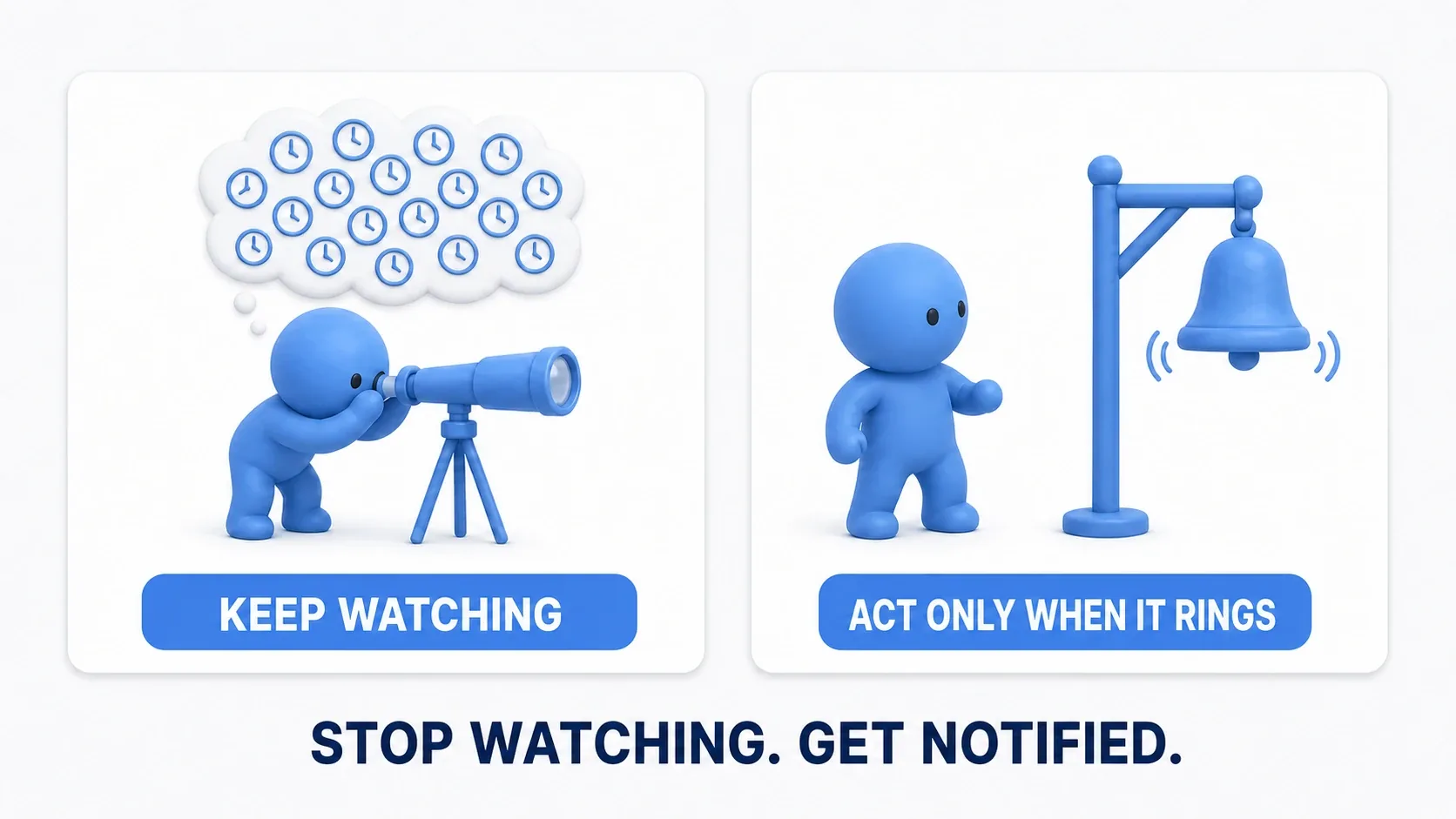
Designing work around occurrences like that is event-driven. The goal is not "delete every Tick"; it is having options so work runs when it needs to.
Pick your trigger from three tools
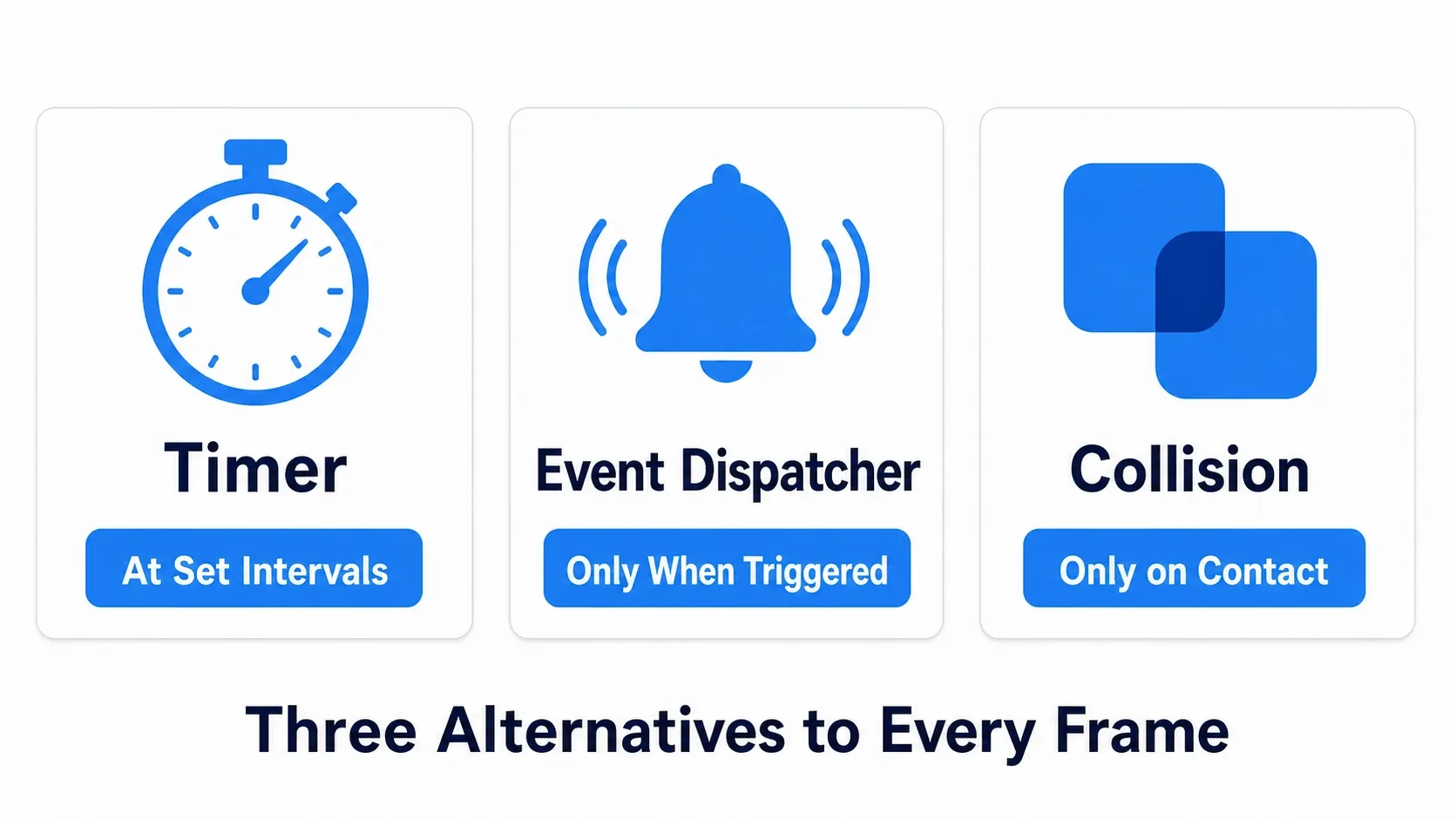
Fixed interval means Timer
A Timer is a reservation saying "call this work once this much time has passed". Set Set Timer by Event 's Time to 0.5 with Looping on, and the specified event repeats every 0.5 seconds.
It suits work like draining HP once a second from poison, or replenishing resources every few seconds. Instead of every frame at 60 FPS, a 0.5-second interval normally drops it from 60 calls per second to about 2.
That said, using a Timer to periodically search for enemies is still a form of polling. You did not remove the check; you chose the interval between checks .
To announce a change, use Event Dispatcher
HP dropped, an item was picked up, a door finished opening. When you want to tell another party what happened, use an Event Dispatcher.
The receiver registers ahead of time with Bind, and the sender notifies with Call when the occurrence happens. There is no need to re-read the value every frame for an HP display. Try building one in the Event Dispatcher article.
Entering and leaving a region means Overlap
Make a Sphere Collision or Box Collision into a detection region and you can trigger on Overlap, meaning collision shapes intersecting .
On Component Begin Overlap is called when the overlap starts and On Component End Overlap when it ends. Begin Overlap is not called every frame while something stays inside the range.
Start a device when the player approaches and stop it when they leave. In the hands-on below, we start and stop a Timer from those enter and exit events.
Hands-On: turning a watchtower only while you are near
We build a watchtower whose arm turns 30 degrees every 0.5 seconds . It stays still while the player is outside the detection range, starts turning when they enter, and stops at its current angle when they leave.
That mechanism leads to stealth-game surveillance devices and defense towers that only work when something is near. To make the active period easy to see, we turn the arm by a fixed angle each time. Smooth rotation and aiming at enemies are out of scope here.

Create a UE5 Third Person template project in Blueprint, choosing None if a Variant is offered. Assume a single controlled player and work in a new practice folder.
1. Prepare the watchtower's parts
Create BP_Guard with Actor as its parent. Keep DefaultSceneRoot and add the following parts. Location, rotation, and Scale are relative to the parent part .
| Name | Type / parent | Settings |
|---|---|---|
| Base | Static Mesh / child of DefaultSceneRoot | Default Cylinder, location (0, 0, 100), Scale (1, 1, 2) |
| RadarPivot | Scene / child of DefaultSceneRoot | Location (0, 0, 220), Scale (1, 1, 1) |
| Arm | Static Mesh / child of RadarPivot | Default Cube, location (100, 0, 0), Scale (2, 0.2, 0.2) |
| DetectionSphere | Sphere Collision / child of DefaultSceneRoot | Location (0, 0, 100), Sphere Radius 800, Scale (1, 1, 1) |
Set all rotations to 0. If you cannot find Cube or Cylinder, turn on "Show Engine Content" in the asset picker's Settings and choose from Engine/BasicShapes .
A Scene Component is a part that has a position and orientation. RadarPivot has no visuals, but the Arm parented to it turns along with it. Because the Arm is offset along X, turning RadarPivot swings the arm around the tower's center.

Set Base and Arm to Collision Presets NoCollision with Simulate Physics off. Set RadarPivot and Arm's Mobility to Movable.
Turn Start with Tick Enabled off under "Class Defaults" → "Actor Tick". We use Timer and Overlap here, so this Actor does not need Event Tick.
2. Make player entry and exit detectable
Select DetectionSphere and set the following.
| Property | Setting |
|---|---|
| Collision Presets | Custom |
| Collision Enabled | Query Only |
| Collision Responses | Overlap for Pawn only, Ignore for the rest |
| Generate Overlap Events | On |
Query Only is used for detecting overlaps and the like, not for physically pushing back. A radius of 800 is 800 cm, or 8 m. It detects shape intersection, though, so it is not necessarily the exact instant the player's center reaches 8 m.
Open BP_ThirdPersonCharacter and turn on the Capsule Component's Generate Overlap Events. For this exercise, turn the Mesh's Generate Overlap Events off so player detection comes from one capsule. Also confirm the Capsule's Object Type is Pawn.
Compile and save both, then place one BP_Guard in the level. Set the Actor's Scale to 1 and rotation to 0, and put the Root on the floor. Place it about 1200 cm from Player Start so you start outside the detection range and walk in.
3. Build one sweep step
Add the following variables to BP_Guard.
| Variable | Type | Role and default |
|---|---|---|
| ScanCount | Integer | Number of sweeps. Default 0 |
| ScanHandle | Timer Handle | Held so the running Timer can be stopped later |
A Timer Handle is the value that says which Timer to operate on. It is like the tag that says "stop this one" when you are holding several stopwatches. Do not type a number yourself; store the return value from creating the Timer.
Create a Custom Event ScanStep in the Event Graph. First, the work that turns the arm once when called.
- Drag RadarPivot into the graph and create Add Local Rotation from that reference.
- Connect ScanStep's white exec output to Add Local Rotation. Target is RadarPivot.
- Set Delta Rotation to X (Roll) 0, Y (Pitch) 0, Z (Yaw) 30. Right-click the pin and use Split Struct Pin to expand it if needed.
- Leave Sweep and Teleport off.
Yaw is the angle around the vertical Z axis. Add Local Rotation "adds the specified rotation to this part's current orientation", so each call advances the arm 30 degrees.

Continue with a Set ScanCount and use integer addition to set Get ScanCount + 1.

Connect a Print String after that and set its Duration to 1 second. To String (Integer) converts a number to display text and Append joins strings. Pass Scan: to Append's A and the converted updated ScanCount to B, then connect Return Value to Print String's In String.

Now each sweep prints "Scan: 1", "Scan: 2", and so on. The "from" and "to" notes in the diagrams mark where they join the previous and next diagrams. They are not instructions to add nodes.
Compile and save. Nothing calls ScanStep yet, so the arm does not turn at this stage.
4. Start the Timer when something enters
Add On Component Begin Overlap from DetectionSphere's Details → Events. Create Cast To BP_ThirdPersonCharacter from Other Actor, and connect the Overlap's white exec output to the Cast as well.
Other Actor is whatever entered the region. We continue only when it can be treated as the template's controlled character. Do nothing on the Cast Failed side.
From the Cast's success side, use Set ScanCount to reset to 0, then place Set Timer by Event after it.

| Set Timer by Event | Setting / connection |
|---|---|
| Time | 0.5 |
| Looping | On |
| Event | ScanStep's red Event output |
| Return Value | The value into Set ScanHandle |
Connect from ScanStep's red Event output to the Timer's red Event input . The white wire is the order in which the Timer starts; the red wire specifies the event to call when the time arrives. Leave ScanStep's white output connected to the rotation work you built earlier.
Connect Set Timer by Event's white output to Set ScanHandle and feed Return Value into that value input. Leave settings other than Time, such as the initial delay, at their defaults.

Play at this point and approach the tower. If, about 0.5 seconds after entering the range, the arm advances 30 degrees at a time and the Scan number climbs, the Timer is running. At this stage it does not stop when you leave. Next we build the stop.
5. Stop it with the stored Handle when you leave
Add DetectionSphere's On Component End Overlap too. Pass Other Actor and the white exec wire to Cast To BP_ThirdPersonCharacter here as well, continuing only on success.
Connect Clear and Invalidate Timer by Handle to the success side and pass Get ScanHandle to Handle. That node clears the Timer and invalidates the Handle you were holding. Finally, Print String Stopped for 1 second.

Now leaving the detection range stops the ScanStep reservation. The arm's angle is not reset, so it stops where it last turned to.
6. Try entering, leaving, and changing the interval
Compile, save, and start a fresh Play, then confirm the following.
| Action | Expected result |
|---|---|
| Standing outside the range | The arm is still and no Scan text appears |
| Walking up and entering the range | The arm advances 30 degrees about every 0.5 s and Scan counts 1, 2, 3 |
| Walking well away from the range | Stopped appears, and the arm and Scan stop advancing |
| Approaching again | It starts turning from that angle, and Scan counts from 1 |
| Entering and leaving several times | It stops outside, and the interval while near does not change |
The Print from just before exit stays on screen for its Duration. Distinguish lingering text from the Timer still doing new work.
Next change Time to 1 and try a fresh Play. If both the arm's advance and the number's increase land around 1 second, you understand what Time does. The angle per call stays 30 degrees, so rotation per second is halved. Set it back to 0.5 afterwards.
When it does not move, or does not stop
| Symptom | Where to check |
|---|---|
| Nothing happens when you approach | Generate Overlap Events on both Sphere and Capsule, the response to Pawn, the Cast's Class |
| Scan counts but the arm does not move | Add Local Rotation's Target, whether Arm is a child of RadarPivot, whether Mobility is Movable |
| It moves only once | Whether Looping is on |
| It keeps running after you leave | The white wire from End Overlap, whether ScanHandle stored the return value, whether Clear got the same Handle |
| It stops right after entering, or restarts repeatedly | Whether something besides the Capsule, such as the player's Mesh, also reports overlaps |
Temporarily placing a Print right after the Overlap lets you separate "entry and exit are not being detected" from "the Timer work after that is not running". This setup is a small experiment detecting one controlled player with a capsule.
When using Tick, think about frequency and duration
The watchtower only needs to turn by a fixed angle, so we used a Timer. Work that needs to change every frame, such as a camera following smoothly, suits Tick.
Choose the update interval with Tick Interval
Tick Interval under "Class Defaults" → "Actor Tick" is the minimum interval at which that Actor's Tick runs. 0 means every frame; 0.1 leaves roughly 0.1 seconds or more between calls.
It works for updates that can lag slightly, but larger values make motion and response coarser. Setting something like 0.5 on a camera that needs smoothness is not the right use.
Enable Tick only while you need it
Set Actor Tick Enabled turns that Actor's Tick on and off. Pass the Actor to Target and True/False to Enabled.
Note that writing "turn Tick on when something comes near" inside Tick means that check does not run while Tick is off. Use an event called from outside Tick , such as Overlap, as the resume trigger.

Turning an Actor's Tick off does not also stop Timers or Component Ticks wholesale. Our watchtower has Actor Tick off from the start, yet the Timer runs. Choose the stop that matches the work you want stopped.
Bonus: Good to Know Up Front
What happens if you set a Timer again?
Setting Set Timer by Event again on the same event of the same Actor resets the existing Timer with the new settings. It is not "every call spawns another Timer". Repeatedly resetting it does change the wait until the next execution, though.
Here we start it from enter and exit events. Re-setting a 0.5-second Timer from Event Tick every frame keeps rebuilding the reservation before the wait finishes, which is a reason ScanStep never gets called.
Do not chase smoothness with a very short Time
Timers are processed within the engine's frame updates too. Making Time very short does not mean the screen is redrawn at that interval. When frames run late, several iterations of a looping Timer can run in the same frame.
If you want smooth rotation, look at Timeline, which changes a value over time, or at using Tick with elapsed time. Doing something once per interval and updating a smooth appearance are different goals.
With Time at 0 or below, the Timer does not run, and an existing one is cleared. Entering 0 "meaning every frame" is not the same as Tick Interval's 0.
Not using Event Tick does not make total work zero
Outside the range we do not run ScanStep, but drawing the tower and detecting overlaps remain. Replacing work with Timers or Timelines still performs the updates they need internally. It does not mean adding enemies is free.
To compare cost, use the Stats commands or Unreal Insights with the same level, Actor count, camera position, and runtime. Print itself has a cost too, so remove your debug Prints when measuring performance.
Leave AI movement to a different party
If you build chasing, review whether you need to issue AI Move To every frame. Stopping a Timer and stopping a movement request you already issued are separate things.
Real chasing needs an AIController, NavMesh, and more, so move on to the Behavior Tree enemy AI article. The "separate start, continue, and stop" thinking you learned here carries over directly.
Check Component Ticks individually too
Components have their own Tick settings separate from the Actor. If a custom part does not need per-frame updates, check settings such as Start with Tick Enabled. Use Set Component Tick Enabled to switch at runtime. See choosing between Components for details.
Summary
| When you want the work to run | Mechanism to use |
|---|---|
| Every frame, updating smoothly | Event Tick |
| After a delay or at a fixed interval | Timer |
| Reacting to an occurrence raised elsewhere, like an HP change | Event Dispatcher |
| Entering or leaving a collision region | Overlap events |
In the watchtower, Overlap decided "when it runs" and the Timer decided "at what interval". Store the Handle when you create a Timer, and stop it with that Handle when it is no longer needed.
Before wiring to Tick, ask whether it truly needs every frame, whether a small interval is fine, or whether only-on-change is enough, and the role of the work sorts itself out.
Further Reading