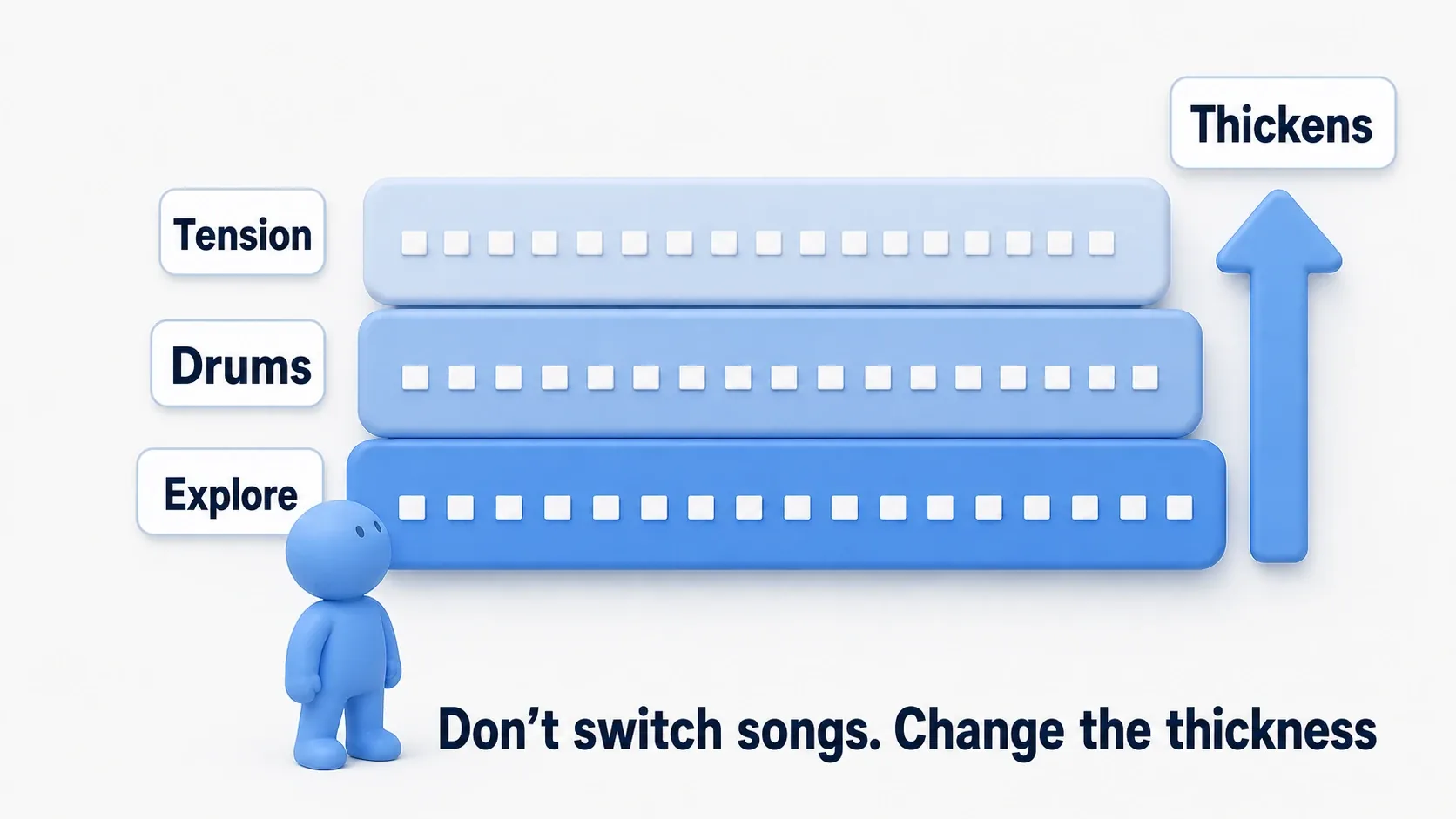
Press the accelerator and the engine pitch rises; release it and it settles back. Game audio that changes with input conveys motion far better than simply playing a clip.
MetaSounds is the mechanism for building playback and processing with nodes. This article keeps one engine sound playing and raises its pitch only while a key is held. We build no vehicle movement; we test small, so that a game-side value reaches the playing sound .

What You'll Learn
- Comparing where Sound Cue and MetaSounds fit
- Telling apart the wires carrying play signals, audio, and settings
- Looping an engine sound and changing its pitch with N
- Smoothing the value change for an accelerating feel
This assumes you can create a Blueprint Actor and connect nodes. To review importing audio into UE, start with the Sound Wave and Sound Cue article.
- Versus Sound Cue: how much of the sound you build
- Start by creating a Source
- Loop a sound with Wave Player
- Reading the wires: trigger, audio, and data
- Create an Input and try the pitch
- Hands-On: change the sound with the N key
- Smooth out the abrupt change
- Bonus: random footsteps and where to go next
- Summary
Versus Sound Cue: how much of the sound you build
A Sound Cue assembles playback: choosing among prepared clips, mixing them, changing volume and pitch. "Pick one of three footsteps" takes only a few nodes.
MetaSounds can play the same clips. On top of that, you build generating sound from waveforms and processing audio signals yourself. "Raise the engine pitch while blending in wind", for instance, is several changes in one graph.

| What you want to build | How to choose |
|---|---|
| Pick footsteps randomly and vary the pitch slightly | Sound Cue can do it |
| Generate sound from waveforms or noise and combine processing | Consider MetaSounds |
| A Sound Cue that already works fine | Keep using it if nothing needs changing |
It is not that only MetaSounds can change values during playback. Sound Cue also has named parameters for changing pitch and more. Here we learn to receive one number as a first step in building sound with MetaSounds.
Start by creating a Source
We test in the Third Person Blueprint template . Prepare one .wav of an engine running at a steady pitch. A few seconds with clean loop points works well. Without one, another sustained mechanical sound also lets you test pitch changes.
For consistency, use a Mono (single-channel) clip and name the imported Sound Wave SW_EngineLoop . If you use a Stereo clip, match the Wave Player and output format to Stereo as well.
Right-click empty space in the Content Browser, choose "Audio > MetaSound Source", and create MS_EngineDemo . If MetaSound entries are missing, check the MetaSound plugin is enabled under "Edit > Plugins".
The similarly named MetaSound Patch is a part used from other MetaSounds. It gathers, say, shared wind processing for use in several sounds. Splitting them as Source is the sound you play and Patch is a part used inside it makes the first choice clear.

Loop a sound with Wave Player
Open MS_EngineDemo and first play the sound without changing pitch.
- Select "MetaSound" in the toolbar and set "Output Format" in Details to Mono .
- Remove UE.Source.OneShot in the "Interfaces" panel. That is the setting for "a sound ending after playing once". We play until stopped, so we do not use it.
- Right-click empty graph space and add Wave Player (Mono) .
- Choose
SW_EngineLoopfor "Wave Asset", turn "Loop" on, and set "Pitch Shift" to0. - Connect
On Play's output to the Wave Player'sPlay, and the Wave Player'sOut Monoto the graph'sOut Mono.

A Wave Player actually plays a Sound Wave. On Play is the signal when this MetaSound's playback starts. That signal drives the Wave Player, and the sound it produces reaches your ears through Out Mono .
Press the toolbar's play button and repeating audio means this stage worked. Stop and save. If you hear a click at the loop point, also check the clip's own loop point. Turning Loop on does not make any clip join smoothly.
Reading the wires: trigger, audio, and data
Graph wires are easiest to read by what they carry. Even the minimal example above has three roles.
| Role | What it carries | Our example |
|---|---|---|
| Trigger | The signal "start playing now" | On Play → Play |
| Audio | The sound reaching your ears | Out Mono → Out Mono |
| Data | Clips and setting values | Wave Asset , Pitch Shift |
Triggers act when a signal fires, and audio flows continuously during playback. Connecting only the start signal produces no sound; you also connect the audio output.
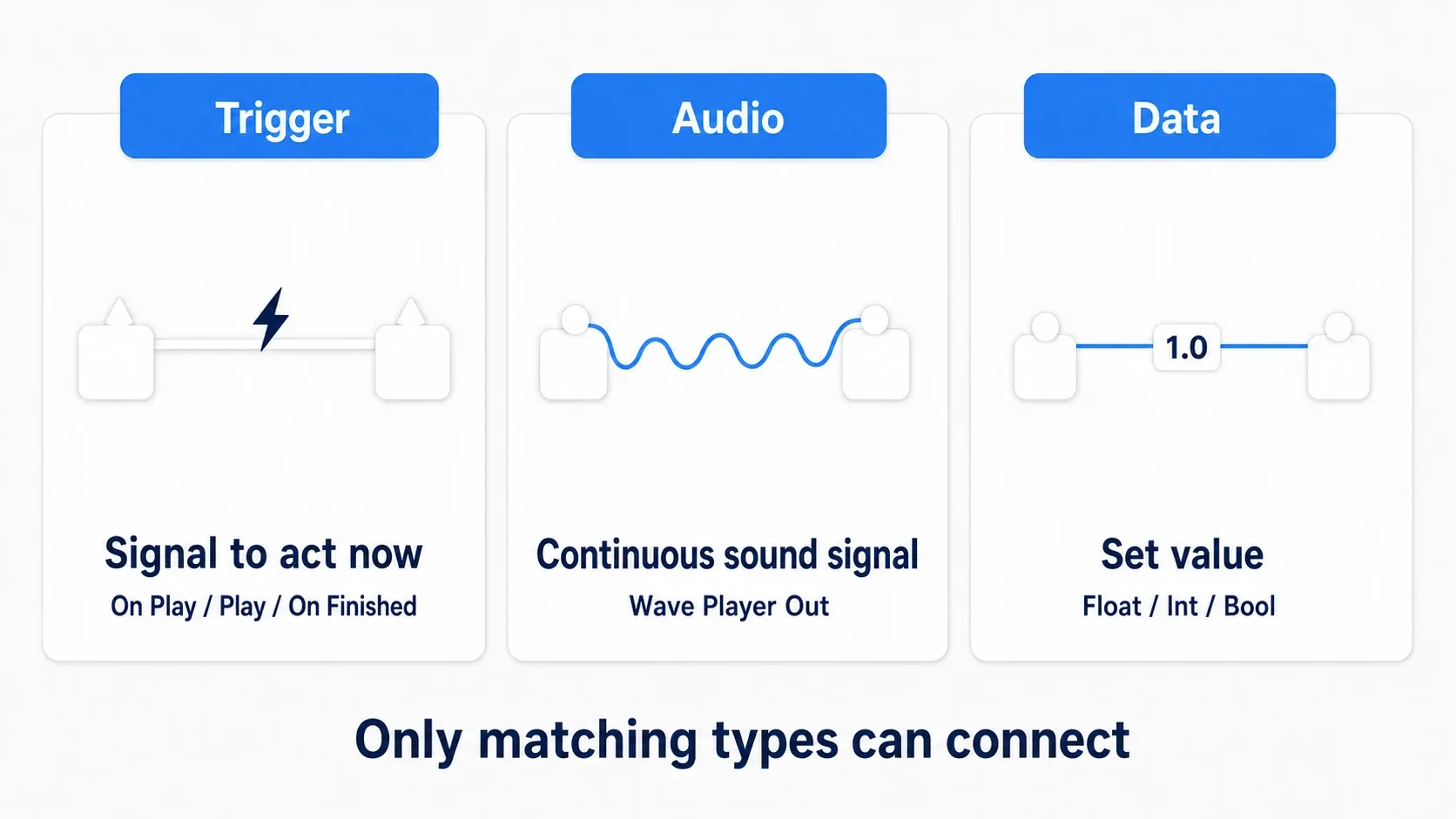
Data has types too, and Pitch Shift is a Float (a number with decimals). It is a different kind from Wave Asset , which specifies a clip, so connect by pin name and type. Some combinations offer conversion nodes, but here connecting numbers to numbers and audio to audio is enough.
Create an Input and try the pitch
Next we make Pitch Shift changeable from outside. An Input is a MetaSound's entry point for receiving values from outside. We prepare one entry for "how much to shift the pitch".
- Drag from the Wave Player's
Pitch Shiftinput pin into empty space and choose "Promote to Graph Input". - Select the created Input and name it
PitchOffsetunder Details' "General > Input". - Confirm the type is Float with default
0and turn "Is Constructor Pin" off.
Constructor Pin is for deciding a value before playback. We change it while playing, so it stays off. Values you want to receive from outside go in Inputs , not "Variables".

Pitch is how high a sound is. The Pitch Shift here is in semitones , the step to the adjacent key on a piano, black keys included.
| PitchOffset | How it sounds |
|---|---|
0 | The original pitch |
6 | Six semitones higher |
12 | One octave higher |
0 does not mean silence; it means no pitch shift . An Audio Component's Pitch Multiplier is a multiplier whose original is 1 . The names are similar but the baselines differ.
You can test before building any Blueprint. Select PitchOffset and set "Editor Options > Widget" to "Slider" with a range of 0 to 6 . With the MetaSound playing, drag the slider on the Input from left to right. Rising pitch, and returning when you drag back, means the chain from Input to Wave Player works. After stopping, set the default back to 0 and save.
Hands-On: change the sound with the N key
Now we replace the editor slider with an in-game key. An Audio Component is the playback part attached to an Actor. It is also the party you tell "change to this value" for a playing sound.
Place an Actor that plays the sound
- Create a Blueprint
BP_EngineAudioDemowith Actor as its parent. - Add "Audio" from "Components > Add" and name it
EngineAudio. - Select
EngineAudioand set the following.
| Setting | Value | Why |
|---|---|---|
| Sound | MS_EngineDemo | Uses the sound we built |
| Auto Activate | On | Plays when the game starts |
| Volume Multiplier | 0.4 | Starts at a modest level that is easy to compare |
| Pitch Multiplier | 1.0 | Pitch is changed on the MetaSound side |
| Allow Spatialization | Off | This experiment adds no directional change |
| Attenuation Settings | None | Do not quiet it with distance |
| Override Attenuation | Off | Do not use custom distance settings either |

Search for Auto Receive Input in "Class Defaults" and set it to Player 0 , so this Actor receives the first player's key input. After compiling and saving, place exactly one BP_EngineAudioDemo in the level.
Play the level, confirm the sound keeps playing, then stop. If nothing plays, review the MetaSound preview alone and the Audio Component's Sound before building key logic.
Send 6 on press and 0 on release
In BP_EngineAudioDemo 's Event Graph, right-click empty space and add a keyboard N event. Pressed is the moment you press and Released the moment you let go.
Drag EngineAudio from "Components" into the graph to place a getter node. It is the reference specifying which playback part to command. Create Set Float Parameter from its output pin and place a second identical node.
Wire the Pressed side first. Brackets in the diagram mark input fields, so enter only PitchOffset for the name.

Then wire the same N event's Released side to the other Set Float Parameter. The diagrams split the paths, but you do not create two N events.

| Connection / setting | The press node | The release node |
|---|---|---|
| Exec input | From N's Pressed | From N's Released |
| Target | From the EngineAudio getter | From the same EngineAudio |
| In Name | PitchOffset | PitchOffset |
| In Float | 6.0 | 0.0 |
Set Float Parameter sends a number by name. Copy the MetaSound's Input name exactly into In Name and put the value in In Float . Rather than targeting the MS_EngineDemo asset directly, send it to the EngineAudio playing that sound .
Compare and confirm how the value arrives
After compiling and saving, Play the level, click the game window once, and press N .
- While not pressed : it plays at the original pitch
- While pressed : the pitch rises
- The moment you release : it returns to the original pitch
No logic recreates the sound on each press. We send 0 and 6 to one sound that has been playing all along.
To confirm the mechanism, temporarily change the press In Float to 12 . Hearing it go higher means the number reaches the sound. Then change In Name to PitchOffset_Test and the pitch stops changing, since no matching Input exists. Set the name back to PitchOffset and the value to 6 afterwards.
| When it does not work | Where to check |
|---|---|
| Silent even in the MetaSound preview | The Wave Asset assignment, the On Play to Play wire, the Out Mono wire |
| Plays alone but silent in game | Whether the Actor is in the level, the Sound and Auto Activate settings |
| Plays but N changes nothing | Auto Receive Input, game window input focus, Target and In Name |
| Changing the Input does nothing | Whether it is under Inputs, the wire to Pitch Shift, Is Constructor Pin off |
| It stays high after release | The Released side's exec wire and In Float = 0 |
| Sounds overlap | Whether the preview stopped, whether several Actors are placed |
If unsure whether key input arrives, temporarily connect a Print String to the N event to separate an audio problem from an input problem.
Smooth out the abrupt change
As is, the pitch snaps the instant you press. Taking a little time to rise feels like engine revs climbing.
We use MetaSound's InterpTo , the node approaching a target value from the current one over a specified time. Filling in values between like that is called interpolation .
In MS_EngineDemo , disconnect the direct wire from PitchOffset to Pitch Shift and insert an InterpTo between them.

PitchOffset→ InterpTo'sTargetInterp Time=0.2seconds- InterpTo's
Value→ the Wave Player'sPitch Shift
Play again and press and release N; both the rise and the return become smoother. Setting Interp Time to 1.0 slows the change and makes the difference easier to hear. You do not resend from Blueprint every frame. After the target value changes, the value moves inside the MetaSound.
Bonus: random footsteps and where to go next
For one-shot footsteps, choose and then play
A looping engine and a one-shot footstep end differently. To build a separate footstep Source MS_FootstepRandom , keep UE.Source.OneShot and connect the Wave Player's On Finished to the graph's On Finished , telling it "the clip finished, so this sound may end". Use Mono for Output Format here too, with three Mono footstep clips.
To pick among several clips, use Random Get (WaveAsset:Array) . An array is a list of clips such as SW_Footstep_01 through 03 . Next picks one, outputting the chosen clip on Value and the done-choosing signal on On Next .

Under the footstep Source's "Members > Variables", add a variable Footsteps typed WaveAsset with array on. Add three default elements with your clips and drag Footsteps into the graph to connect it to In Array . Wire On Play → Next , On Next → Play , and Value → Wave Asset , with the Wave Player's Loop off. Connect the Out Mono audio too.
"Which clip was chosen" and "the done-choosing signal" are different wires. Reading them separately is how the trigger's role clicks. No Repeats = 1 avoids the previously chosen element. If footsteps play as separate playbacks each time, also turn on Enable Shared State to share the selection history.
Save and preview and a footstep plays once and ends. Firing it at the moment the foot lands in an animation is the same as the footstep hands-on in the Sound Cue article. You can specify this Source as the Sound played there.
There is more than one way to prepare an Audio Component
We added an Audio Component to an Actor. You can also play on demand with Spawn Sound 2D or Spawn Sound Attached and use the returned Audio Component. Play Sound 2D and Play Sound at Location have no such return value, so when you want later control, choose a playback method that leaves you an Audio Component.
Beyond numbers, you can also send "start this now" signals. Create a Trigger Input on the MetaSound and specify the same name with Execute Trigger Parameter on the Audio Component. Use Float for volume and pitch adjustments and Trigger for one-time signals, split by role.
Connect game values to sound
Replace the N key's 0 / 6 with values derived from vehicle speed or throttle and you have an engine sound responding to input. To make the sound come from the vehicle's position, go to the attenuation and 3D sound article.
The same Input mechanism, changing several sounds' volumes, also builds music that is quiet while exploring and adds instruments in combat. The interactive music article covers how to assemble that.
Here, "the entry's name", "the Audio Component to send to", and "the value to change" together let us operate a playing sound. For your own game, think about which value conveys motion when connected to audio.
Summary
- Sound Cue "chooses and plays prepared audio"; MetaSounds "builds the sound itself"
- Wires mean different things for signals, audio, and settings
- Passing values in lets you change pitch and speed while it plays
- Smoothing abrupt changes makes it feel less mechanical
The question when choosing is "do I want to change how it plays, or build the sound itself?" Cue is enough for the former.
The difference between clips and blueprints is in Sound Wave and Sound Cue, and distance and volume in attenuation and mixing.
Reference: MetaSounds Quick Start, MetaSounds Reference Guide, MetaSound Function Nodes, Sound Cue Reference.