"Check whether I can use the skill right now" and "block mashing for 3 seconds after it fires." Both are logic you want to bundle, but the first is a job that returns an answer while the second lets execution through or holds it.
Blueprint's Function and Macro are tools for bundling such logic into named parts. Using a skill as our subject, we put the condition check in a Function and the cooldown in a Macro.
While reducing mana from 50 to 25 and then to 0, we confirm "mashing does not add up," "waiting lets you use the next one," and "you cannot use it without enough mana."

What You'll Learn
- The difference between a Function's return values and a Macro's exec pins
- Pure Functions, and where a Delay can live
- How to build the check and the anti-mash separately
- How to verify holding the key, the cooldown, and insufficient mana distinctly
Function: call logic and receive a result
A Function calls a bundle of logic by name. For instance, it can check "do I have at least 25 mana" and return true when usable and false when short. The type handling that true/false is a Boolean.
Values handed to a function are inputs and the value it returns is the return value. The caller uses that answer in the next step. Fix the function's contents and the change reaches every place using it.
Functions can also bundle mutating logic such as reducing HP. They need not return a value. Here, as one use of them, we build "a function that checks a condition and answers."
White exec lines and value lines
Blueprint's white triangle pins are the entry and exit connecting when logic runs. Colored value pins pass numbers, true/false, and so on.
A normal Function call has one white exec input and one output. Number and other value inputs and outputs, meanwhile, can be multiple. "One exit" does not mean one value returned.
You can place several Return Nodes inside a function for different conditions. Whichever Return finishes, the caller's white exit is the same (→ choosing between variables and return values).
A Pure Function computes when the value is needed

A Pure Function has no white exec pins and returns the values needed. Turn "Pure" on in the function's Details and the calling side takes this appearance.
Connect a Pure Function returning "is mana sufficient" to a Branch's Condition, for example, and the answer is used when the Branch evaluates the condition. Branch splits execution to True on true and False on false.
Put calculations and state checks into Pure. Split mutating logic such as reducing mana or adding an item into logic with white exec lines. Since it computes whenever the value is needed, making it Pure does not store the result or make it compute only once.
Macro: turn an execution flow into a part
A Macro lets you use a group of nodes as a single node. Like a Function, fixing the original definition reaches every place it is used. The difference is that you can add your own white exec entries and exits.
You can build a part with "an exit for when it passes" and "an exit for when it was rejected," for instance. The DoOnce and For Each Loop you use daily are provided as standard macros.
Internally, picture a stamp. On Compile, the Macro's contents are expanded into each place it is used. That does not mean a fresh copy is made each time it runs.

Logic that waits differs in where it can live
Delay is a node that waits a specified number of seconds and then resumes the logic after it. Unlike a pause that stops the whole game, it holds only that execution's continuation.
Since a Function finishes the called logic and returns, you cannot insert a Delay partway. A Macro used in an Actor-derived Blueprint's Event Graph, as here, can bundle a flow including a Delay.
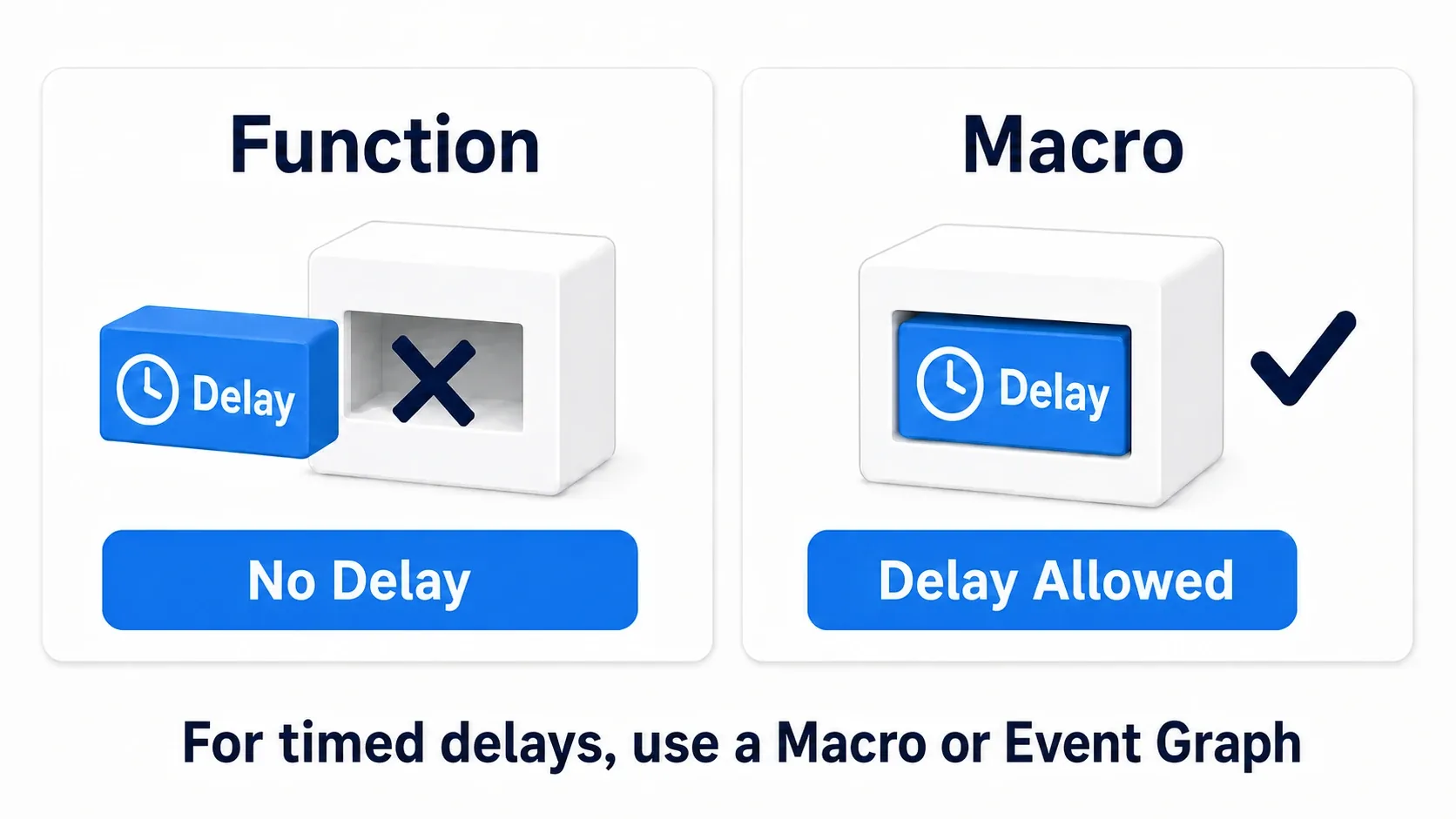
But putting a Macro containing a Delay inside a Function does not enable waiting inside the Function. Consider not only the nodes you put inside but where you use that Macro.
Sorting out how to choose
| Comparison | Function | Macro |
|---|---|---|
| Value inputs and outputs | Can be multiple | Can be multiple |
| White exec pins | Normally 1 in, 1 out. Pure calls have none | You can create multiple entries and exits |
| Logic containing a Delay | Cannot go inside a function | Can go in the Macro we use in the Event Graph here |
| Named Local Variables | Can be created inside a function | No creation panel equivalent to a function's |
| Asking another Actor to run logic | Call the target's function through a reference | Not a tool for calling with a Target the way a function does |
The essence of the comparison is whether what you want back is "a computed value" or what you want to bundle is "an execution flow." Macros can compute values too, but when either would work, choose the form whose intent reads more clearly.

Consider a Function first, and move needed flows to a Macro
When unsure, name "what this logic does" as a Function first. CalculateDamage computes damage; CanUseSkill answers whether it is usable. Keeping the role small makes it easier to handle.
On top of that, look at a Macro when you want to bundle several exec exits or a flow containing a Delay. Merely waiting can be built directly in the Event Graph, so there is no requirement to make it a Macro. Here we build a Macro as practice at bundling the anti-mash logic for reuse.
Hands-On: combining the check with a 3-second cooldown
A cooldown is the wait after using a skill before you can use it again. Here, pressing F fires the skill and consumes 25 mana. For 3 seconds after firing, no number of presses fires it again.
First we display that it fired and the remaining mana with Print String. That confirms the check and the wait work before adding bullets and effects.

1. Prepare values on the character
Prepare a Third Person Blueprint project, choosing None in versions with a Variant option. Open the BP_ThirdPersonCharacter you play as and create the following under Variables. Set the defaults after Compile.
| Variable | Type | Default | Purpose |
|---|---|---|---|
CurrentMana | Float | 50.0 | Current mana |
SkillCost | Float | 25.0 | Mana consumed per use |
bIsStunned | Boolean | false | Whether you cannot act |
Float is the type for decimals. We test with the whole numbers 50 and 25 here, but we align on Float so mana regen amounts and the like can use decimals.
2. Return the usable condition from a Function
Create CanUseSkill from the "+" under Functions and turn Pure on in its Details. Add a Boolean bResult to Outputs. Add no input pins; it reads this character's variables to decide.
The conditions are "mana is sufficient" and "not stunned." Connect them as follows.
- Put A = Get CurrentMana and B = Get SkillCost into a Float
>=. - Put Get bIsStunned into
NOT Boolean. NOT flips true and false, so it becomes true when not stunned. - Put both results into
AND Booleanand connect the result to the Return Node's bResult. AND is true only when both are true. - Connect a white exec line from the function's entry to the Return Node and Compile.

Even when Pure, the function graph you are authoring has an entry and a Return. What loses white exec pins is the appearance of the node that calls this function.
CanUseSkill only answers "is it usable"; it does not reduce mana. Actual consumption happens later, only when it fires.
3. Block mashing for 3 seconds with a Macro
Create Cooldown from the "+" under Macros in the same Blueprint. Add the following inputs and outputs in the Details.
| Side | Name | Type |
|---|---|---|
| Inputs | In | Exec |
| Inputs | Time | Float |
| Outputs | Then | Exec |
Exec is the type for creating white exec pins. Inside the Macro there are Inputs and Outputs nodes representing the entry and exit, where the pins you just configured appear.
Place DoOnce, Sequence, and Delay inside. Leave DoOnce's Start Closed off and connect in this order.
- Inputs' In → DoOnce's normal exec input.
- DoOnce's Completed → Sequence's exec input.
- Sequence's Then 0 → Outputs' Then. This lets this firing through.
- Sequence's Then 1 → Delay's exec input. Connect Inputs' Time to Duration.
- Delay's Completed → the same DoOnce's Reset input.
DoOnce lets the first execution through and blocks the next until execution reaches Reset. Sequence advances through Then 0 and Then 1 in order. Since one exec output cannot branch directly into two, we use Sequence here.
The first input lets the firing through, and immediately begins the wait. When the Delay ends, that same DoOnce returns to a state that can let execution through. The point is running the line back into the original DoOnce, not creating a separate node named Reset.
We split the wiring across two diagrams. Both are parts of the same Macro, so do not add another DoOnce or Sequence for the second one.

The other branch is the wait that re-permits the next firing.

Input arriving during the cooldown is not queued to run later. It stops at DoOnce, and after 3 seconds it simply becomes "able to accept the next input."
4. Connect the F key to the check and the firing
Create an F key event in the Event Graph. What we use is Pressed, which delivers once at the moment of the press. Confirming with a Print String that F input is arriving before moving to the next connections makes isolation easier.
- F's Pressed → Branch's exec input.
- Drag CanUseSkill from My Blueprint to place a call node, and connect its bResult → Branch's Condition.
- Branch's True → Cooldown's In. Set Time to 3.0. The False side does nothing.
- Cooldown's Then → Set CurrentMana. Feed the value with a Float subtraction of
CurrentMana - SkillCost. - Place a Print String after Set CurrentMana and display the updated CurrentMana.

For the display, put SKILL / Mana: in Append's A and CurrentMana converted to String in B, and pass the result to Print String's In String. Connecting a Float line to a String input inserts a conversion node. Set Duration to 10 seconds.
Mana is reduced after passing through Cooldown. Reducing it earlier would consume mana even for presses that did not fire.

The input here is for practice. When integrating into your game's controls, you can replace it with an Enhanced Input Input Action. There too you decide whether to call on the moment of the press or repeatedly while held.
5. Verify mashing, the wait, and insufficient mana separately
Compile, save, Play, and click the game view so it receives input.
| Action | Expected result |
|---|---|
| Press F the first time | The firing message. Mana goes 50 → 25 |
| Release F and press several times before 3 seconds | No new firing message and mana stays 25 |
| Wait over 3 seconds from the first firing and press F again | The second firing. Mana goes 25 → 0 |
| Wait over 3 more seconds and press F again | It does not fire, due to insufficient mana |
Float display may read 25.0 and so on, but the values to confirm are 25 and 0. Holding the key and waiting does not fire automatically, because no new Pressed occurs.
Next, stop Play, set bIsStunned's default to true, and try again. This time it never fires. Restore false afterwards. That lets you confirm "blocked because the condition is unmet" and "blocked because it was just used" separately.
Add bullets and sound once it fires
Once this works, add bullet spawning and sound effects to the logic after Cooldown. The bullet Blueprint, the spawn position and rotation, and the flight speed can be built in Spawn Actor and Projectile Movement.
The same split works for dashes, bombs, and door anti-mashing. Separating "the condition under which it may run" from "the interval that prevents consecutive runs" makes it easy to tune one without the other.
Bonus: Good to Know Up Front
Two Cooldowns means two separate waits
The DoOnce inside this Macro holds state per placed Cooldown node. Connecting input A and input B to separate Cooldowns does not produce one shared cooldown.
If the same skill is used from multiple inputs, gather them into one firing path first and then pass through the same Cooldown. When you want separate waits for different skills, separate nodes are what you want.
No Local Variables in Macros?
There is no named Local Variables panel like a function's, but Macros have a mechanism using anonymous local values. We do not cover it in this exercise; when complex calculation is needed, splitting it into a Function and passing the result into the Macro keeps things clearer.
Collapse Nodes is not the same as making a shared part
Selecting nodes and using "Collapse Nodes" folds a group for readability. You can copy it, but it does not become a shared definition where one fix reaches the copies.
When you use the same logic in several places and want a fix in one spot to apply, gather it into a Function or Macro. Keep visual organization separate from the scope you want to share.
When you want to use it in another Blueprint
General calculations go in a Blueprint Function Library and macros in a Macro Library. But there are conditions on usable nodes and target classes. Finish the Cooldown here inside the character first and decide what to extract once sharing becomes necessary.
To reuse state and several pieces of logic together, a Blueprint Component is another option.
Summary
Functions are for "calling logic and receiving an answer"; Macros are for "bundling an execution flow." Here CanUseSkill returned the condition, Cooldown blocked mashing for 3 seconds, and the logic after it reduced mana.
Next time you bundle similar logic, think about whether it is a part that answers something or a part that lets a flow through. Organizing whole graphs is covered in 10 techniques for organizing Blueprints, and other ways to call logic on a timer in designing with Timers and events instead of Tick.
Further Reading